
Electron MCP Server
by laststance
README.md
# Electron MCP Server
[](https://github.com/laststance/electron-mcp-server/blob/master/LICENSE)
[](https://www.npmjs.com/package/@laststance/electron-mcp-server)
[](https://modelcontextprotocol.io)
A powerful Model Context Protocol (MCP) server that provides comprehensive Electron application automation, debugging, and observability capabilities. Supercharge your Electron development workflow with AI-powered automation through Chrome DevTools Protocol integration.
> **⚠️ Breaking change in v2.0** — the single `send_command_to_electron` tool has been split into ~40 individual `electron_*` tools (e.g. `electron_click_by_selector`, `electron_fill_input`). This dramatically improves LLM tool selection accuracy. **Read [MIGRATION.md](./MIGRATION.md) for the full v1 → v2 mapping.** v1.x stays available via `npm install @laststance/electron-mcp-server@^1.7`.
## Demo
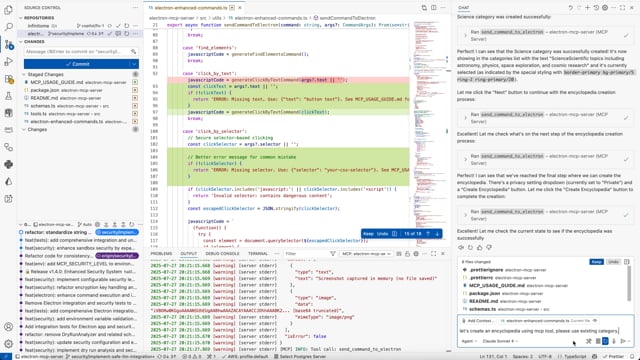
See the Electron MCP Server in action:
[](https://vimeo.com/1104937830)
**[🎬 Watch Full Demo on Vimeo](https://vimeo.com/1104937830)**
*Watch how easy it is to automate Electron applications with AI-powered MCP commands.*
## 🎯 What Makes This Special
Transform your Electron development experience with **AI-powered automation**:
- **🔄 Real-time UI Automation**: Click buttons, fill forms, and interact with any Electron app programmatically
- **📸 Visual Debugging**: Take screenshots and capture application state without interrupting development
- **🔍 Deep Inspection**: Extract DOM elements, application data, and performance metrics in real-time
- **⚡ DevTools Protocol Integration**: Universal compatibility with any Electron app - no modifications required
- **🚀 Development Observability**: Monitor logs, system info, and application behavior seamlessly
## 🔒 Security & Configuration
**Configurable security levels** to balance safety with functionality:
### Security Levels
- **🔒 STRICT**: Maximum security for production environments
- **⚖️ BALANCED**: Default security with safe UI interactions (recommended)
- **🔓 PERMISSIVE**: More functionality for trusted environments
- **🛠️ DEVELOPMENT**: Minimal restrictions for development/testing
### Environment Configuration
Configure the security level and other settings through your MCP client configuration:
**VS Code MCP Settings:**
```json
{
"mcp": {
"servers": {
"electron": {
"command": "npx",
"args": ["-y", "@laststance/electron-mcp-server@latest"],
"env": {
"SECURITY_LEVEL": "balanced",
"SCREENSHOT_ENCRYPTION_KEY":"your-32-byte-hex-string"
}
}
}
}
}
```
**Claude Desktop Configuration:**
```json
{
"mcpServers": {
"electron": {
"command": "npx",
"args": ["-y", "@laststance/electron-mcp-server@latest"],
"env": {
"SECURITY_LEVEL": "balanced",
"SCREENSHOT_ENCRYPTION_KEY":"your-32-byte-hex-string"
}
}
}
}
```
**Alternative: Local .env file (for development):**
```bash
# Create .env file in your project directory
SECURITY_LEVEL=balanced
SCREENSHOT_ENCRYPTION_KEY=your-32-byte-hex-string
```
**Security Level Behaviors:**
| Level | UI Interactions | DOM Queries | Property Access | Assignments | Function Calls | Risk Threshold |
|-------|-----------------|-------------|-----------------|-------------|----------------|----------------|
| `strict` | ❌ Blocked | ❌ Blocked | ✅ Allowed | ❌ Blocked | ❌ None allowed | Low |
| `balanced` | ✅ Allowed | ✅ Allowed | ✅ Allowed | ❌ Blocked | ✅ Safe UI functions | Medium |
| `permissive` | ✅ Allowed | ✅ Allowed | ✅ Allowed | ✅ Allowed | ✅ Extended UI functions | High |
| `development` | ✅ Allowed | ✅ Allowed | ✅ Allowed | ✅ Allowed | ✅ All functions | Critical |
**Environment Setup:**
1. Copy `.env.example` to `.env`
2. Set `SECURITY_LEVEL` to your desired level
3. Configure other security settings as needed
```bash
cp .env.example .env
# Edit .env and set SECURITY_LEVEL=balanced
```
### Secure UI Interaction Commands
Instead of raw JavaScript eval, use these secure commands:
```javascript
// ✅ Secure button clicking
{
"command": "click_by_text",
"args": { "text": "Create New Encyclopedia" }
}
// ✅ Secure element selection
{
"command": "click_by_selector",
"args": { "selector": "button[title='Create']" }
}
// ✅ Secure keyboard shortcuts
{
"command": "send_keyboard_shortcut",
"args": { "text": "Ctrl+N" }
}
// ✅ Secure navigation
{
"command": "navigate_to_hash",
"args": { "text": "create" }
}
```
See [SECURITY_CONFIG.md](./SECURITY_CONFIG.md) for detailed security documentation.
## 🎯 Proper MCP Usage Guide
### ⚠️ Critical: Argument Structure
> **Heads up — v1 docs from here onward.** The sections below (argument
> structure, `send_command_to_electron` tool reference, and the long form of
> the v1 examples) describe the **v1 API**. v2.0 splits that single tool into
> ~40 individual `electron_*` tools. If you are on v2, jump straight to
> [MIGRATION.md](./MIGRATION.md) — the v2 tools take their arguments
> top-level, so the structure pitfall described here no longer applies.
**The most common mistake** when using this MCP server is incorrect argument structure for the `send_command_to_electron` tool.
#### ❌ Wrong (causes "selector is empty" errors):
```javascript
{
"command": "click_by_selector",
"args": "button.submit-btn" // ❌ Raw string - WRONG!
}
```
#### ✅ Correct:
```javascript
{
"command": "click_by_selector",
"args": {
"selector": "button.submit-btn" // ✅ Object with selector property
}
}
```
### 📋 Command Argument Reference
| Command | Required Args | Example |
| --------------------------------------- | ----------------------------------------------------------------------------------- | ------------------------------------------------ |
| `click_by_selector` | `{"selector": "css-selector"}` | `{"selector": "button.primary"}` |
| `click_by_text` | `{"text": "button text"}` | `{"text": "Submit"}` |
| `fill_input` | `{"value": "text", "selector": "..."}` or `{"value": "text", "placeholder": "..."}` | `{"placeholder": "Enter name", "value": "John"}` |
| `send_keyboard_shortcut` | `{"text": "key combination"}` | `{"text": "Ctrl+N"}` |
| `eval` | `{"code": "javascript"}` | `{"code": "document.title"}` |
| `get_title`, `get_url`, `get_body_text` | No args needed | `{}` or omit args |
### 🔄 Recommended Workflow
1. **Inspect**: Start with `get_page_structure` or `debug_elements`
2. **Target**: Use specific selectors or text-based targeting
3. **Interact**: Use the appropriate command with correct argument structure
4. **Verify**: Take screenshots or check page state
```javascript
// Step 1: Understand the page
{
"command": "get_page_structure"
}
// Step 2: Click button using text (most reliable)
{
"command": "click_by_text",
"args": {
"text": "Create New Encyclopedia"
}
}
// Step 3: Fill form field
{
"command": "fill_input",
"args": {
"placeholder": "Enter encyclopedia name",
"value": "AI and Machine Learning"
}
}
// Step 4: Submit with selector
{
"command": "click_by_selector",
"args": {
"selector": "button[type='submit']"
}
}
```
### 🐛 Troubleshooting Common Issues
| Error | Cause | Solution |
| -------------------------------- | -------------------------------- | ------------------------------ |
| "The provided selector is empty" | Passing string instead of object | Use `{"selector": "..."}` |
| "Element not found" | Wrong selector | Use `get_page_structure` first |
| "Command blocked" | Security restriction | Check security level settings |
| "Click prevented - too soon after previous click" | Same target clicked within `~1s` (`click_by_selector`) / `~2s` (`click_by_text`) — intentional React anti-double-submit debounce | Serialize calls (`await` each) or pass a different selector / text |
| `Cmd+A` / `Cmd+C` / `Cmd+V` does nothing in `electron_press_key` | macOS OS-level text-editing shortcuts are bypassed by CDP `Input.dispatchKeyEvent` (synthetic events only — same constraint as Playwright) | Use `electron_eval` with `el.select()` / `el.setSelectionRange(...)` / `navigator.clipboard.*`; for app-level hotkeys use `electron_send_keyboard_shortcut` |
## 🛠️ Security Features
**Enterprise-grade security** built for safe AI-powered automation:
- **🔒 Sandboxed Execution**: All code runs in isolated environments with strict resource limits
- **🔍 Input Validation**: Advanced static analysis detects and blocks dangerous code patterns
- **📝 Comprehensive Auditing**: Encrypted logs track all operations with full traceability
- **🖼️ Secure Screenshots**: Encrypted screenshot data with clear user notifications
- **⚠️ Risk Assessment**: Automatic threat detection with configurable security thresholds
- **🚫 Zero Trust**: Dangerous functions like `eval`, file system access, and network requests are blocked by default
> **Safety First**: Every command is analyzed, validated, and executed in a secure sandbox before reaching your application.
## �🚀 Key Features
### 🎮 Application Control & Automation
- **Launch & Manage**: Start, stop, and monitor Electron applications with full lifecycle control
- **Interactive Automation**: Execute JavaScript code directly in running applications via WebSocket
- **UI Testing**: Automate button clicks, form interactions, and user workflows
- **Process Management**: Track PIDs, monitor resource usage, and handle graceful shutdowns
### 📊 Advanced Observability
- **Screenshot Capture**: Non-intrusive visual snapshots using Playwright and Chrome DevTools Protocol
- **Real-time Logs**: Stream application logs (main process, renderer, console) with filtering
- **Window Information**: Get detailed window metadata, titles, URLs, and target information
- **System Monitoring**: Track memory usage, uptime, and performance metrics
### 🛠️ Development Productivity
- **Universal Compatibility**: Works with any Electron app without requiring code modifications
- **DevTools Integration**: Leverage Chrome DevTools Protocol for powerful debugging capabilities
- **Build Automation**: Cross-platform building for Windows, macOS, and Linux
- **Environment Management**: Clean environment handling and debugging port configuration
## 📦 Installation
### VS Code Integration (Recommended)
[](https://insiders.vscode.dev/redirect/mcp/install?name=electron&config=%7B%22command%22%3A%22npx%22%2C%22args%22%3A%5B%22-y%22%2C%22electron-mcp-server%22%5D%7D)
Add to your VS Code MCP settings:
```json
{
"mcp": {
"servers": {
"electron": {
"command": "npx",
"args": ["-y", "@laststance/electron-mcp-server@latest"],
"env": {
"SECURITY_LEVEL": "balanced",
"SCREENSHOT_ENCRYPTION_KEY": "your-32-byte-hex-string-here"
}
}
}
}
}
```
### Claude Code (CLI)
The fastest way to add this server to Claude Code is the `claude mcp add` command. Options come **before** the server name; the `--` separator marks where the spawn command begins.
**Project-scoped (lives in `.mcp.json`, share via git):**
```bash
claude mcp add electron-mcp \
--env SECURITY_LEVEL=balanced \
-- npx -y @laststance/electron-mcp-server@latest
```
**User-scoped (available across every project on this machine):**
```bash
claude mcp add --scope user electron-mcp \
--env SECURITY_LEVEL=balanced \
-- npx -y @laststance/electron-mcp-server@latest
```
**Verify:**
```bash
claude mcp list
```
> 💡 On Windows, prefix the spawn command with `cmd /c` (e.g. `-- cmd /c npx -y @laststance/electron-mcp-server@latest`) so the npx shim resolves correctly.
### Cursor IDE Integration
Cursor IDE supports MCP servers through its configuration file. Add to your Cursor MCP settings:
**Location**:
- macOS/Linux: `~/.cursor/mcp_config.json` or `~/.config/cursor/mcp_config.json`
- Windows: `%APPDATA%\Cursor\mcp_config.json`
**Configuration**:
```json
{
"mcpServers": {
"electron": {
"command": "npx",
"args": ["-y", "@laststance/electron-mcp-server@latest"],
"env": {
"SECURITY_LEVEL": "balanced",
"SCREENSHOT_ENCRYPTION_KEY": "your-32-byte-hex-string-here"
}
}
}
}
```
**Setup Steps**:
1. Open Cursor IDE
2. Go to **Settings** → **Features** → **Model Context Protocol**
3. Enable MCP support
4. Add the configuration above to your MCP config file
5. Restart Cursor IDE
**Verify Installation**:
```bash
# Check if MCP server is accessible
curl http://localhost:9222/json
```
### Claude Desktop Integration
Add to `~/Library/Application Support/Claude/claude_desktop_config.json`:
```json
{
"mcpServers": {
"electron": {
"command": "npx",
"args": ["-y", "@laststance/electron-mcp-server@latest"],
"env": {
"SECURITY_LEVEL": "balanced",
"SCREENSHOT_ENCRYPTION_KEY": "your-32-byte-hex-string-here"
}
}
}
}
```
### OpenAI Codex CLI
The Codex CLI registers MCP servers through `~/.codex/config.toml` (CLI and IDE extension share the same file).
**One-liner (preferred):**
```bash
codex mcp add electron-mcp -- npx -y @laststance/electron-mcp-server@latest
```
**Or edit `~/.codex/config.toml` directly:**
```toml
[mcp_servers.electron-mcp]
command = "npx"
args = ["-y", "@laststance/electron-mcp-server@latest"]
[mcp_servers.electron-mcp.env]
SECURITY_LEVEL = "balanced"
```
Codex launches the server automatically on session start and exposes its `electron_*` tools next to the built-ins.
### Global Installation
```bash
npm install -g @laststance/electron-mcp-server
```
## 🔧 Available Tools
### `launch_electron_app`
Launch an Electron application with debugging capabilities.
```javascript
{
"appPath": "/path/to/electron-app",
"devMode": true, // Enables Chrome DevTools Protocol on port 9222
"args": ["--enable-logging", "--dev"]
}
```
**Returns**: Process ID and launch confirmation
### `get_electron_window_info`
Get comprehensive window and target information via Chrome DevTools Protocol.
```javascript
{
"includeChildren": true // Include child windows and DevTools instances
}
```
**Returns**:
- Window IDs, titles, URLs, and types
- DevTools Protocol target information
- Platform details and process information
### `take_screenshot`
Capture high-quality screenshots using Playwright and Chrome DevTools Protocol.
```javascript
{
"outputPath": "/path/to/screenshot.png", // Optional: defaults to temp directory
"windowTitle": "My App" // Optional: target specific window
}
```
**Features**:
- Non-intrusive capture (doesn't bring window to front)
- Works with any Electron app
- Fallback to platform-specific tools if needed
### `send_command_to_electron`
> **v1 only.** Removed in v2. See [MIGRATION.md](./MIGRATION.md) for the
> per-command replacement (`electron_click_by_selector`, `electron_fill_input`,
> `electron_eval`, etc.).
Execute JavaScript commands in the running Electron application via WebSocket.
```javascript
{
"command": "eval", // Built-in commands: eval, get_title, get_url, click_button, console_log
"args": {
"code": "document.querySelector('button').click(); 'Button clicked!'"
}
}
```
**Enhanced UI Interaction Commands**:
- `find_elements`: Analyze all interactive UI elements with their properties and positions
- `click_by_text`: Click elements by their visible text, aria-label, or title (more reliable than selectors)
- `fill_input`: Fill input fields by selector, placeholder text, or associated label text
- `select_option`: Select dropdown options by value or visible text
- `get_page_structure`: Get organized overview of all page elements (buttons, inputs, selects, links)
- `get_title`: Get document title
- `get_url`: Get current URL
- `get_body_text`: Extract visible text content
- `click_button`: Click buttons by CSS selector (basic method)
- `console_log`: Send console messages
- `eval`: Execute custom JavaScript code
**Recommended workflow**: Use `get_page_structure` first to understand available elements, then use specific interaction commands like `click_by_text` or `fill_input`.
### `read_electron_logs`
Stream application logs from main process, renderer, and console.
```javascript
{
"logType": "all", // Options: "all", "main", "renderer", "console"
"lines": 50, // Number of recent lines
"follow": false // Stream live logs
}
```
### `close_electron_app`
Gracefully close the Electron application.
```javascript
{
"force": false // Force kill if unresponsive
}
```
### `build_electron_app`
Build Electron applications for distribution.
```javascript
{
"projectPath": "/path/to/project",
"platform": "darwin", // win32, darwin, linux
"arch": "x64", // x64, arm64, ia32
"debug": false
}
```
## 🎮 Demo Application
Try the interactive demo app to test all MCP Server features:
```bash
cd examples/demo-app
npm install
npm run dev
```
The demo app includes:
- **Interactive UI Elements**: Buttons, forms, dropdowns, checkboxes
- **Real-time Event Logging**: Monitor all interactions
- **MCP Command Examples**: Built-in usage guide
- **DevTools Integration**: Automatically enabled on port 9222
See [examples/demo-app/README.md](examples/demo-app/README.md) for detailed instructions.
## 💡 Usage Examples
### Smart UI Interaction Workflow
```javascript
// 1. First, understand the page structure
await send_command_to_electron({
command: 'get_page_structure',
});
// 2. Click a button by its text (much more reliable than selectors)
await send_command_to_electron({
command: 'click_by_text',
args: {
text: 'Login', // Finds buttons containing "Login" in text, aria-label, or title
},
});
// 3. Fill inputs by their label or placeholder text
await send_command_to_electron({
command: 'fill_input',
args: {
text: 'username', // Finds input with label "Username" or placeholder "Enter username"
value: 'john.doe@example.com',
},
});
await send_command_to_electron({
command: 'fill_input',
args: {
text: 'password',
value: 'secretpassword',
},
});
// 4. Select dropdown options by visible text
await send_command_to_electron({
command: 'select_option',
args: {
text: 'country', // Finds select with label containing "country"
value: 'United States', // Selects option with this text
},
});
// 5. Take a screenshot to verify the result
await take_screenshot();
```
### Advanced Element Detection
```javascript
// Find all interactive elements with detailed information
await send_command_to_electron({
command: 'find_elements',
});
// This returns detailed info about every clickable element and input:
// {
// "type": "clickable",
// "text": "Submit Form",
// "id": "submit-btn",
// "className": "btn btn-primary",
// "ariaLabel": "Submit the registration form",
// "position": { "x": 100, "y": 200, "width": 120, "height": 40 },
// "visible": true
// }
```
### Automated UI Testing
```javascript
// Launch app in development mode
await launch_electron_app({
appPath: '/path/to/app',
devMode: true,
});
// Take a screenshot
await take_screenshot();
// Click a button programmatically
await send_command_to_electron({
command: 'eval',
args: {
code: "document.querySelector('#submit-btn').click()",
},
});
// Verify the result
await send_command_to_electron({
command: 'get_title',
});
```
### Development Debugging
```javascript
// Get window information
const windowInfo = await get_electron_window_info();
// Extract application data
await send_command_to_electron({
command: 'eval',
args: {
code: 'JSON.stringify(window.appState, null, 2)',
},
});
// Monitor logs
await read_electron_logs({
logType: 'all',
lines: 100,
});
```
### Performance Monitoring
```javascript
// Get system information
await send_command_to_electron({
command: 'eval',
args: {
code: '({memory: performance.memory, timing: performance.timing})',
},
});
// Take periodic screenshots for visual regression testing
await take_screenshot({
outputPath: '/tests/screenshots/current.png',
});
```
## 🏗️ Architecture
### Chrome DevTools Protocol Integration
- **Universal Compatibility**: Works with any Electron app that has remote debugging enabled
- **Real-time Communication**: WebSocket-based command execution with the renderer process
- **No App Modifications**: Zero changes required to target applications
### Process Management
- **Clean Environment**: Handles `ELECTRON_RUN_AS_NODE` and other environment variables
- **Resource Tracking**: Monitors PIDs, memory usage, and application lifecycle
- **Graceful Shutdown**: Proper cleanup and process termination
### Cross-Platform Support
- **macOS**: Uses Playwright CDP with screencapture fallback
- **Windows**: PowerShell-based window detection and capture
- **Linux**: X11 window management (planned)
## 🧪 Development
### Prerequisites
- Node.js 18+
- TypeScript 4.5+
- **Electron** - Required for running and testing Electron applications
```bash
# Install Electron globally (recommended)
npm install -g electron
# Or install locally in your project
npm install electron --save-dev
```
### Target Application Setup
For the MCP server to work with your Electron application, you need to enable remote debugging. Add this code to your Electron app's main process:
```javascript
const { app } = require('electron');
const isDev = process.env.NODE_ENV === 'development' || process.argv.includes('--dev');
// Enable remote debugging in development mode
if (isDev) {
app.commandLine.appendSwitch('remote-debugging-port', '9222');
}
```
**Alternative approaches:**
```bash
# Launch your app with debugging enabled
electron . --remote-debugging-port=9222
# Or via npm script
npm run dev -- --remote-debugging-port=9222
```
**Note:** The MCP server automatically scans ports 9222-9225 to detect running Electron applications with remote debugging enabled.
### Setup
```bash
git clone https://github.com/laststance/electron-mcp-server.git
cd electron-mcp-server
npm install
npm run build
# Run tests
npm test
# Development mode with auto-rebuild
npm run dev
```
### Testing
The project includes comprehensive test files for React compatibility:
```bash
# Run React compatibility tests
cd tests/integration/react-compatibility
electron test-react-electron.js
```
See [`tests/integration/react-compatibility/README.md`](tests/integration/react-compatibility/README.md) for detailed testing instructions and scenarios.
### React Compatibility
This MCP server has been thoroughly tested with React applications and handles common React patterns correctly:
- **✅ React Event Handling**: Properly handles `preventDefault()` in click handlers
- **✅ Form Input Detection**: Advanced scoring algorithm works with React-rendered inputs
- **✅ Component Interaction**: Compatible with React components, hooks, and state management
### Project Structure
```
src/
├── handlers.ts # MCP tool handlers
├── index.ts # Server entry point
├── tools.ts # Tool definitions
├── screenshot.ts # Screenshot functionality
├── utils/
│ ├── process.ts # Process management & DevTools Protocol
│ ├── logs.ts # Log management
│ └── project.ts # Project scaffolding
└── schemas/ # JSON schemas for validation
```
## 🔐 Security & Best Practices
- **Sandboxed Execution**: All JavaScript execution is contained within the target Electron app
- **Path Validation**: Only operates on explicitly provided application paths
- **Process Isolation**: Each launched app runs in its own process space
- **No Persistent Access**: No permanent modifications to target applications
## 🤝 Contributing
We welcome contributions! Please see our [Contributing Guide](CONTRIBUTING.md) for details.
**Before reporting issues**: Please use the standardized [`ISSUE_TEMPLATE.md`](ISSUE_TEMPLATE.md) for proper bug reporting format. For React compatibility problems or similar technical issues, also review [`REACT_COMPATIBILITY_ISSUES.md`](REACT_COMPATIBILITY_ISSUES.md) for detailed debugging examples, including proper command examples, error outputs, and reproduction steps.
1. Fork the repository
2. Create a feature branch (`git checkout -b feature/awesome-feature`)
3. Commit your changes (`git commit -m 'Add awesome feature'`)
4. Push to the branch (`git push origin feature/awesome-feature`)
5. Open a Pull Request
## 📄 License
MIT License - see [LICENSE](LICENSE) file for details.
## 🙌 Credits & Attribution
**Original Author**: [Halil Ural](https://github.com/halilural)
This project is a fork of [halilural/electron-mcp-server](https://github.com/halilural/electron-mcp-server) with enhancements for **Cursor IDE compatibility** and improved stability.
### Forked & Maintained By
- [@laststance](https://github.com/laststance) - Cursor IDE integration improvements, bug fixes, and ongoing maintenance
### Key Improvements in This Fork
- ✅ **Cursor IDE Compatibility**: Full integration with Cursor IDE for seamless AI-powered Electron automation
- ✅ **Enhanced Stability**: Improved error handling and reliability
- ✅ **Better Documentation**: Added comprehensive guides for local development and troubleshooting
- ✅ **Scoped Package**: Published as `@laststance/electron-mcp-server` on npm
### Contributing to This Fork
We welcome contributions! If you have improvements or bug fixes, please feel free to:
1. Fork this repository
2. Create a feature branch
3. Submit a pull request with your improvements
---
## ☕ Support
If this project helped you, consider buying me a coffee! ☕
[](https://ko-fi.com/halilural)
Your support helps me maintain and improve this project. Thank you! 🙏
## 🙏 Acknowledgments
- **[Model Context Protocol](https://modelcontextprotocol.io)** - Standardized AI-application interface
- **[Chrome DevTools Protocol](https://chromedevtools.github.io/devtools-protocol/)** - Universal debugging interface
- **[Playwright](https://playwright.dev)** - Reliable browser automation
- **[Electron](https://electronjs.org)** - Cross-platform desktop applications
## 🔗 Links
- **[GitHub Repository](https://github.com/laststance/electron-mcp-server)**
- **[NPM Package](https://www.npmjs.com/package/@laststance/electron-mcp-server)**
- **[Original Repository](https://github.com/halilural/electron-mcp-server)** - Original project by Halil Ural
- **[Model Context Protocol](https://modelcontextprotocol.io)**
- **[Chrome DevTools Protocol Docs](https://chromedevtools.github.io/devtools-protocol/)**
- **[Cursor IDE Setup Guide](./CURSOR_SETUP.md)** - Complete setup guide for Cursor IDE integration
- **[Issue Template](./ISSUE_TEMPLATE.md)** - Standardized bug reporting format
- **[React Compatibility Issues Documentation](./REACT_COMPATIBILITY_ISSUES.md)** - Technical debugging guide for React applications
---
**Ready to supercharge your Electron development with AI-powered automation?** Install the MCP server and start building smarter workflows today! 🚀
This server cannot be deployed
Maintenance
ActivityInactive
ResponsivenessUnresponsive