
Apify Google Local Services API MCP Server
by johnisanerd
README.md
# 🏠 Google Local Services API: pull vetted Local Services Ads businesses as clean JSON
> The most efficient, reliable, and developer-friendly way to use the Google Local Services API.
**Actor page:** [apify.com/johnvc/google-local-services-api](https://apify.com/johnvc/google-local-services-api?fpr=9n7kx3)
**Input schema:** [apify.com/johnvc/google-local-services-api/input-schema](https://apify.com/johnvc/google-local-services-api/input-schema?fpr=9n7kx3)
This API returns Google Local Services Ads: the vetted home-service businesses that carry the Google Guaranteed or Google Screened badge and appear above the map pack. For any service in any US city, you get structured rows with the business name, badge, rating, review count, phone number, service area, years in business, and stable IDs. It is built for home-services lead generation, local SEO and LSA monitoring, and competitor tracking.
## Video Walkthrough
[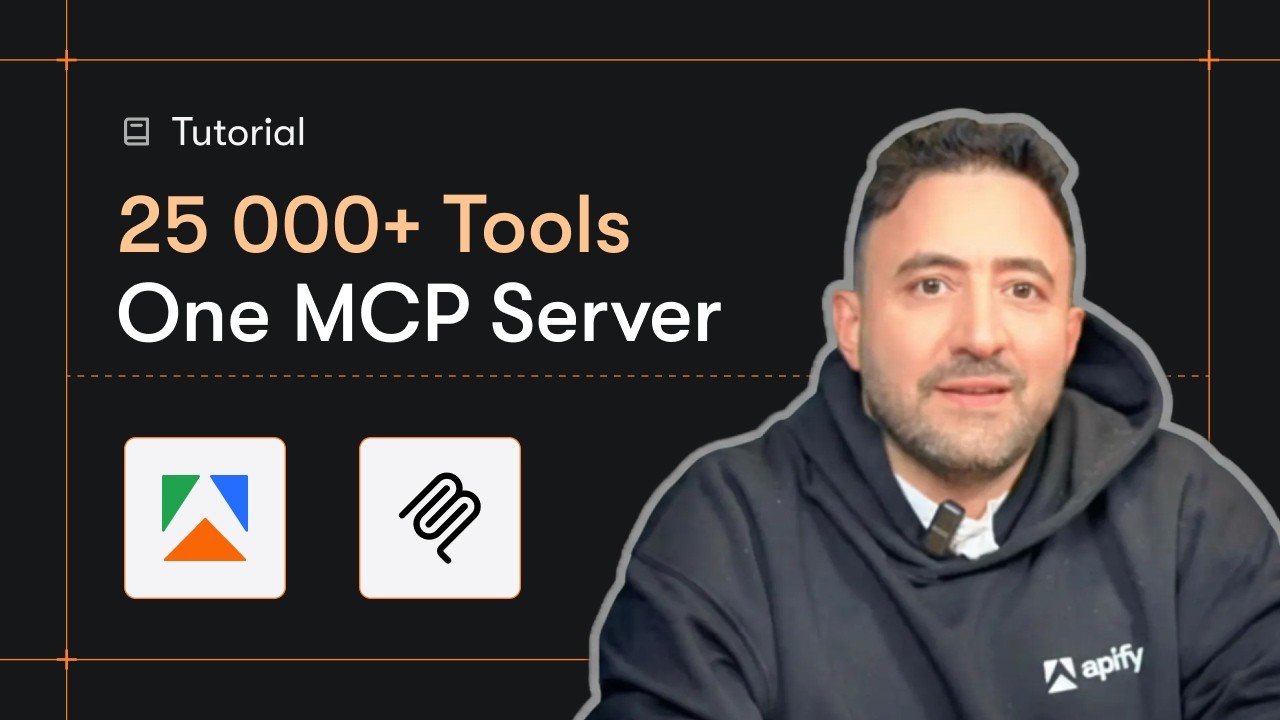](https://www.youtube.com/watch?v=jREWahDGhJM)
## Quick Start
### Prerequisites
- Python 3.11 or higher
- An Apify account and API key ([get a free key here](https://apify.com?fpr=9n7kx3))
1. **Clone the repository**
```bash
git clone https://github.com/johnisanerd/Apify-GoogleLocalServices-API.git
cd Apify-GoogleLocalServices-API
```
2. **Install dependencies with UV**
```bash
# Install UV if you do not have it:
curl -LsSf https://astral.sh/uv/install.sh | sh
# Install project dependencies:
uv sync
```
3. **Configure your API key**
```bash
cp .env.example .env
# Edit .env and add your Apify API key
# Get your free API key at: https://apify.com?fpr=9n7kx3
```
4. **Run the example**
```bash
uv run python google-local-services-api-example.py
```
### Alternative: set the API key directly
```bash
export APIFY_API_TOKEN="your_api_key_here"
uv run python google-local-services-api-example.py
```
## Why Use This Google Local Services API?
Home-services lead generation without the ad spend: read the same vetted-provider list Google shows searchers, then work it however you like.
Local SEO and LSA monitoring: track which businesses hold the top Local Services slots for your clients' keywords, week over week.
Competitor tracking: watch a rival's rating, review velocity, and badge status across the cities they serve.
Agency prospecting: find home-service businesses that do not yet hold a badge by diffing against your directory.
## Features
### Core Capabilities
- Every Google Guaranteed and Google Screened business for a service and US city
- Business name, business type, service area, and years in business
- Star rating and total review count for reputation scoring
- Phone number in international format for direct outreach
- Stable business IDs (cid, bid, pid) plus the place dataCid for repeat runs
### Data Quality
- Reads the Local Services Ads listing itself, not the organic map pack
- googleGuaranteed and googleScreened returned as clean booleans, plus the raw badge text
- A one-line human-readable summary on every row, built for AI agents
- US-only coverage across about 110 supported service types
## Usage Examples
### Basic Example
```json
{
"queries": ["hvac"],
"location": "Phoenix, AZ",
"maxResultsPerQuery": 5
}
```
### Advanced Example
```json
{
"queries": ["plumber", "electrician"],
"location": "Austin, TX",
"language": "en",
"maxResultsPerQuery": 20
}
```
## Input Parameters
| Parameter | Type | Required | Default | Description |
|-----------|------|----------|---------|-------------|
| `queries` | `list[str]` | YES* | - | The service(s) to search, for example "plumber" or "hvac". About 110 service types are supported; plurals are normalized. |
| `query` | `str` | YES* | - | A single service, as an alternative to `queries`. At least one of `query` or `queries` is required. |
| `location` | `str` | YES** | - | A US city or district, for example "Austin, TX". Resolved internally to a Google place. Required unless you pass `dataCid`. |
| `dataCid` | `str` | no | - | Advanced: the decimal Google place CID. Pass it to skip location resolution (and its fee). |
| `jobType` | `str` | no | - | Optional service subcategory, for example `restore_power` for electricians. |
| `language` | `str` | no | `en` | Two-letter language code. |
| `maxResultsPerQuery` | `int` | no | - | Optional cap per query. A listing typically returns up to about 20 businesses. |
*At least one of `query` or `queries` is required. **`location` is required unless you pass `dataCid`. Google serves Local Services Ads for US locations only.
## Output Format
```json
{
"result_type": "local_services_ad",
"query": "hvac",
"location": "Phoenix, AZ",
"dataCid": "6745062158417646970",
"businessName": "Day & Night Air Conditioning, Heating & Plumbing",
"badge": "GOOGLE GUARANTEED",
"googleGuaranteed": true,
"googleScreened": false,
"rating": 4.9,
"reviews": 9642,
"phone": "+16025551234",
"businessType": "HVAC Pro",
"serviceArea": "Phoenix",
"yearsInBusiness": 15,
"hours": { "monday": "Open 24 hours" },
"profileLink": "https://www.google.com/localservices/profile?...",
"cid": "236554922",
"bid": "2506154605",
"pid": "2507194595",
"summary": "Day & Night Air Conditioning, Heating & Plumbing - HVAC Pro - serving Phoenix - 4.9 stars (9642 reviews)",
"fetched_at": "2026-07-10T21:39:00+00:00"
}
```
---
## Install in Claude Cowork Desktop
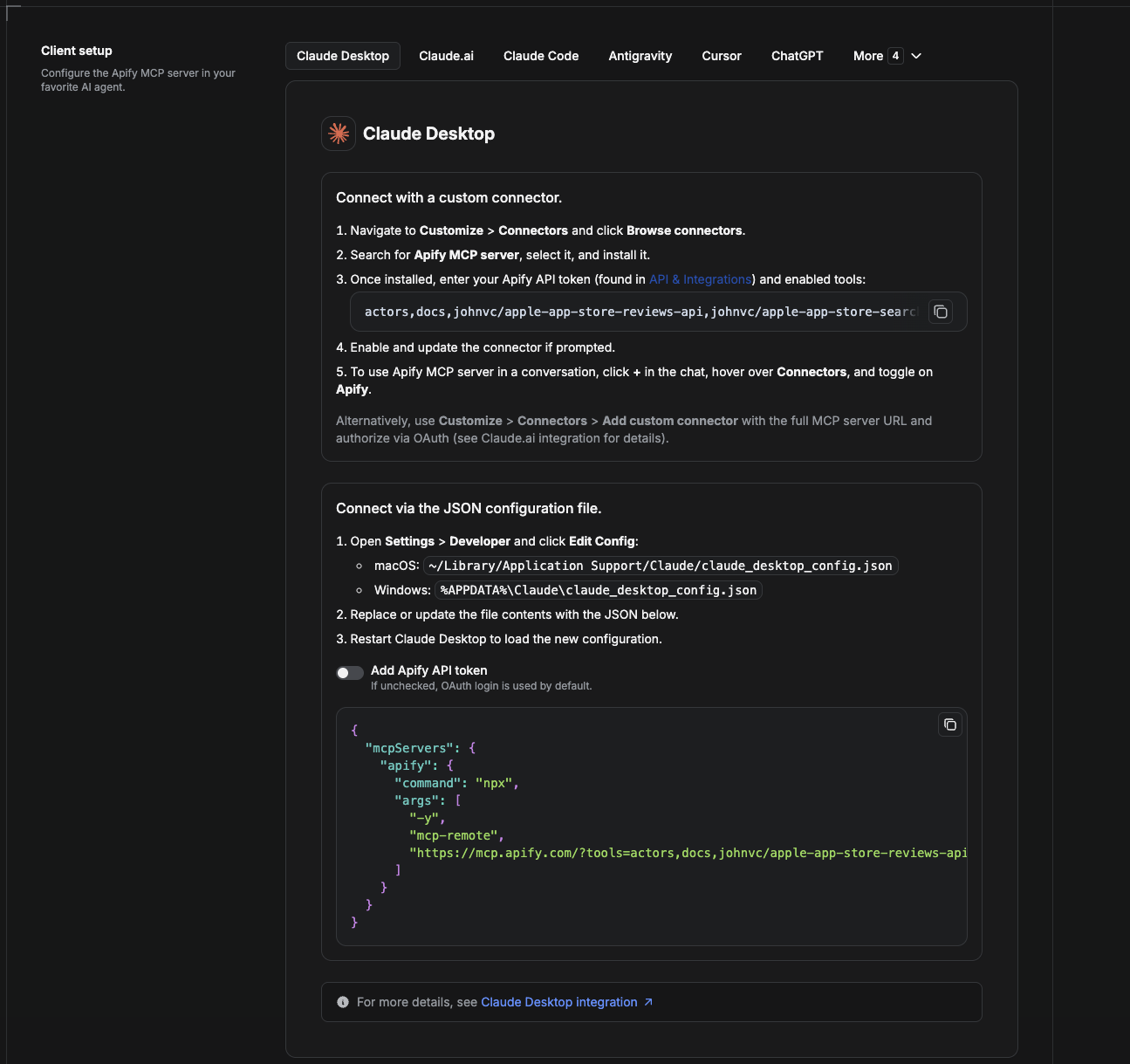
Cowork is the desktop app's automation mode. To give it the Google Local Services API as a tool, add the Apify MCP server as a connector.
1. Open the Claude desktop app and go to **Settings > Connectors** (or **Settings > Developer > Edit Config** to edit `claude_desktop_config.json` directly).
- macOS: `~/Library/Application Support/Claude/claude_desktop_config.json`
- Windows: `%APPDATA%\Claude\claude_desktop_config.json`
2. Add the Apify MCP server, preloaded with only this Actor:
```json
{
"mcpServers": {
"apify": {
"command": "npx",
"args": [
"-y",
"mcp-remote",
"https://mcp.apify.com/?tools=actors,docs,johnvc/google-local-services-api"
]
}
}
}
```
3. Restart the app. When Cowork first calls the tool, complete the OAuth prompt in your browser, or add your Apify API token in the connector settings to skip OAuth.
4. In a Cowork chat, confirm the tool is available and ask it to run the Google Local Services API.
Download the desktop app and start a free trial: https://claude.ai/referral/uIlpa7nPLg
More help: https://docs.apify.com/platform/integrations/claude-desktop
---
## Install in Claude Code
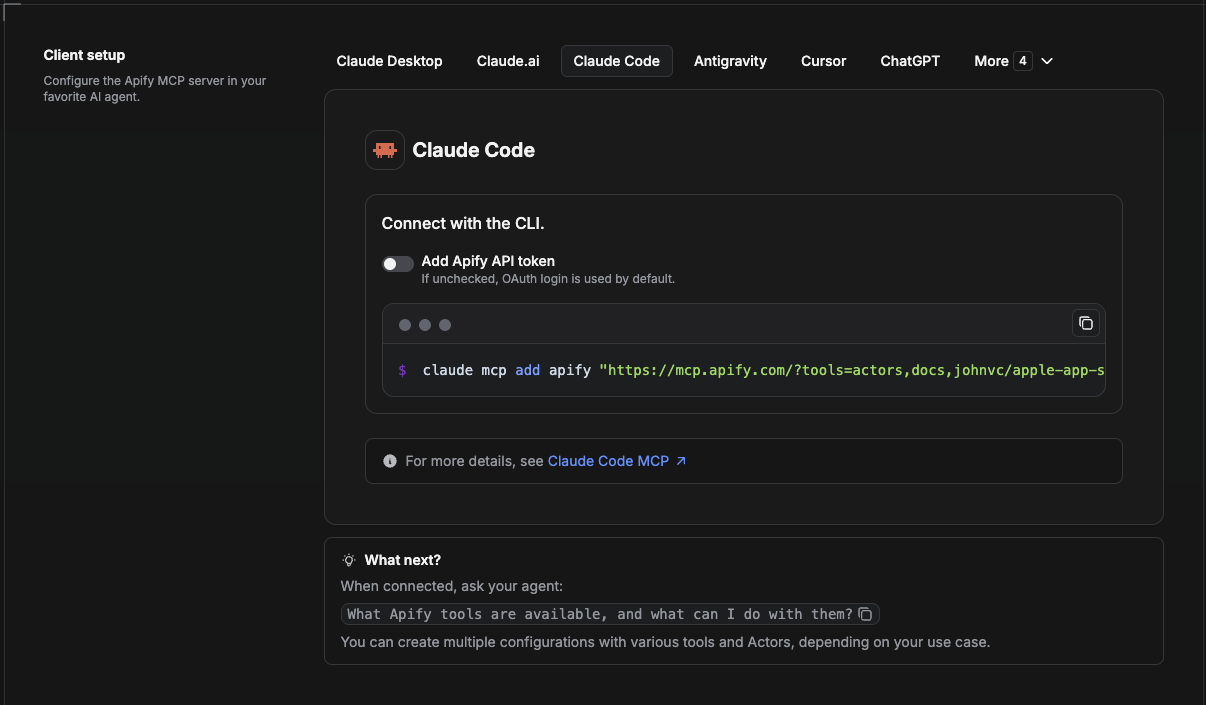
Claude Code is the command-line tool. Add the Actor's MCP server with one command:
```bash
claude mcp add --transport http apify \
"https://mcp.apify.com/?tools=actors,docs,johnvc/google-local-services-api"
```
To use a token instead of browser OAuth:
```bash
claude mcp add --transport http apify \
"https://mcp.apify.com/?tools=actors,docs,johnvc/google-local-services-api" \
--header "Authorization: Bearer YOUR_APIFY_TOKEN"
```
Then verify with `claude mcp list`, or run `/mcp` inside a session. Ask Claude Code to call the Google Local Services API.
Try Claude Code free: https://claude.ai/referral/uIlpa7nPLg
Claude Code MCP docs: https://code.claude.com/docs/en/mcp
---
## Install in Claude (website)
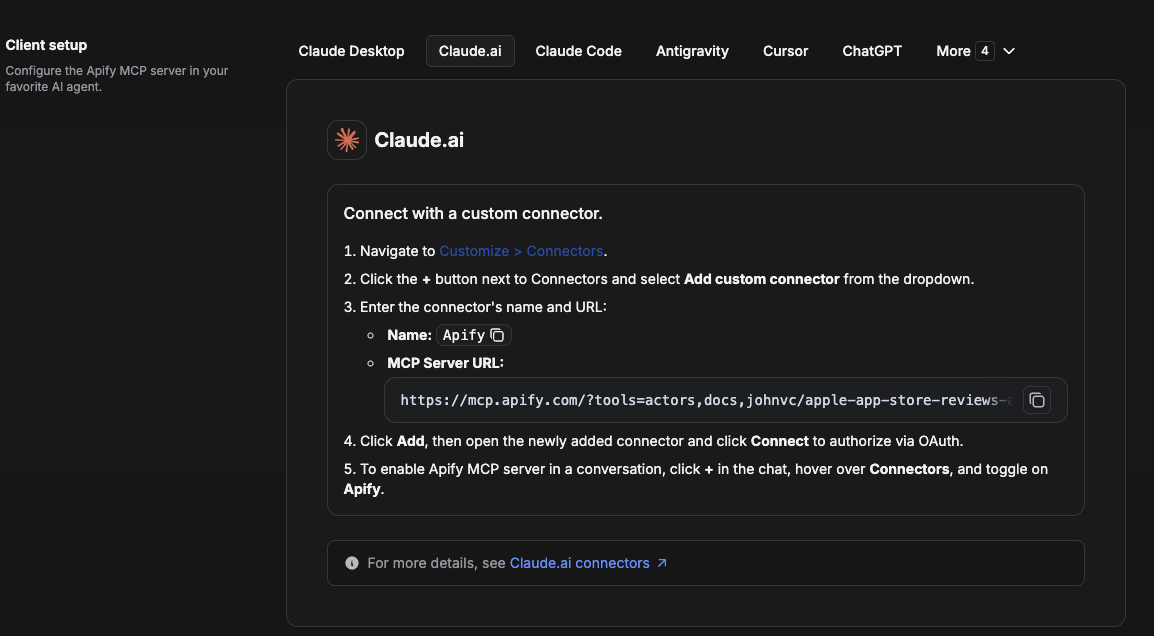
On claude.ai you add Apify as a connector, then enable just this Actor's tool.
1. Go to **Settings > Connectors > Browse connectors** and search for **Apify MCP server**. Install it (enable or update if prompted).
2. When connecting, authenticate with your Apify API token, and enable the tool `johnvc/google-local-services-api`.
3. In any chat, open **+ > Connectors** and turn on **Apify**.
4. Alternatively, choose **Add custom connector** and paste the full MCP URL `https://mcp.apify.com/?tools=actors,docs,johnvc/google-local-services-api`, using OAuth when prompted.
5. Ask Claude to run the Google Local Services API.
Open Claude on the web: https://claude.ai/referral/uIlpa7nPLg
---
## Install in Cursor
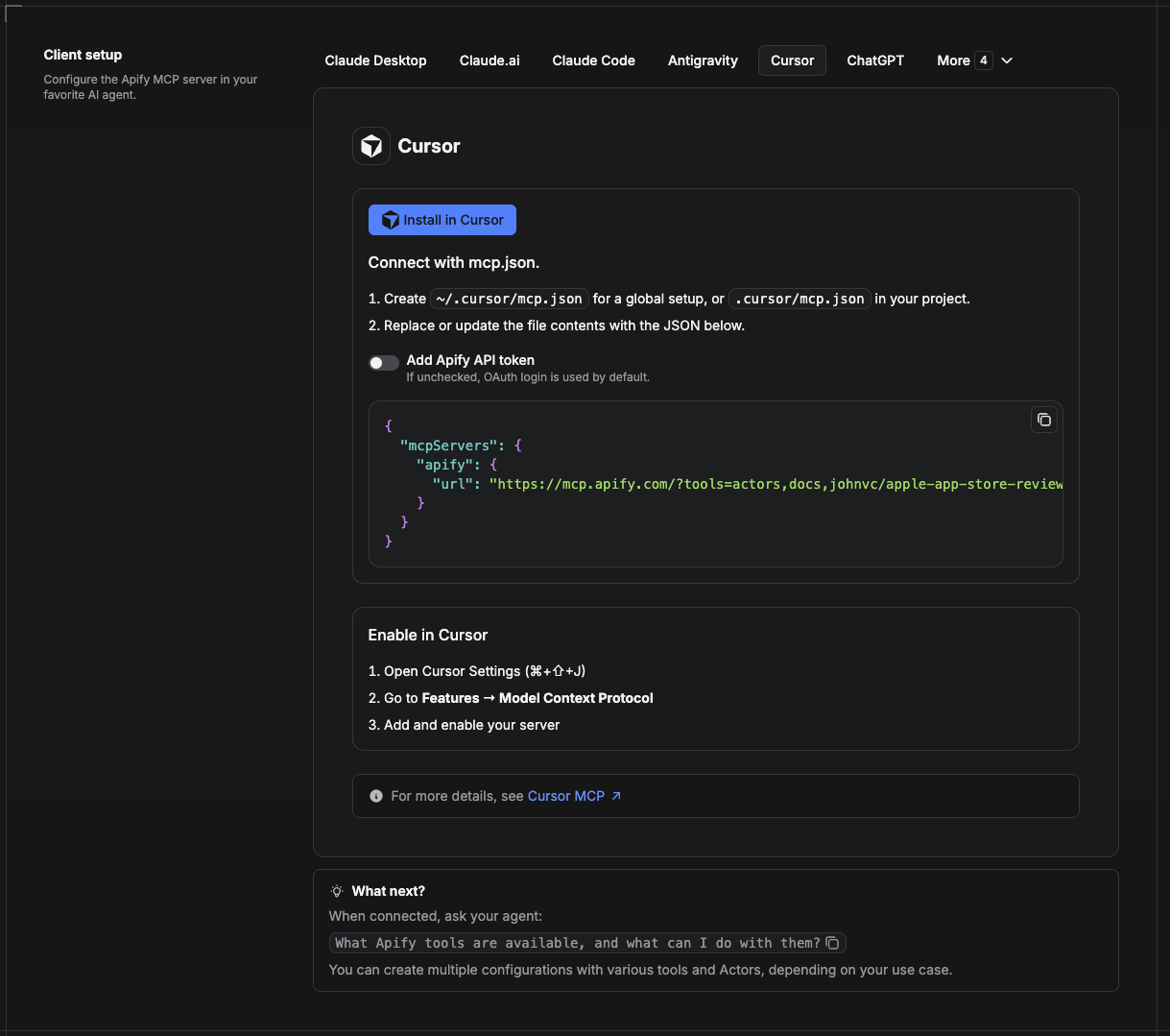
Cursor reads MCP servers from a project file at `.cursor/mcp.json`.
1. In your project, create `.cursor/mcp.json`:
```json
{
"mcpServers": {
"apify": {
"url": "https://mcp.apify.com/?tools=actors,docs,johnvc/google-local-services-api"
}
}
}
```
2. If you prefer token auth over browser OAuth, add a header:
```json
{
"mcpServers": {
"apify": {
"url": "https://mcp.apify.com/?tools=actors,docs,johnvc/google-local-services-api",
"headers": { "Authorization": "Bearer YOUR_APIFY_TOKEN" }
}
}
}
```
3. Open **Cursor > Settings > MCP** and confirm the **apify** server is connected (green dot).
4. In Composer or Chat, ask Cursor to call the Google Local Services API.
New to Cursor? Get it here: https://cursor.com/referral?code=XQP4VBLI3NNX
---
## Install in ChatGPT
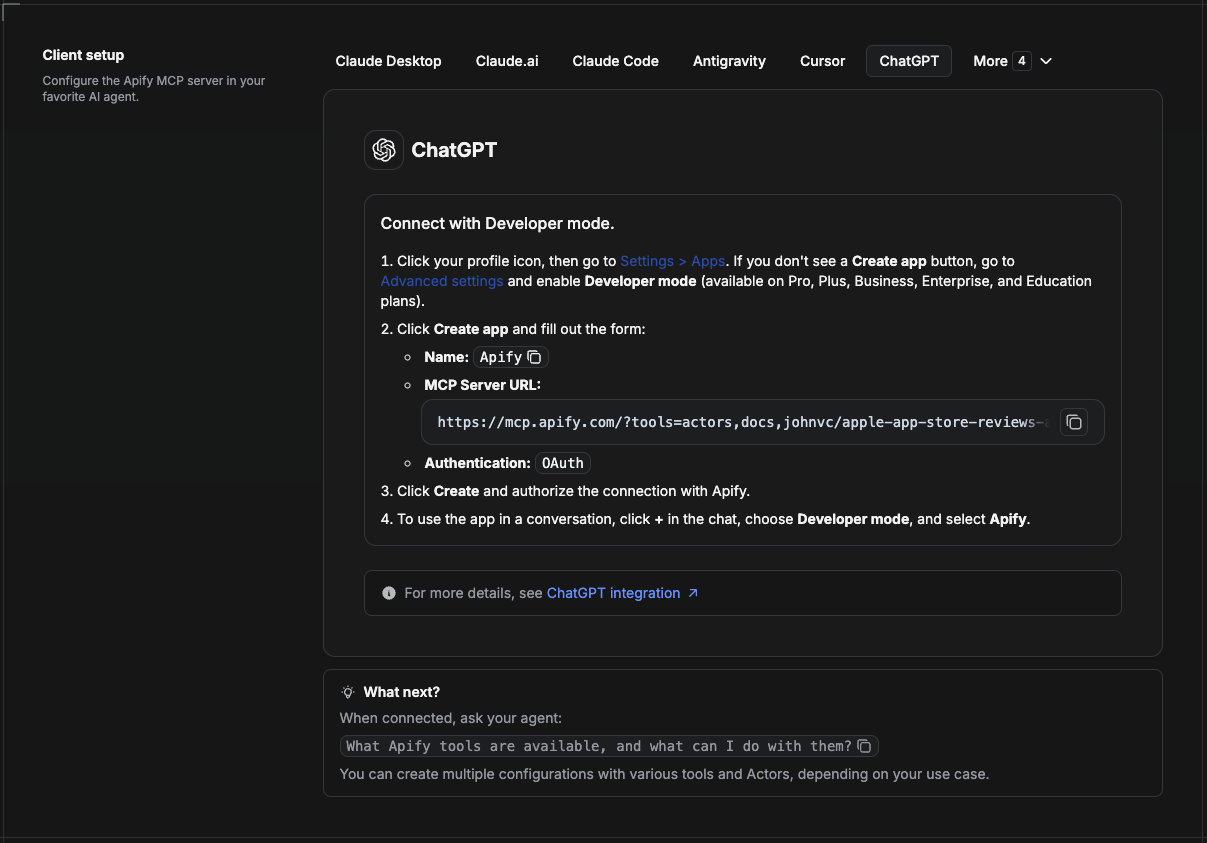
ChatGPT connects to the Apify MCP server through Developer mode (available on ChatGPT Pro, Plus, Business, Enterprise, and Education plans).
1. Click your profile icon, then go to **Settings > Apps**. If you do not see a **Create app** button, open **Advanced settings** and enable **Developer mode**.
2. Click **Create app** and fill out the form:
- **Name:** Apify
- **MCP Server URL:** `https://mcp.apify.com/?tools=actors,docs,johnvc/google-local-services-api`
- **Authentication:** OAuth
3. Click **Create** and authorize the connection with Apify.
4. To use the app in a conversation, click **+** in the chat, choose **Developer mode**, and select **Apify**.
More help: https://docs.apify.com/platform/integrations/mcp
## n8n integration
Prefer [n8n](https://n8n.io)? This API is also available as a community node, **[n8n-nodes-google-local-services-api](https://www.npmjs.com/package/n8n-nodes-google-local-services-api)**. In n8n, go to **Settings > Community Nodes**, install `n8n-nodes-google-local-services-api`, then use it in any workflow. It also works as an AI Agent tool.
---
[**Made with care**](https://apify.com/johnvc?fpr=9n7kx3)
*Use the Google Local Services API to power your data workflows with reliable, structured results.*
<!-- ask-ai:start -->
## 🤖 Ask an AI assistant about this Actor
Open a ready-to-send prompt about the Google Local Services API in the AI of your choice:
- 💬 [ChatGPT](https://chatgpt.com/?q=Using%20the%20Google%20Local%20Services%20API%20on%20Apify%20%28https://apify.com/johnvc/google-local-services-api?fpr=9n7kx3%29%2C%20walk%20me%20through%20this%20use%20case:%20%22HVAC%20Leads:%20Google%20Guaranteed%20HVAC%20Companies%20by%20City%22.%20Show%20me%20the%20input%20JSON%2C%20the%20output%20fields%2C%20and%20how%20to%20automate%20it%20with%20the%20API%20or%20MCP.)
- 🧠 [Claude](https://claude.ai/new?q=Using%20the%20Google%20Local%20Services%20API%20on%20Apify%20%28https://apify.com/johnvc/google-local-services-api?fpr=9n7kx3%29%2C%20walk%20me%20through%20this%20use%20case:%20%22HVAC%20Leads:%20Google%20Guaranteed%20HVAC%20Companies%20by%20City%22.%20Show%20me%20the%20input%20JSON%2C%20the%20output%20fields%2C%20and%20how%20to%20automate%20it%20with%20the%20API%20or%20MCP.)
- 🔍 [Perplexity](https://www.perplexity.ai/search?q=Using%20the%20Google%20Local%20Services%20API%20on%20Apify%20%28https://apify.com/johnvc/google-local-services-api?fpr=9n7kx3%29%2C%20walk%20me%20through%20this%20use%20case:%20%22HVAC%20Leads:%20Google%20Guaranteed%20HVAC%20Companies%20by%20City%22.%20Show%20me%20the%20input%20JSON%2C%20the%20output%20fields%2C%20and%20how%20to%20automate%20it%20with%20the%20API%20or%20MCP.)
- 🅒 [Copilot](https://copilot.microsoft.com/?q=Using%20the%20Google%20Local%20Services%20API%20on%20Apify%20%28https://apify.com/johnvc/google-local-services-api?fpr=9n7kx3%29%2C%20walk%20me%20through%20this%20use%20case:%20%22HVAC%20Leads:%20Google%20Guaranteed%20HVAC%20Companies%20by%20City%22.%20Show%20me%20the%20input%20JSON%2C%20the%20output%20fields%2C%20and%20how%20to%20automate%20it%20with%20the%20API%20or%20MCP.)
<!-- ask-ai:end -->
Last Updated: 2026.09.22
This server cannot be deployed
Maintenance
ActivityMaintained
ResponsivenessNo issues