
telestrator
by itsloukman
README.md
# telestrator
**Iterate on videos with your agent, frame by frame.**
[telestrator.tv](https://telestrator.tv) · [npm](https://www.npmjs.com/package/telestrator) · MIT
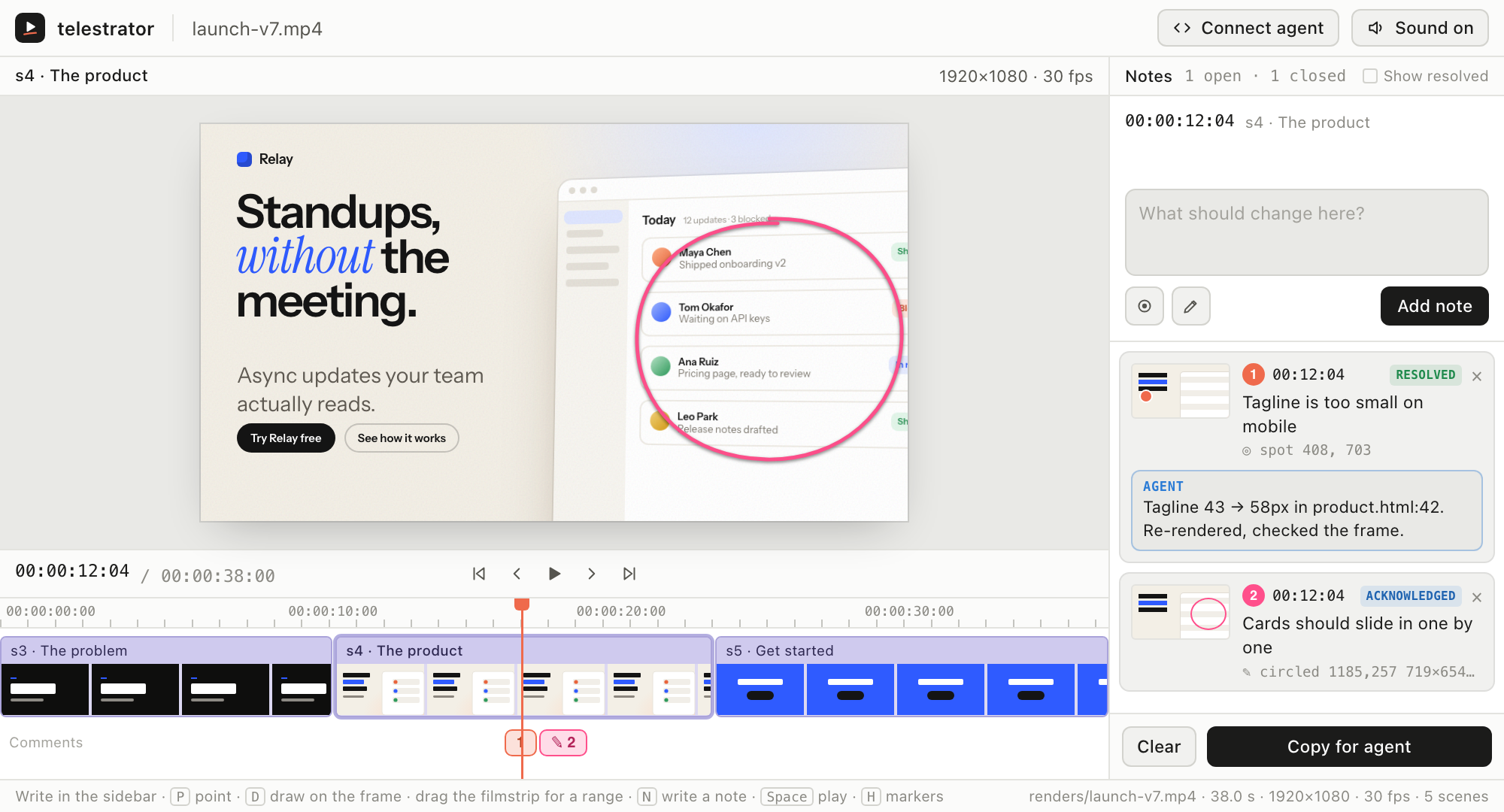
You made a video with an agent: [HyperFrames](https://github.com/heygen-com/hyperframes), [Remotion](https://remotion.dev), or anything else that renders an MP4. Now you need to tell the agent what to change. "The tagline at 0:12 is too small" is a guess the agent has to decode. With telestrator you pause on the frame, **point** at it or **draw** on it, write one line, and your agent gets back exactly this:
```md
## 1. 12.13s (frame 364) · The product
- **Feedback:** tagline too small on mobile
- **Narration there:** “Async updates your team actually reads.”
- **Pointing at:** `#s4 > p.tagline` — “Async updates your team actually reads.”
- **Source:** scenes/product.html:42
- **Element box:** 98,645 490×116 (in 1920×1080)
- **Styles now:** font-size 43px; color #5f5a52
```
It also gets **the frame itself, with your pin or drawing on it**, as an image. Then it fixes the source, re-renders, checks the frame, and closes the note, and you watch that happen in the review.
## Get started
You need **Node 18+**. [ffmpeg](https://ffmpeg.org) is optional: with it, your agent also sees the frames (`brew install ffmpeg`).
**1. Open a video.** The review opens in your browser.
```sh
npx telestrator path/to/video.mp4
```
A project folder works too: it opens the newest render (`./renders`, `./out`, or the folder).
**2. Connect your agent, once.**
```sh
npx telestrator init
```
It runs [add-mcp](https://github.com/neon-solutions/add-mcp) (Neon's MCP installer, pinned to 2.4.0), which finds the agents you have (Claude Code, Codex, Cursor, VS Code, Gemini CLI, Windsurf, OpenCode and more) and adds telestrator to the ones you pick. Then it offers the Claude Code skill. `--yes` skips the questions: telestrator goes into every agent it finds, and the skill is added.
**3. Ask your agent.** Start a new agent session so it loads the tools, then say *"check the video feedback"*.
Something off? `npx telestrator doctor` checks Node, ffmpeg, which agents are connected, and what a video resolves to.
## Reviewing
Write in the sidebar and the note lands at the playhead. Before you press **Add note**, attach any of these:
- **Point (P):** click something in the frame. On a HyperFrames composition this names the exact element, its source line and its current styles; on a plain video it records the spot.
- **Draw (D):** pen, arrow, box or text, in six colours and three sizes; the eraser removes a single mark.
- **Range:** drag along the comments track to cover a stretch of time; drag the ends of a selected range to adjust it.
Notes show their status as your agent works: **acknowledged** when it picks one up, then **resolved** or **dismissed** with a line on why. It can also ask you a question under a note, and you answer in the same thread. Anything new from your agent gets a blue dot until you open the note. Notes the agent leaves itself are marked **from agent**. When the video is re-rendered, the review offers to reload, and a note then shows its frame **before** and **now**. A deleted note can be brought back with **Undo** for a few seconds.
`Space` plays, `←` `→` step one frame, `N` writes a note, `⌘↵` adds it. [All shortcuts](#reference).
## Working with your agent
- **"Check the video feedback"**: the agent reads every open note with its frame, acknowledges it, fixes the source, re-renders, checks the frame, and resolves it.
- **"Watch mode"**: the agent waits for your notes while you keep reviewing, and handles each batch as it arrives.
- **"Critique the render"**: the agent steps through the video frame by frame and leaves its own notes for you to accept or dismiss.
No MCP? **Copy for agent** in the review gives you the notes as markdown to paste.
## Works with
- **HyperFrames**: pointing names the exact element on that frame, with its source line and styles.
- **Remotion**: points at the spot in the frame; scenes and captions come from a [sidecar file](#reference).
- **Any MP4, MOV or WebM**: the spot, the time, the frame, and captions from a `.srt` or `.vtt`.
## Questions
**Is it free?** Yes, it's MIT licensed.
**Does my video leave my machine?** No. telestrator runs on your machine and uploads nothing: your video stays where it is, and notes are JSON files next to it in `.telestrator/`. One thing to know: when your agent reads the feedback, the notes and the frames it looks at go to its AI provider (Anthropic, OpenAI…), like any file your agent reads. Commit `.telestrator/` if you want the feedback in git.
**Which agents work?** Any agent that supports MCP; `init` sets up the ones you have. Without MCP, use **Copy for agent** and paste.
**Do I need HyperFrames?** No, any video works. With a HyperFrames composition, pointing also knows which element you mean and where it's written.
**Something isn't working?** Run `npx telestrator doctor`. It checks Node, ffmpeg, your agents, and what your video resolves to. Still stuck? [Open an issue](https://github.com/itsloukman/telestrator/issues).
## Reference
<details>
<summary><b>Connect an agent by hand</b></summary>
`init` does this for you. To add it yourself:
| Agent | Command |
| --- | --- |
| Any agent | `npx add-mcp@2.4.0 "npx -y telestrator mcp" --name telestrator -g` |
| Claude Code | `claude mcp add --scope user telestrator -- npx -y telestrator mcp` |
| Codex | `codex mcp add telestrator -- npx -y telestrator mcp` |
| Gemini CLI | `gemini mcp add -s user telestrator npx -- -y telestrator mcp` |
| VS Code | `code --add-mcp '{"name":"telestrator","command":"npx","args":["-y","telestrator","mcp"]}'` |
| Cursor, Windsurf, others | a stdio server: command `npx`, args `["-y", "telestrator", "mcp"]` (e.g. in `~/.cursor/mcp.json`) |
The review's **Connect agent** menu shows the same.
</details>
<details>
<summary><b>MCP tools</b></summary>
| Tool | What it does |
| --- | --- |
| `list_reviews` | Lists the reviews, with open counts |
| `get_feedback` | Open notes (or `pending` / `resolved` / `dismissed` / `all`) as markdown with ids, and each annotated note's frame as an image |
| `watch_feedback` | Waits until the reviewer adds notes nobody has picked up, then returns the batch |
| `get_frame` | Any frame at `t` seconds, to check a spot or verify a re-render. Needs `ffmpeg` |
| `acknowledge` | Marks a note as picked up |
| `reply` | Asks the reviewer a question under a note |
| `resolve` | Closes a note with a line on what changed |
| `dismiss` | Closes a note without changing anything, with the reason |
| `add_note` | Leaves the agent's own note (critique mode), with its frame |
The MCP server reads and writes the same review files as the UI, so the UI doesn't need to be running; when it is, it shows the agent's replies and status changes within two seconds.
It looks for reviews under the folder the agent starts it in (or `--root <dir>`). When there are none there, as when an IDE or desktop app starts it from your home folder, it uses the reviews you opened lately, listed in `~/.telestrator/recent.json`.
</details>
<details>
<summary><b>What it knows about your video, and how pointing works</b></summary>
| You have | Pointing | Scenes on the timeline | What's being said |
| --- | --- | --- | --- |
| Any MP4 / MOV / WebM | the spot, in video pixels | one clip | from `<video>.srt` / `.vtt` if present |
| A **HyperFrames** project | **the element** under your click on that exact frame, with its source line and styles | the root clips (`data-start` / `data-duration`) | captions, or the sidecar |
| **Remotion** (`out/video.mp4`) | the spot, in video pixels | one clip, or the sidecar | captions, or the sidecar |
Notes always carry **seconds and frame numbers**. Pass `--fps` to match your composition.
telestrator serves the composition from the same origin and injects a small adapter. It seeks every `window.__timelines` GSAP timeline to the time you paused on and applies clip visibility, then the UI hit-tests the DOM exactly where you clicked. It follows the HyperFrames contract, so it works without the HyperFrames runtime. If your composition drives itself some other way, give it a hook:
```html
<script>
window.__telestrator = {
seek(t) { /* put the DOM in its state at t seconds */ },
info() { return { width: 1920, height: 1080, fps: 30, scenes: [{ id: 'intro', name: 'Intro', start: 0 }] } } // optional
};
</script>
```
</details>
<details>
<summary><b>Sidecar file (scenes, transcript)</b></summary>
A JSON file named `<video>.review.json`, or `telestrator.json`, next to the video. Every key is optional:
```json
{
"title": "Launch film v7",
"fps": 30,
"scenes": [{ "id": "s1", "name": "The problem", "file": "src/scenes/problem.tsx", "start": 0 }],
"transcript": [{ "start": 0.5, "end": 3.4, "text": "Your team spends Monday in status meetings." }],
"words": [["Your", 0.48, 0.66], ["team", 0.66, 0.88]]
}
```
`file` shows up in the feedback, so the agent knows which source file owns the scene. If your pipeline knows its scene boundaries and voice-over timing, write this file at render time.
</details>
<details>
<summary><b>Where notes live</b></summary>
Each review is saved to `<video folder>/.telestrator/<video file name>.json`. Everything stays on your machine. Commit the folder if you want the feedback in git, or add `.telestrator` to `.gitignore`.
</details>
<details>
<summary><b>CLI</b></summary>
```
npx telestrator <video | folder> [--composition <html> | --no-composition] [--captions <srt|vtt>]
[--meta <json>] [--fps <n>] [--port <n>] [--no-open]
npx telestrator init [--yes]
npx telestrator doctor [video | folder]
npx telestrator mcp [--root <dir>]
```
</details>
<details>
<summary><b>Keyboard shortcuts</b></summary>
| Key | Action |
| --- | --- |
| `Space` | play / pause |
| `←` `→` | step one frame (`⇧` for one second) |
| `↑` `↓` | previous / next scene |
| `⇧↑` `⇧↓` | previous / next note |
| `N` | write a note |
| `P` | point |
| `D` | draw (`⌘Z` undoes a mark) |
| `⌘↵` | add the note |
| `Esc` | leave a tool, or drop what's attached |
| `H` | hide or show markers on the frame |
| `S` | hide or show the notes panel |
| `M` | toggle sound |
| `F` | fullscreen |
The review follows your system's light or dark setting; the toolbar switch overrides it.
</details>
## Development
```sh
npm install
npm test
node bin/cli.js path/to/video.mp4
```
There's no build step. The UI is `ui/index.html` and `ui/app.js`, the composition adapter is `ui/adapter.js`, the server, MCP server and formatting live in `src/`, and the website is `site/index.html`.
## License
MIT
This server cannot be deployed
Maintenance
ActivityMaintained
ResponsivenessNo issues