
Invictum Browser Bridge
Officialby invictumhr
README.md
# Invictum Browser Bridge
**Open-source browser control for AI agents, built for developers.**
Invictum Browser Bridge (IBB, also called Invictum Browser Gate or IBG) lets an
authorized AI agent work in the user's existing Google Chrome profile. The
agent can use already signed-in web applications without exporting cookies,
passwords, browser profiles, or raw authentication state.
The project is licensed under the [MIT License](LICENSE). It is designed for
local development and advanced browser workflows through MCP, a CLI, a
TypeScript SDK, or the loopback control API.
## Video demo
[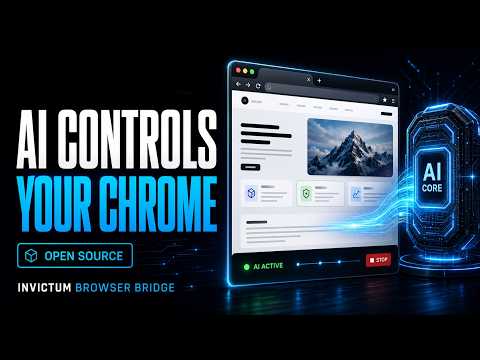](https://www.youtube.com/watch?v=QVO7exRn_24)
[Watch the Invictum Browser Bridge demo on YouTube](https://www.youtube.com/watch?v=QVO7exRn_24)
to see an AI agent work inside a real Chrome profile, understand a public
website semantically, navigate its content, test a mobile viewport, and create
full-page and annotated screenshots while keeping the controlled tab visible
and explicitly reserved.
## Why use it?
Most browser automation starts a clean browser profile or relies on fragile
screen coordinates. IBB instead provides typed, policy-checked actions inside
the user's real Chrome profile:
- semantic page reading and deterministic element references;
- background-first tab control that avoids interrupting the user;
- purpose-built adapters for WordPress, WHM/cPanel terminals, and Figma;
- reliable forms, rich-text/code editors, uploads, dialogs, screenshots, and
debugging tools;
- explicit authorization, per-tab reservation, User Stop, redacted audit data,
and guaranteed cleanup.
The installed extension reports its exact runtime capabilities. Agents should
always call `system.capabilities` instead of assuming the documentation and the
loaded Chrome build are identical.
## Main features
### Browser and page control
- List, open, close, navigate, activate, and move through tab history.
- Work in a dedicated unfocused agent window with genuinely inactive background tabs by default.
- Wait for URLs, titles, text, selectors, DOM stability, or application
readiness; focus a lazy-rendered tab once only when a bounded background wait
proves that focus is required.
- Read compact, outline, full, interactive, or scoped semantic snapshots.
- Extract clean text or lightweight Markdown and find elements with
deterministic natural-language ranking.
- Click, double-click, context-click, hover, focus, type, press keys, select,
check, scroll to an element or document position, and drag and drop.
- Use coordinate clicks only as a revision-bound fallback.
### Forms, editors, files, and authentication
- Set native inputs, textareas, selects, checkboxes, radios, contenteditable
regions, and WYSIWYG editors.
- Synchronize CodeMirror, Ace, Monaco, Quill, TinyMCE, Gutenberg, and similar
authoritative editor models so values survive submit.
- Attach one or more local files through Chrome's native file-input API without
exposing paths in results or audit logs.
- Submit forms only with the required authorization, including an explicitly
authorized no-prompt path for an already approved agent instruction.
- Use prefilled login forms, ephemeral HTTP Basic Auth, and native JavaScript
alert, confirm, prompt, and `beforeunload` dialogs through dedicated actions.
### WordPress support
IBB includes typed WordPress workflows instead of asking agents to improvise
with cosmetic DOM changes or coordinate dragging:
- identify wp-admin screens, notices, list tables, rows, and available actions;
- perform row and bulk actions with exact WordPress action keys;
- read and update Gutenberg or Classic Editor content, title, excerpt, slug,
status, categories, tags, featured image metadata, and other supported fields;
- review changes separately from saving and verify the authoritative editor
model after save;
- inspect and edit classic **Appearance > Menus** trees, including custom links,
updates, removals, complete-subtree moves, nesting, ordering, and save;
- recover safely when WordPress's unsaved-changes prompt blocks navigation;
- fall back to general form, upload, editor, DOM, console, and same-origin API
tools for plugin settings, media, ACF-like controls, and custom admin pages.
See [WordPress wp-admin](docs/WORDPRESS_ADMIN.md) and
[classic menu editing](docs/WORDPRESS_MENUS.md).
### WHM, cPanel, and browser terminals
The typed xterm adapter supports browser-hosted terminals such as **WHM/cPanel
Terminal**:
- detect the real terminal instead of WHM's **Search Tools** field;
- read a bounded, redacted xterm buffer or one action-local terminal WebSocket;
- focus only the terminal helper input and send trusted text or special keys in
a background tab;
- stage and prove the exact command before sending one Enter;
- fail closed, withhold Enter, and attempt to clear an unverified draft;
- wait for prompt, text, output change, or quiet state;
- return explicit draft and delivery verification without logging raw commands
or output.
Terminal output is R2 and every text/key action is R3. A read-only request never
authorizes a command. See [terminal automation](docs/TERMINAL_AUTOMATION.md).
### Figma in Chrome
Typed Figma actions can inspect the browser UI around a design file:
- health-check the expected Figma UI anchors;
- read the file name, pages, current mode, and current selection;
- read rendered layer-tree rows and inspector properties;
- select a page, mode, or visible layer with stale-row protection;
- use screenshots for the WebGL canvas artwork.
Figma virtualizes its layer tree and paints the design canvas with WebGL, so
this adapter intentionally does not claim full document mutation. See
[Figma support](docs/FIGMA.md).
### Developer diagnostics and visual output
- Bounded, redacted console capture and metadata-only network diagnostics.
- Sanitized frame topology, navigation/readiness state, aggregate performance
metrics, value-redacted accessibility trees, and process-local AX diffs.
- Same-origin page API requests with optional WordPress nonce handling.
- Explicitly authorized managed downloads with byte ceilings, executable and
path-traversal blocking, and no absolute-path disclosure.
- Reversible mobile viewport, orientation, DPR, and touch emulation.
- Viewport, element, region, and full-page screenshots.
- Tutorial screenshots with rectangles, ellipses, arrows, labels, and automatic
numbered set-of-marks overlays.
- Element/listener/source inspection, bounded event observation, typed DOM and
inline-style mutation, reversible CSS injection, and bounded PDF export.
- Explicitly authorized raw page JavaScript as an R3 last resort; sensitive,
navigation, submit, and unrestricted network surfaces remain denied.
- Policy-preserving sequential batches, dry runs, idempotency keys,
post-snapshots, semantic DOM deltas, verification, and stale-reference
relocation.
- Crash-safe operation journaling, one-call transactions, compact pre/post
visual fingerprints, viewport image diffs, and experimental page WebMCP
discovery/invocation with untrusted-output labeling.
## Agent integrations
IBB exposes four local developer surfaces:
| Surface | Use case |
| -------------------- | ----------------------------------------------------------------------------- |
| MCP server | Primary interface for Codex, Cursor, Claude Code, and other stdio MCP clients |
| JSON CLI | PowerShell-friendly fallback, diagnostics, and automation scripts |
| TypeScript Agent SDK | Application integration and `withReservedTab()` lifecycle helpers |
| Loopback control API | Local adapter development on `127.0.0.1:47820` |
The Native Host transport on `127.0.0.1:47821` belongs exclusively to Desktop
Authority. Agents must not connect to the extension or that port directly.
The current source exposes 64 extension actions, one Desktop Authority health
action, and 74 MCP tools. Those numbers are a release snapshot, not an agent
contract: call `invictum_capabilities` at runtime.
## Safety model
- Desktop Authority is the single policy and audit boundary.
- Every local control POST requires a per-user bearer token. Audit and
idempotency state are durable, bounded, and content-sanitized.
- The toolbar popup provides a per-hostname boundary: observe only, safe
interaction, trusted admin, full Bridge policy, or block. Incognito tabs are
always denied.
- Each action is classified R0-R3; sensitive actions require a matching,
explicit authorization assertion.
- A tab is reserved before work, visibly marked with the agent identity, and
released in `finally`. The user can stop control immediately.
- Element references are bound to document and DOM revisions.
- Snapshots redact sensitive values; uploads, terminal commands, credentials,
prompt text, and response bodies are not written to audit logs.
- Browser-internal pages, extensions, DevTools, the Chrome Web Store, local
files, and other restricted surfaces remain unavailable.
- Background work is the default. Agents should not request foreground
activation unless the application genuinely requires it.
- Debugger access is tab-scoped and bounded. Persistent adapters release their
lease on stop, reset, unlock, navigation, or crash cleanup.
IBB does not expose cookies, saved passwords, autofill data, arbitrary browser
storage, download history or unrestricted downloads, passive request/response
bodies, traffic interception, OS-level trusted input, or remote control.
Read [SECURITY.md](SECURITY.md) and
[POLICY_CONFIGURATION.md](POLICY_CONFIGURATION.md) before extending the action
surface.
## Architecture
```text
AI agent
| MCP / CLI / TypeScript SDK / local control API
v
Desktop Authority :47820
| bearer auth -> policy -> journal -> reservation -> durable audit -> cleanup
v
Native Host -> private loopback WebSocket :47821
v
Chrome MV3 extension -> typed page/CDP adapters -> authorized tab
```
See [ARCHITECTURE.md](ARCHITECTURE.md) for the trust boundaries and transport
contracts.
## Requirements
- Windows 11 x64
- Google Chrome 120+
- Node.js 22+
- pnpm 11
- Git
The repository currently ships a source-based developer installation, not a
signed Chrome Web Store package or a production installer.
## Quick start
```powershell
git clone https://github.com/invictumhr/ai-invictum-browser-bridge.git
Set-Location .\ai-invictum-browser-bridge
$env:CI = 'true'
pnpm install --frozen-lockfile
pnpm build
pnpm typecheck
pnpm test
pnpm lint
```
Load `apps/extension/dist` through `chrome://extensions` as an unpacked
extension, copy its generated extension ID, then register the Native Host:
```powershell
.\scripts\register-native-host-dev.ps1 -ExtensionId "PASTE_EXTENSION_ID"
pnpm browser ping
pnpm browser health-details
pnpm browser capabilities
```
Set the extension's Chrome **Site access** to **On all sites**. This avoids a
manual toolbar approval for every new HTTP(S) origin; Chrome policy and the
Bridge's own authorization model still apply.
Full instructions are in [INSTALL_WINDOWS.md](INSTALL_WINDOWS.md) and
[EXTENSION_INSTALL.md](EXTENSION_INSTALL.md).
## Install with an AI agent on Windows
Copy the prompt below into a trusted AI coding agent that has PowerShell access
to the Windows computer. The agent can install and build the local runtime, but
Chrome requires a few visible user actions for an unpacked extension. The prompt
therefore tells the agent exactly when to pause and guide the user.
Desktop Authority is the local process that accepts agent commands on
`127.0.0.1:47820`; the Native Host relays between it and the Chrome extension on
`127.0.0.1:47821`. The supported installation does **not** create a permanent
Windows Service. MCP, the CLI, and the Chrome-launched Native Host can start
Desktop Authority as a hidden local daemon when needed, while Chrome starts the
registered Native Host. Do not expose either port or create a firewall rule.
```text
Install Invictum Browser Bridge from the public repository on this Windows PC:
https://github.com/invictumhr/ai-invictum-browser-bridge.git
Your goal is to install the complete supported local chain:
AI client -> MCP/CLI -> Desktop Authority -> Native Host -> Chrome extension
Work autonomously wherever PowerShell can do the work. Guide me step by step
only for actions Chrome requires me to perform manually. Explain each manual
step in one short message, wait for my confirmation or the extension ID, and
then continue. Do not ask me to execute commands that you can safely execute.
Safety rules:
1. Use only the public repository above and the scripts checked into it.
2. Do not request, copy, print, or store Chrome passwords, cookies, tokens,
browser-profile files, or browsing data.
Do not print or copy IBB's generated local control token either.
3. Do not disable Chrome security, install an unrelated extension, expose a
loopback port, create a firewall rule, or bind any service publicly.
4. Do not invent a Windows Service or Scheduled Task. This project intentionally
auto-starts Desktop Authority through MCP/CLI or the Chrome-launched Native
Host.
5. Do not overwrite an existing checkout. If the target directory exists,
inspect its Git remote and working tree first. Continue only if it is this
repository and existing changes are safe; otherwise choose a new directory.
6. Avoid administrator elevation unless a missing prerequisite genuinely
requires it. Native Host registration itself is per-user under HKCU.
7. Never work around a failed test, Chrome permission, or Native Messaging
error. Diagnose it and preserve the security model.
Perform these phases:
PHASE 1 — Preflight
- Use PowerShell.
- Check Windows version and availability/versions of Git, Google Chrome,
Node.js, npm/Corepack, and pnpm.
- Require Node.js 22 or newer and pnpm 11. Use the pnpm version declared in the
repository package.json.
- If a prerequisite is missing, explain what is missing. Install it through an
official source or winget only when installation is within my request; report
any UAC/manual step before continuing.
- Resolve a normal per-user installation directory. Default to
%USERPROFILE%\invictum-browser-bridge unless I already selected another path.
PHASE 2 — Clone, inspect, install, and build
- Clone the repository with:
git clone https://github.com/invictumhr/ai-invictum-browser-bridge.git
- Enter the repository and verify that origin points to that repository.
- Read README.md, INSTALL_WINDOWS.md, EXTENSION_INSTALL.md, SECURITY.md, and
AGENT_USAGE.md before installation.
- Run the repository secret scan before installation.
- Set CI=true for the install and run:
pnpm install --frozen-lockfile
pnpm build
pnpm typecheck
pnpm test
pnpm lint
- Stop and diagnose any failed gate. Do not continue with a partial build.
- Resolve and show me the exact absolute folder I will need in Chrome:
<repository>\apps\extension\dist
- Copy that folder path to the Windows clipboard if possible.
PHASE 3 — Guide me through loading the Chrome extension
Pause and ask me to do exactly this:
1. Open Google Chrome and go to chrome://extensions.
2. Turn on Developer mode in the top-right corner.
3. Click Load unpacked.
4. Select the exact apps\extension\dist folder you resolved above.
5. Confirm that Invictum Browser Controller appears and is enabled.
6. Copy its 32-character extension ID and send only that ID back to you.
Do not guess or hardcode the extension ID. Validate that the value I provide
matches Chrome's unpacked-extension ID format before using it.
PHASE 4 — Register the local Native Host
- From the repository root, run:
.\scripts\register-native-host-dev.ps1 -ExtensionId "THE_ID_I_PROVIDED"
- Confirm that the script created the per-user Native Messaging registration
for com.invictum.browser_bridge and did not expose a network port.
- If the Windows C# compiler needed by the checked-in launcher is unavailable,
report that exact blocker; do not download or execute an unverified launcher.
PHASE 5 — Finish Chrome configuration
Pause and guide me through these steps:
1. Return to chrome://extensions.
2. Click Reload on Invictum Browser Controller once.
3. Open Details for the extension.
4. Set Site access to On all sites.
5. Confirm the extension remains enabled and has no current error.
6. Optionally pin its toolbar icon so the ON/AI status and settings are easy to
see.
7. Leave the current domain at Allow with Bridge policy for normal behavior, or
choose a stricter per-hostname boundary only if I request it.
Explain that On all sites prevents a new manual approval for every HTTP(S)
domain, but does not bypass Chrome policy, restricted pages, User Stop, or IBB's
own authorization rules. Wait for my confirmation before testing.
PHASE 6 — Start and verify the bridge
- Run pnpm browser health.
- Run pnpm browser ping. The CLI should automatically start Desktop Authority
as a hidden local daemon if it is offline.
- Run pnpm browser health-details and confirm authenticatedControlApi,
journalEnabled, and auditPersistenceEnabled are true, with no unexplained
uncertain operation.
- Run pnpm browser capabilities.
- Run pnpm test:soak -- 20 as a harmless full-round-trip reliability sample.
- Verify that Desktop Authority is reachable only through 127.0.0.1:47820, the
private Native Host transport uses 127.0.0.1:47821, nativeConnected is true,
and the loaded extension returns its runtime capabilities.
- Treat runtime capabilities as authoritative. The current source expects 65
full-system actions (64 extension actions plus Desktop Authority health) and
the built MCP server expects 74 tools, but do not hide a mismatch or force
those numbers if the checked-out release differs.
- If the badge briefly shows ON and disconnects, diagnose Desktop Authority,
the HKCU Native Messaging manifest, its allowed extension ID, the built Native
Host paths, and extension errors. Rebuild/reregister/reload only the component
that is stale.
- Do not ask for a second extension reload unless extension files or its Native
Host registration actually changed.
PHASE 7 — Configure AI clients
- Ask whether I want global IBB/IBG discovery for installed AI clients. If yes,
run:
powershell -ExecutionPolicy Bypass -File
.\scripts\install-agent-discovery.ps1
- This should preserve unrelated Codex, Cursor, and Claude configuration.
- Tell me to start a new AI-agent session after MCP registration changes.
- Verify with a harmless request that performs only IBB ping and capabilities;
do not open a browser tab for this verification.
PHASE 8 — Final report
Report:
- repository installation path and checked-out revision;
- Node.js and pnpm versions;
- build/typecheck/test/lint results;
- Chrome extension ID and loaded dist path (the ID is not a secret);
- Native Host registration status;
- Desktop Authority health and nativeConnected state;
- authenticated control, persistent audit/journal health, and uncertain
operation count, without printing their paths' contents or token;
- runtime action count and MCP tool count;
- which AI clients were configured;
- whether any manual action or known limitation remains.
Do not claim success until ping and capabilities work through the normal local
authority. Do not use a temporary test harness that takes over port 47821.
```
## Configure AI agents
After `pnpm build`, install the MCP registrations and trigger rules for the
supported local agents:
```powershell
powershell -ExecutionPolicy Bypass -File .\scripts\install-agent-discovery.ps1
```
The phrases `use IBB`, `use IBG`, `use Invictum Browser Bridge`, and
`use Invictum Browser Gate` (plus their Croatian equivalents) all select this
Bridge. Start a new agent session after changing an MCP registration.
See [MCP configuration](MCP_CONFIGURATION.md),
[agent discovery](docs/AGENT_DISCOVERY.md), and the compact
[agent trigger contract](AGENT_TRIGGER.md).
## Recommended agent workflow
```text
ping -> health details -> capabilities -> open/navigate in background
-> identify agent -> wait -> outline/snapshot -> find
-> typed transaction -> verify -> unlock in finally
```
Prefer typed actions and semantic references. Use screenshots for visual
understanding, coordinates only as a fallback, and raw JavaScript only when the
user explicitly authorized it and no safer typed action can solve the task.
The complete operating guide is [AGENT_USAGE.md](AGENT_USAGE.md).
## Documentation
Start with the [documentation index](docs/README.md). Important guides include:
- [Development and quality gates](DEVELOPMENT.md)
- [Troubleshooting](TROUBLESHOOTING.md)
- [WordPress wp-admin](docs/WORDPRESS_ADMIN.md)
- [WordPress classic menus](docs/WORDPRESS_MENUS.md)
- [WHM/cPanel terminal automation](docs/TERMINAL_AUTOMATION.md)
- [Figma in Chrome](docs/FIGMA.md)
- [File upload](docs/FILE_UPLOAD.md)
- [Advanced DOM, CSS, events, and JavaScript](docs/ADVANCED_BROWSER_TOOLS.md)
- [Screenshots and tutorial annotations](docs/SCREENSHOTS_AND_ANNOTATIONS.md)
- [Authentication and native dialogs](AUTH_AND_DIALOGS.md)
- [MCP ergonomics](docs/MCP_AGENT_ERGONOMICS.md)
- [Production hardening and advanced diagnostics](docs/PRODUCTION_HARDENING_AND_DIAGNOSTICS.md)
## Repository layout
```text
apps/
cli/ JSON CLI and authority auto-start
desktop/ policy/audit authority and loopback control API
extension/ Manifest V3 Chrome controller
mcp/ stdio MCP adapter
native-host/ Native Messaging stdio <-> private local WebSocket
packages/
agent-sdk/ control client and reserved-tab lifecycle helpers
audit-log/ redacted audit contract and development sink
policy-engine/ fail-closed action classification
protocol/ strict IBP schemas and factories
shared-types/ transport-neutral contracts
tests/
fixtures/ deterministic local browser pages
integration/ emulated transport and real-Chrome smoke tests
```
## Contributing
Issues and pull requests are welcome. Keep policy, validation, auditing,
reservation, and cleanup in the Desktop Authority path; do not add a second
control route to the extension. Run the complete local gates before opening a
pull request and follow [CONTRIBUTING.md](CONTRIBUTING.md).
Use the structured GitHub forms for
[bug reports](https://github.com/invictumhr/ai-invictum-browser-bridge/issues/new?template=bug_report.yml)
and
[feature requests](https://github.com/invictumhr/ai-invictum-browser-bridge/issues/new?template=feature_request.yml).
Read [SUPPORT.md](SUPPORT.md) for diagnostic guidance and
[CODE_OF_CONDUCT.md](CODE_OF_CONDUCT.md) before participating. Security issues
must use
[private vulnerability reporting](https://github.com/invictumhr/ai-invictum-browser-bridge/security/advisories/new),
not a public issue.
Before publishing changes, use the private-data checklist in
[GIT_PUBLISHING.md](GIT_PUBLISHING.md).
## License
Invictum Browser Bridge is open-source software licensed under the
[MIT License](LICENSE). You may use, copy, modify, merge, publish, distribute,
sublicense, and sell copies subject to the license terms.
---
Made by [invictum.hr](https://invictum.hr/)
This server cannot be deployed
Maintenance
ActivitySlowing
ResponsivenessNo issues