
A
licenseB
qualityC
maintenanceEnables AI assistants to interact with Android devices and emulators via ADB, providing tools for screenshots, UI inspection, touch and text input, app management, and device control.
42
105 npm
20
MIT

The Android UI Assist MCP Server enables AI agents to analyze and provide feedback on Android app UI in real-time during development. It captures live screenshots from connected Android devices and emulators, providing visual context to AI agents like Claude Desktop, GitHub Copilot, and Gemini CLI.
Key capabilities:
Real-time UI Analysis: Capture live screenshots from running Android devices and emulators with device targeting support
Device Management: List all connected Android devices and emulators with detailed status information
Multi-Platform Support: Works with Expo, React Native, Flutter, and native Android development workflows
AI-Powered Development: Enables AI agents to provide instant visual feedback, code generation, and UI improvement suggestions
Development Integration: Seamlessly works with hot reload features and development servers for iterative refinement
Testing & Quality Assurance: Supports UI testing, visual regression analysis, accessibility testing, and cross-platform consistency checking
Flexible Deployment: Available via NPM, source installation, and Docker with multiple integration options
Enables AI agents to capture screenshots and manage connected Android devices and emulators through ADB commands for UI analysis and automation.
Click on "Deploy Server".
Wait a few minutes for the server to deploy. Once ready, it will show a "Started" state.
In the chat, type @ followed by the MCP server name and your instructions, e.g., "@Android UI Assist MCP Server capture a screenshot of my app's home screen from the emulator"
That's it! The server will respond to your query, and you can continue using it as needed.
Here is a step-by-step guide with screenshots.


Model Context Protocol server that enables AI coding agents to see and analyze your Android app UI in real-time during development. Perfect for iterative UI refinement with Expo, React Native, Flutter, and native Android development workflows. Connect your AI agent to your running app and get instant visual feedback on UI changes.
Keywords: android development ai agent, real-time ui feedback, expo development tools, react native ui assistant, flutter development ai, android emulator screenshot, ai powered ui testing, visual regression testing ai, mobile app development ai, iterative ui development, ai code assistant android
See the MCP server in action with real-time Android UI analysis:
MCP Server Status | Live Development Workflow |
|
|
Server ready with 2 tools available | AI agent analyzing Android UI in real-time |
Related MCP server: android-mcp
Real-Time Development Workflow
Live screenshot capture during app development with Expo, React Native, Flutter
Instant visual feedback for AI agents on UI changes and iterations
Seamless integration with development servers and hot reload workflows
Support for both physical devices and emulators during active development
AI Agent Integration
MCP protocol support for Claude Desktop, GitHub Copilot, and Gemini CLI
Enable AI agents to see your app UI and provide contextual suggestions
Perfect for iterative UI refinement and design feedback loops
Visual context for AI-powered code generation and UI improvements
Developer Experience
Zero-configuration setup with running development environments
Docker deployment for team collaboration and CI/CD pipelines
Comprehensive error handling with helpful development suggestions
Secure stdio communication with timeout management
This MCP server works with AI agents that support the Model Context Protocol. Configure your preferred agent to enable real-time Android UI analysis:
# CLI Installation
claude mcp add android-ui-assist -- npx android-ui-assist-mcp

# Local Development
claude mcp add android-ui-assist -- node "D:\\projects\\android-ui-assist-mcp\\dist\\index.js"Add to %APPDATA%\Claude\claude_desktop_config.json:
{
  "mcpServers": {
    "android-ui-assist": {
      "command": "npx",
      "args": ["android-ui-assist-mcp"],
      "timeout": 10000
    }
  }
}Add to .vscode/settings.json:
{
  "github.copilot.enable": {
    "*": true
  },
  "mcp.servers": {
    "android-ui-assist": {
      "command": "npx",
      "args": ["android-ui-assist-mcp"],
      "timeout": 10000
    }
  }
}# CLI Installation
gemini mcp add android-ui-assist npx android-ui-assist-mcp
# Configuration
# Create ~/.gemini/settings.json with:
{
"mcpServers": {
"android-ui-assist": {
"command": "npx",
"args": ["android-ui-assist-mcp"]
}
}
}npm install -g android-ui-assist-mcpgit clone https://github.com/yourusername/android-ui-assist-mcp
cd android-ui-assist-mcp
npm install && npm run buildAfter installation, verify the package is available:
android-ui-assist-mcp --version
# For npm installation
npx android-ui-assist-mcp --versionThis MCP server transforms how you develop Android UIs by giving AI agents real-time visual access to your running application. Here's the typical workflow:
Start Your Development Environment: Launch Expo, React Native Metro, Flutter, or Android Studio with your app running
Connect the MCP Server: Configure your AI agent (Claude, Copilot, Gemini) to use this MCP server
Iterative Development: Ask your AI agent to analyze the current UI, suggest improvements, or help implement changes
Real-Time Feedback: The AI agent takes screenshots to see the results of code changes immediately
Refine and Repeat: Continue the conversation with visual context for better UI development
Perfect for:
Expo development with live preview and hot reload
React Native development with Metro bundler
Flutter development with hot reload
Native Android development with instant run
UI testing and visual regression analysis
Collaborative design reviews with AI assistance
Accessibility testing with visual context
Cross-platform UI consistency checking
Component | Version | Installation |
Node.js | 18.0+ | |
npm | 8.0+ | Included with Node.js |
ADB | Latest |
Enable Developer Options: Settings > About Phone > Tap "Build Number" 7 times
Enable USB Debugging: Settings > Developer Options > USB Debugging
Verify connection: adb devices
Start your Expo development server:
npx expo start
# or
npm start
Open your app on a connected device or emulator
Ensure your device appears in adb devices
Your AI agent can now take screenshots during development
Start Metro bundler:
npx react-native startRun on Android:
npx react-native run-androidEnable hot reload for instant feedback with AI analysis
Start Flutter in debug mode:
flutter runUse hot reload (r) and hot restart (R) while getting AI feedback
The AI agent can capture UI states after each change
Open project in Android Studio
Run app with instant run enabled
Connect device or start emulator
Enable AI agent integration for real-time UI analysis
cd docker
docker-compose up --build -d
Configure AI platform for Docker:
{
  "mcpServers": {
    "android-ui-assist": {
      "command": "docker",
      "args": ["exec", "android-ui-assist-mcp", "node", "/app/dist/index.js"],
      "timeout": 15000
    }
  }
}docker build -t android-ui-assist-mcp .
docker run -it --rm --privileged -v /dev/bus/usb:/dev/bus/usb android-ui-assist-mcp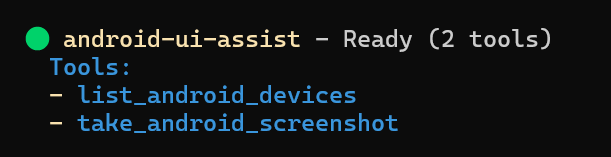
Tool | Description | Parameters |
| Captures device screenshot |
|
| Lists connected devices | None |
take_android_screenshot
{
  "name": "take_android_screenshot",
  "description": "Capture a screenshot from an Android device or emulator",
  "inputSchema": {
    "type": "object",
    "properties": {
      "deviceId": {
        "type": "string",
        "description": "Optional device ID. If not provided, uses the first available device"
      }
    }
  }
}
list_android_devices
{
  "name": "list_android_devices",
  "description": "List all connected Android devices and emulators with detailed information",
  "inputSchema": {
    "type": "object",
    "properties": {}
  }
}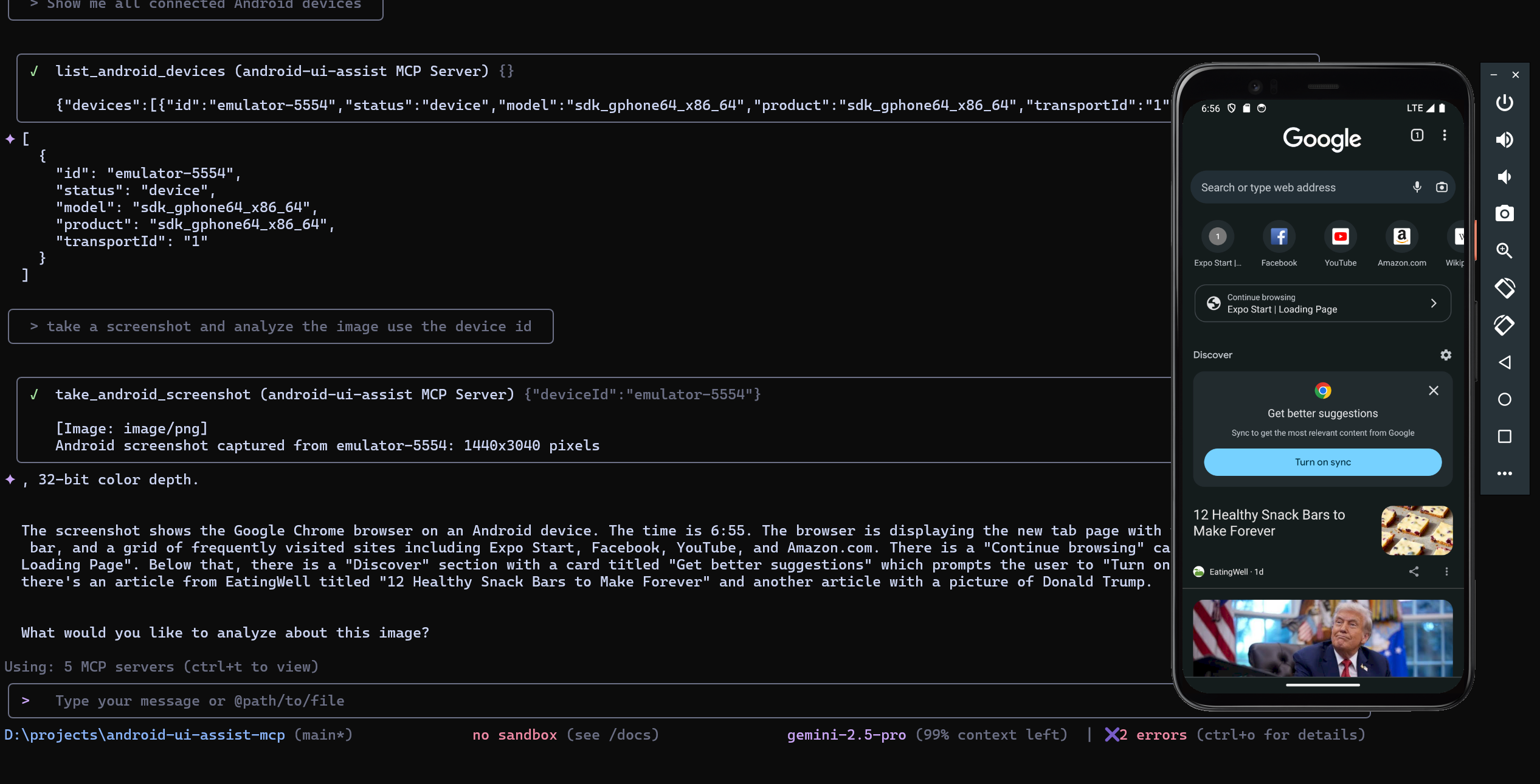
Example: AI agent listing devices, capturing screenshots, and providing detailed UI analysis in real-time
With your development environment running (Expo, React Native, Flutter, etc.), interact with your AI agent:
Initial Analysis:
"Take a screenshot of my current app UI and analyze the layout"
"Show me the current state of my login screen and suggest improvements"
"Capture the app and check for accessibility issues"
Iterative Development:
"I just changed the button color, take another screenshot and compare"
"Help me adjust the spacing - take a screenshot after each change"
"Take a screenshot and tell me if the new navigation looks good"
Cross-Platform Testing:
"Capture screenshots from both my phone and tablet emulator"
"Show me how the UI looks on device emulator-5554 vs my physical device"
Development Debugging:
"List all connected devices and their status"
"Take a screenshot from the specific emulator running my debug build"
"Capture the current error state and help me fix the UI issue"
ADB not found: Verify ADB is installed and in PATH
No devices: Check USB connection and debugging authorization
Device unauthorized: Disconnect/reconnect USB, check device authorization prompt
Screenshot failed: Ensure device is unlocked and properly connected
Verify adb devices shows your device as "device" status
Restart ADB server: adb kill-server && adb start-server
Check USB debugging permissions on device
npm run build     # Production build
npm test          # Run tests
npm run lint      # Code linting
npm run format # Code formattingsrc/
├── server.ts # MCP server implementation
├── types.ts # Type definitions
├── utils/
│ ├── adb.ts # ADB command utilities
│ ├── screenshot.ts # Screenshot processing
│ └── error.ts # Error handling
└── index.ts # Entry point5-second timeout on ADB operations
In-memory screenshot processing
Stdio communication for security
Minimal privilege execution
MIT License - see LICENSE file for details.
List all connected Android devices and emulators
| Name | Required | Description | Default |
|---|---|---|---|
No parameters | |||
Does the description disclose side effects, auth requirements, rate limits, or destructive behavior?
No annotations are provided, so the description carries full burden for behavioral disclosure. It mentions listing devices but doesn't describe what 'connected' means, whether this includes offline devices, how results are formatted, or any rate limits or permissions required. This leaves significant gaps in understanding the tool's behavior.
Agents need to know what a tool does to the world before calling it. Descriptions should go beyond structured annotations to explain consequences.
Is the description appropriately sized, front-loaded, and free of redundancy?
The description is a single, efficient sentence that directly states the tool's function without any fluff. It is front-loaded with the core action and resource, making it easy to parse and understand immediately.
Shorter descriptions cost fewer tokens and are easier for agents to parse. Every sentence should earn its place.
Given the tool's complexity, does the description cover enough for an agent to succeed on first attempt?
Given the lack of annotations and output schema, the description is incomplete for a tool that likely returns a list of devices. It doesn't explain the return format, what data is included for each device, or any error conditions, leaving the agent with insufficient context for proper use.
Complex tools with many parameters or behaviors need more documentation. Simple tools need less. This dimension scales expectations accordingly.
Does the description clarify parameter syntax, constraints, interactions, or defaults beyond what the schema provides?
The input schema has 0 parameters with 100% coverage, so no parameter documentation is needed. The description appropriately doesn't discuss parameters, and since there are none, it meets the baseline of 4 for not adding unnecessary information.
Input schemas describe structure but not intent. Descriptions should explain non-obvious parameter relationships and valid value ranges.
Does the description clearly state what the tool does and how it differs from similar tools?
The description clearly states the verb ('List') and resource ('all connected Android devices and emulators'), making the purpose immediately understandable. It doesn't differentiate from its sibling tool 'take_android_screenshot' which performs a different action, but the purpose is specific enough for this tool alone.
Agents choose between tools based on descriptions. A clear purpose with a specific verb and resource helps agents select the right tool.
Does the description explain when to use this tool, when not to, or what alternatives exist?
The description provides no guidance on when to use this tool versus alternatives or any contextual prerequisites. It simply states what the tool does without indicating scenarios for its application or exclusions, leaving the agent to infer usage from the tool name alone.
Agents often have multiple tools that could apply. Explicit usage guidance like "use X instead of Y when Z" prevents misuse.
Capture a screenshot from an Android device or emulator
| Name | Required | Description | Default |
|---|---|---|---|
| deviceId | No | The ID of the Android device to capture a screenshot from. If not provided, uses the first available device. | |
| format | No | The image format for the screenshot. Currently only PNG is supported. | png |
Does the description disclose side effects, auth requirements, rate limits, or destructive behavior?
With no annotations provided, the description carries the full burden of behavioral disclosure. While it states what the tool does, it doesn't mention important behavioral aspects like whether this requires specific device states (unlocked, active display), what permissions are needed, whether it affects device operation, or what happens on failure. The description is minimal and lacks operational context.
Agents need to know what a tool does to the world before calling it. Descriptions should go beyond structured annotations to explain consequences.
Is the description appropriately sized, front-loaded, and free of redundancy?
The description is a single, efficient sentence that states the core purpose without any wasted words. It's appropriately sized for a straightforward tool and gets directly to the point with no unnecessary elaboration.
Shorter descriptions cost fewer tokens and are easier for agents to parse. Every sentence should earn its place.
Given the tool's complexity, does the description cover enough for an agent to succeed on first attempt?
For a device interaction tool with no annotations and no output schema, the description is insufficient. It doesn't explain what the tool returns (image data, file path, error conditions), doesn't mention operational constraints or prerequisites, and provides minimal context for a tool that interacts with physical/virtual devices. The completeness is inadequate given the complexity implied by device interaction.
Complex tools with many parameters or behaviors need more documentation. Simple tools need less. This dimension scales expectations accordingly.
Does the description clarify parameter syntax, constraints, interactions, or defaults beyond what the schema provides?
With 100% schema description coverage, the input schema already fully documents both parameters (deviceId with fallback behavior, format with enum constraint). The description adds no additional parameter semantics beyond what's already in the schema, so it meets the baseline for high schema coverage without adding value.
Input schemas describe structure but not intent. Descriptions should explain non-obvious parameter relationships and valid value ranges.
Does the description clearly state what the tool does and how it differs from similar tools?
The description clearly states the action ('capture a screenshot') and target resource ('from an Android device or emulator'), providing a specific verb+resource combination. However, it doesn't differentiate from the sibling tool 'list_android_devices' - both work with Android devices but serve different purposes.
Agents choose between tools based on descriptions. A clear purpose with a specific verb and resource helps agents select the right tool.
Does the description explain when to use this tool, when not to, or what alternatives exist?
The description provides no guidance about when to use this tool versus alternatives. It doesn't mention the sibling tool 'list_android_devices' which could be a prerequisite for obtaining device IDs, nor does it provide any context about when this operation is appropriate versus other device interaction methods.
Agents often have multiple tools that could apply. Explicit usage guidance like "use X instead of Y when Z" prevents misuse.
Recent tool additions, removals, and schema changes observed during successful MCP inspections.
list_android_devicestake_android_screenshotScored across 2 tools
The two tools have completely distinct purposes with no overlap: one lists devices, the other captures screenshots. An agent can easily differentiate between them based on their clear, specific functions.
Both tools follow a consistent verb_noun pattern (list_android_devices, take_android_screenshot) with the same prefix 'android_' for domain specificity. The naming is perfectly uniform and predictable.
With only two tools, the server feels under-scoped for an 'Android UI Assist' purpose, which typically implies broader UI interaction capabilities like clicking, typing, or inspecting elements. The count is too low for the apparent domain.
For an Android UI assistance server, there are significant gaps: no tools for interacting with UI elements (e.g., tap, input text), navigating apps, or retrieving UI hierarchies. The current tools only cover device listing and screenshot capture, leaving core UI automation workflows incomplete.
Give your AI agent a real cloud Android phone: push APKs, drive it, get screenshots and logs.
Disposable cloud Android emulators for coding agents: run an APK or PR build, tap, type, screenshot.
Drive real devices from your AI Coding tool. Embed a client SDK (Unity, Godot, Flutter, iOS/macOS, Android, React Native, Web) in your app, then capture screenshots, traverse the UI tree, inject taps and key events, and run automated test tasks on the physical device over a secure relay.
Cloud Android phones for AI agents: create a phone, read the screen, tap, type, install APKs, park.