

A
licenseNot graded
qualityF
maintenanceA standalone MCP server for Windows desktop control, enabling screenshots, mouse and keyboard input, app launch, window/display management, and clipboard access via natural language.
3
MIT

Click on "Deploy Server".
Wait a few minutes for the server to deploy. Once ready, it will show a "Started" state.
In the chat, type @ followed by the MCP server name and your instructions, e.g., "@mcp-vnc Take a screenshot of the desktop so I can see what's on the screen"
That's it! The server will respond to your query, and you can continue using it as needed.
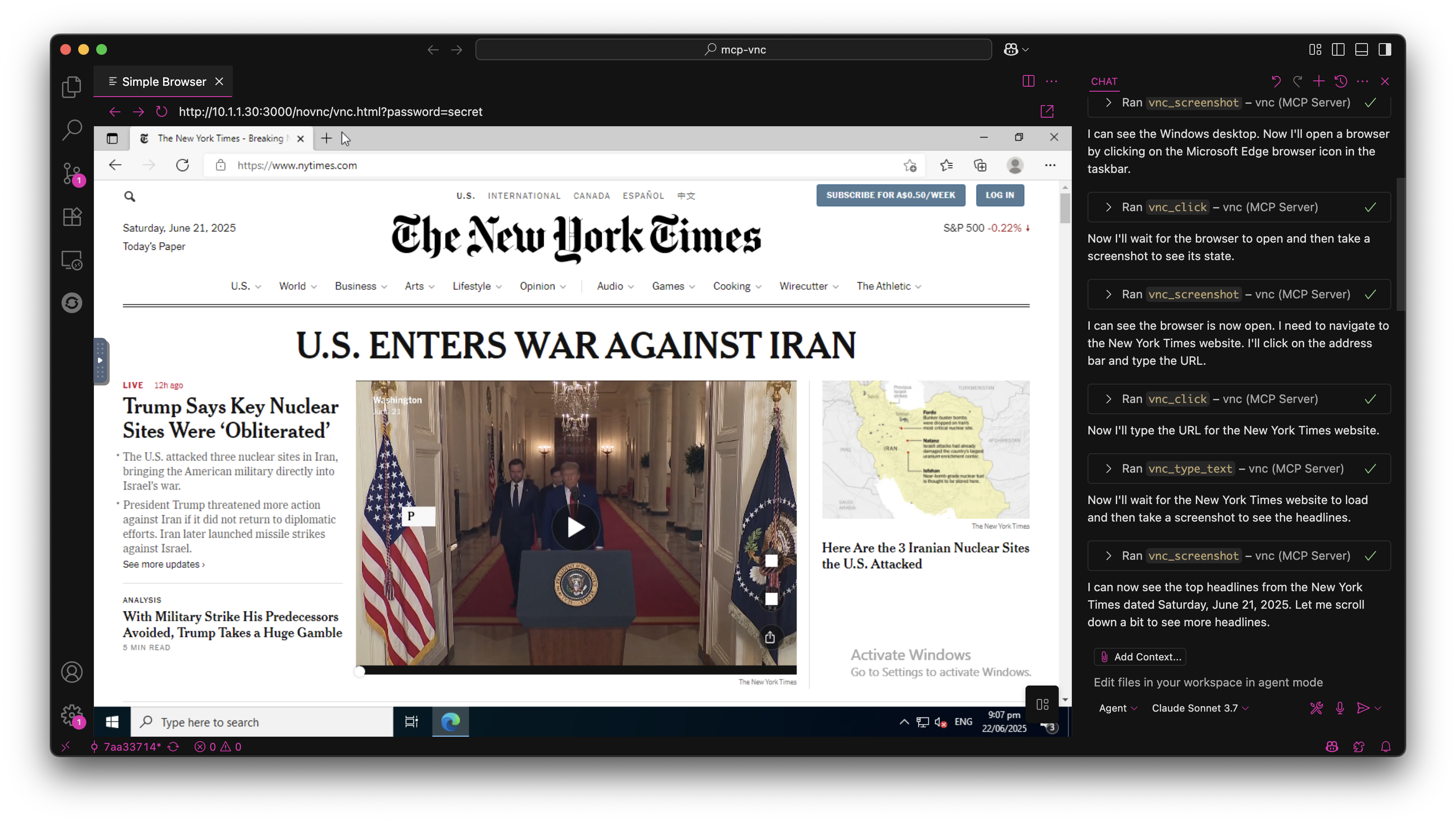
Here is a step-by-step guide with screenshots.


A Model Context Protocol (MCP) server that enables AI agents to remotely control Windows, Linux, macOS or anything else that can run a VNC server (don't worry, it's probably fine).
npm install -g @hrrrsn/mcp-vncgit clone https://github.com/hrrrsn/mcp-vnc
cd mcp-vnc
npm install
npm run buildRelated MCP server: windows-computer-use-mcp
Locate and open your Claude Desktop configuration file:
macOS: ~/Library/Application Support/Claude/claude_desktop_config.json
Windows: %APPDATA%\Claude\claude_desktop_config.json
Linux: ~/.config/Claude/claude_desktop_config.json
Add the following configuration:
Using NPM Install:
{
  "mcpServers": {
    "vnc-controller": {
      "type": "stdio",
      "command": "mcp-vnc",
      "env": {
        "VNC_HOST": "192.168.1.100",
        "VNC_PORT": "5900",
        "VNC_PASSWORD": "your-vnc-password"
      }
    }
  }
}
Built from Source:
{
  "mcpServers": {
    "vnc-controller": {
      "type": "stdio",
      "command": "node",
      "args": ["dist/index.js"],
      "cwd": "/path/to/mcp-vnc",
      "env": {
        "VNC_HOST": "192.168.1.100",
        "VNC_PORT": "5900",
        "VNC_PASSWORD": "your-vnc-password"
      }
    }
  }
}Please refer to the VS Code documentation
The MCP server provides the following tools for remote desktop control:
Parameter | Required | Type | Description | Default |
| ✅ | number | X coordinate | - |
| ✅ | number | Y coordinate | - |
| ❌ | string | Mouse button ( |
|
| ❌ | boolean | Double-click instead of single click |
|
Example: vnc_click(x=100, y=200, button="right", double=true)
Parameter | Required | Type | Description |
| ✅ | number | X coordinate |
| ✅ | number | Y coordinate |
Example: vnc_move_mouse(x=500, y=300)
Parameter | Required | Type | Description |
| ✅ | string | Key or key combination to press |
Supported Keys:
Single keys: a, Enter, F1, Escape, Up, Down, Tab, Space
Key combinations: Ctrl+c, Alt+F4, Ctrl+Alt+Delete, Shift+Tab
Modifiers: Ctrl, Alt, Shift, Super/Win, Meta/Cmd
Examples:
vnc_key_press(key="Enter")
vnc_key_press(key="Ctrl+Alt+Delete")
Parameter | Required | Type | Description | Default |
| ✅ | string | Text to type | - |
| ❌ | boolean | Press Enter after typing |
|
Example: vnc_type_text(text="Hello World!", enter=true)
Parameter | Required | Type | Description |
| ✅ | string[] | Array of lines to type |
Example: vnc_type_multiline(lines=["Line 1", "Line 2", "Line 3"])
Parameter | Required | Type | Description | Default |
| ❌ | number | Delay before screenshot (0-300000ms) |
|
Example: vnc_screenshot(delay=1000) - Wait 1 second before capture
Contributions are welcome! Please feel free to submit a Pull Request.
This project is licensed under the MIT License - see the LICENSE file for details.
Click at specified coordinates
| Name | Required | Description | Default |
|---|---|---|---|
| x | Yes | X coordinate | |
| y | Yes | Y coordinate | |
| button | No | Mouse button | left |
| double | No | Double-click instead of single click |
Does the description disclose side effects, auth requirements, rate limits, or destructive behavior?
There are no annotations, so the description carries the full burden of behavioral disclosure. It only says 'Click at specified coordinates' and does not reveal whether the pointer is moved to the coordinates first, what coordinate system is used, whether there are side effects, or what happens on failure. This is a minimal mutation-like action with no safety profile or behavioral nuance disclosed.
Agents need to know what a tool does to the world before calling it. Descriptions should go beyond structured annotations to explain consequences.
Is the description appropriately sized, front-loaded, and free of redundancy?
The description is a single sentence with no filler words, making it maximally concise and front-loaded. Every component of the description earns its place by stating the essential action.
Shorter descriptions cost fewer tokens and are easier for agents to parse. Every sentence should earn its place.
Given the tool's complexity, does the description cover enough for an agent to succeed on first attempt?
Despite full schema coverage, the tool has no annotations and no output schema. The description does not explain the actual behavioral effect—whether the click happens at the current cursor position or after moving to (x, y)—nor the coordinate system, which is essential for an agent to invoke the tool correctly. For a remote-desktop clicking tool, this is a meaningful gap.
Complex tools with many parameters or behaviors need more documentation. Simple tools need less. This dimension scales expectations accordingly.
Does the description clarify parameter syntax, constraints, interactions, or defaults beyond what the schema provides?
Schema description coverage is 100%, so the schema already documents all four parameters. The description adds no extra meaning beyond the schema, but the parameter names are self-explanatory and the baseline score of 3 is appropriate.
Input schemas describe structure but not intent. Descriptions should explain non-obvious parameter relationships and valid value ranges.
Does the description clearly state what the tool does and how it differs from similar tools?
The description clearly states a specific action ('Click') and resource ('specified coordinates'), making the tool's purpose immediately obvious. It also naturally differentiates from sibling tools like vnc_move_mouse, vnc_key_press, and vnc_screenshot because 'click' is distinct and unambiguous.
Agents choose between tools based on descriptions. A clear purpose with a specific verb and resource helps agents select the right tool.
Does the description explain when to use this tool, when not to, or what alternatives exist?
No guidance is given about when to use this tool versus its siblings or when not to use it. The description does not mention prerequisites, context, or alternative routing, so the agent must infer usage purely from the tool name and generic action.
Agents often have multiple tools that could apply. Explicit usage guidance like "use X instead of Y when Z" prevents misuse.
Press a key or key combination
| Name | Required | Description | Default |
|---|---|---|---|
| key | Yes | Key to press. Single keys: "a", "Enter", "F1". Combinations: "Ctrl+c", "Alt+F4", "Ctrl+Alt+Delete", "Shift+Tab" |
Does the description disclose side effects, auth requirements, rate limits, or destructive behavior?
There are no annotations, so the description carries the full burden of behavioral disclosure, but it only restates the action. It does not explain whether key press/release is simulated, how modifiers are handled, whether focus is required, or what observable effect the key press has.
Agents need to know what a tool does to the world before calling it. Descriptions should go beyond structured annotations to explain consequences.
Is the description appropriately sized, front-loaded, and free of redundancy?
'Press a key or key combination' is a single sentence with no filler and front-loads the action. It is concise, though it is arguably too sparse to fully carry the tool's behavioral and usage context.
Shorter descriptions cost fewer tokens and are easier for agents to parse. Every sentence should earn its place.
Given the tool's complexity, does the description cover enough for an agent to succeed on first attempt?
For a one-parameter tool, the schema richly documents the key syntax and examples, and no output schema is required. However, the description omits any behavioral context and does not differentiate when to use this tool over sibling input tools, so it is only minimally viable.
Complex tools with many parameters or behaviors need more documentation. Simple tools need less. This dimension scales expectations accordingly.
Does the description clarify parameter syntax, constraints, interactions, or defaults beyond what the schema provides?
Schema description coverage is 100%, and the schema already documents the only parameter with concrete examples. The description adds no meaning beyond the schema, so the baseline score of 3 applies.
Input schemas describe structure but not intent. Descriptions should explain non-obvious parameter relationships and valid value ranges.
Does the description clearly state what the tool does and how it differs from similar tools?
The description names a concrete action ('Press') and a scoped resource ('a key or key combination'), making the tool's basic purpose clear. It is naturally distinguishable from siblings like vnc_click and vnc_type_text, though it does not explicitly name that distinction.
Agents choose between tools based on descriptions. A clear purpose with a specific verb and resource helps agents select the right tool.
Does the description explain when to use this tool, when not to, or what alternatives exist?
No guidance is given on when to use this tool versus alternatives like vnc_type_text or vnc_click. The schema examples imply intended syntax, but the description itself offers no context, prerequisites, or exclusions.
Agents often have multiple tools that could apply. Explicit usage guidance like "use X instead of Y when Z" prevents misuse.
Move mouse to specified coordinates
| Name | Required | Description | Default |
|---|---|---|---|
| x | Yes | X coordinate | |
| y | Yes | Y coordinate |
Does the description disclose side effects, auth requirements, rate limits, or destructive behavior?
No annotations are provided, so the description carries full responsibility for behavioral disclosure. It only restates the basic action and provides no additional context about coordinate origin, absolute vs relative movement, bounds behavior, or whether a VNC session must be active.
Agents need to know what a tool does to the world before calling it. Descriptions should go beyond structured annotations to explain consequences.
Is the description appropriately sized, front-loaded, and free of redundancy?
The description is a single, focused sentence with no wasted words. It is appropriately front-loaded and easy to parse quickly.
Shorter descriptions cost fewer tokens and are easier for agents to parse. Every sentence should earn its place.
Given the tool's complexity, does the description cover enough for an agent to succeed on first attempt?
For a simple two-parameter mouse move, the description is minimally viable, but it omits important context such as the coordinate system, units, or screen origin. Since there is no output schema and no annotations, a bit more context would improve completeness.
Complex tools with many parameters or behaviors need more documentation. Simple tools need less. This dimension scales expectations accordingly.
Does the description clarify parameter syntax, constraints, interactions, or defaults beyond what the schema provides?
Schema coverage is 100% with x and y both described as coordinates. The description adds no meaning beyond 'specified coordinates', so it neither improves nor detracts from the schema's already-complete parameter documentation.
Input schemas describe structure but not intent. Descriptions should explain non-obvious parameter relationships and valid value ranges.
Does the description clearly state what the tool does and how it differs from similar tools?
The description states a clear verb ('Move') and resource ('mouse') with a specific target ('specified coordinates'). It is immediately distinguishable from sibling tools like vnc_click, vnc_key_press, and vnc_screenshot, which perform different actions.
Agents choose between tools based on descriptions. A clear purpose with a specific verb and resource helps agents select the right tool.
Does the description explain when to use this tool, when not to, or what alternatives exist?
The description gives no guidance on when to use this tool versus siblings, such as 'use before vnc_click' or 'use to reposition without clicking'. Context for when this is the appropriate choice is absent.
Agents often have multiple tools that could apply. Explicit usage guidance like "use X instead of Y when Z" prevents misuse.
Take a screenshot of the current screen
| Name | Required | Description | Default |
|---|---|---|---|
| delay | No | Delay in milliseconds before taking screenshot (useful for waiting for processes to complete) |
Does the description disclose side effects, auth requirements, rate limits, or destructive behavior?
No annotations are provided, so the description carries the full burden of behavioral disclosure. It only says a screenshot is taken and does not state what the output looks like, where the screenshot is returned or saved, whether a live VNC session is required, or any side effects.
Agents need to know what a tool does to the world before calling it. Descriptions should go beyond structured annotations to explain consequences.
Is the description appropriately sized, front-loaded, and free of redundancy?
The description is one front-loaded sentence with no filler or repetition. It communicates the core action immediately and does not waste the agent's attention.
Shorter descriptions cost fewer tokens and are easier for agents to parse. Every sentence should earn its place.
Given the tool's complexity, does the description cover enough for an agent to succeed on first attempt?
For a tool with one optional, fully documented parameter, this is minimally viable. However, there is no output schema and no statement of the return format, so an agent cannot be certain whether the tool returns an image, a file path, or base64 data.
Complex tools with many parameters or behaviors need more documentation. Simple tools need less. This dimension scales expectations accordingly.
Does the description clarify parameter syntax, constraints, interactions, or defaults beyond what the schema provides?
The single delay parameter is fully documented in the input schema, including units, range, default, and a practical use case. The description itself adds no parameter detail, but with 100% schema coverage, the schema does the heavy lifting and the baseline score of 3 applies.
Input schemas describe structure but not intent. Descriptions should explain non-obvious parameter relationships and valid value ranges.
Does the description clearly state what the tool does and how it differs from similar tools?
The description states a clear verb and resource: taking a screenshot of the current screen. It is immediately distinguishable from the sibling VNC input tools, which handle clicks, mouse movement, and key/text entry.
Agents choose between tools based on descriptions. A clear purpose with a specific verb and resource helps agents select the right tool.
Does the description explain when to use this tool, when not to, or what alternatives exist?
The tool's purpose is self-evident as the only capture tool among sibling actions, and the delay parameter in the schema adds a clear use case for waiting on processes. There are no explicit exclusions or alternative routing instructions, but none are really needed for this simple, unique-purpose tool.
Agents often have multiple tools that could apply. Explicit usage guidance like "use X instead of Y when Z" prevents misuse.
Type multiple lines of text, separated by newlines
| Name | Required | Description | Default |
|---|---|---|---|
| lines | Yes | Array of lines to type |
Does the description disclose side effects, auth requirements, rate limits, or destructive behavior?
With no annotations provided, the description carries the behavioral transparency burden. It does state the core behavior ('type multiple lines of text, separated by newlines'), but it does not disclose details such as whether each line is terminated with Enter, whether trailing newlines are sent, or how the input is delivered. The behavior is sufficiently clear for a simple typing tool but not deeply transparent.
Agents need to know what a tool does to the world before calling it. Descriptions should go beyond structured annotations to explain consequences.
Is the description appropriately sized, front-loaded, and free of redundancy?
The description is a single, front-loaded sentence with no filler. Every word adds meaning: it specifies the action, the target, and the line-separator behavior.
Shorter descriptions cost fewer tokens and are easier for agents to parse. Every sentence should earn its place.
Given the tool's complexity, does the description cover enough for an agent to succeed on first attempt?
For a tool with one required parameter, full schema coverage, and no output schema, the description provides enough context to call the tool correctly. It could mention usage tradeoffs with vnc_type_text, but the low complexity and clear parameter semantics make the current description largely complete.
Complex tools with many parameters or behaviors need more documentation. Simple tools need less. This dimension scales expectations accordingly.
Does the description clarify parameter syntax, constraints, interactions, or defaults beyond what the schema provides?
The schema already documents the single parameter as an array of lines with 100% coverage. The description adds useful meaning by explaining that lines are separated by newlines when typed, which is not explicit in the schema. This goes beyond the baseline schema coverage.
Input schemas describe structure but not intent. Descriptions should explain non-obvious parameter relationships and valid value ranges.
Does the description clearly state what the tool does and how it differs from similar tools?
The description uses a specific verb and resource: it types multiple lines of text separated by newlines. This clearly distinguishes it from sibling tools like vnc_type_text, vnc_click, and vnc_key_press by describing its unique input behavior.
Agents choose between tools based on descriptions. A clear purpose with a specific verb and resource helps agents select the right tool.
Does the description explain when to use this tool, when not to, or what alternatives exist?
The description implies when to use the tool—when multiple lines of text need to be typed—but it does not explicitly name alternatives or state when not to use it. No explicit guidance is given about choosing vnc_type_text for single-line input, leaving selection partly to inference.
Agents often have multiple tools that could apply. Explicit usage guidance like "use X instead of Y when Z" prevents misuse.
Type text string
| Name | Required | Description | Default |
|---|---|---|---|
| text | Yes | Single line of text to type | |
| enter | No | Press Enter after typing text |
Does the description disclose side effects, auth requirements, rate limits, or destructive behavior?
No annotations are provided, so the description carries the full burden of behavioral disclosure. It only restates the tool name-level behavior and does not explain how typing is performed, where input lands, whether it is single-line, or whether Enter is pressed. The schema covers the enter option, but the description itself adds no behavioral context.
Agents need to know what a tool does to the world before calling it. Descriptions should go beyond structured annotations to explain consequences.
Is the description appropriately sized, front-loaded, and free of redundancy?
The description is very short and free of filler, but its brevity is not particularly informative. It is closer to under-specification than to purposeful, well-structured content, since it adds little beyond the tool name.
Shorter descriptions cost fewer tokens and are easier for agents to parse. Every sentence should earn its place.
Given the tool's complexity, does the description cover enough for an agent to succeed on first attempt?
With no annotations and no output schema, the description needed to provide more orientation. It does not explain this tool's role among siblings, especially vnc_type_multiline, and does not clarify practical details such as whether text is typed into the focused VNC window. The schema covers parameters, but the overall context is incomplete.
Complex tools with many parameters or behaviors need more documentation. Simple tools need less. This dimension scales expectations accordingly.
Does the description clarify parameter syntax, constraints, interactions, or defaults beyond what the schema provides?
Schema description coverage is 100%: both 'text' and 'enter' are already described meaningfully. The description adds no meaning beyond the schema, but the baseline of 3 is appropriate because the schema carries the semantic weight.
Input schemas describe structure but not intent. Descriptions should explain non-obvious parameter relationships and valid value ranges.
Does the description clearly state what the tool does and how it differs from similar tools?
The description states a clear action ('Type') and a clear object ('text string'), so an agent can tell this tool sends text input. However, it does not explicitly distinguish this tool from its sibling vnc_type_multiline or mention the VNC context, so it stops short of full differentiation.
Agents choose between tools based on descriptions. A clear purpose with a specific verb and resource helps agents select the right tool.
Does the description explain when to use this tool, when not to, or what alternatives exist?
There is no guidance about when to use this tool versus vnc_key_press, vnc_type_multiline, or vnc_screenshot. It also does not mention that text goes to the currently focused field, nor when the enter option should be enabled.
Agents often have multiple tools that could apply. Explicit usage guidance like "use X instead of Y when Z" prevents misuse.
Recent tool additions, removals, and schema changes observed during successful MCP inspections.
v1.0.2vnc_clickvnc_key_pressvnc_move_mousevnc_screenshotvnc_type_multilinevnc_type_textScored across 6 tools
Each tool targets a distinct VNC action: clicking, key pressing, mouse moving, screenshotting, and text typing (single and multiline). There is no ambiguity between the two text typing tools as they are differentiated by line count.
All tools follow a consistent verb_noun pattern with the 'vnc_' prefix (e.g., vnc_click, vnc_key_press, vnc_type_text). The naming is uniform and predictable, aiding agent selection.
With 6 tools, the server is well-scoped for basic VNC remote control operations. Each tool serves a clear purpose without being excessive, fitting neatly within the ideal 3-15 range.
The tool set covers essential GUI interactions (click, type, move, screenshot) but lacks common operations like scrolling or right-click. This is a minor gap that may require workarounds for some tasks.
Nifty's MCP server — exposes tasks, projects, messages, and files as tools for AI agents.
The Remote MCP server acts as a standardized bridge between LLM applications (like Claude, ChatGPT, and Cursor) and external services, enabling AI agents to access external tools and resources. Its primary capability is providing a centralized search tool to discover other MCP servers and their respective tools. Unlike local implementations, it runs remotely with OAuth authentication and permission controls for security.
MCP server for agentverse documentation, generated by doc2mcp.
Official MCP server for Agentwork — delegate tasks to AI agents with human-in-the-loop