Miro MCP Server
A standalone Model Context Protocol (MCP) server that enables any MCP-compatible LLM to interact with Miro whiteboards
Prerequisites
Related MCP server: miro-mcp-server
Setup
Clone this repository or navigate to the project directory:
Create a virtual environment:
python -m venv venv
source venv/bin/activate
Install dependencies:
pip install -r requirements.txt
Configuration
Create a .env file in the project root with your Miro credentials:
MIRO_CLIENT_ID=your_client_id_here
MIRO_CLIENT_SECRET=your_client_secret_here
MIRO_REDIRECT_URL=http://localhost:8080/callback
Available Tools
Authentication Tools
Board Management Tools
Shape Manipulation Tools
create_shape: Create a shape on a board
update_shape: Update properties of an existing shape
delete_shape: Delete a shape from a board
Parameters:
board_id (string, required): The ID of the board
item_id (string, required): The ID of the shape item to delete
Returns: Success message
Grouping Tools
Usage
Running the MCP Server
The MCP server communicates via stdio using JSON-RPC protocol. To run it:
Authentication
Before using the MCP server to interact with Miro boards, you need to authenticate and obtain an access token:
Step 1: Get Authorization URL
Call the get_auth_url tool to retrieve the OAuth authorization URL:
{
  "jsonrpc": "2.0",
  "id": 1,
  "method": "tools/call",
  "params": {
    "name": "get_auth_url",
    "arguments": {}
  }
}
The response will contain an auth_url that you need to visit in your browser.
Step 2: Authorize the Application
Copy the auth_url from the response
Open it in your web browser
Log in to your Miro account
Review and approve the permissions requested by the application
After authorization, Miro will redirect you to the callback URL specified in your configuration
After authorization, Miro redirects to your callback URL with a code parameter in the query string. The URL will look like:
http://localhost:8080/callback?code=AUTHORIZATION_CODE_HERE
Extract the code value from the URL (everything after code=).
Step 4: Exchange Code for Access Token
Use the exchange_auth_code tool with the authorization code to complete authentication:
{
  "jsonrpc": "2.0",
  "id": 2,
  "method": "tools/call",
  "params": {
    "name": "exchange_auth_code",
    "arguments": {
      "code": "AUTHORIZATION_CODE_HERE"
    }
  }
}
Example MCP Client Configuration
For use with MCP-compatible clients, configure the server as follows:
{
  "mcpServers": {
    "miro": {
      "command": "python",
      "args": ["/path/to/miro-mcp/server.py"],
      "env": {
        "MIRO_CLIENT_ID": "your_client_id",
        "MIRO_CLIENT_SECRET": "your_client_secret",
        "MIRO_REDIRECT_URL": "http://localhost:8080/callback"
      }
    }
  }
}
Example Tool Calls
Here are some example JSON-RPC requests:
List available tools:
{
  "jsonrpc": "2.0",
  "id": 1,
  "method": "tools/list"
}
Get board information:
{
  "jsonrpc": "2.0",
  "id": 2,
  "method": "tools/call",
  "params": {
    "name": "get_board",
    "arguments": {
      "board_id": "your_board_id"
    }
  }
}
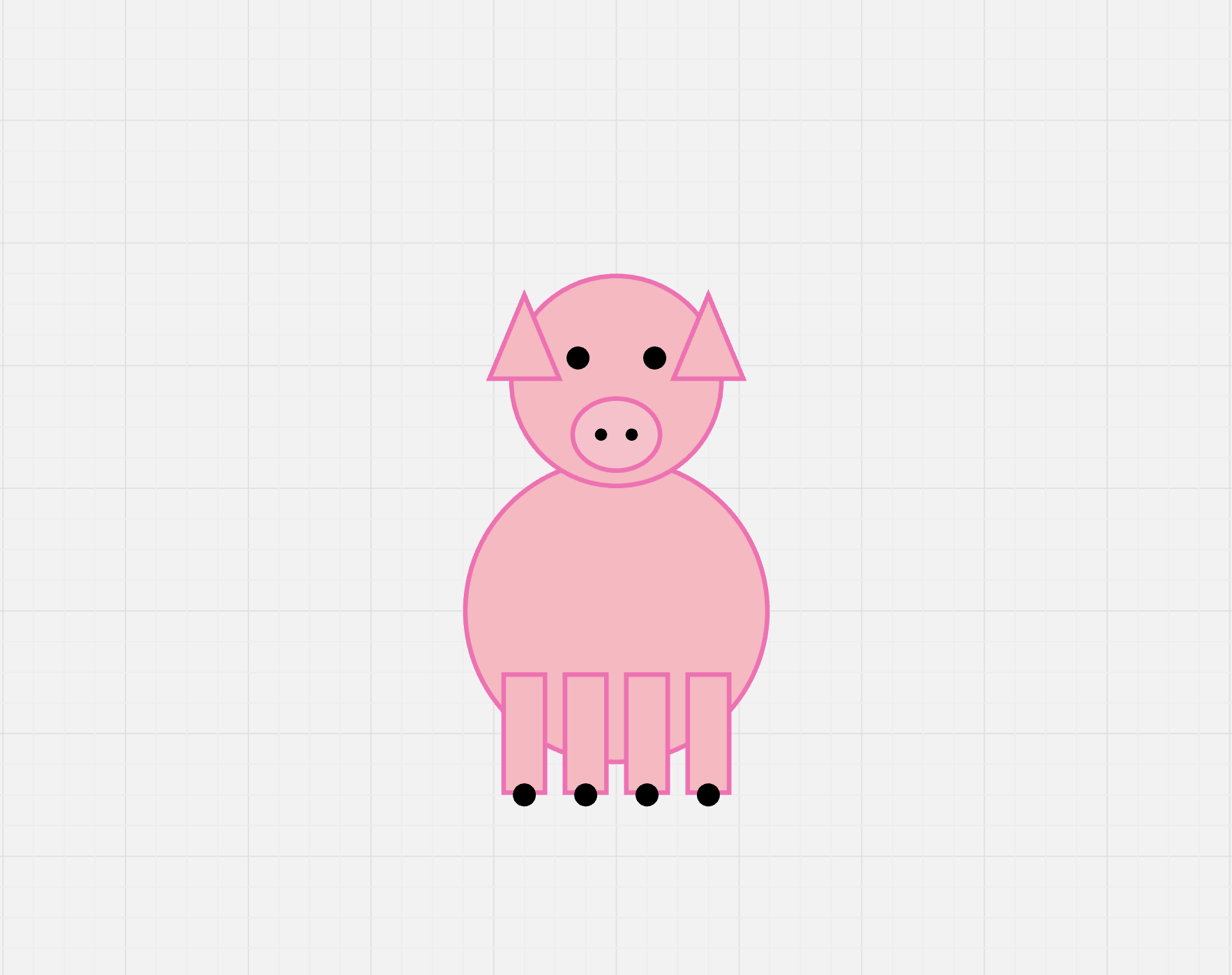
Sample Output
Repository Structure
miro-mcp/
├── server.py              # Main MCP server entry point
├── miro_client.py         # Miro API client wrapper
├── config.py              # Configuration management
├── tool_registry.py       # Tool registration system
├── requirements.txt       # Python dependencies
├── README.md              # This file
└── tools/                 # Tool implementations
    ├── __init__.py
    ├── auth_tools.py      # Authentication tools
    ├── board_tools.py     # Board management tools
    ├── shape_tools.py     # Shape manipulation tools
    └── group_tools.py     # Grouping tools


