
telebotstudio-mcp
by harshi79
README.md
<div align="center">
# TeleBot Studio MCP
**Ground your AI in official docs. Let it manage your bots.**
[](https://python.org)
[](LICENSE)
[](https://modelcontextprotocol.io)
[](https://github.com/jlowin/fastmcp)
[]()
[]()
[]()
Documentation Search · Official REST API · AI Agent Pipeline · 26 MCP Tools · Production Ready
A production-ready MCP server with two engines:
1. **documentation search** — BM25-ranked search across official TeleBot Studio docs. Zero embeddings. Zero external APIs. Works offline.
2. **bot management** — full REST API integration. Create, configure, and control your TeleBot Studio bots from any MCP-compatible AI client.
[getting started](#getting-started) · [installation](#local-installation) · [connecting](#connecting-to-ai-clients) · [credentials](#getting-your-telebotstudio-api-credentials) · [ai in action](#ai-in-action) · [tools](#mcp-tools-26) · [architecture](#architecture) · [deployment](#deployment) · [troubleshooting](#troubleshooting)
</div>
---
## getting started
### what is this?
LLMs hallucinate API specifics. When you ask about TeleBot Studio, they guess from stale training data — wrong function signatures, invented parameters, outdated patterns. This is **documentation drift**: the gap between what the AI says and what the docs actually specify.
TeleBot Studio MCP closes that gap two ways:
- **documentation tools** ground your AI in official docs. If the answer isn't in the corpus, the server returns nothing — no phantom functions, no invented APIs.
- **API tools** let your AI *do things* — create bots, write commands, start and stop them — through the official TeleBot Studio REST API v2.
The result: an AI assistant that both *knows* the platform and can *act on it*.
### who should use it?
- **TeleBot Studio users** who want an AI assistant that actually knows the platform instead of making things up
- **Developers** building Telegram bots with TeleBot Studio who want to create and manage bots from their AI editor
- **Teams** who want a shared, always-correct reference for TeleBot Studio inside their AI workflow
- **Anyone** tired of AI responses that invent functions or describe APIs that don't exist
You don't need to be an MCP expert. If you can install a Python package and edit a JSON config file, you can set this up.
### what the documentation engine does
The documentation engine takes every page of official TeleBot Studio documentation, breaks it into sections, and builds a search index using BM25 — a well-established ranking algorithm. When your AI asks a question, the server searches this index and returns the most relevant sections with their scores.
- Works **offline** — no internet connection needed for documentation queries
- Uses **BM25 ranking**, not embeddings — results are deterministic and exact
- Supports **scoped searches** — code examples, API references, function definitions, library info, or error messages
- If the answer isn't in the docs, it returns nothing — your AI won't invent answers
### what the api engine does
The API engine wraps the TeleBot Studio REST API v2 and exposes it as MCP tools. Your AI can:
- Create and delete bots
- Update bot tokens
- Create, read, update, and delete bot commands
- Start, stop, and restart bots
- Deploy a complete bot in one operation (create → add commands → start)
Every API call goes through the official REST API over HTTPS. The server never stores your credentials on disk — they live in memory for the duration of the session and are lost on restart.
### what the ai agent does
For multi-step operations like deploying a complete bot, the server includes an agent pipeline that breaks the task into ordered steps:
1. **Planner** — decomposes the goal into discrete actions (create bot, add command, start bot)
2. **Validator** — checks that credentials are set and parameters are valid before anything runs
3. **Preview** — shows you what will happen, with sensitive values masked, and waits for your confirmation
4. **Executor** — runs the steps one by one, continuing even if some fail, and reports per-step results
This pipeline is what powers `tbs_deploy_bot`, `tbs_setup_commands`, and the batch tools.
---
## features
| | what you get |
|:---|:---|
| **documentation** | BM25 full-text search across **39 pages / 835 validated chunks** (official TeleBot Studio v1.1.0 docs + 9 runnable patterns across 7 categories), heading-weighted scoring (`H1 > H2 > H3`), natural-language query stopword filtering, unigram + bigram tokenization, 5 scoped search modes, thread-safe LRU cache (256 entries), 100% offline |
| **bot management** | create / delete / update bots, create / update / delete / get / list commands, start / stop / restart bots across all 11 REST API v2 endpoints |
| **agent pipeline** | Planner → Validator → Preview → Executor for multi-step operations like full bot deployment (`tbs_deploy_bot`, `tbs_setup_commands`) |
| **batch operations** | bulk create or delete commands with rate-limit pacing and per-step success/failure reporting |
| **safety** | preview-before-execute for destructive ops, memory-only session credentials (never persisted), `X-Session-ID` multi-tenant isolation, token masking |
| **server** | FastMCP, STDIO + HTTP/streamable-http transports, persistent HTTP Keep-Alive `ConnectionPool` (100 tenants, 300s idle eviction), `/health` telemetry endpoint, retry with exponential backoff |
---
## supported clients
Works with any MCP-compatible client. Tested with:
Claude Desktop · Cursor · Windsurf · VS Code · ChatGPT · Continue · Cline
If your client supports the Model Context Protocol, it should work out of the box.
---
## quick start
If you already know your way around MCP and just want the essentials:
```bash
git clone https://github.com/harshi79/telebotstudio-mcp.git
cd telebotstudio-mcp
python -m venv venv
source venv/bin/activate
pip install -r requirements.txt
python build_index.py --validate
python server.py
```
For detailed per-OS instructions, see [local installation](#local-installation). For client-specific setup, see [connecting to ai clients](#connecting-to-ai-clients).
---
## local installation
### linux
1. **Clone the repository**
```bash
git clone https://github.com/harshi79/telebotstudio-mcp.git
```
2. **Enter the project directory**
```bash
cd telebotstudio-mcp
```
3. **Create a virtual environment**
```bash
python3 -m venv venv
```
This creates an isolated Python environment so dependencies don't conflict with your system packages. You need Python 3.11 or newer.
4. **Activate the virtual environment**
```bash
source venv/bin/activate
```
You'll see `(venv)` appear in your shell prompt. Run this every time you open a new terminal.
5. **Install dependencies**
```bash
pip install -r requirements.txt
```
6. **Validate the documentation index**
```bash
python build_index.py --validate
```
You should see:
```
✓ All 835 chunks validated successfully.
```
7. **Run the server**
STDIO mode (for local AI clients like Claude Desktop and Cursor):
```bash
python server.py
```
HTTP mode (for remote clients or deployment):
```bash
python server.py --transport http
```
### macos
1. **Clone the repository**
```bash
git clone https://github.com/harshi79/telebotstudio-mcp.git
```
2. **Enter the project directory**
```bash
cd telebotstudio-mcp
```
3. **Create a virtual environment**
```bash
python3 -m venv venv
```
If `python3` isn't found, install Python from [python.org](https://python.org) or via Homebrew: `brew install python3`.
4. **Activate the virtual environment**
```bash
source venv/bin/activate
```
5. **Install dependencies**
```bash
pip install -r requirements.txt
```
6. **Validate the documentation index**
```bash
python build_index.py --validate
```
7. **Run the server**
STDIO mode:
```bash
python server.py
```
HTTP mode:
```bash
python server.py --transport http
```
### windows
1. **Clone the repository**
```powershell
git clone https://github.com/harshi79/telebotstudio-mcp.git
```
If you don't have git, install it from [git-scm.com](https://git-scm.com).
2. **Enter the project directory**
```powershell
cd telebotstudio-mcp
```
3. **Create a virtual environment**
```powershell
python -m venv venv
```
If `python` isn't recognized, try `py` instead, or install Python from [python.org](https://python.org). Make sure to check "Add Python to PATH" during installation.
4. **Activate the virtual environment**
PowerShell:
```powershell
.\venv\Scripts\Activate.ps1
```
Command Prompt:
```cmd
.\venv\Scripts\activate.bat
```
If PowerShell says running scripts is disabled, run this first:
```powershell
Set-ExecutionPolicy -ExecutionPolicy RemoteSigned -Scope CurrentUser
```
5. **Install dependencies**
```powershell
pip install -r requirements.txt
```
6. **Validate the documentation index**
```powershell
python build_index.py --validate
```
7. **Run the server**
STDIO mode:
```powershell
python server.py
```
HTTP mode:
```powershell
python server.py --transport http
```
---
## getting your telebotstudio api credentials
The bot management tools require two pieces of information: an **API Key** and a **Bot ID**. Here's how to get both.
### 1. create a telebotstudio account
If you don't have one yet, sign up at:
**[telebotstudio.com](https://telebotstudio.com)**
An account is required because the API tools communicate with the TeleBot Studio REST API on your behalf. Your API key authenticates every request.
### 2. get your api key
After logging in:
1. Open the top-left menu (**☰**)
2. Go to **Settings**
3. Scroll to **API Access**
4. Copy your API Key
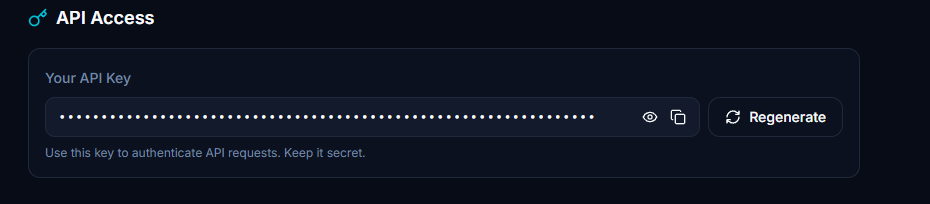
- Your API key is a **secret**. Never commit it to git, never share it publicly, never hardcode it in your source.
- It is only needed at runtime. This MCP server stores it **in memory only** — never written to disk, never logged in cleartext, and lost when the server restarts.
- If your key is compromised, you can regenerate it from the same Settings page.
### 3. create your bot
If you don't already have a bot on TeleBot Studio:
1. Create a Telegram bot using **@BotFather** on Telegram
2. Copy the **Bot Token** that BotFather gives you
3. Open TeleBot Studio and create a new bot using that token
Alternatively, you can create a bot directly through the MCP tool `tbs_create_bot` by passing the Bot Token.
### 4. get your bot id
After creating the bot:
1. Open the top-left menu (**☰**)
2. Go to **My Bots**
3. Select your bot
4. Open **Bot Settings**
5. Copy the **Bot ID**
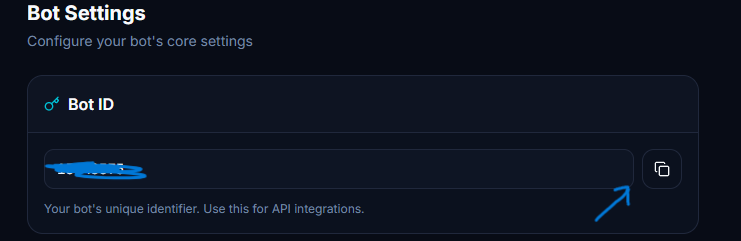
The Bot ID is required for almost every REST API operation — listing commands, creating commands, starting and stopping the bot, etc. Once you have it, pass it to `tbs_set_bot_id` so the server remembers it for the rest of your session.
---
## connecting to ai clients
Once the server is installed, you need to tell your AI client how to reach it. The exact steps depend on which client you're using.
Every client needs to know two things: the **command** to start the server (for STDIO mode) or the **URL** where the server is running (for HTTP mode). If you're running the server locally, use STDIO. If you've deployed it to Render, use HTTP.
### claude desktop
1. Open Claude Desktop
2. Go to **Settings** → **Developer**
3. Click **Edit Config**
4. This opens a `claude_desktop_config.json` file. Add the server:
**Local server (STDIO):**
```json
{
"mcpServers": {
"telebotstudio": {
"command": "python",
"args": ["/absolute/path/to/telebotstudio-mcp/server.py"]
}
}
}
```
Replace `/absolute/path/to/` with the actual path to where you cloned the repository. On Windows, use the full path like `C:/Users/you/telebotstudio-mcp/server.py`.
**Render server (HTTP):**
```json
{
"mcpServers": {
"telebotstudio": {
"url": "https://your-app.onrender.com/mcp"
}
}
}
```
5. Save the file and restart Claude Desktop
6. Start a new conversation and look for the tools icon (🔧) — it should show the 26 TeleBot Studio tools
**Common mistakes:**
- Using a relative path instead of an absolute one — Claude Desktop needs the full path
- Forgetting to restart Claude Desktop after editing the config
- On Windows, using backslashes in the JSON — use forward slashes instead
### cursor
1. Open Cursor
2. Go to **Settings** → **Features** → **MCP**
3. Click **Add new MCP server**
4. Fill in the details:
**Local server (STDIO):**
- Name: `telebotstudio`
- Type: `stdio`
- Command: `python`
- Args: `/absolute/path/to/telebotstudio-mcp/server.py`
**Render server (HTTP):**
- Name: `telebotstudio`
- Type: `sse` or `streamable-http`
- URL: `https://your-app.onrender.com/mcp`
5. Save and wait for the tools to appear in the MCP panel
### windsurf
1. Open Windsurf
2. Go to **Settings** → **MCP Servers**
3. Click **Add Server**
4. Fill in the details:
**Local server (STDIO):**
- Name: `telebotstudio`
- Command: `python`
- Args: `/absolute/path/to/telebotstudio-mcp/server.py`
**Render server (HTTP):**
- Name: `telebotstudio`
- URL: `https://your-app.onrender.com/mcp`
5. Save and restart Windsurf if the tools don't appear immediately
### chatgpt
1. Open ChatGPT
2. Go to **Settings** → **Connectors** or **MCP Servers**
3. Click **Add connector**
4. Enter the server URL:
**Render server (HTTP):**
- URL: `https://your-app.onrender.com/mcp`
ChatGPT currently supports HTTP-based MCP connections. If you're running locally, you'll need to deploy the server to Render or another host first.
5. Save and start a new conversation to verify the tools are available
**Common mistake:**
- Trying to use a `localhost` URL — ChatGPT can't reach your local machine. Use a publicly deployed server instead.
### visual studio code
1. Install an MCP extension for VS Code (such as the official MCP extension or a community one)
2. Open VS Code settings
3. Find the MCP configuration section
4. Add the server:
**Local server (STDIO):**
```json
{
"mcp": {
"servers": {
"telebotstudio": {
"command": "python",
"args": ["/absolute/path/to/telebotstudio-mcp/server.py"]
}
}
}
}
```
**Render server (HTTP):**
```json
{
"mcp": {
"servers": {
"telebotstudio": {
"url": "https://your-app.onrender.com/mcp"
}
}
}
}
```
5. Reload VS Code to apply the changes
### continue
1. Open Continue settings — click the gear icon in the Continue panel
2. Find the **MCP Servers** section
3. Add a new server:
**Local server (STDIO):**
```json
{
"mcpServers": {
"telebotstudio": {
"command": "python",
"args": ["/absolute/path/to/telebotstudio-mcp/server.py"]
}
}
}
```
**Render server (HTTP):**
```json
{
"mcpServers": {
"telebotstudio": {
"url": "https://your-app.onrender.com/mcp"
}
}
}
```
4. Save and restart Continue
### cline
1. Open the Cline panel in your editor
2. Click the **MCP Servers** icon
3. Click **Add server**
4. Fill in the details:
**Local server (STDIO):**
- Name: `telebotstudio`
- Command: `python`
- Args: `/absolute/path/to/telebotstudio-mcp/server.py`
**Render server (HTTP):**
- Name: `telebotstudio`
- URL: `https://your-app.onrender.com/mcp`
5. Save and verify the tools appear
### verifying the connection
After adding the server to your client, check that it's working:
1. Start a new conversation
2. Ask something like "search for broadcast in the TeleBot Studio docs"
3. If the AI can call `search_docs`, the connection is working
4. You can also ask "list all available documentation pages" — it should call `list_pages` and return the page names
If the AI doesn't use the MCP tools, check the troubleshooting section below.
---
## first chat
After connecting the MCP, start every new conversation with a prompt like this:
```
You are connected to the TeleBot Studio MCP.
Always prefer the connected MCP instead of web search whenever the requested information exists inside the TeleBot Studio documentation.
Before answering:
1. search the documentation using the MCP.
2. use the relevant documentation pages.
3. if bot management is required, use the API tools.
4. never invent undocumented functions.
5. if something is not documented, explicitly say so.
6. only use web search when the MCP cannot answer.
```
Why this helps: by default, many AI clients prefer web search over MCP tools, or they answer from training data without checking the connected tools at all. A prompt like this tells the AI to check the documentation first, use the API tools when needed, and be honest when something isn't covered. It dramatically reduces hallucinated functions and outdated information.
You don't need to paste this every time if your client supports custom instructions or system prompts — add it there once and it applies to every conversation.
---
## example conversations
These examples show how the AI uses the MCP tools in a real conversation.
### example 1: documentation query
**you:** how do broadcasts work?
↓ AI calls `search_docs("broadcast")`
↓ AI receives the relevant documentation chunks
↓ AI reads the chunks and answers using the official docs
**ai:** Broadcasts in TeleBot Studio let you send messages to all your bot subscribers at once. Here's how it works based on the documentation: [answer drawn from the actual docs, not guessed]
### example 2: creating a command
**you:** create a /start command that sends a welcome message
↓ AI calls `tbs_set_api_key` (if not already set)
↓ AI calls `tbs_set_bot_id` (if not already set)
↓ AI calls `tbs_create_command(command="/start", code="...")`
↓ API returns success
**ai:** The `/start` command has been created on your bot. It will send a welcome message when users start the bot.
### example 3: restarting a bot
**you:** restart my bot
↓ AI calls `tbs_restart_bot(bot_id="...")`
↓ API returns success
**ai:** Your bot has been restarted. The webhook has been removed and re-set.
### example 4: searching documentation broadly
**you:** find every page mentioning variables
↓ AI calls `search_docs("variables")`
↓ AI receives matching chunks across multiple pages
**ai:** Here are the documentation pages that mention variables: [lists the pages with relevant sections]
---
## ai in action
Screenshots from actual MCP usage — no mock data, no staging.
### chatgpt
<p align="center">
<img src="https://files.catbox.moe/l8qg61.jpg" width="700" alt="ChatGPT connected to TeleBot Studio MCP — all 26 tools available" />
</p>
<p align="center"><em>Connection established — all 26 MCP tools available</em></p>
<p align="center">
<img src="https://files.catbox.moe/zadh4z.jpg" width="700" alt="ChatGPT grounded response drawn from official documentation" />
</p>
<p align="center"><em>Grounded response — answer sourced from the docs, not training data</em></p>
### claude desktop
<p align="center">
<img src="https://files.catbox.moe/7i4np9.jpg" width="700" alt="Claude Desktop MCP tool call to the documentation engine" />
</p>
<p align="center"><em>Tool call — Claude queries the TeleBot Studio documentation engine</em></p>
<p align="center">
<img src="https://files.catbox.moe/35w8vp.jpg" width="700" alt="Claude Desktop accurate response grounded in official docs" />
</p>
<p align="center"><em>Grounded response — accurate answer from the documentation</em></p>
---
## MCP tools (26)
### documentation search (8)
| tool | what it does |
|:---|:---|
| `search_docs(query, top_k)` | Primary search. Full-text BM25 across all chunks. |
| `get_page(name)` | Retrieve an entire documentation page by filename. |
| `list_pages()` | List all available documentation pages. |
| `search_examples(query, top_k)` | Scoped search for code examples and snippets. |
| `search_api(query, top_k)` | Scoped search for API references and endpoints. |
| `search_library(query, top_k)` | Scoped search for library and dependency info. |
| `search_functions(query, top_k)` | Scoped search for function definitions and signatures. |
| `search_errors(query, top_k)` | Scoped search for errors and troubleshooting. |
### credentials (3)
| tool | what it does |
|:---|:---|
| `tbs_set_api_key(api_key)` | Set your API key (memory-only, never persisted). |
| `tbs_set_bot_id(bot_id)` | Set the active Bot ID for the session. |
| `tbs_credential_status()` | Check if credentials are set (key is masked). |
### bot management (3)
| tool | what it does |
|:---|:---|
| `tbs_create_bot(bot_token)` | Create a new bot with a Telegram bot token. Auto-sets the Bot ID. |
| `tbs_delete_bot(bot_id, confirm)` | Soft-delete a bot. Set `confirm=true` to execute; defaults to preview-only. |
| `tbs_update_bot_token(bot_id, new_token, confirm)` | Update a bot's token (triggers a restart). Preview-supported. |
### command management (5)
| tool | what it does |
|:---|:---|
| `tbs_create_command(command, code, bot_id)` | Create a new command on a bot. |
| `tbs_get_command(command_name, bot_id)` | Get command details by name. |
| `tbs_update_command(command_name, code, bot_id, confirm)` | Update a command's code. Preview-supported. |
| `tbs_delete_command(command_name, bot_id, confirm)` | Delete a command. Preview-supported. |
| `tbs_list_commands(bot_id)` | List all commands for a bot. |
### bot control (3)
| tool | what it does |
|:---|:---|
| `tbs_start_bot(bot_id)` | Start a bot (set webhook). |
| `tbs_stop_bot(bot_id)` | Stop a bot (remove webhook). |
| `tbs_restart_bot(bot_id)` | Restart a bot (stop + start). |
### agent tools (2)
| tool | what it does |
|:---|:---|
| `tbs_deploy_bot(bot_token, commands_json, confirm)` | Complete deployment: create bot → add commands → start. |
| `tbs_setup_commands(commands_json, bot_id, confirm)` | Bulk create commands on an existing bot. |
### batch tools (2)
| tool | what it does |
|:---|:---|
| `tbs_batch_create_commands(commands_json, bot_id, confirm)` | Create multiple commands in sequence. |
| `tbs_batch_delete_commands(command_names_json, bot_id, confirm)` | Delete multiple commands in sequence. Preview-supported. |
---
## architecture
### two-engine design
The server runs two independent engines side by side, connected through the FastMCP framework:
```
┌─────────────────────────────────────────────────────┐
│ FastMCP Server │
│ │
│ ┌──────────────────┐ ┌──────────────────────────┐ │
│ │ documentation │ │ bot management │ │
│ │ engine (BM25) │ │ engine (REST API v2) │ │
│ │ │ │ │ │
│ │ 8 search tools │ │ Planner → Validator │ │
│ │ 100% offline │ │ → Preview → Executor │ │
│ │ in-memory index │ │ 18 API tools │ │
│ └──────────────────┘ └──────────────────────────┘ │
│ │
│ ┌────────────────────────────────────────────────┐ │
│ │ session manager (thread-safe, memory-only) │ │
│ └────────────────────────────────────────────────┘ │
└─────────────────────────────────────────────────────┘
│ │
STDIO / HTTP HTTPS → api.telebotstudio.com
```
### agent pipeline
Agent tools (`tbs_deploy_bot`, `tbs_setup_commands`, batch operations) decompose complex goals into executable plans:
```
user goal → Planner (decompose into steps)
→ Validator (check credentials, params)
→ Preview (show what will happen, mask secrets)
→ [confirm=true] → Executor (run steps sequentially)
→ BatchResult (per-step success/failure)
```
- **Planner** takes a high-level goal and breaks it into ordered steps.
- **Validator** checks that credentials are set and parameters are valid. If the API key is missing, it stops here.
- **Preview** generates a human-readable description of every step, masks sensitive values, and tells you whether confirmation is required. Nothing executes at this stage.
- **Executor** runs the steps one by one. If a step fails, it records the failure and continues. The final result reports per-step success and failure.
### preview & confirmation
Destructive operations — deleting a bot, deleting a command, updating a bot token — require `confirm=true`. When `confirm` is false or omitted, the tool returns a **preview**: a description of what *will* happen, without executing anything.
This two-step pattern exists because AI assistants can misinterpret intent. "Remove the test bot" shouldn't accidentally delete a production bot. The preview gives you a chance to verify before anything irreversible happens.
### documentation engine internals
1. **Loading & Heading Chunking** — `MarkdownLoader` scans `docs/` recursively (including all 7 categories under `docs/patterns/`) using an explicit CommonMark ATX heading parser that respects fenced code blocks (` ``` `). It splits on `H1`–`H3` while keeping `H4`–`H6` inside parent sections, and merges YAML frontmatter or empty parent headings into the first child section so zero hollow stub chunks exist.
2. **Corpus & Query Tokenization** — chunks are indexed losslessly into lowercase unigrams and bigrams (`send_message` → `send`, `message`, `send_message`, preserving `.` and `_` in identifiers like `Lib.TON.get_jetton_wallet_address`). At search time, `tokenize_query()` strips question scaffolding stopwords (`"how do I..."`) so topical terms drive ranking.
3. **Structural Weighting & Metadata Damping** — raw BM25Okapi scores are multiplied by structural heading weights (`H1: 1.4x`, `H2: 1.2x`, `H3: 1.1x`), while pattern prompt/keyword index sections (`PROMPT_INDEX_HEADINGS`) receive a `0.5x` damping factor so full documentation and working code outrank keyword lists. Scoped tools (`search_api`, `search_functions`, `search_library`, `search_errors`, `search_examples`) additionally apply pre-computed category filters and a `1.5x` title match boost.
4. **Top-K Extraction & Caching** — `heapq.nlargest` extracts positive top-k matches in `O(n + k log n)` time, and results are stored in a thread-safe 256-entry `LRUCache`.
5. **Direct Page Retrieval** — `get_page(name)` resolves top-level pages and nested pattern paths (e.g. `tbs-libraries.md` or `patterns/integrations/webhook-hmac-sync-response.md`) safely through path-traversal sanitization.
### api engine internals
1. **Authentication** — your API key lives in `CredentialManager` (memory-only). Outgoing requests attach `Authorization: Bearer <key>` over HTTPS.
2. **Connection Pooling** — `TeleBotStudioClient.from_pool()` reuses persistent HTTP Keep-Alive `httpx.Client` connections keyed by `SHA-256(api_key)` in a thread-safe LRU pool (max 100 tenants, 300-second idle eviction, closed gracefully via `atexit` and shutdown `finally`).
3. **Request & Async-Safe Retry** — requests use a 30-second timeout and retry transient `5xx` responses or timeouts up to 3 attempts with exponential backoff (`1s`, `2s`, `4s`) via event-loop-safe `async_sleep`. `4xx` errors fail fast without retrying.
4. **Error Mapping** — HTTP status codes map to typed exceptions: `400 → ValidationError`, `401 → AuthenticationError`, `404 → ResourceNotFoundError`, `429 → RateLimitError`, `5xx → ServerError`, network failures → `TbsConnectionError`.
5. **Response** — normalized across endpoint payload shapes (`result`, `commands`, `command`) into `ApiResponse` dataclasses including `X-RateLimit-Remaining` and `X-RateLimit-Reset` metadata.
---
## project structure
```
telebotstudio-mcp/
├── server.py entry point — FastMCP server, _SessionMiddleware, doc tools, /health
├── loader.py markdown loader, CommonMark heading parser & frontmatter handling
├── search.py BM25 index builder, query stopword filter & scoped search engine
├── build_index.py CLI index builder, search tester & chunk validator
├── crawler.py official documentation site URL crawler
├── download_docs.py documentation downloader & GitBook Markdown sanitizer
├── api/
│ ├── __init__.py public API layer exports
│ ├── auth.py input validation (API key, bot token, bot ID, commands)
│ ├── client.py ConnectionPool + HTTP client with retry, timeout & error mapping
│ ├── errors.py typed exception hierarchy (TeleBotStudioError subclasses)
│ ├── models.py typed request/response/plan/batch dataclasses
│ ├── session.py thread-safe & async-safe (contextvars + TLS) CredentialManager
│ ├── bots.py bot management wrapper (create, delete, update_token)
│ ├── commands.py command CRUD & list wrapper
│ ├── bot_control.py bot lifecycle wrapper (start, stop, restart)
│ └── utils.py credential masking & event-loop-safe sleep utilities
├── agent/
│ ├── __init__.py agent pipeline exports
│ ├── planner.py decompose high-level goals into ExecutionPlans
│ ├── validator.py validate plans & step dependencies before execution
│ ├── preview.py generate masked, non-mutating previews
│ └── executor.py sequential executor with rate-limit pacing & per-step reporting
├── tools/
│ ├── __init__.py
│ ├── api_tools.py central registrar for all 18 API MCP tools
│ ├── agent_tools.py tbs_deploy_bot & tbs_setup_commands tools
│ ├── batch_tools.py tbs_batch_create_commands & tbs_batch_delete_commands tools
│ ├── bot_tools.py tbs_create_bot, tbs_delete_bot & tbs_update_bot_token tools
│ ├── command_tools.py command CRUD & list MCP tools (5 tools)
│ ├── control_tools.py tbs_start_bot, tbs_stop_bot & tbs_restart_bot tools
│ ├── credential_tools.py tbs_set_api_key, tbs_set_bot_id & tbs_credential_status tools
│ └── helpers.py shared JSON response & credential lookup helpers
├── docs/ 39 Markdown pages (835 validated chunks)
│ ├── *.md official TeleBot Studio v1.1.0 & REST API v2 documentation (20 pages)
│ └── patterns/ runnable TBS implementation pattern library (9 patterns, 7 categories)
│ ├── README.md pattern catalog and standards
│ ├── TEMPLATE.md standard pattern authoring template
│ ├── ui/ inline navigation, form wizard & paginated list patterns (3)
│ ├── admin/ admin dashboard, broadcast & maintenance lock pattern (1)
│ ├── systems/ conversation state machine with TTL & rate guard pattern (1)
│ ├── commerce/ deep-link referral & reward system pattern (1)
│ ├── storage/ per-user CRUD profile storage pattern (1)
│ ├── integrations/ HMAC webhook receiver & async API callback pattern (1)
│ └── utilities/ dynamic todo checklist manager pattern (1)
├── tests/ offline Pytest suite (300 tests across 12 modules)
├── .github/ GitHub Actions CI workflow, Dependabot & Issue/PR templates
├── pyproject.toml project metadata, pytest, ruff & mypy configuration
├── requirements.txt production runtime dependencies
├── requirements-dev.txt development, lint, type-check & test dependencies
├── Dockerfile non-root production container definition with HEALTHCHECK
├── .dockerignore Docker build exclusions (retains docs/)
├── CONTRIBUTING.md contributor workflow & pattern authoring guide
├── SECURITY.md security policy & session isolation architecture
├── CODE_OF_CONDUCT.md Contributor Covenant Code of Conduct
├── PRODUCTION_AUDIT.md production release security & architecture audit log
└── LICENSE MIT License
```
---
## configuration
### transport modes & cli options
**STDIO** — default, for local AI clients:
```bash
python server.py
python server.py --docs-dir /custom/path/to/docs
```
The server communicates with the AI client through standard input and output. This is the mode you use with Claude Desktop, Cursor, and other local editors.
**HTTP / streamable-http** — for remote clients and deployment:
```bash
python server.py --transport http --host 0.0.0.0 --port 9000
```
The server listens for HTTP requests on `/mcp` and speaks MCP over `streamable-http`, wrapped with `_SessionMiddleware` for `X-Session-ID` per-tenant credential isolation.
### index & corpus diagnostic cli (`build_index.py`)
```bash
python build_index.py --validate # Validate all chunks (0 warnings expected)
python build_index.py --list # List all 39 indexed pages
python build_index.py --search "verifyHMAC" --top-k 5 # Run a BM25 query from terminal
python build_index.py --search "sendGift" --scope examples # Run a scoped query
python build_index.py --page patterns/ui/paginated-list.md # Inspect all chunks in a page
```
### environment variables & headers
| name | type | default | purpose |
|:---|:---|:---|:---|
| `TBS_DOCS_DIR` | env var | `docs` | override the documentation directory |
| `HOST` | env var | `0.0.0.0` | default host for HTTP mode |
| `PORT` | env var | `8000` | default port for HTTP mode (Render sets this automatically) |
| `X-Session-ID` | HTTP header | *(none)* | optional per-client session identifier in HTTP mode for multi-tenant credential isolation |
---
## deployment
### local deployment
Running the server on your own machine is the simplest option. It works well for personal use with local AI clients.
**STDIO mode (recommended for local use):**
```bash
python server.py
```
No port or host configuration needed. The AI client starts and stops the server automatically through the MCP protocol.
**HTTP mode (for local testing or LAN access):**
```bash
python server.py --transport http --host 127.0.0.1 --port 8000
```
The MCP endpoint is at `http://127.0.0.1:8000/mcp` and the health check is at `http://127.0.0.1:8000/health`.
Use `0.0.0.0` as the host if you want other machines on your network to reach the server.
### render deployment
Deploying to Render lets you use the server from any HTTP-based client without running anything locally.
1. **Create a Render account** at [render.com](https://render.com)
2. **Create a new Web Service**
- Click **New +** → **Web Service**
- Connect your GitHub repository (or fork this one)
3. **Configure the build**
- Build Command: `pip install -r requirements.txt`
- Start Command: `python server.py --transport http`
- Environment: `Python 3`
4. **Set environment variables** (optional)
- No custom env vars are required — Render provides `PORT` automatically
5. **Deploy**
- Click **Create Web Service**
- Render builds and starts the server
- Once live, your MCP endpoint is at `https://your-app.onrender.com/mcp`
- The health check is at `https://your-app.onrender.com/health`
6. **Configure your AI client**
- Use the Render URL as the server address in your client's MCP settings
- Select `sse` or `streamable-http` as the transport
**Notes on Render:**
- Free-tier services spin down after 15 minutes of inactivity. The first request after a cold start takes a few seconds.
- You can use UptimeRobot to ping `/health` periodically and keep the service awake.
- Credentials are lost when the service restarts — this is by design.
### docker
```bash
docker build -t telebotstudio-mcp .
docker run -p 8000:8000 telebotstudio-mcp
```
The MCP endpoint is at `http://localhost:8000/mcp` and the health check is at `http://localhost:8000/health`.
The Dockerfile does not hardcode a port — it reads the `PORT` environment variable, so you can override it:
```bash
docker run -p 9000:9000 -e PORT=9000 telebotstudio-mcp
```
### health check
`GET /health` returns operational status plus live session and connection-pool telemetry without authentication:
```json
{
"status": "ok",
"session_count": 0,
"pool_stats": {
"pool_size": 100,
"active_clients": 0,
"idle_timeout": 300.0
}
}
```
Suitable for UptimeRobot, Docker `HEALTHCHECK`, Render health checks, or any uptime monitor.
---
## live api validation
Every REST API endpoint in this project was verified against the live TeleBot Studio API. Where the upstream GitBook documentation originally diverged from actual API behavior, **both the Python client (`api/commands.py`) and the bundled `docs/readme.md` reference** reflect the verified live API:
- `/v2/bots/{botid}/command/by-name` accepts `POST` with a JSON body `{"command_name": "..."}` (`GET` returns `405 Method Not Allowed`)
- Listing commands uses `GET /v2/bots/{botid}/commands/list` (`POST /v2/bots/{botid}/commands` creates commands)
---
## security & privacy
### how credentials are stored
When you call `tbs_set_api_key` or `tbs_set_bot_id`, the values are stored in a Python class called `CredentialManager`. This class holds credentials in memory only — nothing is written to the filesystem, nothing goes into a database, nothing appears in log files.
- **STDIO mode (single user):** credentials are stored in lock-protected class variables scoped to the local MCP server subprocess.
- **HTTP mode (multi-session support):** `_SessionMiddleware` extracts the `X-Session-ID` HTTP request header and binds the session ID to both `contextvars.ContextVar` (async task isolation) and `threading.local` (worker thread fallback). Each distinct `X-Session-ID` has an isolated credential dictionary. If no `X-Session-ID` header is sent, requests fall back to the shared default store.
All access to the credential store is protected by a `threading.Lock`, and context variables are reset after each request completes so concurrent requests cannot leak state across tasks.
### session-based storage
Credentials are tied to the lifetime of the server process. As long as the server is running, your API key and Bot ID remain available. When the server stops — whether you kill it, it crashes, or the hosting platform restarts it — the credentials are gone. Python variables exist in the process's memory, and the operating system reclaims that memory on exit. There is no mechanism to persist credentials across restarts, and that's by design — it prevents secrets from lingering on disk or in swap space.
If you need credentials to survive restarts, that's the responsibility of your AI client, not the MCP server. Some clients can be configured to re-send credentials automatically at the start of each session.
### other security details
- **no telemetry** — zero analytics, tracking, or phone-home
- **token masking** — bot tokens and API keys are masked in all log messages and preview responses (e.g. `tbs_1...xyz`)
- **preview before destructive** — delete and update operations require explicit `confirm=true`. Default is preview-only
- **input validation** — all inputs are validated before API calls (token format, bot ID format, command name length, code length)
- **thread-safe sessions** — credential manager uses thread-local storage and locks for HTTP transport safety
- **offline docs** — documentation search works without any network connection. API tools require internet to reach `api.telebotstudio.com`
---
## troubleshooting
### mcp not being used
The AI answers from its training data instead of calling the MCP tools.
**Why it happens:** Most AI clients default to answering from training data. They don't automatically prefer MCP tools unless you tell them to.
**How to fix:**
- Add the recommended system prompt from the [first chat](#first-chat) section
- Explicitly ask the AI to use the MCP: "search the TeleBot Studio docs for..."
- Check that the server is connected in your client's MCP settings
### ai prefers web search
The AI does a web search instead of using the MCP documentation tools.
**Why it happens:** Some clients prioritize web search results over MCP tool calls, especially for informational queries.
**How to fix:**
- Use the system prompt from [first chat](#first-chat) — it explicitly tells the AI to prefer MCP over web search
- Rephrase your question to be more specific: "use the MCP to search the TeleBot Studio documentation for..."
### invalid api key
The AI returns an `AuthenticationError` when trying to use API tools.
**Why it happens:** The API key is missing, incorrect, or has been regenerated on the TeleBot Studio dashboard.
**How to fix:**
- Call `tbs_credential_status` to check if an API key is set
- Call `tbs_set_api_key` with the correct key from your TeleBot Studio Settings → API Access page
- If you recently regenerated your key, make sure you're using the new one
### invalid bot id
The AI returns a `ValidationError` or `ResourceNotFoundError` mentioning the bot ID.
**Why it happens:** The bot ID doesn't exist, doesn't belong to your account, or isn't a number.
**How to fix:**
- Verify the bot ID in TeleBot Studio: ☰ → My Bots → select bot → Bot Settings
- Call `tbs_set_bot_id` with the correct numeric ID
- Make sure you're using the Bot ID (a number), not the bot username
### render sleeping
Your Render-hosted server takes a long time to respond on the first request.
**Why it happens:** Render's free tier puts services to sleep after 15 minutes of inactivity. The first request after a cold start needs to wait for the service to boot.
**How to fix:**
- Use [UptimeRobot](https://uptimerobot.com) to ping `https://your-app.onrender.com/health` every 5 minutes
- This keeps the service awake and avoids cold starts
- Alternatively, upgrade to a paid Render plan that doesn't spin down
### connection refused
The AI client can't connect to the server.
**Why it happens:** The server isn't running, or it's running on a different host/port than the client expects.
**How to fix:**
- Make sure the server is running: `python server.py` for STDIO, `python server.py --transport http` for HTTP
- For HTTP mode, verify the host and port match your client's configuration
- Check that no firewall is blocking the connection
- If using Render, make sure the service is deployed and the URL is correct
### http 401
API calls return a 401 Unauthorized error.
**Why it happens:** The API key is invalid, expired, or not set.
**How to fix:**
- Call `tbs_set_api_key` with a valid key
- If the key was working before, it may have been regenerated — check the TeleBot Studio dashboard
### http 404
API calls return a 404 Not Found error.
**Why it happens:** The bot ID doesn't exist or doesn't belong to your account.
**How to fix:**
- Verify the bot ID in the TeleBot Studio dashboard
- Make sure you're using the correct bot ID — it's a numeric string, not the bot username
### timeout
API calls take too long and time out.
**Why it happens:** The TeleBot Studio API is slow to respond, or your internet connection is unstable. The default timeout is 30 seconds.
**How to fix:**
- Retry the request — transient timeouts can happen
- If the problem persists, check your internet connection
- Check the TeleBot Studio status page for any ongoing incidents
### server offline
The server isn't responding at all.
**Why it happens:** The process crashed or was never started.
**How to fix:**
- For local deployment: check that `python server.py` is still running
- For Render: check the Render dashboard for deployment status and logs
- Use the `/health` endpoint to verify: `curl https://your-app.onrender.com/health`
### documentation not found
Search queries return "No matching documentation found" for topics that should exist.
**Why it happens:** The search query doesn't match the way the documentation is written, or the `docs/` directory is empty.
**How to fix:**
- Try different search terms — use the exact function name or keyword from the docs
- Call `list_pages` to see what documentation pages are available
- Call `get_page` with a specific page name to retrieve it directly
- If no pages are listed, check that the `docs/` directory contains `.md` files
---
## best practices
- **keep api keys private.** Never commit them to git, never paste them in chat, never hardcode them. Use `tbs_set_api_key` at runtime.
- **never commit secrets.** Add any config files containing keys to `.gitignore`. This server stores nothing on disk, but your AI client might.
- **use preview before destructive actions.** When the AI wants to delete a bot or update a token, let it run with `confirm=false` first. Read the preview, then confirm.
- **validate generated code.** When the AI creates a command using `tbs_create_command`, review the code before deploying. AI-generated code can have bugs.
- **keep documentation updated.** If TeleBot Studio adds new features, pull the latest docs into the `docs/` directory and restart the server. The index rebuilds automatically.
- **regenerate compromised api keys.** If you suspect your key was leaked, regenerate it immediately in TeleBot Studio Settings → API Access. The old key stops working right away.
---
## design decisions
<details>
<summary>why BM25 instead of vector embeddings?</summary>
For a technical documentation corpus, users search for exact function names, error codes, and class properties. BM25 mathematically outperforms semantic embeddings for exact-lexicon matching at this scale — with zero cost, zero latency, and zero external dependencies.
</details>
<details>
<summary>why session-scoped credentials instead of persistent config?</summary>
Storing API keys in config files is a security risk — they could be committed to git, leaked in logs, or accessed by other processes. Session-scoped memory-only credentials are lost on restart, which is intentional: it forces re-authentication and prevents stale credentials from persisting.
</details>
<details>
<summary>why preview & confirmation for destructive ops?</summary>
AI assistants can misinterpret user intent. A user saying "remove the test bot" shouldn't accidentally delete a production bot. The two-step preview → confirm pattern gives the user a chance to verify before irreversible actions.
</details>
<details>
<summary>why sync HTTP client instead of async?</summary>
FastMCP tool handlers can be sync or async. We use sync `httpx.Client` for simplicity and reliability. The retry sleep logic is async-aware (uses `run_in_executor`) to avoid blocking the event loop under HTTP transport.
</details>
---
## faq
<details>
<summary>does the documentation search work offline?</summary>
Yes. Once installed, the BM25 index and documentation are entirely local. The API tools require internet to reach `api.telebotstudio.com`, but the documentation tools work without any network connection.
</details>
<details>
<summary>can i deploy this on render / railway?</summary>
Yes. Run `python server.py --transport http` and the server reads the `PORT` environment variable automatically. See the [deployment](#deployment) section for step-by-step Render instructions.
</details>
<details>
<summary>is my api key safe?</summary>
Your API key is stored in server memory only — never written to disk, never logged in cleartext. It is transmitted over HTTPS to `api.telebotstudio.com`, pooled connections are keyed by `SHA-256(api_key)`, and all credentials are wiped when the server restarts.
For multi-user HTTP deployments, `_SessionMiddleware` isolates credentials whenever clients or a reverse proxy supply a unique `X-Session-ID` request header per user. Requests without an `X-Session-ID` header share the fallback default store, so public multi-tenant deployments should inject `X-Session-ID` at the gateway layer.
</details>
<details>
<summary>what happens if a batch operation partially fails?</summary>
The executor runs each step independently. If step 3 of 5 fails, steps 4 and 5 still execute. The `BatchResult` reports per-step success/failure so you can see exactly what happened and which steps need retrying.
</details>
<details>
<summary>which API endpoints are supported?</summary>
All 11 endpoints from the TeleBot Studio REST API v2:
| method | endpoint | purpose |
|:---|:---|:---|
| POST | `/v2/create-bot` | Create a new bot |
| DELETE | `/v2/bots/{botid}` | Delete a bot |
| POST | `/v2/bots/{botid}/update-bot-token` | Update a bot's token |
| POST | `/v2/bots/{botid}/commands` | Create a command |
| POST | `/v2/bots/{botid}/command/by-name` | Get a command by name |
| POST | `/v2/bots/{botid}/command/by-name/update` | Update a command |
| POST | `/v2/bots/{botid}/command/by-name/delete` | Delete a command |
| GET | `/v2/bots/{botid}/commands/list` | List all commands |
| POST | `/v2/bots/{botid}/start` | Start a bot |
| POST | `/v2/bots/{botid}/stop` | Stop a bot |
| POST | `/v2/bots/{botid}/restart` | Restart a bot |
</details>
---
## development
### running checks locally
```bash
pip install -r requirements-dev.txt
python build_index.py --validate
ruff check .
python -m mypy server.py loader.py search.py api/ agent/ tools/ --ignore-missing-imports
python -m pytest tests/ -v --tb=short
```
### adding a new API endpoint
The architecture is designed for extensibility:
1. Add request/response models in `api/models.py`
2. Add a method to the appropriate manager (`api/bots.py`, `api/commands.py`, or `api/bot_control.py`) using pooled `TeleBotStudioClient`
3. Add a tool function in the appropriate `tools/` module with the `@mcp.tool` decorator
4. If it's destructive, require `confirm: bool = False` with preview output when `confirm=False`
5. If it's a multi-step operation, add planner/validator/executor handling in `agent/`
6. Add mocked unit tests in `tests/`
### adding or refreshing documentation
1. Run `python crawler.py` and `python download_docs.py` to pull & sanitize official pages, or drop `.md` files into `docs/` (subdirectories like `docs/patterns/` are scanned recursively; see `docs/patterns/TEMPLATE.md`)
2. Validate with `python build_index.py --validate` and restart the server — the BM25 index rebuilds automatically
### coding style
PEP 8 with type hints (`mypy` clean across all 27 files) and `ruff` compliance. Start every Python module with `from __future__ import annotations`. Keep functions pure where possible.
---
## roadmap
### current (v2.2.0)
- [x] 8 documentation search tools (BM25) across 39 validated pages (835 chunks)
- [x] Complete TeleBot Studio v1.1.0 reference (`Lib.PIL`, `Lib.CV`, `Lib.Security`, `Lib.TeleGifts`, `Lib.EVM`, `Lib.TON`, `RefLib`, sync webhooks, async HTTP)
- [x] 9 runnable TBS implementation patterns across all 7 categories (`docs/patterns/`)
- [x] 18 bot management API tools covering all 11 REST API v2 endpoints
- [x] Persistent HTTP Keep-Alive `ConnectionPool` (SHA-256 keyed, 100-tenant LRU, 300s idle eviction)
- [x] `_SessionMiddleware` + `X-Session-ID` (`contextvars` + thread-local) per-client credential isolation
- [x] Structural heading hierarchy boosting (`H1 > H2 > H3`), query stopword scaffolding filtering & metadata damping
- [x] Agent pipeline (Planner → Validator → Preview → Executor) & batch command tools
- [x] Docker + Render deployment with `/health` session & pool telemetry
- [x] GitHub Actions CI pipeline, Ruff + MyPy clean (27 files), 300 passing Pytest tests
### next
- [ ] Exact multi-word phrase proximity boosting in `SearchEngine`
- [ ] Optional per-session TTL cleanup background sweep in HTTP mode
- [ ] Live verification (`verified: true`) across all pattern templates
### future
- [ ] Abstract into a generic documentation + REST API MCP server framework
---
## changelog
### v2.2.0
- **Documentation corpus & pattern library overhaul**: cleaned 10,753 GitBook backslash escapes (`\*`, `\_`) across all official `.md` files, removed duplicate HTML scrape `help.telebotstudio.com.md`, fixed live API v2 endpoints (`POST /command/by-name`, `GET /commands/list`) and code formatting in `docs/readme.md`, updated `docs/llms.txt.md`, added verified-structure patterns for `systems/` and `integrations/` (9 total patterns across all 7 categories), and populated all category index tables
- **Documentation engine enhancements**: enabled `get_page()` retrieval for nested subdirectory pages (`patterns/...`), merged YAML frontmatter and empty parent headings into child sections (eliminating all 58 index validation warnings — `835/835` chunks pass cleanly), added Markdown escape normalization in `tokenize()`, damped `Search Keywords` metadata chunks, and avoided double-applying `_score_weights` in `_scoped_search()`
- **Connection pooling & session isolation**: integrated `ConnectionPool` across all production API/executor paths with `/health` telemetry, documented `_SessionMiddleware` (`X-Session-ID` + `contextvars`), and expanded the offline Pytest suite to **300 tests**
- **Repository documentation sync**: resolved merge conflict markers in `README.md` and updated `README.md`, `CONTRIBUTING.md`, `SECURITY.md`, `PRODUCTION_AUDIT.md`, `pyproject.toml`, and `.github/` templates
### v2.1.0
- Split `tools/api_tools.py` into modular files (agent_tools, batch_tools, bot_tools, command_tools, control_tools, credential_tools, helpers)
- GitHub Actions CI/CD pipeline
- Pytest test suite (244 tests)
- Ruff + mypy compliance (zero issues)
- Thread-safe LRUCache counters and session copy semantics
- Async-aware rate-limit pause in executor
- Bot token regex widened for test environments
- `.dockerignore` rewritten for correct Docker builds
- Open source maturity files (SECURITY.md, CONTRIBUTING.md, CODE_OF_CONDUCT.md, issue/PR templates, Dependabot)
### v2.0.0
- 18 TeleBot Studio API management tools
- Session-scoped, thread-safe credential manager
- Agent pipeline with Planner → Validator → Preview → Executor
- Preview & confirmation for destructive operations
- Batch command create/delete
- Async-aware retry with exponential backoff
- Token masking in logs and responses
- Live API validation against production endpoints
### v0.1.0
- 8 documentation search tools
- BM25 ranking with unigram + bigram tokenization
- LRU caching, input validation, path traversal prevention
- STDIO and HTTP/streamable-http transports
- Docker support, `/health` endpoint
---
## community
[](https://t.me/yorifederation)
[](https://t.me/yorichiiprime)
---
## contributing
1. Fork the repository
2. Create a feature branch (`git checkout -b feature/amazing-feature`)
3. Make sure your code passes basic linting
4. Write a clear, descriptive commit message
5. Open a Pull Request against `main`
---
## credits
- **[FastMCP](https://github.com/jlowin/fastmcp)** — Python framework for building MCP servers
- **[rank-bm25](https://github.com/dorianbrown/rank_bm25)** — Pure Python BM25 implementation
- **[TeleBot Studio](https://telebotstudio.com)** — The platform and documentation
- **[Model Context Protocol](https://modelcontextprotocol.io)** — Anthropic's standard for AI tool integration
---
<div align="center">
⭐ If this project helps you, consider giving it a GitHub star.
MIT License — see [LICENSE](LICENSE)
</div>
This server cannot be deployed
Maintenance
ActivityActive
ResponsivenessNo issues