
F
licenseB
qualityD
maintenanceEnables interaction with a tool for generating true random coin flips via random.org's API, supporting multiple custom side configurations and illustrating the Model Context Protocol.
1
-

Click on "Deploy Server".
Wait a few minutes for the server to deploy. Once ready, it will show a "Started" state.
In the chat, type @ followed by the MCP server name and your instructions, e.g., "@Dice MCP Server roll 2 d6 and tell me the total"
That's it! The server will respond to your query, and you can continue using it as needed.
Here is a step-by-step guide with screenshots.
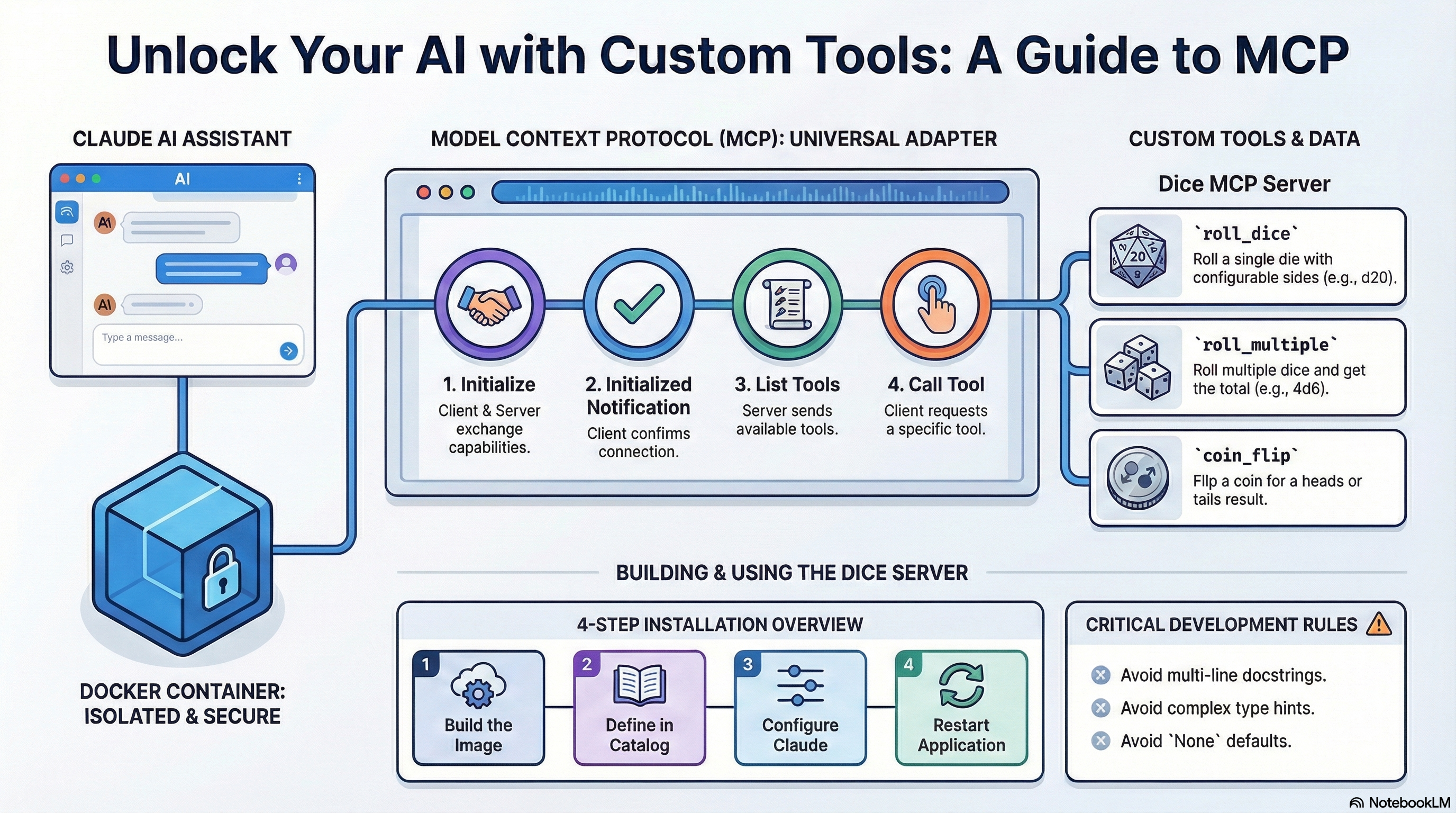
A Model Context Protocol (MCP) server that provides dice rolling and coin flipping functionality for AI assistants like Claude.
Related MCP server: Dice Rolling MCP Server
The Model Context Protocol (MCP) is an open standard that allows AI assistants to securely connect to external tools and data sources. Think of it as a universal adapter that lets Claude use custom tools you create.
MCP servers run in Docker containers, providing:
Isolation — Secure sandboxed environment
Portability — Works on any system with Docker
Standardization — Consistent protocol across all tools
MCP uses JSON-RPC 2.0 over stdio (standard input/output). Communication happens through a structured conversation between the client (Claude Desktop) and your server.
Before any tools can be used, the client and server must complete an initialization handshake:
{"jsonrpc":"2.0","method":"initialize","params":{"protocolVersion":"2024-11-05","capabilities":{},"clientInfo":{"name":"test","version":"1.0"}},"id":0}"Hey server, I'm a client. Here's my protocol version and capabilities."
The server responds with its own capabilities and version info.
{"jsonrpc":"2.0","method":"notifications/initialized"}"Got it! We're connected and ready to work."
{"jsonrpc":"2.0","method":"tools/list","id":1}"What tools do you have available?"
The server responds with all available tools, their parameters, and descriptions.
┌──────────────────┐                    ┌──────────────────┐
│  Claude Desktop  │                    │  Your MCP Server │
│    (Client)      │                    │  (dice-mcp)      │
└────────┬─────────┘                    └────────┬─────────┘
         │                                       │
         │  1. initialize                        │
         │──────────────────────────────────────>│
         │                                       │
         │  Response: capabilities               │
         │<──────────────────────────────────────│
         │                                       │
         │  2. notifications/initialized         │
         │──────────────────────────────────────>│
         │                                       │
         │  3. tools/list                        │
         │──────────────────────────────────────>│
         │                                       │
         │  Response: [roll_dice, roll_multiple, │
         │            coin_flip]                 │
         │<──────────────────────────────────────│
         │                                       │
         │  4. tools/call (when you ask Claude)  │
         │──────────────────────────────────────>│
         │                                       │
         │  Response: "🎲 Rolled d20: 17"        │
│<──────────────────────────────────────│Component | Purpose |
Docker | Isolated container for security and portability |
stdio | Communication via stdin/stdout pipes |
| Keeps stdin open so messages can flow both ways |
| Automatically remove container when it exits |
Claude Desktop handles all of this automatically — you just say "roll a d20" and it manages the JSON-RPC behind the scenes!
Tool | Parameters | Description |
|
| Roll a single die with configurable sides |
|
| Roll multiple dice and get total |
| None | Flip a coin for heads or tails |
Dice | Sides | Common Use |
d4 | 4 | Damage dice |
d6 | 6 | Standard dice |
d8 | 8 | Weapon damage |
d10 | 10 | Percentile |
d12 | 12 | Barbarian damage |
d20 | 20 | Attack rolls, skill checks |
d100 | 100 | Percentile rolls |
Docker Desktop with MCP Toolkit enabled
Docker MCP CLI plugin (docker mcp command)
# Create project directory
mkdir dice-mcp-server
cd dice-mcp-server

# Save these files in the directory:
# - Dockerfile
# - requirements.txt
# - dice_server.py
# - README.md
# - CLAUDE.md
# - ACKNOWLEDGEMENTS.mddocker build -t dice-mcp-server .# Create catalogs directory if it doesn't exist
mkdir -p ~/.docker/mcp/catalogs
# Create or edit custom.yaml
nano ~/.docker/mcp/catalogs/custom.yamlAdd this content to custom.yaml:
version: 2
name: custom
displayName: Custom MCP Servers
registry:
  dice:
    description: "Roll dice and flip coins with configurable options"
    title: "Dice Roller"
    type: server
    dateAdded: "2025-01-09T00:00:00Z"
    image: dice-mcp-server:latest
    ref: ""
    readme: ""
    toolsUrl: ""
    source: ""
    upstream: ""
    icon: ""
    tools:
      - name: roll_dice
      - name: roll_multiple
      - name: coin_flip
    metadata:
      category: productivity
      tags:
        - dice
        - random
        - games
      license: MIT
      owner: local
Nano Save Tips:
Ctrl + O → Save
Enter → Confirm filename
Ctrl + X → Exit
nano ~/.docker/mcp/registry.yamlAdd this entry under the existing registry: key:
registry:
  # ... existing servers ...
  dice:
ref: ""Find your Claude Desktop config file:
OS | Path |
macOS |
|
Windows |
|
Linux |
|
Ensure your config includes the custom catalog:
{
  "mcpServers": {
    "mcp-toolkit-gateway": {
      "command": "docker",
      "args": [
        "run",
        "-i",
        "--rm",
        "-v", "/var/run/docker.sock:/var/run/docker.sock",
        "-v", "[YOUR_HOME]/.docker/mcp:/mcp",
        "docker/mcp-gateway",
        "--catalog=/mcp/catalogs/docker-mcp.yaml",
        "--catalog=/mcp/catalogs/custom.yaml",
        "--config=/mcp/config.yaml",
        "--registry=/mcp/registry.yaml",
        "--tools-config=/mcp/tools.yaml",
        "--transport=stdio"
      ]
    }
  }
}
Replace [YOUR_HOME] with your home directory path:
macOS: /Users/your_username
Windows: C:\\Users\\your_username
Linux: /home/your_username
Note: JSON does not support comments. Remove any // comments if present.
Quit Claude Desktop completely
Start Claude Desktop again
Your dice tools should now appear!
docker images | grep diceecho '{"jsonrpc":"2.0","method":"initialize","params":{"protocolVersion":"2024-11-05","capabilities":{},"clientInfo":{"name":"test","version":"1.0"}},"id":0}
{"jsonrpc":"2.0","method":"notifications/initialized"}
{"jsonrpc":"2.0","method":"tools/list","id":1}' | docker run -i --rm dice-mcp-serverExpected output includes your three tools: roll_dice, roll_multiple, and coin_flip.
docker mcp server listJust ask Claude:
"Roll a dice"
"Roll a d20"
"Roll 4d6"
"Flip a coin"
Once installed, you can ask Claude things like:
Request | Tool Used |
"Roll a dice" |
|
"Roll a d20 for initiative" |
|
"Roll 4d6 for stats" |
|
"Flip a coin to decide" |
|
dice-mcp-server/
├── Dockerfile           # Docker container configuration
├── requirements.txt     # Python dependencies
├── dice_server.py       # Main MCP server code
├── README.md            # This file
├── CLAUDE.md            # Implementation guidelines
└── ACKNOWLEDGEMENTS.md # Credits and thanksAdd a new function to dice_server.py with the @mcp.tool() decorator
Use single-line docstrings only
Default parameters to empty strings (param: str = "")
Always return a formatted string
Update custom.yaml with the new tool name
Rebuild: docker build -t dice-mcp-server .
pip install "mcp[cli]>=1.2.0"
python dice_server.py# Set environment variables for testing
export SOME_VAR="test-value"
# Run directly
python dice_server.py
# Test MCP protocol
echo '{"jsonrpc":"2.0","method":"tools/list","id":1}' | python dice_server.pyThese rules prevent common errors that break Claude Desktop integration:
Rule | Description |
❌ NO | Prompt decorators break Claude Desktop |
❌ NO | Don't pass |
❌ NO complex type hints | Avoid |
❌ NO | Use |
✅ Single-line docstrings | Multi-line docstrings cause gateway panic errors |
✅ Default to empty strings | Always use |
✅ Return strings | All tools must return formatted strings |
✅ Use Docker | Server must run in a Docker container |
✅ Log to stderr | Use the logging configuration provided |
✅ Handle errors gracefully | Return user-friendly error messages |
Before deploying your MCP server, verify:
No @mcp.prompt() decorators used
No prompt parameter in FastMCP()
No complex type hints
ALL tool docstrings are SINGLE-LINE only
ALL parameters default to empty strings ("") not None
All tools return strings
Check for empty strings with .strip() not just truthiness
Error handling in every tool
Security handled via Docker secrets (if needed)
Catalog includes version: 2, name, displayName, and registry wrapper
Registry entries are under registry: key with ref: ""
Date format is ISO 8601 (YYYY-MM-DDTHH:MM:SSZ)
Claude config JSON has no comments
@mcp.tool()
async def fetch_data(endpoint: str = "", limit: str = "10") -> str:
    """Fetch data from API endpoint with optional limit."""
    # Check for empty strings, not just truthiness
    if not endpoint.strip():
        return "❌ Error: Endpoint is required"

    try:
        # Convert string parameters as needed
        limit_int = int(limit) if limit.strip() else 10
        # Implementation
        return f"✅ Fetched {limit_int} items"
    except ValueError:
        return f"❌ Error: Invalid limit value: {limit}"
    except Exception as e:
return f"❌ Error: {str(e)}"# DON'T DO THIS:
@mcp.tool()
async def bad_example(
endpoint: Optional[str] = None, # ❌ Optional type hint
limit: int = 10 # ❌ Non-string parameter
) -> dict: # ❌ Non-string return type
"""
This is a multi-line docstring. # ❌ Multi-line docstring
It will cause gateway panic errors.
"""
return {"result": "data"} # ❌ Returns dict, not stringasync with httpx.AsyncClient() as client:
try:
response = await client.get(url, headers=headers, timeout=10)
response.raise_for_status()
data = response.json()
# Process and format data
return f"✅ Result: {formatted_data}"
except httpx.HTTPStatusError as e:
return f"❌ API Error: {e.response.status_code}"
except Exception as e:
return f"❌ Error: {str(e)}"import subprocess
try:
result = subprocess.run(
command,
capture_output=True,
text=True,
timeout=10,
shell=True # Only if needed
)
if result.returncode == 0:
return f"✅ Output:\n{result.stdout}"
else:
return f"❌ Error:\n{result.stderr}"
except subprocess.TimeoutExpired:
return "⏱️ Command timed out"try:
with open(filename, 'r') as f:
content = f.read()
return f"✅ File content:\n{content}"
except FileNotFoundError:
return f"❌ File not found: {filename}"
except Exception as e:
return f"❌ Error reading file: {str(e)}"Use emojis for visual clarity in your tool responses:
Emoji | Use Case |
✅ | Success operations |
❌ | Errors or failures |
⏱️ | Time-related information |
📊 | Data or statistics |
🔍 | Search or lookup operations |
⚡ | Actions or commands |
🔒 | Security-related information |
📁 | File operations |
🌐 | Network operations |
⚠️ | Warnings |
🎲 | Dice/random operations |
🪙 | Coin flip operations |
return f"""📊 Results:
- Field 1: {value1}
- Field 2: {value2}
- Field 3: {value3}

Summary: {summary}"""Verify Docker image built successfully: docker images | grep dice
Check that custom.yaml is properly formatted (YAML is whitespace-sensitive)
Ensure Claude Desktop config includes --catalog=/mcp/catalogs/custom.yaml
Verify registry entry is under the registry: key, not at root level
Restart Claude Desktop completely (quit and reopen)
This is expected when testing with a simple echo command. The MCP protocol requires the full handshake sequence. Claude Desktop handles this automatically.
Usually caused by:
Multi-line docstrings (use single-line only)
@mcp.prompt() decorators (remove them)
prompt parameter in FastMCP() (remove it)
Check Docker logs:
docker logs $(docker ps -lq)Verify secrets with docker mcp secret list
Ensure secret names match in code and catalog
Check environment variable names match
Practice | Description |
Non-root user | Container runs as |
No hardcoded secrets | Use Docker Desktop secrets for API keys |
Stderr logging | Sensitive data never logged to stdout |
Input validation | All inputs sanitized before use |
Error handling | Graceful failures with user-friendly messages |
MIT License
See ACKNOWLEDGEMENTS.md for credits and thanks.
This server cannot be deployed
A comprehensive Model Context Protocol (MCP) server that enables AI assistants to interact with yo…
A Model Context Protocol server for Wix AI tools
Calibrated world model for AI agents. 40 tools: world state, markets, trading. Kalshi + Polymarket.
Deterministic time-value-of-money and fund-performance tools for AI agents — future value, present value, CAGR, annuities, perpetuities, loan payments, payback, discounted payback, DPI, RVPI and TVPI via Model Context Protocol. Useful for corporate finance, financial projections, financial analysis, quantitative analysis, financial formulas and financial modeling.