Glama
falahgs

MCP Storybook Image Generator

by falahgs

MCP Storybook Image Generator

A professional-grade server that generates beautiful storybook images with matching children's stories using Google's Gemini AI.

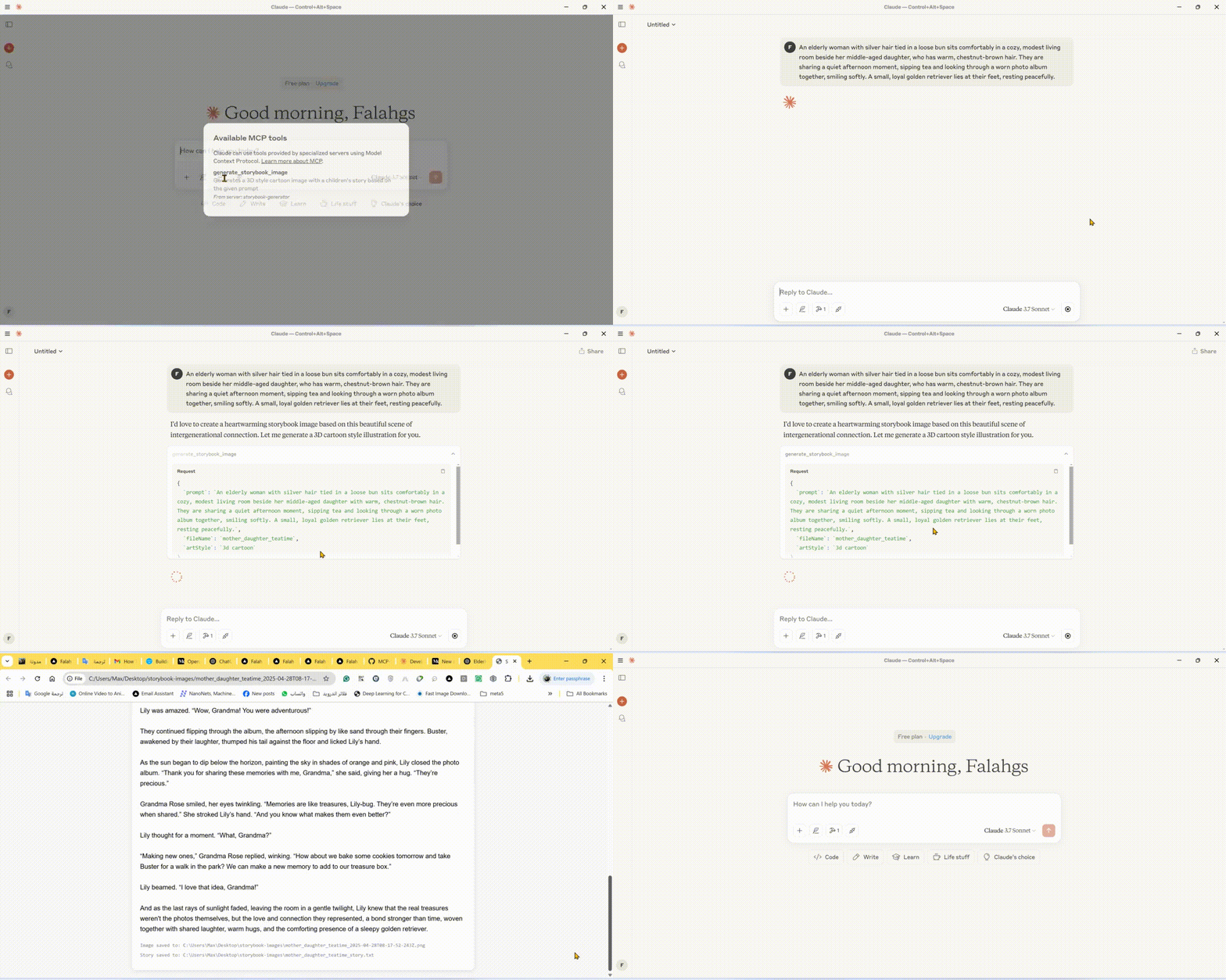
🎬 Demo

Storybook Generator Demo

Related MCP server: 3D Cartoon Generator & File System MCP Server

🌟 Features

  • Storybook Image Generation: Creates high-quality images in various art styles for children's stories

  • Automatic Story Creation: Generates engaging children's stories to match the images

  • Multiple Art Styles: Choose from 3D cartoon, watercolor, pixel art, hand drawn, or claymation styles

  • Instant Preview: Automatically opens generated images and stories in your browser

  • Local Storage: Saves images and stories in an organized output directory

🛠️ Technical Stack

  • Core Framework: Model Context Protocol (MCP) SDK

  • AI Integration: Google Generative AI (Gemini)

  • Runtime: Node.js v14+

  • Language: TypeScript

  • Package Manager: npm

📋 Prerequisites

  • Node.js (v14 or higher)

  • Google Gemini API key

  • TypeScript

⚙️ Installation

  1. Install dependencies:

npm install
  1. Configure environment: Create a .env file in the root directory:

GEMINI_API_KEY=your_api_key_here
  1. Build the project:

npm run build

🚀 Using the CLI

You can use the storybook generator directly from the command line:

# Using npx (after publishing to npm)
npx mcp-storybook-image-generator --api-key your_api_key_here --save-to-desktop

# Or run locally
node build/cli.js --api-key your_api_key_here --save-to-desktop

Command Line Options

Option

Description

--api-key <key>

Set your Gemini API key

--save-to-desktop

Save generated files to desktop

--debug

Enable debug logging

--help

Show help information

🔧 Configuring Claude Desktop with MCP Server

To integrate this server with Claude Desktop:

  1. Locate the Claude Desktop Configuration File:

    • Windows: %APPDATA%\Claude\claude_desktop_config.json

    • macOS: ~/Library/Application Support/Claude/claude_desktop_config.json

    • Linux: ~/.config/Claude/claude_desktop_config.json

  2. Add the following configuration:

{
  "mcpServers": {
    "storybook-generator": {
      "command": "npx",
      "args": [
        "-y",
        "mcp-storybook-image-generator@latest",
        "--api-key",
        "your_gemini_api_key_here"
      ],
      "env": {
        "SAVE_TO_DESKTOP": "true",
        "DEBUG": "false"
      }
    }
  }
}

🚀 Available Tool

Storybook Image Generator Tool

{
  "name": "generate_storybook_image",
  "description": "Generates a 3D style cartoon image with a children's story based on the given prompt",
  "inputSchema": {
    "type": "object",
    "properties": {
      "prompt": {
        "type": "string",
        "description": "The prompt describing the storybook scene to generate"
      },
      "fileName": {
        "type": "string",
        "description": "Base name for the output files (without extension)"
      },
      "artStyle": {
        "type": "string",
        "description": "The art style for the image (default: '3d cartoon')",
        "enum": ["3d cartoon", "watercolor", "pixel art", "hand drawn", "claymation"]
      }
    },
    "required": ["prompt", "fileName"]
  }
}

📄 Example Usage

Storybook Generation Examples

// Generate a storybook with a 3D cartoon style
{
  "name": "generate_storybook_image",
  "arguments": {
    "prompt": "A friendly dragon teaching kids how to fly",
    "fileName": "dragon_flight_lesson",
    "artStyle": "3d cartoon"
  }
}

// Generate a storybook with a watercolor style
{
  "name": "generate_storybook_image",
  "arguments": {
    "prompt": "A rabbit and turtle having a tea party in the forest",
    "fileName": "forest_tea_party",
    "artStyle": "watercolor"
  }
}

// Generate a storybook with pixel art style
{
  "name": "generate_storybook_image",
  "arguments": {
    "prompt": "A space adventure with a kid astronaut meeting friendly aliens",
    "fileName": "space_adventure",
    "artStyle": "pixel art"
  }
}

⚙️ Configuration Options

Environment Variables

Variable

Description

Default

GEMINI_API_KEY

Google Gemini API key for AI generation

(Required)

SAVE_TO_DESKTOP

Force saving to desktop directory

false

DEBUG

Enable verbose debug logging

false

📝 Output Files

For each storybook generation request, the server produces:

  1. PNG Image: The generated illustration matching your prompt in the requested art style

  2. Text File: The matching children's story in plain text format

  3. HTML Preview: A combined view showing both the image and story together

These files are saved to either:

  • Your desktop in a folder called "storybook-images" (if SAVE_TO_DESKTOP=true)

  • The server's directory in a folder called "storybook-images"

🤝 Contributing

Contributions, issues, and feature requests are welcome! Feel free to check issues page.

📄 License

This project is licensed under the MIT License - see the LICENSE file for details.

Available Tools

1 tool
generate_storybook_imageC

Generates a 3D style cartoon image with a children's story based on the given prompt

ParametersJSON Schema
NameRequiredDescriptionDefault
promptYesThe prompt describing the storybook scene to generate
fileNameYesBase name for the output files (without extension)
artStyleNoThe art style for the image (default: '3d cartoon')

TDQS

C2.9/5.0
Behavior2/5

Does the description disclose side effects, auth requirements, rate limits, or destructive behavior?

No annotations are provided, so the description carries the full burden of behavioral disclosure. It mentions the output (a 3D cartoon image with a story) but lacks details on permissions, rate limits, file formats, or error handling. For a generative tool with zero annotation coverage, this is a significant gap in transparency.

Agents need to know what a tool does to the world before calling it. Descriptions should go beyond structured annotations to explain consequences.

Conciseness5/5

Is the description appropriately sized, front-loaded, and free of redundancy?

The description is a single, efficient sentence that directly states the tool's function without unnecessary words. It is appropriately sized and front-loaded, making it easy to understand quickly.

Shorter descriptions cost fewer tokens and are easier for agents to parse. Every sentence should earn its place.

Completeness2/5

Given the tool's complexity, does the description cover enough for an agent to succeed on first attempt?

Given the complexity of a generative tool with no annotations and no output schema, the description is incomplete. It does not explain the return values (e.g., image format, story text), error conditions, or operational limits, leaving critical gaps for agent usage.

Complex tools with many parameters or behaviors need more documentation. Simple tools need less. This dimension scales expectations accordingly.

Parameters3/5

Does the description clarify parameter syntax, constraints, interactions, or defaults beyond what the schema provides?

Schema description coverage is 100%, so the schema fully documents all three parameters (prompt, fileName, artStyle). The description adds no additional parameter semantics beyond what the schema provides, such as examples or constraints, meeting the baseline for high coverage.

Input schemas describe structure but not intent. Descriptions should explain non-obvious parameter relationships and valid value ranges.

Purpose4/5

Does the description clearly state what the tool does and how it differs from similar tools?

The description clearly states the tool's purpose: 'Generates a 3D style cartoon image with a children's story based on the given prompt.' It specifies the action (generates), resource (image with story), and style (3D cartoon). However, with no sibling tools, it cannot demonstrate differentiation from alternatives, preventing a perfect score.

Agents choose between tools based on descriptions. A clear purpose with a specific verb and resource helps agents select the right tool.

Usage Guidelines2/5

Does the description explain when to use this tool, when not to, or what alternatives exist?

The description provides no guidance on when to use this tool versus alternatives, prerequisites, or exclusions. It only states what the tool does without context for its application, leaving the agent to infer usage scenarios.

Agents often have multiple tools that could apply. Explicit usage guidance like "use X instead of Y when Z" prevents misuse.

Tool Schema Changelog

Recent tool additions, removals, and schema changes observed during successful MCP inspections.

  1. 1 tool update
    • First observedgenerate_storybook_image

TDQS

B3.1/5.0

Scored across 1 tool

Disambiguation5/5

With only one tool, there is no possibility of confusion or overlap between tools. The tool's purpose is clearly defined and distinct by default.

Naming Consistency5/5

A single tool inherently has perfect naming consistency, as there are no other tools to compare it against. The tool name follows a clear verb_noun pattern (generate_storybook_image).

Tool Count2/5

A single tool is too few for a server named 'MCP Storybook Image Generator', which suggests a broader scope like generating, editing, or managing storybook images. This minimal set limits functionality and feels incomplete for the implied domain.

Completeness2/5

The server's name implies capabilities for storybook image generation, but with only one tool for generation, there are significant gaps. Missing operations might include editing images, listing generated images, deleting them, or handling variations, making the surface severely incomplete for practical use.

Maintenance

ActivityInactive
ResponsivenessNo issues

Related MCP Connectors

Related MCP Servers