Glama
duyatuan
by duyatuan
README.md
# owl-watch-simulator-mcp

*Owl* is the OwleryWorks Library: open-source tools from [The Owlery Works](https://owleryworks.com.au/).

An [MCP](https://modelcontextprotocol.io) server that lets an AI agent build, run, see and drive Garmin Connect IQ apps in the Connect IQ simulator on macOS.

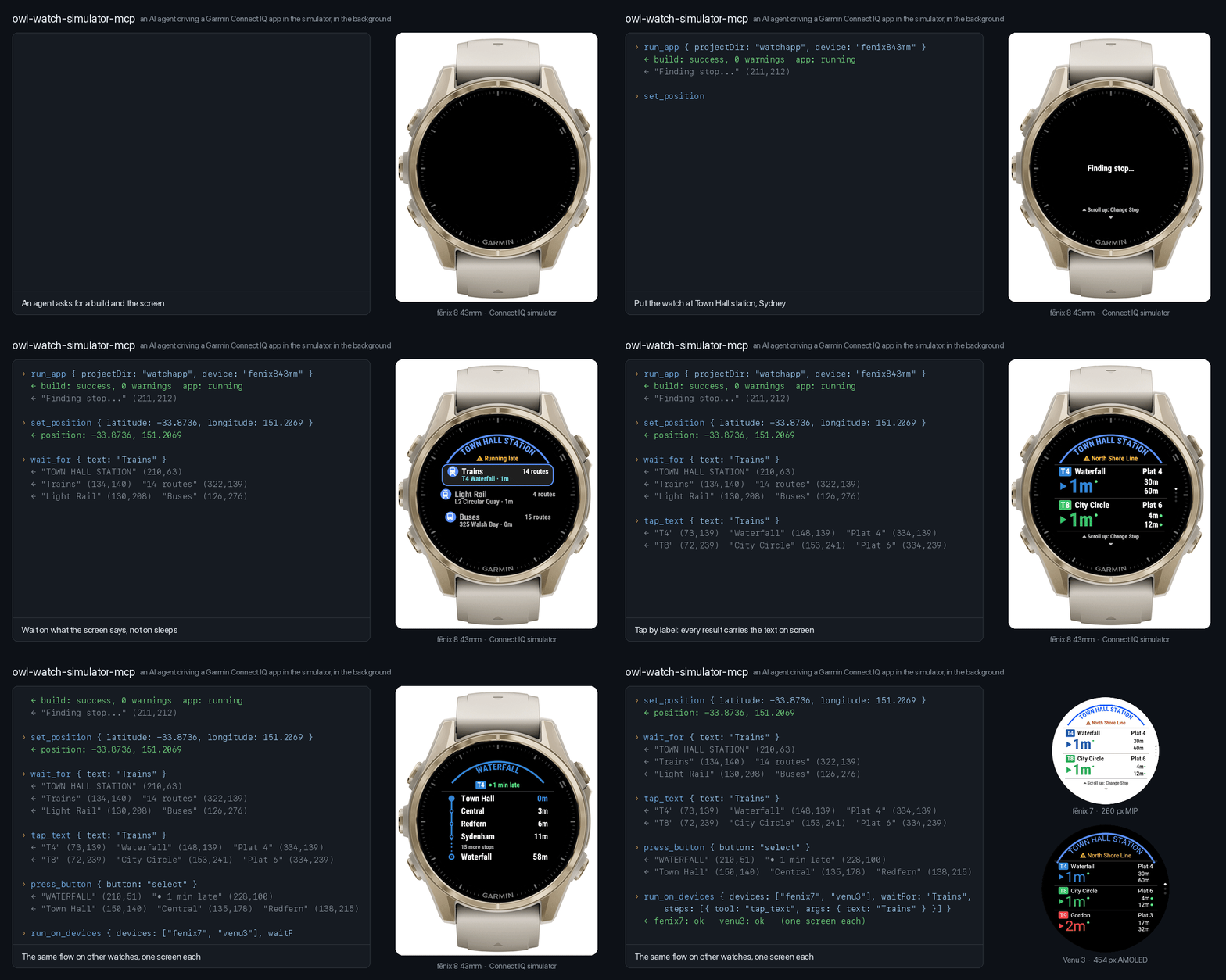
It is meant to feel like the tooling agents already have for iOS simulators and for browsers: one call builds and launches the app and returns the screen, and every action returns the next one. As with Playwright, the agent acts on what the screen says and waits on conditions, not on pixel guesses and sleeps.

- **The screen as text.** A watch display is a canvas with no element tree, so every result carries the text recognised on it with tap-ready positions, such as `"Trains" (129,140)`. `tap_text` presses by label; `wait_for` waits for text to appear, to disappear, or for the screen to settle.
- **Whole flows in one call.** `run_steps` runs a sequence and stops at the first failure. `run_on_devices` repeats a flow on several watches and returns one screen each.

- **Works in the background.** The simulator never has to be frontmost, and can sit on another desktop.
- **Works with the screen locked.** Screenshots, input, menus and settings all keep working behind the lock screen.
- **Leaves your pointer and keyboard alone.** Input goes straight to the simulator process. The one exception is a long press, described under [Limits](#limits).
- **Stays inside the simulator.** `select_menu` refuses the application menu (macOS Services, Hide Others, Quit) and the Window menu, and nothing raises the simulator over your work.
- **Device pixels everywhere.** A screenshot is exactly the watch display, one image pixel per device pixel, so the coordinates an agent reads off the picture are the coordinates it taps.

This project is not affiliated with or endorsed by Garmin.

## Requirements

- macOS 14 or later. Developed and tested on macOS 27 on Apple silicon with a Retina display; earlier releases have not been run. Screenshots use ScreenCaptureKit from macOS 14; on macOS 13 only the `screencapture` fallback is left, which cannot capture a covered or off-screen window.
- Node.js 20 or later
- The Connect IQ SDK and at least one device, installed with Garmin's SDK Manager
- A Java runtime, which the Connect IQ compiler needs anyway
- Xcode Command Line Tools (`xcode-select --install`), to compile the small native helper on install
- A Connect IQ developer key, for building

## Install

From [npm](https://www.npmjs.com/package/owl-watch-simulator-mcp), registered with Claude Code in one line:

```sh
claude mcp add owl-watch-simulator -- npx -y owl-watch-simulator-mcp
npx -y owl-watch-simulator-mcp --doctor   # checks SDK, Java, key, helper and permissions
```

Or from a checkout:

```sh
git clone https://github.com/duyatuan/owl-watch-simulator-mcp.git
cd owl-watch-simulator-mcp
npm install        # also compiles the native helper
npm run doctor
claude mcp add owl-watch-simulator -- node "$PWD/src/index.js"
```

or in any client's JSON configuration:

```json
{
  "mcpServers": {
    "owl-watch-simulator": {
      "command": "npx",
      "args": ["-y", "owl-watch-simulator-mcp"]
    }
  }
}
```

### Permissions

macOS asks for two permissions, both for **the app that launches the server** (your terminal, IDE or Claude), in System Settings > Privacy & Security:

| Permission | Used for |
| --- | --- |
| Accessibility | sending input, driving menus and dialogs |
| Screen & System Audio Recording | screenshots of the simulator window |

Restart that app after granting them. `npm run doctor` and the `simulator_status` tool both report what is missing.

### Configuration

Everything is found automatically. Override with environment variables when needed:

| Variable | Default |
| --- | --- |
| `CIQ_SDK_HOME` | the SDK selected in the SDK Manager |
| `CIQ_JAVA_HOME` | `JAVA_HOME`, then `PATH`, `/usr/libexec/java_home`, Homebrew |
| `CIQ_DEVELOPER_KEY` | the VS Code Monkey C setting, then common locations |
| `CIQ_DEVICES_DIR` | the SDK Manager's `Devices` directory |

## Tools

| Tool | What it does |
| --- | --- |
| `simulator_status` | SDK, Java, permissions, lock state, current device and its buttons, open dialogs, app state |
| `start_simulator`, `stop_simulator` | start in the background, or quit |
| `list_devices` | installed devices, filterable |
| `build_app` | compile a project; errors and warnings with file and line |
| `run_app` | build (or take a `.prg`), start the simulator if needed, launch, return a screenshot |
| `stop_app` | end the running app |
| `run_tests` | build with unit tests and run them |
| `get_logs` | `System.println` output, errors and crash reports |
| `screenshot` | the display with its text, the whole watch, or the simulator window |
| `tap_text` | tap whatever shows the given text |
| `wait_for` | wait until text appears or disappears, or the screen is stable |
| `run_steps` | several tool calls in one request, stopping at the first failure |
| `run_on_devices` | build, launch and run the same steps on several devices; one screen each |
| `tap`, `long_press`, `swipe` | touch input in device pixels |
| `press_button` | physical buttons, by function (`select`, `back`, `next`, `previous`, `menu`) or key id |
| `list_menu`, `select_menu` | simulator settings: connectivity, GPS quality, language, battery, app storage |
| `inspect_dialogs`, `dialog_action`, `dialog_click`, `dialog_type` | answer the dialogs those menu items open |
| `set_position` | set the GPS position |

Actions return the new screen (picture and text) by default, so one call is one round trip.

A typical session:

```text
run_app         { projectDir: "/path/to/app", device: "fenix843mm" }      -> screen
wait_for        { text: "Trains" }                                        -> screen
tap_text        { text: "Trains" }                                        -> screen
run_steps       { steps: [ {tool: "press_button", args: {button: "menu"}},
                           {tool: "tap_text", args: {text: "Change Stop"}},
                           {tool: "wait_for", args: {text: "Nearby"}} ] }  -> screen
run_on_devices  { projectDir: "...", devices: ["fenix843mm", "fenix7"], waitFor: "Trains" }
get_logs        {}
```

### Running without prompts in Claude Code

To let an agent run the whole loop unattended, allow the server's tools in the project's `.claude/settings.json`:

```json
{
  "permissions": { "allow": ["mcp__owl-watch-simulator"] },
  "enabledMcpjsonServers": ["owl-watch-simulator"]
}
```

## How it works

The simulator's own remote interface (a TCP shell on port 1234) can push files and start apps, and nothing else. There is no protocol for input or screenshots. So the server combines three things:

1. **Garmin's tools for building and launching.** `monkeyc` builds; `monkeydo` pushes the app, starts it and relays its output. Using them unmodified keeps the server working across SDK releases.
2. **A small native helper** (`native/helper.swift`, compiled on install, kept running while the server runs) for everything the SDK cannot do:
   - *Text* comes from Apple's on-device Vision framework. Nothing leaves the machine.
   - *Screenshots* read the simulator window's own contents through ScreenCaptureKit, with `screencapture` as a fallback, so a covered or off-screen window still captures.
   - *Input* is mouse events posted directly to the simulator process. A button press is a click on that button in the device picture, at the position the device's `simulator.json` gives.
   - *Menus and dialogs* use the macOS Accessibility API.
3. **Measurement instead of assumption.** The helper finds the device picture inside the window by matching it against the device's PNG, so title bar height and macOS version do not matter. If the window is too small it is enlarged.

### What a locked screen changes

- macOS hides the contents of every window from Accessibility while locked. Windows are therefore found through the window server, and dialogs are answered through their picture (`dialog_click`, `dialog_type`) instead of their controls (`dialog_action`). Menus still work.
- A sleeping display cannot be captured, so it is woken first. That shows the lock screen and unlocks nothing.

## Limits

- **macOS only.** The Windows and Linux simulators would need their own helper.
- **Long presses park the pointer.** The simulator decides that a press became a hold by checking where the real pointer is. During `long_press` and held buttons (about a second) the pointer is moved onto the target, detached from the mouse, then put back. Nothing else moves it, but someone using the Mac at the time sees the pointer jump. A hold sent soon after `run_app` is sometimes not recognised and arrives as a short press; check the screen after one.
- **The app ends when the server stops.** `monkeydo` holds the connection that keeps the app running.
- **One simulator.** Connect IQ runs a single simulator instance.
- **Undocumented macOS behaviour.** Delivering a click to a background window needs two things Apple does not document: the `CGEventSetWindowLocation` function and the event field that carries the window number. Finding windows on other desktops uses `_AXUIElementCreateWithRemoteToken`. All three have been stable for years and are looked up at run time, so a future macOS that removes one produces a clear `unsupported_os` error, not a crash.
- **Text recognition is good, not perfect.** Curved titles and very small glyphs can come out slightly wrong (`TDWN` for `TOWN`). Matching tolerates the common swaps, the picture is always returned alongside, and icons need `tap` with coordinates. The first recognition after the server starts loads the model, which took about 25 seconds on a locked Mac in testing; the server starts loading it at launch.
- **Display scale.** Captures are reduced to device pixels by their measured scale. That has been run on a 2x Retina display only; a 1x external display takes the same path but has not been tried.
- **System file panels.** A file panel cannot be answered or cancelled while the screen is locked, and it blocks the device until the simulator restarts. No menu item opens one except File > Save Screen Capture, which `select_menu` refuses. Buttons inside the simulator's own windows do (Profiler > Load, FIT/GPX playback, saving FIT data or a log): while the screen is locked, `dialog_click` reads the label under the click and refuses those.
- **Dialog controls are unreadable while locked**, as described above.

## Troubleshooting

| Symptom | Cause and fix |
| --- | --- |
| `accessibility_denied`, `screen_recording_denied` | Grant the permission to the launching app and restart it |
| Screenshot is the launcher icon, not your app | The app exited or crashed; see `get_logs` |
| `dialog_open` on input | A simulator dialog is blocking the device; answer it with the dialog tools |
| `use_screenshot` on `select_menu` | File > Save Screen Capture opens a save panel the tools cannot answer; use `screenshot` with `savePath` |
| `needs_person` on `select_menu` | Edit Application.Properties data wants the Garmin account token from the keychain and a Garmin Connect login, and freezes the simulator until a person answers; change the default in `properties.xml` instead |
| `menu_refused` on `select_menu` | The application and Window menus reach outside the simulator; use `stop_simulator` to quit |
| `opens_file_panel` on `dialog_click` | The click would open a system file panel while the screen is locked; unlock and use `dialog_action`, or leave it to a person |
| `layout_unknown` | The window shows a different device than expected; call `run_app` again |
| Web requests fail with -1001 in the simulator | Untick Settings > Use Device HTTPS Requirements (`select_menu`) |
| `helper_build_failed` | Install the Xcode Command Line Tools, then `npm run build:native` |

## Development

```sh
npm test                 # unit tests; no simulator needed
npm run check            # syntax check
npm run build:native     # recompile the helper
node scripts/call-tools.mjs run_app '{"prg":"/path/app.prg","device":"fenix7"}' tap '{"x":100,"y":100}'

# End to end against a real simulator:
CIQ_MCP_LIVE=1 CIQ_MCP_LIVE_PRG=/path/app.prg CIQ_MCP_LIVE_DEVICE=fenix843mm npm run test:live
```

`scripts/call-tools.mjs` starts the server and calls tools in order over real MCP, saving returned images; with no arguments it lists the tools.

Layout:

```text
src/index.js       entry point, --doctor
src/server.js      tool definitions
src/simulator.js   window, layout, screenshots, input, menus, dialogs
src/session.js     monkeydo process and its log buffer
src/build.js       monkeyc and diagnostics parsing
src/devices.js     device definitions and button resolution
src/text.js        matching and describing recognised screen text
src/sdk.js         SDK, Java and developer key discovery
src/helper.js      builds and runs the native helper
native/helper.swift
```

## Contributing

Issues and pull requests are welcome. `npm test` runs everything that needs no
simulator, including the simulator-side flows against a fake helper
(`test/fixtures/fake-helper.mjs`); a change to input, layout or dialogs should
also pass `npm run test:live` against a real simulator. Please say which
macOS release and display you ran it on.

## Security

The server drives one application, the Connect IQ simulator, and refuses the
menus that reach beyond it. It needs Accessibility and Screen Recording, which
macOS grants to the app that launches it, not to the server alone: grant them
to a terminal you trust. Report a security problem privately through the
repository's security advisories rather than an issue.

## Disclaimer

This software is provided "as is", without warranty of any kind, express or
implied, and without any guarantee that it works, keeps working, or suits your
purpose. You use it at your own risk. The Owlery Works and the contributors
accept no responsibility or liability for any loss, damage or other
consequence of using it, including anything it does to your Mac, your
simulator, your projects or your data, and anything your AI agent does with
it. The MIT licence below says the same in legal terms.

## License

MIT. Not affiliated with or endorsed by Garmin. Connect IQ is a trademark of
Garmin Ltd.