
ssh-mcp-server
by classfang
README.md
<div align="center">
<img src="images/ssh-mcp-server-logo-v2.png" alt="ssh-mcp-server logo" width="220">
# ssh-mcp-server






基于 SSH 的 MCP (Model Context Protocol) 服务器,允许通过 MCP 协议远程执行 SSH 命令。
[English Document](README_EN.md) | 中文文档
</div>
## 📝 项目介绍
ssh-mcp-server 是一个桥接工具,可以让 AI 助手等支持 MCP 协议的应用通过标准化接口执行远程 SSH 命令。这使得 AI 助手能够安全地操作远程服务器,执行命令并获取结果,而无需直接暴露 SSH 凭据给 AI 模型。
💬 如有任何问题,欢迎加入微信群交流:
<img src="images/wechat.jpg" alt="wechat" width="220">
## ✨ 功能亮点
- **🔒 安全连接**:支持多种安全的 SSH 连接方式,包括密码认证和私钥认证(支持带密码的私钥)
- **🛡️ 命令安全控制**:通过灵活的黑白名单机制,精确控制允许执行的命令范围,防止危险操作
- **🔄 标准化接口**:符合 MCP 协议规范,与支持该协议的 AI 助手无缝集成
- **🚇 双传输模式**:同时支持 `exec` 和 `shell` 两种 transport,兼容直连主机与堡垒机或跳板机场景
- **🌐 HTTP 接入**:默认使用 stdio;加上 `--mcp-transport http` 后通过 Streamable HTTP 提供 MCP 端点
- **📂 文件传输**:支持双向文件传输功能,可上传本地文件到服务器或从服务器下载文件
- **🔑 凭据隔离**:SSH 凭据完全在本地管理,不会暴露给 AI 模型,增强安全性
- **🚀 即用即走**:使用 NPX 可直接运行,无需全局安装,方便快捷
## 📦 开源仓库
GitHub:[https://github.com/classfang/ssh-mcp-server](https://github.com/classfang/ssh-mcp-server)
NPM: [https://www.npmjs.com/package/@fangjunjie/ssh-mcp-server](https://www.npmjs.com/package/@fangjunjie/ssh-mcp-server)
## 🛠️ 工具列表
| 工具 | 名称 | 描述 |
|---------|-----------|----------|
| execute-command | 命令执行工具 | 在远程服务器上执行 SSH 命令并获取执行结果 |
| upload | 文件上传工具 | 将本地文件或整个目录上传到远程服务器指定位置 |
| download | 文件下载工具 | 从远程服务器下载文件或整个目录到本地指定位置 |
| read-file | 读文件工具 | 通过 SFTP 读取远程文本文件,可按字节偏移分页,拒绝二进制文件 |
| write-file | 写文件工具 | 通过 SFTP 直接写入文本内容(覆盖或追加),不经过 shell 引号转义 |
| list-servers | 服务器列表工具 | 列出所有可用SSH服务器配置 |
| job-start / job-status / job-kill / job-list | 后台任务工具 | 启动超过命令超时限制的长任务,轮询输出与退出码,终止任务 |
## 📚 使用方法
### 0. 🤖 通过 AI Skill 快速配置(推荐)
如果你使用支持 skill 的 AI 编程助手(如 Claude Code),可以直接使用内置的 **ssh-mcp-helper** skill 通过交互式问答完成安装和配置,无需手动编辑 JSON 文件。
**使用方式:**
1. 从本仓库 `skills/` 目录安装该 skill
2. 告诉你的 AI 助手:"帮我配置 ssh-mcp-server" 或 "给 Cursor 加一个 SSH MCP 连接"
3. skill 会逐步引导你:检查 Node.js 环境 → 选择 MCP 客户端 → 选择认证方式 → 收集连接参数 → 生成并写入配置
该 skill 支持下文所有场景(账号密码、私钥、SSH config 复用、SOCKS 代理、堡垒机、多连接、2FA、命令限制等),并自动生成格式正确的配置。
---
下面的章节按从简单到复杂的顺序排列,最简单的入门方式就是用账号密码连接服务器。直接复制对应场景下的 `mcp.json` 配置到你的 MCP 客户端即可使用。
> **⚠️ 重要提示**:在 MCP 配置文件中,每个命令行参数和其值必须是 `args` 数组中的独立元素。不要用空格将它们连接在一起。例如,使用 `"--host", "192.168.1.1"` 而不是 `"--host 192.168.1.1"`。
### 1. 🔑 账号密码(最简单)
```json
{
"mcpServers": {
"ssh-mcp-server": {
"command": "npx",
"args": [
"-y",
"@fangjunjie/ssh-mcp-server",
"--host", "192.168.1.1",
"--port", "22",
"--username", "root",
"--password", "pwd123456"
]
}
}
}
```
### 2. 🔐 账号 + 私钥
```json
{
"mcpServers": {
"ssh-mcp-server": {
"command": "npx",
"args": [
"-y",
"@fangjunjie/ssh-mcp-server",
"--host", "192.168.1.1",
"--port", "22",
"--username", "root",
"--privateKey", "~/.ssh/id_rsa"
]
}
}
}
```
### 3. 🔏 带密码的私钥
```json
{
"mcpServers": {
"ssh-mcp-server": {
"command": "npx",
"args": [
"-y",
"@fangjunjie/ssh-mcp-server",
"--host", "192.168.1.1",
"--port", "22",
"--username", "root",
"--privateKey", "~/.ssh/id_rsa",
"--passphrase", "pwd123456"
]
}
}
}
```
### 4. 📋 复用 `~/.ssh/config`
如果你已经在 `~/.ssh/config` 配置了主机别名,服务器会自动从中读取连接参数,`mcp.json` 里就不用再写一遍。
```json
{
"mcpServers": {
"ssh-mcp-server": {
"command": "npx",
"args": [
"-y",
"@fangjunjie/ssh-mcp-server",
"--host", "myserver"
]
}
}
}
```
假设你的 `~/.ssh/config` 包含:
```
Host myserver
HostName 192.168.1.1
Port 22
User root
IdentityFile ~/.ssh/id_rsa
```
你也可以指定自定义的 SSH 配置文件路径:
```json
{
"mcpServers": {
"ssh-mcp-server": {
"command": "npx",
"args": [
"-y",
"@fangjunjie/ssh-mcp-server",
"--host", "myserver",
"--ssh-config-file", "/path/to/custom/ssh_config"
]
}
}
}
```
**注意**:命令行参数优先级高于 SSH 配置值。例如,如果你指定了 `--port 2222`,它会覆盖 SSH 配置中的端口。
需要一次连接多台已在 SSH config 中配好的主机时,参见下文「10. 多 SSH 连接配置」的方式四。
### 5. 🌐 通过代理连接
当目标主机只能通过代理访问时,可使用 `--proxy` 配置 SOCKS5、HTTP 或 HTTPS 代理。
```json
{
"mcpServers": {
"ssh-mcp-server": {
"command": "npx",
"args": [
"-y",
"@fangjunjie/ssh-mcp-server",
"--host", "192.168.1.1",
"--port", "22",
"--username", "root",
"--password", "pwd123456",
"--proxy", "http://username:password@proxy-host:proxy-port"
]
}
}
}
```
支持的 URL 格式:
```text
socks://username:password@proxy-host:1080
socks5://username:password@proxy-host:1080
http://username:password@proxy-host:8080
https://username:password@proxy-host:8443
```
HTTP 和 HTTPS 代理通过 `CONNECT` 方法建立到 SSH 服务的隧道,用户名和密码使用 Basic 代理认证。HTTP、HTTPS 未填写端口时分别默认使用 `80`、`443`;SOCKS5 必须填写端口。HTTPS 代理证书使用 Node.js 默认信任链进行验证。
原有 `socksProxy` 配置和 `--socksProxy` 参数继续兼容,但只接受 `socks://` 和 `socks5://`。不要同时配置 `proxy` 和 `socksProxy`。
### 6. 📝 使用命令白名单 / 黑名单
通过 `--whitelist` 和 `--blacklist` 限制服务器允许执行的命令范围。多个模式之间用逗号分隔,每个模式都是一个正则表达式。**生产环境强烈建议配置**。白名单按完整命令匹配;启用白名单时,包含 `;`、`&`、`|`、反引号、`$()`、`>`、`<` 或换行符的命令会被直接拒绝,不能使用命令连接、管道、重定向或命令替换绕过校验。
白名单示例(仅允许只读型查看命令):
```json
{
"mcpServers": {
"ssh-mcp-server": {
"command": "npx",
"args": [
"-y",
"@fangjunjie/ssh-mcp-server",
"--host", "192.168.1.1",
"--port", "22",
"--username", "root",
"--password", "pwd123456",
"--whitelist", "^ls(?: [A-Za-z0-9_./-]+)*$,^cat [A-Za-z0-9_./-]+$,^df(?: -[A-Za-z]+)*(?: [A-Za-z0-9_./-]+)?$"
]
}
}
}
```
黑名单示例(屏蔽危险命令):
```json
{
"mcpServers": {
"ssh-mcp-server": {
"command": "npx",
"args": [
"-y",
"@fangjunjie/ssh-mcp-server",
"--host", "192.168.1.1",
"--port", "22",
"--username", "root",
"--password", "pwd123456",
"--blacklist", "^\\s*[rR][mM] .*,^\\s*[sS][hH][uU][tT][dD][oO][wW][nN].*,^\\s*[rR][eE][bB][oO][oO][tT].*"
]
}
}
}
```
> 注意:黑名单正则默认区分大小写,`^shutdown.*` 拦不住 `Shutdown /a`。上面的示例使用 `[sS]` 等字符组兼容不同 Node.js 版本,无需作用域内联标志 `(?i:模式)`。旧版 Node.js 可能不支持该内联语法,裸 `(?i)` 也不受 JavaScript 正则支持;非法正则会让服务器启动失败。JSON 字符串中的反斜杠需要转义:正则的 `\s` 在 JSON 中写作 `\\s`,用于容忍命令前的空白。
>
> 注意:如果同时指定了白名单和黑名单,系统会先检查命令是否完整匹配白名单,再检查是否命中黑名单,命令必须同时通过两项检查才能被执行。建议在白名单正则中始终显式使用 `^` 和 `$`,便于阅读和审计。需要组合执行多个操作时,请将逻辑放入经过单独审查的脚本,并只允许固定的脚本调用;不要依赖字符串切割来解析 Shell 语法。
### 7. 🧩 使用命令模板包裹命令
`commandTemplate` 会把每条执行的命令套进一个模板里,适合切换用户(`su`)、放进容器、或经过跳板机的场景。当命令会作为 shell 参数传入时使用 `<quotedCommand>`,需要原样插入时使用 `<command>`;模板会**在目录 `cd` 拼接之后**应用,因此整个 `cd ... && <实际命令>` 都会被包裹起来。
```json
{
"mcpServers": {
"ssh-mcp-server": {
"command": "npx",
"args": [
"-y",
"@fangjunjie/ssh-mcp-server",
"--host", "10.0.0.1",
"--port", "22",
"--username", "deploy",
"--password", "xxx",
"--command-template", "su root -c <quotedCommand>"
]
}
}
}
```
当指定目录为 `/data` 执行 `ls /app` 时,实际发送的命令是:
```
su root -c 'cd -- '\''/data'\'' && ls /app'
```
其他常见模板:
```text
sudo bash -c <quotedCommand>
docker exec -i mycontainer sh -c <quotedCommand>
ssh jumphost <quotedCommand>
```
### 8. 🚇 堡垒机 / 跳板机(`transportMode: shell`)
`transportMode` 默认是 `exec`。出现下面这些情况时,应该切换到 `shell`:
- SSH 登录成功,但 `exec` 执行命令失败
- 远端必须等登录 banner、profile、环境初始化完成后才能正常执行命令
- 连接目标本质上是堡垒机或只暴露交互式 shell 的设备
两者差异:
- `exec`:支持 `execute-command`、`upload`、`download`
- `shell`:命令通过持久 shell 会话串行执行,内部带命令队列;但**不支持** `upload` / `download`,因为该模式下禁用了 SFTP
```json
{
"mcpServers": {
"ssh-mcp-server": {
"command": "npx",
"args": [
"-y",
"@fangjunjie/ssh-mcp-server",
"--host", "bastion.example.com",
"--port", "22",
"--username", "ops",
"--password", "pwd123456",
"--transport-mode", "shell",
"--shell-ready-timeout", "15000"
]
}
}
}
```
JSON 配置文件中还可以通过 `shellCommandTimeoutMs` 覆盖 shell 模式下单条命令的默认超时。
### 9. 🔐 多因素认证(2FA / MFA)
当 SSH 服务器要求多因素认证(密码 + 私钥 + 2FA 验证码)时启用 `tryKeyboard`。密码和私钥会自动提供;对于非密码提示,请在连接前通过服务端环境变量 `SSH_MCP_2FA_CODE` 提供验证码。
```json
{
"mcpServers": {
"ssh-mcp-server": {
"command": "npx",
"args": [
"-y",
"@fangjunjie/ssh-mcp-server",
"--host", "example.com",
"--port", "22",
"--username", "user",
"--password", "your_password",
"--privateKey", "/path/to/key",
"--try-keyboard"
]
}
}
}
```
**认证流程:**
1. 私钥认证(如果提供)
2. 密码认证(如果提供)
3. 键盘交互式认证通过 `SSH_MCP_2FA_CODE` 提供 2FA 验证码
### 10. 🧩 多 SSH 连接配置
需要在同一个 MCP server 里同时管理多个 SSH 目标时,给每个连接命名,调用时通过 `connectionName` 选择。共有四种配置方式:
#### 📄 方式一:使用配置文件(推荐)
创建 JSON 配置文件(例如 `ssh-config.json`):
**数组格式:**
```json
[
{
"name": "dev",
"host": "1.2.3.4",
"port": 22,
"username": "alice",
"password": "{abc=P100s0}",
"socksProxy": "socks://127.0.0.1:10808",
"commandTimeoutMs": 120000,
"maxOutputBytes": 10485760
},
{
"name": "bastion",
"host": "9.9.9.9",
"port": 22,
"username": "ops",
"password": "pwd123456",
"transportMode": "shell",
"shellReadyTimeoutMs": 15000,
"shellCommandTimeoutMs": 45000,
"connectionTimeoutMs": 30000,
"keepaliveIntervalMs": 10000,
"keepaliveCountMax": 3
},
{
"name": "prod",
"host": "5.6.7.8",
"port": 22,
"username": "bob",
"password": "yyy",
"socksProxy": "socks://127.0.0.1:10808"
},
{
"name": "secure-server",
"host": "secure.example.com",
"port": 22,
"username": "admin",
"password": "your_password",
"privateKey": "/path/to/private/key",
"tryKeyboard": true
}
]
```
**对象格式:**
```json
{
"dev": {
"host": "1.2.3.4",
"port": 22,
"username": "alice",
"password": "{abc=P100s0}",
"socksProxy": "socks://127.0.0.1:10808",
"commandTimeoutMs": 120000,
"maxOutputBytes": 10485760
},
"bastion": {
"host": "9.9.9.9",
"port": 22,
"username": "ops",
"password": "pwd123456",
"transportMode": "shell",
"shellReadyTimeoutMs": 15000,
"shellCommandTimeoutMs": 45000
},
"prod": {
"host": "5.6.7.8",
"port": 22,
"username": "bob",
"password": "yyy",
"socksProxy": "socks://127.0.0.1:10808"
}
}
```
然后使用 `--config-file` 参数:
```json
{
"mcpServers": {
"ssh-mcp-server": {
"command": "npx",
"args": [
"-y",
"@fangjunjie/ssh-mcp-server",
"--config-file", "ssh-config.json"
]
}
}
}
```
#### 🔧 方式二:使用 JSON 格式的 --ssh 参数
可以直接传递 JSON 格式的配置字符串:
```json
{
"mcpServers": {
"ssh-mcp-server": {
"command": "npx",
"args": [
"-y",
"@fangjunjie/ssh-mcp-server",
"--ssh", "{\"name\":\"dev\",\"host\":\"1.2.3.4\",\"port\":22,\"username\":\"alice\",\"password\":\"{abc=P100s0}\",\"socksProxy\":\"socks://127.0.0.1:10808\"}",
"--ssh", "{\"name\":\"bastion\",\"host\":\"9.9.9.9\",\"port\":22,\"username\":\"ops\",\"password\":\"pwd123456\",\"transportMode\":\"shell\",\"shellReadyTimeoutMs\":15000}",
"--ssh", "{\"name\":\"prod\",\"host\":\"5.6.7.8\",\"port\":22,\"username\":\"bob\",\"password\":\"yyy\",\"socksProxy\":\"socks://127.0.0.1:10808\"}"
]
}
}
}
```
#### 📝 方式三:旧格式逗号分隔(向后兼容)
对于密码中不包含特殊字符的简单情况,仍可使用旧格式:
```bash
npx @fangjunjie/ssh-mcp-server \
--ssh "name=dev,host=1.2.3.4,port=22,user=alice,password=xxx" \
--ssh "name=prod,host=5.6.7.8,port=22,user=bob,password=yyy"
```
> **⚠️ 注意**:旧格式在处理包含特殊字符(如 `=`、`,`、`{`、`}`)的密码时可能会有问题。如果密码包含特殊字符,请使用方式一或方式二。
#### 🔑 方式四:`--host` 逗号分隔多值(复用 `~/.ssh/config`)
`--host` 支持逗号分隔多个主机,进入多连接模式:每个主机作为独立连接,连接名为主机值本身;单值 `--host` 行为不变(连接名仍为 `default`)。每个主机独立套用与单主机相同的合并规则——命中 SSH config 别名则展开 HostName/Port/User/IdentityFile,命令行参数逐字段覆盖。适合多台主机都已在 `~/.ssh/config` 中配好的场景,无需编写任何 JSON:
```json
{
"mcpServers": {
"ssh-mcp-server": {
"command": "npx",
"args": [
"-y",
"@fangjunjie/ssh-mcp-server",
"--host", "myserver,anotherserver",
"--pty", "false"
]
}
}
}
```
认证解析按是否提供 CLI 认证参数(`--password`/`--privateKey`/`--agent`)分两种模式:
- **未提供**:每个别名独立从 SSH config 解析认证(该别名的 IdentityFile 优先,其次 `~/.ssh` 默认身份文件回退,最后 SSH agent)
- **提供**:全部主机共享该 CLI 认证,SSH config 的 IdentityFile 不参与(别名与裸 IP 行为一致,仅地址展开不同);`--passphrase` 作为密钥解密口令可共享
其余 CLI 策略参数(`--pty`、`--whitelist`、超时等)作为进程级默认值共享给全部主机,无需逐服务器重复。任一主机缺用户名或认证来源时,启动即报错并列出该主机。需要为不同主机配置不同的策略(端口、白名单、超时等)时,请使用方式一。
在MCP工具调用时,通过 `connectionName` 参数指定目标连接名称,未指定时使用默认连接。
示例(在prod连接上执行命令):
```json
{
"tool": "execute-command",
"params": {
"cmdString": "ls -al",
"connectionName": "prod"
}
}
```
示例(带超时选项的命令执行):
```json
{
"tool": "execute-command",
"params": {
"cmdString": "ping -c 10 127.0.0.1",
"connectionName": "prod",
"timeout": 5000
}
}
```
### ⏱️ 命令执行超时
`execute-command` 工具支持超时选项,防止命令无限期挂起:
- **timeout**: 单次调用的命令执行超时时间(毫秒,可选);传入时会覆盖连接配置,未传入时使用对应连接配置或其 30000ms 默认值
- 在 JSON 配置文件里为单个连接设置 `commandTimeoutMs`,可以改掉这个默认值,避免每次调用都手动传 `timeout`(`exec` 模式)
- `shell` 模式对应的配置项是 `shellCommandTimeoutMs`
- 调用参数里的 `timeout` 始终优先于上面两个配置项
- 连接默认启用 SSH keepalive(`keepaliveIntervalMs`: 10000,`keepaliveCountMax`: 3),并使用 `connectionTimeoutMs` 限制连接建立时间
- SFTP 打开和传输操作使用 `sftpTimeoutMs` 控制超时(默认 300000ms)
- 错误响应现在包含稳定的 `code`、`message`、`retriable` 字段,便于上层 Agent 处理
- 命令正常执行但以非零退出码结束(如 `grep` 无匹配、`diff` 有差异)时,`execute-command` 直接返回命令输出并在末尾附上 `[exit code] N`,不再作为工具错误、也不再包成 JSON;超时、连接失败、校验失败等真正的错误仍按上一条返回 `code`/`message`/`retriable`
这对于像 `ping`、`tail -f` 或其他可能阻塞执行的长时间运行进程特别有用。
### 📄 文件读写与目录传输
- `read-file`:读取远程文本文件的一个字节范围(`offset`/`length`,默认最多 65536 字节)。返回内容前有 `[bytes] 起-止 of 总大小` 头部,未读完时给出 `next offset`,便于分页。检测到二进制内容(NUL 字节或大量无效 UTF-8)时拒绝并提示改用 `download`
- `write-file`:直接把文本内容写入远程文件(`append: true` 追加,`mode` 指定新建文件权限)。内容不经过 shell,因此引号、`$`、反引号、多行内容都不需要转义
- `upload` / `download` 的路径是目录时会递归传输:远端目录不存在则创建,符号链接等非普通文件会跳过,单次最多 2000 个文件(更大的目录请先打包)。文件逐个传输,路径校验与单文件相同
- 以上均使用 SFTP,受 `allowedLocalPaths` / `allowedRemotePaths` 限制,`shell` 模式下不可用
### 📦 命令输出限制
会限制单条命令捕获的 `stdout` 和 `stderr` 总量,避免大文件或无限输出耗尽 MCP server 内存:
- 在 JSON 连接配置中使用 `maxOutputBytes` 设置上限,默认值为 `10485760`(10 MiB)
- `maxOutputBytes` 必须是非负整数;设置为 `0` 可禁用限制,但不建议对不受信任的命令禁用
- 输出超过限制时,远端命令会被中止,工具返回 `OUTPUT_LIMIT_EXCEEDED` 错误和已经捕获的截断输出,不会把中止的命令误报为成功
- 当 `pty` 为 `false` 时,成功命令写入 `stderr` 的警告或进度信息会保留在 `[stderr]` 区段中
- `exec` 与 `shell` 两种模式都会应用该限制。区别在于 `exec` 模式只关闭该命令的通道,而 `shell` 模式的通道由该连接上的所有命令共用、远端在中止后仍会继续写入,因此会断开连接(与 shell 模式命令超时的处理一致)
### 🧵 后台任务
`execute-command` 会在超时后放弃命令,构建、部署这类长任务应改用后台任务:
- `job-start`:在远端后台启动命令并立即返回 `job_id`。命令与 `execute-command` 一样经过 `commandWhitelist` / `commandBlacklist` 校验
- `job-status`:返回状态(`running` / `exited` / `killed` / `lost`)、退出码、已运行时间和输出。不带 `offset` 时返回输出末尾(`tailBytes`,默认 8192);带 `offset` 时从该字节继续读,返回里给出 `next offset`,重复轮询只会读到新增内容
- `job-kill`:先 `SIGTERM`,5 秒后仍未退出则 `SIGKILL`,并递归终止子进程
- `job-list`:列出最近的任务及状态
- 任务的状态(命令、输出、pid、退出码)保存在远端 `~/.ssh-mcp-jobs/<id>/`,因此 MCP 重启或 SSH 连接断开都不会丢失;已结束超过 7 天的任务目录会在下次 `job-start` 时清理
- `job-kill` 只会向命令行中带有该任务 id 的进程发信号,避免 pid 被复用后误杀无关进程;此时任务显示为 `lost`
- 远端需要 POSIX `sh`,有 `setsid` 时任务独立成进程组;`shell`(堡垒机)模式同样可用
### 🗂️ 列出所有SSH服务器
可以通过MCP工具 `list-servers` 获取所有可用的SSH服务器配置:
调用示例:
```json
{
"tool": "list-servers",
"params": {}
}
```
返回示例:
```json
[
{ "name": "dev", "host": "1.2.3.4", "port": 22, "username": "alice" },
{ "name": "prod", "host": "5.6.7.8", "port": 22, "username": "bob" }
]
```
### 🌐 HTTP 传输(Streamable HTTP)
进程默认使用 stdio,现有 `command` / `args` 配置保持可用。需要客户端通过 URL 连接时,用 `--mcp-transport http` 把同一进程跑成 MCP Streamable HTTP 服务,端点默认是 `http://127.0.0.1:3000/mcp`。
先在本机启动服务。令牌放在环境变量里,避免出现在进程参数中:
```bash
export SSH_MCP_HTTP_TOKEN='replace-with-a-long-random-token'
npx -y @fangjunjie/ssh-mcp-server \
--mcp-transport http \
--http-host 127.0.0.1 \
--http-port 3000 \
--host 192.168.1.1 \
--port 22 \
--username root \
--privateKey ~/.ssh/id_rsa
```
MCP 客户端配置 URL:
```json
{
"mcpServers": {
"ssh-mcp-server": {
"url": "http://127.0.0.1:3000/mcp",
"headers": {
"Authorization": "Bearer replace-with-a-long-random-token"
}
}
}
}
```
`--http-token` 与 `SSH_MCP_HTTP_TOKEN` 同时设置时,以命令行参数为准。未设置令牌时只建议绑定 `127.0.0.1`。监听 `0.0.0.0` 或其他非本机地址时,任何能访问该端口的客户端都可以执行远程命令,启动日志会给出警告。
### ⚙️ 命令行选项参考
```text
选项:
--config-file JSON 配置文件路径(推荐用于多服务器配置)
--ssh-config-file SSH 配置文件路径(默认: ~/.ssh/config)
--ssh SSH 连接配置(可以是 JSON 字符串或旧格式)
-h, --host SSH 服务器主机地址或 SSH 配置中的别名(逗号分隔多值进入多连接模式)
-p, --port SSH 服务器端口
-u, --username SSH 用户名
-w, --password SSH 密码
-k, --privateKey SSH 私钥文件路径
-P, --passphrase 私钥密码(如果有的话)
-a, --agent SSH agent socket 路径
--try-keyboard 启用键盘交互式认证以支持 2FA/MFA(默认: false)
-W, --whitelist 命令白名单,以逗号分隔的正则表达式
-B, --blacklist 命令黑名单,以逗号分隔的正则表达式
--proxy 代理地址,支持 SOCKS5、HTTP 和 HTTPS
-s, --socksProxy 旧版 SOCKS5 代理地址(兼容参数)
--allowed-local-paths upload/download 允许访问的额外本地路径,逗号分隔
--allowed-remote-paths SFTP upload/download 允许访问的远端路径(POSIX 绝对路径或 Windows 盘符绝对路径,如 /var/log 或 C:/Users),逗号分隔
--transport-mode SSH transport 模式: exec 或 shell(默认: exec)
--shell-ready-timeout shell 就绪探测超时,单位毫秒(默认: 10000)
--command-template 命令模板;shell 参数用 <quotedCommand>,原样插入用 <command>
--pty <true|false> 为命令执行分配伪终端(默认: true)
--pre-connect 启动时预连接所有配置的 SSH 服务器
--mcp-transport MCP 客户端传输:stdio 或 http(默认: stdio)
--http-host HTTP 监听地址(默认: 127.0.0.1)
--http-port HTTP 监听端口(默认: 3000,0 表示由系统分配)
--http-path HTTP 端点路径(默认: /mcp)
--http-token HTTP Bearer 令牌;未传时读取环境变量 SSH_MCP_HTTP_TOKEN
--version, -v 打印包版本
--help 打印帮助信息
```
## 🛡️ 安全注意事项
该服务器提供了在远程服务器上执行命令和传输文件的强大功能。为确保安全使用,请注意以下几点:
- **命令白名单**:*强烈建议* 使用 `--whitelist` 选项来限制可执行的命令集合。如果没有白名单,任何命令都可以在远程服务器上执行,这可能带来重大的安全风险。
- **私钥安全**:服务器会将 SSH 私钥读入内存。请确保运行 `ssh-mcp-server` 的机器是安全的。不要将服务器暴露给不受信任的网络。
- **HTTP 端点**:HTTP 模式默认只监听 `127.0.0.1`。对外网卡监听时请配置 `--http-token` 或 `SSH_MCP_HTTP_TOKEN`。令牌相当于远程命令执行的钥匙,使用长随机字符串,并优先放在环境变量中。
- **拒绝服务攻击 (DoS)**:服务器没有内置的速率限制。攻击者可能通过向服务器发送大量连接请求或大文件传输来发起 DoS 攻击。建议在具有速率限制功能的防火墙或反向代理后面运行服务器。
- **路径遍历**:服务器内置了对本地文件系统路径遍历攻击的保护。但是,仍然需要注意在 `upload` 和 `download` 命令中使用的路径。
- **本地传输范围**:默认仅允许访问当前工作目录。只有在明确可信时,才建议通过 `--allowed-local-paths` 或配置文件中的 `allowedLocalPaths` 放宽范围。
- **远端传输范围**:SFTP upload/download 接受 POSIX 绝对路径(如 `/var/log/app.log`)和 Windows 盘符绝对路径(如 `C:/Users/foo/bar.txt`,自动归一化为正斜杠)。未配置 `allowedRemotePaths`(或 `--allowed-remote-paths`)时,任意远端路径都允许,但启动时会打印警告。强烈建议显式配置 `allowedRemotePaths` 白名单,避免模型被 prompt 注入后读写 `~/.ssh/authorized_keys`、`/etc/sshd_config` 之类敏感文件。
## 🌟 Star 历史
## Star History
[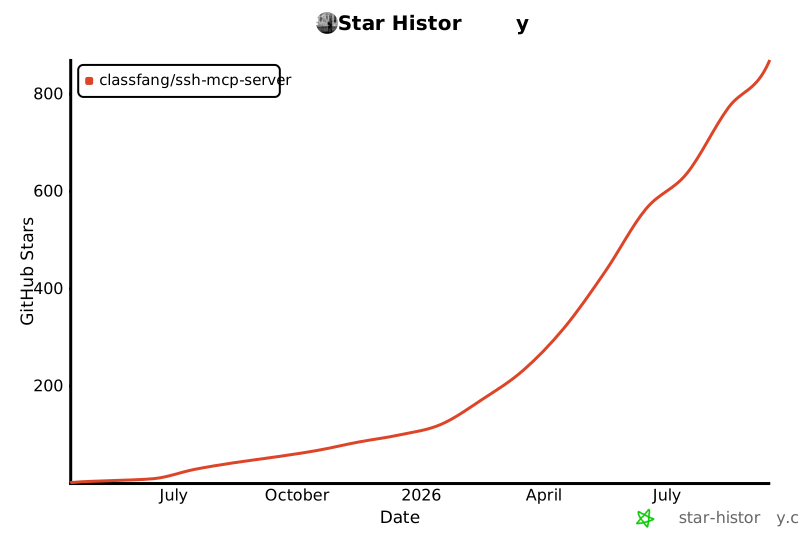](https://www.star-history.com/?type=date&legend=top-left&repos=classfang%2Fssh-mcp-server)
This server cannot be deployed
Maintenance
ActivityActive
ResponsivenessWithin a week