
livechat-mcp
by brunocramos
README.md
# livechat-mcp
A Model Context Protocol (MCP) server that lets you have a continuous voice
conversation with your AI coding assistant. You speak, your speech is
transcribed locally with Whisper, and each utterance is delivered to the
assistant as if you'd typed it. No tab switching, no copy/paste, no batch
recording.
## Demo
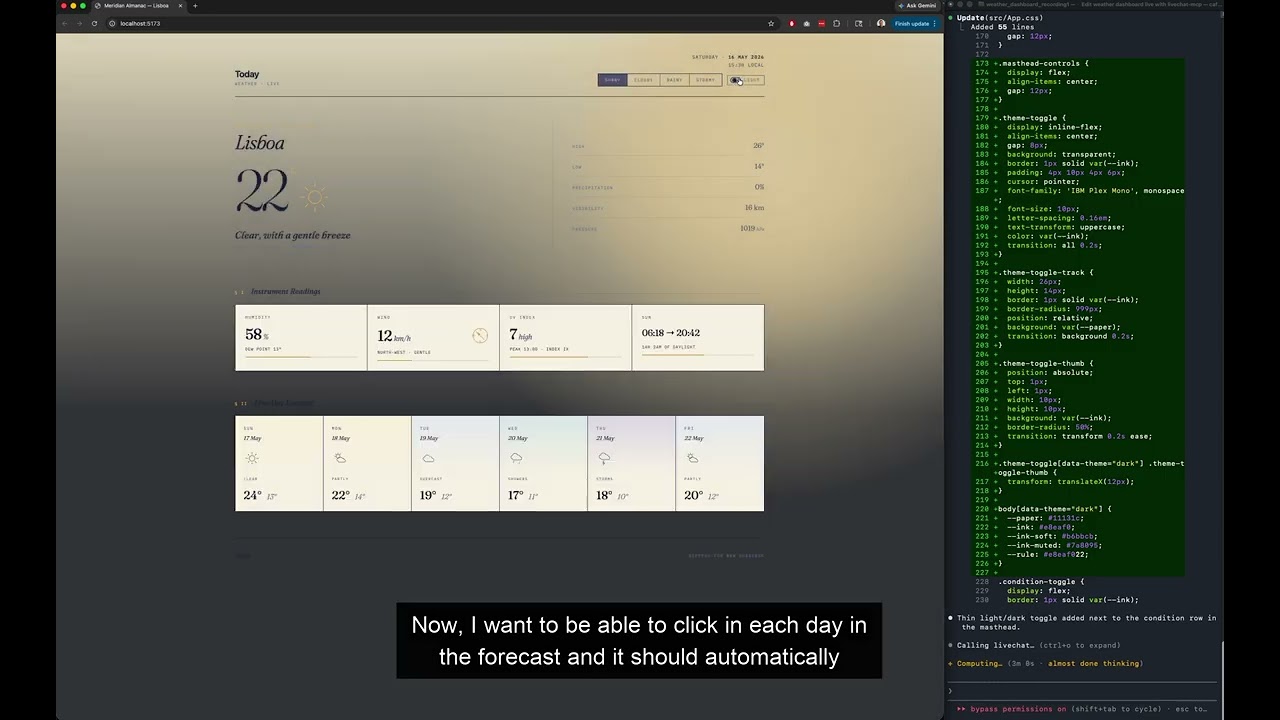
A short walkthrough of a live voice review session — talking to Claude
Code about a weather dashboard, no typing involved. Recorded with my own
(non-native English) accent, to show transcription holds up across
speakers.
[](https://youtu.be/fOa0IQU82DA)
A few things people use it for:
- **Live-reviewing a vibe-coded feature.** Walk through the diff and narrate
fixes as you spot them — the assistant edits in place while you keep
reading.
- **Stream-of-consciousness debugging.** Speak your hypotheses out loud as
you investigate; the assistant tries them, reports back, you keep moving.
- **Hands-free note-taking with project context.** "Add a TODO that the auth
middleware needs a rate-limit step", said while looking at the file —
lands as a real comment in the right spot.
- **Pair-programming while you're not at the keyboard.** Eating, on a walk
with AirPods, sketching on paper — keep the conversation going.
- **Onboarding a new repo.** Talk through what you're seeing as you read;
the assistant answers questions and pulls up related code without you
losing your place.
Works with any MCP host. First-class support for:
- **Claude Code**
- **Codex CLI**
- **Gemini CLI**
## Requirements
> **Tested on macOS only so far.** Linux and Windows are wired up in
> code (install scripts, mic-permission notes, locking primitives) but
> haven't been independently verified yet — bug reports welcome.
- **macOS**, **Linux**, or **Windows** (native via PowerShell, or under WSL2 / Git Bash).
- Python 3.10+
- An MCP host installed (Claude Code, Codex, Gemini, etc.)
- A working microphone
- ~500 MB disk for Whisper model cache + dependencies
- [`uv`](https://docs.astral.sh/uv/) for project management (recommended)
## Quick install (recommended)
One command — no clone needed.
**macOS / Linux / Git Bash on Windows:**
```bash
curl -LsSf https://raw.githubusercontent.com/brunocramos/livechat-mcp/main/bootstrap.sh | bash
```
**Native Windows PowerShell:**
```powershell
irm https://raw.githubusercontent.com/brunocramos/livechat-mcp/main/bootstrap.ps1 | iex
```
The bootstrap clones the repo to `~/.local/share/livechat-mcp` (override
with `$LIVECHAT_INSTALL_DIR`) and runs `install.sh` / `install.ps1`, which
installs portaudio if needed (brew / apt / dnf / pacman / zypper — Windows
wheels ship it bundled), installs `uv` if missing, runs `uv sync`, drops the
wizard into `~/.local/bin`, and launches the interactive setup wizard.
If you've already cloned the repo manually, run `./install.sh` (or
`.\install.ps1`) directly and skip the curl step.
> **First-run permissions.** Two prompts to expect, both one-time:
>
> - **OS mic access**, the first time `/livechat` opens the microphone
> (macOS: a System Settings dialog; Windows: the Privacy & Security
> panel; Linux: usually nothing if your user is in the `audio` group).
> - **MCP tool approvals** from your assistant CLI — Claude Code / Codex /
> Gemini will ask once per tool the first time it's invoked
> (`get_voice_input`, `end_voice_session`, `reset_voice_session`,
> `take_over_voice_session`). Approve "always" and they won't ask again.
>
> After both, every subsequent session is hot the moment you say go.
> **Windows**: native locking uses `msvcrt` and takeover signaling is
> file-based, so no `fcntl` dependency. The interactive wizard is a bash
> script — `install.ps1` invokes it through Git Bash, which it offers to
> install via `winget` if missing.
## Manual setup
If you'd rather install step-by-step, here's what `install.sh` does:
### 1. Install portaudio
`sounddevice` needs portaudio.
- **macOS**: `brew install portaudio`
- **Debian/Ubuntu**: `sudo apt-get install libportaudio2 portaudio19-dev`
- **Fedora/RHEL**: `sudo dnf install portaudio portaudio-devel`
- **Arch**: `sudo pacman -S portaudio`
### 2. Install `uv` if you don't have it
```bash
curl -LsSf https://astral.sh/uv/install.sh | sh
```
### 3. Clone and install dependencies
```bash
cd livechat-mcp
uv sync
```
This will create `.venv/` and install `mcp`, `faster-whisper`, `sounddevice`,
`silero-vad`, `torch`, etc.
### 4. Run the setup wizard
```bash
install -m 0755 bin/livechat-mcp ~/.local/bin/livechat-mcp
livechat-mcp setup
```
The wizard will:
1. Ask which assistants to install for (Claude Code / Codex / Gemini, any combination).
2. Copy the `/livechat` and `/endlivechat` slash commands to hosts that support
custom slash commands. For Codex, it installs both legacy prompt files and a
`livechat` skill, because current Codex CLI releases do not expose custom
prompts as `/livechat`.
3. Register the MCP server in each host's config file.
4. Walk you through the tunable env vars (silence threshold, Whisper model,
etc.) — press Enter to keep defaults.
Make sure `~/.local/bin` is on your `PATH` (it already is if you used the
official `uv` installer).
If you'd rather wire things up by hand, the manual steps for each host are
below.
### 5. Grant microphone permission
- **macOS**: the first time the server tries to capture audio, macOS will
prompt your **terminal app** (Terminal, iTerm, Ghostty, Warp, etc.) for
mic access. If you miss the prompt, enable it manually:
> System Settings → Privacy & Security → Microphone → enable for your terminal
If you skip this, audio capture silently returns silence and nothing will
ever transcribe.
- **Windows**: Settings → Privacy & security → Microphone → allow desktop apps
to access the microphone (and ensure your terminal is permitted).
- **Linux**: usually no prompt — just make sure your user has the right ALSA
/ PulseAudio / Pipewire access (typically the `audio` group).
### 6. Pre-download the Whisper model (optional)
The first run downloads `base.en` (~150 MB). You can pre-warm it:
```bash
uv run python -c "from faster_whisper import WhisperModel; WhisperModel('base.en', device='cpu', compute_type='int8')"
```
## Manual install (skip if you used `livechat-mcp setup`)
### Claude Code
Copy the slash commands:
```bash
mkdir -p ~/.claude/commands
cp commands/livechat.md ~/.claude/commands/
cp commands/endlivechat.md ~/.claude/commands/
```
Register the MCP server:
```bash
claude mcp add livechat -- uv --directory "$(pwd)" run livechat-mcp
```
Or edit `~/.claude.json` directly:
```json
{
"mcpServers": {
"livechat": {
"command": "uv",
"args": ["--directory", "/absolute/path/to/livechat-mcp", "run", "livechat-mcp"]
}
}
}
```
### Codex CLI
Install the Codex skill and legacy prompt files:
```bash
mkdir -p ~/.codex/skills/livechat
cp skills/livechat/SKILL.md ~/.codex/skills/livechat/
mkdir -p ~/.codex/prompts
cp commands/livechat.md ~/.codex/prompts/
cp commands/endlivechat.md ~/.codex/prompts/
```
Register the MCP server in `~/.codex/config.toml`:
```toml
[mcp_servers.livechat]
command = "uv"
args = ["--directory", "/absolute/path/to/livechat-mcp", "run", "livechat-mcp"]
```
### Gemini CLI
Gemini uses TOML for custom commands. The wizard generates these for you;
to do it by hand, see `commands/gemini/livechat.toml.template` (created by
running `livechat-mcp setup` once).
Register the MCP server in `~/.gemini/settings.json`:
```json
{
"mcpServers": {
"livechat": {
"command": "uv",
"args": ["--directory", "/absolute/path/to/livechat-mcp", "run", "livechat-mcp"]
}
}
}
```
## Usage
Open your assistant's CLI in any terminal:
```bash
claude # or: codex or: gemini
```
Then in the assistant prompt:
```
/livechat # Claude Code, Gemini CLI
use livechat # Codex CLI
```
> **Codex restart required.** Codex only loads skills and MCP servers at
> startup. If you ran the wizard while Codex was open, quit and relaunch before
> using `use livechat`.
Codex 0.128.0 does not support user-defined `/livechat` slash commands; `/` is
currently reserved for Codex's built-in commands. The setup installs a
discoverable `livechat` skill instead, so you can type `use livechat` or open
`/skills` and pick `livechat`.
The assistant will call `get_voice_input` and start listening. **Speak
normally.** When you pause for ~1.5 seconds, your utterance is finalized,
transcribed, and sent as a prompt. The assistant responds, then immediately
listens for the next utterance.
While the assistant is generating a response, the mic is still hot — anything
you say during that time queues up and is delivered all at once on the next
`get_voice_input` call.
### Ending a session
Three ways:
1. **`/endlivechat`** — cleanest, runs from the assistant prompt. (You'll
need to interrupt the current turn first if it's mid-response.)
2. **Wake phrase** — say `terminate voice session now`. The transcription
triggers shutdown. The phrase is intentionally awkward to avoid collisions
with real review content. Configurable via `LIVECHAT_END_PHRASE`.
3. **Ctrl+C** — kills the MCP server. The assistant will see a tool error on
the next call and stop the loop.
## Configuration
All tunables live in `livechat_mcp/config.py` and can be overridden via env vars:
| Var | Default | Notes |
| ---------------------------- | -------------------------------- | ----------------------------------------------------------- |
| `LIVECHAT_WHISPER_MODEL` | `base.en` | English-only: `tiny.en`, `base.en`, `small.en`, `medium.en`. Multilingual (drop `.en`): `tiny`, `base`, `small`, `medium` |
| `LIVECHAT_WHISPER_LANGUAGE` | `en` | Language code (`en`, `pt`, `es`, …) or `auto` to detect per utterance. `auto` requires a multilingual model |
| `LIVECHAT_WHISPER_DEVICE` | `auto` | `cpu`, `cuda`, `auto` |
| `LIVECHAT_WHISPER_COMPUTE` | `int8` | `int8` (CPU), `float16` (GPU) |
| `LIVECHAT_SILENCE_SEC` | `1.5` | Silence after speech to end an utterance |
| `LIVECHAT_VAD_THRESHOLD` | `0.5` | Silero VAD speech probability threshold |
| `LIVECHAT_MIN_UTTERANCE_SEC` | `0.4` | Minimum utterance length (filters coughs) |
| `LIVECHAT_MAX_UTTERANCE_SEC` | `120` | Force-cut runaway utterances |
| `LIVECHAT_LONG_POLL_SEC` | `300` | How long `get_voice_input` blocks before `__NO_INPUT__` |
| `LIVECHAT_END_PHRASE` | `terminate voice session now` | Spoken phrase to end the session |
| `LIVECHAT_DEBUG` | unset | Set to `1` for VAD/segmentation debug logs to stderr |
The easy way to set these is `livechat-mcp set KEY VALUE` — it edits the
`env` block in every host config it finds (Claude / Codex / Gemini).
```bash
livechat-mcp show # print current env block(s)
livechat-mcp set LIVECHAT_SILENCE_SEC 1.5
livechat-mcp unset LIVECHAT_DEBUG
```
Restart your assistant CLI after any change — MCP env vars are read by the
server at startup.
To do it manually, edit the `env` field of the livechat MCP entry in each
host's config. Example for Claude Code:
```json
{
"mcpServers": {
"livechat": {
"command": "uv",
"args": ["--directory", "/abs/path", "run", "livechat-mcp"],
"env": {
"LIVECHAT_WHISPER_MODEL": "small.en",
"LIVECHAT_DEBUG": "1"
}
}
}
}
```
## Troubleshooting
**Nothing happens when I speak.**
Check (in order): mic permission for your terminal app, mic input level
(System Settings → Sound), set `LIVECHAT_DEBUG=1` and watch stderr for VAD
events, lower `LIVECHAT_VAD_THRESHOLD` to `0.3`.
**Transcriptions are inaccurate.**
Upgrade model: `LIVECHAT_WHISPER_MODEL=small.en` or `medium.en`. `medium.en`
is noticeably slower on CPU (still real-time-ish) but much better for
technical vocabulary.
**Utterance ends too quickly / too slowly.**
Tune `LIVECHAT_SILENCE_SEC` (or run `livechat-mcp set LIVECHAT_SILENCE_SEC 1.5`).
1.0–4.5 is the useful range — lower feels snappier but risks cutting
mid-thought pauses.
**`uv` not found.**
Either install uv (recommended) or change the MCP config `command` to a
direct invocation of `python -m livechat_mcp.server` from inside an activated
venv.
**The server starts but the assistant never calls the tool.**
Make sure `/livechat` was invoked. Without the slash command, the assistant
has no instruction to enter the loop.
**Server logs go into the assistant's UI as garbage / break the protocol.**
This shouldn't happen — all server logging goes to stderr. If you see it,
file a bug. Make sure you have not added any `print(...)` statements without
`file=sys.stderr`.
**`portaudio` errors on startup.**
Install it: `brew install portaudio`. If it's installed and still failing, try
`brew reinstall portaudio` and reinstall sounddevice: `uv sync --reinstall`.
## How it works (short version)
```
[mic] → [Silero VAD] → [Whisper] → [queue] ← [get_voice_input tool] ← [Assistant]
↑________background thread, always running________↑
```
The audio pipeline is decoupled from the MCP tool, so the mic is *always* hot
while the server is up. Utterances spoken while the assistant is generating
a response are queued and delivered on the next tool call.
## License
MIT.
TDQS
A4.9/5.0
Scored across 4 tools
Disambiguation5/5
Each tool has a clearly distinct purpose: retrieving input, ending the session, taking over a lock, and resetting state. No overlap or ambiguity between them.
Naming Consistency5/5
All tool names follow a consistent verb_noun snake_case pattern (e.g., get_voice_input, end_voice_session). The pattern is uniform and predictable.
Tool Count5/5
Four tools is well-scoped for a voice session lifecycle. Each tool serves a necessary function with no redundancy, fitting the server's narrow purpose.
Completeness5/5
The tool surface covers the full voice session lifecycle: starting clean, retrieving input, ending, and handling cross-process takeover. No obvious dead ends or missing operations for the intended use case.
Maintenance
ActivityInactive
ResponsivenessNo issues