
Unofficial Lexware Office MCP Server
# <img src="https://raw.githubusercontent.com/benethos-hub/lexware-office-mcp/main/assets/brand/icon.svg" alt="" width="40" height="40"> Unofficial Lexware Office MCP Server
[](https://github.com/benethos-hub/lexware-office-mcp/actions/workflows/ci.yml)
[](https://github.com/benethos-hub/lexware-office-mcp/actions/workflows/ci.yml)
[](https://github.com/benethos-hub/lexware-office-mcp/blob/main/LICENSE)
[](https://pypi.org/project/benethos-lexware-office-mcp/)
[](https://pypi.org/project/benethos-lexware-office-mcp/)
[](https://github.com/benethos-hub/lexware-office-mcp/pkgs/container/benethos-lexware-office-mcp)
[](https://github.com/sponsors/BeneODev)
[](https://paypal.me/BeneODev)
[](https://glama.ai/mcp/servers/benethos-hub/lexware-office-mcp)
<!-- The MCP Registry looks for this line in the README on PyPI to accept the package as the one in server.json. -->
<!-- mcp-name: io.github.benethos-hub/benethos-lexware-office-mcp -->
> **Disclaimer**
>
> - This project is **not affiliated with, endorsed by, or sponsored by
> Lexware or Haufe-Lexware GmbH & Co. KG**. "Lexware" and "Lexware Office"
> are trademarks of their respective owners.
> - It uses the **documented public API** with an API key you generate and can
> revoke yourself. Use of that API is governed by Lexware's own terms, which
> you accept independently of this project. The API can change at any time,
> and requests may be rate limited or blocked.
> - It reaches **real accounting records**. Write access is off by default. If
> you enable it, anything created through the API is a real and legally
> relevant record — a finalized document cannot be withdrawn through the API.
> - Data may be incomplete or out of date. **Nothing here is tax, accounting
> or legal advice.** Do not rely on it for filings, audits, or your
> bookkeeping obligations.
> - Provided "as is", without warranty. Intended for personal and professional
> use at your own risk. See [LICENSE](https://github.com/benethos-hub/lexware-office-mcp/blob/main/LICENSE).
> - For **commercial use**, review Lexware's API terms and your own retention
> and documentation duties.
**Contents**
- [Why this exists](#why-this-exists)
- [Safety first](#safety-first)
- [How it works](#how-it-works)
- [Tools](#tools)
- [Prompts](#prompts)
- [Requirements](#requirements)
- [Getting an API key](#getting-an-api-key)
- [Installation](#installation)
- [As a Claude Desktop extension](#as-a-claude-desktop-extension)
- [As an extension that updates itself](#as-an-extension-that-updates-itself)
- [With uvx, for any MCP client](#with-uvx-for-any-mcp-client)
- [Configuring it in a browser](#configuring-it-in-a-browser)
- [Switching individual tools off](#switching-individual-tools-off)
- [Configuration](#configuration)
- [Where a value comes from, and which one wins](#where-a-value-comes-from-and-which-one-wins)
- [Naming the files](#naming-the-files)
- [The settings](#the-settings)
- [Transport](#transport)
- [In a container](#in-a-container)
- [With Compose](#with-compose)
- [As single containers](#as-single-containers)
- [Turn the interface off when you are done](#turn-the-interface-off-when-you-are-done)
- [Logs](#logs)
- [Example prompts](#example-prompts)
- [Rate limits](#rate-limits)
- [Development](#development)
- [License](#license)
- [Trademarks and affiliation](#trademarks-and-affiliation)
An [MCP](https://modelcontextprotocol.io) server that connects an MCP client
such as Claude Desktop to a [Lexware Office](https://www.lexware.de/) account
through the official
[public REST API](https://developers.lexware.io/docs/). Ask about invoices,
contacts, articles and vouchers in plain language, and let the client fetch
them for you.
> **Status: 0.10.0.**
> The server handles contacts, vouchers and documents: find them, read them,
> create them, change them, see what is still unpaid, download a PDF and
> upload a receipt and book it. `get_profile` answers which account is
> connected. Every tool in the table below is built, and each was exercised
> against a live account. It speaks stdio to a client that starts it, as a
> Claude Desktop extension or from PyPI, and streamable HTTP behind a bearer
> token where something else has to reach it - as a published container
> image, with Compose files for running it and for building it from a
> checkout. See [SPECS.md](https://github.com/benethos-hub/lexware-office-mcp/blob/main/SPECS.md)
> for the full technical specification and the roadmap.
## Why this exists
Lexware Office holds the day-to-day accounting of a small business. Most
questions about it are read questions — what is still unpaid, what did this
customer order, which receipt belongs to that expense — and those are exactly
the questions an assistant answers well once it can see the data. This server
makes that possible without exporting anything, using an API key the account
owner generates and can revoke. For the questions that come back every
month, three built-in [prompts](#prompts) ask them the same careful way each
time: what is still open, which receipt is missing, where a customer stands.
## Safety first
The server points at a real accounting system, so the defaults are cautious.
**Run it read-only unless you have a reason not to.** This server can change
real accounting records - create a contact, record a voucher, issue an invoice,
attach a receipt - and it is the assistant that decides when to call such a
tool, not you. `--tools read-only` gives it everything it needs to answer
questions about the books, which is what most people want it for: search,
read, and download. Nothing in that set writes.
Turn a write tool on when you have a job for it, and know what it leaves
behind. This API cannot delete a bookkeeping voucher at all, so a wrong one
is corrected in the web app rather than withdrawn here, and a finalized
invoice is a real document with a number that has been used. If you are not
sure which tools you need, read-only is the honest starting point - the
permissions page adds one later in a click, and a client that honours
`notifications/tools/list_changed`, as Claude Desktop does, picks it up
without a restart.
- **Nothing is enabled until you say so.** A fresh installation has no
policy file, and a server without one offers no tool but `server_status`,
which says what is running and reads nothing in the account. What this
server may do is a decision somebody made, never a default that happened.
- **One flag per tool**, in a JSON file you write with `--tools`, tick
through `setup`, or edit by hand. Not a level, not a group:
`create_contact` on and `upload_file` off is an ordinary thing to want, and
there is no combination the file cannot express.
- **What a tool costs you is visible while you decide.** Every enabled tool
is sent to the assistant on every request, and the permissions page puts
that number on each row.
- The file is checked twice, once when the tool list is built and again when a
call arrives, so a stale tool list on the client cannot slip past it.
- The API key is never logged, never returned in a tool result, and redacted
from error messages. **It belongs in the `.env` and nowhere else** — not in
your client's configuration file, which another program owns and rewrites,
and which is the one people screenshot when they ask for help. Nor does any
path from your machine reach the assistant.
## How it works
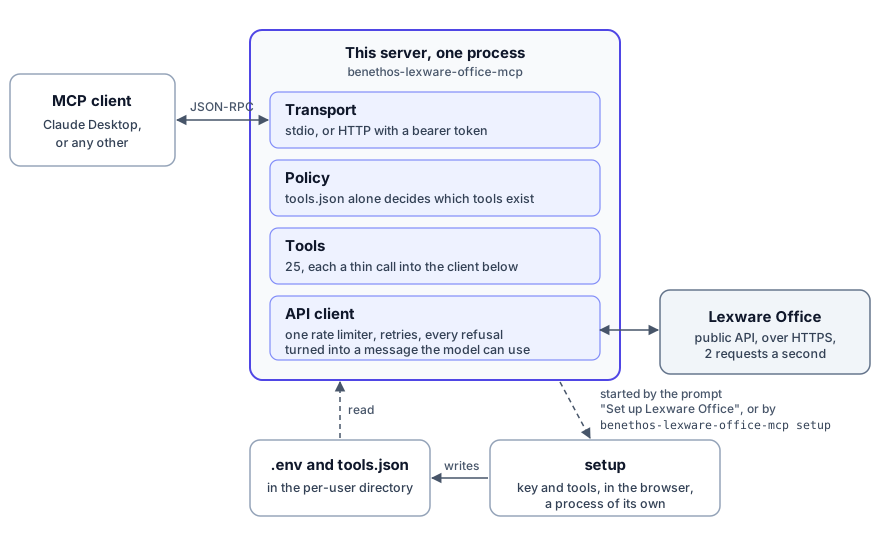
The client starts the server, or reaches it over HTTP, and speaks MCP with
it. What a model can do is settled before anything reaches Lexware: a tool
the policy file does not name does not exist for the client, `server_status`
aside, which only says what is running, and every call that is left goes
through one API client with one rate limiter. The key and
the permissions live in two files that `setup` writes, a process of its own
that the client's prompt **Set up Lexware Office** starts, and so does
`benethos-lexware-office-mcp setup` in a terminal.
## Tools
Every tool below is built and was exercised against a live account. None of
them is enabled until the policy file names it, except one, which is there
whatever the file says. It reads no record and writes nothing:
| Tool | What it does |
|---|---|
| `server_status` | Which server is running, its version, transport and uptime, without an API call. With `details`, whether Lexware answers and takes the key, and whether the policy file is loaded |
Read tools:
| Tool | What it does |
|---|---|
| `get_profile` | Company profile and connection check |
| `search_contacts` | Find customers and vendors by name, email, number or role |
| `get_contact` | One contact with addresses, roles and version |
| `search_articles` | List articles, filtered by number, barcode or kind. The API offers no search by title |
| `get_article` | One article with its price block and version |
| `search_vouchers` | The central query — filter the voucher list by type, status, contact, document number, date range and what is still open |
| `get_sales_document` | Read an invoice, quotation, credit note, order confirmation, delivery note, dunning or down payment invoice in full |
| `get_voucher` | Read a bookkeeping voucher, by id or by its document number |
| `get_payments` | Payment status and open amount of a voucher |
| `get_recurring_templates` | Templates that issue invoices on a schedule, one or a page of them |
| `get_master_data` | Countries, payment conditions, posting categories and print layouts, with a search to narrow them |
| `download_document` | Save the rendered PDF or XML of a sales document |
| `download_file` | Save a stored file, such as an uploaded receipt |
| `read_download` | Put a downloaded file into the answer, for clients that cannot follow a resource link |
| `get_deeplink` | Build a permalink to a sales document, contact or voucher in the web app, without an API call |
Write tools. These change real accounting records, so enable them one at a
time and against an account you are willing to have changed:
| Tool | What it does |
|---|---|
| `create_contact` | Create a customer or vendor |
| `update_contact` | Change one, without touching what you did not name |
| `create_article` | Add an article to the catalogue |
| `update_article` | Change one, without touching what you did not name |
| `create_voucher` | Record a bookkeeping voucher |
| `update_voucher` | Change one that is already recorded, or book a receipt that `upload_file` left unchecked |
| `create_sales_document` | Create an invoice, quotation, credit note, order confirmation, delivery note or dunning — a draft unless you ask for it to be issued, which the assistant may only do on your explicit instruction |
| `upload_file` | Upload a receipt from a path or a URL, which also creates its voucher |
| `attach_file_to_voucher` | Hang a file on a voucher that already exists |
`update_contact` and `update_voucher` cost two API calls rather than one.
The API replaces a record instead of patching it, so the current one is read
first and the change is laid on top. Without that, changing only an email
address would empty out the addresses, the note and everything else. Both
also need the `version` you last read: if the record changed in between, the
update is refused and nothing is written.
One tool deletes, and it is the only one:
| Tool | What it does |
|---|---|
| `delete_article` | Remove an article. The API cannot bring it back. Takes `confirm: true`, and sends nothing without it |
It is the only member of the `--tools irreversible` step so far, so that step
is the only way to switch it on. An article is also the only thing this API
lets you delete, which is the other half of the point:
`--tools write` is not the same as undoable. Nothing that preset enables
deletes a record, but five of its tools create one this API cannot remove
afterwards: `create_contact`, whose contact only the web app deletes, and
`create_voucher`, `create_sales_document`, `upload_file` and
`attach_file_to_voucher`, which leave a bookkeeping record.
**A bookkeeping voucher cannot be deleted through the API.** There is no
endpoint for it, so a wrong `create_voucher` has to be corrected in the
Lexware Office web app, and it is booked the moment it is created - the
API accepts no status on the way in. The same applies to `upload_file`:
uploading a receipt also creates the voucher that goes with it, so it
leaves a record behind even though its name only mentions the file. That
voucher starts unchecked, and `update_voucher` fills it in and, when you
ask for it, books it.
Downloads are written into the download directory on the machine the server
runs on, and reported two ways: a **path**, which is what you want when the
client and the server share that machine, and a **resource URI**, which the
client can read to get the bytes wherever the server is. The file itself
never travels inside the tool result, because base64 costs roughly 1.37
times the file size in context and no model can read a PDF anyway. An
existing file is never replaced: a download identical to one already there
reuses it, and one that differs is saved beside it with a counter in its
name.
The download directory is a cache of the last 100 documents. Older downloads
are deleted when the server starts and after each download, since every
document is still in Lexware Office and one call away. `LXO_MCP_KEPT_DOWNLOADS`
changes the number, and `0` keeps everything. A directory you name yourself
with `LXO_MCP_DOWNLOAD_DIR` is left alone unless you set it there too, and
even then only files named the way a download is named are deleted: a
space, an umlaut or an extension such as `.docx` keeps a file out of it. The
resource list is read from the directory each time a client asks, names the
same newest downloads, and survives a restart. A new download is announced
the way a changed tool list is: the server sends
`notifications/resources/list_changed`, so a client that listed the
downloads once can ask again rather than keep the list from the start of
its session. Whether it does is the client's business.
**The resource list is not part of the prompt.** The tool list goes to the
model with every request. The resource list is sent only when a client asks
for it, and what the client does with it is up to the client. Claude Desktop
offers it in its attachment menu, under **Add from** the server, and a file
reaches the conversation when somebody picks it. A client that hands the
whole list to the model pays for it instead: an entry carries the
`lexware://` URI, the file name, the type and the size - never a path of
this machine - and comes to about 230 characters, so the default 100 make
roughly 23,000, around 6,000 to 7,000 tokens. For such a client, set
`LXO_MCP_KEPT_DOWNLOADS` lower, which shortens the list and the cache
together.
Claude Desktop does not follow a resource link at all, so `read_download`
is the route that always works. It takes the same URI and puts the content
into the answer. What arrives depends on the file:
| File | Arrives as |
|---|---|
| XML | text, so an XRechnung can actually be read |
| PDF | pictures of its pages, the first 10 by default |
| Image | the image |
| Anything else | an embedded binary for the client to handle |
A PDF is rendered rather than passed through because Claude Desktop turns
an embedded binary into an image block when it calls the API, and
`application/pdf` is not a permitted image type there, so the whole
request is refused. Rendering costs no API call either, since the file is
already on the server.
A link into the web app is a separate tool. `get_deeplink` turns an id into
a URL for a browser, costs no API call, and is the route that still works when
the client can display neither the file nor a resource link: somebody opens it
themselves. A download does not carry one — it answers where the bytes are,
which is a different question, and the two were joined once long enough for a
broken link to ride along with a working download.
`upload_file` and `attach_file_to_voucher` take a `source`: a path on the
machine the server runs on, or a URL to fetch the file from. Either way they
accept PDF, JPEG, PNG and XML, at most 5 MiB per file, which is what the API
takes. An XML file is treated as an XRechnung and is rejected if it is not
one.
**The model chooses the path.** Without `LXO_MCP_UPLOAD_DIR`, `upload_file`
and `attach_file_to_voucher` read any file this process can read that has
one of those extensions, and send it to Lexware. That includes any `.xml`:
a configuration file or an export is refused as not an XRechnung only after
it has reached the API. Set it to one directory - an inbox for receipts -
and nothing outside it is read, links included. A network path such as
`\\server\share\receipt.pdf` is read only when the directory is on that
same share.
**A URL only from addresses you allow.** Another server can hand the model a
short-lived link to a file - a mailbox server for an attachment, say - and
the file then goes from that server to Lexware without passing through the
model. `LXO_MCP_UPLOAD_URLS` lists the addresses such a link may point to,
comma separated: a scheme and a host, optionally a port and the start of a
path, such as `https://files.example.com/inbox/`. **Without it no URL is
fetched.** The list is required because the model chooses the URL, and a
model reads email: one instruction hidden in a message could otherwise have
the server fetch from anywhere it can reach, a document server on your own
network included, and file what came back in your books. A link outside
every prefix is refused before anything is sent, a redirect is not followed,
the fetch gets 30 seconds, and the file is cut off at 5 MiB. It is asked for
uncompressed, an empty file is refused, and behind a proxy a service on this
machine is fetched directly, since the proxy cannot reach it. A file served
only as bytes, `application/octet-stream` or without a type, as a mail
attachment often is, is taken by its first bytes, and only as one of the
four types. The Lexware key is never sent along, and the log names a link's
host, never its path or query, which is where a signed link keeps its key.
**Each entry is a URL prefix, not a pattern.** A link is fetched when it
starts with one: the same scheme, exactly the same host, the same port -
none given means 443 for `https` and 80 for `http` - and a path at or below
the prefix's. What follows is free, the rest of the path and the query a
signed link carries. With `https://files.example.com/inbox/`:
- `https://files.example.com/inbox/9f3c?sig=abc` is fetched
- `https://files.example.com/outbox/9f3c` is not, another path
- `https://files.example.com.elsewhere.net/inbox/9f3c` is not, another host
- `https://files.example.com:8443/inbox/9f3c` is not, another port
`https://files.example.com/` allows every path on that host. There is no
wildcard: a host is always written out in full, and a `*` is read as a host
name that nothing is called, so `https://*` allows nothing at all.
`https://` is the rule. `http://` is meant for a service on the same
machine, and is accepted for `127.0.0.1`, `::1` and `localhost` alone: the
server refuses to start with any other host, since the file would cross the
network unencrypted. In a container, the same machine is the container.
## Prompts
Three recipes come with the server. Pick one in the client and fill in its
argument, and the model calls the right tools in the right order and minds
the traps of the books on the way: a quotation that owes nothing, an amount
that is never rounded, an id that comes from a search and never from memory.
They read the books and never write to them.
| Prompt | Asks for | What you get |
|--------|----------|--------------|
| **Open items** | a contact, optional | What is still unpaid, owed to you and owed by you, overdue first, with a link to each overdue document |
| **Missing receipts** | a period, optional: `2026-10`, `2026-Q3` or a year, the last complete month if left out | Reads the rhythm of the twelve months before, such as a supplier who bills every month or a customer invoiced every quarter, and lists where the period breaks it, and the drafts and unchecked vouchers of the period |
| **Contact overview** | a name, or a customer or vendor number | The contact, the latest documents and what is open, with a link |
**Starting one.** In Claude Desktop and Claude Code a prompt is picked by
you: the model cannot start one on its own and does not see that they
exist.
- **Claude Desktop:** click "+" in the message box, then **Connectors**,
**Add from** and the server's name, then the prompt. A small form asks for
the argument, and an optional one may stay empty. The recipe is attached
to the message as a text file, and nothing happens until you send it. The
recipes are written in English, so add a line such as "answer in German"
if the answer comes in a language you did not want.
- **Claude Code:** each prompt is a slash command named after the server,
`/mcp__benethos-lexware-office-mcp__missing_receipts 2026-10` and so on,
with the argument after the command.
- **Other clients** show them where they show MCP prompts, if they do.
Without a prompt, a plain question works as before and the model picks the
tools itself. What a prompt adds is the fixed order and the rules spelled
out every time.
**What each one needs.** A prompt is offered whatever `tools.json` says,
since it reaches nothing by itself. The tools it leads to still answer to the
file: when one is not enabled, the model says which and leaves that step out.
**Open items** needs `search_vouchers`, and `search_contacts` for a contact.
**Missing receipts** needs `search_vouchers` and `get_recurring_templates`,
and pages through the twelve months before the period and the period itself,
one call per 250 vouchers. **Contact overview** needs `search_contacts`,
`get_contact` and `search_vouchers`. All three add links through
`get_deeplink`, which costs no call.
**A rhythm needs a history.** Missing receipts reads it from the months
before the period: an account with only a few weeks of vouchers shows no
rhythm yet, and nothing is reported as missing. A gap it does find is
reported as a question: the voucher it expects may never have been issued.
## Requirements
- [uv](https://docs.astral.sh/uv/getting-started/installation/), which brings
its own Python and the `uvx` command every example below uses. The Claude
Desktop extension needs neither uv nor Python:
[Claude Desktop](https://claude.ai/download) brings both
- Python 3.11 or newer, if you would rather bring your own. Installing pulls
in the MCP SDK, httpx, pydantic, platformdirs, pypdfium2 to render PDF
pages, and Jinja2 for the pages of `setup`
- A Lexware Office account with the public API add-on enabled
- An API key from <https://app.lexware.de/addons/public-api>
## Getting an API key
1. Sign in to Lexware Office as the account owner.
2. Open the public API add-on at
<https://app.lexware.de/addons/public-api>.
3. Create a key and copy it once — it is shown a single time.
4. Keep it out of any file that goes into version control. `setup` writes it
into the `.env` the server reads, in the per-user configuration directory
or, in a checkout, in `config/.env`, which is gitignored. Either is found
no matter which directory the server is started from, so a client such as
Claude Desktop needs no key of its own in its configuration file. An
environment variable works as well.
A key can be revoked on the same page at any time, which is the fastest way to
cut access if anything looks wrong.
## Installation
Two ways in. In Claude Desktop the shortest is the
[extension](#as-a-claude-desktop-extension), which needs nothing installed
beside Claude Desktop, pinned to its release or
[updating itself](#as-an-extension-that-updates-itself). For any other
client, or to manage the server yourself, run it
[with uvx](#with-uvx-for-any-mcp-client). Both read the same configuration,
so moving from one to the other keeps the key and the permissions. To run it
in a container instead, see [In a container](#in-a-container).
The server is also listed in the
[official MCP Registry](https://registry.modelcontextprotocol.io/v0/servers?search=benethos-lexware-office-mcp)
as `io.github.benethos-hub/benethos-lexware-office-mcp`, with all three: the
PyPI package, the container image and the extension.
### As a Claude Desktop extension
All it needs is [Claude Desktop](https://claude.ai/download), signed in.
**1. Get an API key.** Sign in to Lexware Office as the account owner, open
<https://app.lexware.de/addons/public-api>, create a key and copy it straight
away, as it is shown once only. The same page revokes it at any time. See
[Getting an API key](#getting-an-api-key).
**2. Download the extension.** This link always gives the newest release:
[benethos-lexware-office-mcp.mcpb](https://github.com/benethos-hub/lexware-office-mcp/releases/latest/download/benethos-lexware-office-mcp.mcpb).
**3. Drag it into Claude Desktop** under *Settings → Extensions*. Claude
Desktop brings Python and uv itself, nothing else has to be installed.
**4. Open the setup.** In a chat, click the plus in the message box, then
*Connectors* → *Add from Unofficial Lexware Office MCP Server* →
**Set up Lexware Office**. Your browser opens the interface described under
[Configuring it in a browser](#configuring-it-in-a-browser). Only you can
pick this, the model cannot.
**5. Enter the key and choose the tools.** The key goes under
*Zugangsdaten*, the tools are ticked under *Rechte*, and *Beenden* closes the
page. Both apply at once, without restarting Claude Desktop.
**6. Try it.** Ask *"Which Lexware Office account are you connected to?"*
The answer names the company the key belongs to.
Worth knowing:
- **Only `server_status` until step 5.** Nothing else is enabled after
installing, so that is the one tool Claude Desktop lists until the setup
page has saved some.
- **The install dialog** asks for nothing. It warns that an extension can
reach everything on your computer, which is true of every local MCP
server, this one included. The server's dependencies are installed on its
first start, the versions in this project's lockfile.
- **The setup page ends itself** after 30 minutes without use.
- **Every release attaches its own bundle too**, the version in the file
name, for installing a particular one.
- **One or the other.** The extension and an entry for the same server in
`claude_desktop_config.json` would offer every tool twice. Remove the entry
when you switch to the extension.
- **Your own files, if you have them.** The extension's page under
*Settings → Extensions* has two fields, *Settings file (.env)* and
*Tool policy file (tools.json)*. Left empty, the extension reads the same
per-user `.env` and `tools.json` as an installation with uvx, so
`uvx benethos-lexware-office-mcp setup` changes them too. Pick a file
there and *Save*, and the server restarts on it at once, while Claude
Desktop keeps the tools it had until it is quit from the tray and started
again. The second field can stay empty when the `.env` names the policy
file with `LXO_MCP_TOOL_POLICY`.
- **Updating** is installing the newer file over the old one. If Claude
Desktop cannot replace it, end the setup page first with *Beenden*: while it
runs, it holds the extension's files.
- **A changed key, or any other setting in the `.env`,** applies once Claude
Desktop is quit from the tray and started again. The first key does not need
that, and until that restart neither does a change to it. Ticking tools does
not need it either.
- **Tried on Windows**, with Claude Desktop from the Microsoft Store and
nothing else installed. macOS is expected to work the same way and has not
been tried.
> **Windows with Smart App Control on.** The extension may not start
> there, and its tools never appear. Claude Desktop runs it through uv,
> and on a machine without uv it downloads a copy of its own. Smart App
> Control judges a program by its signature and reputation, and it can
> block that copy, which Windows records as a Code Integrity block of
> `uv.exe`. The same goes for the `.exe` launchers `uvx` writes. The way
> around is a virtual environment made from the python.org installer,
> `py -m venv` and `pip install benethos-lexware-office-mcp` into it, and
> a client entry that starts its `python.exe` with
> `-m benethos_lexware_office_mcp`, with no generated program in between.
> Whether to keep Smart App Control on is a decision about the whole
> machine, not about this server.
### As an extension that updates itself
The extension above runs the release it was downloaded with, and a new
release means a new download. A second extension runs the newest release on
PyPI instead, so a new release arrives with a restart of Claude Desktop. It
holds the same key to the same books, so read the list below first. The
pinned extension is the choice for anyone who wants to look at a release
before it runs.
1. **Download**
[`benethos-lexware-office-mcp-auto-update.mcpb`](https://github.com/benethos-hub/lexware-office-mcp/releases/latest/download/benethos-lexware-office-mcp-auto-update.mcpb).
Every release carries it, the copy with a version in its name as well. Any
of them runs the newest release, the version only says which release built
it.
2. **Install and set it up** as under
[As a Claude Desktop extension](#as-a-claude-desktop-extension), from
step 3. Install this one or the pinned one, not both, or every tool shows
up twice. Installing one does not remove the other, so when you switch,
remove the old one under *Settings → Extensions*. The per-user files stay,
and a file picked on the old one's page has to be picked again.
How and when it updates:
- **At the start of the server, not during a chat.** Claude Desktop starts it
with `uv tool run benethos-lexware-office-mcp`. uv looks for a newer release
only then, when Claude Desktop starts or reconnects the extension. To pick
up a release, quit Claude Desktop from the tray and start it again.
- **Up to 10 minutes late.** uv keeps PyPI's list of releases for 10 minutes,
as PyPI tells it to, so a release published in between arrives with the first
restart after those 10 minutes.
- **It needs to reach PyPI.** Once the 10 minutes are over, uv asks PyPI before
it starts the server, and without an answer it stops with `Failed to fetch`
instead of falling back to the release it has. A network that blocks PyPI
keeps this extension from starting. The pinned one is the choice there.
- **The first start after a release takes longer.** uv downloads and installs
the new release and its dependencies once, a few seconds, and later starts
reuse them.
- **The running version is the one `server_status` names.** Claude Desktop's
extension list shows the version of the file it was installed from, and that
stays as it was.
- **Installed with 0.9.1 or earlier? Install it once more for the prompts.**
The tools and Set up Lexware Office keep working, but an extension file
from an earlier release does not tell Claude Desktop that the server
brings prompts of its own. Desktop then lists them under "+" and refuses
to attach them. The file of 0.10.0 or later says so, and later prompts
arrive with a restart like the rest.
- **A copy from `uv tool install` wins.** uv then runs that one, whatever PyPI
has, and nothing updates. `uv tool uninstall benethos-lexware-office-mcp`
removes it.
- **uv's own configuration counts too.** An `exclude-newer` in a `uv.toml` of
yours holds this extension on an older release, and nothing says so but the
version `server_status` names.
- **A new tool stays off, an enabled one can grow.** A tool the policy file
does not name is not offered, whichever release brought it. A tool you
enabled keeps its name and can gain abilities under it: `update_voucher`
learned to book a voucher in 0.3.0, and the upload tools to fetch from the
addresses `LXO_MCP_UPLOAD_URLS` allows in 0.6.0. Such a change arrives with a
restart, without asking, and the [changelog](https://github.com/benethos-hub/lexware-office-mcp/blob/main/CHANGELOG.md)
says what it was.
- **Dependencies move within patch windows.** uv takes the newest versions each
release allows, as `uvx` does, not the tested set in `uv.lock` that the
pinned extension and the container image run. The packages this server names
itself, such as `mcp` and `httpx`, may move by a patch, and a new minor of one
of them arrives with a release here. The packages beneath them are not held
back, so one of those can still change without a release. A check in this
repository runs the newest versions allowed every day and after each
release, installs the published package from PyPI as this extension does,
and opens an issue when the server stops answering a client correctly. It
holds no key and reaches no account, so a change in what a call sends to
Lexware passes it.
- **Smart App Control** blocks it as it blocks the pinned extension, see the
note above.
- **Tried in Claude Desktop on Windows**, from the Microsoft Store: the first
start, the setup page, both file fields and a change of version at a restart,
brought about by hand. A real release arriving through PyPI has not been
tried with this extension, and neither has macOS.
If it fails:
- **It can come without a release of this project.** A dependency moves while
this server's version stays the same, so `server_status` naming the version
that worked yesterday proves nothing, and two machines on one version can
run different dependencies. `server_status` names the `mcp` in use, the one
of the six most likely to matter.
- **A crash shows.** The extension does not start and its tools are missing
from the chat, or a tool answers with an error. The reason is in Claude
Desktop's log folder, in `mcp-server-<extension name>.log`, uv's own messages
included.
- **A wrong result does not have to.** A dependency that changes a request or a
field can leave the server running with no error anywhere. If an answer looks
off, compare it with Lexware Office itself before relying on it.
- **Nothing rolls back on its own.** uv runs the newest versions at every
start. Once something broke, every restart runs it again, until a release
fixes it, and the auto-update file of an older release runs the newest
release as well.
- **The way out is the pinned extension.** Remove this one and install
`benethos-lexware-office-mcp-X.Y.Z.mcpb` of a release that worked, from the
[releases page](https://github.com/benethos-hub/lexware-office-mcp/releases).
It runs that release with the versions tested for it, and stays there until
you install another. Please
[open an issue](https://github.com/benethos-hub/lexware-office-mcp/issues)
with the log, so the fix comes sooner.
### With uvx, for any MCP client
The simplest way for any other client: no clone, no manual virtual
environment, no `git`. `uvx` fetches the server and runs it on demand from
[PyPI](https://pypi.org/project/benethos-lexware-office-mcp/) (published as
`benethos-lexware-office-mcp`).
**1. Install uv**, if you have not already — the
[uv installation page](https://docs.astral.sh/uv/getting-started/installation/)
covers every platform. It brings `uvx`, and that is the only thing needed
here.
**2. Configure the server.** Nothing has to be installed for this: `uvx`
fetches the package and runs it.
```bash
uvx benethos-lexware-office-mcp setup
```
That opens the interface described under
[Configuring it in a browser](#configuring-it-in-a-browser): key, settings and
one checkbox per tool. Everything it does can also be done by hand — start a
settings file with `uvx benethos-lexware-office-mcp --settings-sample >
config/.env`, put the key in it, and use `--tools` as described below.
Check that it works:
```bash
uvx benethos-lexware-office-mcp --help
```
**3. Add it to your client.** No path from your machine appears in either
entry below, which is the point: `uvx` looks the package up by name.
**Claude Desktop**, in `claude_desktop_config.json`:
```json
{
"mcpServers": {
"benethos-lexware-office-mcp": {
"command": "uvx",
"args": ["benethos-lexware-office-mcp"]
}
}
}
```
**Claude Code**, with one command in a terminal:
```bash
claude mcp add benethos-lexware-office-mcp --scope user -- uvx benethos-lexware-office-mcp
```
- **`--scope user`** makes it available in every project. Left out, it is
`local`, for the current directory alone. `project` writes it into a
`.mcp.json` meant to be committed, which shares the entry with everyone
who clones that repository.
- **The prompt Set up Lexware Office** is among the slash commands: type
`/` and part of its name, and it opens the configuration interface in the
browser. The three [recipes](#prompts) are slash commands as well.
Two things worth knowing about either entry:
- **Pin a version** for stability:
`"args": ["benethos-lexware-office-mcp==0.10.0"]`, or
`uvx benethos-lexware-office-mcp==0.10.0` at the end of the command.
Without a pin, `uvx` takes the newest release it can resolve, and a client
restart is enough to change what it runs.
- **`uvx` has to be on the `PATH` the client uses**, which is not always the
one your terminal has — some GUI clients pass a reduced environment. If the
server does not start, put the absolute path to `uvx` in `command`, and
restart the client fully rather than reloading it.
**Would rather have a command of your own?**
`uv tool install benethos-lexware-office-mcp` gives you
`benethos-lexware-office-mcp` without the `uvx` in front, which is worth it if
you change permissions from the command line often. It buys nothing else: the
same version can be pinned either way, and a warm start differs by tens of
milliseconds. One thing to know — uv installs it into its own tool directory,
which is **not on the `PATH` of a fresh install**. It says so when it
finishes. Run `uv tool update-shell` and open a new terminal.
**From the sources instead**, to develop or to run something unreleased:
```bash
git clone https://github.com/benethos-hub/lexware-office-mcp
cd lexware-office-mcp
uv sync
uv run benethos-lexware-office-mcp setup
```
A client then needs the interpreter of that checkout's virtual environment,
`command` pointing at `.venv/Scripts/python.exe` on Windows or
`.venv/bin/python` elsewhere, with `args` of `["-m",
"benethos_lexware_office_mcp"]`.
**No key in there, on purpose.** The server finds it in the `.env`. A client's
configuration file is the wrong place for a credential: it is not yours —
another program owns it, decides where it lives and when it rewrites it. It is
the file people screenshot when they ask for help with an MCP setup, it is
readable in the client's own settings view, and it travels to the next machine
with the rest of that client's configuration. The `.env` is at least a file
this project documents, that nothing syncs on your behalf, and that the
configuration interface writes without ever showing the key back to you.
That `.env` is already the part worth being careful with. It holds a
credential for a live accounting system, so keep it out of version control,
out of shared folders and out of backups other people can read. When you stop
using the server, delete it **and revoke the key** under Extensions, Public
API — revoking is the only step that actually ends access.
**4. Restart the client.** Claude Desktop fully — quit it from the tray
rather than closing the window — and in Claude Code start a new session.
That is for the entry you just made, which a client reads once at startup,
and it is what a changed setting in the `.env` needs too — the server reads
those at startup as well. It is **not** needed
for permissions: change those later and the running client is told, see
[Switching individual tools off](#switching-individual-tools-off). Nor for
the first API key: a server started without one uses a key saved later from
its next call on, and reads it again on every call until it is restarted,
so a change to that key applies at once too. Changing a key the server was
started with does need the restart.
## Configuring it in a browser
```bash
uvx benethos-lexware-office-mcp setup
```
Or from your client: over stdio the server offers a prompt called **Set up
Lexware Office**, and picking it opens the same pages. In Claude Desktop it
is under the plus in the message box, in *Connectors* under the server's
name. There the model cannot start it, only you can, and it does nothing
but open the pages. That guard is the client's, not the server's: a client
that hands its prompts to the model, as some agent frameworks and editors
do, lets the model open the pages too. With such a client set
`LXO_MCP_SETUP_PROMPT=0`, and the prompt is not offered.
Four pages on `http://127.0.0.1:8771/`, closed with *Beenden* in the sidebar
or Ctrl+C. The port is one above the HTTP transport's `8770`, so both can
run at once, and `--port` picks another. They write the same files the
command line does, so you can use either or both. The screens are in German,
because Lexware Office is sold for German companies only, and each is named
below by what it does with its label in brackets.
**Overview** (`Übersicht`) — where the installation stands, in three rows: the
key stored or missing, how many tools are on and what they cost, and what the
last connection test found. The first row in red is the next step, and the
button at the top right goes there. Below it the `"args"` entry that makes a
client use the same files, and which files those are and whether each exists
yet.
**Credentials** (`Zugangsdaten`) — the API key, checked against the API before
it is saved unless you say otherwise, and beside it the connection test: one
call on the button, never on page load, and the account it found. The key is
never shown back to you, never logged and never exported. If an environment
variable is setting it, the page says so, because that would override
whatever you save. A server that started without a key uses the one saved
here from its next call, and reads whatever is saved here again on every
call until it is restarted. A key that replaces one the server was started
with applies once the client starts it again. The token of the HTTP
transport is folded underneath, open when the server is set to that
transport.
**Permissions** (`Rechte`) — one checkbox per tool, grouped, with the presets
as buttons and the save button at the top right beside the count. On a fresh
installation with no policy file yet, the reading tools come pre-ticked as a
starting point — a proposal in a form, not a permission:
there is still no file and therefore still no tool until you press save, and
the page says so. Each row carries what that tool costs the assistant in
context, and the total follows your ticks: every enabled tool is sent to the
model on **every** request, so switching one on is a budget decision as well as
a permission one. Writing tools are marked, and the ones whose result the API
cannot take back are marked separately: `nur App` for a contact, which Lexware
Office deletes without ceremony, and `nur App · Buchhaltung` for a record that
enters the books. Neither means it is stuck — nothing is festgeschrieben when
it is created, and a legend on the page names the four things that do bind a
record later.
Profiles live here too. Save the current selection under a name, load it
later. Loading only fills the boxes: nothing reaches `tools.json` until you
press save. A name that is already taken is refused rather than quietly
replacing what is there — case and spacing do not make a second profile — and
replacing one is its own button beside the list. They are stored in
`tool_profiles.json` beside the policy file.
The **policy file itself** can be downloaded and read back in from the same
page — the file as it is, so it works on another installation with or
without this interface, and a `tools.json` written by `--tools` reads here.
Reading one only ticks the boxes, and saving is still a separate press. A tool
the file does not mention stays **off** and the page says how many those
are, which is what `--tools sync` does on the command line.
**Settings** (`Einstellungen`) — the thirteen settings that are not secret, in
four cards: the connection, the output, the files, and whether the client is
offered the prompt that opens these pages. An empty field means the built-in
default, which the placeholder shows. A setting a real environment variable
holds is shown rather than offered, since saving over it would change nothing.
Three things worth knowing. Every start makes a **start code**, and the
address it prints carries it: `http://127.0.0.1:8771/?code=…`. Without a
valid code every page shows one field, *Code eingeben*, so another program
or another user on the same machine cannot open the pages through the
loopback port. The code lives as long as the process, and after five wrong
ones each further try waits. The browser `setup` opens signs in with a
second code that works once, since a browser's address can stay readable
in its command line for other users of the machine. It **binds
`127.0.0.1`**, because the code
travels in the clear and keeps nobody out who can read the traffic.
`--host` exists for a container, where the host-side publish keeps the port
local, see [In a container](#in-a-container). Anywhere else a bind beyond
loopback leaves the pages open to whoever reaches the port and reads the
code, and the start says so. And it is a **separate command**: the MCP
server never serves HTTP, and a client such as Claude Desktop starts that
one, not this.
`--port N` moves it, `--no-browser` only prints the address,
`--exit-when-idle N` ends it after N minutes without a request, which the
prompt sets to 30, and `--env-file` and `--tools-file` say which files it
edits. Unlike everywhere else those files do not have to exist yet.
`--public-port N` is for a container published under another port than the
one it binds: the address it prints and opens names that one.
**If your client starts the server with `--tools-file`, give `setup` the same
argument** — otherwise it edits a different file and reports success. Both
processes fix their files when they start and never change them afterwards,
and neither can see how the other was started. The overview prints the
`"args"` line that makes your client match the files the interface is
holding, which is the easier direction.
## Switching individual tools off
One JSON file decides what this server offers, and nothing else does. Either
tick the boxes under `setup` above, or start the file with
```
uvx benethos-lexware-office-mcp --tools read-only
```
which writes every tool into `tools.json`, reading ones on and the rest off,
and prints what it did. Three presets, each containing the last:
| | enables |
|---|---|
| `--tools read-only` | queries only |
| `--tools write` | and creating and updating |
| `--tools irreversible` | and deleting an article |
| `--tools sync` | changes no flag, only adds the tools the file has not heard of |
`--tools show` only reports. **`--tools-file PATH` says where to write**, and
works with all of them — `--tools write --tools-file ./tools.json` creates the
file there.
**A preset overwrites the whole file**, so hand edits are lost. Use one to
start a file, not to update one. After an upgrade brings new tools, run
`--tools sync`: it writes them in as off, leaves every flag you set alone, and
never switches anything on. That last part is why it is the only one of these
safe to run from a script.
The third step is its own because it is its own decision: what is deleted is
gone, so it should be chosen by naming it rather than by picking the largest
option. Exactly one tool carries such an effect, `delete_article`, and that is
not a temporary state of affairs — an article is the only thing this API can
delete. Nothing can be finalized or voided after the fact either, and the one
thing that can be booked afterwards, an unchecked voucher, needs the
assistant to pass `finalize` and `confirm` to `update_voucher` - which it may
only do when you asked for it.
Without `--tools-file`, the file is searched exactly like the `.env`, lowest
precedence first:
1. the per-user configuration directory
2. `config/` of a checkout, when you are running from the sources
3. `config/` and then the root of the working directory
The last one found wins, and a file nobody has created yet resolves to the
first. After that, edit it:
```json
{
"create_contact": false,
"search_contacts": true,
"upload_file": false
}
```
A tool set to `false` is not listed and cannot be called. **A tool the file
does not mention is also off** — silence is a refusal, so a tool that arrives
with an upgrade waits for you rather than appearing on its own. No file at all
means no tools but `server_status`, which is why `--tools` is part of setting
the server up. `server_status` is the one tool the file does not decide: it
is listed whatever the file says, and naming it there changes nothing.
The file is read as the tool list is built and again on every call, so an
edit takes effect at once in both directions — no restart. The server also
**tells the client** when the set of enabled tools changes, so it fetches the
list again by itself: Claude Desktop picks a change up while it is running.
Nothing depends on it either way, since a tool that has been switched off
cannot be called whatever list the client is still showing. If yours does not
notice, restart it — Claude Desktop by quitting it from the tray.
Each tool also declares what it is — reading or writing, which group it
belongs to, and whether what it writes can be removed again. That
classification is what `--tools read-only` selects on and what the browser
interface groups and marks by. It never decides a call: only the file does.
## Configuration
### Where a value comes from, and which one wins
**One `.env` applies, never several.** These are the places it is looked for,
**lowest first**, and the highest one that exists is the file — the others are
not read:
1. `.env` in the per-user configuration directory
2. `config/.env` of the checkout the server runs from, if it runs from one
3. `config/.env` and then `.env` in the working directory
`--env-file` names it instead, and then no search happens at all. That is the
same rule `--tools-file` follows for the policy file, so both flags mean the
same thing: this file, and nothing else.
Two things sit outside that file, one below and one above:
- the **built-in default**, for a setting no file mentions
- **a real environment variable**, which beats whatever the file says,
unless it is empty: an empty one counts as not set
The last one is the one that surprises people. A setting exported in your
shell, put in a client's `env` block, or pinned in a Compose file **cannot be
changed by editing a `.env`** — not by hand, and not through `setup`. The
value is written, the file is correct, and nothing happens.
The configuration interface says so rather than letting you find out: each
setting carries a badge naming its source, and one that an environment
variable is holding is marked as such. When something you saved seems to be
ignored, that badge is the answer.
**In a container this is not an edge case.** The Compose files pin the
transport, the bind address, the port and the allowed hosts as real
environment variables, because those belong to the container rather than to
the installation inside it. Everything else — the API key, the HTTP token,
the limits — is left to the config volume, which is what makes the
configuration interface able to change it.
The same order applies to the policy file, and `LXO_MCP_TOOL_POLICY` and
`--tools-file` name one directly. The interface pins whichever file it found
when it started, so the page cannot swap its own subject out from under you.
### Naming the files
`--env-file PATH` names a settings file instead of searching, and pairs with
`--tools-file` so that one entry in a client's configuration carries its own
account and its own permissions:
```json
"args": ["--env-file", "/path/to/test.env",
"--tools-file", "/path/to/test-tools.json"]
```
A path that does not exist is refused rather than quietly falling back to the
search — except under `setup`, which exists partly to create one.
`setup` writes this file for you.
### The settings
| Variable | Meaning | Default |
|---|---|---|
| `LXO_MCP_API_KEY` | Your Lexware Office API key. Required. Visible ASCII only, so a space or an invisible character copied along with it is refused | — |
| `LXO_MCP_TOOL_POLICY` | Per-tool on/off file, see below | `tools.json`, searched for the way the `.env` is |
| `LXO_MCP_BASE_URL` | API base URL, `https://` only, since the key travels there | `https://api.lexware.io` |
| `LXO_MCP_APP_BASE_URL` | Web app base for deeplinks, `https://` only | `https://app.lexware.de` |
| `LXO_MCP_DOWNLOAD_DIR` | Where downloaded documents land | user cache directory |
| `LXO_MCP_KEPT_DOWNLOADS` | How many downloads the directory keeps, newest first. Older ones are deleted, and fetched again when needed. Only in the default directory unless set, `0` keeps all, while the resource list still names the newest 100 | unset: `100` in the default directory, all in one you name |
| `LXO_MCP_UPLOAD_DIR` | The only directory the upload tools may read from | anywhere |
| `LXO_MCP_UPLOAD_URLS` | URL prefixes the upload tools may fetch a file from, comma separated, no wildcards. `http://` only for `127.0.0.1`, `::1` and `localhost`, which are fetched without the proxy `HTTP_PROXY` names | none |
| `LXO_MCP_TIMEOUT` | HTTP timeout in seconds | `30` |
| `LXO_MCP_RATE` | Requests per second, global across all endpoints | `1.5` |
| `LXO_MCP_BURST` | Token bucket capacity. The account's own bucket holds 4 | `2` |
| `LXO_MCP_PAGE_SIZE` | Rows per page a search requests and returns | `25` |
| `LXO_MCP_PDF_PAGES` | Pages of a PDF `read_download` renders by default, at most 100 | `10` |
| `LXO_MCP_LOG_LEVEL` | Level of this server's own lines on stderr. The libraries underneath stay at `WARNING` | `INFO` |
| `LXO_MCP_SETUP_PROMPT` | Offer the prompt **Set up Lexware Office** over stdio. `0` withholds it, for a client that hands its prompts to the model | on |
| `LXO_MCP_TRANSPORT` | `stdio`, `streamable-http` or `sse` | `stdio` |
| `LXO_MCP_BEARER_TOKEN` | Shared secret every HTTP request must carry. Required for an HTTP transport. Visible ASCII only | — |
| `LXO_MCP_HTTP_HOST` | Address to bind for an HTTP transport | `127.0.0.1` |
| `LXO_MCP_HTTP_PORT` | Port to bind | `8770` |
| `LXO_MCP_HTTP_PATH` | URL path the transport serves on | `/mcp` |
| `LXO_MCP_ALLOWED_HOSTS` | `Host` values to accept besides loopback, comma separated | — |
| `LXO_MCP_GENERATE_BEARER_TOKEN` | Make a token at startup if none is set and write it to the settings file | off |
| `LXO_MCP_EXIT_ON_CONFIG_CHANGE` | End the process when the settings file changes, for something that restarts it | off |
Every setting above is in use. `LXO_MCP_PAGE_SIZE` is capped at 250, which is
the lowest page size any endpoint accepts, and a larger value is refused at
startup rather than turning into an API error later. `search_articles` asks
for at least 25 whatever it says, because that endpoint refuses less.
## Transport
**stdio** is the default and what Claude Desktop and comparable local clients
use: the client starts the server as its own child process, and nothing else
can talk to it.
**streamable-HTTP** and **SSE** serve the same tools on a port, for a
container or a machine of their own:
```bash
uvx benethos-lexware-office-mcp --transport streamable-http --port 8770
```
Two things stand in front of that port, and neither is optional. A **bearer
token** every request must carry as `Authorization: Bearer <token>` — without
`LXO_MCP_BEARER_TOKEN` the server refuses to start an HTTP transport at all,
because anyone who can reach the port could otherwise spend your Lexware
credentials. And the SDK's **DNS-rebinding guard**, which checks `Host` and
`Origin` against an allowlist of the loopback names, extended by
`--allowed-hosts` where a container or a proxy puts another name in front,
or a client running in a browser sends its own domain as `Origin`.
Neither makes the port safe to publish on a network. They make it survivable
on a machine shared with other processes. `--host` binds somewhere other than
loopback, which a container has to do — see [In a container](#in-a-container)
for why that is not the relaxation it looks like.
**A client connects with the address and the token.** In Claude Code:
```bash
claude mcp add --transport http benethos-lexware-office-mcp http://127.0.0.1:8770/mcp --header "Authorization: Bearer <token>"
```
- **The token becomes part of the client's configuration**, with
`--scope user` in `~/.claude.json`. For the API key that is avoidable, for
the token it is not, since the client has to send it. Treat that file the
way the `.env` is treated, and never use `--scope project`, which writes
the token into a `.mcp.json` meant to be committed.
- **There is no prompt Set up Lexware Office over HTTP.** The page would
open on the machine the server runs on, not on the client's, so `setup` is
started there, or in its container as described below.
## In a container
The image is published for `linux/amd64` and `linux/arm64`, so nothing from
this repository is needed to run one:
```bash
docker pull ghcr.io/benethos-hub/benethos-lexware-office-mcp:latest
```
Pin a version for anything you depend on - `:0.10.0` for an exact release,
`:0.10` to follow its patch releases. `:latest` moves with every release, and
`:edge` is built on demand from whatever `main` holds and is not a release at
all.
**The image carries the package's name, every release from 0.2.0 on.**
It was published as `ghcr.io/benethos-hub/lexware-office-mcp` until 0.4.2,
and the earlier releases were copied over with the same digest, so a tag
pulls the same bytes under either name. The old name got the 0.4 patch
releases and none from 0.5.0 on. Pulling that name, change it to the one
above: the volumes stay as they are.
### With Compose
[`containers/production/`](https://github.com/benethos-hub/lexware-office-mcp/tree/main/containers/production)
runs the published image, and that folder is all it needs. Into an empty
folder:
```bash
mkdir lexware-office-mcp && cd lexware-office-mcp
for file in compose.yaml .env.example Caddyfile README.md; do
curl -fsSL -o "$file" "https://raw.githubusercontent.com/benethos-hub/lexware-office-mcp/main/containers/production/$file"
done
cp .env.example .env # names the image's version
docker compose up -d # the server, on 127.0.0.1:8770
docker compose --profile setup up -d # add the configuration interface
docker compose rm -f -s setup # take the interface away again
```
**Not `docker compose --profile setup down`.** That is the whole project: it
takes the server down with it. `rm -f -s setup` stops and removes the one
service and leaves the server running. `docker compose stop setup` also works
and keeps the stopped container around for next time.
To update, set `LXO_VERSION` in `.env` to the new version, then
`docker compose pull && docker compose up -d`. The `.env` beside
`compose.yaml` holds only that, the ports on the host and HTTPS. The
server's own settings live in its config volume.
**HTTPS for the local network** is Caddy in front of the server, behind the
profile `https`: `COMPOSE_PROFILES=https` and a name in `LXO_DOMAIN`, and
clients on other machines reach `https://<name>/mcp` on port 443. The
certificate comes from Caddy's own CA, whose root each client trusts once,
and Caddy passes on the MCP path alone, never the configuration interface.
The folder's
[README](https://github.com/benethos-hub/lexware-office-mcp/tree/main/containers/production#https-for-the-local-network)
has the steps. A public address is not what it is for: one bearer token is
all this server knows of who is asking.
**The Compose file used to sit in the repository root** and build from the
checkout. `containers/production/` keeps its project name, so its volumes
carry over with the key, the token and the tools: `docker compose up -d`
there replaces the container and keeps them. Building from a checkout is
[`containers/development/`](https://github.com/benethos-hub/lexware-office-mcp/tree/main/containers#for-development),
which runs beside an installation in operation under a project of its own,
on ports 8780 and 8781, and never touches its volumes.
Docker keeps at most five log files of 10 MB for each service, the oldest
dropped first. The server writes a line for every request it refuses, and at
`DEBUG` for every one it receives, so without a cap a reachable port would
grow the log for as long as the container exists.
### As single containers
```bash
docker run -d --name lexware-office-mcp \
--restart unless-stopped \
--log-opt max-size=10m --log-opt max-file=5 \
--read-only --tmpfs /tmp --cap-drop ALL --security-opt no-new-privileges \
-p 127.0.0.1:8770:8770 \
-v lxo-config:/config -v lxo-downloads:/downloads \
ghcr.io/benethos-hub/benethos-lexware-office-mcp:latest
```
The token it generated for itself is in the config volume, which is where you
read it from:
```bash
docker exec lexware-office-mcp grep LXO_MCP_BEARER_TOKEN /config/.env
```
That one line rather than the whole file: once a key has been entered, the
API key sits in there too, and it has no business scrolling through a
terminal you might screenshot.
The configuration interface is the same image with its other command, pointed
at the same volume:
```bash
docker run --rm -d --name lexware-office-mcp-setup \
--read-only --tmpfs /tmp --cap-drop ALL --security-opt no-new-privileges \
-p 127.0.0.1:8771:8771 \
-v lxo-config:/config -v lxo-downloads:/downloads \
ghcr.io/benethos-hub/benethos-lexware-office-mcp:latest \
setup --no-browser --host 0.0.0.0 --port 8771 \
--env-file /config/.env --tools-file /config/tools.json
```
Published under another port, `-p 127.0.0.1:9000:8771`, add
`--public-port 9000`, so the address in its log names the port to open.
Its log has the address with the start code, which is the line to open:
```bash
docker logs lexware-office-mcp-setup 2>&1 | grep "interface at"
```
It was started with `--rm`, so stopping it is also the end of it:
```bash
docker stop lexware-office-mcp-setup
```
**`--restart unless-stopped` is not decoration here.** The container ends its
process when the settings file changes, which is what carries a saved setting
into a running server. With no restart policy it ends and stays ended.
**The rest of the second line is hardening, and the Compose files do the
same.** The server writes nothing but its two volumes and `/tmp`, so the
image itself can stay read-only, and a process of an ordinary user on a port
above 1024 needs no Linux capability at all.
### Turn the interface off when you are done
Open the address from its log, `docker compose logs setup` with Compose,
enter the key, tick the tools — and then stop it, with *Beenden* in the
sidebar or one of the commands below. The address names the port it is
published on, which both Compose files pass in from `LXO_SETUP_PORT` as
`--public-port`. **Nothing stops it for you.** It accepts an API key behind
a code that travels in the clear, and it will happily keep serving that page
for as long as the machine is up.
*Beenden* ends the process and leaves a stopped container behind, which
`docker compose rm -f -s setup` removes, and a `docker run --rm` one
removes itself.
```bash
docker compose rm -f -s setup # Compose
docker stop lexware-office-mcp-setup # a single container
docker ps --filter name=setup # nothing listed means it is off
```
The server is meant to run. The interface is meant to run for the minutes you
are configuring in it, which is why a plain `docker compose up` leaves it out
and why it has no restart policy: once stopped, it stays stopped until you
ask for it again.
**Nothing has to be prepared first.** On its first start the server makes a
bearer token, writes it into the config volume and says so — the interface
shows it, and that is the value a client needs. It is not baked into the
image, where every copy would share it.
**The container binds `0.0.0.0`, and that is not a relaxation.** A process on
the container's own loopback cannot be reached through a published port at
all. The isolation is the network namespace, and who may reach the port is
decided by the publish, which maps `127.0.0.1` only.
**A setting saved in the browser reaches the running server.** Settings are
read once at startup, so the container is told to end when its settings file
changes and Compose starts it again a second later. A client's open stream
holds that end back for five seconds at most, then the connection is closed
and the client reconnects to the new process. What Compose pins as real
environment variables — the transport, the bind address, the port, the allowed
hosts — belongs to the container and cannot be changed from the volume, see
[Configuration](#configuration).
## Logs
Everything goes to stderr. At `INFO` that is one line per tool call: what it
read or wrote, named by its Lexware id, its number of rows or its size, how
many API calls it made and how long it took. A refused or failed call is a
`WARNING` naming the error's class, and for a refusal by the API its status
and error codes. `DEBUG` adds a line per API attempt and one per HTTP
request. `LXO_MCP_LOG_LEVEL` sets the level.
```
2026-09-30T13:58:50.597+02:00 INFO tools: search_contacts read 12 rows in 1 API call, 230 ms
```
The time is local, to the millisecond, with its offset. At a terminal the
level and the source are coloured, unless `NO_COLOR` is set.
A line never carries what the assistant sent or what the API answered: no
search term, name, amount or file name, and no query string. The libraries
underneath stay at `WARNING` for the same reason, since their `INFO` lines
carry request URLs and error text. The configuration interface writes a line
for everything it saves, and never the key, the token or a setting's value.
## Example prompts
Once the server is connected, prompts like these are the intended use:
- "Which version of the Lexware server is running, and does Lexware answer?"
- "Which invoices are still open, and which of them are overdue?"
- "Show me everything we billed customer Muster GmbH this quarter."
- "What does invoice RE-2024-0142 contain, and has it been paid?"
- "Find the article with number A-1007 and tell me its current price."
- "Download the PDF of the last credit note we issued."
- "Give me a link to open voucher X in Lexware Office."
## Rate limits
The Lexware API allows two requests per second, enforced with a
[token bucket](https://en.wikipedia.org/wiki/Token_bucket). That budget is
**global** — it covers all endpoints of the API at the same time, so reading a
contact and reading an invoice draw from the same allowance.
The server mirrors this with a single token bucket shared by every request in
the process, refilling slightly below the documented rate by default. Lexware
notes that enforcing the limit exactly, without a buffer, tends to produce 429s
anyway once network jitter shifts the arrival times, so the default leaves
headroom. Requests are serialized through that bucket rather than fired in
parallel, which means a broad question touching many documents gets slower
instead of blocked.
Two things worth knowing:
- The budget belongs to your **account**, not to this process. A second
instance of the server, another integration, or a script you run yourself all
spend from the same two per second.
- Lexware warns that a client which keeps hammering after a 429 can stay
blocked permanently. The server therefore backs off exponentially and gives
up after a few attempts rather than retrying harder.
The account's bucket was measured on 2026-08-21 and holds **four**: five
requests fired at once got four through and one refused. The default of `2`
leaves half of that for everything else drawing on the same account — the web
app, another integration, a second instance of this server. Raise it to `4`
only if you know this server is the only consumer.
Both limiter values are configurable via `LXO_MCP_RATE` and `LXO_MCP_BURST` if
your account behaves differently.
## Development
```bash
uv sync --extra dev
uv run pytest -q
uv run ruff check .
uv run ruff format --check .
uv run mypy
```
The test suite is fully offline. It mocks the HTTP layer and needs no API
key, so it runs anywhere. Two kinds of test leave the process without leaving
the machine: four start the server as a real subprocess and speak MCP to it
over stdio, which is also what proves that nothing writes to stdout on the
startup path, and the configuration interface is driven through a real
loopback HTTP server with a real cookie jar, because its CSRF guards are only
worth testing the way a browser meets them.
No API key ships with this repository and none belongs in CI, so a checkout
can never talk to Lexware on its own. Checking the server against the real API
is therefore always a deliberate local run with a key you supply, separate from
the suite above and never part of it:
```
uv run python live/smoke.py
uv run python live/smoke.py --env-file path/to/.env
```
It reads your account and writes nothing to it. The server it builds gets the
`read-only` preset, so the writing tools are not there to be called at all. It
prints what it checked, what the account had nothing for, and what failed, and
it masks record ids so the report can be pasted somewhere. `pytest` never runs
it. See [SPECS.md](https://github.com/benethos-hub/lexware-office-mcp/blob/main/SPECS.md) section 14.1 for why a live check is not a gate.
Contributions and issues are welcome.
[SPECS.md](https://github.com/benethos-hub/lexware-office-mcp/blob/main/SPECS.md)
is where design decisions are recorded, with the reasoning and the
measurements behind them.
## License
MIT. See [LICENSE](https://github.com/benethos-hub/lexware-office-mcp/blob/main/LICENSE).
## Trademarks and affiliation
This project is **not affiliated with, endorsed by, or sponsored by Lexware,
Haufe-Lexware GmbH & Co. KG, or any of their subsidiaries.** "Lexware" and
"Lexware Office" are trademarks of their respective owners and are used here
only to name the API this software integrates with, in a descriptive sense.
The software talks exclusively to the documented public API using credentials
that the account owner supplies and can revoke. Use of that API is governed by
Lexware's own terms, which you accept independently of this project.
TDQS
Scored across 26 tools
The set is largely cleanly partitioned by resource (contacts, articles, vouchers, sales documents, files, master data), with verb+noun naming that signals the target. A few pairs need the descriptions to separate them—download_file vs download_document vs read_download, and upload_file vs attach_file_to_voucher—but the descriptions explicitly cross-reference and warn about the wrong choice.
Almost every tool follows a snake_case verb_noun pattern (get_, search_, create_, update_, delete_, download_, upload_, attach_, read_). The only real deviation is `server_status`, a bare noun that breaks the verb-first convention.
26 tools is at the heavy end for the stated scope; the bookkeeping domain is genuinely broad (contacts, articles, vouchers, sales documents, files, master data), so most tools earn their place, but it sits just past the comfortable 3-15 range and includes some glue tools (get_deeplink, read_download, server_status) that add surface area.
Coverage is strong across the core lifecycle: full CRUD for contacts and articles, create/update for vouchers, create/get/download for sales documents, plus payments, files, master data, and deeplinks. Minor gaps remain—no update/delete for sales documents, no explicit list/search for sales documents or files attached to a voucher—but the descriptions acknowledge these as API or web-app limitations.