
A
licenseA
qualityC
maintenanceEnables AI assistants to browse, read, write, move, copy, and delete files on WD MyCloud Home devices, supporting local SMB and remote REST API connections with automatic token refresh.
12
Apache 2.0

Enables management of Synology NAS devices, including file system operations (create, delete, list, search, rename, move files and directories), share management, and Download Station control (create, pause, resume, delete download tasks and torrent management).
Click on "Deploy Server".
Wait a few minutes for the server to deploy. Once ready, it will show a "Started" state.
In the chat, type @ followed by the MCP server name and your instructions, e.g., "@Synology MCP Server list all files in my Downloads folder"
That's it! The server will respond to your query, and you can continue using it as needed.
Here is a step-by-step guide with screenshots.
A Model Context Protocol (MCP) server for Synology NAS devices. Enables AI assistants to manage files and downloads through secure authentication and session management.
🌟 NEW: Unified server supports both Claude/Cursor (stdio) and Xiaozhi (WebSocket) simultaneously!
No need to clone the repository — install the package directly from PyPI:
# With pip
pip install mcp-server-synology

# Or with pipx (isolated environment)
pipx install mcp-server-synology

# Or with uv
uv tool install mcp-server-synology
This installs two equivalent commands: synology-mcp and mcp-server-synology.
For MCP clients, uvx is the simplest option — it downloads and caches the package automatically, no manual install or local clone required:
{
  "mcpServers": {
    "synology": {
      "command": "uvx",
      "args": ["mcp-server-synology"]
    }
  }
}
Configuration lives outside the package, so it works the same as a source checkout: create ~/.config/synology-mcp/settings.json as described in Configuration Options.
Related MCP server: Synology_MCP
# Clone repository
git clone https://github.com/atom2ueki/mcp-server-synology.git
cd mcp-server-synology

# Create environment file
cp env.example .envBasic Configuration (Claude/Cursor only):
# Required: Synology NAS connection
SYNOLOGY_URL=http://192.168.1.100:5000
SYNOLOGY_USERNAME=your_username
SYNOLOGY_PASSWORD=your_password

# Optional: Auto-login on startup
AUTO_LOGIN=true
VERIFY_SSL=false
Extended Configuration (Both Claude/Cursor + Xiaozhi):
# Required: Synology NAS connection
SYNOLOGY_URL=http://192.168.1.100:5000
SYNOLOGY_USERNAME=your_username
SYNOLOGY_PASSWORD=your_password

# Optional: Auto-login on startup
AUTO_LOGIN=true
VERIFY_SSL=false

# Enable Xiaozhi support
ENABLE_XIAOZHI=true
XIAOZHI_TOKEN=your_xiaozhi_token_here
XIAOZHI_MCP_ENDPOINT=wss://api.xiaozhi.me/mcp/
.env is read at run time, never baked into the image — docker-compose.yml
injects its entries as container environment variables via env_file, so the
file itself is not present inside the container. It is optional: if you
configure NASes with settings.json instead (recommended), you can skip this
file entirely.
One simple command supports both modes:
# Claude/Cursor only mode (default if ENABLE_XIAOZHI not set)
docker-compose up -d

# Both Claude/Cursor + Xiaozhi mode (if ENABLE_XIAOZHI=true in .env)
docker-compose up -d

# Build and run
docker-compose up -d --build# Install the package and its dependencies (from PyPI, or from a clone with 'pip install .')
pip install mcp-server-synology
# Run with environment control
python main.pyThe examples below use Docker with a local clone of this repository. If you installed from PyPI, use the uvx configuration from Install from PyPI instead — it works for Claude Desktop, Cursor, Continue and Codeium alike, with no local paths to adjust.
Add to your Claude Desktop configuration file:
macOS: ~/Library/Application Support/Claude/claude_desktop_config.json
Windows: %APPDATA%\Claude\claude_desktop_config.json
{
  "mcpServers": {
    "synology": {
      "command": "docker-compose",
      "args": [
        "-f", "/path/to/your/mcp-server-synology/docker-compose.yml",
        "run", "--rm", "synology-mcp"
      ],
      "cwd": "/path/to/your/mcp-server-synology"
    }
  }
}Add to your Cursor MCP settings:
{
  "mcpServers": {
    "synology": {
      "command": "docker-compose",
      "args": [
        "-f", "/path/to/your/mcp-server-synology/docker-compose.yml",
        "run", "--rm", "synology-mcp"
      ],
      "cwd": "/path/to/your/mcp-server-synology"
    }
  }
}Add to your Continue configuration (.continue/config.json):
{
  "mcpServers": {
    "synology": {
      "command": "docker-compose",
      "args": [
        "-f", "/path/to/your/mcp-server-synology/docker-compose.yml",
        "run", "--rm", "synology-mcp"
      ],
      "cwd": "/path/to/your/mcp-server-synology"
    }
  }
}For Codeium's MCP support:
{
  "mcpServers": {
    "synology": {
      "command": "docker-compose",
      "args": [
        "-f", "/path/to/your/mcp-server-synology/docker-compose.yml",
        "run", "--rm", "synology-mcp"
      ],
      "cwd": "/path/to/your/mcp-server-synology"
    }
  }
}If you prefer not to use Docker:
{
  "mcpServers": {
    "synology": {
      "command": "python",
      "args": ["main.py"],
      "cwd": "/path/to/your/mcp-server-synology",
      "env": {
        "SYNOLOGY_URL": "http://192.168.1.100:5000",
        "SYNOLOGY_USERNAME": "your_username",
        "SYNOLOGY_PASSWORD": "your_password",
        "AUTO_LOGIN": "true",
        "ENABLE_XIAOZHI": "false"
      }
    }
  }
}By default the server speaks stdio, which means the MCP client has to spawn the process locally (or via a bridge such as SSH/docker exec). For setups where the NAS is remote (different machine from where Claude/Cursor runs), set MCP_HTTP=true and the server serves native Streamable HTTP from uvicorn in the same process — no mcp-proxy sidecar and no separate /sse endpoint. This makes it consumable by any MCP client that supports URL-based connectors — exactly like ha-mcp or other "remote" MCP servers.
[Claude Desktop / Cursor / ...]
        │
        │ HTTPS (URL connector)
        ▼
[Reverse proxy: DSM / Nginx / Traefik / Caddy]
        │  (TLS termination + auth)
        │ HTTP localhost:8765
        ▼
[Docker container]
  └─ python main.py
└─ uvicorn → Streamable HTTP at /mcpAll dependencies come from pyproject.toml: mcp>=2.0.0 ships starlette,
uvicorn, and sse-starlette, so the same image serves both stdio and
Streamable HTTP — no extra build arg or separate requirements file.
Use the provided docker-compose.http.yml:
# Edit credentials in docker-compose.http.yml first
docker compose -f docker-compose.http.yml up -d --build
docker logs -f synology-mcp-http
You should see the server log Starting Streamable HTTP MCP server on http://0.0.0.0:8765/mcp and the auto-login succeed. uvicorn's own Uvicorn running on … banner is not printed at the compose file's defaults — it is INFO on the uvicorn.error logger, which the server pins to warning unless DEBUG=true.
Most MCP clients require HTTPS, so the HTTP endpoint must be fronted by a TLS-terminating reverse proxy. For DSM users, the built-in Login Portal → Reverse Proxy does the job:
Source: HTTPS, hostname synology-mcp.example.com, port 443
Destination: HTTP, localhost, port 8765
Custom Headers: none required — Streamable HTTP is plain POST/GET on a single endpoint, not a WebSocket upgrade. The Create → WebSocket preset is harmless if you already apply it elsewhere (it sets Connection: upgrade only for real upgrade requests), but it is not what keeps a stream open
For Nginx, the equivalent is:
location / {
    proxy_pass http://localhost:8765;
    proxy_http_version 1.1;
    proxy_set_header Host $host;
    proxy_set_header X-Real-IP $remote_addr;
    proxy_set_header X-Forwarded-For $proxy_add_x_forwarded_for;
    proxy_set_header X-Forwarded-Proto $scheme;
    # Responses may stream as long-lived text/event-stream
    proxy_buffering off;
    proxy_cache off;
    proxy_read_timeout 24h;
}In Claude Desktop (or any MCP client that supports remote connectors), add a custom connector pointing at:
https://synology-mcp.example.com/mcpThe path is whatever MCP_HTTP_PATH is set to (default /mcp). No command, no args, no local Python — just a URL.
The server does not implement any application-level authentication — anything that can reach the HTTP endpoint can call every tool. It does enable the MCP SDK's DNS-rebinding protection, which rejects requests whose Host/Origin headers are not on an allowlist (MCP_HTTP_ALLOWED_HOSTS / MCP_HTTP_ALLOWED_ORIGINS, defaulting to loopback). Behind a reverse proxy set both, minding the differing formats — hosts are bare (synology-mcp.example.com), origins are scheme-qualified (https://synology-mcp.example.com), as in the commented examples in docker-compose.http.yml. That guards browsers against rebinding attacks; it is not authentication. Mitigations:
Keep it on a private network or behind a VPN
Leave the published port on loopback (docker-compose.http.yml binds 127.0.0.1:8765) so only a same-host reverse proxy can reach it
Use the reverse proxy to enforce an IP allow-list
Add Basic Auth / mTLS / OAuth2 proxy at the reverse proxy layer
Use a dedicated low-privilege DSM user (already recommended in the security warning above)
New unified architecture supports both clients simultaneously!
ENABLE_XIAOZHI=false (default): Standard MCP server for Claude/Cursor via stdio
ENABLE_XIAOZHI=true: Multi-client bridge supporting both:
📡 Xiaozhi: WebSocket connection
💻 Claude/Cursor: stdio connection
Add to your .env file:
ENABLE_XIAOZHI=true
XIAOZHI_TOKEN=your_xiaozhi_token_here
Run normally:
# Same command, different behavior based on environment
python main.py
# OR
docker-compose up✅ Zero Configuration Conflicts: One server, multiple clients
✅ Parallel Operation: Both clients can work simultaneously
✅ All Tools Available: Xiaozhi gets access to all Synology MCP tools
✅ Backward Compatible: Existing setups work unchanged
✅ Auto-Reconnection: Handles WebSocket connection drops
✅ Environment Controlled: Simple boolean flag to enable/disable
Claude/Cursor only mode:
🚀 Synology MCP Server
==============================
📌 Claude/Cursor only mode (ENABLE_XIAOZHI=false)
Both clients mode:
🚀 Synology MCP Server with Xiaozhi Bridge
==================================================
🌟 Supports BOTH Xiaozhi and Claude/Cursor simultaneously!synology_status - Check authentication status and active sessions
synology_list_nas - List all configured NAS units from settings.json
synology_login - Authenticate with Synology NAS (conditional)
synology_logout - Logout from session (conditional)
list_shares - List all available NAS shares
list_directory - List directory contents with metadata
path (required): Directory path starting with /
get_file_info - Get detailed file/directory information
path (required): File path starting with /
get_file_content - Read strict UTF-8 text or lossless base64 content
path (required): File path starting with /
encoding (optional): text (default) or base64
max_bytes (optional): Maximum raw bytes to read (default 1 MiB, hard limit 8 MiB)
search_files - Recursively search for files and folders by name
path (required): Search directory
pattern (required): Case-insensitive substring of the name (e.g., invoice, .pdf). Wildcards are not special — DSM matches report and *report* identically.
create_file - Create new files with content
path (required): Full file path starting with /
content (optional): File content (default: empty string)
overwrite (optional): Overwrite existing files (default: false)
encoding (optional): text (default) or strict base64; decoded content is limited to 8 MiB
create_directory - Create new directories
folder_path (required): Parent directory path starting with /
name (required): New directory name
force_parent (optional): Create parent directories if needed (default: false)
delete - Delete files or directories (auto-detects type)
path (required): File/directory path starting with /
rename_file - Rename files or directories
path (required): Current file path
new_name (required): New filename
move_file - Move files to new location
source_path (required): Source file path
destination_path (required): Destination path
overwrite (optional): Overwrite existing files
copy_file - Copy a regular file inside the NAS without sending its bytes through the MCP client
source_path (required): Source file path
destination_folder (required): Existing destination directory; the filename is preserved
overwrite (optional): Overwrite an existing same-named file (default: false)
copy_file verifies the destination path and byte count. It is not a consistent
backup method for a live SQLite database; use SQLite's online backup mechanism
for databases that may be changing during the copy.
ds_get_info - Get Download Station information
ds_list_tasks - List all download tasks with status
offset (optional): Pagination offset
limit (optional): Max tasks to return
ds_create_task - Create new download task
uri (required): Download URL or magnet link
destination (optional): Download folder path
ds_pause_tasks - Pause download tasks
task_ids (required): Array of task IDs
ds_resume_tasks - Resume paused tasks
task_ids (required): Array of task IDs
ds_delete_tasks - Delete download tasks
task_ids (required): Array of task IDs
force_complete (optional): Force delete completed
ds_get_statistics - Get download/upload statistics
synology_system_info - Get system model, serial, DSM version, uptime, temperature
synology_utilization - Get real-time CPU, memory, swap, and disk I/O utilization
synology_disk_health - List all physical disks with SMART status, model, temp, size
synology_disk_smart - Get detailed SMART attributes for a specific disk
synology_volume_status - List all volumes with status, size, usage, filesystem type
synology_storage_pool - List RAID/storage pools with level, status, member disks
synology_lun_list - List all iSCSI LUNs with name, UUID, size, type, status and backing volume. To see which target a LUN is attached to, use synology_target_list - DSM does not report mappings on the LUN side.
synology_lun_get - Get details for a single iSCSI LUN
name (required): LUN name or UUID from synology_lun_list output
synology_network - Get network interface status and transfer rates
Wraps SYNO.Core.ISCSI.LUN and SYNO.Core.ISCSI.Target. Verified against DSM
7.3.2-86009 Update 4 on an RS1221+; other DSM builds may differ, and DSM's own
refusal is reported as given rather than second-guessed.
synology_lun_create - Create a LUN on a volume; returns its uuid and lun_id
name, location (e.g. /volume2), size (in bytes) required
type (optional): thin (default, DSM BLUN), advanced, file, or a raw
DSM type name. Note thin and THIN are different: lowercase is the
friendly alias for BLUN, uppercase is DSM's distinct legacy type. Thick
types were refused on the btrfs volume this was tested against.
description (optional)
synology_lun_delete - DESTRUCTIVE. Delete a LUN and everything on it
uuid and confirm: true required
synology_target_list - List targets with IQN, auth type, and the LUNs mapped to each
synology_target_get - Get one target by target_id
synology_target_create - Create a target; returns its target_id
name required; iqn defaults to iqn.2000-01.com.synology:<name>
chap_user + chap_password enable CHAP. Supply both or neither -
one alone, or an empty string, is refused rather than quietly producing a
target with no authentication. With neither, the target accepts any
initiator that can reach it.
max_sessions (optional, 0 = DSM default)
synology_target_map_lun - Map LUNs to a target (target_id, lun_uuids)
synology_target_unmap_lun - DESTRUCTIVE. Unmap LUNs, disconnecting any
initiator using them (target_id, lun_uuids, confirm: true)
These tools reject any argument they do not declare, rather than ignoring it: a
misspelled chap_user would otherwise create an unauthenticated target, and a
misspelled type would silently take the default.
synology_ups - Get UPS status, battery level, power readings
synology_services - List installed packages and their running status
synology_system_log - Get recent system log entries
synology_health_summary - Aggregate system info, utilization, disk health, and volume status
synology_container_list - List Container Manager containers
offset (optional): Pagination offset
limit (optional): Maximum containers to return
container_type (optional): Container filter (default: all)
synology_container_health_summary - Summarize container status, health, restart counts, and images
synology_container_disk_usage - Show the read-only disk-usage summary available through Container Manager APIs
synology_container_get - Get a Container Manager container
name (required): Container name
synology_container_start - Start a Container Manager container
name (required): Container name
synology_container_stop - Stop a Container Manager container
name (required): Container name
synology_container_restart - Restart a Container Manager container
name (required): Container name
synology_container_delete - Delete a Container Manager container
name (required): Container name
force (optional): Force deletion (default: false)
preserve_profile (optional): Preserve Synology container profile (default: true)
synology_container_logs - Get Container Manager container logs
name (required): Container name
since (optional): Log start time/filter
offset (optional): Pagination offset (default: 0)
limit (optional): Maximum log lines to return (default: 1000)
synology_container_resource - Get real-time resource usage for a Container Manager container
name (required): Container name
synology_container_project_list - List Container Manager projects
synology_container_project_get - Get a Container Manager project (Compose, environment, and secret fields are omitted)
name (required): Project name
synology_container_project_create - Create and save a Container Manager project definition
name (required): Project name
share_path (required): Project folder path on the NAS
content (required): Docker Compose YAML content
enable_service_portal (optional): Enable Synology service portal (default: false)
service_portal_name (optional): Service portal name
service_portal_port (optional): Service portal port
service_portal_protocol (optional): Service portal protocol (default: http)
Saves the Compose definition; call synology_container_project_build to materialize it.
synology_container_project_update - Update a Container Manager project
name (required): Project name
content (required): Docker Compose YAML content
enable_service_portal (optional): Enable Synology service portal
service_portal_name (optional): Service portal name
service_portal_port (optional): Service portal port
service_portal_protocol (optional): Service portal protocol
synology_container_project_start - Start a Container Manager project
name (required): Project name
synology_container_project_stop - Stop a Container Manager project
name (required): Project name
synology_container_project_restart - Restart a Container Manager project
name (required): Project name
synology_container_project_build - Materialize or rebuild a saved Container Manager project
name (required): Project name
synology_container_project_clean - Clean a Container Manager project
name (required): Project name
synology_container_project_delete - Delete a Container Manager project
name (required): Project name
synology_container_image_list - List Container Manager images
offset (optional): Pagination offset
limit (optional): Maximum images to return
show_dsm (optional): Include DSM images (default: false)
synology_container_image_get - Get a Container Manager image
name (required): Image repository name
tag (optional): Image tag (default: latest)
synology_container_image_delete - Delete a Container Manager image
name (required): Image repository name
tag (optional): Image tag (default: latest)
synology_container_image_prune - Remove images unused by any container
synology_container_image_prune_preview provides a read-only candidate list before cleanup
Uses only Container Manager APIs to delete safely identifiable unused tagged images and reports dangling images it cannot remove through DSM
Does not remove containers, networks, or build cache
synology_container_image_pull - Pull a Container Manager image
repository (required): Image repository name
tag (optional): Image tag (default: latest)
synology_container_registry_list - List Container Manager registries
synology_container_registry_search - Search Container Manager registries
query (required): Image search query
offset (optional): Pagination offset
limit (optional): Maximum results to return
synology_container_registry_tags - List tags for a registry image
repository (required): Image repository name
offset (optional): Pagination offset
limit (optional): Maximum tags to return
synology_container_registry_download - Download a registry image
repository (required): Image repository name
tag (optional): Image tag (default: latest)
synology_container_network_list - List Container Manager networks
synology_container_network_get - Get a Container Manager network
name (required): Network name
synology_container_network_create - Create a Container Manager network
name (required): Network name
driver (optional): Network driver (default: bridge)
subnet (optional): Subnet CIDR
gateway (optional): Gateway IP
ip_range (optional): Allocatable IP range CIDR
enable_ipv6 (optional): Enable IPv6 (default: false)
synology_container_network_delete - Delete a Container Manager network
name (required): Network name
synology_nfs_status - Get NFS service status and configuration
synology_nfs_enable - Enable or disable the NFS service
synology_nfs_list_shares - List all shared folders with their NFS permissions
synology_nfs_set_permission - Set NFS client access permissions on a shared folder
synology_reverse_proxy_list - List reverse proxy entries (Control Panel → Login Portal → Advanced → Reverse Proxy) with source, destination, HSTS, WebSocket, custom headers and access control profile
synology_reverse_proxy_get - Get one entry by UUID or description
synology_access_control_profile_list - List the access control profiles an entry can reference
synology_reverse_proxy_create - Create an entry; refused if the description is already in use
synology_reverse_proxy_update - Change some fields of an entry, keeping the rest
synology_reverse_proxy_delete - DESTRUCTIVE. Delete an entry (requires confirm=true)
Every write makes DSM rebuild and reload its nginx configuration, which can take a minute on small NAS models. A write that times out is reported with outcome_unknown: true — list before retrying.
For Claude Code, Claude Desktop, and claude.ai users, this repo ships an Anthropic Agent Skill that teaches Claude how to use the MCP tools effectively — picking the right tool, targeting the right NAS in multi-NAS setups, preferring aggregate health checks over fan-out calls, and using correct path conventions.
The skill lives at skills/synology-nas/ and uses progressive disclosure across seven domains (auth, files, downloads, health, containers, shares/NFS, user management).
Install:
Claude Code: copy or symlink the folder into ~/.claude/skills/synology-nas/
Claude.ai / Claude Desktop: upload the synology-nas/ folder via the Skills settings page
The skill is purely additive — it works alongside the MCP and only triggers on Synology/NAS-related prompts.
⚠️ Security Warning: Use a Dedicated Account
For this MCP server, create a dedicated Synology user account with appropriate permissions. This account should:
Have minimal required permissions only (not admin!)
Be used exclusively for MCP server automation
2FA is now supported — if your DSM account has 2FA enabled, see the 2FA / OTP Accounts section below to supply an
otp_code(one-shot) ordevice_id(persistent) field. Older guidance of "no 2FA" is no longer required.
Variable | Required | Default | Description |
| Yes* | - | NAS base URL (e.g., |
| Yes* | - | Username for authentication |
| Yes* | - | Password for authentication |
| No |
| Auto-login on server start |
| No |
| Verify SSL certificates |
| No |
| Enable debug logging |
| No |
| Enable Xiaozhi WebSocket bridge |
| Xiaozhi only | - | Authentication token for Xiaozhi |
| No |
| Xiaozhi WebSocket endpoint |
*Required for auto-login and default operations
For managing multiple Synology NAS devices, use the XDG standard config directory (~/.config/synology-mcp/settings.json):
mkdir -p ~/.config/synology-mcp
touch ~/.config/synology-mcp/settings.json
chmod 600 ~/.config/synology-mcp/settings.json  # Important: secure permissions!
Note: This follows the XDG Base Directory Specification - ~/.config/ is the standard location for user configuration files on Linux/macOS. You can customize the location by setting the XDG_CONFIG_HOME environment variable.
With Docker:
The docker-compose.yml automatically mounts your ~/.config/synology-mcp directory into the container at /home/mcpuser/.config/synology-mcp, so multi-NAS works out of the box with Docker as well.
settings.json format:
{
  "synology": {
    "nas1": {
      "host": "192.168.1.100",
      "port": 5000,
      "username": "admin",
      "password": "your_password",
      "note": "Primary NAS at home"
    },
    "nas2": {
      "host": "192.168.1.200",
      "port": 5001,
      "username": "admin",
      "password": "your_password",
      "note": "Backup NAS"
    },
    "nas3": {
      "url": "https://nas.example.com",
      "username": "admin",
      "password": "your_password",
      "note": "NAS behind a reverse proxy"
    }
  },
  "xiaozhi": {
    "enabled": false,
    "token": "your_xiaozhi_token",
    "endpoint": "wss://api.xiaozhi.me/mcp/"
  },
  "server": {
    "auto_login": true,
    "verify_ssl": false,
    "session_timeout": 3600,
    "debug": false,
    "log_level": "INFO"
  }
}
Configuration fields:
Field | Required | Description |
| Yes* | NAS hostname or IP address |
| No | API port (default: 5000 for HTTP, 5001 for HTTPS) |
| Yes* | Full base URL (e.g., |
| Yes | NAS username |
| Yes | NAS password |
| No | One-shot 6-digit 2FA code (first login only, then remove) |
| No | Long-lived trusted-device token from DSM ( |
| No | Optional description for your reference |
*Either host or url is required per NAS entry.
Notes:
The server will use port 5001 (HTTPS) if port is 5001, otherwise defaults to HTTP (5000)
The host/port form always appends a port and derives the scheme from it, so it cannot express https://nas.example.com on the default 443 — set url directly for reverse-proxied setups
File permissions: chmod 600 ~/.config/synology-mcp/settings.json is required for security
The server will refuse to load settings if permissions are too open
Both .env and settings.json can be used together (settings.json takes priority)
settings.json File Permissions:
Linux/macOS (POSIX): chmod 600 ~/.config/synology-mcp/settings.json is required. The server refuses to load the file if it is group- or world-readable/writable, or owned by another user.
Windows: Access control is enforced via NTFS ACLs, not POSIX mode bits. The server audits the file's security descriptor and refuses to load unless all three hold: (1) the owner SID matches the current user; (2) the DACL is present (a NULL DACL — "everyone full access" — is rejected); (3) no allow-ACE grants access to a principal outside the allowlist: the current user, NT AUTHORITY\SYSTEM, and BUILTIN\Administrators. Any inherited Everyone / BUILTIN\Users / Authenticated Users grant fails the check.
Requires the optional pywin32 package: pip install pywin32. If pywin32 is not installed, the server fails closed and refuses to load settings.json. Operators who accept the risk of an unverified file can opt back in by setting SYNOLOGY_MCP_ALLOW_UNVERIFIED_WINDOWS_ACL=true.
The server resolves the file via XDG_CONFIG_HOME (default Path.home() / ".config"), so on Windows it lives at %USERPROFILE%\.config\synology-mcp\settings.json unless XDG_CONFIG_HOME is set.
Lock down the file from an elevated PowerShell prompt (uses the same path the server loads):
# Resolve the path the SAME way the server does: $XDG_CONFIG_HOME if set,
# otherwise %USERPROFILE%\.config. This honors the override documented above.
$cfg = if ($env:XDG_CONFIG_HOME) { $env:XDG_CONFIG_HOME } else { "$env:USERPROFILE\.config" }
$f = "$cfg\synology-mcp\settings.json"

# The server's ACL audit requires: owner == current user, no NULL DACL, and
# no allow-ACE outside {current user, SYSTEM, Administrators}. The steps
# below enforce all three.
#
# Use the *<SID> form for every built-in principal: account names like
# "Administrators" / "Everyone" / "Users" are localized on non-English
# Windows (e.g. German "Administratoren") and won't resolve. The
# locale-independent SIDs:
#   *S-1-1-0            Everyone
#   *S-1-5-11           Authenticated Users
#   *S-1-5-32-545       BUILTIN\Users
#   *S-1-5-32-544       BUILTIN\Administrators
#
# 1. Ensure the file is owned by the current user (the audit rejects any
#    other owner). /setowner requires elevation.
icacls $f /setowner "${env:USERNAME}"
# 2. Drop inherited ACEs, then revoke the common foreign grants. /grant:r
#    only replaces the named principal, so revoke first.
icacls $f /inheritance:r
icacls $f /remove:g "*S-1-1-0" "*S-1-5-11" "*S-1-5-32-545"
# Re-run `icacls $f` here; if any principal other than your user or
# Administrators still appears, run: icacls $f /remove:g "<that principal>"
# 3. Grant the current user and Administrators full control.
icacls $f /grant:r "${env:USERNAME}:(F)"
icacls $f /grant:r "*S-1-5-32-544:(F)"   # BUILTIN\Administrators (locale-independent)
If the file is brand new, the /remove:g step is a harmless no-op.
Verify: icacls "$f" — only your user and *S-1-5-32-544 (Administrators) should appear.
SSL Certificate Verification (VERIFY_SSL):
Default is false to support self-signed certificates on internal NAS devices
If your NAS has a valid SSL certificate (e.g., from Let's Encrypt or a corporate CA), set VERIFY_SSL=true
Setting VERIFY_SSL=false disables certificate verification and makes your connection vulnerable to man-in-the-middle (MITM) attacks
Never disable SSL verification on untrusted networks
Auto-Login (AUTO_LOGIN):
Default is true for convenience with settings.json
Credentials are stored securely in ~/.config/synology-mcp/settings.json with 0600 permissions
If you prefer manual login, set AUTO_LOGIN=false and use the synology_login tool
2FA / OTP Accounts (optional):
The MCP server supports DSM accounts with 2FA enabled. There are two ways to use it:
One-shot OTP via synology_login tool (interactive):
{ "base_url": "https://nas.lan:5001", "username": "alice", "password": "…", "otp_code": "123456" }DSM will return a did (device token) in the response — copy that value into settings.json (below) to skip OTP on future process restarts.
Persistent trusted-device token (recommended for AUTO_LOGIN=true):
Add otp_code (one-shot, first login only) and/or device_id (long-lived, ongoing) fields per-NAS in settings.json:
{
  "synology": {
    "nas1": {
      "host": "192.168.1.100", "port": 5001,
      "username": "alice", "password": "…",
      "otp_code": "123456",
      "note": "primary — 2FA enabled"
    }
  }
}
Workflow:
Set otp_code to a fresh 6-digit code from your authenticator and start the server.
On the first successful login, the server logs a warning line like:
nas1: 2FA bootstrap — copy this device_id into settings.json to skip OTP on future starts: <did>
Copy the <did> value.
Paste it into device_id and delete otp_code.
From now on, DSM treats this process as a trusted device — restarts, relogins after DSM error 119, and container-manager sessions all skip OTP.
When device_id is present, it takes precedence over otp_code (trusted-device path). Legacy .env users can set the one-shot SYNOLOGY_OTP_CODE env var; for persistent device_id, migrate to settings.json (long opaque token doesn't fit an env var cleanly).
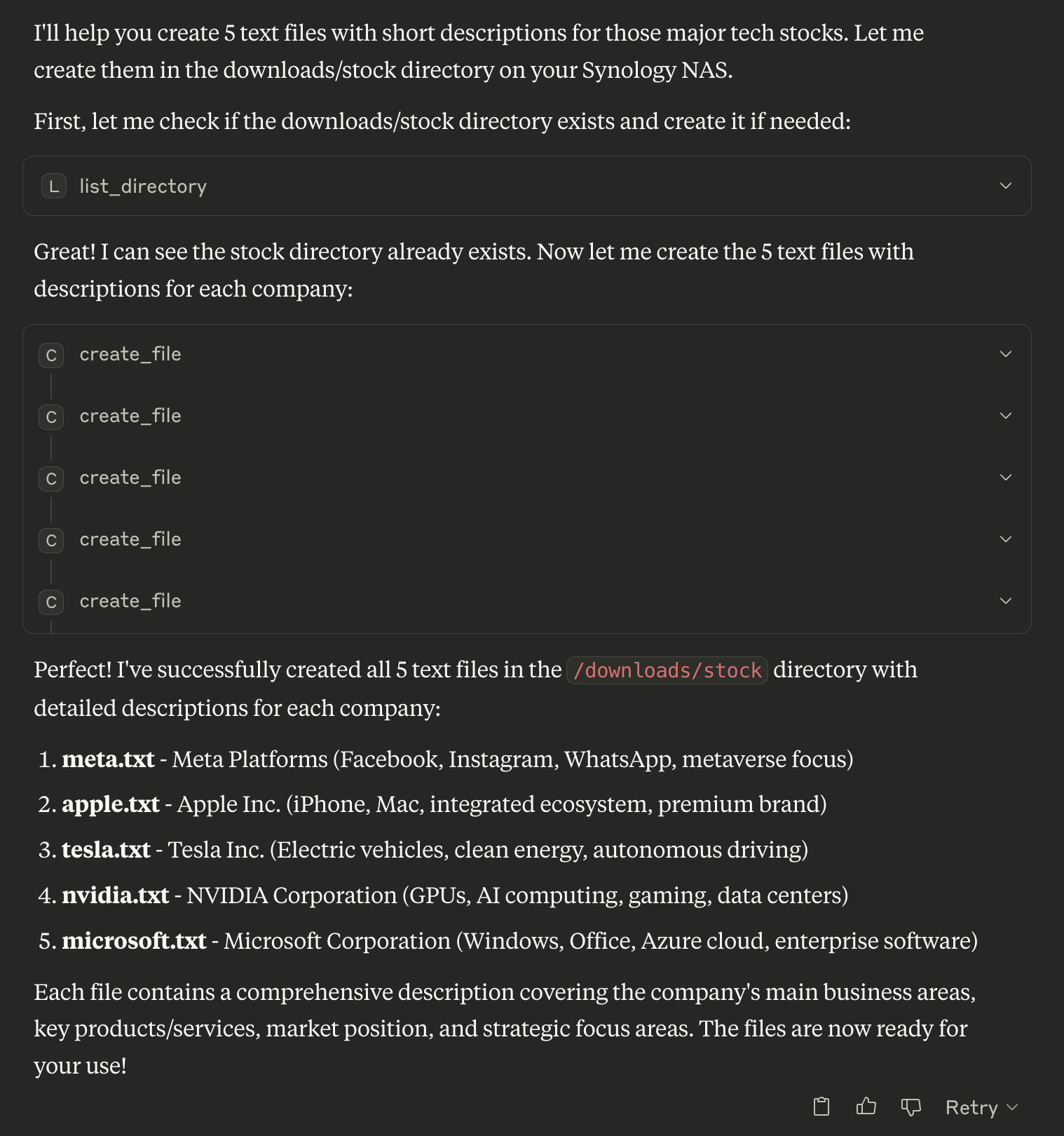
// List directory
{
  "path": "/volume1/homes"
}

// Search for PDFs
{
  "path": "/volume1/documents",
  "pattern": ".pdf"
}

// Create new file
{
  "path": "/volume1/documents/notes.txt",
  "content": "My important notes\nLine 2 of notes",
  "overwrite": false
}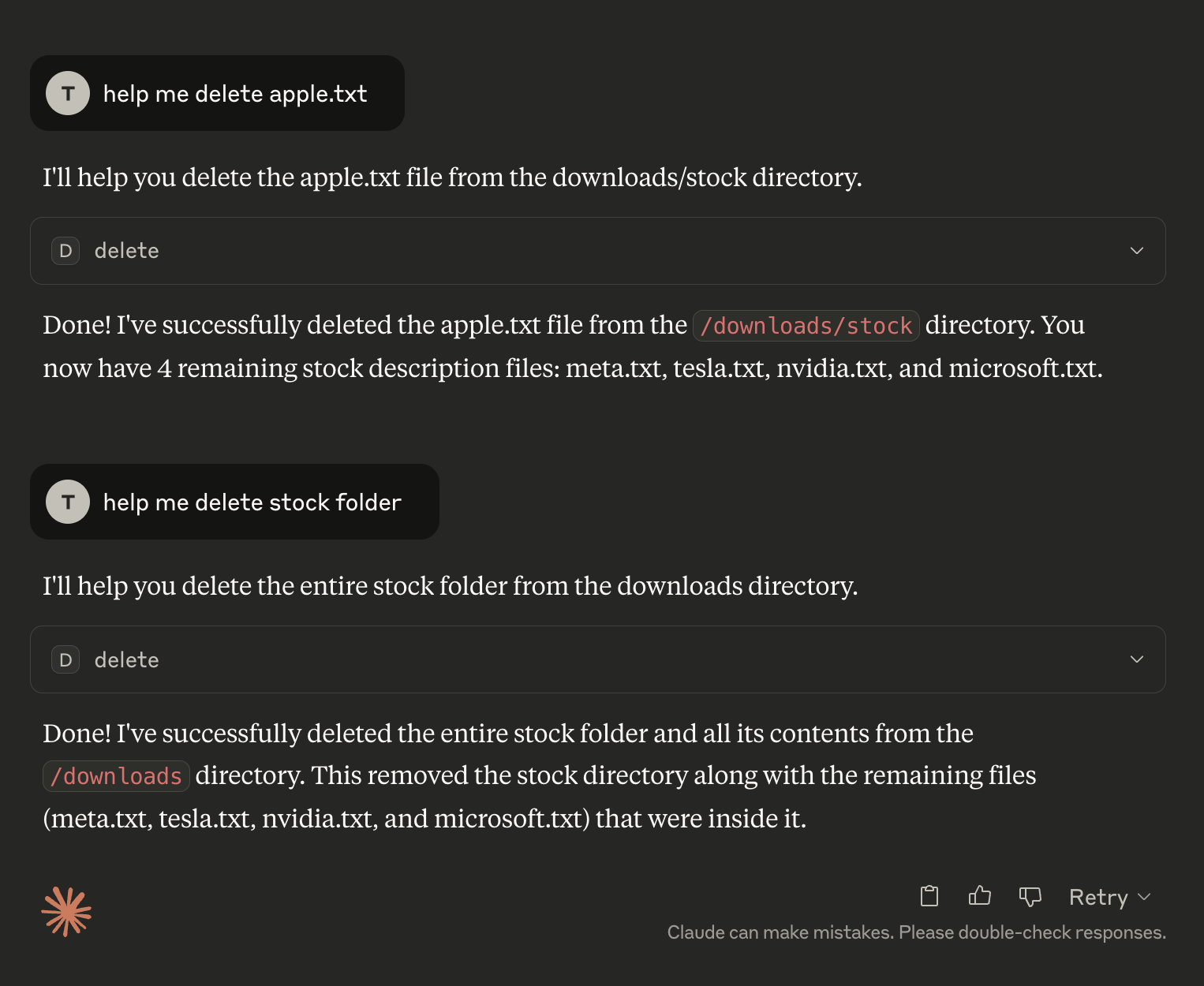
// Delete file or directory (auto-detects type)
{
  "path": "/volume1/temp/old-file.txt"
}

// Move file
{
  "source_path": "/volume1/temp/file.txt",
  "destination_path": "/volume1/archive/file.txt"
}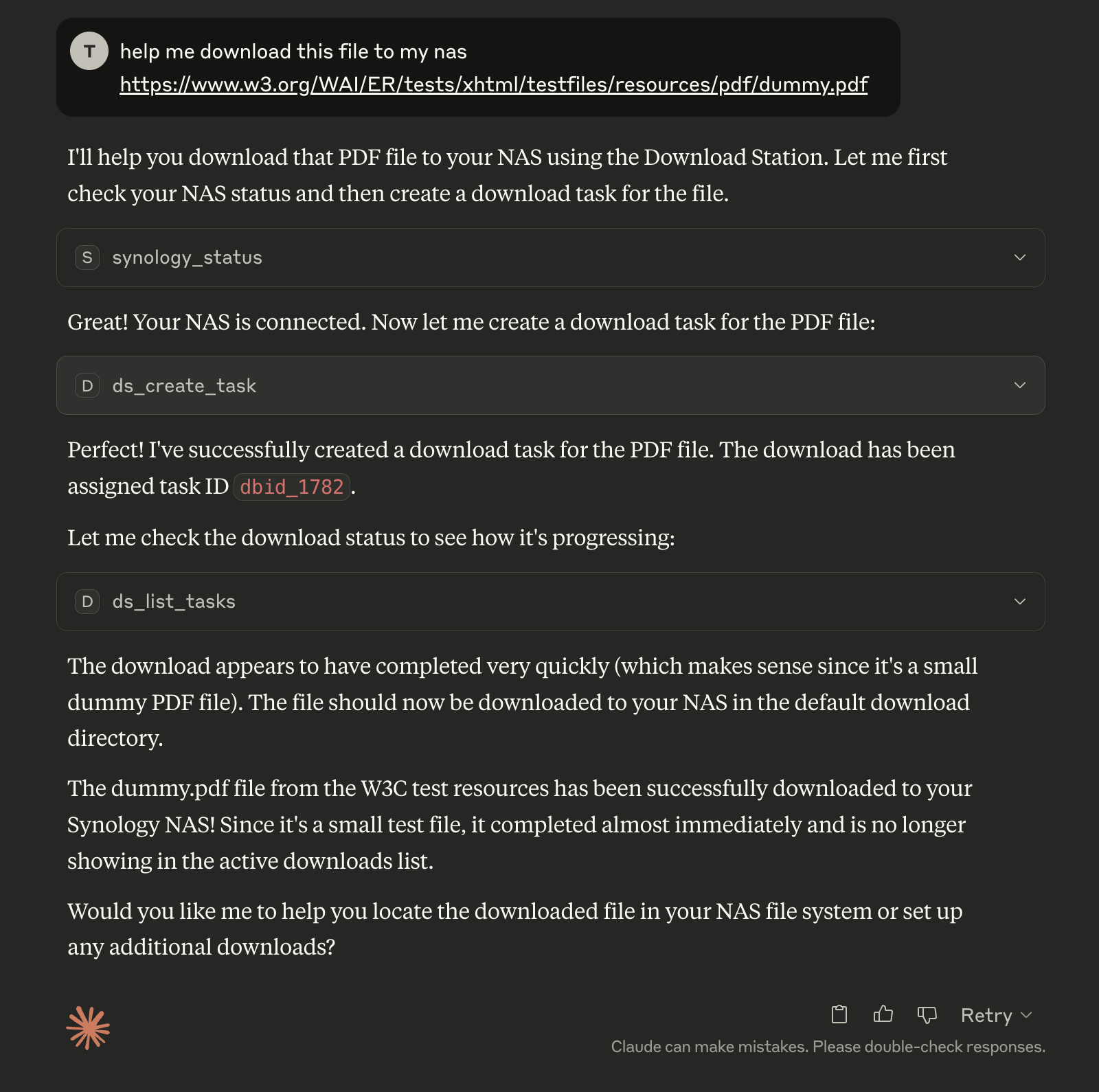
// Create download task
{
  "uri": "https://example.com/file.zip",
  "destination": "/volume1/downloads"
}

// Pause tasks
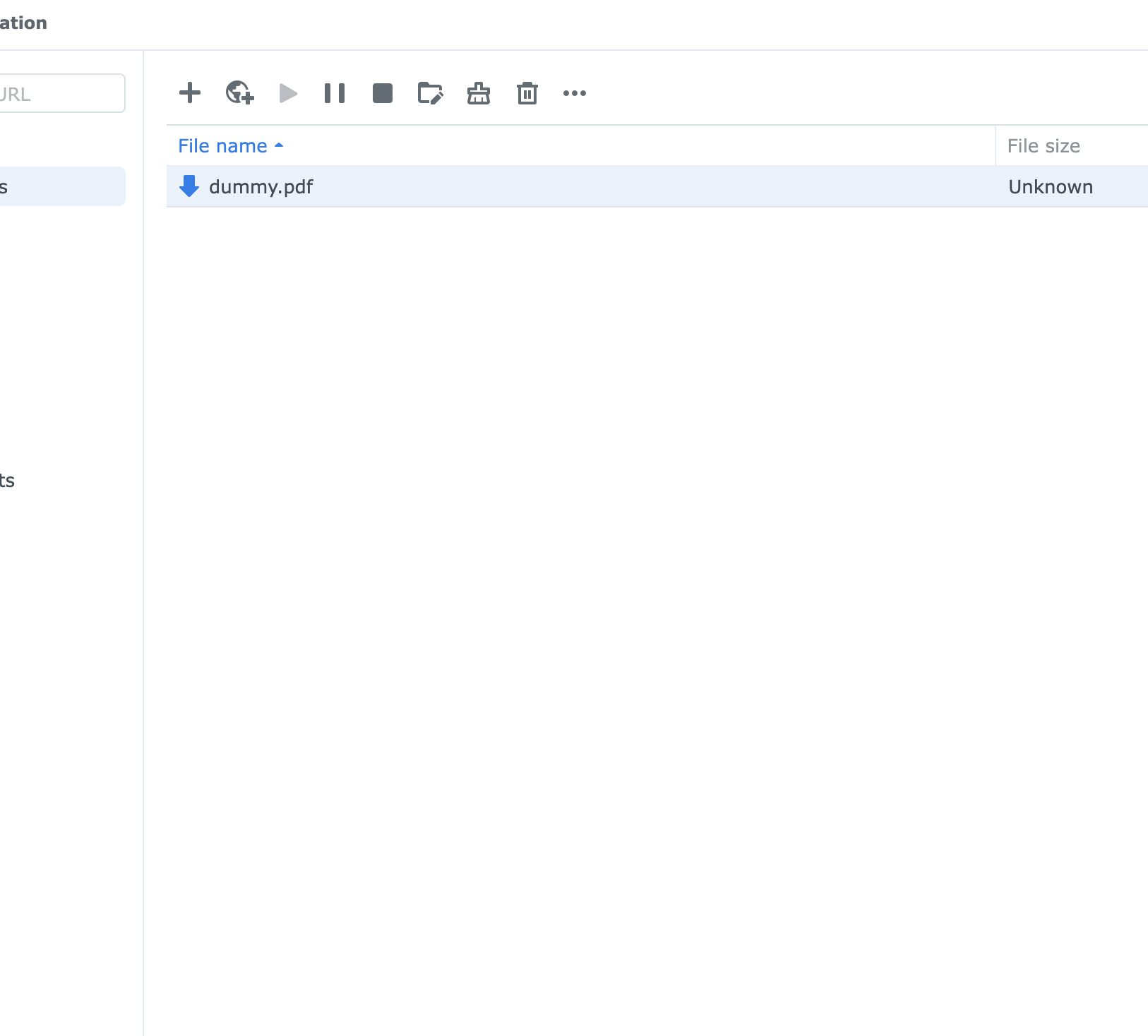
{
  "task_ids": ["dbid_123", "dbid_456"]
}
✅ Unified Entry Point - Single main.py supports both stdio and WebSocket clients
✅ Environment Controlled - Switch modes via ENABLE_XIAOZHI environment variable
✅ Multi-Client Support - Simultaneous Claude/Cursor + Xiaozhi access
✅ Secure Authentication - RSA encrypted password transmission
✅ Session Management - Persistent sessions across multiple NAS devices
✅ Complete File Operations - Create, delete, list, search, rename, move files with detailed metadata
✅ Directory Management - Recursive directory operations with safety checks
✅ Download Station - Complete torrent and download management
✅ Docker Support - Easy containerized deployment
✅ Backward Compatible - Existing configurations work unchanged
✅ Error Handling - Comprehensive error reporting and recovery
mcp-server-synology/
├── main.py                    # 🎯 Unified entry point
├── src/
│   ├── mcp_server.py         # Standard MCP server
│   ├── multiclient_bridge.py # Multi-client bridge
│   ├── auth/                 # Authentication modules
│   ├── filestation/          # File operations
│   └── downloadstation/      # Download management
├── docker-compose.yml        # Single service, environment-controlled
├── Dockerfile
├── pyproject.toml            # Dependencies (single source of truth)
└── .env # ConfigurationENABLE_XIAOZHI=false → main.py → mcp_server.py (stdio only)
ENABLE_XIAOZHI=true → main.py → multiclient_bridge.py → mcp_server.py (both clients)
Perfect for any workflow - from simple Claude/Cursor usage to advanced multi-client setups! 🚀
This server cannot be deployed
Remote Desktop Commander: use files, terminal and processes on your own computers from any AI app.
Connect AnyFile to AI clients to manage files, share links, file requests, and analytics.
Create and manage documents, spreadsheets, and presentations from your AI assistant.
Connect AI to Stelllink to organize, access, manage and share files, links, and digital workspaces.