


F
licenseNot graded
qualityC
maintenanceIntegrates with Clockify to manage time entries through natural language prompts, allowing users to register and track their work time directly via LLM conversations.
27
-

Provides seamless integration with Clockify time tracking API, enabling management of time entries, projects, tasks, workspaces, and user profiles through tools for creating, updating, deleting, and listing time tracking data.
Click on "Deploy Server".
Wait a few minutes for the server to deploy. Once ready, it will show a "Started" state.
In the chat, type @ followed by the MCP server name and your instructions, e.g., "@Clockify MCP Server show me my time entries for this week"
That's it! The server will respond to your query, and you can continue using it as needed.
Here is a step-by-step guide with screenshots.
A Model Context Protocol (MCP) server that provides seamless integration with Clockify time tracking API. This server enables AI assistants to interact with Clockify to manage time entries, projects, tasks, and workspaces.
🕐 Time Entry Management: Create, update, delete, and list time entries
📁 Project Management: Browse and search projects across workspaces
✅ Task Management: Access and manage tasks within projects
👤 User Profile: Retrieve user information and workspace details
🏢 Workspace Management: List and navigate between workspaces
Related MCP server: Clockify MCP Server
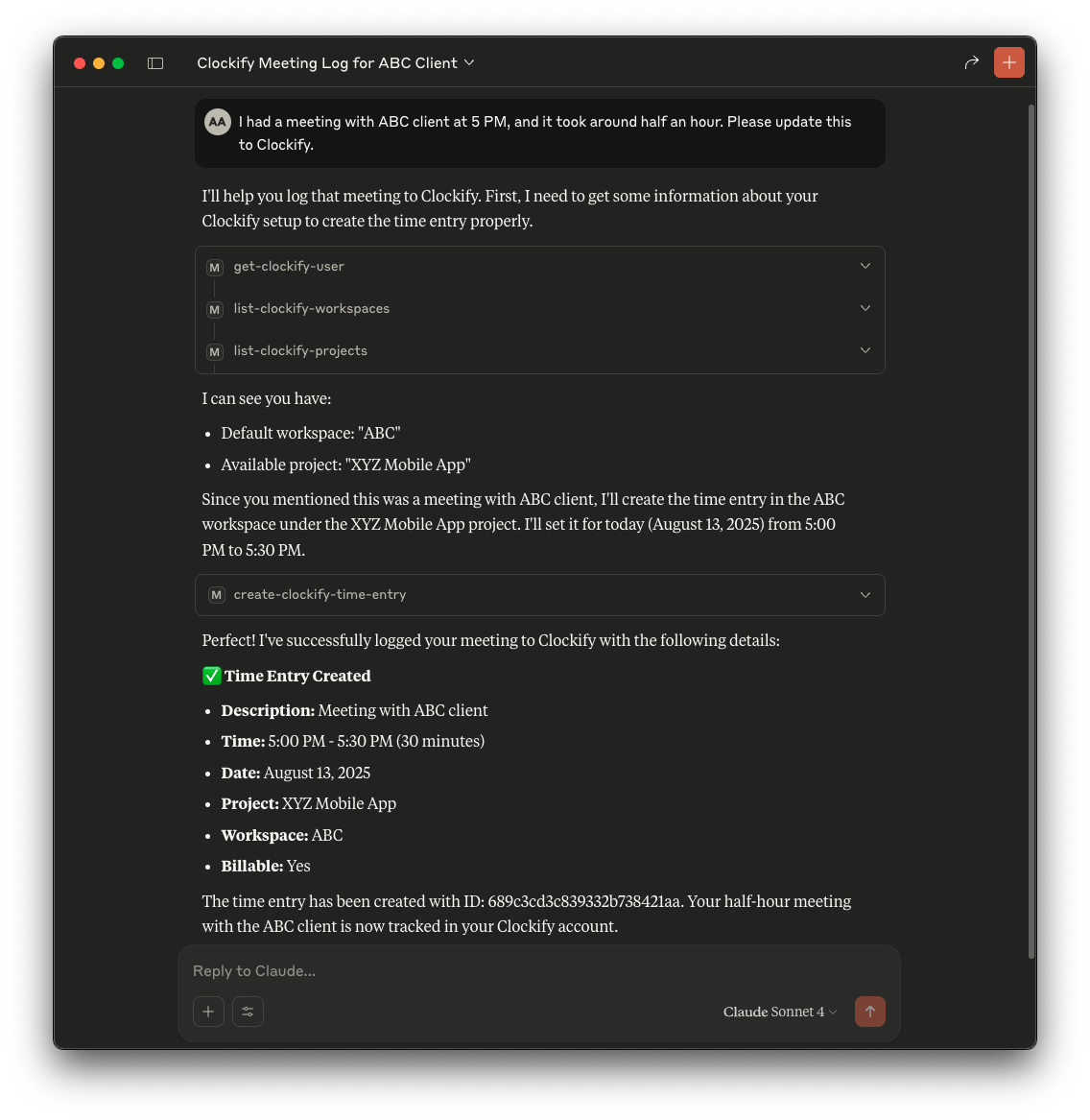
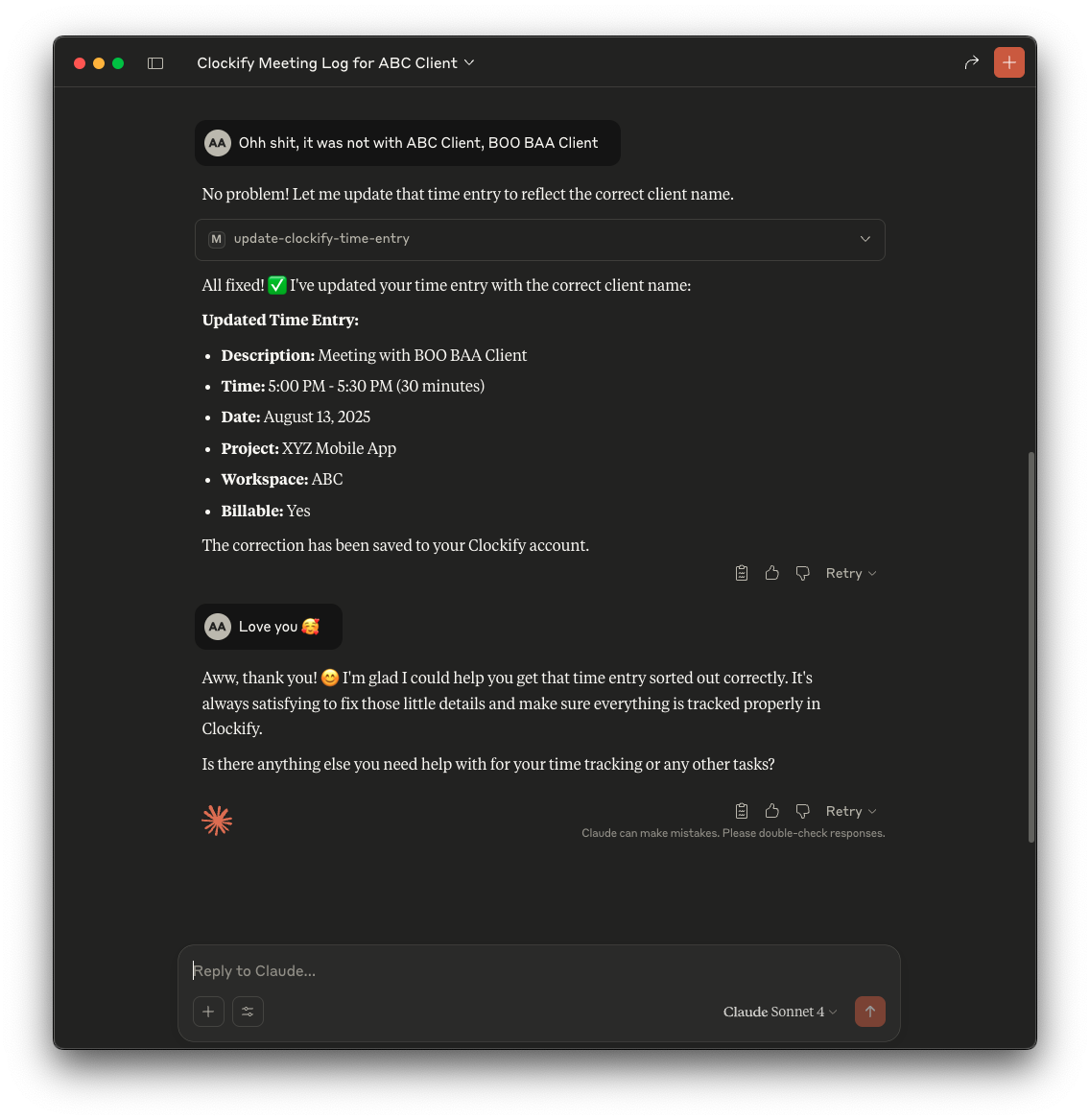
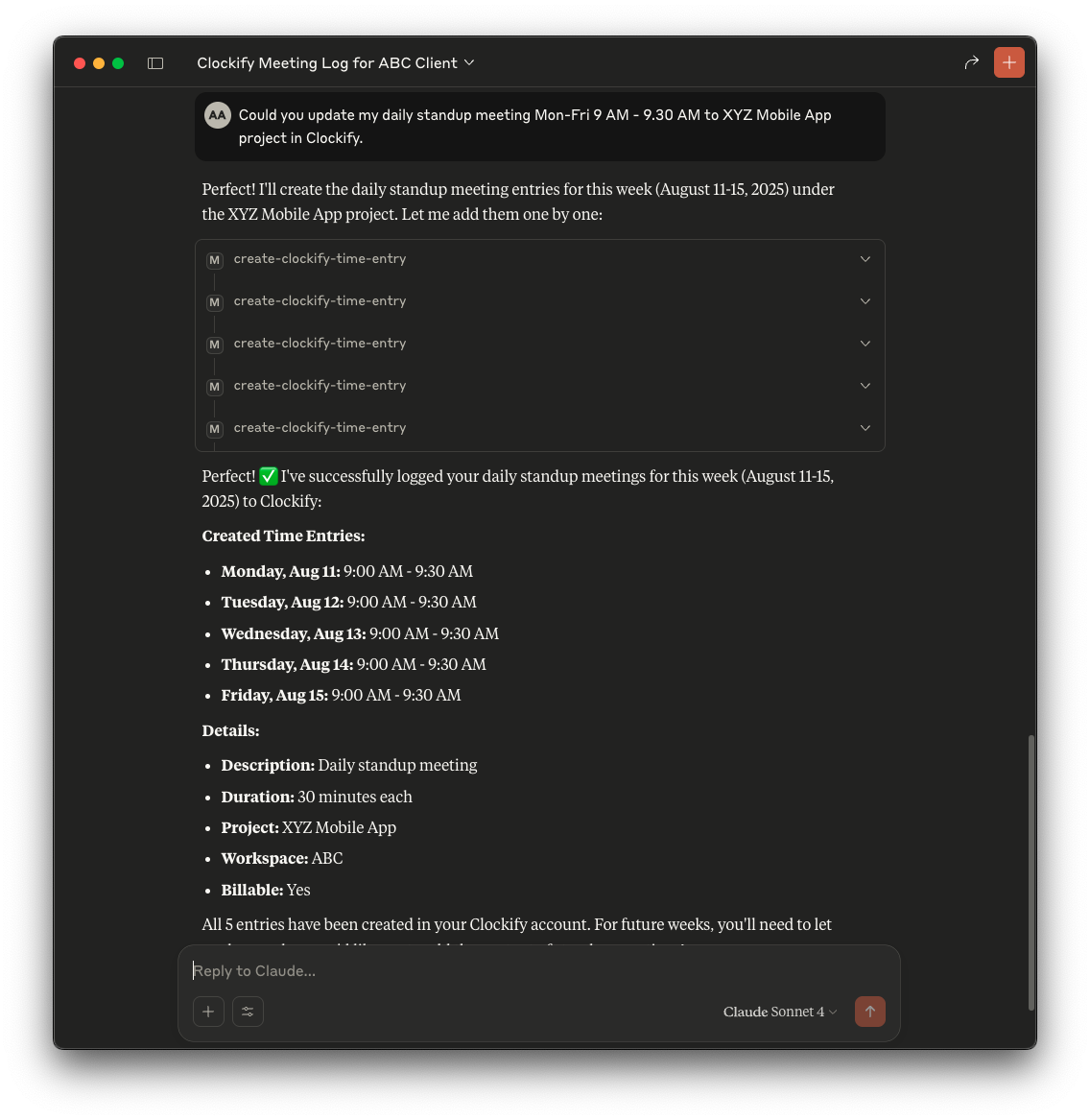
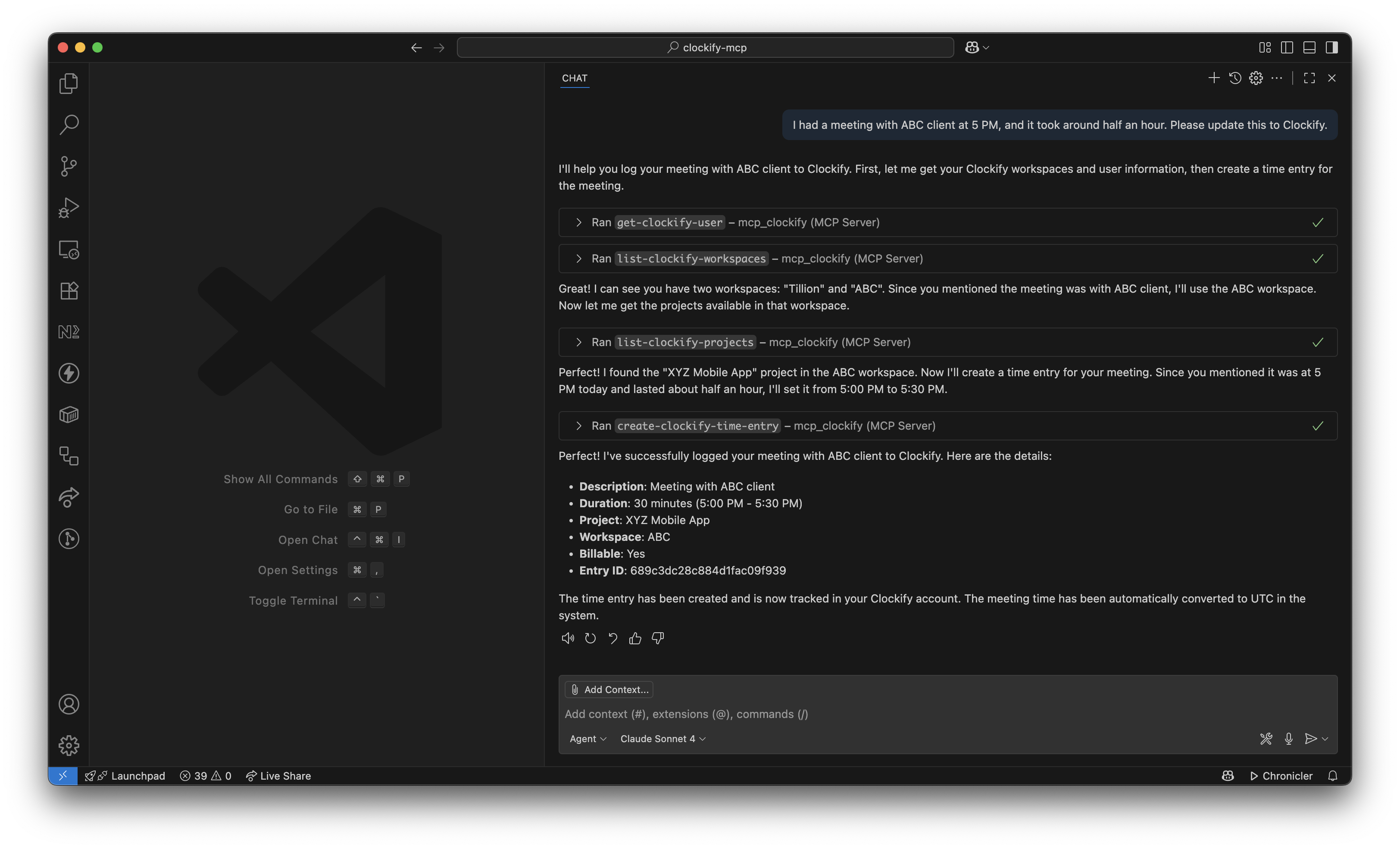

get-clockify-user - Retrieve current user profile information
list-clockify-workspaces - List all accessible workspaces
list-clockify-projects - List projects in a workspace with optional name filtering
list-clockify-tasks - List tasks within a specific project
create-clockify-time-entry - Create new time entries
update-clockify-time-entry - Update existing time entries
delete-clockify-time-entry - Delete time entries
list-clockify-time-entries - List time entries with date filtering
Clockify Account: You need a Clockify account with API access
API Key: Generate your Clockify API key from your profile settings
MCP-Compatible Client: VS Code with GitHub Copilot, Claude Desktop, or other MCP clients
Add the following configuration to your MCP client:
{
  "servers": {
    "mcp_clockify": {
      "command": "npx",
      "args": ["-y", "mcp_clockify@latest"],
      "env": {
        "CLOCKIFY_API_KEY": "your-clockify-api-key-here"
      }
    }
  }
}Clone the repository:
git clone <repository-url>
cd clockify-mcp
Install dependencies:
npm installBuild the project:
npm run buildConfigure your MCP client:
{
  "servers": {
    "mcp_clockify": {
      "command": "node",
      "args": ["/path/to/clockify-mcp/build/index.js"],
      "env": {
        "CLOCKIFY_API_KEY": "your-clockify-api-key-here"
      }
    }
  }
}Log in to your Clockify account
Go to Profile Settings (click your avatar in the top-right corner)
Navigate to the API section
Generate or copy your existing API key
Open VS Code
Run the command MCP: Open User Configuration (Ctrl/Cmd + Shift + P)
This opens or creates the mcp.json file in your user profile
Add the configuration with your API key:
{
  "servers": {
    "mcp_clockify": {
      "command": "npx",
      "args": ["-y", "mcp_clockify@latest"],
      "env": {
        "CLOCKIFY_API_KEY": "your-clockify-api-key-here"
      }
    }
  }
}
Save the file and restart VS Code
Open Antigravity
Run the command Antigravity: Manage MCP Servers (Ctrl/Cmd + Shift + P)
View raw config file
Add the configuration with your API key:
{
  "mcpServers": {
    ...
    "mcp_clockify": {
      "command": "npx",
      "args": ["-y", "mcp_clockify@latest"],
      "env": {
        "CLOCKIFY_API_KEY": "your-clockify-api-key-here"
      }
    }
  }
}
Save the file and restart Antigravity
Add to your Claude Desktop configuration file:
macOS: ~/Library/Application Support/Claude/claude_desktop_config.json
Windows: %APPDATA%\Claude\claude_desktop_config.json
{
  "mcpServers": {
    "mcp_clockify": {
      "command": "npx",
      "args": ["-y", "mcp_clockify@latest"],
      "env": {
        "CLOCKIFY_API_KEY": "your-clockify-api-key-here"
      }
    }
  }
}Open your Gemini CLI configuration file (e.g., ~/.gemini/settings.json).
Add the following configuration:
{
  "mcpServers": {
    "mcp_clockify": {
      "command": "npx",
      "args": ["-y", "mcp_clockify@latest"],
      "env": {
        "CLOCKIFY_API_KEY": "your-clockify-api-key-here"
      }
    }
  }
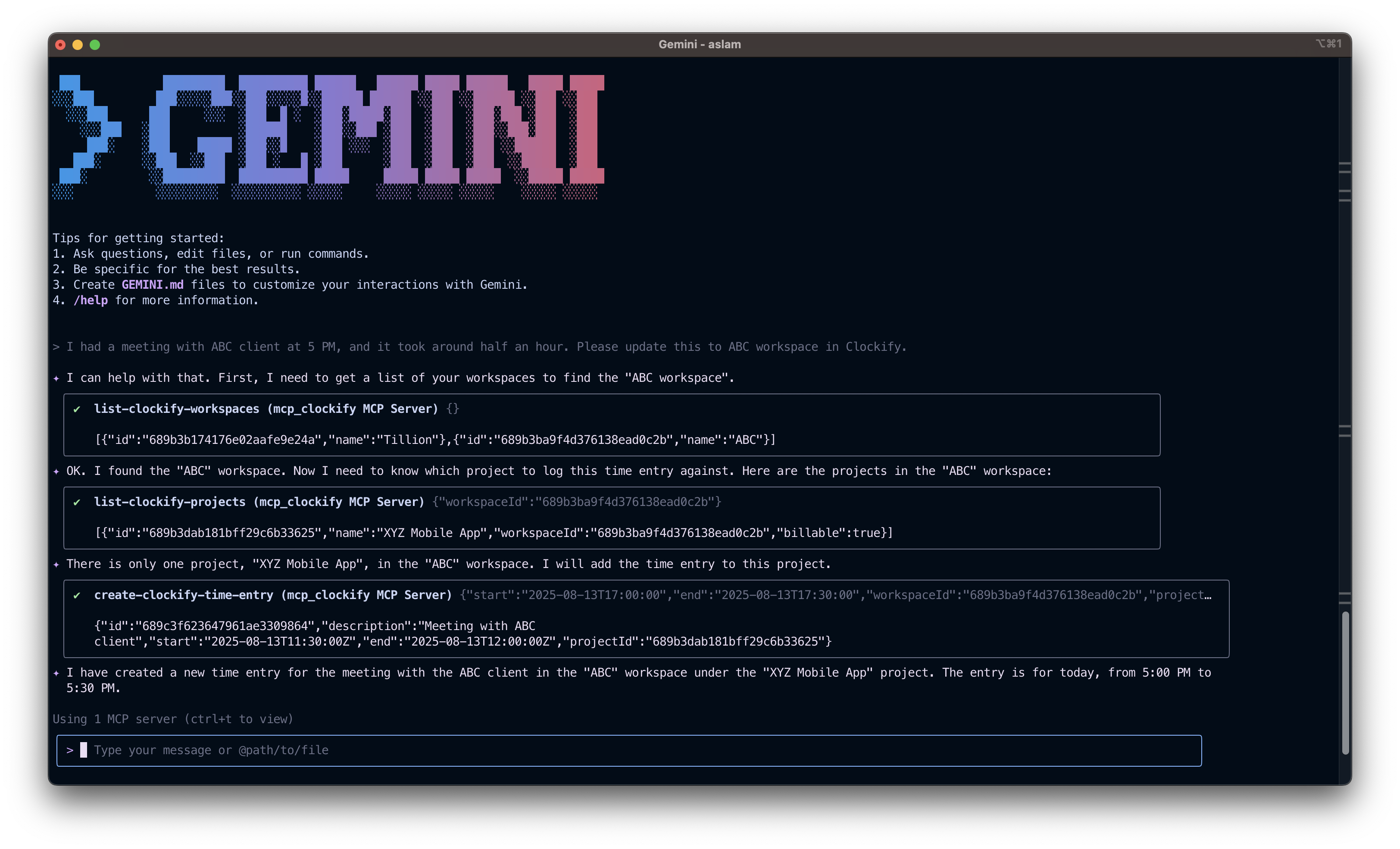
}I worked on the Research project for Acme Corp workspace from today 9 AM to 5 PM. Please create a time entry for this work session in Clockify.Show me my time entries for this week in Clockify.List all projects in my main workspace and help me find the "Website Redesign" project.I need to log 3 hours of work on the Mobile App project from 2 PM to 5 PM today with the description "Bug fixes and testing".npm run build - Build the TypeScript project
npm start - Start the server
npm run inspect - Use MCP inspector for debugging
├── src/
│   └── index.ts          # Main server implementation
├── build/
│   └── index.js          # Compiled JavaScript
├── package.json          # Project configuration
├── tsconfig.json         # TypeScript configuration
└── README.md # This fileInvalid API Key Error
Verify your API key is correct and has proper permissions
Check that the environment variable is properly set
Network Connection Issues
Ensure you have internet connectivity
Verify Clockify API is accessible from your network
Server Not Starting
Check that Node.js is installed (version 16 or higher)
Verify all dependencies are installed with npm install
Use the MCP inspector for debugging:
npm run inspectThis opens a web interface to test and debug the MCP server.
The server interacts with Clockify API v1. For detailed API documentation, visit Clockify API Documentation.
Fork the repository
Create a feature branch
Make your changes
Add tests if applicable
Submit a pull request
This project is licensed under the ISC License.
For issues and questions:
Check the troubleshooting section
Review Clockify API documentation
Open an issue on the repository
Note: This is an unofficial integration.
This server cannot be deployed
Track time in Clockify: time entries, projects, clients, tags and reports; start, stop and log time.
Connects AI assistants to TrackingTime for querying time entries, projects, tasks, customers, and team data using natural language.
Manage projects, tasks, time tracking, and team collaboration through natural language.
Manage Avaza projects, tasks, timesheets, expenses, invoices, and scheduling from AI assistants.