


F
licenseC
qualityD
maintenanceEnables querying WolframAlpha's LLM API for natural language questions, providing structured and simplified answers optimized for LLM consumption.
3
55
-

Enables execution of Wolfram Language code in a secure, session-based environment, with tools for session initialization, code execution, and resource management.
Provides tools for creating sessions, executing Wolfram Language code, and managing session resources within a Mathematica kernel, enabling secure, session-based interaction with Wolfram Language.
Click on "Deploy Server".
Wait a few minutes for the server to deploy. Once ready, it will show a "Started" state.
In the chat, type @ followed by the MCP server name and your instructions, e.g., "@Mathematica MCP Server solve the equation x^2 + 3x - 4 = 0"
That's it! The server will respond to your query, and you can continue using it as needed.
Here is a step-by-step guide with screenshots.
This project provides a Model Context Protocol (MCP) server for interacting with a Wolfram Mathematica kernel. It allows Large Language Models (LLMs) to execute Wolfram Language code in a secure, session-based environment.
The animalid folder contains a simple tool for generating unique, animal-based identifiers. Since LLMs often fail to copy UUIDs correctly, this tool replaces them with animal-themed IDs that are more likely to be transcribed accurately.
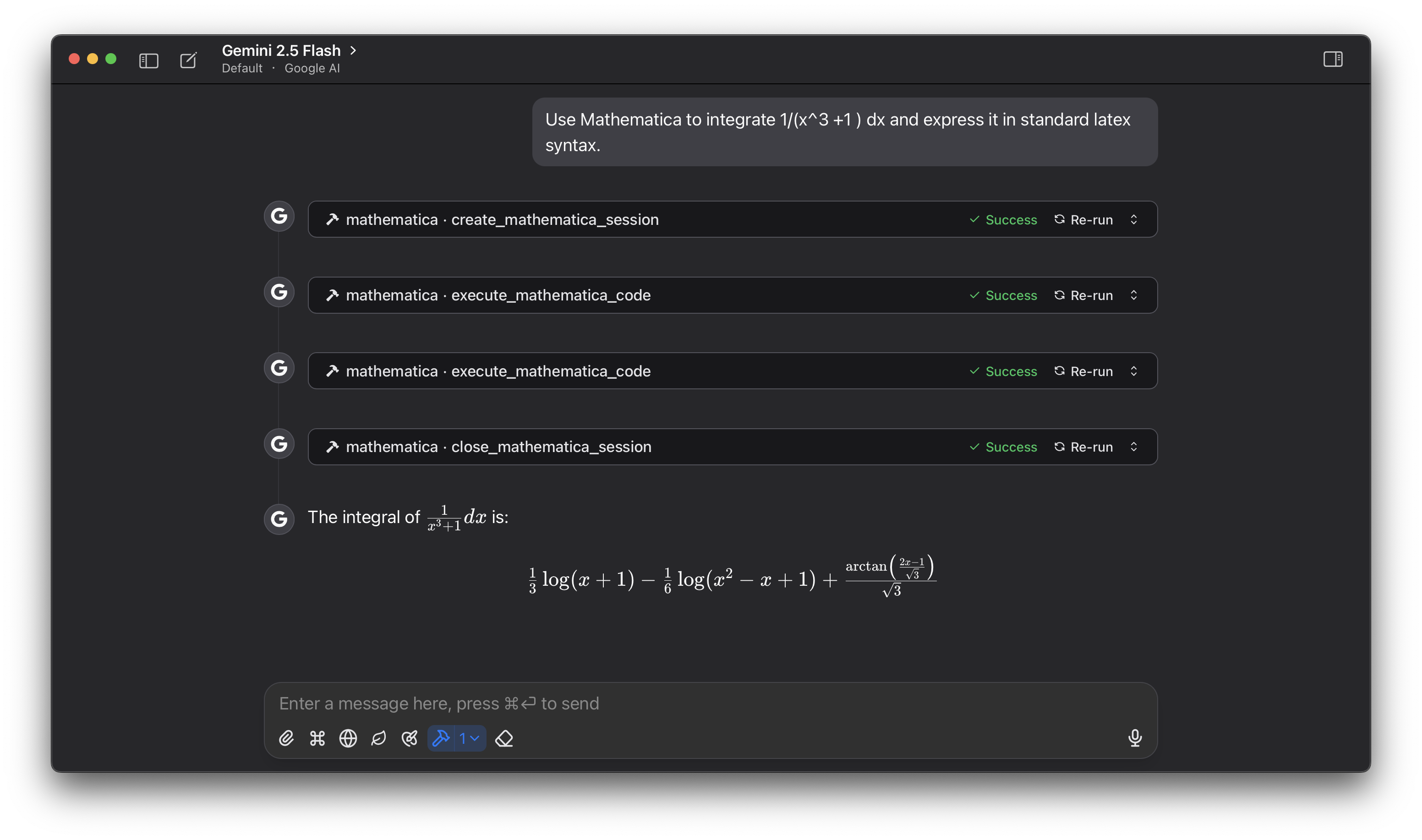
create_mathematica_session: Initializes a new Wolfram Language session and returns a unique session ID.
execute_mathematica_code: Executes Wolfram Language code within a specified session.
close_mathematica_session: Terminates a session and releases its resources.
Related MCP server: Wolfram Alpha MCP Server
Python 3.10 or higher.
uv Python package manager. (Installation guide)
A local installation of the Wolfram Engine or Mathematica. The wolframclient library requires this to function.
Set the Security Key:
This server uses a secret key to generate secure session IDs. You must set this as an environment variable.
export ANIMALID_SECRET_KEY='your-super-secret-and-long-key-here'Note: Do not use a weak key or hardcode it in the script.
To use this server, you need to connect it to an MCP-compatible client, such as Claude for Desktop.
Configure the MCP Client:
Open your client's MCP configuration file (e.g., claude_desktop_config.json for Claude for Desktop) and add the following server configuration.
Important: Replace /path/to/your/project/my_mcp with the absolute path to this project's directory on your system.
{
  "mcpServers": {
    "mathematica": {
      "command": "uv",
      "args": [
        "--directory",
        "/path/to/your/project/my_mcp",
        "run",
        "wolfram_mathematica.py"
      ],
       "env": {
            "ANIMALID_SECRET_KEY": "default-secret-key-for-dev"
          }
    }
  }
}
You may need to use the full path to the uv executable in the command field if it's not in your system's PATH. You can find it by running which uv (macOS/Linux) or where uv (Windows).
Terminates a specific Wolfram Language session and releases all associated resources.
It is good practice to call this tool when you are finished with a session to free up system memory and kernel licenses. Once a session is closed, its ID can no longer be used.
Args: session_id: The unique identifier of the session you wish to close. This must be an ID from an active, open session. Example: 'bee-sloth-auk-mole'.
Returns: A confirmation message indicating that the session was successfully closed.
| Name | Required | Description | Default |
|---|---|---|---|
| session_id | Yes |
| Name | Required | Description |
|---|---|---|
| result | Yes |
Does the description disclose side effects, auth requirements, rate limits, or destructive behavior?
With no annotations provided, the description carries full burden and does well: it discloses that the tool is destructive (terminates session, releases resources), has irreversible effects (ID becomes unusable), and has system-level implications (frees memory and licenses). It doesn't mention error handling or permissions, but covers core behavioral traits adequately for a termination tool.
Agents need to know what a tool does to the world before calling it. Descriptions should go beyond structured annotations to explain consequences.
Is the description appropriately sized, front-loaded, and free of redundancy?
Perfectly structured and front-loaded: first sentence states core purpose, second provides usage guidance, third explains irreversible consequence. The Args/Returns sections are clearly labeled but not part of the description text being scored. Every sentence earns its place with no redundancy.
Shorter descriptions cost fewer tokens and are easier for agents to parse. Every sentence should earn its place.
Given the tool's complexity, does the description cover enough for an agent to succeed on first attempt?
Given 1 parameter with 0% schema coverage and no annotations, the description provides complete context: purpose, usage guidelines, parameter semantics, and behavioral implications. The output schema exists, so return values needn't be explained in the description. This is comprehensive for a simple termination tool.
Complex tools with many parameters or behaviors need more documentation. Simple tools need less. This dimension scales expectations accordingly.
Does the description clarify parameter syntax, constraints, interactions, or defaults beyond what the schema provides?
Schema description coverage is 0%, so the description must compensate fully. It provides detailed semantics for the single parameter: explains what session_id represents ('unique identifier of the session'), constraints ('must be an ID from an active, open session'), and includes a concrete example ('bee-sloth-auk-mole'). This adds significant value beyond the bare schema.
Input schemas describe structure but not intent. Descriptions should explain non-obvious parameter relationships and valid value ranges.
Does the description clearly state what the tool does and how it differs from similar tools?
The description clearly states the specific action ('Terminates a specific Wolfram Language session') and resource ('releases all associated resources'), distinguishing it from sibling tools like create_mathematica_session (creates) and execute_mathematica_code (runs code). The verb 'terminates' is precise and unambiguous.
Agents choose between tools based on descriptions. A clear purpose with a specific verb and resource helps agents select the right tool.
Does the description explain when to use this tool, when not to, or what alternatives exist?
Explicitly states when to use ('when you are finished with a session to free up system memory and kernel licenses') and when not to use ('Once a session is closed, its ID can no longer be used'), with clear alternatives implied (use create_mathematica_session for new sessions or execute_mathematica_code for active ones). The guidance is practical and actionable.
Agents often have multiple tools that could apply. Explicit usage guidance like "use X instead of Y when Z" prevents misuse.
Creates and initializes a new, isolated Wolfram Language session.
This tool is the first step for any Mathematica-related task. It returns a unique, secure session identifier (e.g., 'fox-wolf-bear-lion') that you MUST use in subsequent calls to 'execute_code' and 'close_session'.
Each session is completely independent and maintains its own state (variables, function definitions, etc.).
Returns: A string containing a success message and the unique session ID. Example: "Session created successfully. Your session ID is: bee-sloth-auk-mole"
| Name | Required | Description | Default |
|---|---|---|---|
No parameters | |||
| Name | Required | Description |
|---|---|---|
| result | Yes |
Does the description disclose side effects, auth requirements, rate limits, or destructive behavior?
With no annotations provided, the description carries the full burden of behavioral disclosure. It effectively describes key traits: the session is 'isolated' and 'independent' with its own state, returns a 'unique, secure session identifier', and includes an example output. However, it lacks details on potential errors, session limits, or initialization time.
Agents need to know what a tool does to the world before calling it. Descriptions should go beyond structured annotations to explain consequences.
Is the description appropriately sized, front-loaded, and free of redundancy?
The description is well-structured and front-loaded with the core purpose, followed by usage context, behavioral details, and output example. Every sentence adds value without redundancy, making it efficient and easy to parse.
Shorter descriptions cost fewer tokens and are easier for agents to parse. Every sentence should earn its place.
Given the tool's complexity, does the description cover enough for an agent to succeed on first attempt?
Given the tool's simplicity (0 parameters, no annotations, but with an output schema), the description is complete. It explains the purpose, usage workflow, behavioral isolation, and provides an output example, compensating adequately for the lack of annotations while leveraging the output schema for return value details.
Complex tools with many parameters or behaviors need more documentation. Simple tools need less. This dimension scales expectations accordingly.
Does the description clarify parameter syntax, constraints, interactions, or defaults beyond what the schema provides?
The tool has 0 parameters with 100% schema description coverage, so the baseline is 4. The description adds no parameter-specific information (as none exist), which is appropriate and doesn't detract from the high schema coverage.
Input schemas describe structure but not intent. Descriptions should explain non-obvious parameter relationships and valid value ranges.
Does the description clearly state what the tool does and how it differs from similar tools?
The description clearly states the specific action ('Creates and initializes') and resource ('new, isolated Wolfram Language session'), distinguishing it from siblings like 'close_mathematica_session' and 'execute_mathematica_code'. It explicitly defines this as the first step for Mathematica tasks, establishing its unique role.
Agents choose between tools based on descriptions. A clear purpose with a specific verb and resource helps agents select the right tool.
Does the description explain when to use this tool, when not to, or what alternatives exist?
The description provides explicit guidance on when to use this tool ('first step for any Mathematica-related task') and how it relates to alternatives ('MUST use in subsequent calls to 'execute_code' and 'close_session''). It clearly defines the workflow context without misleading exclusions.
Agents often have multiple tools that could apply. Explicit usage guidance like "use X instead of Y when Z" prevents misuse.
Executes a string of Wolfram Language code within a specific, active session.
To use this tool, you must provide a valid 'session_id' obtained from a previous call to 'create_session'. The code will be executed in the context of that session, meaning it can access variables and functions defined in previous calls within the same session.
Args: session_id: The unique identifier for an active session, provided by 'create_session'. Example: 'bee-sloth-auk-mole'. code: A string containing the Wolfram Language code to be executed. The code should be syntactically correct. Example 1 (simple calculation): 'Total[Range[100]]' Example 2 (symbolic computation): 'Solve[x^2 - 5x + 6 == 0, x]' Example 3 (data visualization): 'Plot[Sin[x], {x, 0, 2 Pi}]'
Returns: The direct result of the code execution from the Wolfram Engine. The data type can vary (e.g., integer, list, string, or a complex expression). For plots, it may return a representation of the graphics object.
| Name | Required | Description | Default |
|---|---|---|---|
| code | Yes | ||
| session_id | Yes |
Does the description disclose side effects, auth requirements, rate limits, or destructive behavior?
With no annotations provided, the description carries full burden and does well by explaining session context persistence ('can access variables and functions defined in previous calls'), execution constraints ('code should be syntactically correct'), and return value variability. It doesn't mention potential errors, timeouts, or resource limits, keeping it from a perfect score.
Agents need to know what a tool does to the world before calling it. Descriptions should go beyond structured annotations to explain consequences.
Is the description appropriately sized, front-loaded, and free of redundancy?
Well-structured with a clear opening sentence stating purpose, followed by usage guidelines, then detailed parameter explanations with examples, and finally return value information. Every sentence adds value with no redundancy.
Shorter descriptions cost fewer tokens and are easier for agents to parse. Every sentence should earn its place.
Given the tool's complexity, does the description cover enough for an agent to succeed on first attempt?
For a 2-parameter tool with no annotations and no output schema, the description provides excellent coverage of purpose, usage, parameters, and return behavior. It could be slightly more complete by mentioning potential error cases or execution limits, but it's very thorough for the given context.
Complex tools with many parameters or behaviors need more documentation. Simple tools need less. This dimension scales expectations accordingly.
Does the description clarify parameter syntax, constraints, interactions, or defaults beyond what the schema provides?
Schema description coverage is 0%, so the description must compensate fully. It provides detailed semantics for both parameters: 'session_id' is explained as a unique identifier from 'create_session' with an example format, and 'code' is described with syntax requirements and three concrete examples showing different use cases.
Input schemas describe structure but not intent. Descriptions should explain non-obvious parameter relationships and valid value ranges.
Does the description clearly state what the tool does and how it differs from similar tools?
The description clearly states the specific action ('Executes a string of Wolfram Language code') and resource ('within a specific, active session'), distinguishing it from sibling tools like 'create_mathematica_session' and 'close_mathematica_session' which handle session lifecycle rather than code execution.
Agents choose between tools based on descriptions. A clear purpose with a specific verb and resource helps agents select the right tool.
Does the description explain when to use this tool, when not to, or what alternatives exist?
Explicitly states when to use ('within a specific, active session') and prerequisites ('must provide a valid session_id obtained from a previous call to create_session'), and distinguishes from alternatives by specifying the session context requirement.
Agents often have multiple tools that could apply. Explicit usage guidance like "use X instead of Y when Z" prevents misuse.
Recent tool additions, removals, and schema changes observed during successful MCP inspections.
v1.0.0close_mathematica_sessioncreate_mathematica_sessionexecute_mathematica_codeScored across 3 tools
Each tool has a clearly distinct purpose with no overlap: create_mathematica_session initiates sessions, execute_mathematica_code runs code within them, and close_mathematica_session terminates them. The descriptions reinforce these distinct roles, making misselection unlikely.
All tools follow a consistent verb_noun pattern with 'mathematica' as a prefix (create_mathematica_session, execute_mathematica_code, close_mathematica_session). The naming is predictable and enhances readability across the set.
With 3 tools, this server is well-scoped for its purpose of managing Mathematica sessions and code execution. Each tool earns its place by covering the essential lifecycle: create, execute, and close, without unnecessary bloat or gaps.
The tool set provides complete CRUD/lifecycle coverage for the domain of Wolfram Language sessions: creation, execution, and termination. There are no obvious gaps, as agents can manage sessions end-to-end without dead ends.
Build Apps and run code in 30 languages — sandboxed, with persistent sessions for agent loops.
Operate Linux, macOS and Windows from your LLM. Every action runs through an auditable allowlist.
Access Pollinations models and API capabilities through agent tools.
Gateway between LLM agents and world data through eight tools and a bundled endpoint catalog.