
devspace
by Waishnav
README.md
<p align="center">
<picture>
<img src="https://raw.githubusercontent.com/Waishnav/devspace/main/.github/assets/devspace-logo.png" alt="DevSpace logo" width="140">
</picture>
</p>
<h1 align="center">DevSpace</h1>
<p align="center">Bring a Codex-style coding workflow to ChatGPT.</p>
<p align="center">
<a href="https://www.npmjs.com/package/@waishnav/devspace"><img alt="npm" src="https://img.shields.io/npm/v/%40waishnav%2Fdevspace?style=flat-square" /></a>
<a href="https://github.com/Waishnav/devspace/actions/workflows/ci.yml"><img alt="CI" src="https://img.shields.io/github/actions/workflow/status/Waishnav/devspace/ci.yml?style=flat-square&branch=main" /></a>
<a href="https://github.com/Waishnav/devspace/blob/main/LICENSE"><img alt="License" src="https://img.shields.io/npm/l/%40waishnav%2Fdevspace?style=flat-square" /></a>
</p>
[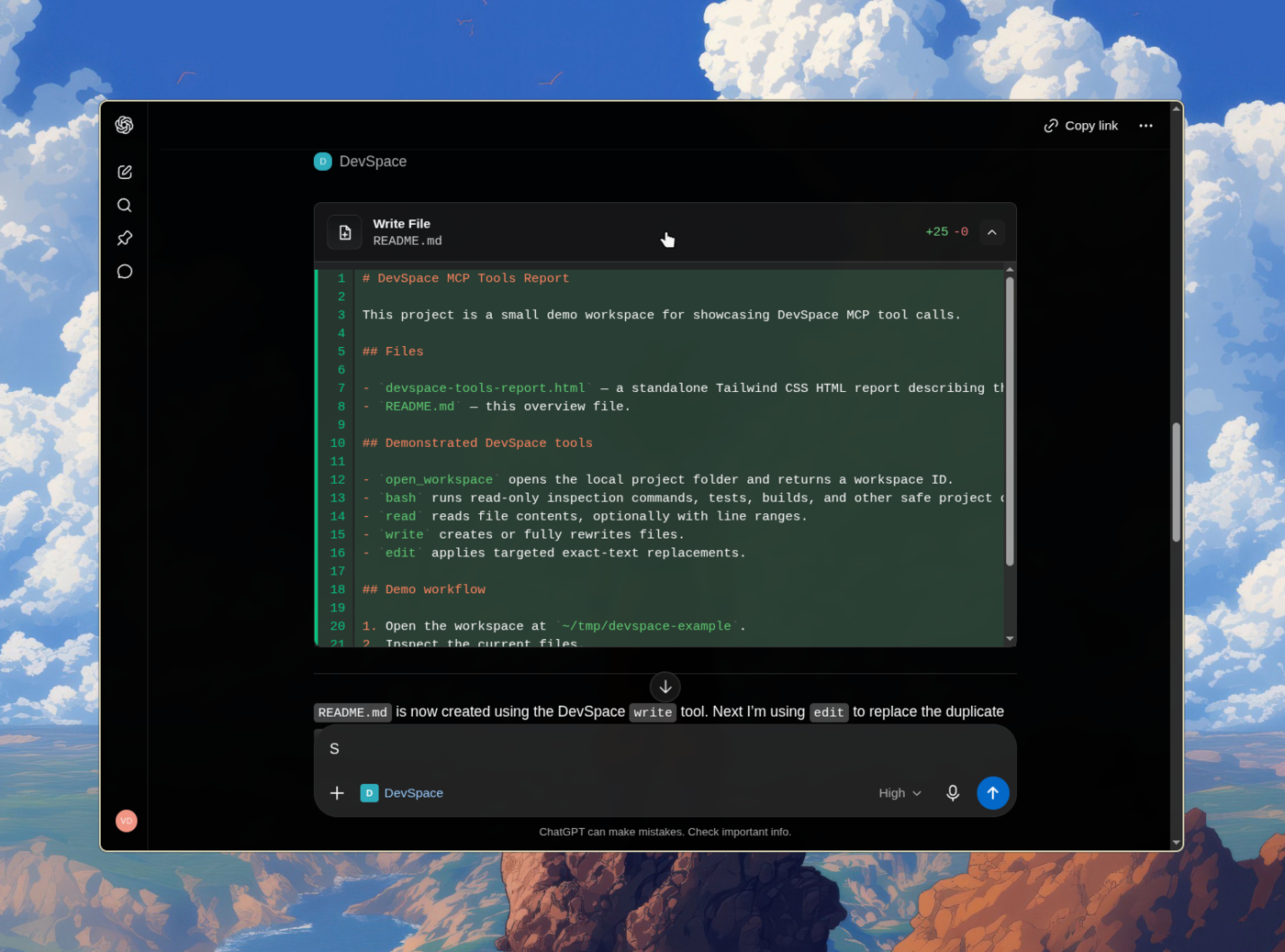](https://raw.githubusercontent.com/Waishnav/devspace/main/.github/assets/devspace-screenshot.png)
**Give ChatGPT a secure connection to your own machine and Turn ChatGPT into Codex**
DevSpace is a self-hosted MCP server that lets ChatGPT read, edit, search, and run code in your real local projects — your files, your tools, your terminal — without uploading anything to a third party. You run it on your machine, expose it through a tunnel you control, and approve the connection with a password only you have.
The same `/mcp` endpoint serves the 2026-07-28 per-request protocol and automatically supports older 2025-era clients through stateless compatibility handling. There is no protocol mode to configure.
## Sponsors and Special Thanks
<!--
<table>
<thead>
<tr>
<th>Sponsor</th>
<th>About</th>
</tr>
</thead>
<tbody>
<tr>
<td align="center" width="220">
<a href="https://rebates.ai/">
<img
src="https://app.rebates.ai/brand/rebates-lockup.svg"
alt="Rebates"
width="170"
>
</a>
</td>
<td>
<strong>The ads in your terminal pay you.</strong><br><br>
<a href="https://rebates.ai/">Rebates</a> adds one optional
sponsored footer to your coding agent and pays you cash back for every
session in which it is shown. Turn it off at any time.
</td>
</tr>
</tbody>
</table>
-->
<p>
DevSpace is open to new sponsors.
<a href="https://x.com/wshxnv">Get in touch to become one.</a>
</p>
## Installation
macOS, Linux, and WSL:
```bash
curl -fsSL https://devspace.run/install | sh
```
Windows (DevSpace also needs Git Bash):
```powershell
powershell -c "irm https://devspace.run/install.ps1 | iex"
```
The installer uses a compatible Node (`>=22.19 <27`) on your `PATH` or
downloads Node 24 LTS for DevSpace alone, installs without `sudo`, and starts
`devspace init`. Rerun it to update.
If you manage Node yourself, `npm install -g @waishnav/devspace` followed by
`devspace init` also works.
During setup, DevSpace asks for:
- where you will use it: ChatGPT, Coding Agents, or both
- which agents DevSpace may use as subagents
The first choice is where you invoke DevSpace from. The subagent choice is
separate: ChatGPT or another coding agent can delegate work through DevSpace to
the agents you select there.
If you select ChatGPT, setup also asks which local project folders it may open
and for your public HTTPS base URL from Cloudflare Tunnel, ngrok, Pinggy,
Tailscale Funnel, or another reverse proxy. A Coding Agents-only setup asks
neither question: local commands use the current Git project, or the current
directory outside a repository.
Use the public origin without `/mcp` during setup:
```text
https://your-tunnel-host.example.com
```
You will configure your MCP client with the public `/mcp` URL after setup.
Run `devspace serve` when using ChatGPT. For Coding Agents, setup prints a
`skills` command and lets the Skills CLI handle installation.
When the client connects, DevSpace opens an Owner password approval page. Enter
the Owner password printed by `devspace init`. It is also stored in:
```text
~/.devspace/auth.json
```
Keep that password private.
## Connect Your MCP Client
The default local endpoint is:
```text
http://127.0.0.1:7676/mcp
```
Most users should connect through a public HTTPS tunnel:
```text
https://your-tunnel-host.example.com/mcp
```
> [!NOTE]
> Using DevSpace as an MCP connector isn't against OpenAI's Usage Policies — it's
> a standard custom App/connector setup, and writing or running code isn't a
> restricted use case. But your account is governed by your usage, not by
> DevSpace. Don't point it at anything that would violate your provider's terms.
> Used normally, you're fine. (Based on OpenAI's Usage Policies and Service Terms
> as of June 2026.)
## What ChatGPT Can Do
Once connected, ChatGPT can open one of your approved project folders as a
workspace. From there, it can inspect the repo, make scoped edits, run commands,
and show you what changed.
DevSpace gives ChatGPT tools to:
- read, write, and edit files inside the opened workspace
- search code and inspect directories
- run shell commands for tests, builds, git, and package scripts
- use isolated Git worktrees for parallel coding sessions
- follow project instructions from `AGENTS.md` and `CLAUDE.md`
- discover local agent skills from your skill folders
- show tool cards and optional change summaries in ChatGPT Apps-compatible hosts
## Mental Model
DevSpace is remote access to selected local folders.
You decide which roots are allowed. The MCP client still has powerful local
capabilities inside an opened workspace, including shell execution. Treat a
connected client like a trusted coding partner with access to your machine.
For a normal ChatGPT coding session:
1. Start your tunnel.
2. Run `devspace serve`.
3. Connect the MCP client to your public `/mcp` URL.
4. Approve the connection with the Owner password.
5. Ask ChatGPT to open a project inside one of your allowed roots.
## Platform Support
DevSpace supports Linux, macOS, and Windows environments with a Bash-compatible
shell.
| Platform | Status | Notes |
| ------------------------------------------------- | ----------------- | ---------------------------------------------- |
| Linux | Supported | Requires Node, npm, Git, and Bash. |
| macOS | Supported | Requires Node, npm, Git, and Bash. |
| Windows with Git Bash, WSL, MSYS2, or Cygwin Bash | Supported | Git Bash is the simplest native Windows setup. |
| Windows PowerShell or `cmd.exe` only | Not supported yet | Install Git Bash or use WSL. |
Run this to inspect your local setup:
```bash
devspace doctor
```
## Documentation
Full documentation lives at [devspace.run/docs](https://devspace.run/docs):
- [Quickstart](https://devspace.run/docs/quickstart)
- [Connect ChatGPT, Claude, and other MCP hosts](https://devspace.run/docs/connect/mcp-hosts)
- [Agents CLI for Claude Code, Cursor, OpenCode, Codex, and bots](https://devspace.run/docs/connect/coding-agents)
- [Configuration reference](https://devspace.run/docs/reference/configuration)
- [CLI reference](https://devspace.run/docs/reference/cli)
- [Native file download](https://devspace.run/docs/reference/artifacts)
- [Security model](https://devspace.run/docs/concepts/security)
- [Troubleshooting](https://devspace.run/docs/reference/troubleshooting)
## Philosophy
Every piece of software is becoming conversational. Natural language is
redefining how we interact with tools, workflows, and systems.
My bet is that ChatGPT becomes the operating system for everything. Once we
reach AGI, we will simply talk to ChatGPT, and it will prompt, coordinate, and
orchestrate sub-agents that set up the right loops for us.
We are not there yet.
DevSpace is one attempt to fast-forward that future: a way for MCP-capable
hosts like ChatGPT and Claude to work directly with local project files through
explicit, inspectable tools.
## Built by Waishnav
I'm Waishnav. I like building opinionated products and tools, and DevSpace is one example.
This year, I began my journey to build a one-person, multi-agent company capable of generating millions in revenue. If you want to follow the failures, wins, lessons, and everything in between, come hang out with me on [X](https://x.com/wshxnv).
## More from me
<table>
<thead>
<tr>
<th>Project</th>
<th>About</th>
</tr>
</thead>
<tbody>
<tr>
<td align="center" width="220">
<a href="https://gitcms.dev/">
<img
src="https://gitcms.dev/brand/gitcms-logo.svg"
alt="GitCMS"
width="48"
/><br />
<strong>GitCMS</strong>
</a>
</td>
<td>
<strong>Modern CMS and tooling for markdown based content sites — built for agents and humans.</strong><br><br>
Visual editing, editorial workflow, and ChatGPT/Claude content agents, with
every post and page stored as files in your repo.
<a href="https://gitcms.dev/">Learn more</a>.
</td>
</tr>
</tbody>
</table>
## Local Development
For working on DevSpace itself:
Install pnpm 11.25.0, the version pinned in `package.json`, with
`npm install --global pnpm@11.25.0`, then:
```bash
pnpm install --frozen-lockfile
pnpm dev:seed
pnpm dev
pnpm typecheck
pnpm test
pnpm build
pnpm start
```
`dev:seed` forks your normal DevSpace config and SQLite state into an ignored
checkout-local `.devspace-dev/` directory so source builds and migrations do not
modify your normal installation. Use `pnpm dev:reset` to discard that QA state
and fork it again. See [DEVELOPMENT.md](DEVELOPMENT.md) for worktree
switching, real-host QA, and database-migration workflows.
This server cannot be deployed
Maintenance
ActivityActive
ResponsivenessWithin a week