
FoxMCP
<!-- mcp-name: io.github.ThinkerYzu/foxmcp -->
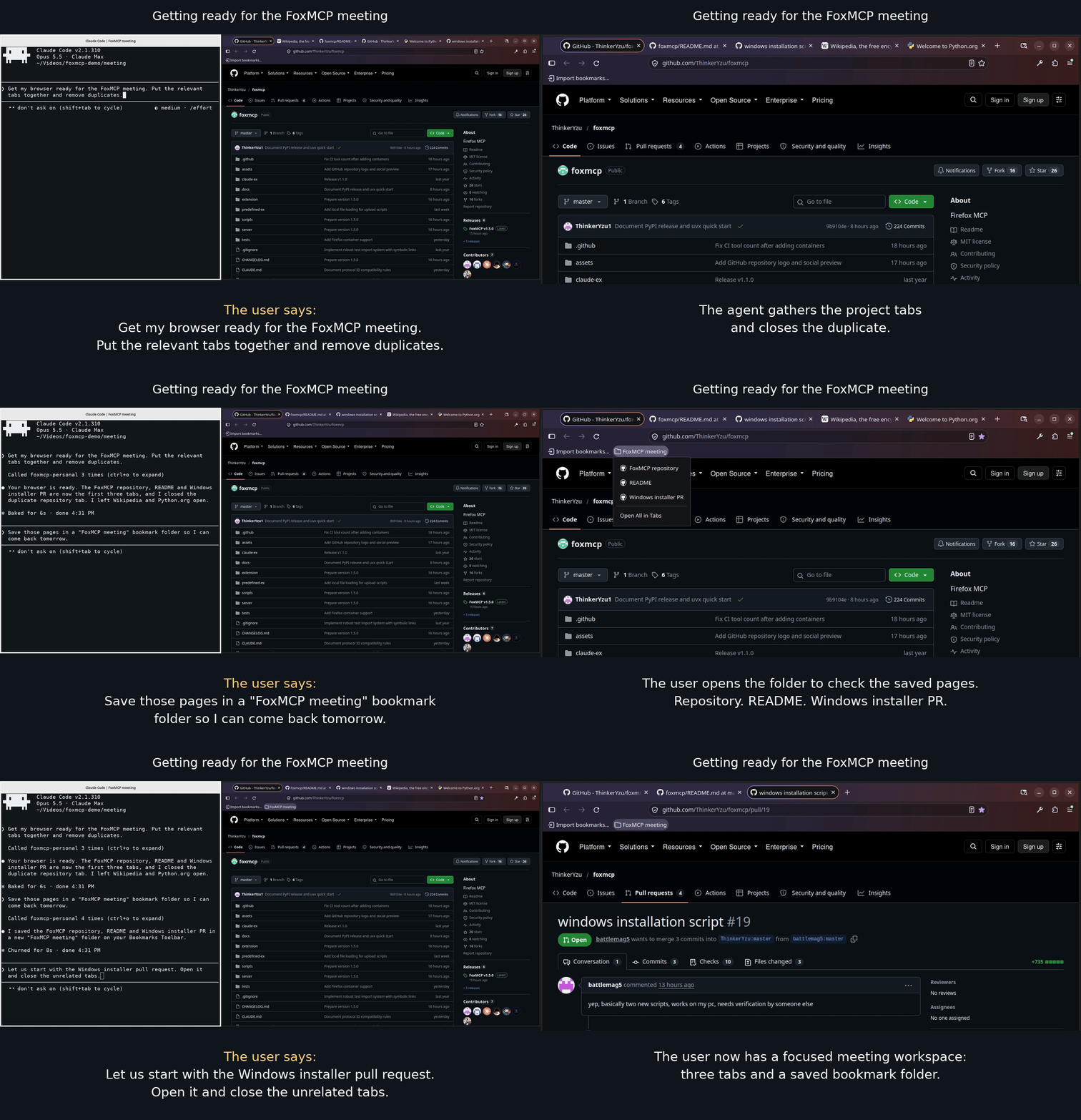
*Prepare for a FoxMCP meeting with Claude Code: organize tabs, save the project
pages, and clear away distractions.*
<p align="center">
<img src="https://raw.githubusercontent.com/ThinkerYzu/foxmcp/master/extension/icons/foxmcp-128.png" alt="FoxMCP fox logo" width="96" height="96">
</p>
# FoxMCP — Firefox Browser Automation via MCP
[](https://glama.ai/mcp/servers/ThinkerYzu/foxmcp)
Connect an MCP-compatible AI assistant to Firefox. Manage tabs and windows,
read pages, upload local files, organize bookmarks, search history, and inspect
network requests.
FoxMCP has two parts: a Firefox extension and a local Python server. Your AI
client talks to the server, which sends commands to the extension.
**Privacy:** Connected AI clients can access your browser data and run page
scripts. Use trusted clients and consider a dedicated Firefox profile.
See [SECURITY.md](SECURITY.md) for the threat model.
Version 1.6.0 is published on [PyPI](https://pypi.org/project/foxmcp/1.6.0/)
and [GitHub](https://github.com/ThinkerYzu/foxmcp/releases/tag/v1.6.0).
The matching extension is available from
[Firefox Add-ons](https://addons.mozilla.org/en-US/firefox/addon/foxmcp/).
**Upgrading:** Update the server and extension together, restart shared workers,
and refresh your client's tool schemas. Call `profiles_list` and pass its integer
`profile_id` to every browser tool, even with one profile connected. Rediscover
targets after reconnection. See [release notes](RELEASES.md#v160---multiple-profiles-and-windows-installation-2026-10-30).
## FoxMCP or firefox-devtools-mcp?
Both let an AI agent use Firefox. They suit different jobs.
**Use FoxMCP to work in your own browser.** It is an extension in the Firefox
you already run, so the agent sees your open tabs, logged-in sites, bookmarks,
history, and containers. Nothing needs a restart, and several agents can share
the same Firefox.
**Use [firefox-devtools-mcp](https://github.com/mozilla/firefox-devtools-mcp)
to test or debug a web page.** It starts its own Firefox, so the browser is
clean and disposable. It offers console, network, debugger, and profiler tools,
and it works with Firefox for Android.
| | FoxMCP | firefox-devtools-mcp |
|---|---|---|
| Browser | The Firefox you already use | Its own instance, started for the agent |
| Logins and cookies | Yours | Only what its own profile holds |
| Several agents at once | Yes, in one Firefox | One at a time per Firefox |
| Setup | Add the extension, then `uvx foxmcp --stdio` | `npx @mozilla/firefox-devtools-mcp` |
| Best at | Tabs, windows, bookmarks, history, containers, several profiles | Console, network, debugger, profiler, Android |
firefox-devtools-mcp can also attach to a Firefox that is already running
(`--connect-existing`), but only one started with special remote-control flags.
Plain Firefox needs a restart, or a second profile, first.
**Sharing Firefox between agents.** Start each client with
`uvx foxmcp --stdio --single-instance` so they share one connection. FoxMCP
does not lock tabs, so give each agent its own window to keep them from
stepping on each other.
**Mind the access.** In your real session, a connected AI client can reach
whatever you can. Use a trusted client, consider a dedicated Firefox profile,
and read [SECURITY.md](SECURITY.md).
## Quick start
You need Firefox, an MCP client, and
[uv](https://docs.astral.sh/uv/getting-started/installation/).
Your client starts FoxMCP with `uvx foxmcp --stdio`; uv manages the Python
environment and downloads the package automatically. FoxMCP requires Python
**3.10+**.
### 1. Install the Firefox extension
Open [FoxMCP on Firefox Add-ons](https://addons.mozilla.org/en-US/firefox/addon/foxmcp/)
and click **Add to Firefox**.
Use matching server and extension versions. Click the FoxMCP toolbar icon to see
a mismatch warning with both versions inside the popup. No automatic dialog or
notification opens. The server also logs a warning. Release-version differences
are advisory when protocol IDs match; incompatible protocol IDs prevent the
browser connection. Mozilla review can delay the Add-ons version after a GitHub
release; to try a version awaiting approval, use the
[temporary add-on instructions](docs/development.md#loading-in-firefox).
### 2. Connect your AI client
For Claude Code:
```bash
claude mcp add foxmcp -- uvx foxmcp --stdio
```
For Codex:
```bash
codex mcp add foxmcp -- uvx foxmcp --stdio
```
For another MCP client, add a stdio server with command `uvx` and arguments
`["foxmcp", "--stdio"]`.
Open your AI client so it starts the server. Click the FoxMCP toolbar icon in
Firefox and check that it shows a connected status. The extension connects on
WebSocket port **8765**. If the first browser call arrives before Firefox
reconnects, retry it.
For multiple clients or chats, add `--single-instance` after `--stdio` to share
one browser connection. See [stdio setup](docs/configuration.md#serving-mcp-over-stdio).
The packaged command includes and enables the example scripts. An explicit
`FOXMCP_EXT_SCRIPTS` overrides them; an empty value disables scripts. To match a
particular extension release, use `uvx --from foxmcp==VERSION foxmcp --stdio`,
replacing `VERSION` with that release's version.
### 3. Try it
Ask your assistant to discover profiles and choose the intended one before
performing browser actions. For example:
```text
List the connected Firefox profiles and their windows/tabs.
Use the profile named Personal for the following task. If the name is ambiguous,
show me the candidates first.
List all open Firefox tabs in that profile.
Open https://example.org in a new tab.
Get the text from the current page.
Take a screenshot of the current tab.
```
To target a particular tab, right-click it in Firefox's tab bar and choose
**Tab ID = … (click to copy)**. Paste the copied `tab_id = …` into your request.
Tab IDs are local to their profile. The copied tab ID does not identify its
profile; give the assistant that context too. Rediscover after Firefox restarts.
## What you can do
| Area | Capabilities |
|---|---|
| Profiles | Discover connected Firefox profiles and address browser calls explicitly |
| Tabs and groups | List, open, close, switch, reorder, move between windows, group and ungroup; take screenshots |
| Windows | Create, close, focus, resize, position, minimize and maximize |
| Page content | Read text or HTML, execute JavaScript, run predefined scripts, load local files for uploads |
| Navigation | Go to a URL, go back or forward, reload |
| Bookmarks | List, search, create, update, move and delete bookmarks and folders |
| History | Search, list recent visits and delete entries |
| Network | Monitor requests by URL pattern; inspect headers and captured text response bodies |
Native tab groups require Firefox **139+**. Local file uploads use files readable
by the Python server; see [loading local files](docs/scripts.md#loading-local-files).
See the [API reference](docs/api-reference.md) for tool names and parameters.
## Other setup options
### Install from GitHub release archives
The GitHub installers create a local installation directory. On Linux/macOS,
you need Python **3.10+**, `venv`, `bash`, `curl`, `unzip` and `sha256sum`.
On Debian/Ubuntu, install missing prerequisites with
`sudo apt install python3 python3-venv curl unzip coreutils`.
For the GitHub archive installation, run this in a new directory where you want
FoxMCP installed:
```bash
mkdir foxmcp && cd foxmcp
curl -fSL https://github.com/ThinkerYzu/foxmcp/releases/download/v1.6.0/install-from-github.sh | bash
```
The installer verifies the release archive checksums, creates `venv/`, installs
Python dependencies, and creates `start-foxmcp.sh`. It also installs example
scripts and a `CLAUDE.md` template, and offers to connect Claude Code.
For unattended setup, save the installer outside the target directory and run
`bash /path/to/install-from-github.sh --non-interactive` from an empty directory.
**Windows (PowerShell 5.1 or newer):**\
Download both installer scripts into a separate folder, then run the installer from an empty installation folder.\
An empty folder has no installer yet, and the installer needs `install-xpi.ps1` beside it.\
Keeping both outside the target also satisfies the unattended installer's empty-folder check.
Use separate commands below: PowerShell 5.1 cannot parse `&&`, which was added in PowerShell 7.
```powershell
New-Item -ItemType Directory foxmcp-installer
$installerBase = 'https://github.com/ThinkerYzu/foxmcp/releases/download/v1.6.0'
Invoke-WebRequest -UseBasicParsing "$installerBase/install-from-github.ps1" -OutFile foxmcp-installer/install-from-github.ps1
Invoke-WebRequest -UseBasicParsing "$installerBase/install-xpi.ps1" -OutFile foxmcp-installer/install-xpi.ps1
New-Item -ItemType Directory foxmcp
Set-Location foxmcp
& ..\foxmcp-installer\install-from-github.ps1 -NonInteractive
```
Keep the two scripts together and outside the installation folder. If you already
have a source checkout, run its `scripts/install-from-github.ps1` by absolute path
from an empty folder instead. Omit `-NonInteractive` to enable interactive prompts.
The installer creates `venv/`, installs Python dependencies, creates
`start-foxmcp.ps1`, installs example scripts, and creates a `CLAUDE.md` template.
Use `start-foxmcp.ps1` for a manually started HTTP server. For MCP stdio,
configure the client to launch the installed `venv\Scripts\python.exe` with
`server\server.py --stdio` as arguments, using absolute paths. Set
`FOXMCP_EXT_SCRIPTS` to the installed `predefined-scripts` directory in the
client environment to enable the examples. The PowerShell helper reports the
direct Python command if invoked with `--stdio`.
Start the installed server manually with `./start-foxmcp.sh` on Linux/macOS
or `.\start-foxmcp.ps1` in PowerShell, then use the HTTP setup below.
### Run a shared HTTP server
Start one server and leave it running:
```bash
uvx foxmcp
```
With a GitHub archive installation, use its startup script instead.
The default ports are **8765** for the extension's WebSocket connection and
**3000** for the MCP HTTP endpoint. Check the connected status in the Firefox
extension popup.
Register the HTTP endpoint with Claude Code:
```bash
claude mcp add --transport http foxmcp http://localhost:3000/mcp/
```
Or with Codex:
```bash
codex mcp add foxmcp --url http://localhost:3000/mcp/
```
For another MCP client, add an HTTP server with URL
`http://localhost:3000/mcp/`. If the GitHub installer already connected your
client, skip registration.
### Install from source
You also need Git, `make`, and `zip` (on Debian/Ubuntu:
`sudo apt install git make zip`).
```bash
git clone https://github.com/ThinkerYzu/foxmcp.git
cd foxmcp
make install
make package
```
[Load the built extension in Firefox](docs/development.md#loading-in-firefox),
then start the server with `make run-server`. Continue with
[HTTP setup](#run-a-shared-http-server) above.
### Let your client start the server
Use stdio with `--single-instance` to start the server automatically and share it
across chats. Configure each client to launch
`venv/bin/python server/server.py --stdio --single-instance`, using absolute paths.
Clients discover and share the browser connection on the extension port. They
join an existing server or start a background worker automatically. Closing one
chat leaves the others connected. Automatic workers stop after 60 seconds without
clients; manually started servers keep running. On Windows, use `venv\Scripts\python.exe`.
See [stdio setup](docs/configuration.md#serving-mcp-over-stdio).
## Configuration
Click the FoxMCP toolbar icon to change extension connection settings. If you
change the WebSocket port, change it on both the extension and the server.
Host/Port and Reconnect Interval save automatically after a 500ms pause. Reset
persists defaults immediately. Retries use a constant interval (1000ms by
default, configurable from 100 to 30000ms); there is no manual Reconnect button.
Both Popup and Options show actual connection and protocol status. See
[extension configuration](docs/configuration.md#configuring-extension).
With `uvx`, pass server options after `foxmcp`:
```bash
# Custom WebSocket and MCP HTTP ports
uvx foxmcp --port 9000 --mcp-port 4000
# Hide tool groups from clients
uvx foxmcp --disable-tools bookmarks,history
# Hide a group but keep its screenshot tool
uvx foxmcp --disable-tools tabs --enable-tools tabs_capture_screenshot
```
For a client-managed stdio server, include the same options in its launch
command, for example:
```bash
uvx foxmcp --stdio --single-instance --disable-tools bookmarks,history
```
For a GitHub archive or source installation, the same options follow
`venv/bin/python server/server.py`. Run from that installation directory:
```bash
venv/bin/python server/server.py --port 9000 --mcp-port 4000
```
Use `profiles_list` first to inspect all connected Firefox profiles, their real
names, windows and tabs. Every browser command requires the chosen `profile_id`
alongside its window/tab IDs. Profiles can share the same server port without
replacing each other. The server assigns positive integer IDs from 1. IDs change on every reconnect;
rediscover after a disconnect or server restart. Update both extension and server for
protocol 3. Follow the [multiple-profile setup](docs/configuration.md#connecting-multiple-firefox-profiles-to-one-server)
to connect each Firefox instance, then use
[profile discovery](docs/api-reference.md#firefox-profiles) to choose a target.
All **46 tools** are enabled by default. Available groups are `profiles`, `windows`, `tabs`,
`containers`, `bookmarks`, `navigation`, `content`, `requests`, `history`, and `debug`.
See [configuration](docs/configuration.md) for client examples and other options.
## Firefox containers
Use `containers_list` to discover named containers and their opaque
`cookie_store_id` values. Pass one to `tabs_create` to open in that container,
or to `tabs_list` to filter. Use `firefox-default` for normal browsing. Omission
keeps existing behavior; invalid selections fail without opening a fallback tab.
`containers_create`, `containers_update` and `containers_remove` manage persistent
profile containers. Removal clears stored site data and refuses containers with
open tabs. Containers survive client disconnects. See the
[API reference](docs/api-reference.md#firefox-containers) for details.
The extension requires `contextualIdentities` and `cookies` permissions for
container APIs and tab selection. Installation can enable Firefox containers;
subsequent disabling is respected. Update both extension and server together.
## Predefined scripts
External executable scripts can generate JavaScript for FoxMCP to run in a tab.
The release installer configures the examples in `predefined-scripts/`; the
packaged `foxmcp` command uses its bundled examples by default. Both include
DOM summaries, YouTube controls, calendar extraction, and a file-input helper.
Ask your assistant which predefined scripts are available.
For your own scripts, set `FOXMCP_EXT_SCRIPTS` to their directory **before starting
the server**. For example, save this as `get-title.sh` in that directory and run
`chmod +x get-title.sh`:
```bash
#!/bin/bash
# Return the current page title.
echo 'document.title'
```
Then ask your assistant to run `get-title.sh` in a tab. Restart the server after
adding scripts to refresh the list shown to clients. See the
[script guide](docs/scripts.md) for arguments, setup, and file upload examples.
## Troubleshooting
| Problem | Check |
|---|---|
| Extension disconnected | Start the server and check the host/port in the FoxMCP popup. `curl -i http://localhost:8765` should return **426 Upgrade Required**. |
| MCP client cannot connect | Check its URL. `curl -i http://localhost:3000/mcp/` should return a **307** redirect when using HTTP mode. |
| Server logs “address already in use” | Another service owns a port. FoxMCP can keep running even when its MCP listener fails; use [different ports](docs/development.md#port-conflicts) and check both listeners. |
| Server reports missing Python packages | Use `venv/bin/python`, or the provided startup script. |
| Built extension will not install | Follow the [Firefox channel and signing guidance](docs/development.md#loading-in-firefox). |
For other errors, run the server in the foreground and inspect its output.
## Documentation and development
- [Configuration](docs/configuration.md) — ports, MCP clients, tool selection and reconnect behavior
- [API reference](docs/api-reference.md) — all tools and parameters
- [Scripts](docs/scripts.md) — reusable automation and local file uploads
- [Request monitoring](docs/web-request-monitoring.md) — filters, response bodies and monitor lifetime
- [Development](docs/development.md) — extension installation, builds, tests and release workflow
- [Architecture](docs/architecture.md) and [protocol](docs/protocol.md) — how the components communicate
- [Release notes](RELEASES.md) and [changelog](CHANGELOG.md) — updates and upgrade instructions
- [Security](SECURITY.md) — trust boundaries and vulnerability reporting
See [CONTRIBUTING.md](CONTRIBUTING.md) for contribution and test setup guidelines.
**Coding agents:** Read [CLAUDE.md](CLAUDE.md) before making changes.
Licensed under the [MIT License](LICENSE).
TDQS
Scored across 46 tools
Tools are grouped by browser resource and mostly target clear, distinct operations. The main overlaps are profiles_list vs debug_websocket_status for connection/profile discovery and content_execute_script vs content_execute_predefined for JavaScript execution, but the descriptions make these separable with care.
Most domains use resource_action names such as tabs_list, bookmarks_create, navigation_reload, and containers_update. However, the window cluster reverses the convention to verb_noun names like list_windows, get_window, and create_window, so the overall set mixes two readable but inconsistent patterns.
At 46 tools, the surface is very large and exceeds the typical well-scoped range. The breadth reflects full browser automation, but several granular tab, window, and bookmark operations could be consolidated to reduce selection burden.
Coverage spans profiles, windows, tabs and tab groups, bookmarks, history, containers, navigation, content access, screenshots, and request capture, which is substantial for a browser automation server. Minor gaps exist around pinning/unpinning tabs and explicit bookmark-folder deletion, but core lifecycle workflows are present.