MCP Claude Code
Código Claude del MCP
Una implementación de las capacidades de Claude Code utilizando el Protocolo de Contexto de Modelo (MCP).
Descripción general
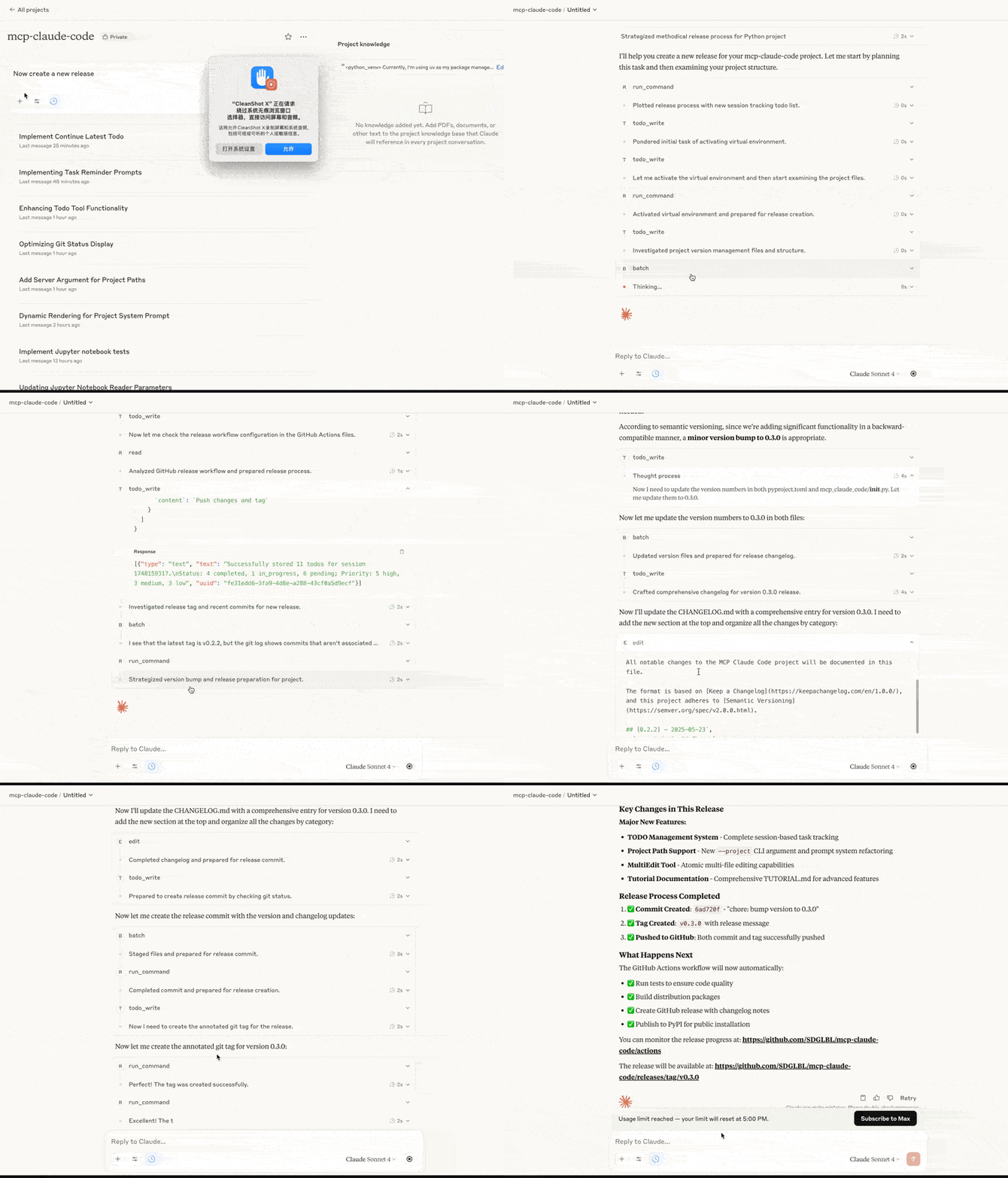
Este proyecto proporciona un servidor MCP que implementa funcionalidades similares a las de Claude Code, lo que permite a Claude ejecutar directamente instrucciones para modificar y mejorar los archivos del proyecto. Al aprovechar el Protocolo de Contexto de Modelo, esta implementación permite una integración fluida con varios clientes MCP, incluido Claude Desktop.

Related MCP server: vscode-mcp
Características
Comprensión de código : Analice y comprenda bases de código mediante el acceso a archivos y la búsqueda de patrones.
Modificación de código : realice ediciones específicas en archivos con el manejo adecuado de permisos
Ejecución de comandos mejorada : ejecute comandos y scripts en varios idiomas con manejo de errores mejorado y compatibilidad con shell.
Operaciones con archivos : administre archivos con controles de seguridad adecuados a través de comandos de shell
Descubrimiento de código : encuentre archivos relevantes y patrones de código en todo su proyecto con búsqueda de alto rendimiento
Delegación de agentes : delegue tareas complejas a subagentes especializados que puedan trabajar simultáneamente
Compatibilidad con varios proveedores de LLM : configure cualquier modelo compatible con LiteLLM para operaciones de agente
Compatibilidad con Jupyter Notebook : lea y edite Jupyter notebooks con manejo completo de celdas y salidas
Herramientas implementadas
Herramienta | Descripción |
| Leer el contenido del archivo con números de línea, desplazamiento y capacidades de límite |
| Crear o sobrescribir archivos |
| Realizar ediciones basadas en líneas en archivos de texto |
| Realice múltiples reemplazos de texto precisos en una sola operación de archivo con transacciones atómicas |
| Obtenga una vista de árbol recursiva de directorios |
| Búsqueda rápida de patrones en archivos con integración con ripgrep para un mejor rendimiento ( documentación ) |
| Reemplazar patrones en el contenido del archivo |
| Busque código con contexto AST que muestre coincidencias dentro de funciones, clases y otras estructuras |
| Ejecutar comandos de shell (también se utilizan para crear directorios, mover archivos y listar directorios) |
| Extraer y leer el código fuente de todas las celdas en un cuaderno Jupyter con salidas |
| Editar, insertar o eliminar celdas en un cuaderno de Jupyter |
| Espacio estructurado para razonamiento y análisis complejos sin realizar cambios |
| Inicie uno o más agentes que puedan realizar tareas utilizando herramientas de solo lectura simultáneamente |
| Ejecutar múltiples invocaciones de herramientas en paralelo o en serie en una sola solicitud |
| Crear y gestionar una lista de tareas estructurada |
| Leer una lista de tareas estructurada |
Empezando
Para obtener instrucciones detalladas de instalación y configuración, consulte INSTALL.md .
Para obtener un tutorial detallado de la versión 0.3, consulte TUTORIAL.md
Seguridad
Esta implementación sigue las mejores prácticas para proteger el acceso a su sistema de archivos:
Solicitudes de permisos para modificaciones de archivos y ejecución de comandos
Acceso restringido únicamente a directorios específicos
Validación y saneamiento de entradas
Manejo y reporte adecuado de errores
Desarrollo
Para contribuir a este proyecto:
Bifurcar el repositorio
Crear una rama de características (
git checkout -b feature/amazing-feature)Confirme sus cambios (
git commit -m 'Add some amazing feature')Empujar a la rama (
git push origin feature/amazing-feature)Abrir una solicitud de extracción
Licencia
Este proyecto está licenciado bajo la licencia MIT: consulte el archivo de LICENCIA para obtener más detalles.
Available Tools
15 toolsbatchA
Batch execution tool that runs multiple tool invocations in a single request.
Tools are executed in parallel when possible, and otherwise serially. Takes a list of tool invocations (tool_name and input pairs). Returns the collected results from all invocations. Use this tool when you need to run multiple independent tool operations at once -- it is awesome for speeding up your workflow, reducing both context usage and latency. Each tool will respect its own permissions and validation rules. The tool's outputs are NOT shown to the user; to answer the user's query, you MUST send a message with the results after the tool call completes, otherwise the user will not see the results.
<batch_example> When dispatching multiple agents to find necessary information. batch( description="Update import statements across modules", invocations=[ {tool_name: "dispatch_agent", input: {prompt: "Search for all instances of 'logger' configuration in /app/config directory"}}, {tool_name: "dispatch_agent", input: {prompt: "Find all test files that reference 'UserService' in /app/tests"}}, ] )
Common scenarios for effective batching:
Reading multiple related files in one operation
Performing a series of simple mechanical changes
Running multiple diagnostic commands
Dispatch multiple agents to complete the task
To make a batch call, provide the following:
description: A short (3-5 word) description of the batch operation
invocations: List of invocation [{"tool_name": "...", "input": "..."}], tool_name: The name of the tool to invoke,newText: The input to pass to the tool
Available tools in batch call: Tool: dispatch_agent,read,directory_tree,grep,grep_ast,run_command,notebook_read Not available: think,write,edit,multi_edit,notebook_edit
Inputs: description (required), invocations (required). Returns: result
content_replaceA
Replace a pattern in file contents across multiple files.
Searches for text patterns across all files in the specified directory that match the file pattern and replaces them with the specified text. Can be run in dry-run mode to preview changes without applying them. Only works within allowed directories.
Inputs: pattern (required), replacement (required), path (required), file_pattern, +1 more. Returns: result
directory_treeA
Get a recursive tree view of files and directories with customizable depth and filtering.
Returns a structured view of the directory tree with files and subdirectories. Directories are marked with trailing slashes. The output is formatted as an indented list for readability. By default, common development directories like .git, node_modules, and venv are noted but not traversed unless explicitly requested. Only works within allowed directories.
Inputs: path (required), depth, include_filtered. Returns: result
editA
Performs exact string replacements in files with strict occurrence count validation.
Usage:
When editing text from Read tool output, ensure you preserve the exact indentation (tabs/spaces) as it appears AFTER the line number prefix. The line number prefix format is: spaces + line number + tab. Everything after that tab is the actual file content to match. Never include any part of the line number prefix in the old_string or new_string.
ALWAYS prefer editing existing files in the codebase. NEVER write new files unless explicitly required.
Inputs: file_path (required), old_string (required), new_string (required), expected_replacements. Returns: result
grepA
Fast content search tool that works with any codebase size. Searches file contents using regular expressions. Supports full regex syntax (eg. "log.Error", "function\s+\w+", etc.). Filter files by pattern with the include parameter (eg. ".js", "*.{ts,tsx}"). Returns matching file paths sorted by modification time. Use this tool when you need to find files containing specific patterns. When you are doing an open ended search that may require multiple rounds of globbing and grepping, use the Agent tool instead.
Inputs: pattern (required), path, include. Returns: result
grep_astA
Search through source code files and see matching lines with useful AST (Abstract Syntax Tree) context. This tool helps you understand code structure by showing how matched lines fit into functions, classes, and other code blocks.
Unlike traditional search tools like search_content that only show matching lines, grep_ast leverages the AST to reveal the structural context around matches, making it easier to understand the code organization.
When to use this tool:
When you need to understand where a pattern appears within larger code structures
When searching for function or class definitions that match a pattern
When you want to see not just the matching line but its surrounding context in the code
When exploring unfamiliar codebases and need structural context
When examining how a specific pattern is used across different parts of the codebase
This tool is superior to regular grep/search_content when you need to understand code structure, not just find text matches.
Example usage:
grep_ast(pattern="function_name", path="/path/to/file.py", ignore_case=False, line_number=True)Inputs: pattern (required), path (required), ignore_case, line_number. Returns: result
multi_editA
This is a tool for making multiple edits to a single file in one operation. It is built on top of the Edit tool and allows you to perform multiple find-and-replace operations efficiently. Prefer this tool over the Edit tool when you need to make multiple edits to the same file.
Before using this tool:
Use the Read tool to understand the file's contents and context
Verify the directory path is correct
To make multiple file edits, provide the following:
file_path: The absolute path to the file to modify (must be absolute, not relative)
edits: An array of edit operations to perform, where each edit contains:
old_string: The text to replace (must match the file contents exactly, including all whitespace and indentation)
new_string: The edited text to replace the old_string
expected_replacements: The number of replacements you expect to make. Defaults to 1 if not specified.
IMPORTANT:
All edits are applied in sequence, in the order they are provided
Each edit operates on the result of the previous edit
All edits must be valid for the operation to succeed - if any edit fails, none will be applied
This tool is ideal when you need to make several changes to different parts of the same file
For Jupyter notebooks (.ipynb files), use the NotebookEdit instead
CRITICAL REQUIREMENTS:
All edits follow the same requirements as the single Edit tool
The edits are atomic - either all succeed or none are applied
Plan your edits carefully to avoid conflicts between sequential operations
WARNING:
The tool will fail if edits.old_string matches multiple locations and edits.expected_replacements isn't specified
The tool will fail if the number of matches doesn't equal edits.expected_replacements when it's specified
The tool will fail if edits.old_string doesn't match the file contents exactly (including whitespace)
The tool will fail if edits.old_string and edits.new_string are the same
Since edits are applied in sequence, ensure that earlier edits don't affect the text that later edits are trying to find
When making edits:
Ensure all edits result in idiomatic, correct code
Do not leave the code in a broken state
Always use absolute file paths (starting with /)
If you want to create a new file, use:
A new file path, including dir name if needed
First edit: empty old_string and the new file's contents as new_string
Subsequent edits: normal edit operations on the created content
Inputs: file_path (required), edits (required). Returns: result
notebook_editA
Completely replaces the contents of a specific cell in a Jupyter notebook (.ipynb file) with new source. Jupyter notebooks are interactive documents that combine code, text, and visualizations, commonly used for data analysis and scientific computing. The notebook_path parameter must be an absolute path, not a relative path. The cell_number is 0-indexed. Use edit_mode=insert to add a new cell at the index specified by cell_number. Use edit_mode=delete to delete the cell at the index specified by cell_number.
Inputs: notebook_path (required), cell_number (required), new_source, cell_type, +1 more. Returns: result
notebook_readA
Reads a Jupyter notebook (.ipynb file) and returns all of the cells with their outputs. Jupyter notebooks are interactive documents that combine code, text, and visualizations, commonly used for data analysis and scientific computing. The notebook_path parameter must be an absolute path, not a relative path.
Inputs: notebook_path (required). Returns: result
readA
Reads a file from the local filesystem. You can access any file directly by using this tool. Assume this tool is able to read all files on the machine. If the User provides a path to a file assume that path is valid. It is okay to read a file that does not exist; an error will be returned.
Usage:
The file_path parameter must be an absolute path, not a relative path
By default, it reads up to 2000 lines starting from the beginning of the file
You can optionally specify a line offset and limit (especially handy for long files), but it's recommended to read the whole file by not providing these parameters
Any lines longer than 2000 characters will be truncated
Results are returned using cat -n format, with line numbers starting at 1
For Jupyter notebooks (.ipynb files), use the notebook_read instead
When reading multiple files, you MUST use the batch tool to read them all at once
Inputs: file_path (required), offset, limit. Returns: result
run_commandA
Executes a given bash command in a shell with optional timeout, ensuring proper handling and security measures.
Before executing the command, please follow these steps:
Directory Verification:
If the command will create new directories or files, first use the directory_tree tool to verify the parent directory exists and is the correct location
For example, before running "mkdir foo/bar", first use directory_tree to check that "foo" exists and is the intended parent directory
Command Execution:
After ensuring proper quoting, execute the command.
Capture the output of the command.
Usage notes:
The command argument is required.
You can specify an optional timeout in milliseconds (up to 600000ms / 10 minutes). If not specified, commands will timeout after 120000ms (2 minutes).
It is very helpful if you write a clear, concise description of what this command does in 5-10 words.
If the output exceeds 30000 characters, output will be truncated before being returned to you.
VERY IMPORTANT: You MUST avoid using search commands like
findandgrep. Instead use Grep, Glob, or Task to search. You MUST avoid read tools likecat,head,tail, andls, and use read and directory_tree to read files.If you still need to run
grep, STOP. ALWAYS USE ripgrep atrg(or /opt/homebrew/Cellar/ripgrep/14.1.1/bin/rg) first, which all Claude Code users have pre-installed.When issuing multiple commands, use the ';' or '&&' operator to separate them. DO NOT use newlines (newlines are ok in quoted strings).
Committing changes with git
When the user asks you to create a new git commit, follow these steps carefully:
You have the capability to call multiple tools in a single response. When multiple independent pieces of information are requested, batch your tool calls together for optimal performance. ALWAYS run the following bash commands in parallel, each using the Bash tool:
Run a git status command to see all untracked files.
Run a git diff command to see both staged and unstaged changes that will be committed.
Run a git log command to see recent commit messages, so that you can follow this repository's commit message style.
Analyze all staged changes (both previously staged and newly added) and draft a commit message. Wrap your analysis process in <commit_analysis> tags:
<commit_analysis>
List the files that have been changed or added
Summarize the nature of the changes (eg. new feature, enhancement to an existing feature, bug fix, refactoring, test, docs, etc.)
Brainstorm the purpose or motivation behind these changes
Assess the impact of these changes on the overall project
Check for any sensitive information that shouldn't be committed
Draft a concise (1-2 sentences) commit message that focuses on the "why" rather than the "what"
Ensure your language is clear, concise, and to the point
Ensure the message accurately reflects the changes and their purpose (i.e. "add" means a wholly new feature, "update" means an enhancement to an existing feature, "fix" means a bug fix, etc.)
Ensure the message is not generic (avoid words like "Update" or "Fix" without context)
Review the draft message to ensure it accurately reflects the changes and their purpose </commit_analysis>
You have the capability to call multiple tools in a single response. When multiple independent pieces of information are requested, batch your tool calls together for optimal performance. ALWAYS run the following commands in parallel:
Add relevant untracked files to the staging area.
Create the commit with a message ending with: 🤖 Generated with Claude Code
Co-Authored-By: Claude noreply@anthropic.com
Run git status to make sure the commit succeeded.
If the commit fails due to pre-commit hook changes, retry the commit ONCE to include these automated changes. If it fails again, it usually means a pre-commit hook is preventing the commit. If the commit succeeds but you notice that files were modified by the pre-commit hook, you MUST amend your commit to include them.
Important notes:
Use the git context at the start of this conversation to determine which files are relevant to your commit. Be careful not to stage and commit files (e.g. with
git add .) that aren't relevant to your commit.NEVER update the git config
DO NOT run additional commands to read or explore code, beyond what is available in the git context
DO NOT push to the remote repository
IMPORTANT: Never use git commands with the -i flag (like git rebase -i or git add -i) since they require interactive input which is not supported.
If there are no changes to commit (i.e., no untracked files and no modifications), do not create an empty commit
Ensure your commit message is meaningful and concise. It should explain the purpose of the changes, not just describe them.
Return an empty response - the user will see the git output directly
In order to ensure good formatting, ALWAYS pass the commit message via a HEREDOC, a la this example:
🤖 Generated with MCP Claude Code
EOF )"
Creating pull requests
Use the gh command via the Bash tool for ALL GitHub-related tasks including working with issues, pull requests, checks, and releases. If given a Github URL use the gh command to get the information needed.
IMPORTANT: When the user asks you to create a pull request, follow these steps carefully:
You have the capability to call multiple tools in a single response. When multiple independent pieces of information are requested, batch your tool calls together for optimal performance. ALWAYS run the following bash commands in parallel using the Bash tool, in order to understand the current state of the branch since it diverged from the main branch:
Run a git status command to see all untracked files
Run a git diff command to see both staged and unstaged changes that will be committed
Check if the current branch tracks a remote branch and is up to date with the remote, so you know if you need to push to the remote
Run a git log command and
git diff main...HEADto understand the full commit history for the current branch (from the time it diverged from themainbranch)
Analyze all changes that will be included in the pull request, making sure to look at all relevant commits (NOT just the latest commit, but ALL commits that will be included in the pull request!!!), and draft a pull request summary. Wrap your analysis process in <pr_analysis> tags:
<pr_analysis>
List the commits since diverging from the main branch
Summarize the nature of the changes (eg. new feature, enhancement to an existing feature, bug fix, refactoring, test, docs, etc.)
Brainstorm the purpose or motivation behind these changes
Assess the impact of these changes on the overall project
Do not use tools to explore code, beyond what is available in the git context
Check for any sensitive information that shouldn't be committed
Draft a concise (1-2 bullet points) pull request summary that focuses on the "why" rather than the "what"
Ensure the summary accurately reflects all changes since diverging from the main branch
Ensure your language is clear, concise, and to the point
Ensure the summary accurately reflects the changes and their purpose (ie. "add" means a wholly new feature, "update" means an enhancement to an existing feature, "fix" means a bug fix, etc.)
Ensure the summary is not generic (avoid words like "Update" or "Fix" without context)
Review the draft summary to ensure it accurately reflects the changes and their purpose </pr_analysis>
You have the capability to call multiple tools in a single response. When multiple independent pieces of information are requested, batch your tool calls together for optimal performance. ALWAYS run the following commands in parallel:
Create new branch if needed
Push to remote with -u flag if needed
Create PR using gh pr create with the format below. Use a HEREDOC to pass the body to ensure correct formatting.
Summary
<1-3 bullet points>
Test plan
[Checklist of TODOs for testing the pull request...]
🤖 Generated with Claude Code EOF )"
Important:
NEVER update the git config
Return the PR URL when you're done, so the user can see it
Other common operations
View comments on a Github PR: gh api repos/foo/bar/pulls/123/comments
Inputs: command (required), cwd (required), shell_type, use_login_shell. Returns: result
thinkA
Use the tool to think about something. It will not obtain new information or make any changes to the repository, but just log the thought. Use it when complex reasoning or brainstorming is needed. Ensure thinking content is concise and accurate, without needing to include code details
Common use cases:
When exploring a repository and discovering the source of a bug, call this tool to brainstorm several unique ways of fixing the bug, and assess which change(s) are likely to be simplest and most effective
After receiving test results, use this tool to brainstorm ways to fix failing tests
When planning a complex refactoring, use this tool to outline different approaches and their tradeoffs
When designing a new feature, use this tool to think through architecture decisions and implementation details
When debugging a complex issue, use this tool to organize your thoughts and hypotheses
When considering changes to the plan or shifts in thinking that the user has not previously mentioned, consider whether it is necessary to confirm with the user.
<think_example> Feature Implementation Planning
New code search feature requirements:
Search for code patterns across multiple files
Identify function usages and references
Analyze import relationships
Generate summary of matching patterns
Implementation considerations:
Need to leverage existing search mechanisms
Should use regex for pattern matching
Results need consistent format with other search methods
Must handle large codebases efficiently
Design approach:
Create new CodeSearcher class that follows existing search patterns
Implement core pattern matching algorithm
Add result formatting methods
Integrate with file traversal system
Add caching for performance optimization
Testing strategy:
Unit tests for search accuracy
Integration tests with existing components
Performance tests with large codebases </think_example>
Inputs: thought (required). Returns: result
todo_readA
Use this tool to read the current to-do list for the session. This tool should be used proactively and frequently to ensure that you are aware of the status of the current task list. You should make use of this tool as often as possible, especially in the following situations:
At the beginning of conversations to see what's pending
Before starting new tasks to prioritize work
When the user asks about previous tasks or plans
Whenever you're uncertain about what to do next
After completing tasks to update your understanding of remaining work
After every few messages to ensure you're on track
Usage:
This tool requires a session_id parameter to identify the Claude Desktop conversation
Returns a list of todo items with their status, priority, and content
Use this information to track progress and plan next steps
If no todos exist yet for the session, an empty list will be returned
Inputs: session_id (required). Returns: result
todo_writeA
Use this tool to create and manage a structured task list for your current coding session. This helps you track progress, organize complex tasks, and demonstrate thoroughness to the user. It also helps the user understand the progress of the task and overall progress of their requests.
When to Use This Tool
Use this tool proactively in these scenarios:
Complex multi-step tasks - When a task requires 3 or more distinct steps or actions
Non-trivial and complex tasks - Tasks that require careful planning or multiple operations
User explicitly requests todo list - When the user directly asks you to use the todo list
User provides multiple tasks - When users provide a list of things to be done (numbered or comma-separated)
After receiving new instructions - Immediately capture user requirements as todos. Feel free to edit the todo list based on new information.
After completing a task - Mark it complete and add any new follow-up tasks
When you start working on a new task, mark the todo as in_progress. Ideally you should only have one todo as in_progress at a time. Complete existing tasks before starting new ones.
When NOT to Use This Tool
Skip using this tool when:
There is only a single, straightforward task
The task is trivial and tracking it provides no organizational benefit
The task can be completed in less than 3 trivial steps
The task is purely conversational or informational
NOTE that you should use should not use this tool if there is only one trivial task to do. In this case you are better off just doing the task directly.
Examples of When to Use the Todo List
Examples of When NOT to Use the Todo List
python print("Hello World")
This will output the text "Hello World" to the console when executed.
Executes: npm install
The command completed successfully. Here's the output: [Output of npm install command]
All dependencies have been installed according to your package.json file.
Task States and Management
Task States: Use these states to track progress:
pending: Task not yet started
in_progress: Currently working on (limit to ONE task at a time)
completed: Task finished successfully
cancelled: Task no longer needed
Task Management:
Update task status in real-time as you work
Mark tasks complete IMMEDIATELY after finishing (don't batch completions)
Only have ONE task in_progress at any time
Complete current tasks before starting new ones
Cancel tasks that become irrelevant
Task Breakdown:
Create specific, actionable items
Break complex tasks into smaller, manageable steps
Use clear, descriptive task names
When in doubt, use this tool. Being proactive with task management demonstrates attentiveness and ensures you complete all requirements successfully.
Inputs: session_id (required), todos (required). Returns: result
writeA
Writes a file to the local filesystem.
Usage:
This tool will overwrite the existing file if there is one at the provided path.
If this is an existing file, you MUST use the Read tool first to read the file's contents. This tool will fail if you did not read the file first.
ALWAYS prefer editing existing files in the codebase. NEVER write new files unless explicitly required.
NEVER proactively create documentation files (*.md) or README files. Only create documentation files if explicitly requested by the User.
Inputs: file_path (required), content (required). Returns: result
Tool Schema Changelog
Recent tool additions, removals, and schema changes observed during successful MCP inspections.
Loading tool schema changelog…
TDQS
Scored across 15 tools
There is significant overlap between several tools, particularly grep and grep_ast (both search content), edit and multi_edit (both edit files), and read and notebook_read (both read files). However, the descriptions clarify distinctions, such as grep_ast providing AST context and multi_edit handling multiple edits. Some tools like batch and think are clearly distinct, but the overlaps could cause confusion without careful reading.
Most tools follow a consistent snake_case naming convention (e.g., directory_tree, content_replace, notebook_edit). The main deviation is the think tool, which uses a verb without an object, but it fits the pattern stylistically. Overall, the naming is predictable and readable, with only minor inconsistencies.
With 15 tools, the count is reasonable for a code assistant server covering file operations, search, editing, command execution, and task management. It is slightly on the higher side but well within a manageable scope, as each tool serves a distinct purpose in the coding workflow without being overwhelming.
The tool set comprehensively covers the domain of code editing and project management. It includes file reading/writing (read, write, notebook_read, notebook_edit), editing (edit, multi_edit), search (grep, grep_ast), directory navigation (directory_tree), command execution (run_command), batch operations (batch), and task tracking (todo_read, todo_write). There are no obvious gaps for a coding assistant's core functions.
Maintenance
Related MCP Connectors
Augments MCP Server - A comprehensive framework documentation provider for Claude Code
Shared memory MCP server for Claude Code, Codex, Gemini CLI and Cursor. Cited, editable.
An MCP server that gives your AI access to the source code and docs of all public github repos
An MCP server that provides agents access to the KeldynAI platform
Related MCP Servers
- AlicenseCqualityDmaintenanceA comprehensive MCP server that provides AI assistants with tools for file system management, Git integration, and shell command execution. It features specialized code utilities for analysis, formatting, and linting to enhance development workflows within Claude Desktop.287MIT
- AlicenseAqualityBmaintenanceAn MCP server that gives Claude IDE capabilities inside VS Code and Cursor, enabling file operations, shell commands, and workspace management via natural language.12MIT
- AlicenseAqualityDmaintenanceAn MCP server that provides dynamic codebase context to Claude Code through tools like hybrid search, recent changes, and symbol definitions, enhancing AI-assisted coding with local RAG.8MIT
- AlicenseNot gradedqualityDmaintenanceEnterprise-grade MCP server integrating Claude AI capabilities, enabling AI-powered conversations, file operations, and system tools via the Model Context Protocol.1Apache 2.0