
Stats Explorer MCP
# Stats Explorer MCP
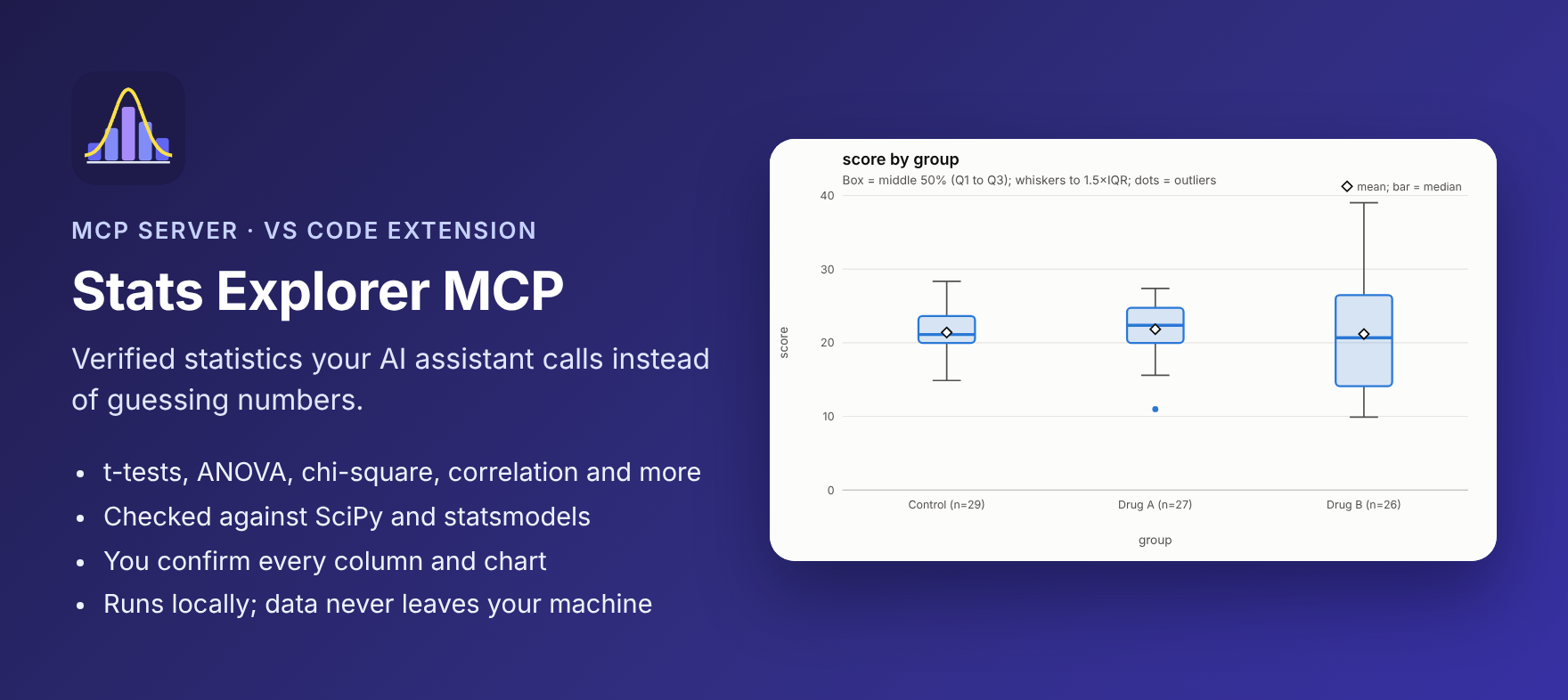
An [MCP](https://modelcontextprotocol.io) server with **18 statistics and analytics tools an AI assistant can call instead of guessing numbers, on data files of any size:**
* **Tests:** t-tests, z-tests, ANOVA (with a Tukey HSD post-hoc that names the groups that differ), ANCOVA, MANOVA, chi-square, Fisher's exact, binomial and correlation.
* **A/B testing:** A/B and A/B/n readouts for conversion rates and revenue-type metrics (lift with intervals, sample ratio mismatch check, Holm-adjusted comparisons, Bayesian probability to beat the control, segment breakdowns), and sample-size planning.
* **Analytics:** totals, averages and counts by category (top N), and "what drives X?" rankings across every column.
* **Helpers:** descriptive stats, confidence intervals, power analysis, a "which test should I use?" tool, and a data-file inspector.
The tools can read a developer's CSV, TSV, Excel or Parquet files by column name, so large datasets never get pasted into the chat. Each result includes:
* the effect size and confidence interval,
* a plain-English interpretation,
* warnings when an assumption looks shaky.
On top of that:
- **Correct.** 43 reference cases are checked against SciPy and statsmodels on every commit, to at least 6 significant figures.
- **Guided by default.** The agent first decides whether your request needs a hypothesis test or just exploration. Hypothesis tests follow the six steps of Stats Explorer's *Bring it all together* guide, in order.
- **You stay in control.** Every column, group, chart type and report section the agent proposes is shown to you to confirm or change before anything runs.
- **Private.** Runs locally over stdio. It makes no network calls and needs no API key (unless you turn on Jev's enforce mode, below). Data files are read only from your workspace folders.
- **Checked by Jev, if you want.** Connect [Jev](docs/JEV.md), TypeSafe's fast judgment model, alongside it, and Jev independently checks the test plan and the assistant's written conclusions against the computed results. You can run it without an orchestrator, enforced by Stats Explorer itself, or under a production orchestrator that signs every decision.
The engine, the file import and the six-step guide are shared with the [Stats Explorer](https://github.com/meador793/stats-explorer-mcp) app, so results match the app exactly.
## Connect it (pick your assistant)
### GitHub Copilot in VS Code: about 1 minute, nothing else to install
1. In VS Code, open **Extensions** (Ctrl+Shift+X / Cmd+Shift+X), search **Stats Explorer MCP**, click **Install**.
2. Open **Copilot Chat** and switch the mode dropdown to **Agent**.
3. Click the **tools** icon in the chat box and check that **Stats Explorer** is listed and ticked.
4. Open the folder that holds your data and ask a question (see [Example questions](#example-questions)).
The extension registers the server itself, using VS Code's built-in runtime, so you don't need Node.js or an `mcp.json` file. Confirmations appear as forms you can edit.
### Claude Code (terminal or the Claude Code panel in VS Code): about 2 minutes
You need [Node.js](https://nodejs.org) 22 or later (24 LTS recommended). In a terminal, run this once:
```bash
claude mcp add -s user stats-explorer -e STATS_EXPLORER_CONFIRM_VIA=chat -- npx -y stats-explorer-mcp
claude mcp list
```
`claude mcp list` should show `stats-explorer … ✓ Connected`. Then **start a new Claude session**, because servers are loaded when a session starts. In VS Code: **Ctrl+Shift+P → Developer: Reload Window**, then **New session**. Type `/mcp` in the chat to see the servers the session has.
- `-s user` makes it available in every folder (without it, only in the folder where you ran the command).
- `STATS_EXPLORER_CONFIRM_VIA=chat` makes confirmations appear as messages in the chat, which you answer by replying. Claude Code doesn't always display form-style prompts.
- If you have the VS Code extension installed, **Stats Explorer: Copy Setup Command for Claude Code** copies this command for you.
### Claude Desktop, Cursor, Windsurf, Cline and other MCP clients
Add this to the client's MCP config (`claude_desktop_config.json`, `.cursor/mcp.json`, and so on), then restart the client:
```json
{
"mcpServers": {
"stats-explorer": {
"command": "npx",
"args": ["-y", "stats-explorer-mcp"],
"env": { "STATS_EXPLORER_ROOTS": "/path/to/your/data", "STATS_EXPLORER_CONFIRM_VIA": "chat" }
}
}
}
```
Requires Node.js 22 or later. `STATS_EXPLORER_ROOTS` is the folder (or folders) the tools may read; see [Data files](#data-files).
### Example questions
Name the file in your message (or attach it); the assistant passes it to the tools and never pastes the data into the chat.
- *What's in sales.csv?*
- *Total revenue by state in sales.csv, top 10.* (group_summary)
- *What drives profit in sales.csv?* (find_relationships, then follow-ups)
- *Show the distribution of order value and a box plot by segment.*
- *Does average profit differ between the Consumer and Business segments? Is it significant?* (six-step hypothesis test)
- *Did the new checkout page (variant B) increase conversion in experiment.csv? Break it down by device.* (ab_test)
- *How many visitors do I need to detect a 10% lift on a 4% conversion rate, with 3,000 visitors a day?* (ab_test_plan)
- *Does revenue differ between the three regions, and which ones?* (ANOVA + Tukey HSD)
- *Make an HTML report of what we found and save it as findings.html.*
The `analyze`, `explore_data` and `hypothesis_test` prompts (slash commands in VS Code and Claude) start the same flows.
## Working with Jev (optional)
When both Stats Explorer and a Jev MCP server are connected to Claude or Copilot, they split the work. **Stats Explorer computes** every number, and **Jev checks** two things before you see a result:
- **The test plan:** is this the right test, are the hypotheses right, are these the right columns?
- **The written conclusions:** does every number match, is "significant" stated correctly, are there claims of cause the analysis can't support?
Stats Explorer also runs its own number and significance checks on every claim. Only claims that pass go into reports, and each report lists every check under **Independent checks**.
| Mode | Set `STATS_EXPLORER_JEV` to | Who calls Jev | Good for |
|---|---|---|---|
| Cooperate | `cooperate` | The assistant, through your Jev MCP server, using packets Stats Explorer prepares | Working in Claude Code or Copilot without any orchestration tool |
| Enforce | `enforce` (plus `TYPESAFE_API_KEY`) | Stats Explorer, directly from the Jev API | Checks the assistant can't skip or alter |
| Orchestrated | `orchestrated` (plus `STATS_EXPLORER_APPROVAL_SECRET`) | Your orchestrator (LangGraph, Temporal, Step Functions and so on), which signs each decision | Production pipelines with audit logs |
Quick start with Claude Code (no orchestrator):
```bash
claude mcp add -s user jev -e TYPESAFE_API_KEY=YOUR_KEY -- npx -y @jkudish/jev-mcp
claude mcp add -s user stats-explorer -e STATS_EXPLORER_JEV=cooperate -e STATS_EXPLORER_CONFIRM_VIA=chat -- npx -y stats-explorer-mcp
npx -y stats-explorer-mcp init-jev # adds routing rules to CLAUDE.md and .github/copilot-instructions.md
```
Any Jev MCP server works (`@jkudish/jev-mcp`, `jev-mcp`, `typesafe-mcp`, …): the packets come in the shapes their tools take. In VS Code, set **Stats Explorer › Jev: Mode**. See **[docs/JEV.md](docs/JEV.md)** for every mode and setting, the signed-approval format (with JavaScript and Python), what is sent to Jev, and the runnable orchestrator example in `examples/orchestrator/`.
## How it works (default)
### 1. The agent classifies your request
Every analysis starts with `start_analysis`, where the agent picks a mode:
| Your request sounds like… | Mode | What happens |
|---|---|---|
| "Does the drug change scores?", "Is A better than B?", "Is this difference significant?" | `hypothesis_test` | The six-step workflow below |
| "Summarise…", "Show me the distribution of…", "Chart X by Y", "What's the average, with a CI?" | `explore` | Descriptive tools and charts only: no hypotheses, no p-values, and no hypothesis section in the report |
If it's unclear, the agent is instructed to ask you. Nothing else runs until `start_analysis` has been called.
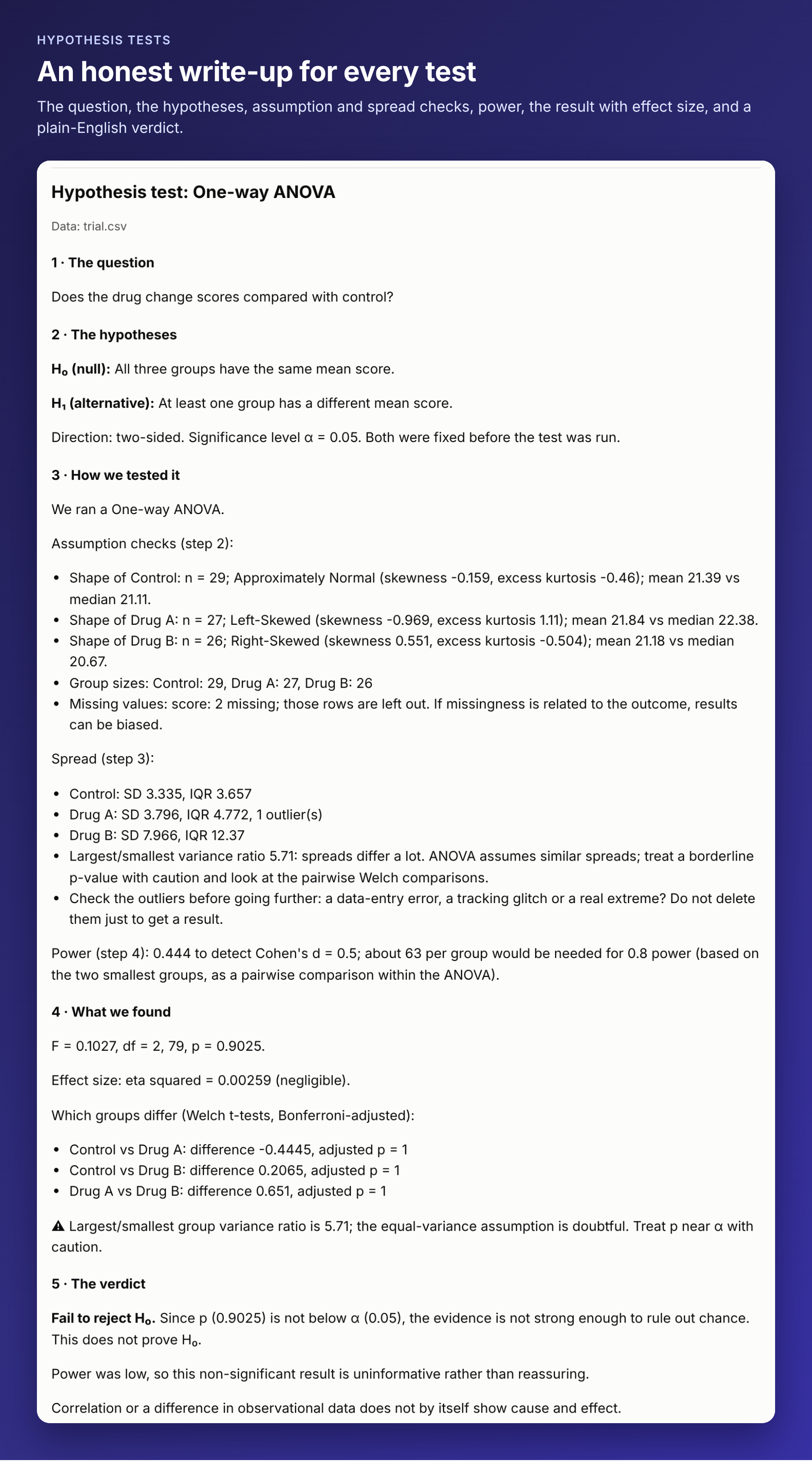
### 2. Hypothesis tests follow the six steps, in order
| Step (from the app's Learn tab) | Tool |
|---|---|
| 1. State your question and choose the right test | `state_hypotheses`: test, columns, groups, H₀/H₁, direction and α, fixed before any result is seen |
| 2. Validate your data against the test's assumptions | `check_assumptions`: shape, small skewed samples, group sizes, outliers, expected counts, ANCOVA slope equality, missing values, "who is missing from the sample?" |
| 3. Check spread | `check_spread`: SD, IQR, coefficient of variation, outliers, variance ratio |
| 4. Calculate power before you run | `power_analysis`: power for the smallest effect *you* care about, and the n needed for 80% |
| 5. Run the test, then report honestly | `run_test`: runs exactly what you confirmed in step 1, with the p-value, effect size, CI and verdict |
| 6. Sanity-check rare events against base rates | `base_rate_check` (PPV/NPV), or `skip_step` with a reason when it isn't a rare-event question |
Calling a step out of order is refused with a message that names the next step. Only steps 4 and 6 can be skipped, and only with a reason that appears in the report. If step 2 shows the chosen test doesn't fit, re-stating the plan in step 1 is allowed and restarts the later steps. The app's guide calls this a principled revision, not p-hacking.
### 3. You confirm every selection
When the agent proposes columns, groups, a chart type or report sections:
- **Clients that support MCP forms (elicitation)**, such as VS Code, show you a form with the agent's choices pre-filled as dropdowns and checkboxes. Change anything, then accept or decline. Declining runs nothing.
- **Other clients** get a `CONFIRMATION NEEDED` response listing the proposal, the alternatives and a one-time token. The agent is instructed to show you the choices and call again with the token only after you agree. A token only works for the exact selection it was issued for, so a changed selection is proposed again.
A selection you've confirmed isn't asked about twice in the same session.
### 4. Charts and reports
- `create_visualization`: histogram, box plot, scatter (with least-squares line), bar (mean or count by category), line, and pie. These are the app's chart types. Returns an accessible SVG (light and dark mode) and can save it as `.svg`.
- `build_report`: only when you ask for one, and containing only the sections you tick. A completed hypothesis test becomes a write-up in the app's format: the question, the hypotheses, how it was tested (with steps 2–4), what was found, the verdict and base rates. Explorations never get a hypothesis section. Saved as HTML (default) or Markdown in your workspace; existing files are not overwritten unless you say so.
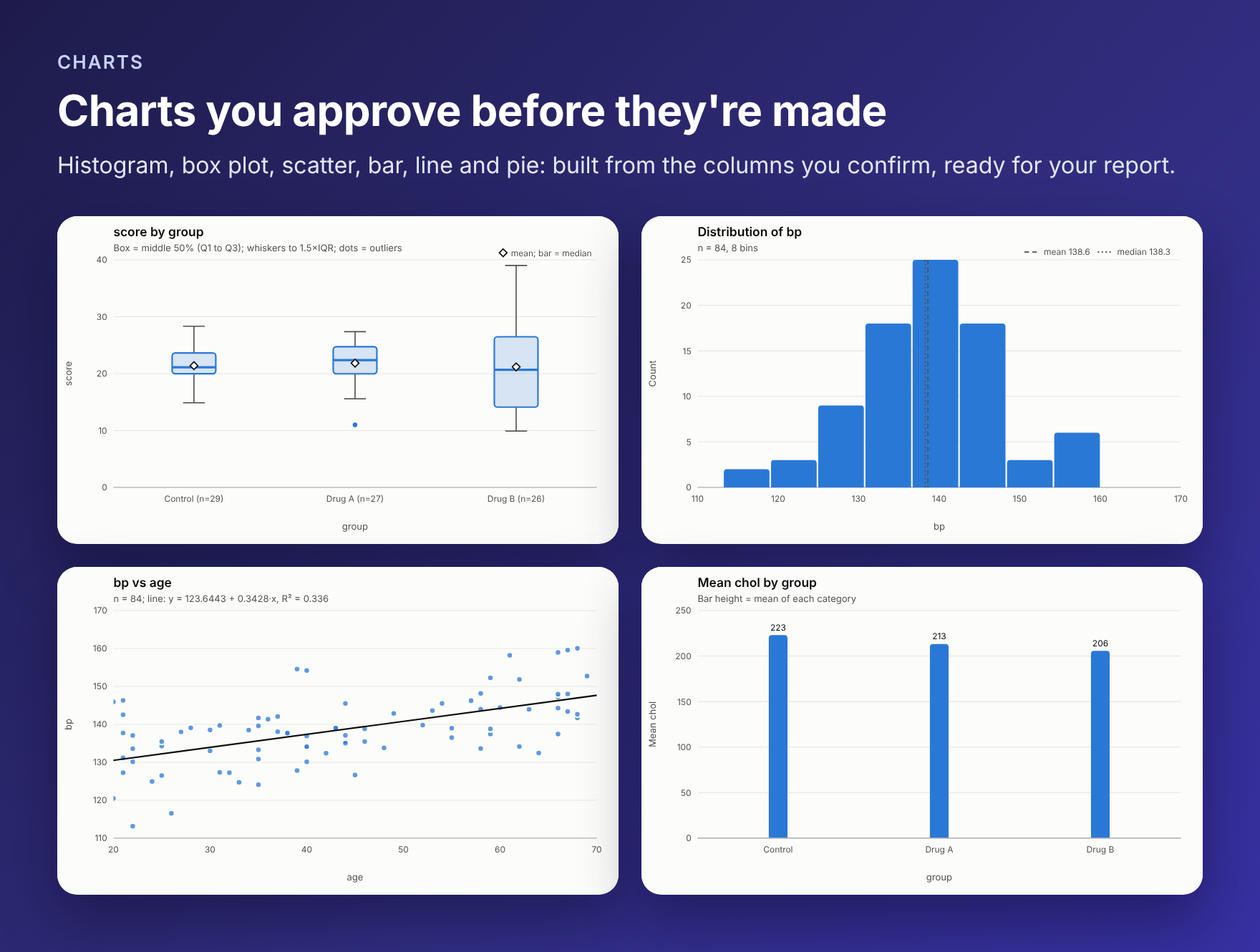
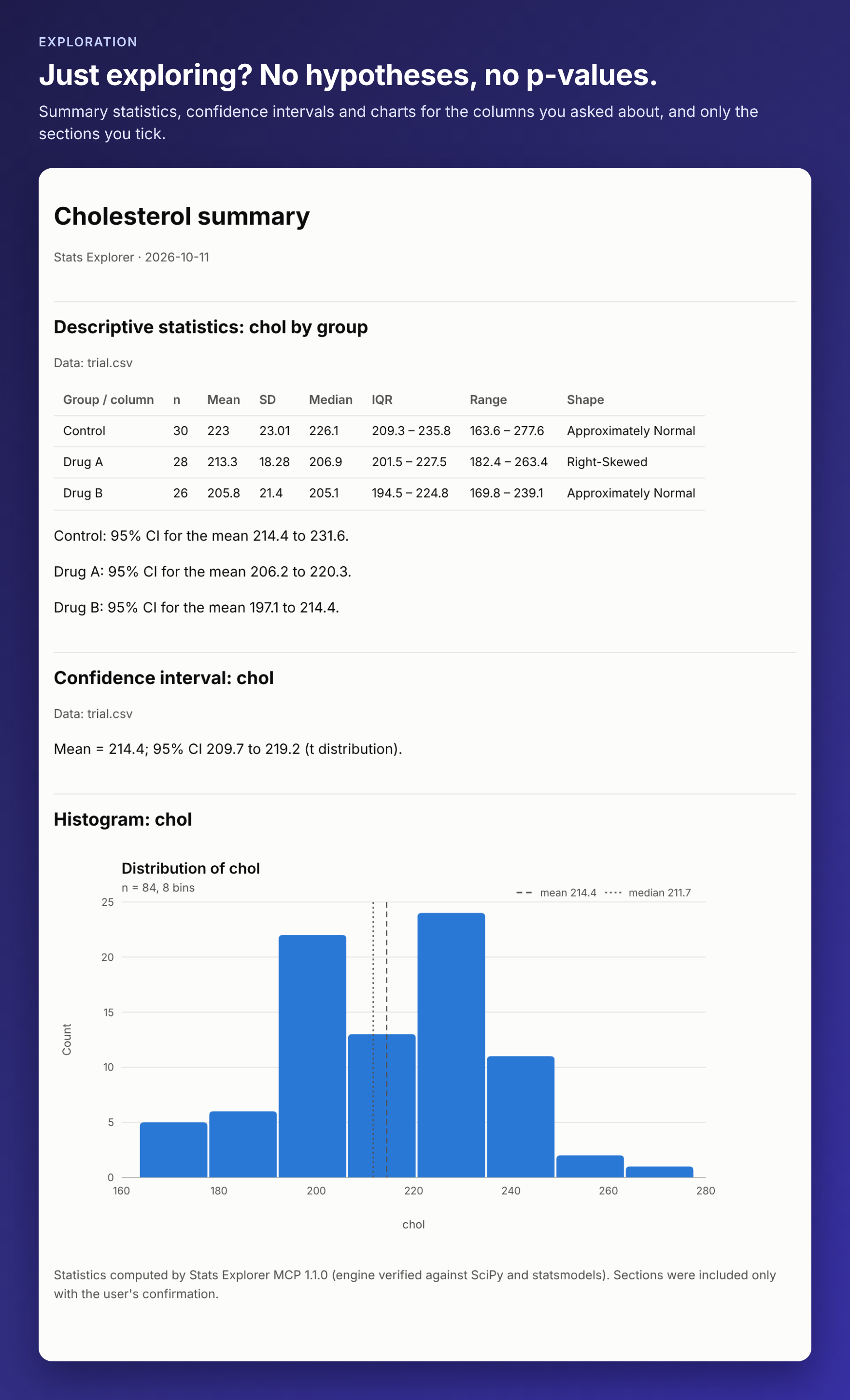
*Images show real output on a sample dataset.*
## Tools
| Tool | Purpose |
|---|---|
| `start_analysis` | Classify the request (hypothesis test or exploration) |
| `inspect_data_file` | Columns, types, missing values, categories and a preview of a data file |
| `choose_test` | Recommend the right test for a question |
| `state_hypotheses`, `check_assumptions`, `check_spread`, `power_analysis`, `run_test`, `base_rate_check`, `skip_step` | The six steps |
| `describe` | n, mean, SD, median, quartiles, range, skewness, kurtosis, shape, mean CI (optionally by group) |
| `confidence_interval` | CI for a mean (t) or a proportion (Wilson) |
| `correlation` | Pearson or Spearman r with CI and fitted line, **without** a p-value (a significance test goes through step 1) |
| `group_summary` | Totals, averages, medians, counts per category; top N (analytics) |
| `ab_test_plan` | Visitors and days needed for an A/B test, or the smallest lift a given sample can detect |
| `find_relationships` | Which columns relate most to a numeric outcome ("what drives X") |
| `create_visualization`, `build_report` | Charts and reports |
| `workflow_status` | Where the current analysis is, and the saved results |
| `large_file_plan`, `job_status`, `cancel_job`, `manage_cache` | Very large files: read all or a sample, background jobs, kept columns |
Tests available in step 1: t-test (one-sample, paired, Welch or Student), z-test (mean with known σ, proportion), one-way ANOVA (with a Tukey HSD post-hoc, plus optional Bonferroni Welch pairs), ANCOVA, MANOVA, chi-square (goodness of fit, independence), Fisher's exact, exact binomial, correlation and A/B test.
**ANOVA post-hoc (Tukey HSD).** Every one-way ANOVA with 3 or more groups includes Tukey's HSD (Tukey–Kramer for unequal group sizes), on in-memory and very large files alike: the difference, adjusted p-value and simultaneous interval for every pair, the significant pairs marked ★ ("B > A"), the best group and whether it beats all others, and a letter display (groups sharing a letter don't differ). Reports name the groups that differ.
**A/B tests (`ab_test`).** From inline numbers or a file with a variant column and an outcome column:
* `metric: "conversion"` (converted yes/no): two-proportion z-test, with Fisher's exact p when counts are small. `metric: "continuous"` (revenue, time, order value): Welch's t-test.
* Every variant against the control: absolute lift (percentage points) and relative lift, each with an interval; Cohen's h or d.
* **Sample ratio mismatch check** against the planned split (`expected_split`): a broken assignment blocks the decision.
* A/B/n: an omnibus test (chi-square, or ANOVA with Tukey HSD) and Holm-adjusted p-values (or Bonferroni / none).
* **Bayesian view:** probability each variant beats the control, probability of being best and the expected loss of shipping it (Beta-Binomial, computed by quadrature, so the numbers are reproducible).
* The minimum detectable effect of the test as run, an optional `mde` (smallest lift that matters) to judge practical significance, an optional `segment_column` breakdown with a Simpson's-paradox warning, and a plain decision.
* In the guided workflow, step 2 adds the sample ratio check and step 4 sizes power in lift terms.
The server also offers the prompts `analyze`, `hypothesis_test` and `explore_data`, which clients such as VS Code show as slash commands.
## Data files
Stats Explorer is built for tabular formats (CSV, TSV, Excel and Parquet) to run hypothesis tests or explore statistics. Files are read with the app's own import code:
- quoted fields, embedded commas and line breaks, BOMs, and tab, semicolon or pipe separators;
- missing values (blank, NA, N/A, null, #N/A, …) are skipped;
- numbers are parsed strictly (`"12 kg"` is text, not 12), while `1,234`, `$12.50` and `45%` still count as numbers;
- dates become `YYYY-MM-DD` text;
- duplicate column names are renamed rather than overwritten;
- Excel serial dates are converted;
- Parquet files compressed with Snappy, gzip, zstd, Brotli or LZ4 are all read.
There is no size limit for CSV, TSV and Parquet files; see [Large files](#large-files-gigabytes-to-terabytes).
**JSON, BSON, NDJSON and NoSQL databases** (MongoDB, CouchDB, Redis connection strings, …) are document data, not tables. For these, every tool answers with that statement and suggests exporting to CSV or Parquet first (for example `mongoexport --type=csv`). Inline rows containing nested objects or arrays get the same answer.
Files are read only from allowed folders, and symlinks that point elsewhere are refused:
1. `STATS_EXPLORER_ROOTS`, if set (separated by `:` on macOS/Linux, `;` on Windows), otherwise
2. the workspace roots your MCP client reports, otherwise
3. the server's working directory.
## Large files (gigabytes to terabytes)
Files up to 512 MB are loaded into compact column storage (a 190 MB, 1,000,000-row CSV loads in about 8 seconds using under 0.5 GB of memory). Larger CSV, TSV and Parquet files have **no size limit**. They are streamed instead, in a single pass that every tool needs:
- **One pass, fixed memory.** Each tool reads only the columns it uses, in parallel pieces (one per CPU core), and keeps running totals: counts, means, variances, sums of squares and cross-products. Memory does not grow with the file: about 0.5 GB with one reader, plus about 0.2 GB per extra parallel reader. A 2.5 GB, 13-million-row CSV took 45 seconds on 1 core and 22 seconds on 2; the same data as a 340 MB Parquet file took 9 seconds.
- **Exact where it can be.** t-tests, z-tests, ANOVA (with pairwise comparisons), ANCOVA, MANOVA, chi-square, Fisher's exact, Pearson correlation, means, standard deviations, skewness, kurtosis and confidence intervals are exact on every row. Groups of up to 100,000 values keep their actual values, so everything about them is exact, medians included.
- **Estimated where it must be, and labelled.** Medians, quartiles, histogram bars and outlier counts of larger groups come from a KLL quantile sketch (rank error about 0.03% in testing). Spearman's ρ comes from a random sample of 100,000 pairs, and `inspect_data_file`'s count of different values in a column, above 10,000, from HyperLogLog (within about 2%). Results that contain estimates list them in `large_file.approximate` and in their warnings.
- **Asked first.** If reading the whole file would take more than 2 minutes, you are asked whether to read every row (exact) or a quick sample of about 1% of the rows in blocks spread across the file (fast, approximate). Clients with forms show the choice as a form; otherwise the assistant asks you and calls `large_file_plan`.
- **Runs in the background.** A read that takes longer than 40 seconds continues as a background job; the tool answers `STILL RUNNING` with a `job_id`, and `job_status` returns the result when it's ready (with progress and time left meanwhile). `cancel_job` stops it. Clients that support MCP progress notifications see a progress bar.
- **Read once.** The workflow steps share one pass: step 1 reads the file, and steps 2 to 5 reuse the totals. With your consent, the columns read can be kept on disk (8 bytes per number, 4 per text value), so later questions on them take seconds. `manage_cache` lists or deletes them.
- **Same rules as small files.** The streaming reader applies the app's import rules exactly. It was checked against the in-memory reader on 24 edge-case files and 300 random ones, and on 228 tool calls (tests, charts and full six-step workflows) across CSV and Parquet files, split into as many as 3 parallel pieces. Line breaks inside quoted values are handled: if a split point falls inside one, the file is re-read in one piece.
Excel files are always read whole (up to about 1.9 GB); export very large workbooks to CSV or Parquet.
## Configuration
| Variable | Default | Effect |
|---|---|---|
| `STATS_EXPLORER_GUIDED` | `on` | `off` exposes the individual test tools (`t_test`, `anova`, …) directly, without `start_analysis` and the six steps |
| `STATS_EXPLORER_CONFIRM_SELECTIONS` | `on` | `off` runs with the agent's column, chart and report choices without asking you |
| `STATS_EXPLORER_ROOTS` | workspace | Folders data files may be read from (and reports written to) |
| `STATS_EXPLORER_STREAM_MB` | `512` | CSV/TSV/Parquet files above this size are streamed (Parquet: by rows × columns) |
| `STATS_EXPLORER_WORKERS` | cores − 1 | Parallel readers for large files (at most 16 by default) |
| `STATS_EXPLORER_ASK_SECONDS` | `120` | Ask before a full read expected to take longer than this |
| `STATS_EXPLORER_BACKGROUND_SECONDS` | `40` | Continue as a background job after this long |
| `STATS_EXPLORER_SAMPLE_PERCENT` | `1` | Size of the quick sample |
| `STATS_EXPLORER_CACHE` | `ask` | Keep columns read from large files: `ask`, `on` or `off` |
| `STATS_EXPLORER_CACHE_DIR` | system temp | Where kept columns go |
| `STATS_EXPLORER_MAX_FILE_MB` | no limit | Refuse files larger than this |
| `STATS_EXPLORER_CONFIRM_VIA` | `auto` | `chat` asks for confirmations in the conversation even if the client claims to support forms (recommended for Claude Code) |
| `STATS_EXPLORER_HIDE_LINK` | `0` | `1` removes the one-line app link at the end of results |
| `STATS_EXPLORER_APP_URL` | | Changes that link |
| `STATS_EXPLORER_JEV` | `off` | Jev checks: `cooperate`, `enforce` or `orchestrated`. See [docs/JEV.md](docs/JEV.md) for its other settings |
## Accuracy
`test/reference/generate.py` computes expected values with SciPy and statsmodels for 43 cases. They cover every test and alternative, Welch and Student t-tests, p-values below 1e-30, ties in Spearman, ANCOVA (Type II SS), MANOVA with 2 and 3 outcomes, and file inputs with missing values. `test/reference/guided.json` adds the ANCOVA slope-equality F test and the step-4 power calculations (two-sample, one-sample, proportion and correlation), checked against statsmodels. `test/reference/abtest.py` checks Tukey HSD (studentized range, adjusted p-values, intervals and rejections against `scipy.stats.tukey_hsd` and statsmodels' `pairwise_tukeyhsd`) and every A/B number: z, p and one-sided p (`proportions_ztest`), lift intervals (`confint_proportions_2indep`), Wilson intervals, Fisher's exact, chi-square, Holm/Bonferroni (`multipletests`), the sample ratio check, Welch t-tests, the Bayesian probabilities and expected loss (numerical integration in SciPy) and sample sizes (`NormalIndPower`). `npm test` runs everything through real MCP clients over stdio (with and without form support) and requires agreement to a relative error of 1e-6.
Known approximations, also stated in the results:
- power uses the normal approximation (within about 0.01 of exact power, matching statsmodels' `NormalIndPower`);
- Spearman p-values use the t approximation (as SciPy does);
- chi-square tests use no continuity correction;
- on very large files, medians, quartiles, histogram bars, outlier counts and Spearman's ρ are estimated (see Large files).
## Limits worth knowing
- Confirmation forms appear only in clients that support MCP elicitation. Elsewhere the token flow relies on the agent relaying the proposal to you, as the server instructs. A token can't be guessed, and it can't be reused for a different selection.
- Which mode a request needs is decided by the agent, guided by the server's instructions. If it picks the wrong one, say so; it can start a new analysis.
## Development
```bash
npm install
npm test # reference, unit, guided-workflow and large-file tests
STATS_EXPLORER_STREAM_MB=0 npm test # the same, every file through the streaming path
STATS_EXPLORER_STREAM_MB=0 STATS_EXPLORER_EXACT_CAP=3 npm test # ... using only one-pass summaries
npm run inspect # open the MCP Inspector
npm run reference # regenerate reference cases (needs Python + scipy + statsmodels)
npm run reference:ab # regenerate the Tukey / A/B reference values and test/fixtures/experiment.csv
npm run jev:eval -- --dry-run # measure Jev on labeled cases (drop --dry-run and set TYPESAFE_API_KEY to call Jev)
cd vscode-extension && npm install && npm test && npm run package # build the .vsix
```
`src/engine/` is copied from the Stats Explorer app by `npm run sync-engine -- <path-to-app>`: the statistics, the data import module and the Learn tab's workflow text. Fix them in the app and re-sync, so the two never drift.
## License
MIT
TDQS
Scored across 23 tools
The six-step hypothesis workflow is explicitly numbered, and the tool descriptions draw deliberate lines (e.g. correlation vs. correlation hypothesis test, describe vs. group_summary). However, start_analysis and choose_test both claim to be "call this first," and describe/group_summary/confidence_interval overlap on summary statistics, so a few boundaries need careful reading.
All names are consistently snake_case and readable, but conventions mix verbs (run_test, start_analysis, find_relationships) with bare nouns (describe, correlation, workflow_status, skip_step). The pattern is predictable enough to navigate, just not uniform verb_noun.
23 tools is on the heavy side for a stats assistant; several workflow steps (check_assumptions/check_spread, skip_step, workflow_status) are granular enough that they could be folded into parameters or a single status tool. Each is individually justified by the guided methodology, so nothing is pure filler, but the surface is larger than necessary.
Coverage of the analysis lifecycle is strong: inspection, descriptives, assumption checks, power, tests, planning, visualization, reporting, plus caching and background-job management. Gaps exist around row filtering/derived columns and listing or exporting raw datasets, which limit deeper exploratory work but are workable around.