
ladybug-tools-mcp
# Ladybug Tools MCP
[English](README.md) | [简体中文](README.zh-CN.md)
## Overview
Ladybug Tools MCP is an MCP service built with FastMCP for agent applications.
Through natural-language conversation, users can use the core capabilities of Ladybug Tools for common workflows including modeling, editing, querying, simulation, and data visualization, and can do so without depending on a CAD interface.
## Contents
- [Overview](#overview)
- [User Groups](#user-groups)
- [Core Concepts](#core-concepts)
- [Quick Start](#quick-start)
- [Web View Mode](#web-view-mode)
- [First Use](#first-use)
- [Workflow Examples](#workflow-examples)
- [How to Contribute](#how-to-contribute)
- [Todo](#todo)
- [Acknowledgements](#acknowledgements)
- [Open Source License](#open-source-license)
- [Contact](#contact)
## User Groups
The original purpose of Ladybug Tools MCP is to turn design or technical concepts into concrete outputs quickly.
For example, when a professor explains “What is a Trombe wall?” in a building technology course, a student can open Codex voice mode during the lecture, and by the time the explanation is finished, Codex can already transform the concept into inspectable models and files, together with graphical workflow output.
For that reason, the main target users are students and teachers, followed by building professionals and senior engineers.
They may want an agent to take over some tedious work, while still keeping the final choice for most tasks in their own hands.
For users who do not know much about 3D software workflows, Ladybug Tools MCP can also serve as a way to experience the Ladybug Tools ecosystem.
## Core Concepts
Ladybug Tools MCP is different from Ladybug Tools as used inside Rhino / Grasshopper.
To use it well, it helps to understand several core concepts of this project, including MCP, agents, skills, tokens, Garden, and Flowerpot.
### Model Context Protocol
[Model Context Protocol (MCP)](https://modelcontextprotocol.io/docs/getting-started/intro) is an open standard used to connect external systems to agent applications.
For most users, Ladybug Tools provides a user interface for human interaction inside Rhino / Grasshopper.
Ladybug Tools MCP, by contrast, is a toolbox that an agent can call through natural language.
It packages the core capabilities of the Ladybug Tools Core SDK into a standardized set of tools and usage guidance, and exposes them through MCP so that agent applications can call them.
### Agent
An [Agent](https://openai.github.io/openai-agents-python/agents/) is a large language model with instructions and tools.
Ladybug Tools MCP is usually called as a toolset from inside an agent application.
### Agent Skills
[Skills](https://agentskills.io/home) are a practical way to turn prompt engineering into reusable operating guidance.
By summarizing domain knowledge and workflows in Markdown, they provide an “instruction manual” that helps an agent follow your intent more reliably.
### Tokens
Tokens are the unit used to calculate cost in agent applications.
Models differ in performance, speed, and token pricing, but I still recommend using the best and most cost-effective model you can reasonably access if you want a good Ladybug Tools MCP experience.
Long modeling and simulation workflows benefit from a large context window.
Usage and cost depend on the model, client, and task.
### Garden
A Garden is the local path used to store and manage everything generated by Ladybug Tools MCP. The main outputs inside it are tracked through Git.
Because agent applications can easily do things beyond expectation in real work, a large part of this project has been about constraining the agent’s attention inside the Garden.
This has been one of the main successful lessons from several months of development practice.
### Flowerpot
Flowerpot is the intermediary layer used by Ladybug Tools MCP to exchange information with other non-agent interfaces.
For example, the Flowerpot components we developed for Ladybug Tools mainly act as relay plugins inside the ecosystem, with the goal of helping users complete the necessary manual work.
Because we want users to keep as much attention as possible on the interaction with the agent, instead of returning to manual production steps, we have not tried to build separate platform UIs for Ladybug Tools MCP. Instead, we recommend that you make good use of existing Ladybug Tools infrastructure and then pass data and information through Flowerpot.
## Quick Start
Basic modeling needs [uv](https://docs.astral.sh/uv/getting-started/installation/) and an MCP client. uv prepares Python 3.12 and the dependencies automatically; no repository checkout is required. Git enables Garden version history, but Garden creation also works without it.
### Installation wizard
`1.2.3` is the pinned release version. Install it from PyPI with the command below. For local validation, the same wizard accepts a wheel with `--from <absolute-wheel-path>`.
Version `1.2.3` defaults new installations to `~/.ladybug-tools-mcp/tools` and `~/Gardens`, checks Rhino 8's usual Windows location before its installation record, and offers uninstall from an existing installation's wizard. Saved paths are retained on upgrade.
```text
uvx --isolated --python 3.12 --prerelease allow lbt-mcp@1.2.3 install
```
The same terminal wizard runs on Windows, Linux, and macOS. Choose runtime and Garden directories, automatic Codex configuration and local Skills, and optional Flowerpot / Grasshopper integration. Restart the client after installation.
Installation is per user. Gardens default to `~/Gardens`, outside the runtime and uv cache. Unrelated MCP settings are retained; conflicting settings or edited assets stop installation with instructions. The first download includes scientific dependencies and can take several minutes. uv automatically builds the current pure-Python Luigi dependency; no compiler is needed.
To install the runtime and print settings without changing client configuration or local Skills:
```text
uvx --isolated --python 3.12 --prerelease allow lbt-mcp@1.2.3 install --generate-config
```
For a local wheel, use the wheel for both bootstrap and installation; the built file is named like `lbt_mcp-1.2.3-py3-none-any.whl`:
```text
uvx --isolated --python 3.12 --prerelease allow --from <absolute-wheel-path> lbt-mcp install --wheel <absolute-wheel-path>
```
The generated output is a Codex TOML block containing the installed Python path, the Garden root, and the installation record. Copy that block into `~/.codex/config.toml` when configuring Codex manually.
The two environment values use the current user's home directory on the target system. Typical defaults are:
| System | `LADYBUG_TOOLS_GARDENS_ROOT` | `LADYBUG_TOOLS_MCP_INSTALLATION` |
| --- | --- | --- |
| Windows | `%USERPROFILE%\Gardens` | `%USERPROFILE%\.ladybug-tools-mcp\installation.json` |
| macOS | `/Users/<user>/Gardens` | `/Users/<user>/.ladybug-tools-mcp/installation.json` |
| Linux | `/home/<user>/Gardens` | `/home/<user>/.ladybug-tools-mcp/installation.json` |
The installer writes resolved absolute paths, including redirected home directories; MCP clients do not need to expand `%USERPROFILE%`, `$HOME`, or `~`. Choose the Garden directory in the wizard, or select both paths explicitly:
```text
uvx --isolated --python 3.12 --prerelease allow lbt-mcp@1.2.3 install --garden-dir "<absolute-garden-directory>" --state "<absolute-installation.json>"
```
An explicit Garden choice overrides the saved installation; otherwise the saved choice is retained before using the default. `--state` overrides `LADYBUG_TOOLS_MCP_INSTALLATION`, which overrides the default record location. Keep using the same `--state` for later upgrades/status/uninstall. When Flowerpot uses a custom record, Rhino must inherit `LADYBUG_TOOLS_MCP_INSTALLATION` pointing to that same file.
Other MCP clients can use the same installed Python with standard stdio configuration:
```json
{
"mcpServers": {
"lbt-mcp": {
"command": "<installed-python>",
"args": ["-I", "-m", "ladybug_tools_mcp.server"],
"env": {
"LADYBUG_TOOLS_GARDENS_ROOT": "<garden-directory>",
"LADYBUG_TOOLS_MCP_INSTALLATION": "<installation-record>"
}
}
}
}
```
OpenCode2 2.0.12 uses this local server shape:
```json
{
"$schema": "https://opencode.ai/config.json",
"skills": ["<installed-skills-directory>"],
"mcp": {
"lbt-mcp": {
"type": "local",
"command": ["<installed-python>", "-I", "-m", "ladybug_tools_mcp.server"],
"environment": {
"LADYBUG_TOOLS_GARDENS_ROOT": "<garden-directory>",
"LADYBUG_TOOLS_MCP_INSTALLATION": "<installation-record>"
},
"timeout": 120000
}
}
}
```
For upgrades, close clients using MCP and Rhino, then run the chosen new version's installer. Versions stay fixed until you explicitly upgrade. Uninstall keeps Gardens and user-edited files:
```text
uvx --isolated --python 3.12 --prerelease allow lbt-mcp@1.2.3 uninstall
```
### Client presets
Version `1.2.2` adds selectable presets for Codex, Claude Code, Gemini CLI, OpenCode, OpenCode2, Hermes Agent, OpenClaw, ZCode, Kimi Code, Devin, Qoder, CodeBuddy, WorkBuddy, Cline, Cursor and VS Code. List the exact preset IDs without changing client settings:
Version `1.2.3` also includes the `deepseek-harness` preset. It exports a `cordis.patch.yml` insert row for the official `@deepseek-ai/dsh-mcp-client`; merge it into the active Harness home or profile patch.
```text
uvx --isolated --python 3.12 --prerelease allow lbt-mcp@1.2.3 clients
```
Choose multiple clients in the terminal wizard, or repeat `--client`. For example:
```text
uvx --isolated --python 3.12 --prerelease allow lbt-mcp@1.2.3 install --client opencode2 --client hermes --client workbuddy --generate-config --output-dir "<preset-directory>"
```
`--client all` selects every preset; `--client none` installs only the runtime and any selected Flowerpot integration. `--generate-config` still prepares the persistent runtime. Exported files use its absolute Python path and the selected Garden and installation-record paths. Without `--output-dir`, generated fragments print in the terminal. With it, each client gets a separate file and `lbt-mcp-README.md` explains where to merge/import it and where the bundled Skill lives. Existing differing export files require `--replace` and receive backups.
Codex retains automatic configuration and local Skill installation. The other first-batch presets require import into the client; generating a preset does not confirm that client is installed or connected. OpenCode and OpenCode2 are separate choices; the `opencode2` preset targets the tested 2.0.12 format, while `opencode2-native` is for clients verified against the native V2 schema. Devin Cloud gets a guide instead of local paths. Unselected clients and manually imported settings remain unchanged; exported files remain after uninstall.
### Flowerpot and platform scope
Flowerpot is optional. On Windows with Rhino 8, select it in the wizard, restart Grasshopper, then search for `FP` or drag the seven components from the `Flowerpot` category. Install Rhino, Ladybug Tools for Grasshopper, and Ironbug separately as required by the workflow. Existing source components retain their development-path fallback.
Version `1.2.2` adds **FP Dragonfly Link**: seven components in a single Flowerpot subcategory, internally grouped into Garden, models, properties and HVAC using LBT-style exposure groups. Use FP Garden List with Grasshopper's List Item to choose an existing Garden; native Ladybug Tools components handle weather, data collections and model operations. See [the component guide](src/grasshopper_components/README.md).
Windows x86_64 is the primary native acceptance platform. Linux x86_64 and macOS Apple Silicon run the same basic MCP checks in CI. Flowerpot and Fairyfly/THERM currently have Windows boundaries; external engines are checked per workflow. See the [release notes](https://github.com/LoftyTao/ladybug-tools-mcp/releases) and [distribution workflow](https://github.com/LoftyTao/ladybug-tools-mcp/actions/workflows/distribution.yml) for published release evidence.
### Simulation runtimes
Simulation tools remain available; prepare external engines only for the workflows that need them. The existing runtime matrix is retained:
Ladybug Tools MCP | Python | Radiance | OpenStudio SDK | EnergyPlus | OpenStudio App | URBANopt CLI | THERM |
| --- | --- | --- | --- | --- | --- | --- | --- |
| `v1.2.1` | 3.12 | [5.4 (2023-11-05)](https://github.com/LBNL-ETA/Radiance/releases/tag/rad5R4) | [3.11.0](https://github.com/NatLabRockies/OpenStudio/releases/tag/v3.11.0) | 25.1.0 | [1.11.1](https://github.com/openstudiocoalition/OpenStudioApplication/releases/tag/v1.11.1) | [1.4.0](https://github.com/urbanopt/urbanopt-cli/releases/tag/v1.4.0.rc1) | [8.1.30 beta](https://windows-downloads.lbl.gov/software/therm/THERM8_1_30_SetupFull.exe) |
Use `LB_get_runtime_config` to check installed engines and obtain setup guidance for any missing runtime.
### Source development
A source environment is needed when changing the project:
```text
git clone https://github.com/LoftyTao/ladybug-tools-mcp.git
cd ladybug-tools-mcp
uv venv --python 3.12
uv pip install --prerelease allow -e .
```
## Web View Mode
Web View Mode provides a local vtk.js preview for live modeling sessions.
It lets a host application render the current Garden preview through vtk.js while an agent creates or edits Honeybee, Dragonfly, Fairyfly, or VisualizationSet outputs.
The viewer runs locally at `127.0.0.1`. Open the returned URL in your client’s browser or sidebar to follow changes to the current Garden.
### Enable
Ask the agent to enable Web View Mode before modeling or editing:
```text
Enable Web View Mode for this Garden, then create or edit the Honeybee model.
```
Through MCP Code Mode, the agent calls:
```text
GD_web_view_start_mode(garden_root, name="...")
```
Starting the mode creates a Garden-local session and returns its local `viewer.url`, for example:
```text
http://127.0.0.1:3127
```
Open the returned `viewer.url` to display the preview.
### Close
Ask the agent to stop Web View Mode, or call:
```text
GD_web_view_stop_mode(garden_root)
```
This disables future automatic previews and stops the matching local fallback viewer if one was started.
Preview history under `tmp/web_view/` is preserved.
### Difference From Ordinary Mode
In ordinary mode, modeling tools write Garden files and return compact targets, summaries, and receipts.
No viewer server is started, and no automatic preview file is exported after every edit.
In Web View Mode, significant Honeybee, Dragonfly, Fairyfly, and VisualizationSet operations automatically export session-managed `.vtkjs` previews under:
```text
<garden>/tmp/web_view/previews/
```
The viewer polls Garden session state and reloads the latest `.vtkjs` package without a manual refresh.
These automatic previews are local session state, not formal user-requested Garden artifacts.
If you need a durable reusable artifact, still ask the agent to export a VisualizationSet with `LB_set_to_vtkjs`.
The fallback viewer intentionally uses an explicit local port.
If the requested port is already occupied, startup fails clearly instead of silently choosing another port or leaving the browser pointed at an older Garden.
## First Use
After the MCP server is configured in your agent application, start a new thread and ask it to use Ladybug Tools MCP. In Codex, copy the block printed by `install --generate-config` into `~/.codex/config.toml`, restart Codex, then describe the Garden or modeling task directly.
If your host supports skills, invoke the `ladybug-tools-mcp-use` skill with `/`, then input `HI , Ladybug Tools !` to activate the onboarding flow for the three main usage intents that we provide.
After the onboarding is complete, you can start building according to your intent.
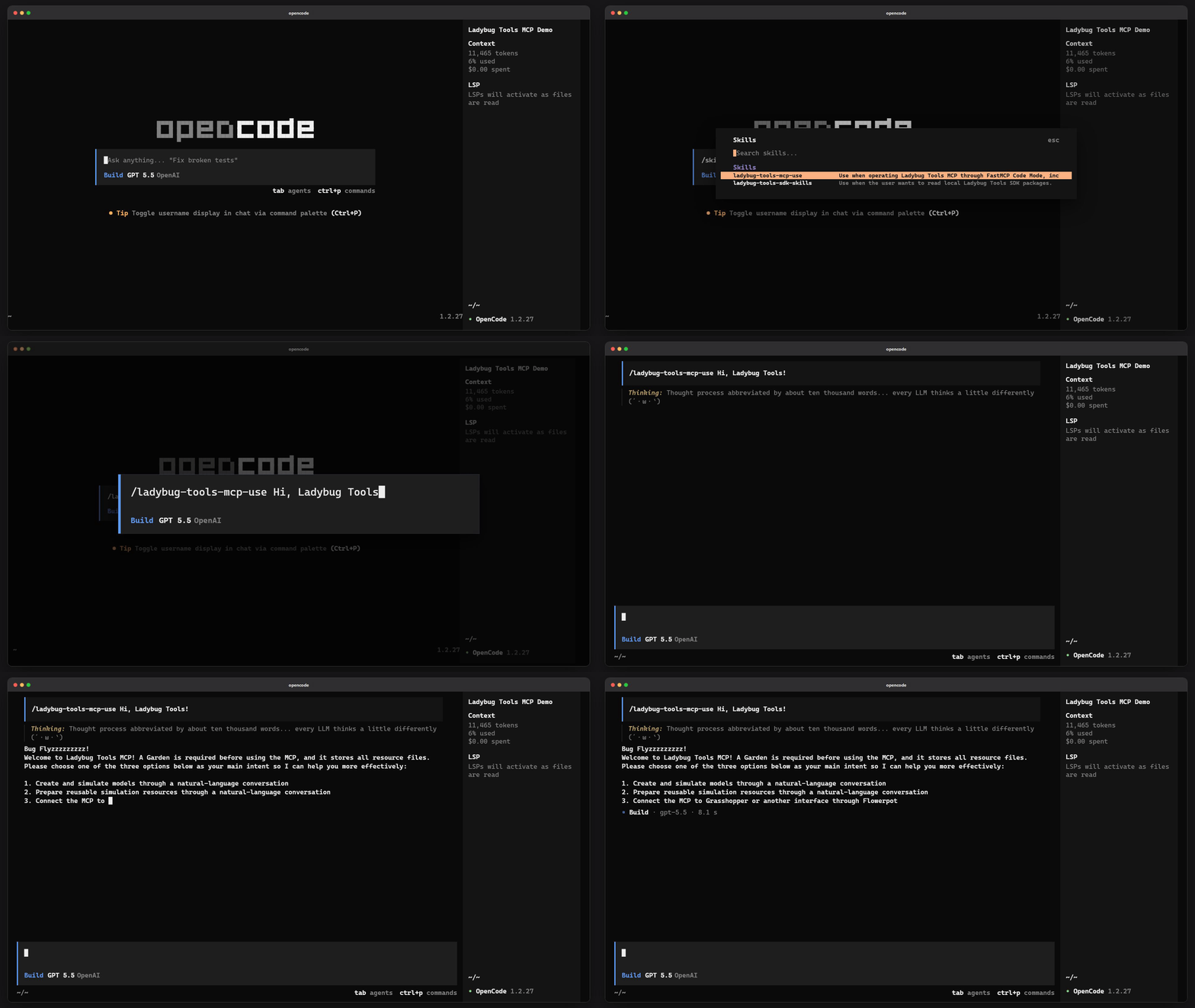
In general, the agent application will output the onboarding template according to the guidance in our skills, but the actual result still depends on the host application’s instructions and the base capability of the language model.
I strongly recommend that you use the best model available within your means in order to use our tools more effectively.
## Workflow Examples
In our cross-testing set, we have successfully made agent applications complete the following kinds of work.
The stability and token cost of these workflows have become relatively steady, and I believe they are a good place to begin learning.
### Build a small model from a blank project
- Create a new Garden.
- Create a Honeybee Model.
- Create one or two Rooms.
- Add windows, doors, and shades to exterior walls.
- Check whether the model has missing faces, broken adjacencies, or boundary-condition issues.
### Continue editing an existing model
- Find the specified room, wall, window, or door.
- Modify the location, dimensions, and construction of windows.
- Add low-U-value windows, heavy wall constructions, occupant loads, and equipment loads.
- Assign program types, setpoints, and a simple HVAC system to rooms.
- Re-check the model after editing.
### Building performance simulation workflow
- Search for and download the EPW weather file for a specified city.
- Save the weather file into the Garden.
- Start an Energy simulation.
- Read EUI, error information, and some hourly results.
- Export the results as monthly charts, hourly charts, or HTML pages.
### Prepare reusable Energy resources
- Create schedules, program types, construction sets, setpoints, and HVAC templates.
- Save them into the Garden Properties Library.
- Search for and reuse these resources in later models.
- For incomplete sources, record only what can be determined and do not invent material layers or window parameters.
### Author custom HVAC with Ironbug
- Create Ironbug DetailedHVAC objects for coils, fans, pumps, boilers, chillers, terminals, plant loops, air loops, setpoint managers, and output requests.
- Assemble source-backed custom HVAC systems such as PTAC, PTHP, FCU, DOAS, VAV, VRF, boiler reheat, chiller plant, and condenser-water loop cases.
- Link Ironbug ThermalZone objects to Honeybee or Dragonfly rooms, then apply the DetailedHVAC model before running the standard Energy simulation workflow.
- Use the Ironbug workflow when an HVAC Template is too coarse and you need object-level loop topology, child components, and OpenStudio / EnergyPlus-facing equipment intent.
### Do basic Radiance work
- Create skies, WEA files, sky matrices, sensor grids, and views.
- Assign Radiance modifiers to model objects.
- Start grid or view simulations.
- Read HDR, falsecolor, GIF, or annual daylight metrics.
- Convert the results into inspectable visualization sets.
### Connect Grasshopper and the agent
- Use Flowerpot components in Grasshopper to hand over the current model or project context.
- Let the agent continue modeling, editing, saving, and validating in the Garden.
- Let the Grasshopper side continue to handle manual selection, preview, and the necessary manual operations.
- This is suitable for a workflow where geometry is handled in the interface and organization plus long-chain tool use is handled by the agent.
### Preserve and restore project state
- Create a Garden Version before important operations.
- Try modifying the model or simulation resources.
- If the result is unsatisfactory, restore to the earlier version.
- After restoration, continue exporting HTML / SVG and other inspection outputs.
## How to Contribute
Because this project is built to a very large extent through agent-assisted development, I do not reject contributions made with agent applications.
However, there are several principles that need to be followed so that the project does not grow in an uncontrolled way.
- [Ladybug Tools Core SDK](https://discourse.ladybug.tools/pub/ladybug-tools-core-sdk-documentation) is the core of all MCP tools in this project.
If the tool you want to add is not within the scope of the SDK, then this project should not be the place for the follow-up implementation.
In that case, it is more appropriate to contribute directly to the Ladybug Tools project itself.
- All new tool development should first go through an open GitHub Issue discussion, and the discussion content and development plan should be led by humans.
- Only write code that solves the current problem.
If an AI code review points out issues that you have not actually encountered in normal usage scenarios, then we should not handle those issues.
- Better to have too few tools than too many; do not add entities unless they are truly necessary.
- If these principles can be followed, I would be very happy for you to join this community-driven maintainer group.
## Todo
These are the main directions for later development.
Before there is a broad user signal telling us otherwise, the project will continue to expand in these directions.
- [x] Dragonfly Model creation and editing tools
- [x] Add URBANopt support
- [ ] More Visualization Set pre-processing and post-processing support
- [ ] Expand retained Ironbug Energy acceptance cases for more custom HVAC topologies
- [ ] Web View and Model Editor tools for direct agent collaboration
- [ ] A demo mode that can visualize all processes and steps
- [ ] Cloud service support
- [ ] ...
## Acknowledgements
Special thanks to the [Ladybug Tools community](https://discourse.ladybug.tools/) and the [Ladybug Tools team](https://www.ladybug.tools/about.html#team):
- **Mostapha** [raised the priority of Pydantic compatibility](https://discourse.ladybug.tools/t/upgrade-to-pydantic-2-0/36437/9), which greatly reduced the development difficulty of this project.
- **Chris** helped make the `.svg` format of [Visualization Set](https://discourse.ladybug.tools/t/bug-of-dumpvisset-or-incomplete-known-issues/39972) the main model visualization scheme for the MCP workflow, which made it possible for us to fully inspect built content without relying on a CAD interface.
Beyond that, the implementation core of this project remains the [Ladybug Tools Core SDK](https://discourse.ladybug.tools/pub/ladybug-tools-core-sdk-documentation), which is the result of many years of development by the Ladybug Tools team.
## Open Source License
Ladybug Tools MCP is released under the GNU General Public License Version 3 (GPL v3), consistent with the open source license used by the Ladybug Tools project.
## Contact
You can contact me through the following methods:
- Email: `loftytao@foxmail.com`
- WeChat: `LoftyTao`
If someone can offer some Codex or Claude Code tokens, or even a subscription plan, that would be even better.
I would really appreciate that kind of support.
TDQS
Scored across 3 tools
Each tool has a clearly distinct role: search discovers relevant tools, get_schema provides parameter details, and execute runs tool calls. There is no meaningful overlap or ambiguity between the three.
Names are short, imperative, and readable: search, get_schema, execute. The only minor inconsistency is that get_schema uses a verb_noun form while search and execute are bare verbs, but the pattern is still predictable.
Three tools is a well-scoped set for a discover-schema-execute workflow. Each tool earns its place and the count feels intentional rather than thin.
The set covers the full lifecycle of finding, understanding, and invoking tools, which is complete for its apparent purpose. A minor gap is the lack of an explicit list-all-tools operation, though search likely covers discovery adequately.