
PiKVM MCP Server
# PiKVM MCP Server
[](https://sonarcloud.io/summary/new_code?id=kultivator-consulting_pikvm_mcp_server)
[](https://lobehub.com/mcp/kultivatorconsulting-pikvm_mcp_server)
Give AI agents hands. This MCP server connects Claude Code (or any MCP client) directly to a [PiKVM](https://pikvm.org/) device, giving AI full keyboard, mouse, and screen access to a physical machine -- no browser automation, no virtual desktops, no emulators.
Point it at real hardware. Let the AI see the screen, type commands, click buttons, and navigate GUIs on a machine it could never otherwise touch.
<p align="center">
<img src="assets/simple_setup.jpg" alt="Raspberry Pi 5 connected to a PiKVM V4 Plus" width="600">
<br>
<em>A Raspberry Pi 5 controlled via PiKVM V4 Plus -- the AI's physical interface to the real world.</em>
</p>
### Automatic Mouse Calibration
IP-KVM devices translate mouse coordinates through multiple layers — USB HID emulation, host-side input drivers, display scaling — each introducing positional error. Existing KVM products either ignore this (requiring manual correction) or offer limited auto-sync that only detects cursor acceleration in a fixed corner region.
This MCP server takes a different approach. The `pikvm_auto_calibrate` tool uses a vision-based algorithm that:
1. **Moves the cursor** a known distance across multiple randomized screen positions
2. **Diffs screenshot pairs** to isolate the cursor via connected-component analysis
3. **Computes correction factors** from detected vs commanded movement using median aggregation
4. **Self-verifies** by moving to target positions and confirming the cursor lands within 20px
The entire process runs in ~30-60 seconds with no human intervention. Noisy screens (tooltips, animations, dynamic content) are handled through multi-round sampling, ratio divergence filtering, and outlier-resistant statistics — the algorithm discards bad data and still converges on accurate factors.
This is the first IP-KVM tooling — commercial or open source — to implement fully automated mouse coordinate calibration via computer vision. It is what makes precise AI-driven mouse control over a network KVM practical.
### See it in action
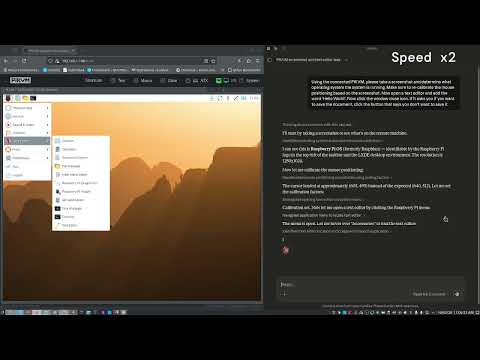
The video below shows Claude Code using this MCP server to autonomously interact with a Raspberry Pi desktop: taking a screenshot to identify the OS, opening a text editor from the menu, typing text, and closing the application -- all through the PiKVM hardware interface.
[](https://youtu.be/VYE8O1gAs7s)
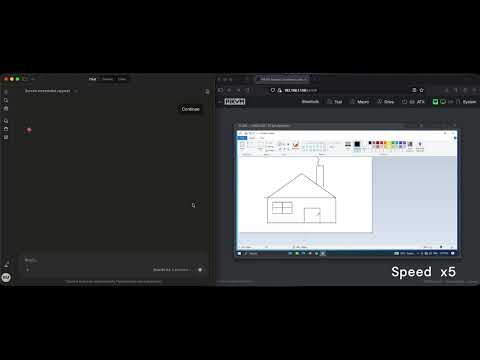
This next demonstration shows Claude, connected via the PiKVM MCP server, responding to a natural language prompt to auto-calibrate its mouse coordinate scaling before performing a series of precision mouse tasks on a remote machine. The session concludes with Claude autonomously drawing a house in MS Paint — a simple but effective showcase of accurate, AI-driven input control over an isolated system.
[](https://youtu.be/kNj8TJD6odo)
## Features
- **Automatic mouse calibration** — Vision-based cursor detection computes coordinate correction factors with no manual measurement. The first fully automated calibration for IP-KVM.
- **Screenshot capture** — Get current screen as JPEG image
- **Text typing** — Type text with proper special character handling via keymaps
- **Keyboard control** — Send individual keys or key combinations (e.g., Ctrl+Alt+Delete)
- **Mouse control** — Move, click, and scroll with calibrated coordinate correction
## Installation
```bash
npm install
npm run build
```
## Configuration
Copy `.env.example` to `.env` and configure:
```bash
cp .env.example .env
```
Edit `.env`:
```
PIKVM_HOST=https://<your-pikvm-ip>
PIKVM_USERNAME=admin
PIKVM_PASSWORD=your_password
PIKVM_VERIFY_SSL=false
PIKVM_DEFAULT_KEYMAP=en-us
```
## Usage with Claude Code
> **Requires Node.js 18+.** This server uses ES modules. If `node --version` shows an older version, replace `"command": "node"` with the full path to a compatible binary (e.g. `"/usr/local/bin/node"` or your nvm path like `"~/.nvm/versions/node/v22.x.x/bin/node"`). This is common when nvm's default alias points to an older version.
Add to your Claude Code MCP settings (`~/.config/claude-code/settings.json` or via the settings UI):
```json
{
"mcpServers": {
"pikvm": {
"command": "node",
"args": ["/path/to/pikvm_mcp_server/dist/index.js"],
"env": {
"PIKVM_HOST": "https://<your-pikvm-ip>",
"PIKVM_USERNAME": "admin",
"PIKVM_PASSWORD": "your_password"
}
}
}
}
```
Or if using the .env file:
```json
{
"mcpServers": {
"pikvm": {
"command": "node",
"args": ["/path/to/pikvm_mcp_server/dist/index.js"]
}
}
}
```
## Available Tools
### Display
- **`pikvm_screenshot`** - Capture current screen as JPEG (optional: maxWidth, maxHeight, quality)
- **`pikvm_get_resolution`** - Get screen resolution and valid coordinate ranges
### Keyboard
- **`pikvm_type`** - Type text with keymap-aware special character handling (required: text; optional: keymap, slow, delay)
- **`pikvm_key`** - Send a key or key combo, e.g. Ctrl+Alt+Del (required: key; optional: modifiers, state)
- **`pikvm_shortcut`** - Send multiple keys pressed simultaneously (required: keys array)
### Mouse
- **`pikvm_mouse_move`** - Move cursor to absolute pixel position or relative delta (required: x, y; optional: relative)
- **`pikvm_mouse_click`** - Click a mouse button, optionally at a position (optional: button, x, y, state)
- **`pikvm_mouse_scroll`** - Scroll the mouse wheel (required: deltaY; optional: deltaX)
### Calibration
- **`pikvm_auto_calibrate`** - Automatically detect cursor and compute calibration factors *(preferred)*
- **`pikvm_calibrate`** - Start manual calibration by moving cursor to screen center for visual verification
- **`pikvm_set_calibration`** - Apply correction factors calculated from calibration (required: factorX, factorY)
- **`pikvm_get_calibration`** - Get current calibration state
- **`pikvm_clear_calibration`** - Reset to uncalibrated mode
## Skills (Prompts & Skill Tools)
The server exposes 15 skills that provide structured guidance for agents. Each skill is available via **two discovery paths**:
- **MCP Prompts** — `prompts/list` / `prompts/get` for clients that support the Prompts capability.
- **Skill Tools** — `tools/list` / `tools/call` as `skill_*` read-only tools, ensuring visibility in marketplaces (e.g. LobeHub) that index tools only.
### Tool Guides
| Prompt Name | Skill Tool | Description |
|---|---|---|
| `take-screenshot` | `skill_take_screenshot` | Capturing screenshots with pikvm_screenshot |
| `check-resolution` | `skill_check_resolution` | Checking screen resolution with pikvm_get_resolution |
| `type-text` | `skill_type_text` | Typing text with pikvm_type |
| `send-key` | `skill_send_key` | Sending keys with pikvm_key |
| `send-shortcut` | `skill_send_shortcut` | Sending keyboard shortcuts with pikvm_shortcut |
| `move-mouse` | `skill_move_mouse` | Moving the mouse with pikvm_mouse_move |
| `click-element` | `skill_click_element` | Clicking with pikvm_mouse_click |
| `scroll-page` | `skill_scroll_page` | Scrolling with pikvm_mouse_scroll |
| `auto-calibrate` | `skill_auto_calibrate` | Automatic mouse calibration with pikvm_auto_calibrate |
### Workflow Recipes
| Prompt Name | Skill Tool | Arguments | Description |
|---|---|---|---|
| `setup-session-workflow` | `skill_setup_session_workflow` | — | Initialize a PiKVM session |
| `calibrate-mouse-workflow` | `skill_calibrate_mouse_workflow` | — | Calibrate mouse coordinates |
| `click-ui-element-workflow` | `skill_click_ui_element_workflow` | `element_description` (required) | Find and click a UI element |
| `fill-form-workflow` | `skill_fill_form_workflow` | `form_description` (optional) | Fill in a form on screen |
| `navigate-desktop-workflow` | `skill_navigate_desktop_workflow` | `goal` (required) | Navigate a desktop environment |
| `auto-calibrate-mouse-workflow` | `skill_auto_calibrate_mouse_workflow` | — | Automatic mouse calibration |
See [`docs/skills/`](docs/skills/) for detailed human-readable guides.
## Key Codes Reference
Common key codes for `pikvm_key` and `pikvm_shortcut`:
- Letters: `KeyA`, `KeyB`, ... `KeyZ`
- Numbers: `Digit0`, `Digit1`, ... `Digit9`
- Function keys: `F1`, `F2`, ... `F12`
- Modifiers: `ShiftLeft`, `ShiftRight`, `ControlLeft`, `ControlRight`, `AltLeft`, `AltRight`, `MetaLeft`, `MetaRight`
- Special: `Enter`, `Escape`, `Backspace`, `Tab`, `Space`, `Delete`, `Insert`, `Home`, `End`, `PageUp`, `PageDown`
- Arrows: `ArrowUp`, `ArrowDown`, `ArrowLeft`, `ArrowRight`
## License
GPL-3.0 - See [LICENSE](LICENSE) for details.
TDQS
Scored across 28 tools
Many skill_ tools directly duplicate the functionality of pikvm_ tools (e.g., skill_auto_calibrate vs pikvm_auto_calibrate), causing ambiguity. Also, skill tools like 'skill_click_element' and 'skill_click_ui_element_workflow' overlap, making it hard to distinguish between documentation and actual actions.
Two distinct naming prefixes exist: pikvm_ (consistent verb_noun) and skill_ (inconsistent mix of 'guide', 'workflow', and action descriptions). While each prefix is internally consistent, the mix creates confusion and breaks a unified pattern.
28 tools is somewhat high for the domain. The actual action tools are about 12, and the remaining 16 are skill guides that could be consolidated into tool descriptions or fewer workflow tools. The count feels inflated.
Core actions for remote mouse, keyboard, screenshots, and calibration are covered. However, missing essential PiKVM features like power control, video settings, or media mounting leave some gaps. The skill tools provide workflow guidance but don't add functional breadth.