
computeruse
# ComputerUse
[](#requirements)
[](#desktop-app)
[](#desktop-app)
[](#ollama-models)
[](#mcp-server)
ComputerUse is a local desktop-control agent for Ollama vision models. It captures the screen, asks a selected local model for exactly one structured action, executes that small action through local mouse and keyboard tools, verifies the result with a fresh screenshot, and repeats until the task is done.
It is built for the daily computer-use workflow: observe, plan, act, verify.
## Video Preview
[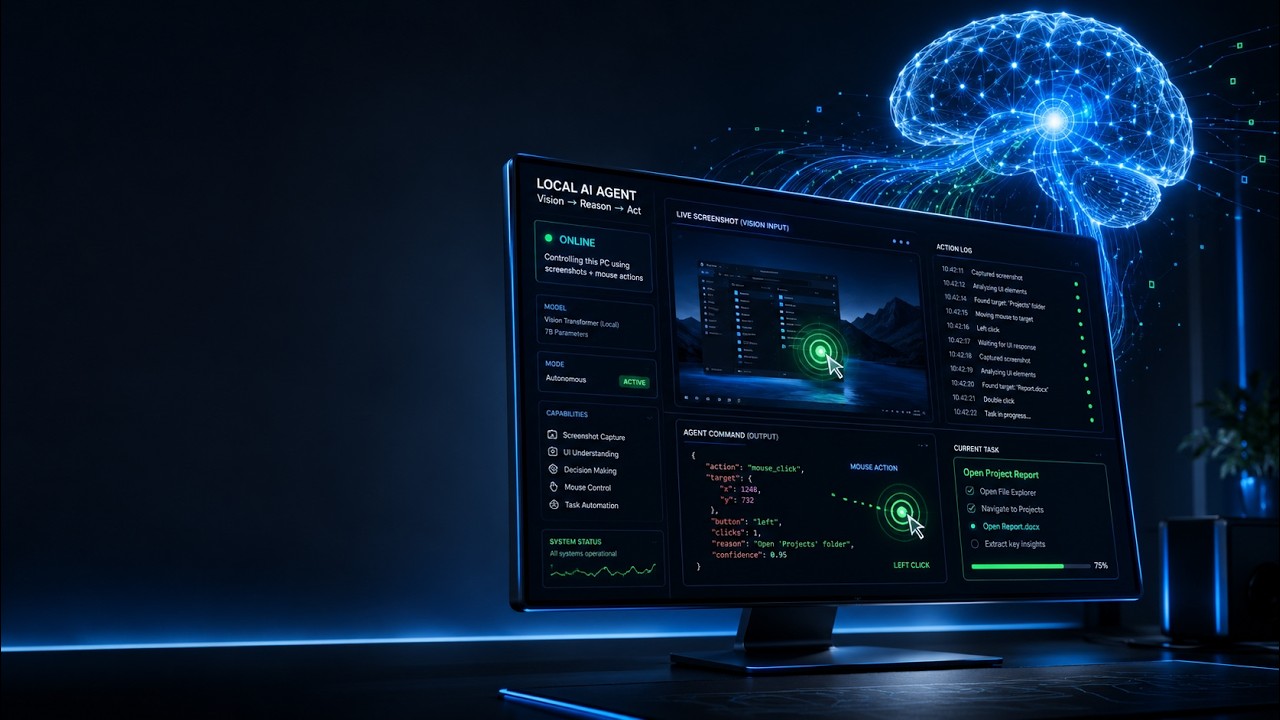](https://youtu.be/C7STRik0pFs)
Watch the demo: [ComputerUse local AI desktop agent](https://youtu.be/C7STRik0pFs)
```text
Natural-language task
-> Tauri + React desktop runner
-> Python worker over newline-delimited JSON
-> screenshot + perception
-> Ollama vision planner
-> Pydantic action validation
-> local mouse/keyboard executor
-> verification screenshot
-> session state, timing events, and UI updates
```
## Highlights
- Polished desktop task runner with model selection, screenshot preview, timeline, status, history, and debug timings.
- CLI path for development, dry runs, model listing, screenshots, and automation.
- Local Ollama integration with known vision-capable models ranked first.
- Strict one-action-at-a-time planner contract backed by Pydantic validation.
- Screenshot capture with `mss`, plus planner overlays and optional UI Automation element collection.
- Local mouse, keyboard, scroll, drag, wait, screenshot, done, and fail action handlers.
- Pause, resume, stop, dry-run, and max-step controls.
- Stdio MCP server for external agents that want safe observe -> execute -> verify computer-use tools.
- Local-only runtime files for the active session, screenshots, timing logs, and run history.
## Execution History & Benchmarks
The current local runtime history has been read from `data/computeruse.sqlite3` and `logs/debug_timing.jsonl`. These numbers are a real desktop-run snapshot from timing records dated `2026-07-05` UTC, not synthetic lab benchmarks.
### History Snapshot
| Metric | Value |
| --- | ---: |
| SQLite sessions | 5 |
| Completed sessions | 3 |
| Cancelled sessions | 1 |
| Running session records | 1 |
| Tracked SQLite steps | 58 |
| Successful tool steps | 56 / 58, 96.6% |
| Valid timing log records | 108 |
| Timing log models | `kimi-k2.6:cloud`, `gemma4:31b-cloud` |
Most recorded actions were UI-targeted interactions: `click_element` was the dominant action, followed by `type_text`, `press`, `done`, `hotkey`, `click_target`, `move`, and `double_click`.
### Timing Snapshot
| Phase | Samples | Average | P50 | P95 | Notes |
| --- | ---: | ---: | ---: | ---: | --- |
| Screenshot capture | 107 | 16.3 ms | 16.0 ms | 25.0 ms | Comfortably under the 100 ms target. |
| Screenshot encode | 107 | 83.7 ms | 88.0 ms | 132.0 ms | Usually under the 150 ms target; max observed was 171 ms. |
| Planner grid overlay | 107 | 141.0 ms | 150.0 ms | 185.0 ms | Extra cost for coordinate rulers and element markers. |
| UI perception | 107 | 2280.8 ms | 2052.0 ms | 4000.0 ms | Largest local overhead; UIA/perception is the main optimization target. |
| Ollama/model call | 107 | 9757.1 ms | 7579.0 ms | 23694.0 ms | Dominant end-to-end cost, as expected. |
| Tool execution | 107 | 140.1 ms | 5.0 ms | 188.0 ms | Includes one explicit wait outlier at about 5 seconds. |
| Verification capture | 107 | 80.0 ms | 87.0 ms | 128.0 ms | Post-action screenshot verification. |
| Metrics collection | 108 | 53.0 ms | 51.0 ms | 68.0 ms | CPU/RAM/GPU sampling overhead. |
Derived loop overhead from the same timing log:
| Aggregate | Average | P50 | P95 | Interpretation |
| --- | ---: | ---: | ---: | --- |
| Core non-LLM overhead, excluding perception and settle delay | 370.1 ms | 250.0 ms | 568.0 ms | Includes screenshot capture/encode, execution, verification, and metrics. |
| Core non-LLM overhead, excluding perception, settle delay, and wait actions | 239.7 ms | 247.0 ms | 337.0 ms | Closer to normal click/type/keypress loop overhead. |
| Non-LLM overhead with perception, excluding settle delay | 2769.5 ms | 2419.0 ms | 4569.0 ms | Shows the cost of UI perception on top of screenshot/execute work. |
| Non-LLM overhead with perception and settle delay | 3763.0 ms | 3562.5 ms | 5575.0 ms | Reflects the default post-action settle delay for mutating actions. |
`session_write_ms` is not present in the current timing records, so JSON/session-write overhead is not benchmarked in this snapshot.
## Requirements
- Windows desktop session.
- Python 3.10 or newer. Python 3.11+ is recommended.
- Ollama running locally at `http://127.0.0.1:11434`.
- At least one installed Ollama vision model.
- Node.js and npm for the React frontend.
- Rust and Cargo for the Tauri desktop shell.
## Quick Start
```powershell
cd E:\ComputerUse
py -3.11 -m venv .venv
.\.venv\Scripts\Activate.ps1
python -m pip install --upgrade pip
python -m pip install -e .
npm install --prefix apps\desktop
```
Start the desktop app:
```powershell
npm run desktop:dev
```
The Tauri app starts the Python worker with:
```powershell
python -m computeruse.worker
```
For the smoothest local setup, launch the desktop app from a shell where the intended Python environment is already active.
## Desktop App
The first screen is the task runner, not a landing page.
| Panel | What it does |
| --- | --- |
| Task runner | Enter a natural-language task, choose dry-run mode, set max steps, and run/pause/resume/stop. |
| Model selector | Lists installed Ollama models with known vision models ranked first. |
| Screenshot preview | Shows the latest observe or verification capture. |
| Last action | Displays the validated JSON action returned by the model. |
| Step timeline | Shows action, thought, confidence, result, and inline failures. |
| Debug timing | Shows per-phase loop timings when enabled. |
| History | Lists recent local tracked sessions and step summaries. |
Run a task like:
```text
Open Chrome, go to YouTube, search for TWICE, and open the first video.
```
ComputerUse will keep taking one small action at a time until the model returns `done`, returns `fail`, the task is cancelled, or the max-step limit is reached.
## CLI
List installed Ollama models:
```powershell
computeruse models
```
Capture the current screen:
```powershell
computeruse screenshot
```
Run a task:
```powershell
computeruse run "Open Chrome, go to YouTube, search for TWICE, and open the first video" --model llava:latest
```
Run without executing mouse or keyboard events:
```powershell
computeruse run "Open Chrome and go to YouTube" --model llava:latest --dry-run --debug-timing
```
Start the MCP server:
```powershell
computeruse mcp
```
Equivalent module entrypoint:
```powershell
python -m computeruse.mcp_server
```
## Ollama Models
ComputerUse queries Ollama through the local HTTP API and displays every installed model. Known vision-capable families are ranked first when present:
- LLaVA
- BakLLaVA
- Moondream
- MiniCPM-V
- Qwen VL and Qwen2.5-VL
- Gemma vision-capable variants
Example model install:
```powershell
ollama pull llava:latest
```
## Action Contract
The model may return exactly one JSON object per turn. No prose, no Markdown, no multiple actions.
```json
{
"thought": "Use the address bar to navigate directly.",
"action": "hotkey",
"args": {
"keys": ["ctrl", "l"]
},
"done": false,
"confidence": 0.92
}
```
Supported action names:
```text
screenshot
click
double_click
right_click
move
scroll
drag
click_element
double_click_element
move_element
click_target
move_target
type_text
press
hotkey
wait
done
fail
```
Coordinate actions use absolute screenshot-pixel coordinates from the latest capture. Element and target actions use the most recent UI Automation/perception data where available.
Use `click_element` for normal controls: buttons, links, tabs, menus, text fields, checkboxes, browser controls, web results, and app navigation. Use `double_click_element` only for desktop-style items that conventionally require double-click to open: desktop shortcuts/icons, files, folders, Explorer rows, and open/save dialog file rows. Do not double-click web links, buttons, tabs, YouTube thumbnails, checkboxes, text fields, or menu commands. `scroll` accepts `clicks`; negative values scroll down and positive values scroll up. `drag` performs one atomic click-hold-drag-release with `start_x`, `start_y`, `end_x`, `end_y`, and optional `duration_ms`.
## Worker Protocol
The GUI talks to the Python worker with newline-delimited JSON over a managed process. The protocol is intentionally small and explicit.
GUI commands:
```json
{"type":"list_models"}
{"type":"start_task","task":"Open Chrome and go to YouTube","model":"llava:latest","dry_run":false,"max_steps":50}
{"type":"pause"}
{"type":"resume"}
{"type":"stop"}
{"type":"take_screenshot"}
{"type":"list_history","limit":50}
{"type":"get_history_session","session_id":"..."}
```
Worker events:
```json
{"type":"models","models":[{"name":"llava:latest","vision":true}]}
{"type":"session_started","session_id":"..."}
{"type":"screenshot","path":"E:\\ComputerUse\\screenshots\\current.png","width":1920,"height":1080}
{"type":"step_started","step_index":3}
{"type":"model_action","action":{"action":"click","args":{"x":500,"y":300},"confidence":0.82}}
{"type":"tool_result","ok":true,"message":"clicked"}
{"type":"timing","step_index":3,"capture_ms":42,"encode_ms":65,"ollama_ms":1840,"execute_ms":7,"session_write_ms":3}
{"type":"session_done","summary":"The requested page is open."}
{"type":"session_failed","reason":"The browser did not load after repeated attempts."}
```
## MCP Server
ComputerUse includes a stdio MCP server so other agents can use local screen observation and one-step execution safely.
Generic MCP configuration:
```json
{
"mcpServers": {
"computeruse": {
"command": "python",
"args": ["-m", "computeruse.mcp_server"],
"cwd": "E:\\ComputerUse"
}
}
}
```
If the MCP client does not inherit your activated shell, point directly at the virtual environment:
```json
{
"mcpServers": {
"computeruse": {
"command": "E:\\ComputerUse\\.venv\\Scripts\\python.exe",
"args": ["-m", "computeruse.mcp_server"],
"cwd": "E:\\ComputerUse"
}
}
}
```
Codex TOML example:
```toml
[mcp_servers.computeruse]
command = 'E:\ComputerUse\.venv\Scripts\python.exe'
args = ['-m', 'computeruse.mcp_server']
cwd = 'E:\ComputerUse'
startup_timeout_sec = 120
```
Recommended MCP workflow:
1. Call `computeruse_help`.
2. Call `computeruse_start_session` with the user task.
3. Call `computeruse_observe`.
4. Call `computeruse_execute_step` with exactly one validated action.
5. Inspect the verification observation.
6. Repeat observe/execute until complete.
7. Call `computeruse_finish_session`.
## Runtime Files
These files are local runtime state and are ignored by Git:
| Path | Purpose |
| --- | --- |
| `sessions/active_session.json` | Current active task state. |
| `screenshots/current.png` | Latest raw screenshot. |
| `screenshots/planner.png` | Planner screenshot with rulers and element markers. |
| `logs/debug_timing.jsonl` | Timing and resource metrics. |
| `data/computeruse.sqlite3` | Local run history and step summaries. |
The runtime does not need cloud storage. Keep these artifacts private unless you deliberately redact and share them.
## Safety Model
ComputerUse is designed around narrow, validated actions:
- The planner cannot run shell commands or arbitrary Python.
- The runtime validates every model action before execution.
- Dry-run mode validates model actions without moving the mouse or typing.
- Pause and stop are available from the desktop UI.
- Passwords, payment details, tokens, destructive changes, purchases, posts, and security-setting changes require explicit user intent before they should be executed.
- Web pages are treated as untrusted input.
## Project Layout
```text
apps/
desktop/ Tauri 2 + React + TypeScript app
computeruse/
agent/ loop, prompts, Ollama client, session and history logic
schemas/ Pydantic action and session models
tools/ screenshots, screen metadata, mouse, keyboard, windows, executor
cli.py Typer CLI
worker.py newline-delimited JSON worker for the GUI
mcp_server.py stdio MCP server
data/ local SQLite history, ignored by Git
logs/ debug timing logs, ignored by Git
screenshots/ current/planner captures, ignored by Git
sessions/ active session JSON, ignored by Git
```
## Development
Frontend typecheck:
```powershell
npm run desktop:typecheck
```
Frontend/Tauri build:
```powershell
npm run desktop:build
```
Python package install in editable mode:
```powershell
python -m pip install -e .
```
## Troubleshooting
| Symptom | Check |
| --- | --- |
| No models appear | Confirm Ollama is running and `ollama list` shows installed models. |
| Worker fails to start | Activate `.venv`, reinstall with `python -m pip install -e .`, then relaunch Tauri from that shell. |
| Screenshot does not update | Check that the app has access to the active Windows desktop session. |
| Actions land in the wrong place | Use the latest screenshot and verify DPI/monitor coordinates; avoid stale screenshots. |
| Tauri cannot find Rust tooling | Install Rust/Cargo and restart the shell. |
## Status
ComputerUse is an MVP local automation tool. Treat real desktop control as powerful and potentially disruptive: start with dry runs, keep tasks specific, and verify the screen after each action.
TDQS
Scored across 7 tools
Each tool maps to a distinct phase of the ComputerUse workflow: help, session lifecycle, observation, action execution, and history retrieval. Even list_history and get_history_session are clearly separated as list-versus-detail operations.
All tools share a consistent computeruse_ prefix and use snake_case. Most follow a verb_noun pattern like start_session and execute_step, though observe and help are slightly less uniform.
Seven tools is a well-scoped set for a computer-use agent server. Each tool supports a necessary part of the observe-act-verify workflow without redundancy.
The tool surface covers the full agent lifecycle: onboarding help, starting a session, observing state, executing steps, finishing sessions, and reviewing history. There are no obvious dead ends in the core workflow.