
bad-ass-mcp
# bad-ass-mcp
<!-- mcp-name: io.github.HoldMyBeer-gg/bad-ass-mcp -->
*Every other tool needs a browser or a vision model. This one reads what the OS already knows.*
A cross-platform MCP server for desktop GUI automation — driven by accessibility APIs, not screenshots.
Works with Claude, Codex, Gemini, Ollama, or any OpenAI-compatible client that supports MCP.
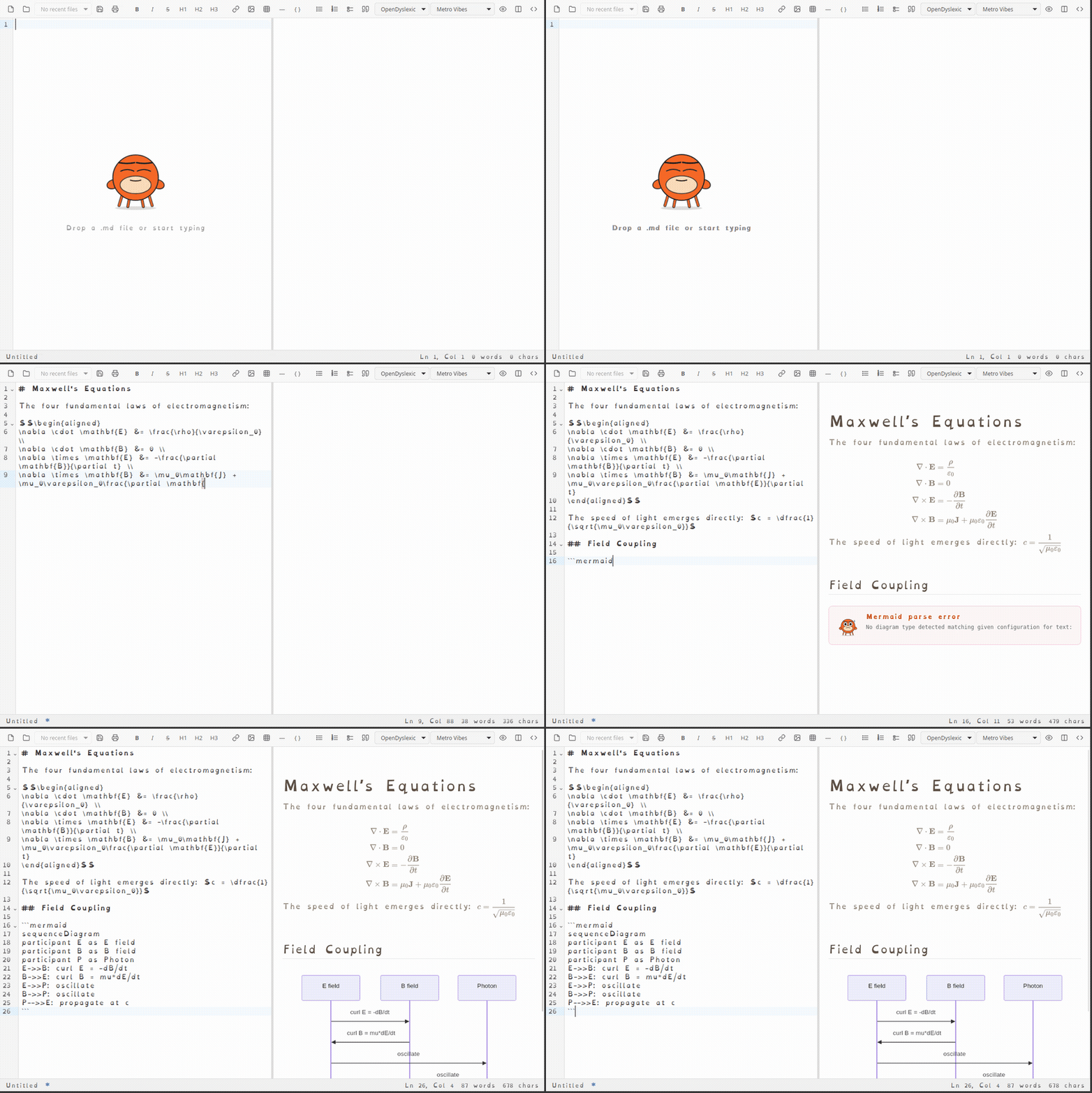
*bad-ass-mcp recording itself interacting with [MarkTheCrab](https://github.com/HoldMyBeer-gg/MarkTheCrab)*
## Why
Most AI desktop automation tools work by taking screenshots and asking a vision model "what do you see?" That's slow, expensive, and fragile.
Every major OS exposes a structured accessibility tree — the same one used by screen readers — that describes every button, text field, combo box, and menu in every running application. **bad-ass-mcp** speaks that language directly.
- **macOS**: AXUIElement via PyObjC
- **Linux**: AT-SPI2 via `gi.repository.Atspi`
- **Windows**: UI Automation via `comtypes`
Actions fire on control objects directly, so the target window doesn't need focus. The user can keep working while automation runs in the background.
## Tools
| Tool | Description |
|------|-------------|
| `list_windows` | List all visible application windows |
| `get_tree` | Full accessibility tree for a window as nested JSON |
| `find_elements` | Find elements by role and/or name |
| `click` | Click / invoke an element (foreground-independent); `button="right"`, `clicks=2`; falls back to a real click at the element's center |
| `click_at` | Click at absolute screen coordinates — fallback for webview/canvas UI; takes `button` and `clicks` |
| `drag` | Drag-and-drop with real pointer events, between coordinates or element handles |
| `type_text` | Type text into a field (SetValue → EditableText → key injection) |
| `select_option` | Select an option in a combo box or list (a11y items → SetValue → keystrokes), verified by reading the value back |
| `get_value` | Get the current value or text of an element |
| `wait_for_window` | Wait until a window matching a pattern appears |
| `wait_for_element` | Wait until an element exists and optionally has a given state |
| `screenshot` | Capture a PNG (write to `output_path` or return base64) |
| `start_recording` | Start recording the screen (or a specific window) |
| `stop_recording` | Stop recording and export as GIF (short clips) or MP4 (long sessions, no re-encode) |
| `learn_layout` | Resolve semantic names → live handle IDs (one call per session) |
| `run_sequence` | Execute a list of actions server-side — no per-action round-trips |
## Field notes: when the tree isn't enough
Observed driving large native apps (a game editor, a DAW) on Windows:
- **Context menus** don't exist in the a11y tree until they're open, and nothing in UIA opens them. `click(handle, button="right")` or `click_at(x, y, button="right")` does; the menu is then a readable window.
- **Double-click targets** (list rows that open an editor) often expose only a Select action, which highlights the row and stops. Use `clicks=2`.
- **Tab strips** can behave the same way: a11y Select highlights the tab without switching the page. `click` now falls back to a real pointer click when no pattern takes, which switches it.
- **Stock Win32 combo boxes** are unreliable through UIA: the item list only exists while dropped down, and `SetValue` can succeed on one combo and silently no-op on the next one in the same dialog. `select_option` ends with a keystroke strategy (focus, type the item, Return) and reads the value back, so `ok: false` means it really didn't change.
- **Custom-drawn panels** (owner-drawn frames, canvas views) show up as empty panes. Only the app's native menus and standard file dialogs are readable; everything else is `screenshot` + `click_at`.
- **Mislabelled controls.** Some dialogs attach each label to the neighbouring control (a combo named "Voice Type" is really the one above it, and the real one has no name). When names look off by one, confirm with `get_value` or pick by position in `get_tree` instead of by name.
- **Stock message boxes** are fully readable. `wait_for_window("Warning")` then `click` on "Yes to all" works as-is.
- **SetValue skips the app's event handlers.** Setting a filter box's text won't re-run the filter; press a key or click elsewhere and back to trigger it.
- **Never send bare keys into an editor without a focused dialog.** In most DAWs and NLEs, single keys are editor shortcuts and will edit the project.
- **Long demos**: `stop_recording` to a `.mp4` path keeps the raw capture (seconds to finish); GIF transcodes and downscales, fine for under a minute.
## Webviews: waking lazy accessibility trees
Chromium-based apps (Electron, CEF, and every Chromium browser) have a
full accessibility tree — they just don't *build* it until an assistive
technology announces itself. Until then the window looks canvas-only:
`get_tree` returns nothing and screenshot-clicking is the only option.
**bad-ass-mcp announces itself.** When a window's a11y tree comes back
empty and the process looks like a webview, the backend performs the
platform's "a screen reader is here" handshake, waits a beat, and
re-probes before giving up:
- **Linux**: sets `org.a11y.Status.ScreenReaderEnabled` on the session
D-Bus **at server start** so Chromium/Electron apps launched
afterwards enable accessibility from birth. Windows that stay hollow
(an application+frame whose phantom child fetches as `None`) are
detected via the AT-SPI toolkit name and reported
`accessible: false`: the app either launched before the flag went up
or opts out on its own. Restarting the app with the server running
should pick the flag up per Chromium's documented behavior, but note
that is not yet verified here: the only Linux app live-tested so far
(flatpak Vivaldi) ignores the flag entirely, its own first-run
assistive-technology toggle included, and only produces a tree when
launched with `--force-renderer-accessibility`.
- **macOS**: sets `AXManualAccessibility` on the app (Electron's
documented switch), falling back to `AXEnhancedUserInterface` (what
VoiceOver sets, watched by plain Chrome/CEF). The attribute set only
succeeds on apps that support it, so it's a free no-op elsewhere.
- **Windows**: sets the system `SPI_SETSCREENREADERRUNNING` flag, then
queries the `Chrome_RenderWidgetHostHWND` child window — Chromium
hangs its DOM tree off that renderer child, not the top-level HWND
(which only shows empty panes). `get_tree` / `find_elements` are
routed through the renderer child automatically.
One wake attempt per process per server run. If `list_windows` still
reports `accessible: false` after this, the window is genuinely
canvas-only (custom OpenGL/Vulkan surface, immediate-mode toolkit
without AccessKit) — fall back to `screenshot` + `click_at`.
The tradeoff: a woken app spends some memory/CPU maintaining its tree,
which is exactly why Chromium lazy-loads it. The wake targets the app
you're automating, not the whole desktop (the Linux flag is technically
session-global, but only a11y-aware apps respond, and only on demand).
## Installation
**Requirements**: Python 3.11+, `ffmpeg` + `gifsicle` for recording (optional)
```bash
# macOS
pip install 'bad-ass-mcp[macos]'
# Linux — install system PyGObject + AT-SPI bindings first, then:
pip install bad-ass-mcp
# Windows
pip install 'bad-ass-mcp[windows]'
```
**Linux**: PyGObject and AT-SPI are not on PyPI, and the backend shells out to `xdotool`, `xprop`, and ImageMagick's `import` (or KDE's `spectacle`) for clicks and screenshots. Install them from your distro:
```bash
# Debian/Ubuntu
sudo apt install python3-gi gir1.2-atspi-2.0 at-spi2-core xdotool x11-utils imagemagick
# Arch
sudo pacman -S python-gobject at-spi2-core xdotool xorg-xprop imagemagick
# Fedora
sudo dnf install python3-gobject at-spi2-core xdotool xprop ImageMagick
```
Then make sure AT-SPI is enabled (most desktop environments — GNOME, KDE, XFCE — have it on by default):
```bash
# Check
gsettings get org.gnome.desktop.interface toolkit-accessibility
# Enable
gsettings set org.gnome.desktop.interface toolkit-accessibility true
```
If you're using a venv, create it with `--system-site-packages` so it can see the distro-installed `gi`:
```bash
python -m venv --system-site-packages venv
```
**Windows**: Elevated (admin) applications can only be automated from an elevated Python process. No special permissions are needed for normal apps.
### Register with Claude Code
```bash
claude mcp add bad-ass-mcp --scope user -- bad-ass-mcp
```
Or manually in `~/.claude.json`:
```json
{
"mcpServers": {
"bad-ass-mcp": {
"type": "stdio",
"command": "bad-ass-mcp"
}
}
}
```
## Usage
```
list the windows on screen
→ [{ "id": "12345", "name": "Firefox", ... }]
find the search box in window 12345 and type "hello"
→ find_elements(window_id="12345", role="entry")
→ type_text(handle_id="...", text="hello")
```
Electron/CEF apps get their lazy accessibility tree woken automatically (see [Webviews](#webviews-waking-lazy-accessibility-trees) above). For apps that still don't expose a clean tree, `type_text` falls back to platform-native key injection automatically (AT-SPI on Linux, Quartz events on macOS, `PostMessage` on Windows).
## Architecture
```
bad_ass_mcp/
├── server.py # FastMCP tool definitions
├── types.py # WindowInfo, ElementHandle, ActionResult, StaleHandleError
└── backend/
├── base.py # Abstract DesktopBackend interface
├── linux.py # AT-SPI2 + xdotool
├── macos.py # AXUIElement + Quartz
└── windows.py # UI Automation + ctypes Win32
```
The abstract backend interface means adding a new platform is just implementing one class. The full contract-test suite runs against every backend via `FakeBackend`.
## Releasing
Tag a version and the release workflow builds the sdist and wheel, publishes them
to PyPI via trusted publishing, and attaches them (plus the PyInstaller bundles)
to the GitHub release:
```bash
git tag v1.4.0 && git push --tags
```
## License
MIT
TDQS
Scored across 17 tools
Each tool targets a distinct action+resource: element-level click vs coordinate-level click_at, single-value get_value vs full-hierarchy get_tree, and wait tools for windows vs elements are all clearly separated. run_sequence overlaps with everything but is explicitly framed as a server-side batching optimization, not a competing primitive. Descriptions make the fallback ordering (a11y click -> click_at, SetValue -> key injection) explicit, so selection is unambiguous.
The overwhelming majority follow a clear verb_noun pattern: get_value, list_windows, press_key, get_tree, find_elements, type_text, select_option, wait_for_*, start_recording, stop_recording, learn_layout, run_sequence. Only a few break the pattern with bare verbs or nouns (click, drag, screenshot, click_at), which are still readable and idiomatic. Minor deviation keeps it from a perfect score.
17 tools is at the upper edge, but the surface genuinely spans accessibility-tree control, coordinate fallbacks, waiting, screen capture/recording, and batching, each earning its place. No obvious redundant tools; the higher count reflects a broad but coherent domain rather than bloat.
Covers the core UI automation lifecycle: inspect (list_windows, get_tree, find_elements, get_value), act (click, click_at, type_text, select_option, press_key, drag), wait, and capture/record, plus a batching tool. Minor gaps exist—no explicit scroll, hover/move, clipboard, or window-management (focus/close/minimize) tools—but these are largely workable via keys, press_key, and coordinates.