
mcp-after-effects
# 🎬 After Effects MCP Server



✨ A Model Context Protocol (MCP) server for Adobe After Effects that enables AI assistants and other applications to control After Effects through a standardized protocol.
<a href="https://glama.ai/mcp/servers/@Dakkshin/after-effects-mcp">
<img width="380" height="200" src="https://glama.ai/mcp/servers/@Dakkshin/after-effects-mcp/badge" alt="mcp-after-effects MCP server" />
</a>
## Table of Contents
- [Features](#features)
- [Core Composition Features](#core-composition-features)
- [Layer Management](#layer-management)
- [Animation Capabilities](#animation-capabilities)
- [Setup Instructions](#setup-instructions)
- [Prerequisites](#prerequisites)
- [Installation](#installation)
- [Update MCP Config](#Update-MCP-Config)
- [Running the Server](#running-the-server)
- [Usage Guide](#usage-guide)
- [Creating Compositions](#creating-compositions)
- [Working with Layers](#working-with-layers)
- [Animation](#animation)
- [Available MCP Tools](#available-mcp-tools)
- [For Developers](#for-developers)
- [Project Structure](#project-structure)
- [Building the Project](#building-the-project)
- [Contributing](#contributing)
- [License](#license)
## 📦 Features
### 🎥 Core Composition Features
- **Create compositions** with custom settings (size, frame rate, duration, background color)
- **List all compositions** in a project
- **Get project information** such as frame rate, dimensions, and duration
### 🧱 Layer Management
- **Create text layers** with customizable properties (font, size, color, position)
- **Create shape layers** (rectangle, ellipse, polygon, star) with colors and strokes
- **Create solid/adjustment layers** for backgrounds and effects
- **Create camera layers** with configurable zoom and position
- **Create null objects** for animation control
- **Modify layer properties** like position, scale, rotation, opacity, timing
- **Toggle 2D/3D mode** for layers
- **Set blend modes** (normal, multiply, screen, etc.)
- **Track matte** support (alpha, luma, inverted)
- **Duplicate layers** with optional rename
- **Delete layers** from composition
- **Create/modify masks** with feather, expansion, and opacity
### 🌀 Animation Capabilities
- **Set keyframes** for layer properties (Position, Scale, Rotation, Opacity, etc.)
- **Apply expressions** to layer properties for dynamic animations
- **Batch set properties** across multiple layers at once
## ⚙️ Setup Instructions
### 🛠 Prerequisites
- Adobe After Effects (2022 or later)
- Node.js (v14 or later)
- npm or yarn package manager
### 📥 Installation
1. **Clone the repository**
```bash
git clone https://github.com/Dakkshin/after-effects-mcp.git
cd after-effects-mcp
```
2. **Install dependencies**
```bash
npm install
# or
yarn install
```
3. **Build the project**
```bash
npm run build
# or
yarn build
```
4. **Install the After Effects panel**
```bash
npm run install-bridge
# or
yarn install-bridge
```
This will copy the necessary scripts to your After Effects installation.
### 🔧 Update MCP Config
#### Option 1: Using .mcp.json (Recommended for Claude Code)
The repository includes a `.mcp.json` file for easy configuration. Copy or reference it in your MCP settings:
```json
{
"mcpServers": {
"AfterEffectsMCP": {
"command": "node",
"args": ["PATH/TO/after-effects-mcp/build/index.js"]
}
}
}
```
#### Option 2: Manual Configuration
Go to your client (e.g., Claude or Cursor) and update your config file:
```json
{
"mcpServers": {
"AfterEffectsMCP": {
"command": "node",
"args": ["C:\\Users\\Dakkshin\\after-effects-mcp\\build\\index.js"]
}
}
}
```
### ▶️ Running the Server
1. **Start the MCP server**
```bash
npm start
# or
yarn start
```
2. **Open After Effects**
3. **Open the MCP Bridge Auto panel**
- In After Effects, go to Window > mcp-bridge-auto.jsx
- The panel will automatically check for commands every few seconds
- Make sure the "Auto-run commands" checkbox is enabled
## 🚀 Usage Guide
Once you have the server running and the MCP Bridge panel open in After Effects, you can control After Effects through the MCP protocol. This allows AI assistants or custom applications to send commands to After Effects.
### 📘 Creating Compositions
You can create new compositions with custom settings:
- Name
- Width and height (in pixels)
- Frame rate
- Duration
- Background color
Example MCP tool usage (for developers):
```javascript
mcp_aftereffects_create_composition({
name: "My Composition",
width: 1920,
height: 1080,
frameRate: 30,
duration: 10
});
```
### ✍️ Working with Layers
You can create and modify different types of layers:
**Text layers:**
- Set text content, font, size, and color
- Position text anywhere in the composition
- Adjust timing and opacity
**Shape layers:**
- Create rectangles, ellipses, polygons, and stars
- Set fill and stroke colors
- Customize size and position
**Solid layers:**
- Create background colors
- Make adjustment layers for effects
### 🕹 Animation
You can animate layers with:
**Keyframes:**
- Set property values at specific times
- Create motion, scaling, rotation, and opacity changes
- Control the timing of animations
**Expressions:**
- Apply JavaScript expressions to properties
- Create dynamic, procedural animations
- Connect property values to each other
## 🛠 Available MCP Tools
| Command | Description |
|-----------------------------|----------------------------------------|
| `create-composition` | Create a new composition |
| `run-script` | Run a JS script inside AE |
| `get-results` | Get script results |
| `get-help` | Help for available commands |
| `setLayerKeyframe` | Add keyframe to layer property |
| `setLayerExpression` | Add/remove expressions from properties|
| `setLayerProperties` | Set layer properties (position, scale, rotation, opacity, blendMode, threeDLayer, trackMatteType, enabled, etc.) |
| `batchSetLayerProperties` | Apply properties to multiple layers |
| `getLayerInfo` | Get layer info (position, 3D status) |
| `createCamera` | Create camera layer |
| `createNullObject` | Create null object for animation |
| `duplicateLayer` | Duplicate a layer |
| `deleteLayer` | Delete a layer |
| `setLayerMask` | Create/modify layer masks |
## 👨💻 For Developers
### 🧩 Project Structure
- `src/index.ts`: MCP server implementation
- `src/scripts/mcp-bridge-auto.jsx`: Main After Effects panel script
- `install-bridge.js`: Script to install the panel in After Effects
### 📦 Building the Project
```bash
npm run build
# or
yarn build
```
**Note:** This project uses esbuild for fast builds, replacing the previous TypeScript compiler approach that could run out of memory on larger codebases.
### 🤝 Contributing
Contributions are welcome! Please feel free to submit a Pull Request.
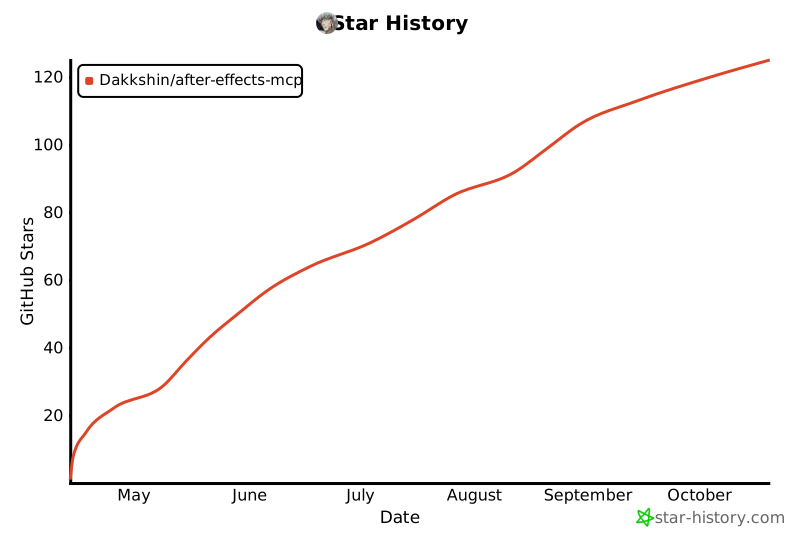
## Star History
[](https://www.star-history.com/#Dakkshin/after-effects-mcp&type=date&legend=top-left)
## License
This project is licensed under the MIT License - see the LICENSE file for details.
TDQS
Scored across 13 tools
There is significant overlap and confusion between tools: 'apply-effect' and 'mcp_aftereffects_applyEffect' appear to be duplicates with identical descriptions, as do 'apply-effect-template' and 'mcp_aftereffects_applyEffectTemplate'. Additionally, 'get-help', 'mcp_aftereffects_get_effects_help', and 'run-bridge-test' all seem related to help/testing but with unclear distinctions, making it hard for an agent to choose correctly.
The naming is highly inconsistent: there's a mix of snake_case ('apply-effect'), camelCase ('setLayerExpression'), and prefixed snake_case ('mcp_aftereffects_applyEffect'). Some tools use verbs like 'run' or 'test', while others are more descriptive like 'get-results', leading to a chaotic pattern that lacks predictability.
With 13 tools, the count is reasonable for an After Effects integration, covering various operations like composition creation, effect application, scripting, and animation testing. It's slightly on the higher side but still manageable and appropriate for the domain's complexity.
The tool set covers key areas such as composition creation, effect application, scripting, and animation, but there are notable gaps: for example, there's no tool for deleting or updating compositions/effects, and lifecycle management (e.g., save, export projects) is missing. This could lead to agent workarounds for basic operations.