
Multi-Provider Image Generation Server
README.md
# MCP Image Generation Server
A Model Context Protocol (MCP) server for image generation using multiple AI providers including Tencent Hunyuan, OpenAI GPT Image, and Doubao APIs.
**Version**: 0.2.0
## Features
### 🎯 Multi-API Provider Support
- **Tencent Hunyuan**: 18 artistic styles with Chinese optimization
- **OpenAI GPT Image**: High-quality image generation with English optimization
- **Doubao (ByteDance)**: Balanced quality and speed with 12 styles
### 🚀 Core Features
- Generate images from text descriptions
- Support for multiple image styles across different providers
- Support for different image resolutions
- Negative prompts for excluding unwanted elements
- Intelligent provider selection and management
- Unified parameter format with provider-specific options
### 🌐 Transport Modes (New in v0.2.0)
- **stdio Transport**: Local IDE integration (Cursor, Windsurf)
- **HTTP Transport**: Remote access and enterprise deployment
- Multi-client concurrent connections
- Bearer Token authentication
- Session management
- RESTful API endpoints
- Suitable for cloud deployment and remote access
> **Why HTTP Transport?**
> Version 0.2.0 adds **Streamable HTTP** support (MCP's official standard as of 2024-11-05) to enable:
> - **Remote Access**: Claude remote MCP requires public HTTP endpoints (stdio only works locally)
> - **Enterprise Deployment**: Centralized service deployment with multiple concurrent clients
> - **Cloud Native**: Compatible with containers, Kubernetes, and load balancers
>
> Note: This uses **Streamable HTTP** (POST/GET/DELETE), not the deprecated SSE-only approach. SSE is retained for compatibility but Streamable HTTP is the recommended standard.
### 🔧 Smart Provider Management
- Automatic detection of available API providers
- Support for specifying particular providers or automatic selection
- Unified error handling and retry mechanisms
- Flexible parameter formats: `provider:style` and `provider:resolution`
## Installation
### Using UV (Recommended)
UV is a fast, modern Python package manager. Recommended usage:
```bash
# Install UV (Windows)
curl -sSf https://astral.sh/uv/install.ps1 | powershell
# Install UV (macOS/Linux)
curl -sSf https://astral.sh/uv/install.sh | bash
# Clone the project and enter the directory
cd path/to/image-gen-mcp-server
# Create a UV virtual environment
uv venv
# Or specify an environment name
# uv venv my-env-name
# Activate the virtual environment (Windows)
.venv\Scripts\activate
# Activate the virtual environment (macOS/Linux)
source .venv/bin/activate
# Install dependencies (recommended)
uv pip install -e .
# Or use the lock file for exact versions
uv pip install -r requirements.lock.txt
```
### Using Traditional pip
If you prefer traditional pip:
```bash
# Create a virtual environment
python -m venv venv
# Activate the virtual environment (Windows)
venv\Scripts\activate
# Activate the virtual environment (macOS/Linux)
source venv/bin/activate
# Install dependencies
pip install -e .
# Or use the lock file
pip install -r requirements.lock.txt
```
### Environment Setup
Create a `.env` file in the project root. See `.env.example` for all available options.
#### Basic Configuration
```bash
# Image save directory
MCP_IMAGE_SAVE_DIR=./generated_images
# Public base URL for generated image links (HTTP mode, optional but recommended)
# MCP_PUBLIC_BASE_URL=https://mcp.your-domain.com
# Metadata TTL for get_image_data cache (seconds)
# MCP_IMAGE_RECORD_TTL=86400
# Max bytes allowed in get_image_data base64 response
# MCP_GET_IMAGE_DATA_MAX_BYTES=10485760
# API Provider Credentials (configure at least one)
TENCENT_SECRET_ID=your_tencent_secret_id
TENCENT_SECRET_KEY=your_tencent_secret_key
OPENAI_API_KEY=your_openai_api_key
DOUBAO_API_KEY=your_doubao_api_key
# Optional but recommended when multiple providers are configured
# MCP_DEFAULT_PROVIDER=openai
```
#### Transport Configuration (Optional)
```bash
# Transport mode: stdio (default, for local IDE) or http (for remote access)
MCP_TRANSPORT=stdio
# HTTP transport settings (only needed for HTTP mode)
MCP_HOST=127.0.0.1
MCP_PORT=8000
# Authentication (recommended for HTTP mode)
MCP_AUTH_TOKEN=your-secure-random-token
```
## Usage
### 🔄 Transport Modes
This server supports two transport modes:
| Feature | stdio Transport | HTTP Transport |
|---------|----------------|----------------|
| **Use Case** | Local IDE integration | Remote access, enterprise deployment |
| **Connection** | Subprocess communication | HTTP/HTTPS network |
| **Multi-client** | ❌ Single client | ✅ Multiple concurrent clients |
| **Remote Access** | ❌ Not supported | ✅ Supported |
| **Authentication** | Not needed | Bearer Token |
| **Deployment** | Simple | Cloud-ready |
### 🚀 Quick Start
#### Unified Entry Point (Recommended)
```bash
# Method 1: Run as module (recommended)
python -m mcp_image_server
# Method 2: Use entry script
./mcp-server
# Method 3: After pip install
mcp-image-server
```
The unified server will automatically use the transport mode specified in your `.env` file:
- `MCP_TRANSPORT=stdio` → Local stdio mode for IDE integration
- `MCP_TRANSPORT=http` → HTTP server mode for remote access
### 📡 HTTP Transport Mode
For remote access and enterprise deployment, use HTTP transport:
#### 1. Configure HTTP Mode
```bash
# Set in .env file
MCP_TRANSPORT=http
MCP_HOST=127.0.0.1
MCP_PORT=8000
MCP_AUTH_TOKEN=your-secure-token # Optional but recommended
```
#### 2. Start HTTP Server
```bash
python -m mcp_image_server
```
Server will start on `http://127.0.0.1:8000` with endpoints:
- `GET /health` - Health check
- `POST /mcp/v1/messages` - Send JSON-RPC messages
- `GET /mcp/v1/messages` - Subscribe to SSE events
- `DELETE /mcp/v1/messages` - Close session
- `GET /images/{filename}` - Serve generated image files
`generate_image` tool returns `images[].url` for HTTP clients.
If server is exposed through reverse proxy/public domain, set `MCP_PUBLIC_BASE_URL` to ensure URL is externally reachable.
`/images/*` is intentionally public so browser/front-end image rendering works even when MCP API auth is enabled.
Best-practice agent flow:
1. Call `generate_image` to get renderable image + stable `image_id`/`url`.
2. Call `get_image_data(image_id=...)` only when programmable base64 text is required.
#### 3. Test HTTP Server
```bash
# Check server health
curl http://127.0.0.1:8000/health
# Run comprehensive tests
python test_mcp_server.py
# Test with API key for actual image generation
python test_mcp_server.py --with-api
```
#### 4. Use HTTP Client
```bash
# Run example client
python example_http_client.py basic # Explore server capabilities
python example_http_client.py generate # Generate images (requires API key)
```
For detailed HTTP transport documentation, see **[HTTP_TRANSPORT_GUIDE.md](HTTP_TRANSPORT_GUIDE.md)**
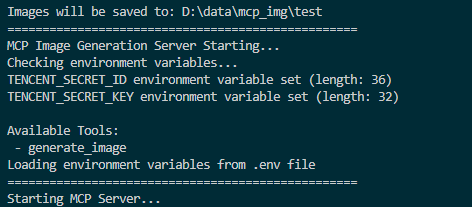
Screenshot of MCP server running successfully:
### Connecting to the Server
You can connect from MCP-compatible client(recommand cursor now). The server provides the following features:
#### Resources
- `styles://list` - List all available image styles
- `resolutions://list` - List all available image resolutions
#### Tools
- `generate_image` - Generate images based on prompt, style, and resolution (OpenAI also supports `background`/`output_format`/`output_compression`/`moderation`)
- `get_image_data` - Fetch base64 text for a previously generated image by `image_id`
#### Prompts
- `image_generation_prompt` - Create image generation prompt templates
### 🎨 Multi-API Usage Examples
#### Basic Usage
```python
# Auto-select best available provider
generate_image(prompt="A cute cat in a garden")
# Specify a particular provider
generate_image(prompt="A cute cat", provider="openai")
generate_image(prompt="一只可爱的小猫", provider="hunyuan")
generate_image(prompt="Cute kitten", provider="doubao")
```
#### Advanced Parameter Usage
```python
# Use provider-specific styles and resolutions
generate_image(
prompt="Cyberpunk city skyline",
style="hunyuan:saibopengke",
resolution="hunyuan:1024:768"
)
# Mix provider selection with standard parameters
generate_image(
prompt="Fantasy magical forest",
provider="doubao",
style="fantasy",
resolution="1024x768",
negative_prompt="low quality, blurry"
)
# OpenAI with high-resolution output
generate_image(
prompt="Artistic portrait of a musician",
provider="openai",
style="artistic",
resolution="1536x1024"
)
```
### 📊 Supported Providers and Parameters
#### Tencent Hunyuan
- **Styles**: 18 options including `riman`, `xieshi`, `shuimo`, `saibopengke`, `youhua`
- **Resolutions**: 8 options from `768:768` to `1280:720`
- **Specialty**: Chinese-optimized, rich artistic styles
#### OpenAI GPT Image
- **Styles**: 12 options including `natural`, `vivid`, `realistic`, `artistic`, `anime`
- **Resolutions**: 4 options: `1024x1024`, `1536x1024`, `1024x1536`, `auto`
- **Advanced options**: `background`, `output_format`, `output_compression`, `moderation` (via MCP client)
- **Specialty**: High-quality output, English optimization
#### Doubao (ByteDance)
- **Styles**: 12 options including `general`, `anime`, `chinese_painting`, `cyberpunk`
- **Resolutions**: Model-dependent (auto-validated by configured model/fallback model)
- **Specialty**: Balanced quality and speed
### Cursor Integration
For integration setup details and sample config JSON, see:
- [docs/VSCODE_INTEGRATION.md](docs/VSCODE_INTEGRATION.md)
Recommended minimum environment variables:
- `MCP_IMAGE_SAVE_DIR`
- Provider credentials you actually use:
`TENCENT_SECRET_ID` + `TENCENT_SECRET_KEY`, `OPENAI_API_KEY`, `DOUBAO_API_KEY`
Optional provider/model controls:
- `OPENAI_BASE_URL`, `OPENAI_MODEL`
- `DOUBAO_ENDPOINT`, `DOUBAO_MODEL`, `DOUBAO_FALLBACK_MODEL`
- `MCP_DEFAULT_PROVIDER` (recommended when multiple providers are enabled)
After changing `.env` model/default-provider values at runtime, call `reload_config`.
### 🧪 Testing
The project includes comprehensive testing tools:
#### Protocol Tests (No API Key Required)
```bash
# Test MCP protocol functionality without API keys
python test_mcp_server.py
```
This tests:
- ✅ Health check endpoint
- ✅ MCP initialization handshake
- ✅ Tools listing
- ✅ Resources listing and reading
- ✅ Prompts listing
- ✅ Session management
#### Functional Tests (API Key Required)
```bash
# Test actual image generation with configured providers
python test_mcp_server.py --with-api
```
This additionally tests:
- ✅ Real image generation with OpenAI
- ✅ Real image generation with Hunyuan
- ✅ Real image generation with Doubao
**Note**: At least one API key must be configured in `.env` to run functional tests.
### Troubleshooting
#### General Issues
- Ensure environment variables are set correctly
- Check for spaces in paths; use quotes if needed
- Ensure the virtual environment is activated (if using one)
- Try running the server script directly to check for errors
- Check UV environment with `uv --version`
#### HTTP Transport Issues
- **Connection refused**: Ensure server is running on correct host/port
- **401 Unauthorized**: Check `MCP_AUTH_TOKEN` configuration
- **404 Session not found**: Re-initialize connection to get new session ID
- **No provider available**: Configure at least one API provider in `.env`
For detailed troubleshooting, see **[HTTP_TRANSPORT_GUIDE.md](HTTP_TRANSPORT_GUIDE.md#故障排查)**
## Front-end Demo
For a front-end integration example, see [`web-design-demo/`](web-design-demo/).
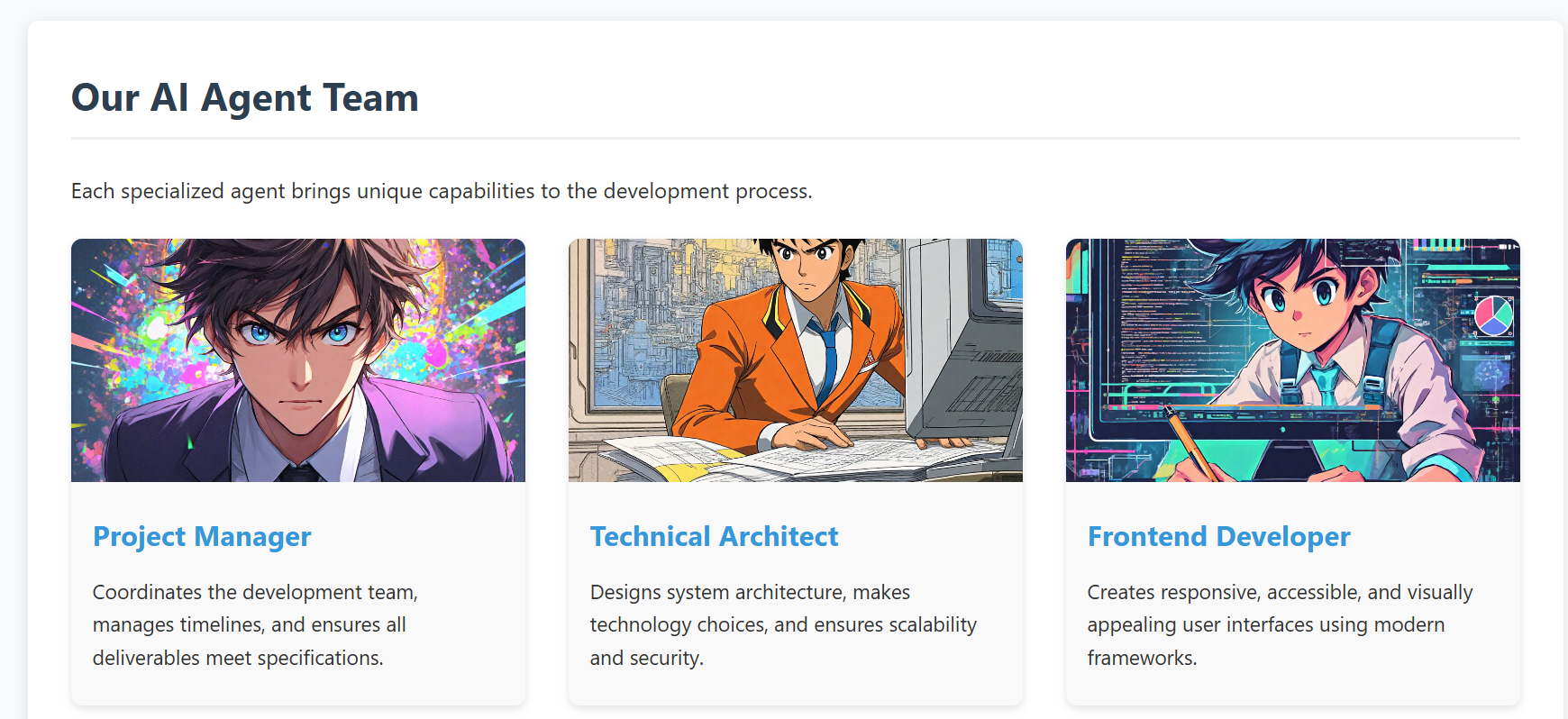
This example demonstrates how to develop a real project using Cursor IDE, where you can generate and manage images directly within your development environment using our MCP tool 🛠️. No need to switch between different image generation tools or leave your IDE - everything can be done right in your development workflow ✨.
- screenshot of the demo web
## API Reference
### Multi-API Architecture
The project now supports multiple image generation APIs through a unified interface:
#### Supported APIs
1. **Tencent Hunyuan Image Generation API** (Original)
2. **OpenAI GPT Image API** (New)
3. **Doubao Image Generation API** (New)
#### Unified MCP Resources
- `providers://list` - List all available providers
- `styles://list` - List all styles from all providers
- `resolutions://list` - List all resolutions from all providers
- `styles://provider/{provider_name}` - Get styles for specific provider
- `resolutions://provider/{provider_name}` - Get resolutions for specific provider
#### Enhanced MCP Tools
- `generate_image` - Multi-provider image generation with intelligent routing
- `get_image_data` - Retrieve base64 text data for a generated image by id
- `reload_config` - Reload runtime config/models from env/.env without process restart (safe subset only)
### Tencent Hunyuan Image Generation API
The project originally used and continues to support Tencent Hunyuan Image Generation API. Here are the key details:
#### API Endpoints
- Domain: `hunyuan.tencentcloudapi.com`
- Region: `ap-guangzhou` (Currently only supports Guangzhou region)
- Default API Rate Limit: 20 requests/second
- Concurrent Tasks: Default 1 task at a time
#### Task Flow
1. Submit Task: Submit an asynchronous image generation task with text description
2. Query Task: Get task status and results using task ID
3. Result URL: Generated image URLs are valid for 1 hour
For detailed API documentation and pricing, please refer to:
- [API Documentation](https://cloud.tencent.com/document/api/1729/105970)
- [Pricing Details](https://cloud.tencent.com/document/product/1729/105925)
### OpenAI GPT Image API
#### API Features
- High-quality image generation
- Automatic prompt optimization
- Multiple style options
- High-resolution output support
### Doubao API (ByteDance)
#### API Features
- ByteDance's proprietary image generation model
- Balanced quality and speed
- Chinese and English prompt support
- Multiple artistic styles
## RoadMap
- **Version 0.2.0** (Current)
- ✅ Tencent Hunyuan image generation API
- ✅ OpenAI GPT Image API integration
- ✅ Doubao API integration
- ✅ Multi-provider management system
- ✅ Intelligent provider selection
- ✅ Unified parameter interface
- ✅ HTTP transport with Streamable HTTP protocol
- ✅ Remote access support
- ✅ Multi-client concurrent connections
- ✅ Bearer Token authentication
- ✅ Session management
- ✅ Comprehensive testing suite
- **Future Plans**
- Support more mainstream text-to-image model APIs, including:
- Qwen-Image (Qwen/Wan family)
- Open-source model API services (for example: FLUX, SDXL/SD3.5)
- Advanced features:
- Image editing and modification
- Batch image generation
- Style transfer capabilities
- Custom model fine-tuning support
- Enhanced MCP integration:
- Real-time generation progress
- Image history and management
- Advanced prompt templates
> Community contributions for more model integrations and new features are welcome!
## Compatibility
- **stdio**: Verified with Cursor and Windsurf.
- **HTTP (Streamable HTTP)**: Works with MCP clients that support HTTP transport.
- For other clients/environments, compatibility depends on the client-side MCP implementation.
## Contributing
We welcome contributions of all kinds! Here are some ways you can help:
- 🐛 Report bugs and issues
- 💡 Suggest new features or improvements
- 🔧 Submit pull requests
- 🎨 Add support for more image generation models
### Getting Started with Contributing
1. Fork the repository
2. Create your feature branch (`git checkout -b feature/AmazingFeature`)
3. Commit your changes (`git commit -m 'feat: add some AmazingFeature'`)
4. Push to the branch (`git push origin feature/AmazingFeature`)
5. Open a Pull Request
Please make sure to update tests as appropriate and follow the existing coding style.
> We appreciate your interest in making this project better!