
Playwright MCP Server
<div align="center" markdown="1">
<sup>Special thanks to:</sup>
<br>
<br>
<a href="https://www.warp.dev/?utm_source=github&utm_medium=referral&utm_campaign=mcp-playwright">
<img alt="Warp sponsorship" width="400" src="https://github.com/user-attachments/assets/ab8dd143-b0fd-4904-bdc5-dd7ecac94eae">
</a>
### [Warp, the AI terminal for developers](https://www.warp.dev/?utm_source=github&utm_medium=referral&utm_campaign=mcp-playwright)
[Available for MacOS, Linux, & Windows](https://www.warp.dev/?utm_source=github&utm_medium=referral&utm_campaign=mcp-playwright)<br>
</div>
<hr>
# Playwright MCP Server 🎭
[](https://smithery.ai/server/@executeautomation/playwright-mcp-server)
A Model Context Protocol server that provides browser automation capabilities using Playwright. This server enables LLMs to interact with web pages, take screenshots, generate test code, web scraps the page and execute JavaScript in a real browser environment.
<a href="https://glama.ai/mcp/servers/yh4lgtwgbe"><img width="380" height="200" src="https://glama.ai/mcp/servers/yh4lgtwgbe/badge" alt="mcp-playwright MCP server" /></a>
## Screenshot

## [Documentation](https://executeautomation.github.io/mcp-playwright/) | [API reference](https://executeautomation.github.io/mcp-playwright/docs/playwright-web/Supported-Tools)
## Installation
You can install the package using either npm, mcp-get, or Smithery:
Using npm:
```bash
npm install -g @executeautomation/playwright-mcp-server
```
Using mcp-get:
```bash
npx @michaellatman/mcp-get@latest install @executeautomation/playwright-mcp-server
```
Using Smithery
To install Playwright MCP for Claude Desktop automatically via [Smithery](https://smithery.ai/server/@executeautomation/playwright-mcp-server):
```bash
npx @smithery/cli install @executeautomation/playwright-mcp-server --client claude
```
#### Installation in VS Code
Install the Playwright MCP server in VS Code using one of these buttons:
<!--
// Generate using?:
const config = JSON.stringify({ name: 'playwright', command: 'npx', args: ["-y", "@executeautomation/playwright-mcp-server"] });
const urlForWebsites = `vscode:mcp/install?${encodeURIComponent(config)}`;
// Github markdown does not allow linking to `vscode:` directly, so you can use our redirect:
const urlForGithub = `https://insiders.vscode.dev/redirect?url=${encodeURIComponent(urlForWebsites)}`;
-->
[<img src="https://img.shields.io/badge/VS_Code-VS_Code?style=flat-square&label=Install%20Server&color=0098FF" alt="Install in VS Code">](https://insiders.vscode.dev/redirect?url=vscode%3Amcp%2Finstall%3F%257B%2522name%2522%253A%2522playwright%2522%252C%2522command%2522%253A%2522npx%2522%252C%2522args%2522%253A%255B%2522-y%2522%252C%2522%2540executeautomation%252Fplaywright-mcp-server%2522%255D%257D)
[<img alt="Install in VS Code Insiders" src="https://img.shields.io/badge/VS_Code_Insiders-VS_Code_Insiders?style=flat-square&label=Install%20Server&color=24bfa5">](https://insiders.vscode.dev/redirect?url=vscode-insiders%3Amcp%2Finstall%3F%257B%2522name%2522%253A%2522playwright%2522%252C%2522command%2522%253A%2522npx%2522%252C%2522args%2522%253A%255B%2522-y%2522%252C%2522%2540executeautomation%252Fplaywright-mcp-server%2522%255D%257D)
Alternatively, you can install the Playwright MCP server using the VS Code CLI:
```bash
# For VS Code
code --add-mcp '{"name":"playwright","command":"npx","args":["@executeautomation/playwright-mcp-server"]}'
```
```bash
# For VS Code Insiders
code-insiders --add-mcp '{"name":"playwright","command":"npx","args":["@executeautomation/playwright-mcp-server"]}'
```
After installation, the ExecuteAutomation Playwright MCP server will be available for use with your GitHub Copilot agent in VS Code.
## Configuration to use Playwright Server
Here's the Claude Desktop configuration to use the Playwright server:
```json
{
"mcpServers": {
"playwright": {
"command": "npx",
"args": ["-y", "@executeautomation/playwright-mcp-server"]
}
}
}
```
## Testing
This project uses Jest for testing. The tests are located in the `src/__tests__` directory.
### Running Tests
You can run the tests using one of the following commands:
```bash
# Run tests using the custom script (with coverage)
node run-tests.cjs
# Run tests using npm scripts
npm test # Run tests without coverage
npm run test:coverage # Run tests with coverage
npm run test:custom # Run tests with custom script (same as node run-tests.cjs)
```
The test coverage report will be generated in the `coverage` directory.
### Running evals
The evals package loads an mcp client that then runs the index.ts file, so there is no need to rebuild between tests. You can load environment variables by prefixing the npx command. Full documentation can be found [here](https://www.mcpevals.io/docs).
```bash
OPENAI_API_KEY=your-key npx mcp-eval src/evals/evals.ts src/tools/codegen/index.ts
```
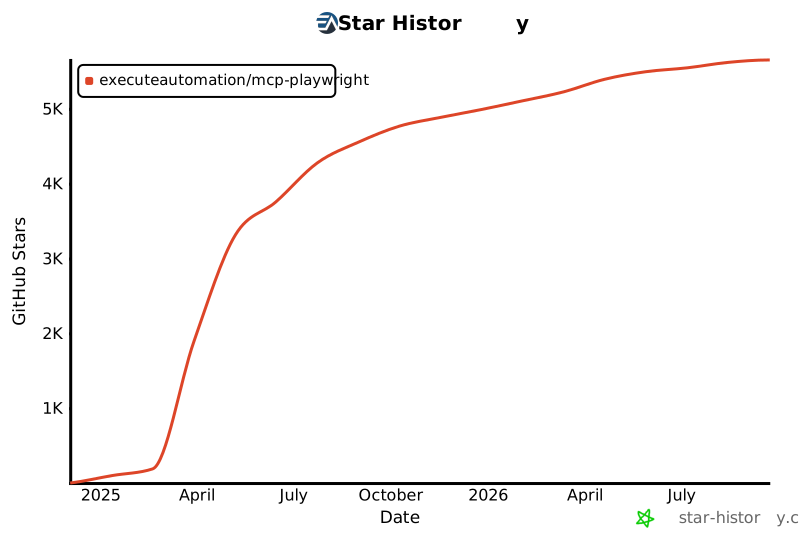
## Star History
[](https://star-history.com/#executeautomation/mcp-playwright&Date)TDQS
Scored across 31 tools
Most tools have distinct purposes, with clear separation between browser actions (e.g., click, fill, navigate), HTTP methods (get, post, put), and code generation sessions. However, some overlap exists between playwright_click and playwright_iframe_click, where the iframe variant is a specialized case rather than a fundamentally different operation, which could cause minor confusion.
Tool names follow a highly consistent snake_case pattern with clear verb_noun structures. Code generation tools use consistent 'codegen_session' terminology, while Playwright actions consistently start with 'playwright_' followed by descriptive verbs (e.g., playwright_click, playwright_navigate). This predictability makes the set easy to navigate and understand.
With 31 tools, the count feels heavy for a Playwright automation server, suggesting potential over-fragmentation. While Playwright is feature-rich, many tools could be consolidated (e.g., separate HTTP methods might be unified into a single playwright_request tool). The number is borderline excessive for typical agent workflows.
The toolset provides comprehensive coverage for Playwright automation, including navigation, interaction (click, fill, hover), HTTP requests, iframe handling, debugging (logs, screenshots), and code generation. It supports full CRUD-like operations for web testing without obvious gaps, enabling agents to handle complex browser automation tasks end-to-end.