

A
licenseB
qualityD
maintenanceA server that enables remote command execution over SSH through the Model Context Protocol (MCP), supporting both password and private key authentication.
1
5 npm
2
MIT

The MCP SSH Agent server enables AI-powered SSH operations through a standardized interface, leveraging native SSH tools and existing configurations.
Key capabilities:
List known SSH hosts - Get consolidated list of configured hosts, prioritizing ~/.ssh/config entries and including ~/.ssh/known_hosts
Execute remote commands - Run single shell commands or sequential command batches on remote hosts
File transfers - Upload and download files using scp between local and remote systems
Host management - Retrieve detailed configuration settings and test SSH connectivity
The server provides comprehensive SSH connection management with seamless integration into existing SSH configurations.
Allows executing SSH commands on remote Git repositories, enabling operations like cloning, pushing, pulling, and managing remote Git repositories through secure SSH connections.
Provides SSH connectivity to remote Node.js servers, allowing for deployment, configuration, and management of Node.js applications on remote hosts.
Click on "Deploy Server".
Wait a few minutes for the server to deploy. Once ready, it will show a "Started" state.
In the chat, type @ followed by the MCP server name and your instructions, e.g., "@MCP SSH Agent list all my SSH hosts"
That's it! The server will respond to your query, and you can continue using it as needed.
Here is a step-by-step guide with screenshots.

A Model Context Protocol (MCP) server for managing and controlling SSH connections. This server integrates seamlessly with Claude Desktop and other MCP-compatible clients to provide AI-powered SSH operations.
This MCP server provides SSH operations through a clean, standardized interface that can be used by MCP-compatible language models like Claude Desktop. The server automatically discovers SSH hosts from your ~/.ssh/config and ~/.ssh/known_hosts files and executes commands using native SSH tools for maximum reliability.
Related MCP server: MCP SSH Tools Server
The easiest way to install MCP SSH Agent is as an MCP Bundle:
Download the latest mcp-ssh-*.mcpb file from the GitHub releases page
Double-click the .mcpb file to install it in Claude Desktop
The bundle format was previously called a Desktop Extension and used the
.dxtextension. v1.3.9 shipped both files during the transition; later releases carry.mcpbonly. If your Claude Desktop is old enough to reject a.mcpbfile, update it or use one of the installation methods below.
The SSH tools will be automatically available in your conversations with Claude
npx @aiondadotcom/mcp-sshTo use this MCP server with Claude Desktop using manual configuration, add the following to your MCP settings file:
On macOS: ~/Library/Application Support/Claude/claude_desktop_config.json
On Windows: %APPDATA%/Claude/claude_desktop_config.json
{
  "mcpServers": {
    "mcp-ssh": {
      "command": "npx",
      "args": ["@aiondadotcom/mcp-ssh"]
    }
  }
}
After adding this configuration, restart Claude Desktop. The SSH tools will be available for use in your conversations with Claude.
npm install -g @aiondadotcom/mcp-sshgit clone https://github.com/aiondadotcom/mcp-ssh.git
cd mcp-ssh
npm install # also compiles src/ -> dist/
npm startThe server is TypeScript under src/; npm install builds it. After editing sources run
npm run build (or npm test, which reads src/ directly).
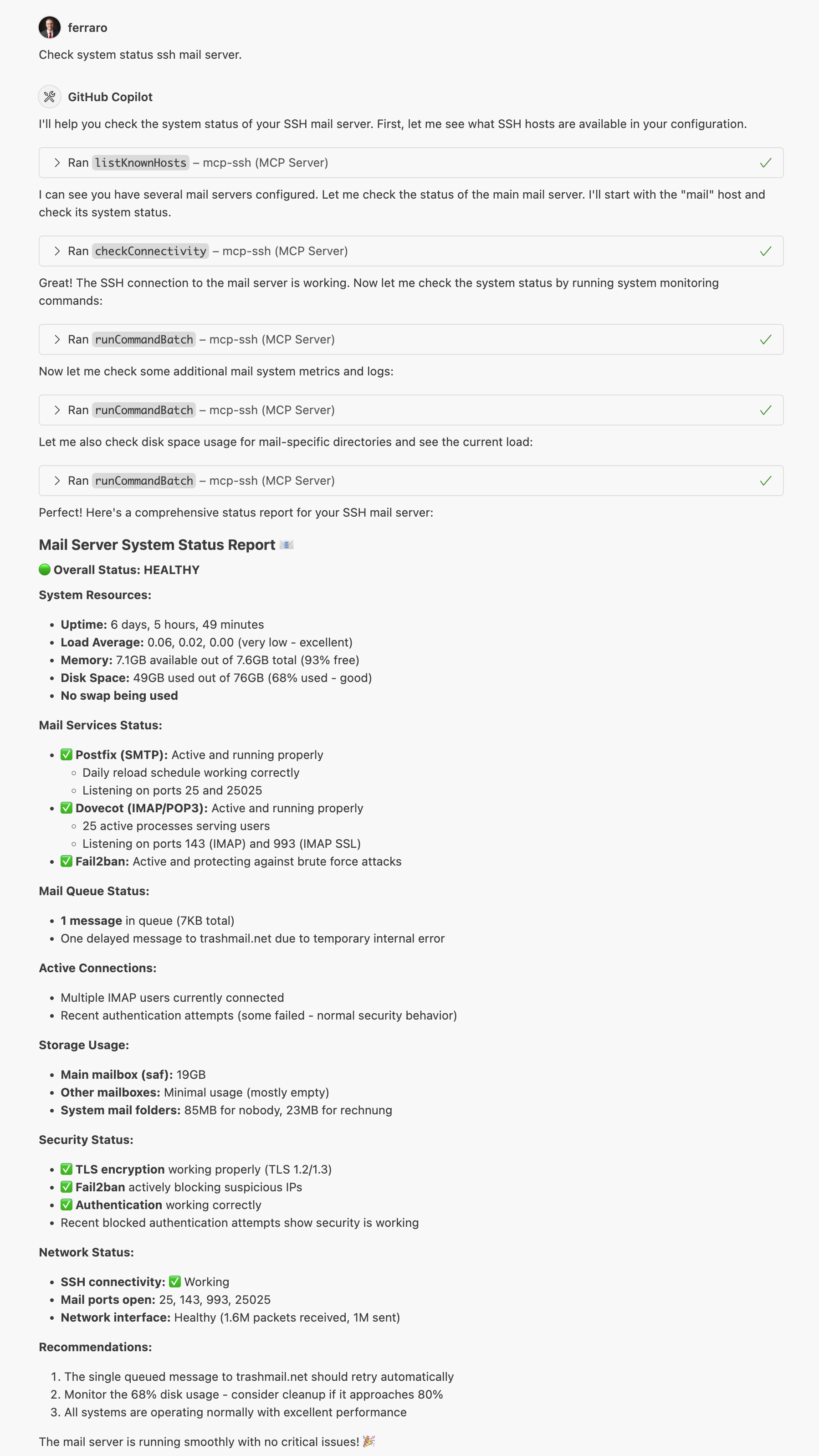
The screenshot above shows the MCP SSH Agent in action, demonstrating how it integrates with MCP-compatible clients to provide seamless SSH operations.
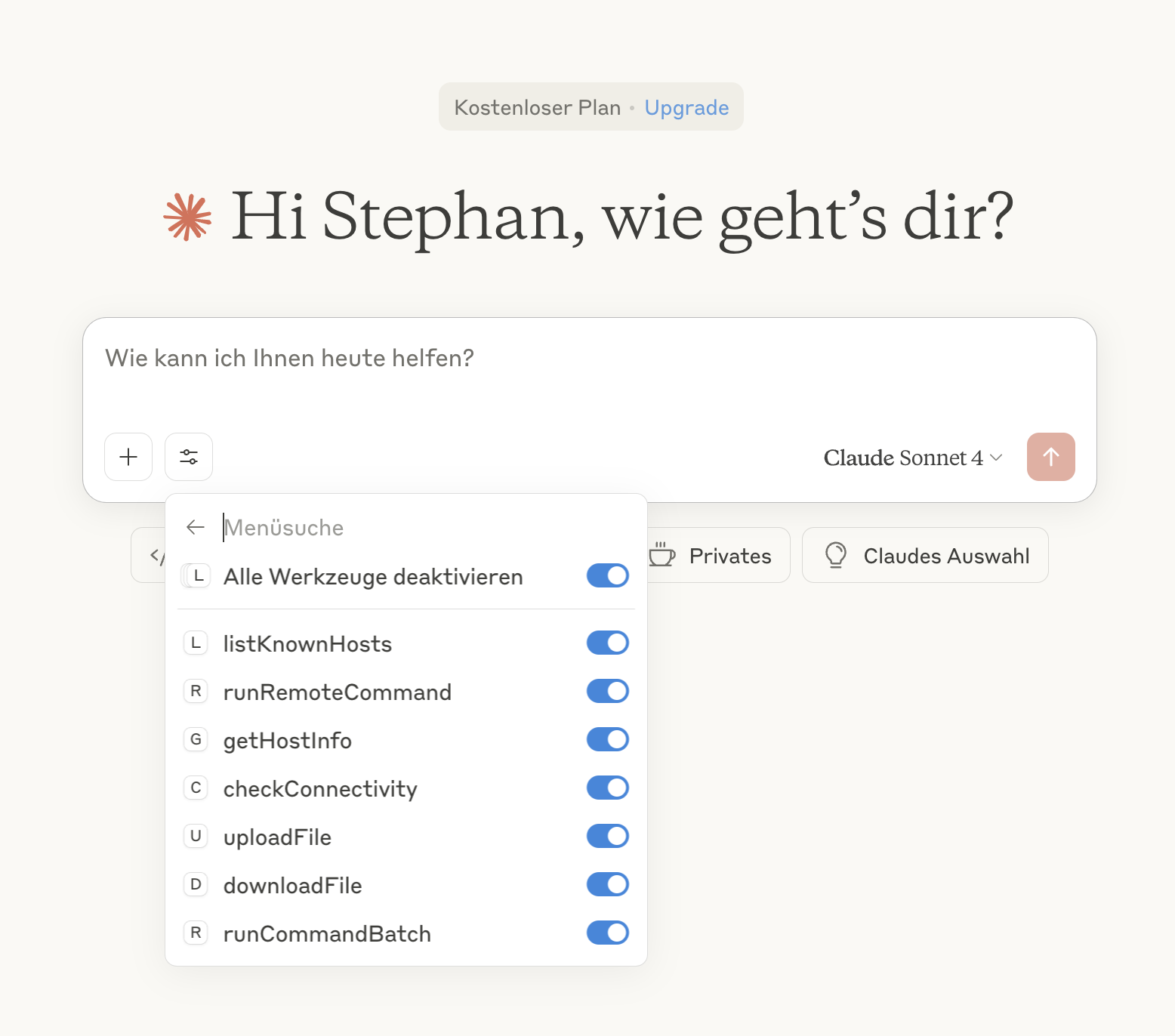
This screenshot demonstrates the MCP SSH Agent integrated with Claude, showing how the AI assistant can directly manage SSH connections and execute remote commands through the MCP protocol.
Reliable SSH: Uses native ssh/scp commands instead of JavaScript SSH libraries
Automatic Discovery: Finds hosts from SSH config and known_hosts files
Full SSH Support: Works with SSH agents, keys, and all authentication methods
Password Authentication: Supports password-based SSH login and key passphrases via @password annotation — passwords never leave your machine
File Operations: Upload and download files using scp
Batch Commands: Execute multiple commands in sequence
Error Handling: Comprehensive error reporting with timeouts
The agent provides the following MCP tools:
listKnownHosts() - Lists all known SSH hosts, prioritizing entries from ~/.ssh/config first, then additional hosts from ~/.ssh/known_hosts
runRemoteCommand(hostAlias, command) - Executes a command on a remote host using ssh
getHostInfo(hostAlias) - Returns detailed configuration for a specific host
checkConnectivity(hostAlias) - Tests SSH connectivity to a host
uploadFile(hostAlias, localPath, remotePath) - Uploads a file to the remote host using scp
downloadFile(hostAlias, remotePath, localPath) - Downloads a file from the remote host using scp
runCommandBatch(hostAlias, commands) - Executes multiple commands sequentially
Here's how your Claude Desktop configuration should look:
{
  "mcpServers": {
    "mcp-ssh": {
      "command": "npx",
      "args": ["@aiondadotcom/mcp-ssh"]
    }
  }
}If you prefer to run the server manually or integrate it with other MCP clients:
{
  "servers": {
    "mcp-ssh": {
      "command": "npx",
      "args": ["@aiondadotcom/mcp-ssh"]
    }
  }
}Node.js 20 or higher
SSH client installed (ssh and scp commands available)
SSH configuration files (~/.ssh/config and ~/.ssh/known_hosts)
Once configured, you can ask Claude to help you with SSH operations like:
"List all my SSH hosts"
"Check connectivity to my production server"
"Run a command on my web server"
"Upload this file to my remote server"
"Download logs from my application server"
Claude will use the MCP SSH tools to perform these operations safely and efficiently.
The agent runs as a Model Context Protocol server over STDIO. When installed via npm, you can use it directly:
# Run via npx (recommended)
npx @aiondadotcom/mcp-ssh

# Or if installed globally
mcp-ssh

# For development - run with debug output
npm start
The server communicates via clean JSON over STDIO, making it perfect for MCP clients like Claude Desktop.
MCP_SILENT=true - Disable debug output (automatically set when used as MCP server)
The agent reads from standard SSH configuration files:
~/.ssh/config - SSH client configuration (supports Include directives)
~/.ssh/known_hosts - Known host keys
Make sure your SSH keys are properly configured and accessible via SSH agent or key files.
For hosts that require password-based authentication (common with network infrastructure like switches and routers), you can store the password directly in your ~/.ssh/config using a special comment annotation:
Host myrouter
    HostName 192.168.1.1
    User admin
    # @password:yourSecretPassword

Host myserver
    HostName 10.0.0.5
    User deploy
    IdentityFile ~/.ssh/id_rsa
    # @password:myKeyPassphrase
How it works:
The # @password: annotation is read locally by the MCP server — the password never reaches the AI model or any cloud provider
Works for both login passwords and SSH key passphrases
The password is split at the first :, so passwords containing : are supported
When listing hosts, only passwordAuth: true is shown — the actual password is never exposed
Security requirements:
Your SSH config file must have 600 permissions when using @password annotations
The MCP server will refuse to start if the file permissions are too open
Fix with: chmod 600 ~/.ssh/config
The MCP SSH Agent fully supports SSH Include directives to organize your configuration across multiple files. However, there's an important SSH bug to be aware of:
⚠️ SSH Include Directive Bug Warning
SSH has a configuration parsing bug where Include statements must be placed at the beginning of your ~/.ssh/config file to work correctly. If placed at the end, SSH will read them but won't properly apply the included configurations.
✅ Correct placement (at the beginning):
# ~/.ssh/config
Include ~/.ssh/config.d/*
Include ~/.ssh/work-hosts

# Global settings
ServerAliveInterval 55

# Host definitions
Host myserver
    HostName example.com
❌ Incorrect placement (at the end) - won't work:
# ~/.ssh/config
# Global settings
ServerAliveInterval 55

# Host definitions
Host myserver
    HostName example.com

# These Include statements won't work properly due to SSH bug:
Include ~/.ssh/config.d/*
Include ~/.ssh/work-hosts
The MCP SSH Agent correctly processes Include directives regardless of their placement in the file, so you'll get full host discovery even if SSH itself has issues with your configuration.
Here's an example SSH configuration file that demonstrates various connection scenarios including Include directives and @password annotations for password-based authentication:
# Include directives must be at the beginning due to SSH bug
Include ~/.ssh/config.d/*
Include ~/.ssh/work-servers

# Global settings - keep connections alive
ServerAliveInterval 55

# Production server with jump host
Host prod
    Hostname 203.0.113.10
    Port 22022
    User deploy
    IdentityFile ~/.ssh/id_prod_rsa

# Root access to production (separate entry)
Host root@prod
    Hostname 203.0.113.10
    Port 22022
    User root
    IdentityFile ~/.ssh/id_prod_rsa

# Router with password authentication (no SSH key)
Host router
    Hostname 192.168.1.1
    User admin
    # @password:cQbG0q@019TAoehZel7V

# Archive server accessed through production jump host
Host archive
    Hostname 2001:db8:1f0:cafe::1
    Port 22077
    User archive-user
    ProxyJump prod

# Web servers with specific configurations
Host web1.example.com
    Hostname 198.51.100.15
    Port 22022
    User root
    IdentityFile ~/.ssh/id_ed25519

Host web2.example.com
    Hostname 198.51.100.25
    Port 22022
    User root
    IdentityFile ~/.ssh/id_ed25519

# Database server with custom key and passphrase-protected key
Host database
    Hostname 203.0.113.50
    Port 22077
    User dbadmin
    IdentityFile ~/.ssh/id_database_rsa
    IdentitiesOnly yes
    # @password:U1Jqn=NoKdELYn&h1jVT

# Mail servers (password auth, no SSH key)
Host mail1
    Hostname 198.51.100.88
    Port 22078
    User mailuser
    # @password:7iBiV8lyoq*zANv46ALD

Host root@mail1
    Hostname 198.51.100.88
    Port 22078
    User root
    # @password:MRDHI2h!zhhN=ZJIxWzH

# Monitoring server
Host monitor
    Hostname 203.0.113.100
    Port 22077
    User monitoring
    IdentityFile ~/.ssh/id_monitor_ed25519
    IdentitiesOnly yes

# Load balancers
Host lb-a
    Hostname 198.51.100.200
    Port 22077
    User root

Host lb-b
    Hostname 198.51.100.201
    Port 22077
    User root

# One host reachable under several aliases - both names work
Host docker-lxc hlab
    Hostname 10.9.0.105
    User root
This configuration demonstrates:
Global settings: ServerAliveInterval to keep connections alive
Custom ports: Non-standard SSH ports for security
Multiple users: Different user accounts for the same host (e.g., prod and root@prod)
Multiple aliases: One host declared under several names (e.g., docker-lxc hlab) — reachable under each
Jump hosts: Using ProxyJump to access servers through bastion hosts
IPv6 addresses: Modern networking support
Identity files: Specific SSH keys for different servers
Security options: IdentitiesOnly yes to use only specified keys
Password authentication: # @password: annotations for devices without SSH key support (e.g., routers, switches) or for passphrase-protected keys
listKnownHosts() reports every connectable host it finds in ~/.ssh/config (including
everything pulled in through Include), followed by any additional hostnames from
~/.ssh/known_hosts. Three rules decide what counts as connectable:
Multi-alias blocks work under every alias. Host takes a list of patterns, not a single
name, so a block can declare several aliases at once:
Host docker-lxc hlab
    Hostname 10.9.0.105
    User root
Both docker-lxc and hlab reach this host. The response carries the full list in an
aliases field, while alias holds the first one.
Defaults blocks are skipped. A block whose patterns are only wildcards and negations sets defaults for other hosts — it is not something you can connect to, so it is left out of the host list:
Host *
    ServerAliveInterval 55

Host * !bastion          # "everything except bastion" — a defaults block, not a host
    User deploy
    IdentityFile ~/.ssh/id_deploy
(OpenSSH lets you negate a pattern with !. A negated match vetoes the whole line, which
is why negation only makes sense as an exception to a wildcard.)
Hosts without a Hostname are skipped, since there is nothing to connect to.
Plain top-level directives such as a bare ServerAliveInterval 55 are configuration for
ssh itself and are ignored by host discovery — ssh still applies them, because every
operation runs through your system's ssh binary.
The MCP SSH agent automatically discovers and uses your SSH configuration:
Host Discovery: Every connectable host from ~/.ssh/config is available — see the rules above
Native SSH: Uses your system's ssh command, so all config options work
Authentication: Respects your SSH agent, key files, and authentication settings
Jump Hosts: Supports complex proxy chains and bastion host setups
Port Forwarding: Can work with custom ports and connection options
Example Usage with Claude Desktop:
"List my SSH hosts" → Shows all configured hosts including prod, archive, web1.example.com, etc.
"Connect to archive server" → Uses the ProxyJump configuration automatically
"Run 'df -h' on web1.example.com" → Connects with the correct user, port, and key
"Upload file to database server" → Uses the specific identity file and port configuration
Command not found: Ensure ssh and scp are installed and in your PATH
Permission denied: Check SSH key permissions and SSH agent
Host not found: Verify the host exists in ~/.ssh/config or ~/.ssh/known_hosts, and that its block has a Hostname — blocks without one, and pure defaults blocks such as Host *, are not connectable hosts. See Which Hosts Are Discovered
Connection timeout: Check network connectivity and firewall settings
Windows: every command fails with exit 255 and empty output: Fixed after 1.3.8. Earlier versions inherit a stripped environment from the MCP host that omits %ProgramData%, which Win32-OpenSSH needs at startup. Upgrade, or add "ProgramData": "C:\\ProgramData" to the env block of your client configuration
Run with debug output to see detailed operation logs:
# Enable debug mode
MCP_SILENT=false npx @aiondadotcom/mcp-sshFor the MCP SSH Agent to work properly, you need to set up SSH key authentication. Here's a complete guide:
Generate a new SSH key pair (use Ed25519 for better security):
# Generate Ed25519 key (recommended)
ssh-keygen -t ed25519 -C "your-email@example.com"

# Or generate RSA key (if Ed25519 is not supported)
ssh-keygen -t rsa -b 4096 -C "your-email@example.com"Important: When prompted for a passphrase, leave it empty (press Enter). The MCP SSH Agent cannot handle password-protected keys as it runs non-interactively.
Enter passphrase (empty for no passphrase): [Press Enter]
Enter same passphrase again: [Press Enter]
This creates two files:
~/.ssh/id_ed25519 (private key) - Keep this secret!
~/.ssh/id_ed25519.pub (public key) - This gets copied to servers
Copy your public key to the remote server's authorized_keys file:
# Method 1: Using ssh-copy-id (easiest)
ssh-copy-id user@hostname

# Method 2: Manual copy
cat ~/.ssh/id_ed25519.pub | ssh user@hostname "mkdir -p ~/.ssh && cat >> ~/.ssh/authorized_keys"

# Method 3: Copy and paste manually
cat ~/.ssh/id_ed25519.pub
# Then SSH to the server and paste into ~/.ssh/authorized_keysTo enable secure key-only authentication on your SSH servers, edit /etc/ssh/sshd_config:
# Edit SSH daemon configuration
sudo nano /etc/ssh/sshd_config
Add or modify these settings:
# Enable public key authentication
PubkeyAuthentication yes
AuthorizedKeysFile .ssh/authorized_keys

# Disable password authentication (security best practice)
PasswordAuthentication no
ChallengeResponseAuthentication no
UsePAM no

# Root login options (choose one):
# Option 1: Allow root login with SSH keys only (recommended for admin access)
PermitRootLogin prohibit-password

# Option 2: Completely disable root login (most secure, but less flexible)
# PermitRootLogin no

# Optional: Restrict SSH to specific users
AllowUsers deploy root admin

# Optional: Change default port for security
Port 22022
After editing, restart the SSH service:
# On Ubuntu/Debian
sudo systemctl restart ssh

# On CentOS/RHEL/Fedora
sudo systemctl restart sshd

# On macOS
sudo launchctl unload /System/Library/LaunchDaemons/ssh.plist
sudo launchctl load /System/Library/LaunchDaemons/ssh.plistSSH is very strict about file permissions. Set them correctly:
On your local machine:
chmod 700 ~/.ssh
chmod 600 ~/.ssh/id_ed25519
chmod 644 ~/.ssh/id_ed25519.pub
chmod 644 ~/.ssh/config
chmod 644 ~/.ssh/known_hosts
On the remote server:
chmod 700 ~/.ssh
chmod 600 ~/.ssh/authorized_keysTest your connection before using with MCP SSH Agent:
# Test connection
ssh -i ~/.ssh/id_ed25519 user@hostname

# Test with verbose output for debugging
ssh -v -i ~/.ssh/id_ed25519 user@hostname

# Test specific configuration
ssh -F ~/.ssh/config hostnameYou can create different keys for different servers:
# Create specific keys
ssh-keygen -t ed25519 -f ~/.ssh/id_production -C "production-server"
ssh-keygen -t ed25519 -f ~/.ssh/id_staging -C "staging-server"
Then configure them in ~/.ssh/config:
Host production
    Hostname prod.example.com
    User deploy
    IdentityFile ~/.ssh/id_production
    IdentitiesOnly yes

Host staging
    Hostname staging.example.com
    User deploy
    IdentityFile ~/.ssh/id_staging
IdentitiesOnly yesMCP SSH Agent gives an LLM the ability to drive ssh and scp on your behalf. Before using it, it is important to understand what an attacker who controls the LLM's instructions (for example via prompt injection through web pages, e‑mails, repository files, or another MCP server's output) can do:
runRemoteCommand is full remote code execution on every host you have configured. If your ~/.ssh/config contains an entry for production, the LLM can run arbitrary commands as that user on that host. This is the tool's purpose, not a bug — but it means you should only configure hosts that you are willing to let the LLM touch, and prefer least-privilege accounts.
uploadFile and downloadFile give the LLM access to the local filesystem with the privileges of the user running the MCP server. The LLM can read any file the process can read (including ~/.ssh/id_*, browser data, source trees, .env files) and write to any path it can write to (including ~/.ssh/authorized_keys). The path arguments are not sandboxed because the tool's contract is "transfer arbitrary files".
The MCP server runs locally over STDIO, but the LLM is not trusted. STDIO only describes the transport — the content of tool arguments is chosen by the model, which can be steered by any untrusted text it ingests during the conversation.
# @password: annotations are kept out of the LLM's context, but they live in ~/.ssh/config on disk. Anything that gives an attacker arbitrary local file read (see above) also exposes those passwords. The annotation only protects against the LLM seeing the password through the MCP protocol, not against local file disclosure.
Run MCP SSH Agent under a dedicated, unprivileged OS user whose home directory only contains the SSH config and keys you actually want the LLM to be able to use.
Or run it inside a container / sandbox with a minimal ~/.ssh and no access to other secrets on your machine.
Keep ~/.ssh/config to the smallest set of hosts you trust the LLM with. Use restricted shell users on the remote side where possible.
Treat any session where the LLM ingests untrusted content (web pages, e‑mails, third‑party repos, other MCP servers' output) as potentially hostile to MCP SSH operations.
Report suspected vulnerabilities via GitHub's private vulnerability reporting on this repository.
Never use password-protected keys with MCP SSH Agent
Never share private keys - they should stay on your machine only
Use Ed25519 keys when possible (more secure than RSA)
Create separate keys for different environments/purposes
Regularly rotate keys (every 6-12 months)
Disable password authentication completely
Use non-standard SSH ports to reduce automated attacks
Limit SSH access to specific users with AllowUsers
Choose appropriate root login policy:
PermitRootLogin prohibit-password - Allows root access with SSH keys only (recommended for admin tasks)
PermitRootLogin no - Completely disables root login (most secure, but requires sudo access)
Enable SSH key-only authentication for all accounts
Consider using jump hosts for additional security layers
Use VPN or bastion hosts for production servers
Implement fail2ban to block brute force attempts
Monitor SSH logs regularly
Use SSH key forwarding carefully (disable when not needed)
For developers who want to build the bundle locally:
Node.js 20 or higher
npm
npm install
npm run build:mcpb
This writes build/mcp-ssh-<version>.mcpb, installable in Claude Desktop.
The bundle is packed from a staging copy containing only production dependencies,
so it does not carry the test and build toolchain. The build refuses to run if
manifest.json and package.json disagree on the version.
npm run build:mcpb
gh release upload v1.3.9 build/mcp-ssh-1.3.9.mcpbContributions are welcome! Please feel free to submit a Pull Request.
npm install        # also compiles src/ -> dist/ via the prepare script
npm run build      # tsc
npm run typecheck  # tsc --noEmit, strict for src/ and relaxed for tests
npm run lint       # eslint with type-aware rules
npm test           # vitest with coverage
npm run test:watch # watch mode
The server is written in TypeScript under src/ and compiled to dist/, which is what
bin/mcp-ssh.js loads and what ships to npm. dist/ is not in git — a fresh checkout gets
it from npm install.
Three things to know before opening a PR:
Coverage is a build gate. vitest.config.mjs pins statements, branches, functions and
lines of src/ at 100%, so a change that adds an untested line fails CI. If a branch
is genuinely unreachable, removing it is usually better than working around the threshold.
Lint rules are calibrated, not stock. Where a rule is relaxed, the reason is in a comment
next to it. prefer-nullish-coalescing in particular exempts strings and numbers on purpose:
|| and ?? are not interchangeable for environment variables (a stripped launcher env
reports an empty string, see issue #10) or for timeout || DEFAULT.
CI runs on Linux and Windows across Node 20, 22 and 24. Platform-specific code paths are
tested from either OS by re-importing the module with process.platform faked — see
loadServerAs() in src/test-helpers.ts — rather than by skipping tests on one platform.
MIT License - see LICENSE file for details.
mcp-ssh/
├── src/                       # TypeScript sources
│   ├── server.ts              # Entry point: MCP server wiring and main()
│   ├── tools.ts               # Tool definitions and dispatch
│   ├── ssh-client.ts          # All ssh/scp operations
│   ├── ssh-config-parser.ts   # Host discovery from config and known_hosts
│   ├── config-values.ts       # ssh-config value normalization
│   ├── platform.ts            # Platform detection, binary resolution, logging
│   ├── types.ts               # Shared types
│   └── server.test.ts         # Test suite (vitest)
├── dist/                      # Compiled output (generated, not in git)
├── bin/
│   └── mcp-ssh.js             # Executable entry point (loads dist/server.js)
├── tsconfig.json              # Strict compiler options for src/
├── tsconfig.build.json        # Build config (excludes tests)
├── tsconfig.test.json         # Relaxed options for test files
├── eslint.config.mjs          # typescript-eslint, type-aware rules
├── vitest.config.mjs          # Test and coverage configuration
├── manifest.json              # MCP Bundle manifest
├── package.json               # Dependencies and scripts
├── README.md                  # Documentation
├── LICENSE                    # MIT License
├── CHANGELOG.md               # Release history
├── PUBLISHING.md              # Publishing instructions
├── .gitattributes             # Forces LF checkout on every platform
├── start.sh                   # Development startup script
├── start-silent.sh            # Silent startup script
├── scripts/
│   └── build-mcpb.sh          # MCP Bundle build script
└── doc/                       # Documentation assets
    ├── example.png            # Usage example screenshot
└── Claude.png # Claude Desktop integration exampleThis project is maintained by aionda.com and provides a reliable bridge between AI assistants and SSH infrastructure through the Model Context Protocol.
Checks if an SSH connection to the host is possible
| Name | Required | Description | Default |
|---|---|---|---|
| hostAlias | Yes | Alias or hostname of the SSH host |
Does the description disclose side effects, auth requirements, rate limits, or destructive behavior?
No annotations are provided, so the description carries the full burden of behavioral disclosure. It states the tool checks SSH connectivity but doesn't describe what 'possible' means (e.g., success criteria like authentication, network reachability), potential side effects, error handling, or output format. This leaves significant gaps in understanding the tool's behavior.
Agents need to know what a tool does to the world before calling it. Descriptions should go beyond structured annotations to explain consequences.
Is the description appropriately sized, front-loaded, and free of redundancy?
The description is a single, clear sentence with zero waste, front-loading the core purpose efficiently. It avoids unnecessary details while conveying the essential action, making it highly concise and well-structured for quick comprehension.
Shorter descriptions cost fewer tokens and are easier for agents to parse. Every sentence should earn its place.
Given the tool's complexity, does the description cover enough for an agent to succeed on first attempt?
Given the complexity of SSH connectivity checks (involving network, authentication, etc.), no annotations, and no output schema, the description is incomplete. It lacks details on behavioral traits, success/failure conditions, and return values, which are crucial for an agent to use the tool effectively in this context.
Complex tools with many parameters or behaviors need more documentation. Simple tools need less. This dimension scales expectations accordingly.
Does the description clarify parameter syntax, constraints, interactions, or defaults beyond what the schema provides?
Schema description coverage is 100%, with the single parameter 'hostAlias' documented as 'Alias or hostname of the SSH host'. The description adds no additional meaning beyond this, such as examples or constraints, but since the schema already provides adequate coverage, the baseline score of 3 is appropriate.
Input schemas describe structure but not intent. Descriptions should explain non-obvious parameter relationships and valid value ranges.
Does the description clearly state what the tool does and how it differs from similar tools?
The description clearly states the tool's purpose with a specific verb ('Checks') and resource ('SSH connection to the host'), making it immediately understandable. However, it doesn't explicitly differentiate from sibling tools like 'getHostInfo' or 'listKnownHosts', which might also involve host connectivity checks, preventing a perfect score.
Agents choose between tools based on descriptions. A clear purpose with a specific verb and resource helps agents select the right tool.
Does the description explain when to use this tool, when not to, or what alternatives exist?
The description provides no guidance on when to use this tool versus alternatives. It doesn't mention prerequisites (e.g., needing SSH credentials), exclusions, or comparisons to siblings like 'getHostInfo' for detailed host status or 'runRemoteCommand' for testing connectivity via command execution, leaving the agent with minimal context for tool selection.
Agents often have multiple tools that could apply. Explicit usage guidance like "use X instead of Y when Z" prevents misuse.
Downloads a file from an SSH host
| Name | Required | Description | Default |
|---|---|---|---|
| hostAlias | Yes | Alias or hostname of the SSH host | |
| localPath | Yes | Path to the local destination | |
| remotePath | Yes | Path on the remote host |
Does the description disclose side effects, auth requirements, rate limits, or destructive behavior?
With no annotations, the description carries full burden but only states the basic action. It lacks behavioral details such as authentication requirements, error handling for missing files, file size limits, or overwrite behavior for local paths, which are critical for safe usage.
Agents need to know what a tool does to the world before calling it. Descriptions should go beyond structured annotations to explain consequences.
Is the description appropriately sized, front-loaded, and free of redundancy?
The description is a single, efficient sentence with zero waste—it directly states the tool's function without unnecessary words. It's appropriately sized and front-loaded, making it easy to parse quickly.
Shorter descriptions cost fewer tokens and are easier for agents to parse. Every sentence should earn its place.
Given the tool's complexity, does the description cover enough for an agent to succeed on first attempt?
For a tool with 3 parameters, no annotations, and no output schema, the description is incomplete. It doesn't cover behavioral aspects like success/failure responses, security implications, or integration with sibling tools, leaving significant gaps for an AI agent to use it correctly.
Complex tools with many parameters or behaviors need more documentation. Simple tools need less. This dimension scales expectations accordingly.
Does the description clarify parameter syntax, constraints, interactions, or defaults beyond what the schema provides?
Schema description coverage is 100%, so parameters are well-documented in the schema. The description adds no additional meaning beyond implying the tool involves SSH and file transfer, which is already inferred from the schema. Baseline 3 is appropriate as the schema does the heavy lifting.
Input schemas describe structure but not intent. Descriptions should explain non-obvious parameter relationships and valid value ranges.
Does the description clearly state what the tool does and how it differs from similar tools?
The description clearly states the action ('Downloads') and resource ('a file from an SSH host'), making the purpose immediately understandable. However, it doesn't differentiate from sibling tools like 'uploadFile' or 'runRemoteCommand' beyond the basic verb, missing explicit distinction.
Agents choose between tools based on descriptions. A clear purpose with a specific verb and resource helps agents select the right tool.
Does the description explain when to use this tool, when not to, or what alternatives exist?
No guidance is provided on when to use this tool versus alternatives. For example, it doesn't mention prerequisites like SSH connectivity (covered by 'checkConnectivity') or contrast with 'uploadFile' for reverse operations, leaving usage context unclear.
Agents often have multiple tools that could apply. Explicit usage guidance like "use X instead of Y when Z" prevents misuse.
Returns all configuration details for an SSH host
| Name | Required | Description | Default |
|---|---|---|---|
| hostAlias | Yes | Alias or hostname of the SSH host |
Does the description disclose side effects, auth requirements, rate limits, or destructive behavior?
No annotations are provided, so the description carries the full burden of behavioral disclosure. It states the tool returns configuration details, but doesn't describe any behavioral traits like error handling, permissions required, rate limits, or what 'all configuration details' entails. This is a significant gap for a tool with no annotation coverage.
Agents need to know what a tool does to the world before calling it. Descriptions should go beyond structured annotations to explain consequences.
Is the description appropriately sized, front-loaded, and free of redundancy?
The description is a single, efficient sentence that directly states the tool's function without any waste. It is appropriately sized and front-loaded, making it easy to parse quickly.
Shorter descriptions cost fewer tokens and are easier for agents to parse. Every sentence should earn its place.
Given the tool's complexity, does the description cover enough for an agent to succeed on first attempt?
Given the tool's complexity (SSH host configuration retrieval), lack of annotations, and no output schema, the description is incomplete. It doesn't explain what 'all configuration details' includes, potential return formats, or error scenarios, leaving gaps for the agent to infer behavior.
Complex tools with many parameters or behaviors need more documentation. Simple tools need less. This dimension scales expectations accordingly.
Does the description clarify parameter syntax, constraints, interactions, or defaults beyond what the schema provides?
The input schema has 100% description coverage, with the parameter 'hostAlias' clearly documented as 'Alias or hostname of the SSH host'. The description adds no additional meaning beyond this, as it doesn't elaborate on parameter usage or constraints. Baseline 3 is appropriate when the schema does the heavy lifting.
Input schemas describe structure but not intent. Descriptions should explain non-obvious parameter relationships and valid value ranges.
Does the description clearly state what the tool does and how it differs from similar tools?
The description clearly states the tool's purpose with a specific verb ('Returns') and resource ('all configuration details for an SSH host'), making it easy to understand what the tool does. However, it doesn't explicitly differentiate from sibling tools like 'listKnownHosts', which might also provide host-related information, so it misses the highest score.
Agents choose between tools based on descriptions. A clear purpose with a specific verb and resource helps agents select the right tool.
Does the description explain when to use this tool, when not to, or what alternatives exist?
The description provides no guidance on when to use this tool versus alternatives. It doesn't mention any context, prerequisites, or exclusions, such as when to choose 'getHostInfo' over 'listKnownHosts' or other SSH-related tools, leaving the agent without usage direction.
Agents often have multiple tools that could apply. Explicit usage guidance like "use X instead of Y when Z" prevents misuse.
Returns a consolidated list of all known SSH hosts, prioritizing ~/.ssh/config entries first, then additional hosts from ~/.ssh/known_hosts
| Name | Required | Description | Default |
|---|---|---|---|
No parameters | |||
Does the description disclose side effects, auth requirements, rate limits, or destructive behavior?
With no annotations provided, the description carries the full burden. It effectively discloses key behavioral traits: the consolidation of multiple sources, prioritization logic, and the specific file paths involved. It doesn't mention potential issues like file permissions, missing files, or output format details, but provides solid operational context.
Agents need to know what a tool does to the world before calling it. Descriptions should go beyond structured annotations to explain consequences.
Is the description appropriately sized, front-loaded, and free of redundancy?
The description is a single, well-structured sentence that efficiently conveys the tool's purpose, data sources, and prioritization logic. Every element earns its place with no wasted words, making it easy to parse and understand.
Shorter descriptions cost fewer tokens and are easier for agents to parse. Every sentence should earn its place.
Given the tool's complexity, does the description cover enough for an agent to succeed on first attempt?
For a zero-parameter tool with no annotations or output schema, the description provides strong context about what the tool does and how it operates. It could be more complete by mentioning the return format or handling of edge cases, but it adequately covers the core functionality given the simplicity.
Complex tools with many parameters or behaviors need more documentation. Simple tools need less. This dimension scales expectations accordingly.
Does the description clarify parameter syntax, constraints, interactions, or defaults beyond what the schema provides?
The tool has zero parameters with 100% schema description coverage, so the baseline is 4. The description appropriately doesn't discuss parameters, focusing instead on the tool's behavior and data sources, which adds value beyond the empty schema.
Input schemas describe structure but not intent. Descriptions should explain non-obvious parameter relationships and valid value ranges.
Does the description clearly state what the tool does and how it differs from similar tools?
The description clearly states the specific action ('Returns a consolidated list') and resource ('all known SSH hosts'), with explicit prioritization rules (~/.ssh/config entries first, then ~/.ssh/known_hosts). It distinguishes itself from sibling tools like 'getHostInfo' by focusing on listing rather than detailed information retrieval.
Agents choose between tools based on descriptions. A clear purpose with a specific verb and resource helps agents select the right tool.
Does the description explain when to use this tool, when not to, or what alternatives exist?
The description implies usage context through the prioritization rules, suggesting it's for retrieving SSH host configurations. However, it lacks explicit guidance on when to use this tool versus alternatives like 'getHostInfo' or 'checkConnectivity', and doesn't mention prerequisites or exclusions.
Agents often have multiple tools that could apply. Explicit usage guidance like "use X instead of Y when Z" prevents misuse.
Executes multiple shell commands sequentially on an SSH host
| Name | Required | Description | Default |
|---|---|---|---|
| commands | Yes | List of shell commands to execute | |
| hostAlias | Yes | Alias or hostname of the SSH host |
Does the description disclose side effects, auth requirements, rate limits, or destructive behavior?
No annotations are provided, so the description carries full burden. It mentions 'sequentially' (execution order) but omits critical behavioral traits: error handling (e.g., stops on first failure?), permissions required, output format, timeout/rate limits, or side effects. For a tool executing shell commands on a remote host, this lack of disclosure is a significant gap.
Agents need to know what a tool does to the world before calling it. Descriptions should go beyond structured annotations to explain consequences.
Is the description appropriately sized, front-loaded, and free of redundancy?
The description is a single, efficient sentence with zero waste. It's front-loaded with the core action and target, and every word ('executes', 'multiple', 'shell commands', 'sequentially', 'SSH host') contributes essential information without redundancy.
Shorter descriptions cost fewer tokens and are easier for agents to parse. Every sentence should earn its place.
Given the tool's complexity, does the description cover enough for an agent to succeed on first attempt?
Given the complexity (remote command execution with potential side effects), lack of annotations, and no output schema, the description is incomplete. It doesn't cover error handling, security implications, or return values, leaving the agent with insufficient context for safe and effective use.
Complex tools with many parameters or behaviors need more documentation. Simple tools need less. This dimension scales expectations accordingly.
Does the description clarify parameter syntax, constraints, interactions, or defaults beyond what the schema provides?
Schema description coverage is 100%, so the schema already documents both parameters ('hostAlias' and 'commands'). The description adds no additional meaning beyond implying 'commands' are executed in sequence, which is minimal value. Baseline 3 is appropriate as the schema does the heavy lifting.
Input schemas describe structure but not intent. Descriptions should explain non-obvious parameter relationships and valid value ranges.
Does the description clearly state what the tool does and how it differs from similar tools?
The description clearly states the action ('executes multiple shell commands') and target ('on an SSH host'), with 'sequentially' adding operational detail. It distinguishes from siblings like 'runRemoteCommand' (singular vs. batch) and 'checkConnectivity' (diagnostic vs. execution), though not explicitly named. However, it doesn't fully differentiate from all siblings (e.g., 'uploadFile' is also SSH-related but different purpose).
Agents choose between tools based on descriptions. A clear purpose with a specific verb and resource helps agents select the right tool.
Does the description explain when to use this tool, when not to, or what alternatives exist?
The description provides no guidance on when to use this tool versus alternatives. It doesn't mention prerequisites (e.g., SSH connectivity established), compare to 'runRemoteCommand' for single commands, or specify use cases like batch automation. Without such context, an agent might misuse it when a sibling tool is more appropriate.
Agents often have multiple tools that could apply. Explicit usage guidance like "use X instead of Y when Z" prevents misuse.
Executes a shell command on an SSH host. For long-running commands, increase the timeout parameter.
| Name | Required | Description | Default |
|---|---|---|---|
| command | Yes | The shell command to execute | |
| timeout | No | Command timeout in milliseconds (default: 120000, max: 300000) | |
| hostAlias | Yes | Alias or hostname of the SSH host |
Does the description disclose side effects, auth requirements, rate limits, or destructive behavior?
With no annotations, the description carries full responsibility for behavioral disclosure. It only mentions execution and a timeout tip, omitting how output is returned, whether the call is blocking, error handling, or potential side effects. This is insufficient for a remote command execution tool.
Agents need to know what a tool does to the world before calling it. Descriptions should go beyond structured annotations to explain consequences.
Is the description appropriately sized, front-loaded, and free of redundancy?
The description is two sentences, with the primary purpose stated first and a useful tip second. There is no redundancy or filler, making it appropriately concise and well-structured.
Shorter descriptions cost fewer tokens and are easier for agents to parse. Every sentence should earn its place.
Given the tool's complexity, does the description cover enough for an agent to succeed on first attempt?
Without an output schema, the description should explain what the caller receives (e.g., stdout/stderr, exit code, errors), but it does not. It also fails to position the tool relative to its siblings, leaving the overall operational context incomplete for a command execution tool.
Complex tools with many parameters or behaviors need more documentation. Simple tools need less. This dimension scales expectations accordingly.
Does the description clarify parameter syntax, constraints, interactions, or defaults beyond what the schema provides?
The input schema already describes all three parameters with 100% coverage, so the baseline is 3. The description adds value by advising to increase timeout for long-running commands, providing actionable context beyond the schema's basic type and default info.
Input schemas describe structure but not intent. Descriptions should explain non-obvious parameter relationships and valid value ranges.
Does the description clearly state what the tool does and how it differs from similar tools?
The description clearly states it executes a shell command on an SSH host, specifying a concrete verb and resource. It does not explicitly differentiate from sibling runCommandBatch, so it falls short of a perfect 5.
Agents choose between tools based on descriptions. A clear purpose with a specific verb and resource helps agents select the right tool.
Does the description explain when to use this tool, when not to, or what alternatives exist?
There is no guidance on when to use this tool versus alternatives like runCommandBatch. The only usage tip concerns increasing the timeout for long-running commands, which is a parameter adjustment, not a tool-selection criterion.
Agents often have multiple tools that could apply. Explicit usage guidance like "use X instead of Y when Z" prevents misuse.
Uploads a local file to an SSH host
| Name | Required | Description | Default |
|---|---|---|---|
| hostAlias | Yes | Alias or hostname of the SSH host | |
| localPath | Yes | Path to the local file | |
| remotePath | Yes | Path on the remote host |
Does the description disclose side effects, auth requirements, rate limits, or destructive behavior?
With no annotations provided, the description carries the full burden of behavioral disclosure but offers minimal information. It states the action ('Uploads') but doesn't cover critical aspects like authentication requirements, error handling (e.g., if the SSH host is unreachable), file size limits, or whether it overwrites existing files at the remote path. This leaves significant gaps for a mutation tool.
Agents need to know what a tool does to the world before calling it. Descriptions should go beyond structured annotations to explain consequences.
Is the description appropriately sized, front-loaded, and free of redundancy?
The description is extremely concise with a single sentence that directly states the tool's purpose. There is no wasted language or unnecessary elaboration, making it front-loaded and efficient for quick understanding.
Shorter descriptions cost fewer tokens and are easier for agents to parse. Every sentence should earn its place.
Given the tool's complexity, does the description cover enough for an agent to succeed on first attempt?
Given the tool's complexity (file upload over SSH, a mutation operation) and the absence of both annotations and an output schema, the description is incomplete. It lacks details on behavioral traits, error conditions, or return values, which are essential for safe and effective use in this context.
Complex tools with many parameters or behaviors need more documentation. Simple tools need less. This dimension scales expectations accordingly.
Does the description clarify parameter syntax, constraints, interactions, or defaults beyond what the schema provides?
The schema description coverage is 100%, with clear descriptions for all three parameters (hostAlias, localPath, remotePath). The description adds no additional parameter semantics beyond what the schema provides, such as format examples or constraints, so it meets the baseline for high schema coverage without compensating value.
Input schemas describe structure but not intent. Descriptions should explain non-obvious parameter relationships and valid value ranges.
Does the description clearly state what the tool does and how it differs from similar tools?
The description clearly states the action ('Uploads') and the resource ('a local file to an SSH host'), making the tool's purpose immediately understandable. However, it doesn't explicitly differentiate from sibling tools like 'downloadFile' beyond the direction of file transfer, which would require mentioning the opposite operation for full distinction.
Agents choose between tools based on descriptions. A clear purpose with a specific verb and resource helps agents select the right tool.
Does the description explain when to use this tool, when not to, or what alternatives exist?
The description provides no guidance on when to use this tool versus alternatives. It doesn't mention prerequisites like SSH connectivity (implied by 'SSH host'), compare with siblings like 'downloadFile' for reverse operations, or specify scenarios where this is appropriate over other file-related tools.
Agents often have multiple tools that could apply. Explicit usage guidance like "use X instead of Y when Z" prevents misuse.
Recent tool additions, removals, and schema changes observed during successful MCP inspections.
v1.3.9runRemoteCommand1 field changedInput schema / properties / timeoutAdded value: +{
+ "description": "Command timeout in milliseconds (default: 120000, max: 300000)",
+ "type": "number"
+}checkConnectivitydownloadFilegetHostInfolistKnownHostsrunCommandBatchrunRemoteCommanduploadFileScored across 7 tools
Most tools target distinct operations like listing hosts, checking connectivity, transferring files, or retrieving config. The only overlap is between runRemoteCommand and runCommandBatch, but their descriptions make the single-vs-batch distinction clear.
All tool names follow a consistent camelCase verb-object pattern: list, run, get, check, upload, download. The naming is uniform and predictable with no mixed conventions.
Seven tools is a well-scoped set for an SSH agent, covering host discovery, inspection, connectivity testing, command execution, and file transfer. Each tool has a clear role without unnecessary bloat.
The toolset covers the core SSH workflow: enumerate hosts, inspect config, test connections, execute commands, and transfer files. Minor gaps exist around managing known hosts or editing SSH config, but agents can accomplish the primary tasks without dead ends.
The Remote MCP server acts as a standardized bridge between LLM applications (like Claude, ChatGPT, and Cursor) and external services, enabling AI agents to access external tools and resources. Its primary capability is providing a centralized search tool to discover other MCP servers and their respective tools. Unlike local implementations, it runs remotely with OAuth authentication and permission controls for security.
Termalin's hosted MCP server. Claude, ChatGPT or any MCP client runs commands, moves files over SFTP, queries databases and reads server metrics and monitoring alerts on your servers, keylessly through Termalin Connectors: no SSH key is handed over and no inbound port is opened. Per-host command policy and an audit log. Needs a termal.in Pro or Team account (new accounts start with a 14-day Pro trial).
Scoped, audited SSH exec, sessions, and SFTP on your saved servers without exposing credentials
A MCP server built for developers enabling Git based project management with project and personal…