
Browser MCP
# Browser MCP by [Agent360](https://agent360.dk)
**The browser tool that can stop and ask you.** A 2FA code, a CAPTCHA, a choice only you can
make: it asks on your own screen, then carries on in the same signed-in Chrome.
It drives the Chrome you are already signed into: no login step to fail, no API key to wire
up, no fresh profile that is a stranger to every account you have. Up to 20 agents at once, each
in its own colour-coded tab group. 40 tools, MIT, runs on your machine.
→ **[What it can and cannot get past](https://browsermcp.dev/docs/capability-matrix/)** - every
wall, marked *measured*, *by design*, *not yet*, or *won't*. Including the ones we have not fixed.
[](https://www.npmjs.com/package/@agent360/browser-mcp)
[](https://www.npmjs.com/package/@agent360/browser-mcp)
[](https://github.com/Agent360dk/browser-mcp)
[](https://opensource.org/licenses/MIT)
[](https://modelcontextprotocol.io)
[](https://chromewebstore.google.com/detail/agent360-browser-mcp/jdehgalffmffhfhmmhaokfbfnafnmgcl)
[](https://cursor.com/install-mcp?name=browser-mcp&config=eyJjb21tYW5kIjoibnB4IiwiYXJncyI6WyIteSIsIkBhZ2VudDM2MC9icm93c2VyLW1jcEBsYXRlc3QiXX0%3D)
[](https://vscode.dev/redirect/mcp/install?name=browser-mcp&config=%7B%22command%22%3A%22npx%22%2C%22args%22%3A%5B%22-y%22%2C%22%40agent360%2Fbrowser-mcp%40latest%22%5D%7D)
[](https://glama.ai/mcp/servers/Agent360dk/browser-mcp)
[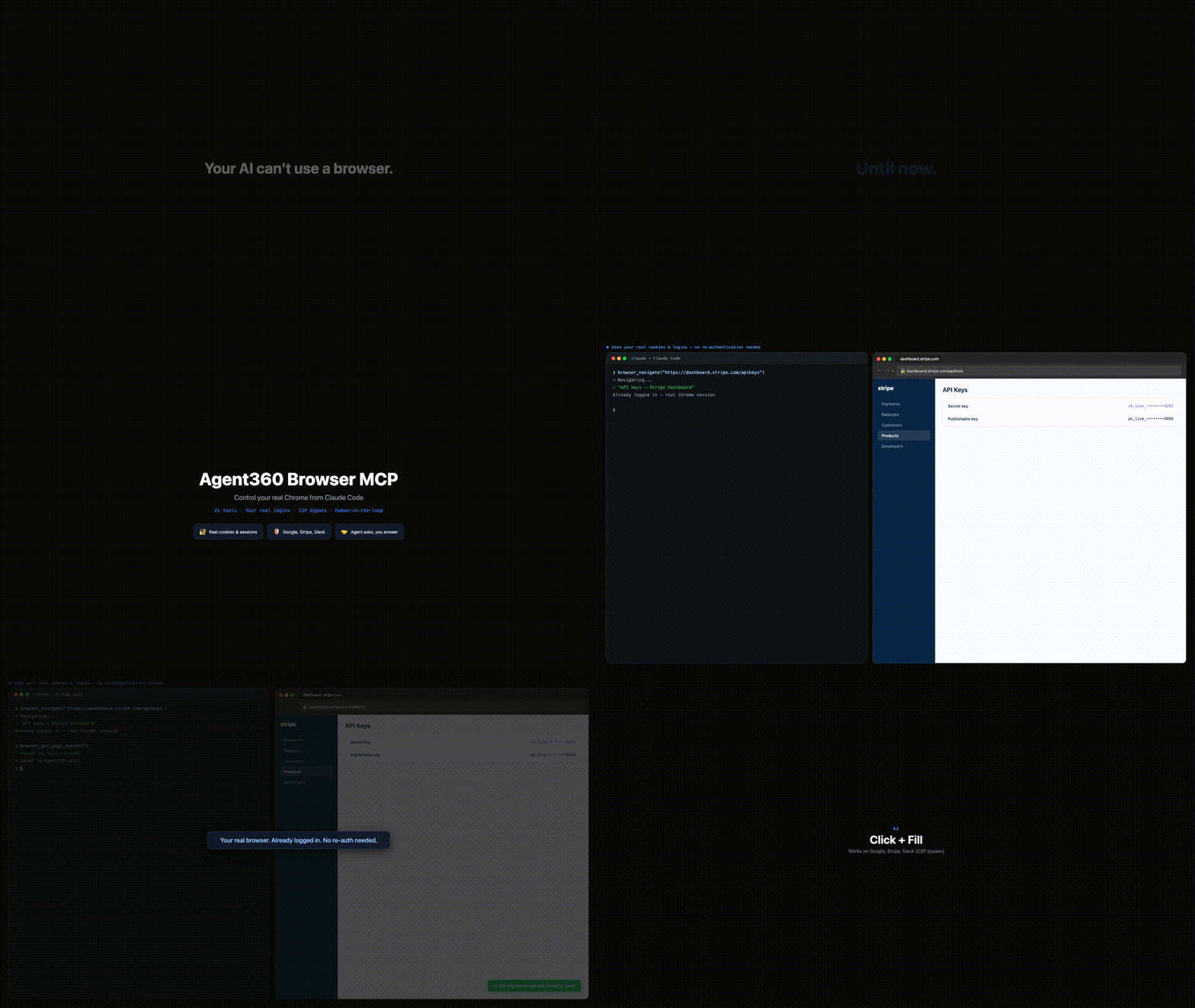](https://browsermcp.dev)
▶ **[Watch the 15-second film →](https://browsermcp.dev/film.mp4)**
Browser MCP gives Claude Code (and MCP clients that run local servers, such as Cursor and VS Code agent mode) control of your actual Chrome: your cookies, your sessions, your 2FA. So it works on CAPTCHA, 2FA and anti-bot sites where Playwright and Puppeteer get blocked - because it's *you* browsing.
The killer move: it hits a login wall, opens your Gmail, reads the verification code, and continues the sign-in. There is no email API to set up. Operate platforms with no API, QA your own web app end-to-end, or work dashboards, LinkedIn and Reddit at human pace - with you approving the sensitive steps.
40 tools. Auto-clicks the reCAPTCHA v2 checkbox, with a human fallback for the rest. Multi-session color-coded tab groups. **MIT, free, and it runs on your machine - no account, no telemetry, nothing sent to us.**
## The whole thing, in four steps
**Rather not do it by hand?** Paste this to your AI assistant - Claude Code, Cursor, Codex, VS Code, Windsurf, Cline - and it sets itself up:
> Set up Browser MCP for me. Read https://browsermcp.dev/llms-install.md and follow it for whichever AI client you are running in. One step only I can do - tell me which one, and wait for me. When I confirm, call `browser_list_tabs` to prove both halves are talking.
>
> If you cannot open URLs: `npx @agent360/browser-mcp install`
It reads the same guide the four steps below spell out by hand. One step stays yours either way: Chrome will not let an extension install itself, so you load it once.
**1 - Install the Chrome extension.** One click from the [Chrome Web Store](https://chromewebstore.google.com/detail/agent360-browser-mcp/jdehgalffmffhfhmmhaokfbfnafnmgcl); Chrome keeps it updated. No store? See the unpacked install below.
**2 - Add the MCP server.** Paste this in a terminal. Required - the extension does nothing on its own:
```bash
claude mcp add --scope user browser-mcp -- npx @agent360/browser-mcp@latest
```
**3 - Restart Claude Code.** That is what starts the server. The extension shows no badge until step 4 - the server only takes a port the first time your agent actually uses the browser. A green badge with the number of connected agents appears then; nothing on the icon before that is normal. (The icon itself never changes colour - it is the badge that turns green.)
**4 - Say this, to check it worked.** Paste it to Claude Code:
> Open example.com and take a screenshot.
You get an image back instead of *"I don't have browser access"*. **That's it - you're running.** → [What else to say](#youre-in-now-what)
Using Cursor, VS Code, Codex or Windsurf? Same server, that client's own config - the prompt at the top handles it, or see [browsermcp.dev/docs](https://browsermcp.dev/docs/install-cursor/). Everything below is the long version.
## The long version - install, step by step
> **Browser MCP is two halves and you need both:** a **Chrome extension** (drives the browser) and a **local MCP server** (what your agent actually talks to). Installing only the extension - e.g. straight from the Chrome Web Store - leaves it stuck on *"Not connected"*, because there is no server for it to reach. Chrome cannot install the server, and npm cannot install the extension. Hence two steps.
### Step 1: Register the MCP server with Claude Code
```bash
claude mcp add --scope user browser-mcp -- npx @agent360/browser-mcp@latest
```
That is Claude Code's own MCP command, so the entry lands in the config Claude Code actually reads. `--scope user` makes it available in every project.
Want the extension files on disk for the unpacked install in Step 2? Also run:
```bash
npx @agent360/browser-mcp install
```
It copies the extension to `~/.browser-mcp/extension/` and **prints that path in the terminal - copy it.** (It also registers the server with Claude Code, Codex, VS Code and Cursor if it finds them.)
### Step 2: Load the extension in Chrome
> Chrome won't let extensions install themselves from npm - you load it manually one time. To **update** later, re-run the install command and reload it (see [Keeping it updated](#keeping-it-updated)). Prefer the [Chrome Web Store](#chrome-web-store-no-developer-mode-auto-updating-extension) install if you'd rather have the extension auto-update.
1. **Open Chrome** and type `chrome://extensions` in the address bar
2. **Toggle "Developer mode"** ON (top right corner)
3. **Click "Load unpacked"** (top left, next to "Pack extension")
4. **Navigate to `~/.browser-mcp/extension/`** and click "Select"
- On Mac: Press `Cmd+Shift+G` in the file picker, paste `~/.browser-mcp/extension/`, press Enter
- On Windows: Paste `%USERPROFILE%\.browser-mcp\extension\` in the address bar (Windows is not yet verified: our automated tests do not pass there)
- On Linux: Type `~/.browser-mcp/extension/` in the path field
5. **Restart Claude Code** so it picks up the new MCP server
That's it. The Browser MCP icon will appear in your toolbar, and 40 browser tools are now available in Claude Code.
### Alternative: Manual zip download (no npm)
If you don't want to use npm, download the extension directly:
1. [Download the extension zip](https://github.com/Agent360dk/browser-mcp/releases/latest) (`agent360-browser-mcp-<version>.zip`) from the latest GitHub release
2. Unzip the file (anywhere - e.g. `~/Downloads/browser-mcp-extension/`)
3. Follow Step 2 above, but select the unzipped folder instead of `~/.browser-mcp/extension/`
4. Register the server - run `claude mcp add --scope user browser-mcp -- npx @agent360/browser-mcp@latest`, or add this to `~/.claude.json` by hand:
```json
{
"mcpServers": {
"browser-mcp": {
"command": "npx",
"args": ["@agent360/browser-mcp@latest"]
}
}
}
```
### Chrome Web Store (no Developer mode, auto-updating extension)
**This replaces Step 2 only - you still need Step 1.**
1. [**Install the extension from the Chrome Web Store →**](https://chromewebstore.google.com/detail/agent360-browser-mcp/jdehgalffmffhfhmmhaokfbfnafnmgcl) - no Developer mode toggle, and Chrome keeps it updated for you.
2. Register the MCP server:
```bash
claude mcp add --scope user browser-mcp -- npx @agent360/browser-mcp@latest
```
(For Cursor / VS Code / Codex, use that client's own MCP config instead - see [browsermcp.dev/docs](https://browsermcp.dev/docs/install-claude-code/).)
3. Restart Claude Code.
Skip step 2 and the extension icon will sit on **"Not connected"** forever - that is the symptom of a missing MCP server, not a broken extension.
## You're in. Now what?
Nothing happens until you ask, and the hardest part of a new tool is knowing what to ask for. Paste one of these to your agent (where it says example.com, put your own site):
| Say this | What it shows |
|---|---|
| *"Open example.com and take a screenshot."* | **Start here.** An image back instead of *"I don't have browser access"* means both halves are talking. That is the whole install test. |
| *"Open Gmail and tell me who sent my last 3 emails."* | The one that shows the difference - it works because it is *your* browser, already signed in. A fresh headless browser would hit a login wall here. |
| *"Go to my analytics dashboard, pull this month's numbers, and put them in a table."* | A dashboard you are signed into in this Chrome. No API key, no export, no integration to build first. |
| *"Fill in the signup form at example.com/signup with my details. Stop and ask me before anything sensitive."* | You stay in the loop - the agent can pause and ask you before passwords, payment details, or anything it should not decide alone. |
| *"Log me in at app.example.com. If it emails a code, open Gmail, read the code and continue."* | The move that needs no email-API setup: it opens your Gmail, reads the one-time code and finishes the sign-in. |
| *"Walk through my app's signup flow as a real user and tell me where it breaks."* | End-to-end QA of your own product, in the same browser your users have. |
The pattern: **many of the browser tasks you would do yourself, on sites you are already signed into.** It is strongest where there is no API - internal dashboards, admin panels, portals, LinkedIn. Built something good? [Add it to the gallery](USE_CASES.md).
## Why This Over Playwright MCP / BrowserMCP?
| | Browser MCP | Playwright MCP | BrowserMCP.io |
|---|---|---|---|
| **Browser** | Your real Chrome, via extension | Persistent profile by default, or your Chrome via their extension | Your real Chrome |
| **Maintained** | Actively - latest release v1.31.0 (2026-10-28) | Actively (Microsoft) | Last commit Apr 2025 |
| **Logins/cookies** | Your existing session | Persistent profile keeps logins between runs | Already authenticated |
| **Several agents, one logged-in profile** | 20 concurrent, each with its own color-coded tab group | Also supported: their extension gives each connected client its own coloured tab group | Single session |
| **Human-in-the-loop** | `browser_ask_user` - 2FA, CAPTCHA, credential input | None: 72 documented tools, none that can ask the person (checked 2026-09-19) | None |
| **Token-finding guides** | 9 built-in (Stripe, HubSpot, Slack...) | None | None |
| **CORS bypass** | `browser_fetch` from extension background | N/A | Limited |
| **Network monitoring** | `browser_wait_for_network` via CDP | Built-in | None |
| **CSP-strict sites** | Chrome Debugger API throughout | Works | Limited |
| **Custom dropdowns** | Angular Material, React Select support | Works | Limited |
| **Install** | `claude mcp add` + extension from the Chrome Web Store | `npx @playwright/mcp` | `npx @browsermcp/mcp` + Chrome Web Store |
### The pages that defeat everything else
The reason this works where headless dies is not that it slips past anything. It is that
there is nothing to slip past: it is your Chrome, your session, your consent. What is left
is the hard part - pages that fight *any* automation because of how they are built.
Every release is gated on a flow test against a real Chrome that has to survive exactly
those: all 40 tools are exercised, and the gate also checks that the extension Chrome is
running is the one being released - not another copy with the same version number. The
failures that do show up are honest ones: mouse events are not delivered to a tab that is
not in front, and the tools say so instead of reporting success. What the test covers
- **strict CSP** - navigate, read, execute, wait and click all still work (scripts run
through the Chrome Debugger API, and the rest falls back to it when script injection is blocked)
- **cross-origin iframes** - seen into and reached inside
- **shadow DOM** - selectors reach through it
- **controlled inputs** - `fill` sticks in a React-style controlled field
- **honesty checks** - `click` refuses a 0×0 element instead of hitting (0,0), and says so
when the page never took the event
### Known limitation: working in a tab you are not looking at
In a tab you are not looking at, the agent can navigate, read, screenshot, run scripts, click,
and fill a field it finds by CSS selector. Chrome does not deliver mouse and keyboard events to a
tab that is not the visible one in its window, so key presses, hover, double-click, right-click,
coordinate clicks, combobox typing, and filling a field found by its *text* all fail with an error
that says so. The agent can then call `browser_switch_tab`, which makes that tab the active one in
its window, but since 1.30.2 it does not bring Chrome in front of you. Input that needs Chrome in
front can then still fail, and the
agent asks you first: only with `bring_to_front: true` does Chrome come forward. A screenshot of a
window covered by other windows likewise answers `window-covered` instead of raising Chrome.
Those tools measure whether the page actually received the event rather than trusting Chrome's
acknowledgement, so a background tab produces an honest failure instead of a silent one.
(Introduced in 1.29.2 - see CHANGELOG.md for which release you are on.)
Fully hands-off background input is not part of 1.30, and it is not something we can fix: Chrome
delivers no mouse or keyboard input to a tab that is not the visible one in its window (measured).
Whether it does to the active tab of a window without the operating system's focus is unmeasured in
desktop Chrome, so the tools' `landed` answer decides. Some of it cannot be solved at all: CSS
`:hover` is a state the renderer owns and no script can fake it, a script-dispatched event is
never `isTrusted`, `elementFromPoint` stops at a cross-origin iframe, and the text selection a
real double-click makes is browser behaviour rather than an event.
That last group matters most. A tool that quietly reports success is worse than one that
fails, because you build on the answer. Where we still fall short of it, it is written
down: see [#19](https://github.com/Agent360dk/browser-mcp/issues/19).
> **Corrected 2026-09-07, and again 2026-09-19.** This table used to say Playwright MCP was
> headless and made you log in every time. That was wrong. The row we then called "the one that
> survives" - concurrent clients conflicting on one profile - was wrong too: that limitation
> belongs to their persistent-profile mode, and their Chrome extension explicitly gives each
> connected client its own coloured tab group, which is the same mechanism we describe on our own
> row. We had corrected one page and not the pattern. The row that actually survives is
> human-in-the-loop, and it is the one we measured: the Playwright MCP README lists 72 documented tools (counted 2026-09-19)
> and none of them can stop and ask the person for a code.
> **On the name:** the similarly-named `browsermcp.io` (`@browsermcp/mcp`) is a different, unaffiliated project with no commits since April 2025. This is Browser MCP by Agent360 (`@agent360/browser-mcp`) - actively maintained. [Full side-by-side →](https://browsermcp.dev/compare/browsermcp-io/)
### Environment variables
All four are optional. None is needed for normal use.
| Variable | Effect |
|---|---|
| `BROWSER_MCP_CHECK_NPM=1` | Makes `browser_provide_feedback` also compare this server against the latest version published on npm. Off by default, so the call stays fast and works offline. |
| `BROWSER_MCP_EXTENSION_ID=<32-char id>` | Pins the server to one specific Chrome extension. Use it when more than one copy of Browser MCP is loaded and you want a given session to always talk to the same one. It cannot tell Chrome profiles apart: the Chrome Web Store extension has the same id in every profile. `BROWSER_MCP_PROFILE` does that. |
| `BROWSER_MCP_PROFILE=<name>` | From 1.31: drive the Chrome profile whose extension popup carries this name ("This Chrome profile"). Letters, digits, dot, dash and underscore, up to 32. Works together with `BROWSER_MCP_EXTENSION_ID` (both must match). An invalid value is not ignored: every browser call answers `profile-invalid`. See [Several Chrome profiles](#several-chrome-profiles). |
| `BROWSER_MCP_TOKEN` | **Withdrawn in 1.30.1 and ignored** - the server says so when it starts. Pairing shipped in 1.30.0 but kept nobody out, so it was taken back rather than left as false protection. It will return redesigned. |
## 40 Tools
### Navigation & Content
| Tool | Description |
|------|-------------|
| `browser_navigate` | Navigate to URL (reuses tab, or `new_tab=true`). On "Leave site?" it answers Stay and says so (`beforeunload-blocked`); `leave_page=true` leaves; an armed `browser_handle_dialog` answers instead of either |
| `browser_get_page_content` | Get page text or HTML |
| `browser_screenshot` | Screenshot via Chrome Debugger (works even when tab isn't focused; a covered window answers `window-covered`) |
| `browser_execute_script` | Run JavaScript in the page's own context, through the Chrome debugger (CSP-strict sites too) |
| `browser_extract_list` | Read the rows of a long/virtualised list by scrolling its container until no new rows appear; scrolls with real wheel events in the active tab, so feeds that load on wheel (Threads, X) load; in a hidden page (a background tab) a list that loads while scrolling stops early, and `reached_end` is false |
### Interaction
| Tool | Description |
|------|-------------|
| `browser_click` | Click via CSS or text selector (`text=Submit`, `button:text(Next)`); a text selector looks in an open modal dialog first, and it answers `covered` instead of clicking when the mouse would not reach the target |
| `browser_fill` | Fill input fields (works on CSP-strict sites); with a text selector, nothing is typed (`covered`) when the mouse would not reach the field |
| `browser_press_key` | Keyboard events (Enter, Tab, Escape, modifiers). With ctrl or meta: a, c, x, v, z, y are sent as Chrome's select all, copy, cut, paste, undo, redo commands |
| `browser_scroll` | Scroll to element or by pixels |
| `browser_wait` | Wait for element to appear |
| `browser_hover` | Hover for tooltips/dropdowns; answers `covered` when the mouse would not reach it |
| `browser_select_option` | Native `<select>` + custom dropdowns (Angular Material, React Select); a custom trigger or option the mouse would not reach is not clicked (`covered`) |
| `browser_set_combobox` | Autocomplete/combobox: type query → wait for filtered listbox → click option (multi-value chip support). Use when `browser_select_option` fails on lazy-rendered options |
| `browser_set_date` | Robust date inputs: tries native value-set → masked typing → calendar-picker navigation (MUI/AntD/react-datepicker/Lexical). Use when `browser_fill` fails on date fields |
| `browser_dismiss_overlays` | Bulk-dismiss popups/modals/tooltips/banners via aria-label/text/×-char heuristics. `non_critical` mode preserves dialogs with form data |
| `browser_handle_dialog` | Accept/dismiss native alert/confirm/prompt/"Leave site?" dialogs: answers one the extension saw open, or arms for the next (one that opened before anything listened cannot be answered from here) |
| `browser_double_click` | True double-click (two trusted press/release pairs); answers `covered` when the mouse would not reach it |
| `browser_right_click` | Right-click to open page-level context menus; answers `covered` when the mouse would not reach it |
| `browser_click_xy` | Escape hatch: click at raw viewport coordinates (CSS pixels) with trusted mouse events |
| `browser_reattach_debugger` | Recovery: force-detach and re-attach the Chrome debugger on the current tab |
### Tabs & Frames
| Tool | Description |
|------|-------------|
| `browser_list_tabs` | List session's tabs only |
| `browser_switch_tab` | Switch to tab by ID; Chrome stays where it is unless `bring_to_front: true` |
| `browser_close_tab` | Close tab (session-owned only) |
| `browser_get_new_tab` | Get most recently opened tab (OAuth popups) |
| `browser_list_frames` | List iframes on page |
| `browser_select_frame` | Run JavaScript in a specific iframe, also one from another site, through the Chrome debugger |
### Data & Network
| Tool | Description |
|------|-------------|
| `browser_fetch` | HTTPS request from the extension (bypasses the page's CORS and CSP), without your browser cookies (none are sent, none are stored) - pass a token in headers; plain http only to 127.0.0.1 |
| `browser_wait_for_network` | Wait for specific API call to complete |
| `browser_extract_token` | Open a known provider's API page and get instructions for finding or creating the token there (9 providers, below); it reads nothing itself |
### CAPTCHA Solving
| Tool | Description |
|------|-------------|
| `browser_solve_captcha` | Detect CAPTCHAs and work through them one step per call. Auto-detects reCAPTCHA v2/v3, hCaptcha, Turnstile, FunCaptcha. Actions: `detect`, `click_checkbox` (tries the reCAPTCHA checkbox), `click_grid` (clicks the reCAPTCHA cells you choose; it returns no image, so take a screenshot first), `ask_human` (returns the message to show with `browser_ask_user`) |
### Human-in-the-Loop
| Tool | Description |
|------|-------------|
| `browser_ask_user` | Ask you to act or answer: a small card you can drag aside while you log in or solve a CAPTCHA, or a dialog with fields for a 2FA code. The page can see what you type into it, so it is for secrets that belong to that page. It needs a page that loaded: on Chrome's error page or about:blank it fails at once and shows nothing. It makes the tab active and restores a minimized window, but does not bring Chrome in front of other apps. |
### Data
| Tool | Description |
|------|-------------|
| `browser_get_cookies` | Get cookies for a site this session has open |
| `browser_set_cookies` | Set cookies for a domain |
| `browser_get_local_storage` | Read localStorage from page |
| `browser_set_local_storage` | Write localStorage values |
| `browser_console_logs` | Capture console.log/warn/error messages from page |
| `browser_upload_file` | Upload files to `<input type="file">` via Chrome Debugger API (no dialog). Needs "Allow access to file URLs" for the Agent360 Browser MCP extension, which is off by default for Chrome Web Store installs and also lets the extension open any local file as a page, so turning it on is your call; otherwise attach the file yourself. A "Not allowed" error from the handoff is reported as `file-access-off` unless Chrome confirms that file access is on |
| `browser_drop_file` | Upload via drop-zones: uses the target if it is a file input, then a hidden `<input type="file">` inside it; with none it clicks the target and intercepts the native file chooser. Other file inputs on the page do not get the file. The answer describes the input used, and says `cleared_by_page` when the page emptied the field after its change handler saw the file. Use when `browser_upload_file` fails because the zone has no visible input. Needs the same switch |
### Diagnostics & feedback
| Tool | Description |
|------|-------------|
| `browser_provide_feedback` | Self-check + report in one call. Compares the connected extension against this server and detects **more than one Browser MCP extension connected at once**, also the same extension connected more than once (for instance from several Chrome profiles or browsers); with `BROWSER_MCP_CHECK_NPM=1` it also compares this server against the latest on npm - the three things that explain most "it just stopped working" moments. Returns a verdict (`current` / `outdated` / `conflict` / `disconnected` / `idle` / `unknown`), concrete fix steps, and a pre-filled issue link for whatever is genuinely missing. Your agent calls it on its own whenever a tool blocks it |
| `browser_about` | Project info + pre-filled links to submit a wish, use-case, or bug. From 1.31 it also lists the Browser MCP installations connected to the chat: the profile name from the popup, the installation id and the version |
## Multi-Session Support
Each Claude Code conversation gets its own MCP server on a unique port (9876-9895). The Chrome extension connects to all active servers simultaneously.
**Need more than 20 at once?** The range is a setting, not a hard limit, but both halves have to agree.
Set `BROWSER_MCP_MAX_PORT` in every chat's MCP config, set `bmcpPorte` to the same range in the
extension's storage, then reload the extension: it reads the range only when it starts. Change only the
server side and chat 21 binds a port the extension never looks at, so the browser goes quiet in that chat
with nothing to explain it. 100 is plenty; the hard cap is 200. Every extra port costs your browser one
refused connection every two seconds, whether you use it or not, so do not widen it for fun.
```
Claude Session 1 ←(stdio)→ MCP :9876 ←(WS)→
Claude Session 2 ←(stdio)→ MCP :9877 ←(WS)→ Chrome Extension → Browser
Claude Session 3 ←(stdio)→ MCP :9878 ←(WS)→
```
- **Session isolation** - each session gets a color-coded Chrome Tab Group
- **Tab ownership** - sessions can only see and control their own tabs
- **Auto-cleanup** - processes exit when Claude Code closes the conversation
- **Ports are taken on demand** - a server binds its port on the first browser call, not
at startup, and releases it 5 minutes after its last tab closes. A chat that never
touches the browser never occupies a slot.
### Several Chrome profiles
The Chrome Web Store extension has the same id in every Chrome profile, so before 1.31 the server could not tell your
profiles apart: with the extension enabled in two of them, commands went to one, and which one could change. From 1.31
each installation (one per Chrome profile) reports an installation id, and you can give it a name in the extension popup
under "This Chrome profile". Set `BROWSER_MCP_PROFILE=<name>` in a client's MCP config, and that client drives that profile.
| Situation | What the agent gets |
|---|---|
| One connected installation has the name | Commands go to it, and the chat stays with that installation from the first command |
| None has the name yet | The call first waits for it: about 7.5 seconds, and up to about 17.5 seconds when the port opened in the last 10 seconds (a chat's first browser call: the 2.5 seconds below plus a doubled wait), then `profile-not-connected` with the installations it can see; `profile-routing-unsupported` when every connected extension is older than 1.31 |
| Two or more have the name, or one installation is connected twice | `profile-ambiguous`, without waiting further. Also without `BROWSER_MCP_PROFILE`, an installation connected twice is refused |
| The installation the chat was driving goes away | Calls in flight fail at once, as before. The next call answers `profile-disconnected`; only the call after that picks again. If the same installation comes back in time, the chat simply continues |
| No `BROWSER_MCP_PROFILE` | The first choice is made as before (the newest extension); with several installations the next answer says which one it took, and the chat stays with it |
A chat's first browser call waits until the port has been open for about 2.5 seconds before it chooses, so every Chrome
profile has had one scan (every 2 seconds) to connect; without that, the profile that happened to connect first could be
chosen without a word. The margin is about half a second on an idle machine: a profile whose scan comes later than that,
for instance on a heavily loaded machine, can still be missed by the first choice, and the chat then stays with the
profile that did connect. In all of these error answers nothing was sent to Chrome (`sent: false`), and the server never moves to another
profile on its own: a call that was already waiting when the chat's installation went away gets `profile-disconnected` too. `browser_about` lists what is connected. Renaming in the popup does not drop any connection or running call; a
chat that is already driving the installation keeps driving it. The name is a choice, not a key: the extension's greeting
is not signed, and another program on your machine can claim any name (see Security below).
### Running the agent on another machine
The extension only connects to `127.0.0.1`, deliberately - it will not talk to a remote
WebSocket. If your MCP gateway runs on a different box than your browser, forward the port
range over SSH.
Recipe below contributed by [@bkuri](https://github.com/Agent360dk/browser-mcp/issues/1),
who ran into exactly this and solved it. Linux + systemd; needs `autossh` locally and your
public key already on the server:
```ini
# ~/.config/systemd/user/browser-mcp-tunnel.service
[Unit]
Description=SSH tunnel for browser-mcp WebSocket (ports 9876-9895)
After=network-online.target
Wants=network-online.target
[Service]
Type=simple
ExecStart=/bin/sh -c '/usr/bin/autossh -M 0 -N \
-o ServerAliveInterval=30 -o ServerAliveCountMax=3 \
-o ExitOnForwardFailure=yes -o LogLevel=ERROR \
$(for p in $(seq 9876 9895); do printf " -L %s:127.0.0.1:%s" "$p" "$p"; done) \
server-name'
Restart=on-failure
RestartSec=5
Environment="AUTOSSH_GATETIME=0"
[Install]
WantedBy=default.target
```
Replace `server-name`, then `systemctl --user enable --now browser-mcp-tunnel.service`.
> The original recipe listed ports 9876-9885 by hand - the range was ten back then. It is
> twenty now, so the loop above generates them instead of hard-coding a list that goes
> stale the next time the range changes.
## Built-in Provider Integrations
`browser_extract_token` opens the provider's API page and returns instructions for finding or creating the credentials. It reads nothing itself, and for HubSpot, Slack, Shopify and LinkedIn the page is a settings or app list on the way to the token, not the token page itself. Any other provider answers `Unknown provider`.
| Provider | Token Format | Dashboard |
|----------|-------------|-----------|
| Stripe | `sk_test_...` / `sk_live_...` | stripe.com/apikeys |
| HubSpot | `pat-...` | app.hubspot.com |
| Slack | `xoxb-...` | api.slack.com/apps |
| Shopify | Admin API token | admin.shopify.com |
| Pipedrive | UUID | app.pipedrive.com |
| Calendly | JWT | calendly.com |
| Mailchimp | `...-us1` | admin.mailchimp.com |
| Google | OAuth Client | console.cloud.google.com |
| LinkedIn | Client ID/Secret | linkedin.com/developers |
## Architecture
```
extension/
manifest.json # Manifest V3
background.js # Service worker - Chrome API dispatcher, session tab groups
offscreen.js # Persistent WebSocket bridge (multi-port scanning)
popup.html/js # Status UI - sessions, tabs, action log
mcp-server/
index.js # MCP server (stdio) + WebSocket client
tools.js # 40 tool definitions
bin/cli.js # Install CLI
```
### How It Works
1. Claude Code starts → spawns MCP server via stdio
2. MCP server binds the first free port (9876-9895) the first time a tool needs the browser
3. Extension's offscreen document scans ports every 2s
4. WebSocket connection established
5. Commands flow: Claude Code → MCP → Extension → Chrome APIs
6. Process auto-exits when Claude Code closes (stdin detection)
## Keeping it updated
Browser MCP has two parts, and they update independently - how the **extension** updates depends on how you installed it:
| Part | Install method | How it updates |
|------|----------------|----------------|
| **MCP server** | any | **Automatic.** Runs via `npx @agent360/browser-mcp@latest`, so every Claude Code session pulls the newest from npm. Nothing to do. |
| **Extension** | **Chrome Web Store** | **Automatic, but not immediate.** A new version first has to pass Google's review, which usually takes 1-3 days; Chrome then picks it up in the background within hours. Nothing to do, but a fix published today does not reach you today. |
| **Extension** | **Unpacked** (`npx … install` or manual zip) | **Manual.** Chrome never auto-updates a load-unpacked extension. Re-run `npx @agent360/browser-mcp install`, then open `chrome://extensions` → Browser MCP → **↻ reload**. |
**Not sure which you have?** Open `chrome://extensions` and find Browser MCP. If it shows a **"Loaded from /path/…"** line, it's unpacked (manual updates). If there's no such line, it came from the Chrome Web Store (auto-updates).
**Want zero-maintenance updates?** Install the extension from the [Chrome Web Store](https://chromewebstore.google.com/detail/agent360-browser-mcp/jdehgalffmffhfhmmhaokfbfnafnmgcl), then run `claude mcp add --scope user browser-mcp -- npx @agent360/browser-mcp@latest` to register the server. After that, both parts stay current on their own - as long as your config uses `@agent360/browser-mcp@latest`.
## Troubleshooting
**"Chrome extension not connected"**
- Check extension is loaded in `chrome://extensions`
- Click the extension popup → "Reconnect"
- Wait 2-3 seconds for port scan
**Screenshot fails**
- Uses the Chrome Debugger API for your session's own tab (works even when the tab isn't focused)
- From 1.29.1 there is no fallback that captures whichever tab happens to be visible: if the debugger can't produce a frame, the call fails. (1.29.0 and earlier could fall back to the visible tab.) Run `browser_reattach_debugger` and try again
**Click doesn't work on SPA**
- Try text selector: `browser_click("text=Submit")`
- Uses real mouse events via Chrome Debugger API automatically
**Upload fails with "Not allowed"**
- Chrome only hands a file to the page when "Allow access to file URLs" is on for the Agent360 Browser MCP extension (chrome://extensions, Agent360 Browser MCP, Details). It is off by default for Chrome Web Store installs
- The switch also lets the extension open any local file as a page, so turning it on is your call; otherwise attach the file yourself
- From 1.30.2 a "Not allowed" error from the handoff is reported as `file-access-off` unless Chrome confirms that file access is on
**Stale processes**
- Processes auto-exit when Claude Code closes (stdin detection)
- Idle timeout: 4 hours without commands → auto-exit
- Manual cleanup: `lsof -i :9876-9895 | grep LISTEN`
## 💡 Help Shape Browser MCP
Browser MCP is built in the open and shaped by the people using it.
### Browse what others want / built
- 💡 **[Wishlist →](WISHLIST.md)** - features people are asking for
- 🎯 **[Use-cases →](USE_CASES.md)** - what others have built (LinkedIn ICP scraping, vendor research, daily ops, …)
### Contribute in 30 seconds
- 💡 [Wish for a feature](https://github.com/Agent360dk/browser-mcp/issues/new?template=wish.yml)
- 🎯 [Share a use-case](https://github.com/Agent360dk/browser-mcp/issues/new?template=use-case.yml)
- 🐛 [Report a bug](https://github.com/Agent360dk/browser-mcp/issues/new?template=bug.yml)
Or just **ask Claude** - it knows about the `browser_about` tool and will draft the report and hand you a link to review and submit when you say things like *"I wish browser-mcp could …"* or *"share my browser-mcp use-case"*.
### If it works for you
The Chrome Web Store ranks on ratings, and we have none - so a sentence from you moves this
further than anything we can write. [Leave a review](https://chromewebstore.google.com/detail/agent360-browser-mcp/jdehgalffmffhfhmmhaokfbfnafnmgcl/reviews)
if it earned one, and say so honestly if it did not. No signup, no reward, nothing gated
behind it - we just have no signal at all right now.
## The same idea, for the rest of your Mac
This drives your browser. [Computer MCP](https://computermcp.dev) drives everything
else on macOS - menus, windows, the Dock, any app's accessibility tree - with the same
stance: password fields are blacked out in memory before a screenshot is written, writes
go through a consent gate, and every action lands in an append-only log. It runs in the
background by default: the tools that could take over your screen are not offered unless
you ask for them.
`npx @agent360/computer-mcp` · MIT · macOS.
## Privacy
The point of this tool is that your browsing stays in your browser. There is no
account and no server of ours between you and the page.
- **Page content** - what a tool reads from a tab goes to the MCP client you
configured, and nowhere else. We never see it.
- **Cookies, local storage and tokens** are not copied anywhere by default, and
the server keeps no copy of them - but they are reachable. Three tools read
them directly (`browser_get_cookies`, `browser_get_local_storage`,
`browser_extract_token`), two more write them (`browser_set_cookies`,
`browser_set_local_storage`), and three more can get
to the same data another way: `browser_execute_script` runs in the page and
can read `document.cookie`, and `browser_get_page_content` and
`browser_extract_list` will carry a token that the page itself puts in the
DOM. When any of them runs, that value goes to your MCP client like any other
tool result. Nowhere else, and never to us.
- **We collect nothing.** No identifiers, no usage counts, no crash reports, no
analytics in the extension or the server.
- **Your agent's own reports.** `browser_provide_feedback` returns its report to
your AI client like any other tool result, and it tries to add one line per new
report to `~/.browser-mcp/feedback.jsonl` on your machine: the time, the kind,
the tool, what the agent says happened, what it tried and what worked in the
end, the page's origin and path, version numbers, a short diagnosis, the number
of connected extensions and a fingerprint used to skip repeats. In the three
things the agent wrote (what happened, what it tried, what worked), email
addresses and numbers of six or more characters are replaced with `[email]` and
`[number]` first, in the file and in the pre-filled issue link it returns; the
page address is only cut to origin and path. The server does not submit the
report. Opening the link sends its contents to GitHub; an issue is created only
when you submit it. Delete the file to clear it.
- The bridge between the extension and the MCP client runs on `localhost`, on
the same machine; the server reaches the network only for the npm version check
you can turn on with `BROWSER_MCP_CHECK_NPM=1`. That bridge is **local and unauthenticated**:
another program running as you on the same machine can connect to it. Browser
MCP does not protect you from software you already run.
- **JavaScript your agent sends** (`browser_execute_script`, `browser_select_frame`)
runs only through Chrome's Debugger API (1.31), in a tab of the agent's session;
it is not part of the extension, and Chrome shows its notice that the extension is
debugging the browser. `browser_list_tabs` returns the addresses and titles of the
session's tabs to your MCP client; Browser MCP does not read Chrome's history.
- The profile name you set in the extension popup (1.31) and the installation id
are labels for choosing a Chrome profile, not credentials. The extension sends
them unsigned to every Browser MCP server on the port range, and another
program on the machine can claim the same name. The id is random, created once
per Chrome profile and kept in the extension's local storage. Both appear in
`browser_about` and in the `profile-*` error answers, so they go to your agent
like any other tool answer - and from there to the model provider your agent
uses.
Full policy: https://browsermcp.dev/privacy
## License
MIT - [Agent360](https://agent360.dk)
TDQS
Scored across 40 tools
Most tools have clearly distinct purposes, and descriptions carefully separate overlapping areas such as fill vs. set_date/set_combobox/select_option and click vs. click_xy/double_click/right_click/hover. A few boundaries still require judgment, especially about vs. provide_feedback and upload_file vs. drop_file, but the set is largely navigable.
All tools use the browser_ prefix with snake_case and a predictable action-oriented pattern. Variants like click_xy and get_new_tab are still consistent with the overall convention.
At 40 tools, the surface is very large for reliable agent selection, with many specialized escape hatches and recovery tools. While browser automation is broad, the count exceeds a well-scoped set and increases the chance of choosing the wrong specialized tool.
The surface covers navigation, tabs, frames, clicking, form filling, cookies, localStorage, scripts, screenshots, network waits, dialogs, file uploads, CAPTCHA handling, and user prompting. Minor gaps remain, such as explicit history navigation and general drag-and-drop actions, but core browser workflows are well supported.