io.github.AceDataCloud/mcp-glm
Official# MCP GLM Server
<!-- mcp-name: io.github.AceDataCloud/mcp-glm -->
A Model Context Protocol (MCP) server for Zhipu GLM chat completions via the AceDataCloud platform.
## Features
- **GLM chat completions**: Call Zhipu GLM models through a uniform MCP tool
- **Model discovery**: List the GLM models exposed by AceDataCloud
- **Usage guide**: Inline tool returning the API usage guide
## Connect: hosted OAuth, API token, or local stdio
The hosted endpoint is `https://glm.mcp.acedata.cloud/mcp`. Choose one route for the MCP client:
| Route | When to use it | Credential setup |
|---|---|---|
| Hosted OAuth | The client supports remote MCP OAuth | Add only the URL, then sign in to AceDataCloud and approve access. No token needs to be pasted into client configuration. |
| Hosted API token | The client cannot finish OAuth, or you need an explicit integration credential | Send an AceDataCloud API token in the `Authorization: Bearer …` header. Keep it in a local secret store or environment variable. |
| Local stdio | The client runs a local MCP process | Install `mcp-glm` and pass `ACEDATACLOUD_API_TOKEN` to that process. It still calls the AceDataCloud API. |
The hosted service advertises OAuth metadata and Dynamic Client Registration (DCR). **DCR registers the client application; it is not an API key.** OAuth signs you in and the client sends the resulting Bearer token; it may reuse or create an API credential for the account. Browser sign-in still requires an AceDataCloud account. The hosted service can be metered: review [current service documentation](https://platform.acedata.cloud/documents/glm-chat-completions?utm_source=github&utm_medium=referral&utm_campaign=evergreen&utm_content=glm_mcp_readme_quick_start) and displayed pricing before a real operation. Do not configure both an OAuth login and a fixed `Authorization` header for the same server.
### Hosted OAuth examples
- **Claude and Claude Desktop chat:** Add a remote custom connector in `Customize → Connectors → Add custom connector`, enter `https://glm.mcp.acedata.cloud/mcp`, select sign-in, and choose **Register automatically** if Claude asks how to register its OAuth client. Complete consent. Claude Desktop's local `claude_desktop_config.json` is a separate setup. [Claude connector guide](https://support.claude.com/en/articles/11175166-get-started-with-custom-connectors-using-remote-mcp).
- **Claude Code:** `claude mcp add --transport http --scope user glm https://glm.mcp.acedata.cloud/mcp`, then `claude mcp login glm`. Check `/mcp`. [Claude Code MCP guide](https://code.claude.com/docs/en/mcp).
- **Cursor:** Add a remote server with only `https://glm.mcp.acedata.cloud/mcp`. For a project, merge the entry below into `<project>/.cursor/mcp.json`; for personal use, use `~/.cursor/mcp.json`. [Cursor MCP guide](https://cursor.com/docs/mcp).
- **VS Code / Copilot:** Run **MCP: Add Server**, select HTTP, enter `https://glm.mcp.acedata.cloud/mcp`, then finish the browser sign-in. New portable workspace configs use `<project>/.mcp.json`; the VS Code-specific format below uses `<project>/.vscode/mcp.json` or the user profile. Check **MCP: List Servers**. [VS Code MCP setup](https://code.visualstudio.com/docs/agent-customization/mcp-servers).
- **Codex:** `codex mcp add glm --url https://glm.mcp.acedata.cloud/mcp`, then `codex mcp login glm`. Its user settings are in `~/.codex/config.toml`. [Official Codex MCP guide](https://developers.openai.com/codex/mcp/).
Cursor project config (OAuth):
```json
{
"mcpServers": {
"glm": {"url": "https://glm.mcp.acedata.cloud/mcp"}
}
}
```
VS Code-specific workspace config (OAuth):
```json
{
"servers": {
"glm": {"type": "http", "url": "https://glm.mcp.acedata.cloud/mcp"}
}
}
```
### Hosted API token
<!-- BEGIN TOKEN ONBOARDING -->
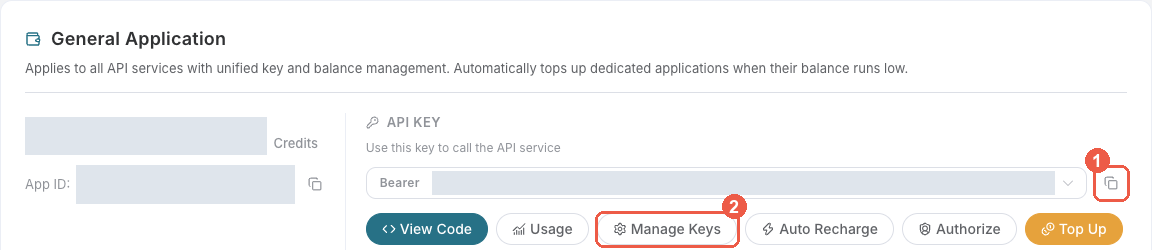
1. Open [Ace Data Cloud → Applications](https://platform.acedata.cloud/console/applications?utm_source=github&utm_medium=referral&utm_campaign=evergreen&utm_content=glm_mcp_readme_api_key). Sign in, or register an account first.
2. Find **General application**. If it has not been created, choose **Initialize General Application**. A general key can use the services available to your account; a dedicated application's key is limited to its service. Check the required service/model access and [current pricing](https://platform.acedata.cloud/models?utm_source=github&utm_medium=referral&utm_campaign=evergreen&utm_content=glm_mcp_readme_models).
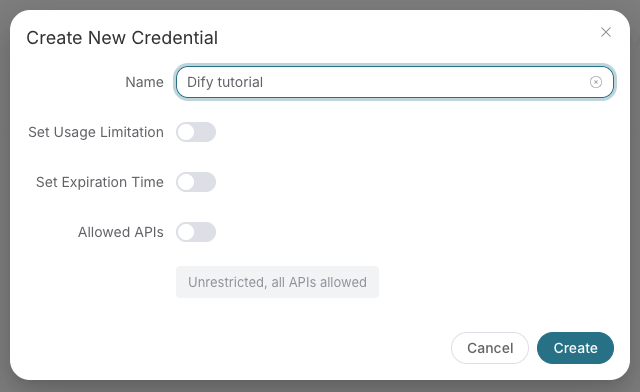
3. Copy the **API Key** from the application card, or open **Keys / Manage Keys → Create** to create a separate key for this integration. Give it a recognizable name so you can revoke or rotate it independently.
4. When creating a key, review **Expiration Time**, **Set Usage Limitation**, and **Allowed APIs**. Enable only the restrictions you need, allow the operations you will call, then click **Create** and copy the token from the key list. Task lookup does not grant permission to submit a generation. Confirm the application's balance can cover your first request; any trial allowance is whatever your account currently displays.
5. Copy only the token value, without quotation marks, spaces, or `Bearer `. An API Key / API Token field expects this raw value; only a manually configured HTTP `Authorization` header needs the `Bearer ` prefix. A `platform-...` account-management token cannot replace a generation API key.
Save the key in the client's credential store or the environment variable shown below. Never put it in a prompt, shared workflow, screenshot, or Git commit. If authentication fails, check the full copied value, application/service access, expiration, usage limit, and balance before creating another key.
<!-- END TOKEN ONBOARDING -->
A fixed Bearer header bypasses OAuth. If the header is invalid, remove it before trying browser sign-in; keep the saved credential private.
For Claude Code, the shell expands the token when you add the server; treat the saved user MCP config as a secret:
```bash
export ACEDATACLOUD_API_TOKEN='YOUR_API_TOKEN'
claude mcp add --transport http --scope user glm https://glm.mcp.acedata.cloud/mcp \
--header "Authorization: Bearer $ACEDATACLOUD_API_TOKEN"
```
For a Claude Code project config, put a variable reference in `<project>/.mcp.json` and set that variable in the environment that launches Claude Code:
```json
{
"mcpServers": {
"glm": {
"type": "http",
"url": "https://glm.mcp.acedata.cloud/mcp",
"headers": {"Authorization": "Bearer ${ACEDATACLOUD_API_TOKEN}"}
}
}
}
```
Cursor uses a different environment-variable syntax in `~/.cursor/mcp.json` or an uncommitted project config:
```json
{
"mcpServers": {
"glm": {
"url": "https://glm.mcp.acedata.cloud/mcp",
"headers": {"Authorization": "Bearer ${env:ACEDATACLOUD_API_TOKEN}"}
}
}
}
```
In VS Code, run **MCP: Open User Configuration** and merge this server plus its masked input; `${input:...}` is for VS Code's user/workspace format and is not portable to the Agent Host `.mcp.json` format:
```json
{
"inputs": [
{"id": "acedata-glm-token", "type": "promptString", "description": "AceDataCloud API token", "password": true}
],
"servers": {
"glm": {
"type": "http",
"url": "https://glm.mcp.acedata.cloud/mcp",
"headers": {"Authorization": "Bearer ${input:acedata-glm-token}"}
}
}
}
```
For **Cline**, use its MCP configuration UI or CLI file `~/.cline/data/settings/cline_mcp_settings.json`; its remote transport value is `streamableHttp`. For **JetBrains AI Assistant**, add a remote URL from **Settings → Tools → AI Assistant → Model Context Protocol (MCP)**. For **Zed**, use a `context_servers` entry with the URL only for OAuth or add a local Bearer header. These clients have different configuration schemas; follow their current UI rather than copying another client's JSON. [Cline](https://docs.cline.bot/mcp/mcp-overview) · [JetBrains](https://www.jetbrains.com/help/ai-assistant/mcp.html) · [Zed](https://zed.dev/docs/ai/mcp).
### Local stdio
Install the package and give the local process an API token:
```bash
python -m pip install mcp-glm
export ACEDATACLOUD_API_TOKEN='YOUR_API_TOKEN'
mcp-glm
```
For Claude Desktop local MCP, merge this entry into the file opened by its developer settings (`~/Library/Application Support/Claude/claude_desktop_config.json` on macOS). `uvx` requires [uv](https://docs.astral.sh/uv/) on `PATH`:
```json
{
"mcpServers": {
"glm": {
"command": "uvx",
"args": ["mcp-glm"],
"env": {"ACEDATACLOUD_API_TOKEN": "YOUR_API_TOKEN"}
}
}
}
```
Keep this user-level file private. Self-hosted HTTP uses `mcp-glm --transport http --port 8000`; expose it only with suitable network and TLS controls. Local execution still calls the AceDataCloud API.
### Check before using the service
1. `https://glm.mcp.acedata.cloud/health` returning `{"status":"ok"}` checks endpoint reachability only.
2. Confirm that the MCP client loads tools. `glm_list_models` is a reference tool; it does not verify downstream API access or balance.
3. If you need a full API check, call `glm_chat_completions` with your own valid input after reviewing [current service documentation](https://platform.acedata.cloud/documents/glm-chat-completions?utm_source=github&utm_medium=referral&utm_campaign=evergreen&utm_content=glm_mcp_readme_quick_start) and displayed pricing.
For **401**, check which auth route the client used and whether the token or OAuth session is valid. A **403** may mean an account permission or content moderation failure; read the returned error. Insufficient balance and downstream service failures need their own diagnosis. A listed tool or submitted task does not prove a successful result.
## Available Tools
| Tool | Description |
|------|-------------|
| `glm_chat_completions` | Run a GLM chat completion call |
| `glm_list_models` | List available GLM models |
| `glm_get_usage_guide` | Get the API usage guide |
## Documentation
<!-- canonical-documentation -->
[Documentation](https://platform.acedata.cloud/documents/glm-chat-completions?utm_source=github&utm_medium=referral&utm_campaign=evergreen&utm_content=glm_mcp_readme_quick_start)
## License
MIT — see [LICENSE](LICENSE).
TDQS
Scored across 3 tools
Each tool serves a clearly distinct purpose: usage guidance, chat completion generation, and model listing. There is no overlap or ambiguity between them, so an agent would never struggle to choose the right one.
All tool names use the same glm_ prefix and a consistent lower_snake_case style. The verb-noun pattern is uniform (get_usage_guide, chat_completions, list_models), making the set predictable and easy to navigate.
Three tools is well-scoped for a focused GLM chat completions server. Each tool earns its place, and the set feels neither bloated nor too thin.
The server covers the core lifecycle of chat completion: listing models and making completions, plus an onboarding guide. It lacks endpoints for embeddings or model-specific detail, but those are likely outside the intended scope.