
FluxMCP
# FluxMCP
<!-- mcp-name: io.github.AceDataCloud/mcp-flux-pro -->
[](https://pypi.org/project/mcp-flux-pro/)
[](https://pypi.org/project/mcp-flux-pro/)
[](https://github.com/AceDataCloud/FluxMCP/actions/workflows/ci.yaml)
[](https://opensource.org/licenses/MIT)
[](https://modelcontextprotocol.io)
[](https://www.python.org/downloads/)
A [Model Context Protocol (MCP)](https://modelcontextprotocol.io/) server for AI image generation and editing using [Flux](https://platform.acedata.cloud?utm_source=github&utm_medium=referral&utm_campaign=evergreen&utm_content=flux_mcp_readme_platform) through the [AceDataCloud](https://platform.acedata.cloud?utm_source=github&utm_medium=referral&utm_campaign=evergreen&utm_content=flux_mcp_readme_platform) platform.
Generate and edit stunning AI images with Flux models (flux-dev, flux-pro, flux-kontext) directly from Claude, Cursor, or any MCP-compatible client.
## Features
- **Image Generation** - Generate images from text prompts with 6 Flux models
- **Image Editing** - Edit existing images with context-aware Flux Kontext models
- **Task Management** - Track async generation tasks and batch status queries
- **Model Guide** - Built-in model selection and prompt writing guidance
- **Dual Transport** - stdio (local) and HTTP (remote/cloud) modes
- **Docker Ready** - Containerized with K8s deployment manifests
- **Secure** - Bearer token auth with per-request isolation in HTTP mode
## Tool Reference
| Tool | Description |
|------|-------------|
| `flux_generate_image` | Generate AI images from a text prompt using Flux. |
| `flux_edit_image` | Edit an existing image using Flux with a text prompt. |
| `flux_list_models` | List all available Flux models and their capabilities. |
| `flux_list_actions` | List all available Flux tools and their use cases. |
| `flux_get_task` | Query the status and result of a Flux image generation task. |
| `flux_get_tasks_batch` | Query multiple Flux image generation tasks at once. |
## Connect: hosted OAuth, API token, or local stdio
The hosted endpoint is `https://flux.mcp.acedata.cloud/mcp`. Choose one route for the MCP client:
| Route | When to use it | Credential setup |
|---|---|---|
| Hosted OAuth | The client supports remote MCP OAuth | Add only the URL, then sign in to AceDataCloud and approve access. No token needs to be pasted into client configuration. |
| Hosted API token | The client cannot finish OAuth, or you need an explicit integration credential | Send an AceDataCloud API token in the `Authorization: Bearer …` header. Keep it in a local secret store or environment variable. |
| Local stdio | The client runs a local MCP process | Install `mcp-flux-pro` and pass `ACEDATACLOUD_API_TOKEN` to that process. It still calls the AceDataCloud API. |
The hosted service advertises OAuth metadata and Dynamic Client Registration (DCR). **DCR registers the client application; it is not an API key.** OAuth signs you in and the client sends the resulting Bearer token; it may reuse or create an API credential for the account. Browser sign-in still requires an AceDataCloud account. The hosted service can be metered: review [current service documentation](https://platform.acedata.cloud/documents/flux-mcp?utm_source=github&utm_medium=referral&utm_campaign=evergreen&utm_content=flux_mcp_readme_quick_start) and displayed pricing before a real operation. Do not configure both an OAuth login and a fixed `Authorization` header for the same server.
### Hosted OAuth examples
- **Claude and Claude Desktop chat:** Add a remote custom connector in `Customize → Connectors → Add custom connector`, enter `https://flux.mcp.acedata.cloud/mcp`, select sign-in, and choose **Register automatically** if Claude asks how to register its OAuth client. Complete consent. Claude Desktop's local `claude_desktop_config.json` is a separate setup. [Claude connector guide](https://support.claude.com/en/articles/11175166-get-started-with-custom-connectors-using-remote-mcp).
- **Claude Code:** `claude mcp add --transport http --scope user flux https://flux.mcp.acedata.cloud/mcp`, then `claude mcp login flux`. Check `/mcp`. [Claude Code MCP guide](https://code.claude.com/docs/en/mcp).
- **Cursor:** Add a remote server with only `https://flux.mcp.acedata.cloud/mcp`. For a project, merge the entry below into `<project>/.cursor/mcp.json`; for personal use, use `~/.cursor/mcp.json`. [Cursor MCP guide](https://cursor.com/docs/mcp).
- **VS Code / Copilot:** Run **MCP: Add Server**, select HTTP, enter `https://flux.mcp.acedata.cloud/mcp`, then finish the browser sign-in. New portable workspace configs use `<project>/.mcp.json`; the VS Code-specific format below uses `<project>/.vscode/mcp.json` or the user profile. Check **MCP: List Servers**. [VS Code MCP setup](https://code.visualstudio.com/docs/agent-customization/mcp-servers).
- **Codex:** `codex mcp add flux --url https://flux.mcp.acedata.cloud/mcp`, then `codex mcp login flux`. Its user settings are in `~/.codex/config.toml`. [Official Codex MCP guide](https://developers.openai.com/codex/mcp/).
Cursor project config (OAuth):
```json
{
"mcpServers": {
"flux": {"url": "https://flux.mcp.acedata.cloud/mcp"}
}
}
```
VS Code-specific workspace config (OAuth):
```json
{
"servers": {
"flux": {"type": "http", "url": "https://flux.mcp.acedata.cloud/mcp"}
}
}
```
### Hosted API token
<!-- BEGIN TOKEN ONBOARDING -->
1. Open [Ace Data Cloud → Applications](https://platform.acedata.cloud/console/applications?utm_source=github&utm_medium=referral&utm_campaign=evergreen&utm_content=flux_mcp_readme_api_key). Sign in, or register an account first.
2. Find **General application**. If it has not been created, choose **Initialize General Application**. A general key can use the services available to your account; a dedicated application's key is limited to its service. Check the required service/model access and [current pricing](https://platform.acedata.cloud/models?utm_source=github&utm_medium=referral&utm_campaign=evergreen&utm_content=flux_mcp_readme_models).
3. Copy the **API Key** from the application card, or open **Keys / Manage Keys → Create** to create a separate key for this integration. Give it a recognizable name so you can revoke or rotate it independently.
4. When creating a key, review **Expiration Time**, **Set Usage Limitation**, and **Allowed APIs**. Enable only the restrictions you need, allow the operations you will call, then click **Create** and copy the token from the key list. Task lookup does not grant permission to submit a generation. Confirm the application's balance can cover your first request; any trial allowance is whatever your account currently displays.
5. Copy only the token value, without quotation marks, spaces, or `Bearer `. An API Key / API Token field expects this raw value; only a manually configured HTTP `Authorization` header needs the `Bearer ` prefix. A `platform-...` account-management token cannot replace a generation API key.
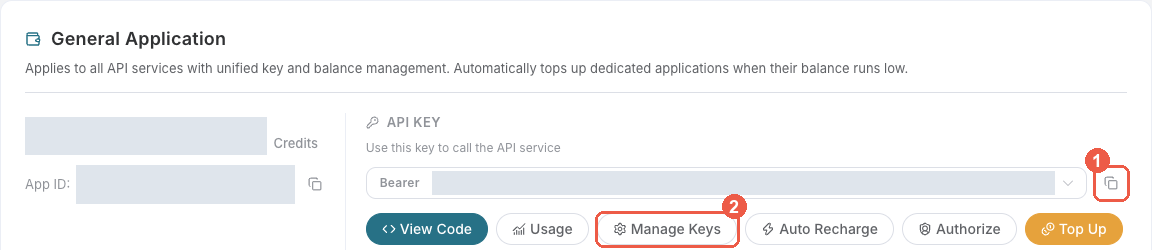
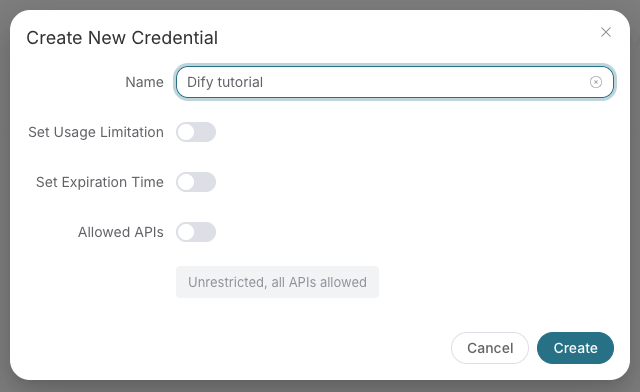
Save the key in the client's credential store or the environment variable shown below. Never put it in a prompt, shared workflow, screenshot, or Git commit. If authentication fails, check the full copied value, application/service access, expiration, usage limit, and balance before creating another key.
<!-- END TOKEN ONBOARDING -->
A fixed Bearer header bypasses OAuth. If the header is invalid, remove it before trying browser sign-in; keep the saved credential private.
For Claude Code, the shell expands the token when you add the server; treat the saved user MCP config as a secret:
```bash
export ACEDATACLOUD_API_TOKEN='YOUR_API_TOKEN'
claude mcp add --transport http --scope user flux https://flux.mcp.acedata.cloud/mcp \
--header "Authorization: Bearer $ACEDATACLOUD_API_TOKEN"
```
For a Claude Code project config, put a variable reference in `<project>/.mcp.json` and set that variable in the environment that launches Claude Code:
```json
{
"mcpServers": {
"flux": {
"type": "http",
"url": "https://flux.mcp.acedata.cloud/mcp",
"headers": {"Authorization": "Bearer ${ACEDATACLOUD_API_TOKEN}"}
}
}
}
```
Cursor uses a different environment-variable syntax in `~/.cursor/mcp.json` or an uncommitted project config:
```json
{
"mcpServers": {
"flux": {
"url": "https://flux.mcp.acedata.cloud/mcp",
"headers": {"Authorization": "Bearer ${env:ACEDATACLOUD_API_TOKEN}"}
}
}
}
```
In VS Code, run **MCP: Open User Configuration** and merge this server plus its masked input; `${input:...}` is for VS Code's user/workspace format and is not portable to the Agent Host `.mcp.json` format:
```json
{
"inputs": [
{"id": "acedata-flux-token", "type": "promptString", "description": "AceDataCloud API token", "password": true}
],
"servers": {
"flux": {
"type": "http",
"url": "https://flux.mcp.acedata.cloud/mcp",
"headers": {"Authorization": "Bearer ${input:acedata-flux-token}"}
}
}
}
```
For **Cline**, use its MCP configuration UI or CLI file `~/.cline/data/settings/cline_mcp_settings.json`; its remote transport value is `streamableHttp`. For **JetBrains AI Assistant**, add a remote URL from **Settings → Tools → AI Assistant → Model Context Protocol (MCP)**. For **Zed**, use a `context_servers` entry with the URL only for OAuth or add a local Bearer header. These clients have different configuration schemas; follow their current UI rather than copying another client's JSON. [Cline](https://docs.cline.bot/mcp/mcp-overview) · [JetBrains](https://www.jetbrains.com/help/ai-assistant/mcp.html) · [Zed](https://zed.dev/docs/ai/mcp).
### Local stdio
Install the package and give the local process an API token:
```bash
python -m pip install mcp-flux-pro
export ACEDATACLOUD_API_TOKEN='YOUR_API_TOKEN'
mcp-flux-pro
```
For Claude Desktop local MCP, merge this entry into the file opened by its developer settings (`~/Library/Application Support/Claude/claude_desktop_config.json` on macOS). `uvx` requires [uv](https://docs.astral.sh/uv/) on `PATH`:
```json
{
"mcpServers": {
"flux": {
"command": "uvx",
"args": ["mcp-flux-pro"],
"env": {"ACEDATACLOUD_API_TOKEN": "YOUR_API_TOKEN"}
}
}
}
```
Keep this user-level file private. Self-hosted HTTP uses `mcp-flux-pro --transport http --port 8000`; expose it only with suitable network and TLS controls. Local execution still calls the AceDataCloud API.
### Check before using the service
1. `https://flux.mcp.acedata.cloud/health` returning `{"status":"ok"}` checks endpoint reachability only.
2. Confirm that the MCP client loads tools. `flux_list_models` is a reference tool; it does not verify downstream API access or balance.
3. If you need a full API check, call `flux_generate_image` with your own valid input after reviewing [current service documentation](https://platform.acedata.cloud/documents/flux-mcp?utm_source=github&utm_medium=referral&utm_campaign=evergreen&utm_content=flux_mcp_readme_quick_start) and displayed pricing. If the result contains a task ID, call `flux_get_task` on that same ID until terminal success or failure. Do not resubmit the operation just to check progress.
For **401**, check which auth route the client used and whether the token or OAuth session is valid. A **403** may mean an account permission or content moderation failure; read the returned error. Insufficient balance and downstream service failures need their own diagnosis. A listed tool or submitted task does not prove a successful result.
## Available Tools
| Tool | Description |
| ---------------------- | ------------------------------------------------------ |
| `flux_generate_image` | Generate images from text prompts with model selection |
| `flux_edit_image` | Edit existing images with text instructions |
| `flux_get_task` | Query status of a single generation task |
| `flux_get_tasks_batch` | Query multiple task statuses at once |
| `flux_list_models` | List all available Flux models and capabilities |
| `flux_list_actions` | Show all tools and workflow examples |
## Available Prompts
| Prompt | Description |
| ----------------------------- | -------------------------------------------- |
| `flux_image_generation_guide` | Guide for choosing the right tool and model |
| `flux_prompt_writing_guide` | Best practices for writing effective prompts |
| `flux_workflow_examples` | Common workflow patterns and examples |
## Supported Models
| Model | Quality | Speed | Size Format | Best For |
| ------------------ | ------- | ------ | ------------------- | ----------------------- |
| `flux-dev` | Good | Fast | Pixels (256-1440px) | Quick prototyping |
| `flux-pro` | High | Medium | Pixels (256-1440px) | Production use |
| `flux-kontext-pro` | High | Medium | Aspect ratios | Image editing |
| `flux-kontext-max` | Highest | Slower | Aspect ratios | Complex editing |
| `flux-2-flex` | High | Fast | Aspect ratios | Flux 2 balanced quality |
| `flux-2-pro` | Higher | Medium | Aspect ratios | Flux 2 production |
| `flux-2-max` | Highest | Slower | Aspect ratios | Flux 2 maximum quality |
| `flux-2-klein` | Good | Fast | Aspect ratios | Flux 2 efficient output |
## Usage Examples
### Generate an Image
```
"Generate a photorealistic mountain landscape at golden hour"
→ flux_generate_image(prompt="...", model="flux-2-max", size="16:9")
```
### Edit an Image
```
"Add sunglasses to the person in this photo"
→ flux_edit_image(prompt="Add sunglasses", image_url="https://...", size="1:1", model="flux-kontext-pro")
```
### Check Task Status
```
"What's the status of my generation?"
→ flux_get_task(task_id="...")
```
## Environment Variables
| Variable | Required | Default | Description |
| --------------------------- | ----------- | --------------------------- | --------------------------- |
| `ACEDATACLOUD_API_TOKEN` | Yes (stdio) | — | API token from AceDataCloud |
| `ACEDATACLOUD_API_BASE_URL` | No | `https://api.acedata.cloud` | API base URL |
| `ACEDATACLOUD_OAUTH_CLIENT_ID` | No | — | OAuth client ID (hosted mode) |
| `ACEDATACLOUD_PLATFORM_BASE_URL` | No | `https://platform.acedata.cloud` | Platform base URL |
| `FLUX_REQUEST_TIMEOUT` | No | `1800` | Request timeout in seconds |
| `MCP_SERVER_NAME` | No | `flux` | MCP server name |
| `LOG_LEVEL` | No | `INFO` | Logging level |
## Development
### Setup
```bash
git clone https://github.com/AceDataCloud/FluxMCP.git
cd FluxMCP
pip install -e ".[all]"
cp .env.example .env
# Edit .env with your API token
```
### Lint & Format
```bash
ruff check .
ruff format .
mypy core tools main.py
```
### Test
```bash
# Unit tests
pytest --cov=core --cov=tools
# Skip integration tests
pytest -m "not integration"
# With coverage report
pytest --cov=core --cov=tools --cov-report=html
```
### Git Hooks
```bash
git config core.hooksPath .githooks
```
## API Reference
This MCP server uses the [AceDataCloud Flux API](https://platform.acedata.cloud?utm_source=github&utm_medium=referral&utm_campaign=evergreen&utm_content=flux_mcp_readme_platform):
- **POST /flux/images** — Generate or edit images
- **POST /flux/tasks** — Query task status (single or batch)
Full API documentation: [platform.acedata.cloud](https://platform.acedata.cloud?utm_source=github&utm_medium=referral&utm_campaign=evergreen&utm_content=flux_mcp_readme_platform)
## Documentation
<!-- canonical-documentation -->
[Documentation](https://platform.acedata.cloud/documents/flux-mcp?utm_source=github&utm_medium=referral&utm_campaign=evergreen&utm_content=flux_mcp_readme_quick_start)
## License
MIT License — see [LICENSE](LICENSE) for details.
## Links
- [AceDataCloud Platform](https://platform.acedata.cloud?utm_source=github&utm_medium=referral&utm_campaign=evergreen&utm_content=flux_mcp_readme_platform)
- [MCP Protocol](https://modelcontextprotocol.io/)
- [Flux by Black Forest Labs](https://blackforestlabs.ai/)
- [PyPI Package](https://pypi.org/project/mcp-flux-pro/)
## FLUX 3 video
Use `flux_generate_video` with a structured `request` for `t2v`, `i2v`, `v2v` or `draft_enhance`. For example: `{"mode":"t2v","prompt":"Waves at sunset","duration":5,"resolution":"hd","generate_audio":false}`. Image mode requires `keyframes`; video mode requires `start_video`. Draft enhancement uses an owned platform `draft_task_id` and requires the temporary draft cache still to be available.
Video generation uses `POST /flux/videos` with `action=generate` (default) and `mode=t2v/i2v/v2v/draft_enhance`. Each generation mode accepts its own fields. Tools return task IDs asynchronously by default; use `flux_get_task` for the final video. Set `async=false` in the request to wait synchronously.
TDQS
Scored across 7 tools
flux_generate_image and flux_edit_image are clearly distinguished by their generation vs. editing semantics, and flux_get_task vs. flux_get_tasks_batch differ by singular/plural. However, the action of checking generation status is split across three tools (get_task, get_tasks_batch, and the generate_* tools that return task IDs), which could create minor confusion about when to poll.
All tools follow a consistent flux_verb_noun pattern: get_task, edit_image, get_tasks_batch, generate_video, generate_image, list_actions, list_models. The only variation is the plural 'tasks' in get_tasks_batch, which is a natural and readable exception.
Seven tools is well-scoped for an image/video generation service. It covers generation, editing, status checking, batch status, and two reference lists without redundancy.
Core workflows are covered: generate image/video, edit image, poll status (single and batch), and list models/actions. Minor gaps include no explicit cancellation or deletion of tasks, and no way to list past tasks, but agents can work around these.