


A
licenseNot graded
qualityC
maintenanceAn MCP server that enables AI assistants to control Home Assistant via natural language, including device control, automation management, and system configuration.
MIT

Supports launching the Apple TV+ application on Roku devices.
Enables launching the CBS application on a Roku TV.
Enables launching the CNN application on a Roku TV.
Allows for launching the HBO Max application on a connected Roku TV.
Allows for launching the Netflix application on a connected Roku TV via natural language commands.
Enables launching the Paramount Plus application on a Roku TV.
Enables launching the Amazon Prime Video application on a Roku TV using the launch_app tool.
Enables remote control of Roku TVs over a local network, providing tools for navigation, playback control, volume adjustment, and power management.
Enables launching the SHOWTIME application on a Roku TV.
Enables launching the STARZ application on a Roku TV.
Enables launching the Tubi application on a Roku TV.
Allows for launching the YouTube application on a connected Roku TV.
Click on "Deploy Server".
Wait a few minutes for the server to deploy. Once ready, it will show a "Started" state.
In the chat, type @ followed by the MCP server name and your instructions, e.g., "@MCP Remote Control launch Netflix and increase the volume"
That's it! The server will respond to your query, and you can continue using it as needed.
Here is a step-by-step guide with screenshots.
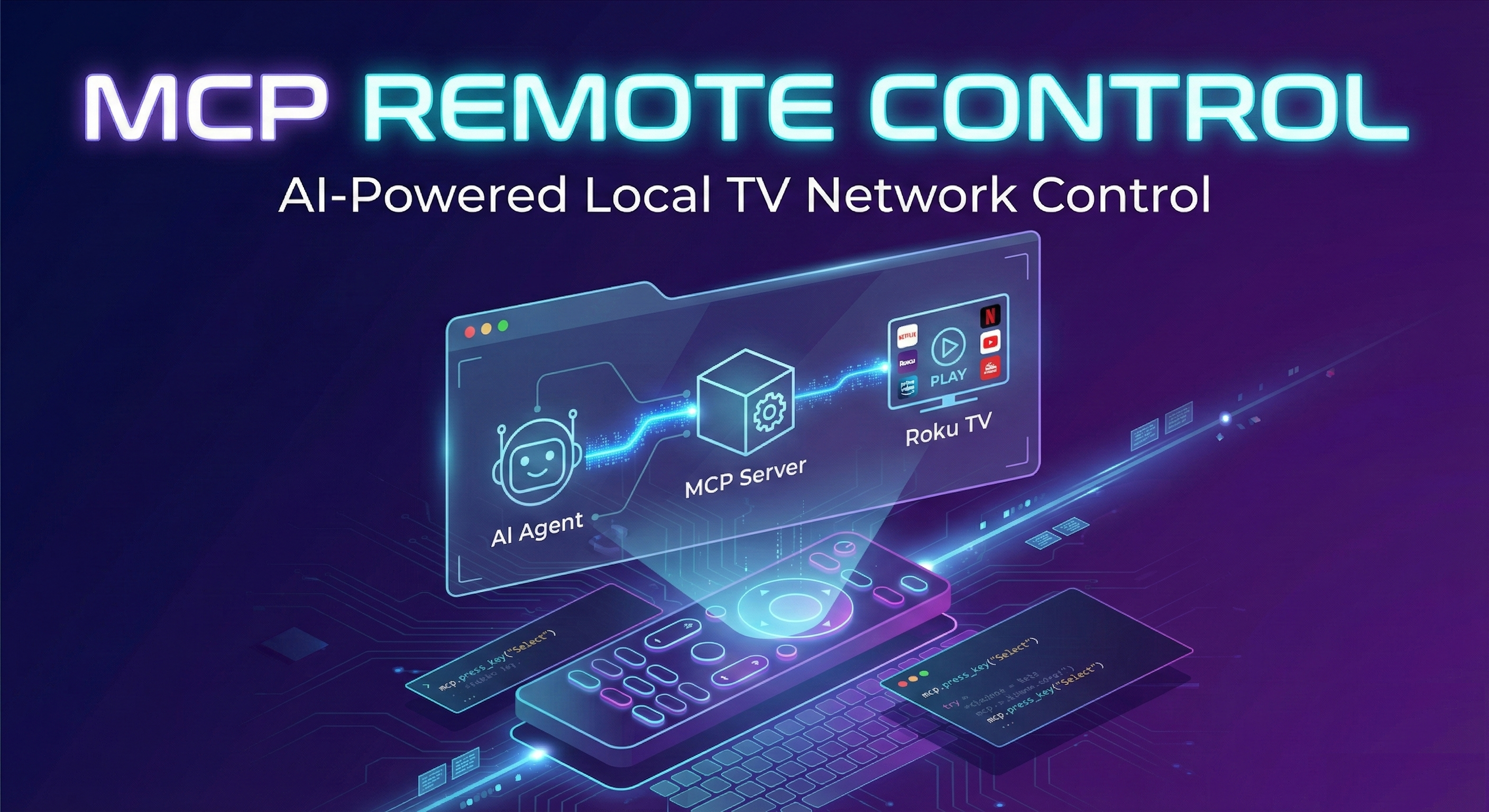
A Model Context Protocol (MCP) server that enables AI assistants and agentic systems to control TVs on your local network.
Currently supports: Roku TVs via the External Control Protocol (ECP).
The Model Context Protocol is an open standard that allows AI models to securely interact with external tools and data sources. This server exposes TV controls as MCP tools, enabling LLMs like Claude to control your TV through natural language commands.
Related MCP server: mcp-gtv
This project is designed with future extensibility in mind. The Roku-specific implementation is isolated in roku_bridge.py, separating the ECP protocol details from the MCP server layer. While the current implementation is Roku-specific, the structure provides a foundation for supporting additional TV brands and control protocols in the future.
Natural Language Control: Tell your AI assistant "turn on Netflix" or "increase the volume" without touching a remote
Smart Home Integration: Integrate TV control into agentic workflows and automation systems
Accessibility: Control your TV through conversational interfaces
Development: Build custom applications that leverage AI-powered TV control
Before using this server, you need to enable external control on your Roku TV:
Enable Network Control:
Go to Settings > System > Advanced system settings
Select Control by mobile apps
Choose Network access and set to Default or Permissive
Find Your TV's IP Address:
Go to Settings > Network > About
Note the IP address (e.g., 192.168.1.100)
Set Environment Variable:
export HOST_IP=192.168.1.100 # Replace with your TV's IPPython: 3.12 or higher
Network: TV and computer must be on the same local network
MCP Client: An MCP-compatible client like Claude Desktop, Claude Code, Goose or custom implementations
Remote Control: Simulate button presses (navigation, playback, volume, power)
App Launching: Launch apps by name (e.g., "Netflix", "YouTube")
App Discovery: List all available apps and their IDs
Device Info: Query device information
The package is available on PyPI.
The easiest way to use this server is via uvx, which runs the package directly from PyPI without requiring a separate install step:
uvx mcp-remote-controlAlternatively, install globally with pip:
pip install mcp-remote-controlAdd this server to your Claude Desktop configuration file:
macOS: ~/Library/Application Support/Claude/claude_desktop_config.json
Windows: %APPDATA%\Claude\claude_desktop_config.json
{
  "mcpServers": {
    "tv-control": {
      "command": "uvx",
      "args": ["mcp-remote-control"],
      "env": {
        "HOST_IP": "192.168.1.100"
      }
    }
  }
}
Replace 192.168.1.100 with your TV's IP address.
After updating the config, restart Claude Desktop. You can then ask Claude to control your TV:
"Turn on my TV and launch Netflix"
"Increase the volume"
"What apps are available on my Roku?"
Install the server using the MCP server manager in Claude Code. See the Claude Code documentation for details.
This server uses the standard MCP protocol over stdio. See the MCP documentation for connecting local servers to your MCP client.
If you want to modify the server or contribute to development, clone the repository and install in editable mode:
git clone https://github.com/AaronGoldsmith/mcp-remote-control.git
cd mcp-remote-control
pip install -e .
# or with uv:
uv pip install -e .
To use your local development version with Claude Desktop, point to the cloned directory:
{
  "mcpServers": {
    "tv-control": {
      "command": "uv",
      "args": ["--directory", "/absolute/path/to/mcp-remote-control", "run", "mcp-remote-control"],
      "env": {
        "HOST_IP": "192.168.1.100"
      }
    }
  }
}
Replace /absolute/path/to/mcp-remote-control with the actual path to your cloned repository.
press_key(key_name)Simulates a button press on the TV remote.
Navigation: Home, Up, Down, Left, Right, Select, Back
Playback: Play, Pause, Rev (Rewind), Fwd (FastForward)
Volume: VolumeUp, VolumeDown, VolumeMute
Power: PowerOff, PowerOn
Other: Info, InstantReplay, Search
launch_app(app_name)Launches an app by name (case-insensitive). Examples:
launch_app("Netflix")
launch_app("youtube")
launch_app("Disney+")
list_apps()Lists all available apps with their names and Roku channel IDs.
get_device_info()Retrieves device information as XML.
power_on()Powers on the TV.
The following apps are supported and can be launched by name using launch_app(). App names are case-insensitive and some apps have multiple accepted names (e.g., "Prime Video" or "Amazon Prime Video").
App Name | Channel ID | Alternative Names |
Netflix | 12 | - |
YouTube | 837 | - |
Amazon Prime Video | 13 | Prime Video |
Hulu | 2285 | - |
Disney+ | 291097 | Disney Plus |
HBO Max | 61322 | - |
Apple TV+ | 551012 | Apple TV |
Peacock | 593099 | - |
Paramount Plus | 31440 | Paramount+ |
ESPN | 34376 | - |
Tubi | 41468 | - |
Sling TV | 46041 | - |
STARZ | 65067 | - |
CBS | 619667 | - |
CNN | 65978 | - |
Pluto TV | 74519 | - |
SHOWTIME | 8838 | - |
Use list_apps() to see the complete list programmatically.
Once connected to an MCP client, you can use natural language to control your TV:
User: "Turn on my TV and launch Netflix"
Assistant: *uses power_on() and launch_app("Netflix")*

User: "Show me what apps are available"
Assistant: *uses list_apps() to display all installed apps*

User: "Navigate down 3 times and select"
Assistant: *uses press_key("Down") three times, then press_key("Select")*

User: "Pause what's playing"
Assistant: *uses press_key("Pause")*Model Context Protocol Documentation - Official MCP docs and specification
MCP GitHub Repository - Source code and examples
MCP Servers Registry - Collection of community MCP servers
Building MCP Servers Guide - Learn to build your own MCP servers
Roku ECP Documentation - Official External Control Protocol documentation
Roku Developer Portal - Additional Roku development resources
Connection Failed: Ensure your TV and computer are on the same network and the TV's IP address is correct
Control Not Working: Verify that "Control by mobile apps" is enabled in your TV settings
App Not Launching: Check that the app is installed on your TV using list_apps()
Environment Variable: Make sure HOST_IP is set in your shell or MCP client configuration
MIT
Retrieves basic device information (model, software version, etc.) as XML.
Inputs: no named parameters. Returns: result
Launches an application on the TV using its name.
Args:
    app_name: The name of the app to launch (e.g., Netflix, YouTube, Hulu).
              Case-insensitive. Use list_apps() to see available apps.
Inputs: app_name (required). Returns: result
Lists all available apps and their corresponding Roku channel IDs.
Returns a formatted list of app names and their IDs that can be used with launch_app().
Inputs: no named parameters. Returns: result
Powers on the TV.
Inputs: no named parameters. Returns: result
Simulates a single button press on the TV remote.
Args:
    key_name: The name of the key to press (e.g., Home, Select, VolumeUp).
              Common keys are Home, Back, Select, Up, Down, Left, Right.
              Special keys are: PowerOn, PowerOff, VolumeUp, VolumeDown, VolumeMute
Inputs: key_name (required). Returns: result
Recent tool additions, removals, and schema changes observed during successful MCP inspections.
Loading tool schema changelog…
Scored across 5 tools
Each tool has a clearly distinct purpose with no overlap: get_device_info retrieves device metadata, list_apps enumerates available applications, launch_app starts a specific app, power_on turns on the TV, and press_key simulates remote button presses. The descriptions explicitly differentiate their functions, eliminating any ambiguity.
All tool names follow a consistent verb_noun pattern in snake_case: get_device_info, list_apps, launch_app, power_on, and press_key. This uniformity makes the tool set predictable and easy to understand, with no deviations in naming conventions.
With 5 tools, this server is well-scoped for remote control functionality. Each tool serves a specific, essential purpose (device info, app management, power control, and key simulation), and none feel redundant or missing for basic TV operations. The count is appropriate for the domain.
The tool set covers core remote control operations effectively, including power management, app launching, and key presses. However, minor gaps exist, such as the lack of a power_off tool (though press_key can simulate PowerOff) and no explicit volume control beyond key presses, which agents can work around but might slightly hinder seamless automation.
Remote MCP server to control your Android phone from AI assistants with per-app permissions.
MCP server that lets your AI assistant build and deploy apps, hosting each one at a live URL.
Remote MCP server for AI.TV creators — delegate account operations to your AI agent over MCP.
A comprehensive Model Context Protocol (MCP) server that enables AI assistants to interact with yo…