
FreeCAD MCP
by ATOI-Ming
README.md
# FreeCAD MCP Plugin
The **FreeCAD MCP** plugin integrates the **Model Control Protocol (MCP)** into FreeCAD, enabling automation of model creation, macro execution, and view management through a server-client architecture. It provides a GUI control panel and a command-line client to streamline FreeCAD workflows, supporting tasks like creating/running macros, adjusting views, and integrating with external tools (e.g., Claude, Cursor, Trace, CodeBuddy).

## Table of Contents
- [Features](#features)
- [Quick Start](#quick-start)
- [Installation](#installation)
- [MCP Configuration](#mcp-configuration)
- [Usage](#usage)
- [Tool Functions](#tool-functions)
- [Use Cases](#use-cases)
- [External Tool Integration](#external-tool-integration)
- [Assets](#assets)
- [Troubleshooting](#troubleshooting)
- [Contributing](#contributing)
- [License](#license)
## Features
The FreeCAD MCP plugin (v0.1.0) offers the following features:
- **MCP Server**: Provides a GUI control panel (`FreeCADMCPPanel`) and processes commands like `create_macro`, `update_macro`, `run_macro`, `set_view`, and `get_report` (implemented in `freecad_mcp_server.py`).
- **MCP Client**: Command-line tool to send commands via `stdio` or TCP, manage `.FCMacro` files (create, update, run, validate), and control FreeCAD remotely (implemented in `freecad_mcp_client.py`).
- **Macro Normalization**: Automatically adds imports (`FreeCAD`, `FreeCADGui`, `Part`, `math`) and post-execution steps (recompute, view adjustment) for macros.
- **GUI Control Panel**: Includes buttons to start/stop the server, clear logs, and switch views (front, top, right, axonometric).
- **Logging System**: Records messages and errors to `freecad_mcp_log.txt` in the temporary directory (e.g., `%TEMP%\freecad_mcp_log.txt`) and a GUI report browser (100-line limit).
- **Workbench Integration**: Adds a `FreeCADMCPWorkbench` with toolbar and menu commands (implemented in `InitGui.py`).
- **Visual Assets**: Includes workbench icon (`icon.svg`), example models (`gear.png`, `flange.png`, `boat.png`, `table.png`), and demo animation (`freecad.gif`, `freecad.mp4`).
Watch the demo animation:
<img src="https://raw.githubusercontent.com/ATOI-Ming/FreeCAD-MCP/main/assets/freecad.gif" width="900">
Download the demo video: [FreeCAD MCP Demo MP4](assets/freecad.mp4)
## Quick Start
1. Install the plugin (see [Installation](#installation)).
2. Launch FreeCAD and switch to the `FreeCAD MCP` workbench.
3. Open the control panel (`FreeCAD_MCP_Show`) and click "Start Server."
4. Run an example macro:
```bash
python D:\FreeCAD\Mod\FreeCAD-MCP-main\src\freecad_mcp_client.py --run-macro gear.FCMacro --params '{"radius": 15}'
```
5. View the result: A gear model is generated and displayed in axonometric view.
## Installation
### Prerequisites
- **FreeCAD**: Version 0.21 or higher, [Download FreeCAD](https://www.freecad.org/downloads.php?lang=zh_CN). Select the version for your operating system.
- **Python**: Version 3.12+ (included with FreeCAD or installed via Anaconda).
- **Anaconda** (recommended for dependency management): [Download Anaconda](https://www.anaconda.com/download). Select the version for your operating system.
- **Python Dependencies**:
- Required packages: `mcp-server` (specified in `pyproject.toml`).
- Installation commands:
```bash
# use system Python
pip install mcp-server
```
- Verify installation:
```bash
pip show mcp-server
```
Ensure `mcp-server` version .
### Installation Steps
1. **Clone the Repository**:
```bash
git clone https://github.com/ATOI-Ming/FreeCAD-MCP.git
```
2. **Copy to FreeCAD Mod Directory**:
Copy the `FreeCAD-MCP` folder to:
- Windows: `D:\FreeCAD\Mod\FreeCAD-MCP`
- Linux: `~/.local/share/FreeCAD/Mod/FreeCAD-MCP`
- macOS: `~/Library/Application Support/FreeCAD/Mod/FreeCAD-MCP`
```bash
# Windows example
xcopy FreeCAD-MCP D:\FreeCAD\Mod\FreeCAD-MCP /E /H /C /I
```
**Note**: Adjust `D:\FreeCAD\Mod` based on your FreeCAD installation path.
3. **Launch FreeCAD**:
- Open FreeCAD and switch to the `FreeCAD MCP` workbench (icon: `assets/icon.svg`).
- Verify that `FreeCAD-MCP` is loaded in **Edit > Preferences > Add-ons**.
4. **Verify Installation**:
- Click `FreeCAD_MCP_Show` to open the control panel.
- Check the temporary directory (e.g., `%TEMP%\freecad_mcp_log.txt`) for startup messages.
## MCP Configuration
Configure the MCP client to communicate with FreeCAD via `stdio` or TCP.
1. **Create Configuration File**:
Create `mcp_config.json` in `D:\FreeCAD\Mod\FreeCAD-MCP-main\src\`:
```json
{
"mcpServers": {
"freecad": {
"disabled": false,
"timeout": 60,
"type": "stdio",
"command": "D:\\Anaconda3\\python.exe",
"args": ["D:\\FreeCAD\\Mod\\FreeCAD-MCP-main\\src\\freecad_mcp_client.py"]
}
}
}
```
**Note**:
- Adjust paths based on your system:
- **Anaconda Path**: e.g., `C:\Anaconda3\python.exe` (Windows), `/home/<user>/anaconda3/bin/python` (Linux), `/Users/<user>/anaconda3/bin/python` (macOS).
- **FreeCAD Mod Path**: e.g., `C:\Users\<YourUser>\AppData\Roaming\FreeCAD\Mod\FreeCAD-MCP` (Windows), `/home/<user>/.local/share/FreeCAD/Mod/FreeCAD-MCP` (Linux), `/Users/<user>/Library/Application Support/FreeCAD/Mod/FreeCAD-MCP` (macOS).
- For TCP communication, set `"type": "tcp"`, add `"host": "localhost"`, and `"port": 9876`.
2. **Run the Server**:
- **GUI Method**: In the `FreeCAD MCP` workbench, click `FreeCAD_MCP_Show` and then "Start Server."
- **Command-Line Method**:
```bash
conda activate freecad_mcp
python D:\FreeCAD\Mod\FreeCAD-MCP-main\src\freecad_mcp_server.py
```
3. **Verify Server**:
- Check `%TEMP%\freecad_mcp_log.txt` for a "Server started" message.
- Test a client command:
```bash
python D:\FreeCAD\Mod\FreeCAD-MCP-main\src\freecad_mcp_client.py --get-report
```
## Usage
### GUI Usage
1. In FreeCAD, switch to the `FreeCAD MCP` workbench (icon: `assets/icon.svg`).
2. Click `FreeCAD_MCP_Show` to open the control panel (`FreeCADMCPPanel`).
3. Use the control panel:
- **Start/Stop Server**: Control the MCP server.
- **Clear Logs**: Clear the report browser and `%TEMP%\freecad_mcp_log.txt`.
- **View Switching**: Select front, top, right, or axonometric views.
4. Run a macro:
- Click `FreeCAD_MCP_RunMacro`, select an `.FCMacro` file, and execute it with automatic normalization.
### Command-Line Usage
1. Activate the Anaconda environment:
```bash
conda activate freecad_mcp
```
2. Run client commands:
```bash
python D:\FreeCAD\Mod\FreeCAD-MCP-main\src\freecad_mcp_client.py <command>
```
Examples:
- Create macro: `--create-macro my_macro --template-type part`
- Run macro: `--run-macro my_macro.FCMacro --params '{"radius": 10}'`
- Set view: `--set-view '{"view_type": "7"}'`
- Get report: `--get-report`
## Tool Functions
The following tool functions are provided by `freecad_mcp_client.py`, sending commands via `stdio` or TCP (`localhost:9876`), processed by `freecad_mcp_server.py`.
| Function | Parameters | Description |
|-----------------------|-----------------------------------------|----------------------------------------------------------------------|
| `create_macro` | `macro_name`, `template_type` | Creates an `.FCMacro` file, validates name (letters, numbers, underscores, hyphens), supports templates (`default`, `basic`, `part`, `sketch`). |
| `update_macro` | `macro_name`, `code` | Updates macro content, auto-adds `FreeCAD`, `FreeCADGui`, `Part`, `math` imports. |
| `run_macro` | `macro_path`, `params` (optional) | Runs a macro, normalizes code, recomputes document, adjusts to axonometric view. |
| `validate_macro_code` | `macro_name` (optional), `code` (optional) | Validates macro code syntax, returns success or error (with traceback). |
| `set_view` | `params` (e.g., `{"view_type": "7"}`) | Sets view: `1` (front), `2` (top), `3` (right), `7` (axonometric). |
| `get_report` | None | Retrieves server logs (from `%TEMP%\freecad_mcp_log.txt` and report browser). |
### Examples
- **Create Macro**:
```bash
python D:\FreeCAD\Mod\FreeCAD-MCP-main\src\freecad_mcp_client.py --create-macro gear --template-type part
```
Output: `{"status": "success", "result": "Macro created"}`
- **Update Macro**:
```bash
python D:\FreeCAD\Mod\FreeCAD-MCP-main\src\freecad_mcp_client.py --update-macro gear --code "import FreeCAD, Part\nradius = 10\ngear = Part.makeCylinder(radius, 5)\nPart.show(gear)"
```
Output: `{"status": "success", "result": "Macro updated"}`
- **Run Macro**:
```bash
python D:\FreeCAD\Mod\FreeCAD-MCP-main\src\freecad_mcp_client.py --run-macro gear.FCMacro --params '{"radius": 15}'
```
Output: `{"status": "success", "result": {...}}`
- **Validate Code**:
```bash
python D:\FreeCAD\Mod\FreeCAD-MCP-main\src\freecad_mcp_client.py --validate-macro-code gear --code "import FreeCAD\nApp.newDocument()"
```
Output: `{"status": "success"}`
- **Set View**:
```bash
python D:\FreeCAD\Mod\FreeCAD-MCP-main\src\freecad_mcp_client.py --set-view '{"view_type": "7"}'
```
Output: `{"status": "success", "result": "view set to axonometric"}`
- **Get Report**:
```bash
python D:\FreeCAD\Mod\FreeCAD-MCP-main\src\freecad_mcp_client.py --get-report
```
Output: `{"status": "success", "result": {...}}`
## Use Cases
1. **Automated Gear Model Creation**:
- **Scenario**: Generate a parametric gear model for engineering design.
- **Steps**:
1. Create macro: `--create-macro gear --template-type part`
2. Update macro: `--update-macro gear --code "import FreeCAD, Part\nradius = 15\ngear = Part.makeCylinder(radius, 5)\nPart.show(gear)"`
3. Run macro: `--run-macro gear.FCMacro --params '{"radius": 15}'`
- **Result**: Gear model generated, displayed in axonometric view.
- **Output**:

2. **Generating a Flange Model**:
- **Scenario**: Automate creation of a flange with holes for mechanical design.
- **Steps**: Run macro: `--run-macro flange.FCMacro`
- **Result**: Flange model generated with automatic normalization.
- **Output**:

3. **Text-Based Model Generation**:
- **Scenario**: Generate a boat model from a text description (e.g., "create a boat with a curved hull").
- **Steps**:
1. Use Claude to generate `boat.FCMacro`.
2. Run macro: `--run-macro boat.FCMacro`
- **Result**: Boat model generated with automatic view adjustment.
- **Output**:

4. **CAD Drawing Recognition**:
- **Scenario**: Recreate a table model from a CAD drawing.
- **Steps**:
1. Use Trace to convert drawing to `table.FCMacro`.
2. Run macro: `--run-macro table.FCMacro`
- **Result**: Table model generated.
- **Output**:

5. **Batch Processing Models**:
- **Scenario**: Automate creation of multiple models (e.g., gear and flange).
- **Steps**:
```bash
for macro in gear.FCMacro flange.FCMacro; do
python D:\FreeCAD\Mod\FreeCAD-MCP-main\src\freecad_mcp_client.py --run-macro $macro
done
```
- **Result**: Models generated sequentially, logged to `%TEMP%\freecad_mcp_log.txt`.
- **Output**: See `gear.png` and `flange.png`.
## External Tool Integration
FreeCAD MCP supports integration with external tools to enhance model generation:
- **Claude**: AI model for generating `.FCMacro` files from text descriptions.
- **Example**: Input "create a gear with 10mm radius," generates:
```python
import FreeCAD, Part
radius = 10
gear = Part.makeCylinder(radius, 5)
Part.show(gear)
```
Save as `gear.FCMacro`, run: `--run-macro gear.FCMacro`.
- **Trace**: CAD drawing processing tool to convert drawings to `.FCMacro` files.
- **Example**: Convert a table drawing to `table.FCMacro`, run: `--run-macro table.FCMacro`.
- **Cursor/CodeBuddy**: Code editing tools for writing and debugging macro code.
- **Example**: Edit `flange.FCMacro` in Cursor, update: `--update-macro flange.FCMacro --code "<code>"`.
## Assets
The `assets/` directory contains the following resources:
- **icon.svg**: Icon for `FreeCADMCPWorkbench`, used in `InitGui.py` and `package.xml`.

- **gear.png**: Example gear model.

- **flange.png**: Example flange model.

- **boat.png**: Example boat model.

- **table.png**: Example table model.

- **freecad.gif**: Demo animation showing GUI panel, macro execution, and view switching.
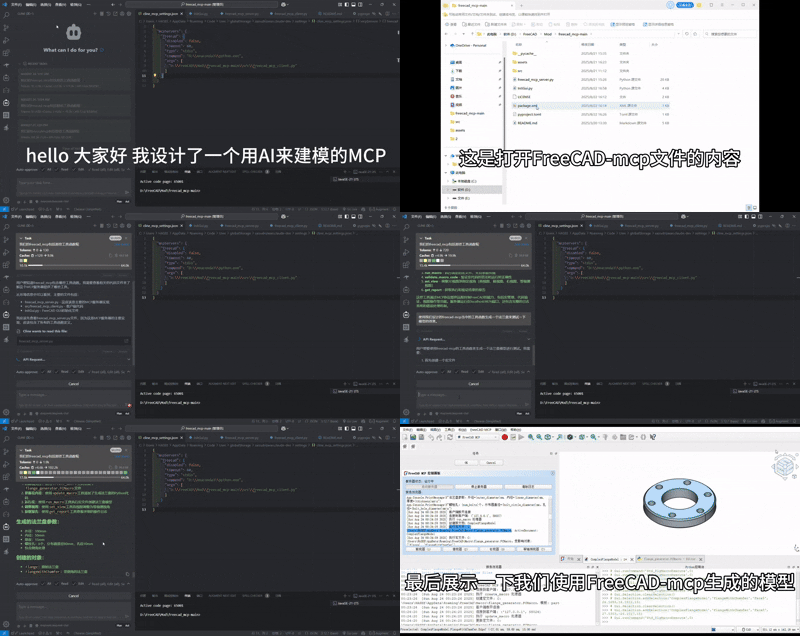
- **freecad.mp4**: Demo video, available for download.
Download: [FreeCAD MCP Demo MP4](assets/freecad.mp4)
## Troubleshooting
- **Server Fails to Start**:
- **Issue**: Port 9876 is in use.
- **Solution**: Check port (`netstat -ano | findstr 9876`), change port, or terminate conflicting process.
- **Client Connection Failure**:
- **Issue**: Incorrect paths in `mcp_config.json`.
- **Solution**: Verify `command` and `args` paths, e.g., `D:\Anaconda3\python.exe` and `D:\FreeCAD\Mod\FreeCAD-MCP-main\src\freecad_mcp_client.py`.
- **Macro Execution Errors**:
- **Issue**: Syntax errors or missing imports in macro code.
- **Solution**: Use `--validate-macro-code` to check code, review traceback in `%TEMP%\freecad_mcp_log.txt`.
- **Log File Not Generated**:
- **Issue**: No write permission in temporary directory.
- **Solution**: Check permissions for `%TEMP%\freecad_mcp_log.txt`, or specify another path in `freecad_mcp_server.py`.
- **More Help**: Submit issues on GitHub ([Bug Tracker](https://github.com/ATOI-Ming/FreeCAD-MCP/issues)).
## Contributing
Contributions are welcome! Follow these steps:
1. Fork the repository: `https://github.com/ATOI-Ming/FreeCAD-MCP`.
2. Create a branch: `git checkout -b feature/your-feature`.
3. Commit changes: `git commit -m "Add your feature"`.
4. Push and create a Pull Request.
For questions or collaborations, please open an issue or contact [1757772673@qq.com,抖音:huhushuxue95]
## License
This project is licensed under the MIT License. See [LICENSE](LICENSE) for details.
This server cannot be deployed
Maintenance
ActivityInactive
ResponsivenessNo issues