
Questrade MCP Server
Click on "Install Server".
Wait a few minutes for the server to deploy. Once ready, it will show a "Started" state.
In the chat, type
@followed by the MCP server name and your instructions, e.g., "@Questrade MCP ServerShow me my current balances and stock positions"
That's it! The server will respond to your query, and you can continue using it as needed.
Here is a step-by-step guide with screenshots.
Questrade MCP Server


An unofficial Model Context Protocol (MCP) server for integrating with the Questrade API, providing access to trading accounts, market data, and portfolio information.
⚠️ Disclaimer: This is an unofficial, community-built integration and is not affiliated with, endorsed by, or supported by Questrade Inc. Use at your own risk.
Features
🔐 Authentication: OAuth 2.0 token management with automatic refresh
📊 Account Data: Access accounts, positions, balances, and order history
📈 Market Data: Real-time quotes, symbol search, and historical candles
🛡️ Error Handling: Comprehensive error handling and logging
🔧 TypeScript: Full TypeScript support with proper type definitions
Related MCP server: Finance Tools MCP
Installation
Option 1: Install from npm (Recommended)
npm install -g questrade-mcp-serverOption 2: Clone and Build
Clone this repository
Install dependencies:
npm installCopy the environment template:
cp .env.example .envConfigure your Questrade API credentials in
.env:QUESTRADE_API_URL=https://api01.iq.questrade.com QUESTRADE_REFRESH_TOKEN=your_refresh_token_here # QUESTRADE_TOKEN_DIR=/path/to/custom/directory
Getting Questrade API Credentials
For detailed information about Questrade's API authorization, see the official API documentation.
Step 1: Generate API Token
Log in to your Questrade account or navigate directly to https://apphub.questrade.com/UI/UserApps.aspx
In the top right corner, select "API centre" from the drop-down menu under your login name
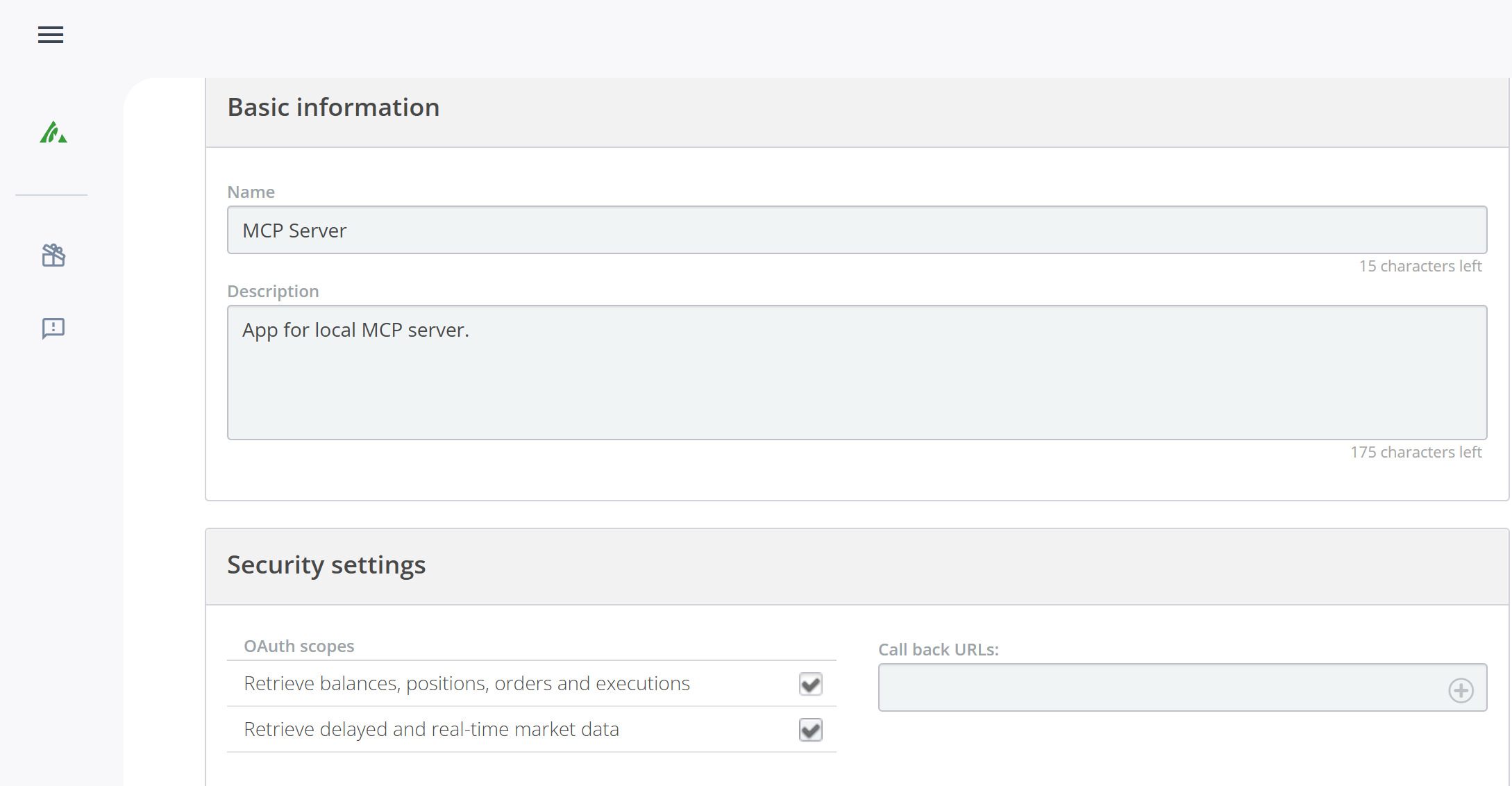
Click "Activate API" and agree to the API access agreement
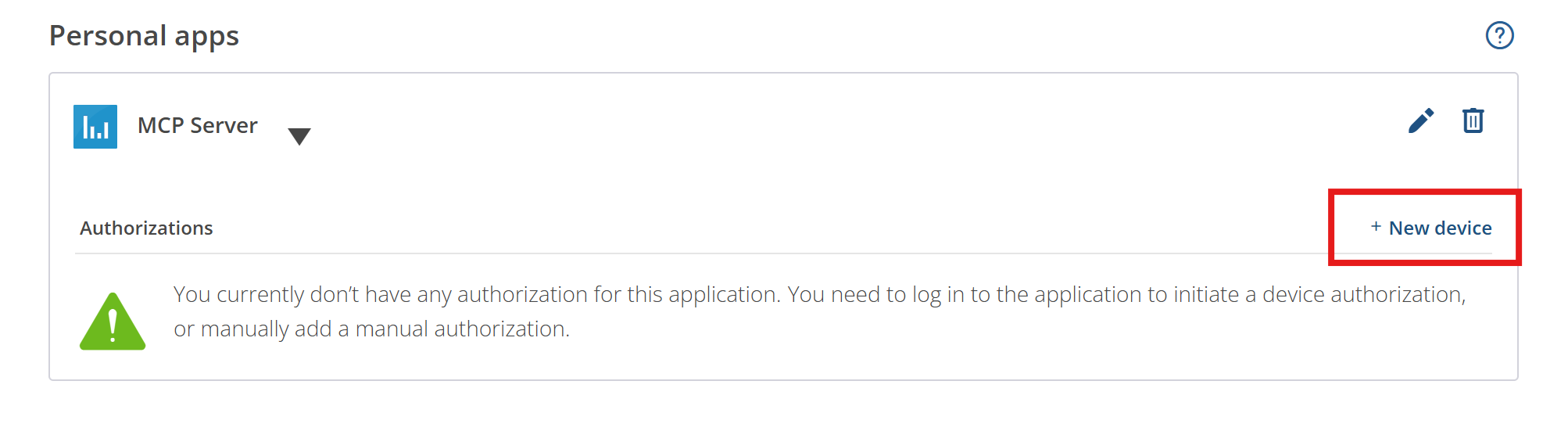
Click "Generate new token" for manual authorization
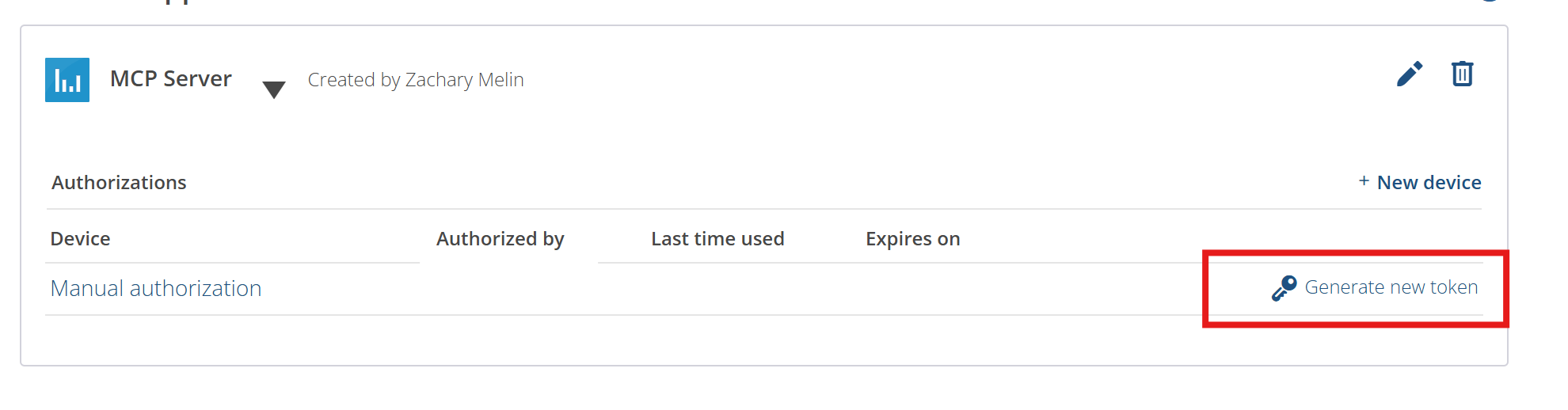
Copy the refresh token provided
Step 2: Configure Environment
Copy your refresh token to
.env:QUESTRADE_REFRESH_TOKEN=your_refresh_token_hereThe MCP server will automatically:
Use your refresh token to get an access token
Discover the correct API server URL
Handle token refresh when needed
Persist new tokens to
~/.questrade-mcp/tokens.json(or system temp directory as fallback)
Important: Refresh tokens are single-use only. The server will attempt to persist new refresh tokens to
~/.questrade-mcp/tokens.json(configurable viaQUESTRADE_TOKEN_DIRenvironment variable), but if a token expires or gets used by another process, you'll need to manually generate a new one following the steps above.
Step 3: Test Your Setup
Verify your token works correctly:
npm run test-connectionNote: If you get a "'tsx' is not recognized" error, the test script will automatically build the project first and use Node.js instead.
Usage
Development
npm run devProduction
npm run build
npm start
Adding to Claude Desktop
Find your Claude Desktop config file:
Windows:
%APPDATA%\Claude\claude_desktop_config.jsonmacOS:
~/Library/Application Support/Claude/claude_desktop_config.jsonLinux:
~/.config/Claude/claude_desktop_config.json
Add the MCP server configuration:
Quick setup (Recommended)
{
  "mcpServers": {
    "questrade": {
      "command": "npx",
      "args": ["questrade-mcp-server"],
      "env": {
        "QUESTRADE_REFRESH_TOKEN": "your_refresh_token_here"
      }
    }
  }
}
Local development build
{
  "mcpServers": {
    "questrade": {
      "command": "node",
      "args": ["/path/to/your/project/dist/index.js"],
      "env": {
        "QUESTRADE_REFRESH_TOKEN": "your_refresh_token_here"
      }
    }
  }
}
If using local build, update the path to match your actual project location
Restart Claude Desktop
Test the connection by asking Claude to show your Questrade accounts
For detailed setup instructions, see claude-desktop-config.md.
Available Tools
Account Management
get_accounts- Get all Questrade accountsget_positions- Get positions for a specific accountget_balances- Get balances for a specific accountget_orders- Get order history for an account
Market Data
search_symbols- Search for symbols by prefixget_symbol- Get detailed symbol informationget_quotes- Get real-time quotes for symbolsget_candles- Get historical price data
Authentication
refresh_token- Refresh the API access token
Built-in Prompts
The MCP server includes helpful prompts for common trading analysis tasks:
Portfolio Summary
Prompt: portfolio_summary
Get a comprehensive portfolio analysis with account balances, positions, and performance
Optional: Specify
accountNumber(uses first account if not provided)
Stock Analysis
Prompt: stock_analysis
Analyze a specific stock with current quotes, symbol information, and recent performance
Required:
symbol(e.g., "AAPL", "TSLA", "MSFT")
Trading Opportunities
Prompt: trading_opportunities
Identify potential trading opportunities based on current positions and market data
Optional:
accountNumber(uses first account if not provided)Optional:
riskLevel("conservative", "moderate", or "aggressive")
Example Usage
Simply ask Claude:
"Use the portfolio_summary prompt to analyze my trading account"
"Analyze AAPL stock using the stock_analysis prompt"
"Show me trading opportunities with conservative risk level"
Tool Examples
Get Accounts
{
  "name": "get_accounts"
}
Get Positions
{
  "name": "get_positions",
  "arguments": {
    "accountNumber": "12345678"
  }
}
Search Symbols
{
  "name": "search_symbols",
  "arguments": {
    "prefix": "AAPL",
    "offset": 0
  }
}
Get Quotes
{
  "name": "get_quotes",
  "arguments": {
    "symbolIds": [8049, 9291]
  }
}
Configuration
The server uses environment variables for configuration:
QUESTRADE_API_URL: Base URL for Questrade API (default: https://api01.iq.questrade.com)QUESTRADE_REFRESH_TOKEN: Your API refresh tokenQUESTRADE_TOKEN_DIR: Custom directory for token storage (default:~/.questrade-mcp)
Error Handling
The server includes comprehensive error handling for:
Invalid or expired tokens (automatic refresh)
Missing required parameters
API rate limits and network errors
Invalid account numbers or symbol IDs
Security Notes
Never commit your
.envfile to version controlAccess tokens expire after 7 days
Refresh tokens are automatically used to get new access tokens
This is an unofficial tool - ensure you comply with Questrade's API terms of service
Always verify trading decisions independently before executing trades
Development
Project Structure
src/
├── index.ts          # Main MCP server implementation
├── questrade-client.ts # Questrade API client
└── types.ts          # TypeScript type definitions
Building
npm run buildCleaning
npm run cleanLicense
MIT
Maintenance
Resources
Unclaimed servers have limited discoverability.
Looking for Admin?
If you are the server author, to access and configure the admin panel.
Latest Blog Posts
MCP directory API
We provide all the information about MCP servers via our MCP API.
curl -X GET 'https://glama.ai/api/mcp/v1/servers/zachmelin/QuestradeMCP'
If you have feedback or need assistance with the MCP directory API, please join our Discord server