
Click on "Install Server".
Wait a few minutes for the server to deploy. Once ready, it will show a "Started" state.
In the chat, type
@followed by the MCP server name and your instructions, e.g., "@Weather Alerts MCP Servershow me active weather alerts for Texas"
That's it! The server will respond to your query, and you can continue using it as needed.
Here is a step-by-step guide with screenshots.
MCP Server Beginner example
Project Overview
It is a Python application that provides real-time weather alerts for US states using the National Weather Service (NWS) API. It leverages the mcp framework (with FastMCP) and is designed for modern async Python workflows. The project is fully managed with uv for dependency management and task running.
Features
Weather Alerts Tool: Fetches and formats active weather alerts for any US state.
Echo Resource: Simple echo endpoint for testing.
Async & Modern: Uses Python 3.12+ and async/await patterns.
MCP Inspector: Visual tool to inspect and test your MCP tools and resources.
Project Structure
Prerequisites
Python 3.12+
uv (install with
pip install uvif not already installed)
Setup & Installation
Clone the repository:
git clone <your-repo-url> cd mcpprojectInstall dependencies using uv:
uv pip install -r uv.lockOr, if you want to install from
pyproject.toml:uv pip install
Running the Project
1. Run the Main Script
To run the basic entry point:
2. Develop & Test the Weather Tool
To start the MCP development server for the weather tool:
This will also open MCP Inspector in your browser—a visual tool to explore and test your MCP tools and resources interactively.
3. Install the Weather Tool
To install the weather tool for use as an MCP tool:
Usage Example
With the dev server running, you can use the MCP Inspector or an MCP-compatible client to call the get_alerts tool:
Tool name:
get_alertsArgument: Two-letter US state code (e.g.,
CA,NY)
Example (from CLI):
Using with Claude Desktop
You can also use the weather alerts tool in Claude Desktop, as shown below:
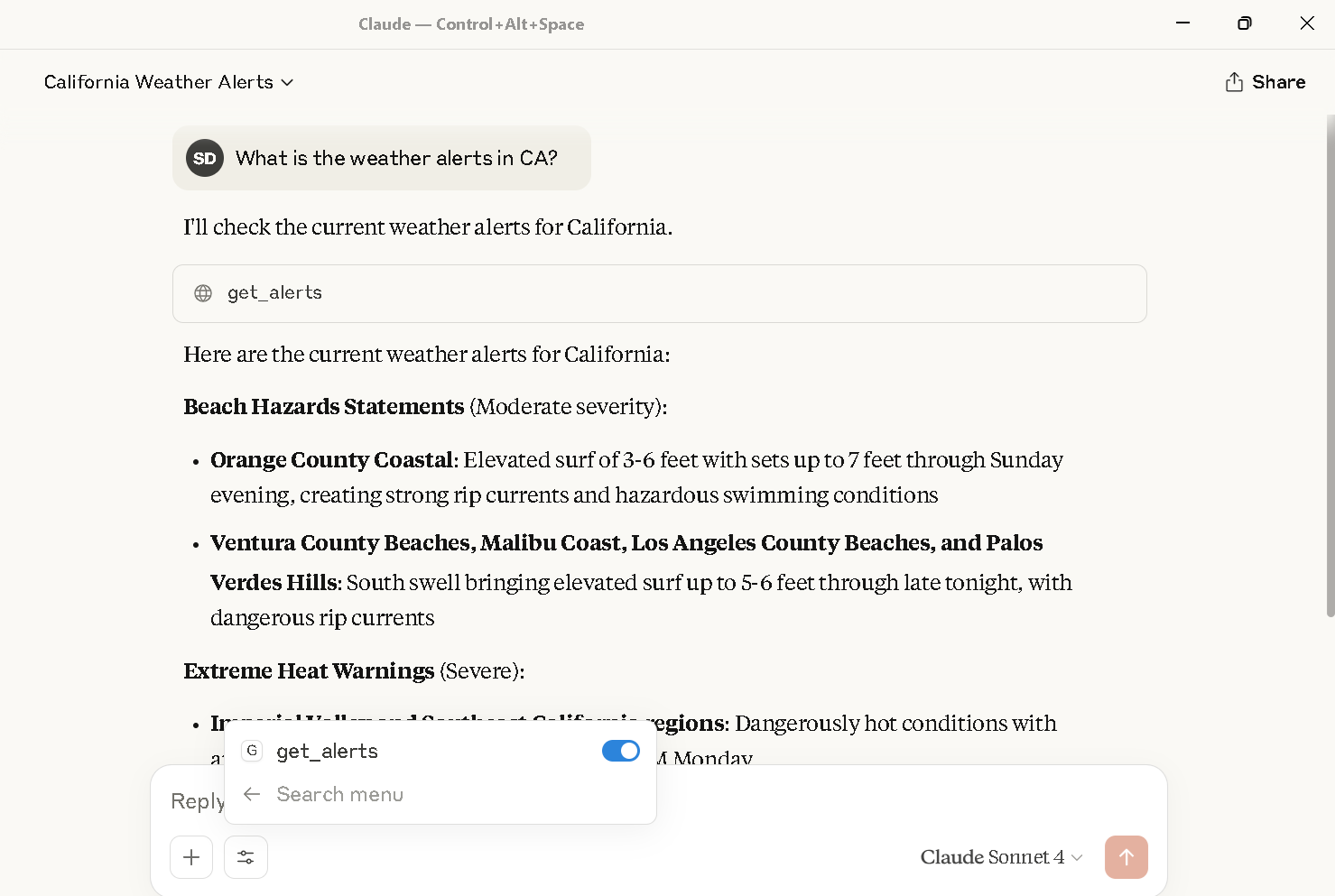
Weather alerts for California displayed in Claude Desktop using the
Claude Desktop Configuration
To call this MCP server from Claude Desktop, you need to update your claude_desktop_config.json file to include the server
For example:
Attached is the screenshot: 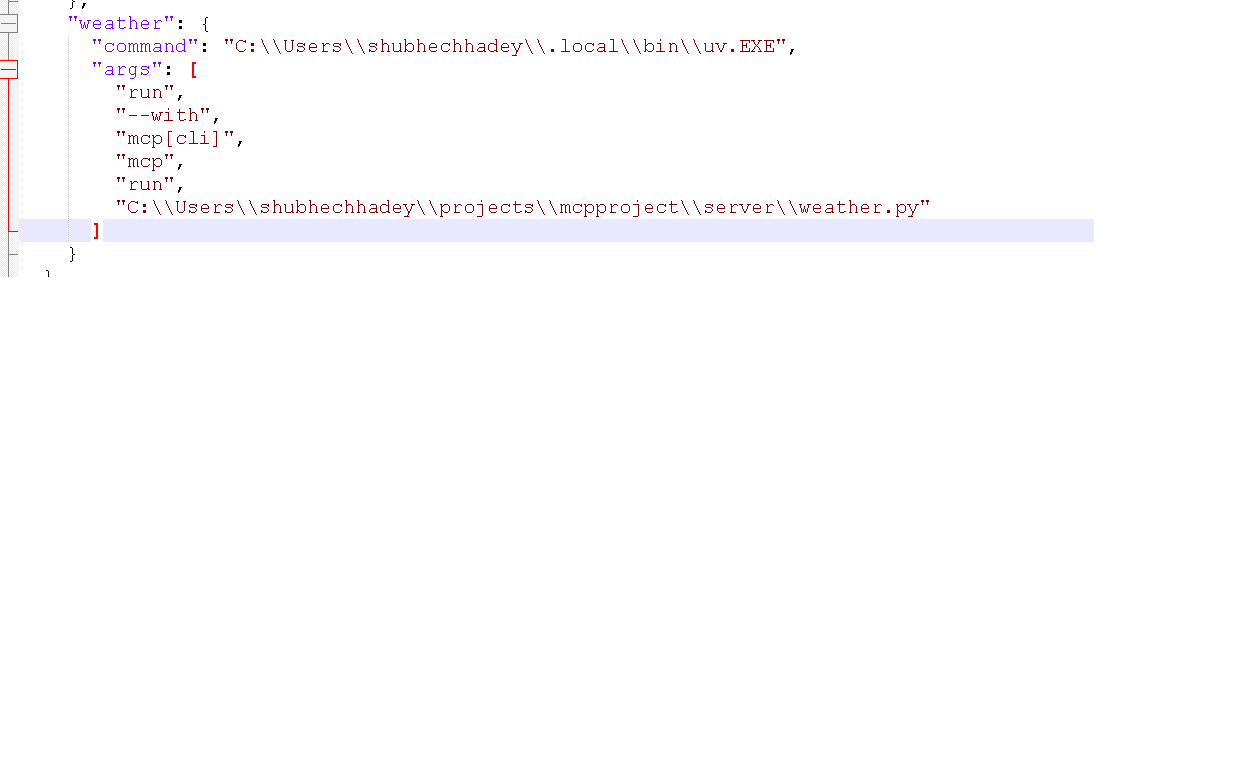
Notes
All commands use
uv