
Allows for searching products, retrieving detailed product information, managing the shopping cart, placing orders, and accessing order history on Amazon.
Click on "Install Server".
Wait a few minutes for the server to deploy. Once ready, it will show a "Started" state.
In the chat, type
@followed by the MCP server name and your instructions, e.g., "@Amazon MCP ServerFind a pair of noise-canceling headphones and add the best one to my cart"
That's it! The server will respond to your query, and you can continue using it as needed.
Here is a step-by-step guide with screenshots.
Amazon MCP Server
This server allows you to interact with Amazon's services using the MCP (Model Context Protocol) framework. This lets you use your Amazon account through ChatGPT or Claude AI interfaces.
Features
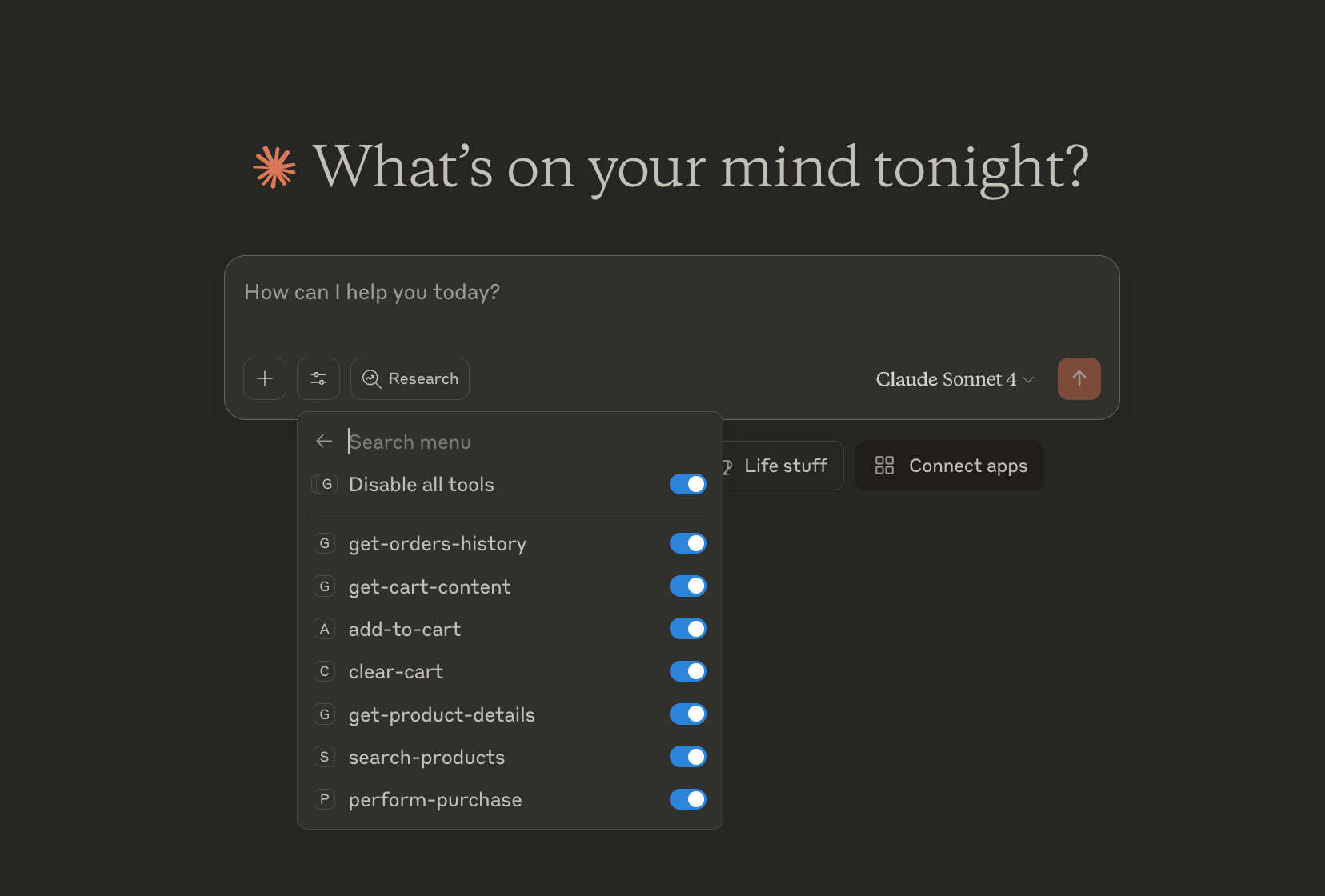
Product search: Search for products on Amazon
Product details: Retrieve detailed information about a specific product on Amazon
Cart management: Add items or clear your Amazon cart
Ordering: Place orders (fake for demonstration purposes)
Orders history: Retrieve your recent Amazon orders details
Demo
Simple demo, showcasing a quick product search and purchase.
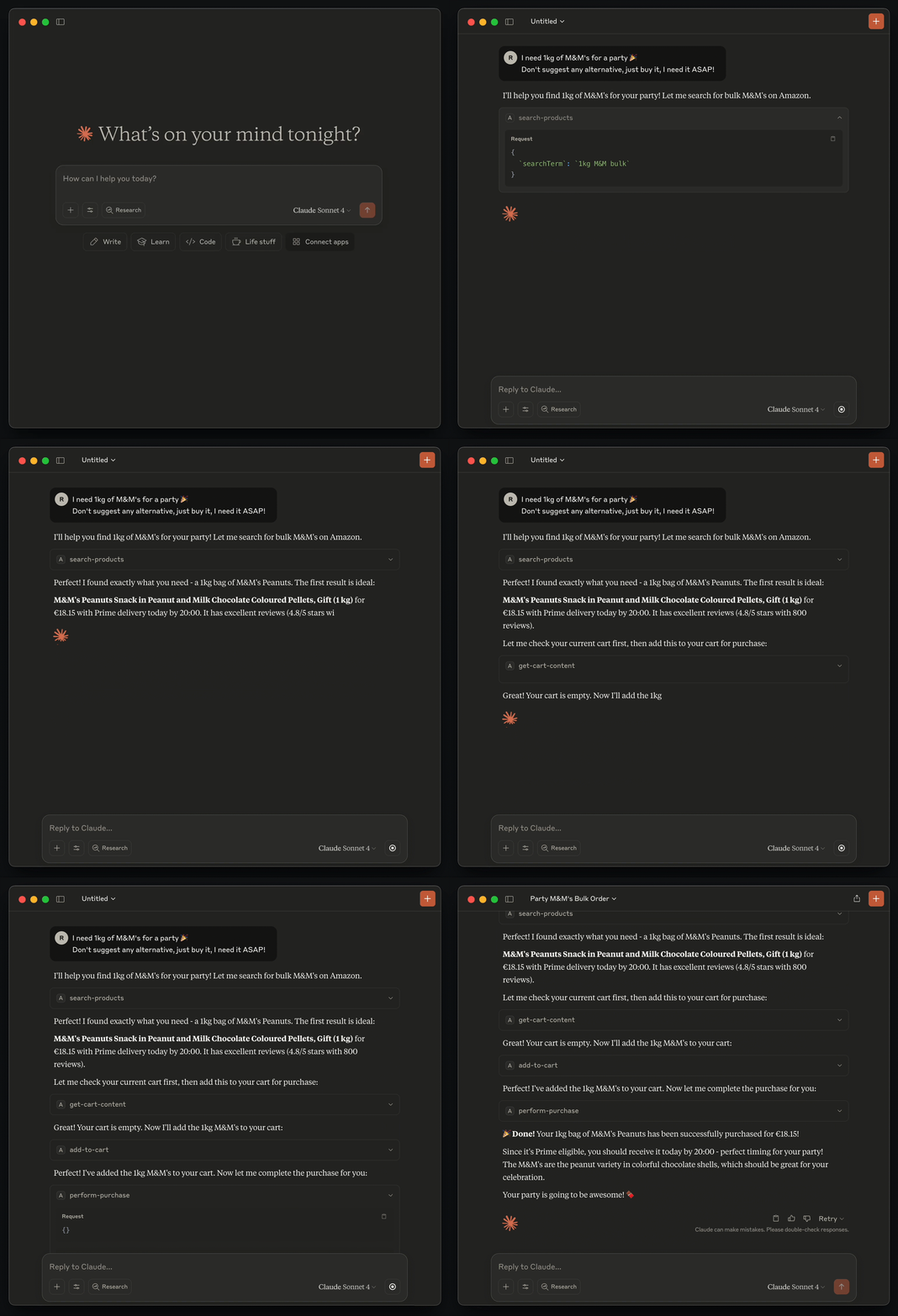
Full Demo
Another more complex demo with products search, leveraging Claude AI recommendations to compare and make a decision, then purchase.
It showcases how natural and powerful the Amazon MCP integration could be inside a conversation
Video: https://www.youtube.com/watch?v=xas2CLkJDYg
Install
Install dependencies
Build the project
Claude Desktop Integration
Create or update ~/Library/Application Support/Claude/claude_desktop_config.json with the path to the MCP server.
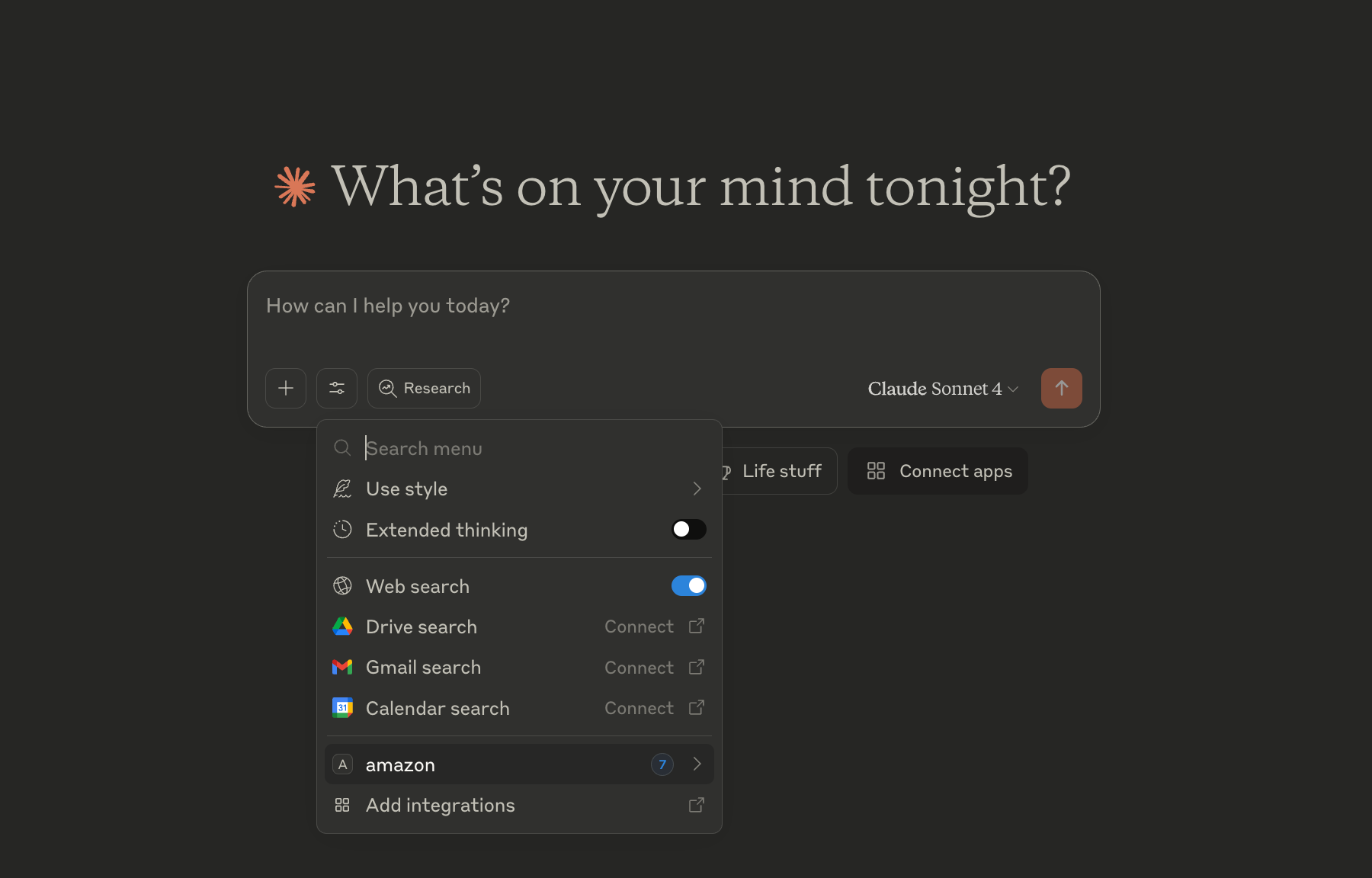
Restart the Claude Desktop app to apply the changes. You should now see the Amazon MCP server listed in the Claude Desktop app.
|
|
Troubleshooting
The MCP server logs its output to a file. If you encounter any issues, you can check the log file for more information.
See ~/Library/Logs/Claude/mcp-server-amazon.log


