
Pabal MCP is an MCP server that provides comprehensive management of App Store Connect and Google Play Console directly from AI clients like Cursor, Claude Code, and VS Code.
Authentication & Setup: Check authentication status for both stores, automatically fetch and register apps from store APIs, or manually add apps by bundle ID or package name. Search registered apps using various criteria (slug, bundleId, packageName, or name).
ASO Data Management: Pull ASO data from stores to local cache for offline editing, push cached data back to stores with optional image uploads, and preview changes with dry-run mode before applying them.
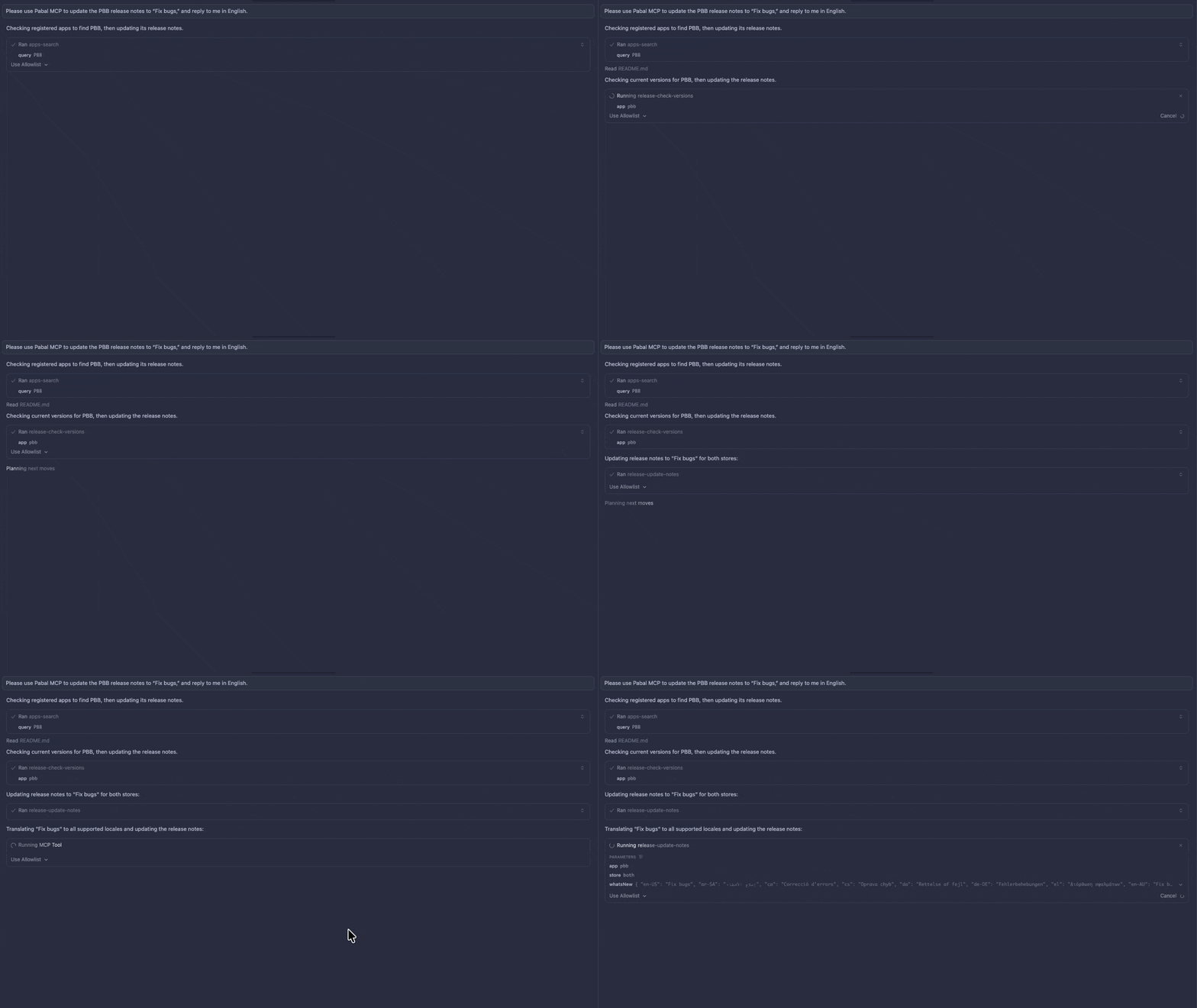
Release Management: Check latest versions across stores, create new versions on either or both platforms (with version code support for Google Play), pull release notes from stores, and update "What's New" sections with multi-locale support or automatic translation from a source locale.
Key Features: Multi-store support through a single interface, local-first architecture keeping credentials and cached data secure on your machine, flexible app targeting by slug/bundleId/packageName, and scriptable workflows enabling automated ASO and release management tasks from within AI coding assistants.
Enables management of App Store Connect metadata, releases, and app information through ASO workflows, including pulling and pushing app data, checking versions, and updating release notes.
Provides tools for managing Google Play Console apps, including ASO data synchronization, release management, version checking, and updating release notes for Android applications.
Integrates with Google Search Console for SEO management and indexing through the Pabal Web interface.
Click on "Install Server".
Wait a few minutes for the server to deploy. Once ready, it will show a "Started" state.
In the chat, type
@followed by the MCP server name and your instructions, e.g., "@Pabal MCPpull the latest metadata from App Store Connect for my app"
That's it! The server will respond to your query, and you can continue using it as needed.
Here is a step-by-step guide with screenshots.

MCP server for App Store Connect & Play Console API
Up-to-date ASO workflows exposed as MCP tools. Run it as a stdio MCP server (Claude Code, Cursor, MCP Inspector, etc.) to manage metadata, releases, and store syncs without leaving your AI client.
Runs 100% locally on your machine, so credentials and cached ASO data never leave your environment (store API calls are made directly from your device).
Quick Start
Install
Configure
Create config directory:
Add your credentials to
~/.config/pabal-mcp/config.json:App Store Connect: API key (
.p8file) withissuerIdandkeyIdGoogle Play: Service account JSON key
Set up MCP client (Cursor, VS Code, Claude Code, etc.) to use
pabal-store-api-mcp
Features
✅ ASO Data Sync: Pull/push metadata from App Store and Google Play
✅ Release Management: Create versions and update release notes
✅ App Management: Auto-register apps from store APIs
✅ 100% Local: All operations run on your machine
MCP Tools
Authentication:
auth-checkApp Management:
apps-init,apps-add,apps-searchASO Sync:
aso-pull,aso-pushRelease Management:
release-check-versions,release-create,release-pull-notes,release-update-notes
Documentation
📖 Pabal Web MCP Documentation (English) 📖 Pabal Web MCP 문서 (한국어)
Development
License
MIT
🌐 Pabal Web
Want to manage ASO and SEO together? Check out Pabal Web.
Pabal Web is a Next.js-based web interface that provides a complete solution for unified management of ASO, SEO, Google Search Console indexing, and more.