
Click on "Install Server".
Wait a few minutes for the server to deploy. Once ready, it will show a "Started" state.
In the chat, type
@followed by the MCP server name and your instructions, e.g., "@Cloudscape Docs MCP Serverhow do I create a modal dialog with a form?"
That's it! The server will respond to your query, and you can continue using it as needed.
Here is a step-by-step guide with screenshots.
Cloudscape Docs MCP Server
A Model Context Protocol (MCP) server that provides semantic search over AWS Cloudscape Design System documentation. Built for AI agents and coding assistants to efficiently query component documentation.
Features
Semantic Search - Find relevant documentation using natural language queries powered by Alibaba GTE Multilingual Base model
Token Efficient - Returns concise file lists first, full content on demand
Hardware Optimized - Automatic detection of Apple Silicon (MPS), CUDA, or CPU
Local Vector Store - Uses LanceDB for fast, file-based vector search
Transport
This server uses the MCP stdio transport protocol.
Streamable HTTP transport coming soon.
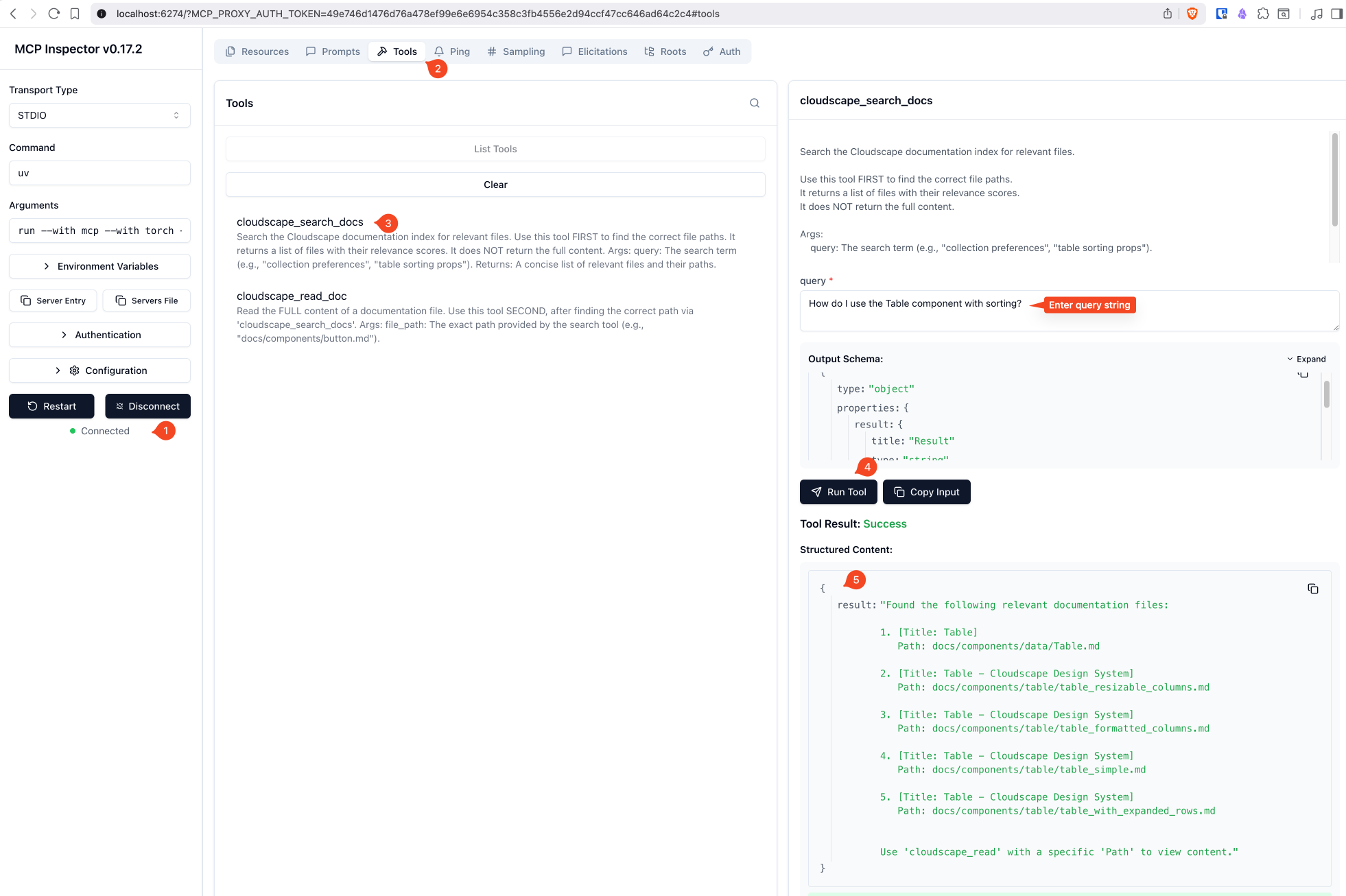
Tools
Tool | Description |
| Search the documentation index. Returns top 5 relevant files with titles and paths. |
| Read the full content of a specific documentation file. |
Requirements
Python 3.13+
~3GB disk space for the embedding model
8GB+ RAM recommended
Installation
Setup
1. Add Documentation
Place your Cloudscape documentation files in the docs/ directory. Supported formats:
.md(Markdown).txt(Plain text).tsx/.ts(TypeScript/React)
2. Build the Index
Run the ingestion script to create the vector database:
This will:
Scan all files in
docs/Chunk content into ~2000 character segments
Generate embeddings using Alibaba GTE Multilingual Base embedding model
Store vectors in
data/lancedb/
Note: Running
uv run ingest.pymultiple times is safe but performs a full re-index each time. The script usesmode="overwrite"which drops and recreates the database table. There is no incremental update or change detection—all documents are re-scanned and re-embedded on every run. This is idempotent (same docs produce the same result) but computationally expensive for large documentation sets.
3. Run the Server
MCP Client Configuration
Claude Desktop
Add to your mcp.json:
Cursor / VS Code / Windsurf / Kiro
Add to your MCP settings:
Zed
Add to your Zed settings (settings.json):
Usage Example
Once connected, an AI assistant can:
Search for components:
User: "How do I use the Table component with sorting?" Agent: [calls cloudscape_search_docs("table sorting")]Read specific documentation:
Agent: [calls cloudscape_read_doc("docs/components/table/sorting.md")]
Project Structure
Configuration
Key settings in server.py and ingest.py:
Variable | Default | Description |
|
| |
|
| Vector dimensions |
|
| Max search results returned |
|
| Documentation source directory |
|
| Vector database location |
Development
License
MIT License - See LICENSE for details.