
Click on "Install Server".
Wait a few minutes for the server to deploy. Once ready, it will show a "Started" state.
In the chat, type
@followed by the MCP server name and your instructions, e.g., "@Pomera AI Commanderextract all the email addresses and URLs from this text"
That's it! The server will respond to your query, and you can continue using it as needed.
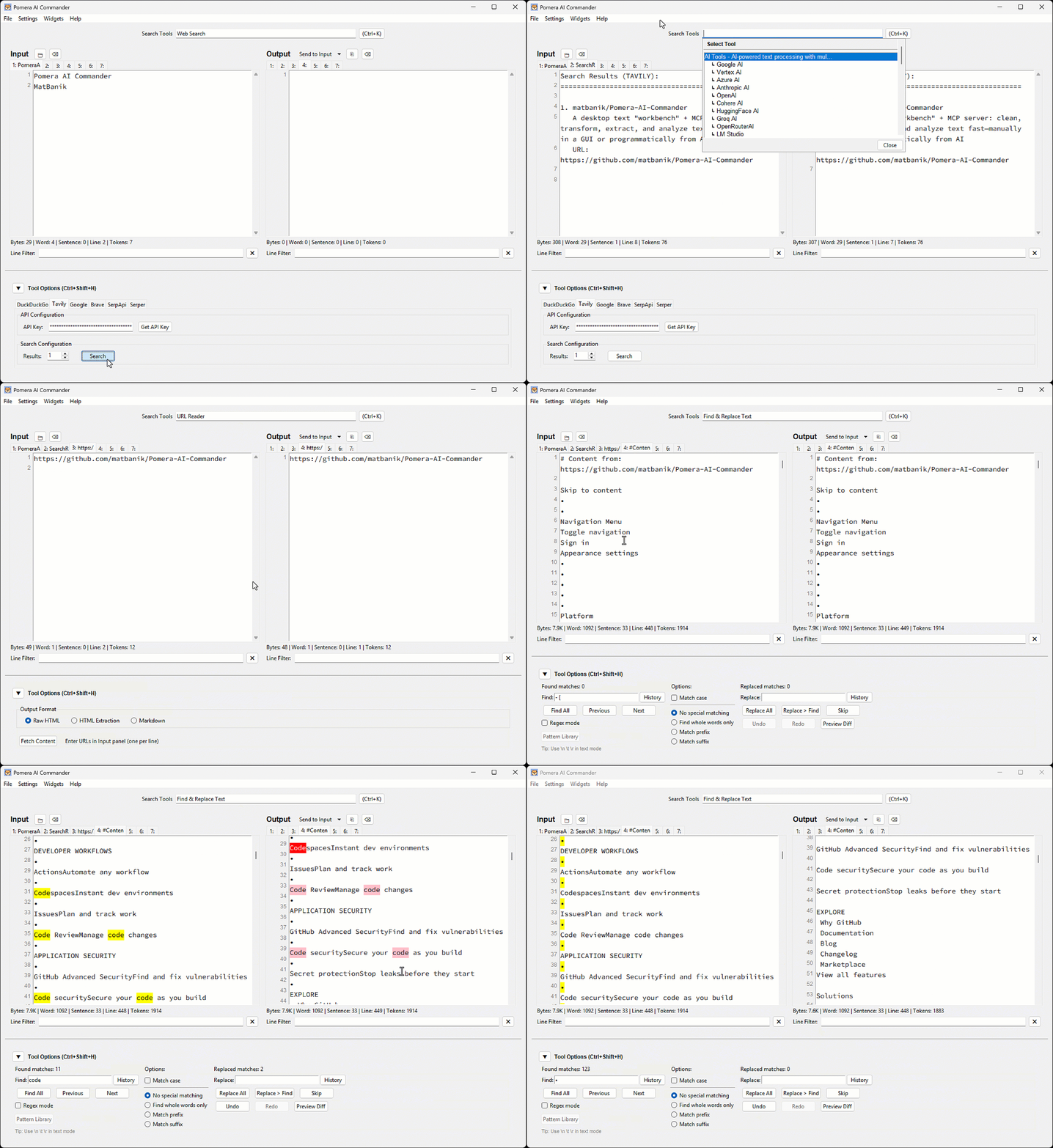
Here is a step-by-step guide with screenshots.
Pomera AI Commander (PAC)
A desktop text "workbench" + MCP server: clean, transform, extract, and analyze text fast—manually in a GUI or programmatically from AI assistants (Cursor / Claude Desktop / MCP clients).
Hook: Stop pasting text into 10 random websites. Pomera gives you one place (GUI + MCP) to do the 90% text ops you repeat every week.
Download latest release · Docs: Tools · MCP Guide · Troubleshooting
60-second demo (what to expect)
Best-for workflows
Cleaning pasted logs / PDFs (whitespace, wrapping, stats)
Extracting emails/URLs/IDs via regex
Normalizing case, sorting, columns
Hashing/encoding utilities
Letting Cursor/Claude call these as MCP tools in a repeatable pipeline
Prerequisites
Python 3.8+ is required for all installation methods.
macOS (Homebrew)
Ubuntu/Debian
Windows
Tkinter is included with Python from python.org.
Note: For PEP 668 protected environments, use
pip3 install --useror a virtual environment.
Install / Run
Option A — Prebuilt executable (recommended)
Download from Releases and run.
Option B — Python (PyPI)
Option C — Node.js (npm)
MCP Server for AI Assistants
Pomera exposes 22 text processing tools via MCP. Configure your AI assistant:
Cursor (.cursor/mcp.json):
Claude Desktop (claude_desktop_config.json):
See the full MCP Server Guide for Antigravity, executable configs, and troubleshooting.
License
MIT License - see LICENSE for details.

