
Click on "Install Server".
Wait a few minutes for the server to deploy. Once ready, it will show a "Started" state.
In the chat, type
@followed by the MCP server name and your instructions, e.g., "@ParaView-MCPLoad the fluid dynamics data and apply a slice filter colored by pressure"
That's it! The server will respond to your query, and you can continue using it as needed.
Here is a step-by-step guide with screenshots.
Paraview_MCP
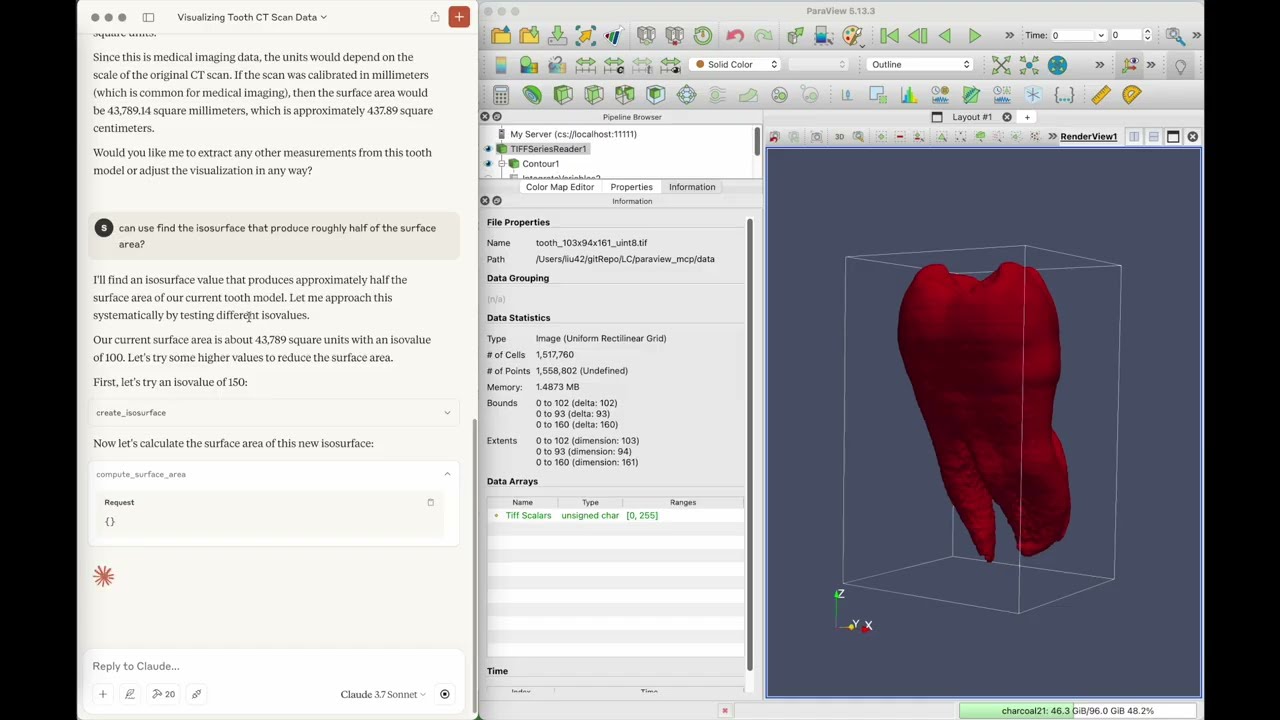
ParaView-MCP is an autonomous agent that integrates multimodal large language models with ParaView through the Model Context Protocol, enabling users to create and manipulate scientific visualizations using natural language and visual inputs instead of complex commands or GUI operations. The system features visual feedback capabilities that allow it to observe the viewport and iteratively refine visualizations, making advanced visualization accessible to non-experts while augmenting expert workflows with intelligent automation.
Video Demo
Click the image below to watch the video:
Installation
Setup for LLM
To set up integration with claude desktop, add the following to claude_desktop_config.json
running
1. Start paraview server
2. Connect to paraview server from paraview GUI (file -> connect)
3. Start claude desktop app
Citing Paraview_MCP
S. Liu, H. Miao, and P.-T. Bremer, “Paraview-MCP: Autonomous Visualization Agents with Direct Tool Use,” in Proc. IEEE VIS 2025 Short Papers, 2025, pp. 00
Authors
Paraview_MCP was created by Shusen Liu (liu42@llnl.gov) and Haichao Miao (miao1@llnl.gov)
License
Paraview_MCP is distributed under the terms of the BSD-3 license.
LLNL-CODE-2007260