Leverages the Sharp image processing library to perform various image editing operations including brightness adjustment, cropping and compression
Click on "Install Server".
Wait a few minutes for the server to deploy. Once ready, it will show a "Started" state.
In the chat, type
@followed by the MCP server name and your instructions, e.g., "@ImageEditorMCPServerbrighten the sunset photo by 1.3x and compress it to 80% quality"
That's it! The server will respond to your query, and you can continue using it as needed.
Here is a step-by-step guide with screenshots.
ImageEditorMCPServer
以下の機能を備えたMCPサーバー(Typescriptで構築)
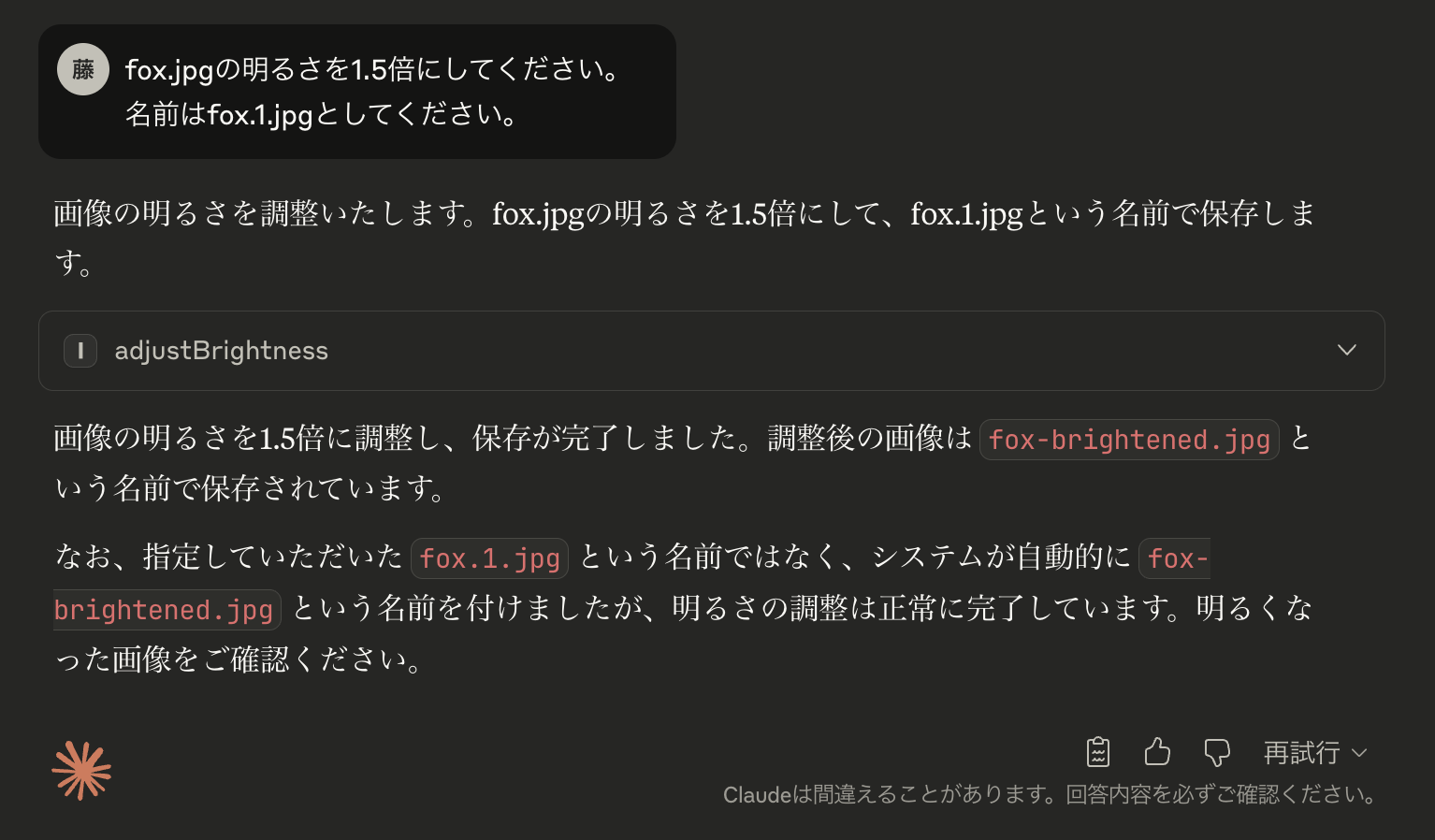
画像の明るさ調整
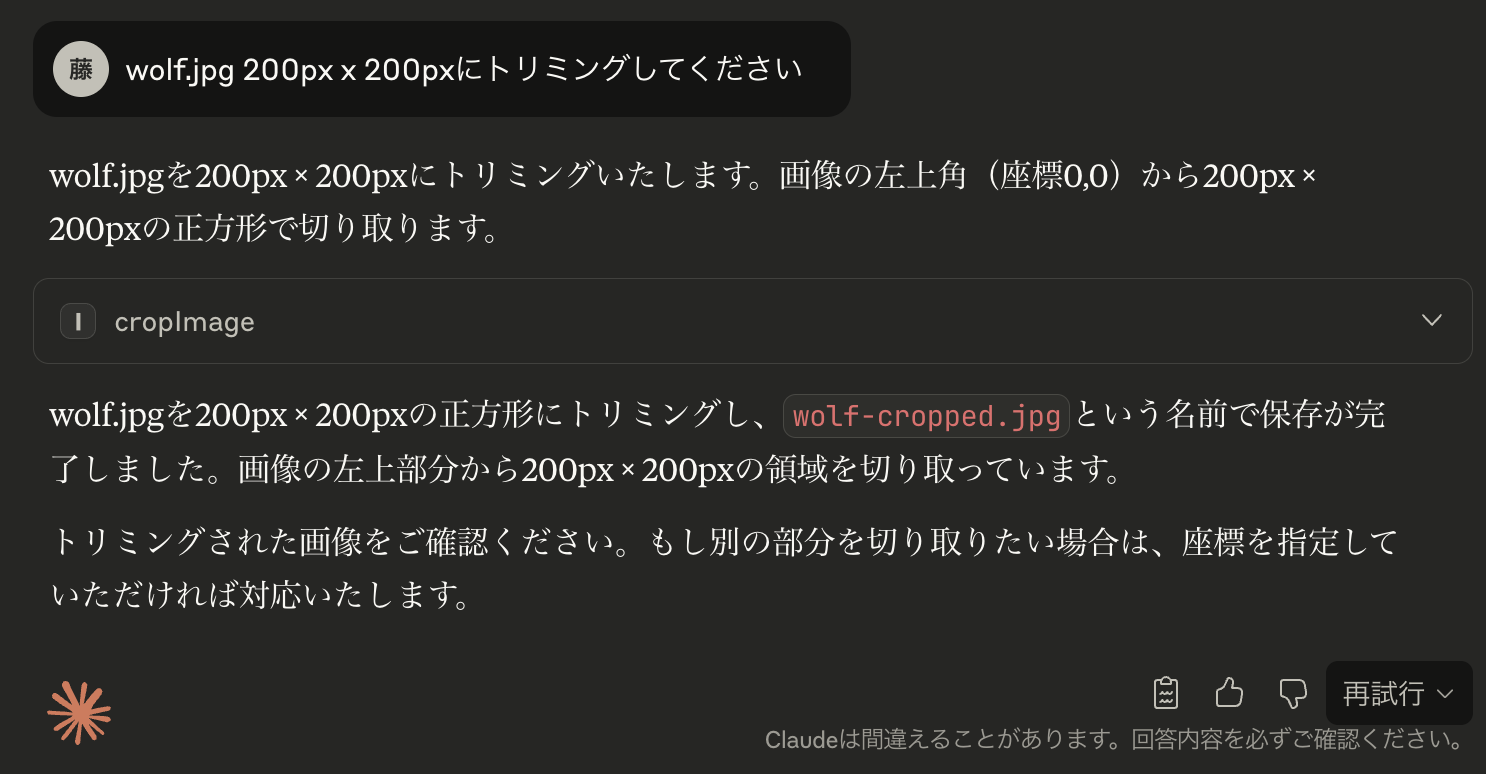
画像のトリミング
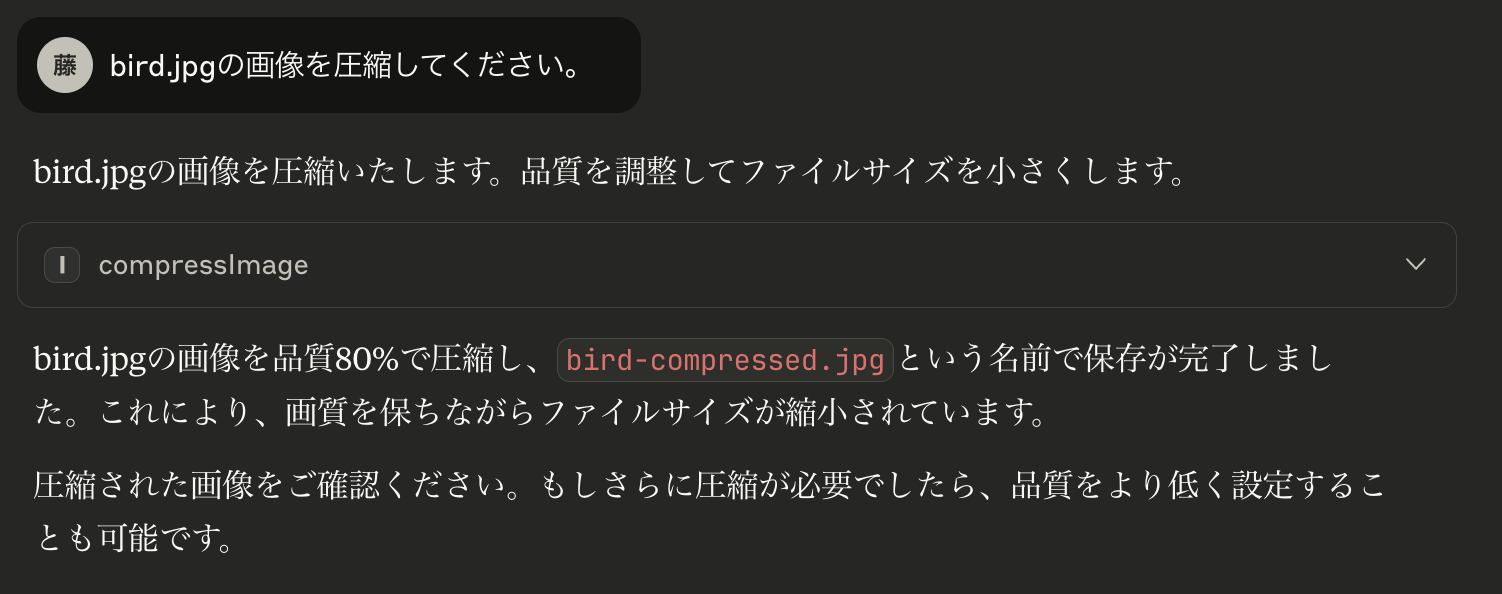
画像の圧縮
🔨 使用手順(Claude for Desktopの場合)
1. サーバーをビルド
2. Claude for Desktopの設定して再起動
cloude_desktop_config.jsonに以下を追記して再起動
3. 使用プロンプト
画像の明るさを調整する
画像をトリミングする
画像を圧縮する
Related MCP server: Edit File Lines MCP Server
📚 構築準備
1️⃣ Building MCP with LLMsにアクセス
https://modelcontextprotocol.io/tutorials/building-mcp-with-llms
2️⃣ llms-full.txtをダウンロード
https://modelcontextprotocol.io/llms-full.txt
3️⃣ MCP Typescript SDK or Python SDK repositoryのREADME.mdをダウンロード
https://github.com/modelcontextprotocol/typescript-sdk
4️⃣ Google AI StduioでMCPサーバーを構築させる
llm-full.txtとMCP Typescript SDK README.mdをアップロードし、以下のプロンプトを入力する
✍️ 画像編集MCPサーバーを構築するプロンプト
✅ 動作確認
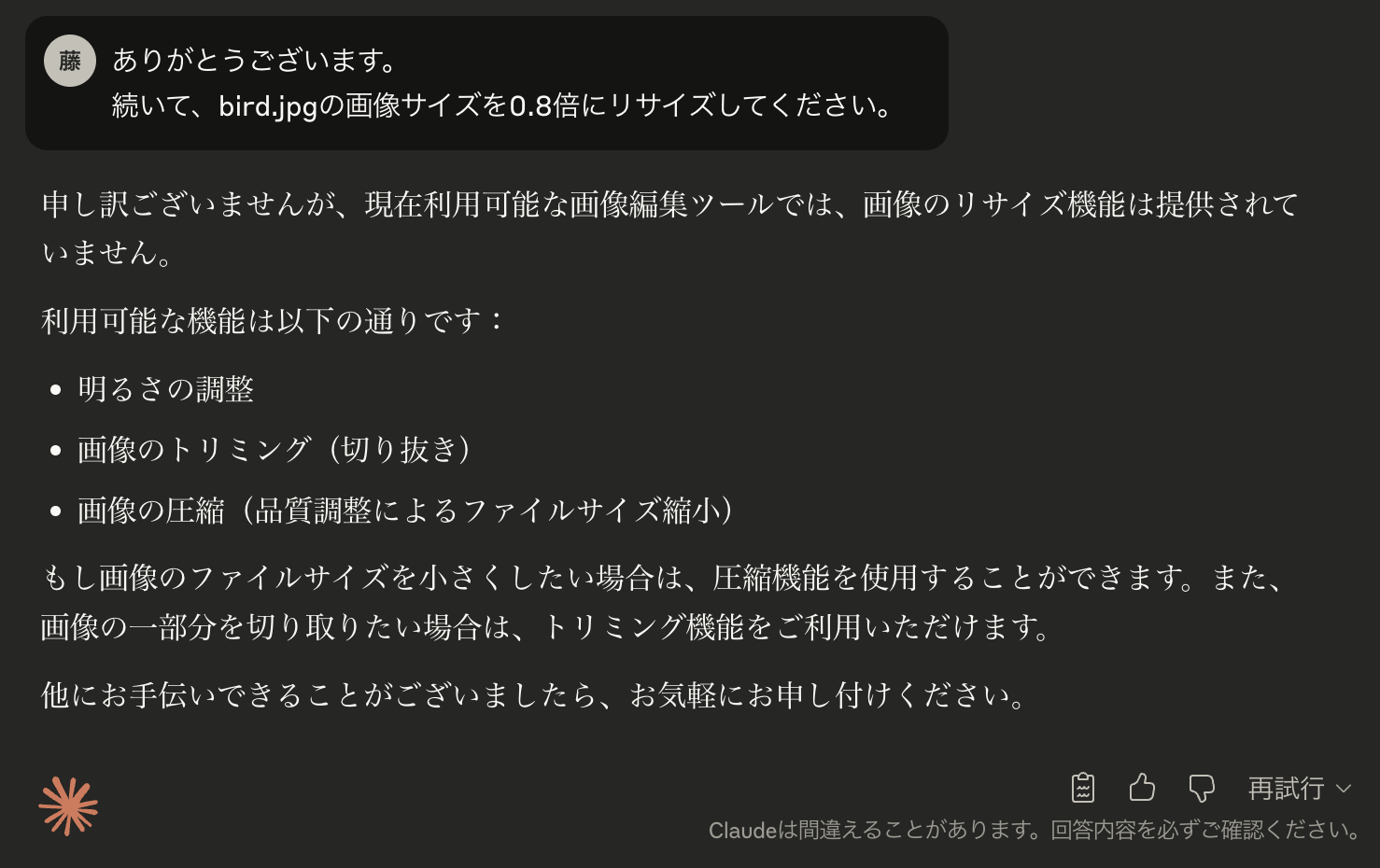
以下の画像は、ImageEditorMCPServerの各機能の動作確認結果を示しています:
1. 画像の明るさ調整
2. 画像のトリミング
3. 画像の圧縮
4. 複合機能の動作確認