
Click on "Install Server".
Wait a few minutes for the server to deploy. Once ready, it will show a "Started" state.
In the chat, type
@followed by the MCP server name and your instructions, e.g., "@Z-Image Studiogenerate a cinematic digital art piece of a cyberpunk neon city"
That's it! The server will respond to your query, and you can continue using it as needed.
Here is a step-by-step guide with screenshots.
Z-Image Studio


A Cli, a webUI, and a MCP server for the Z-Image-Turbo text-to-image generation model (Tongyi-MAI/Z-Image-Turbo and its variants).
This tool is designed to run efficiently on local machines for Windows/Mac/Linux users. It features specific optimizations for NVIDIA (CUDA), AMD on Linux (ROCm), Intel (XPU), and Apple Silicon (MPS), falling back to CPU if no compatible GPU is detected.
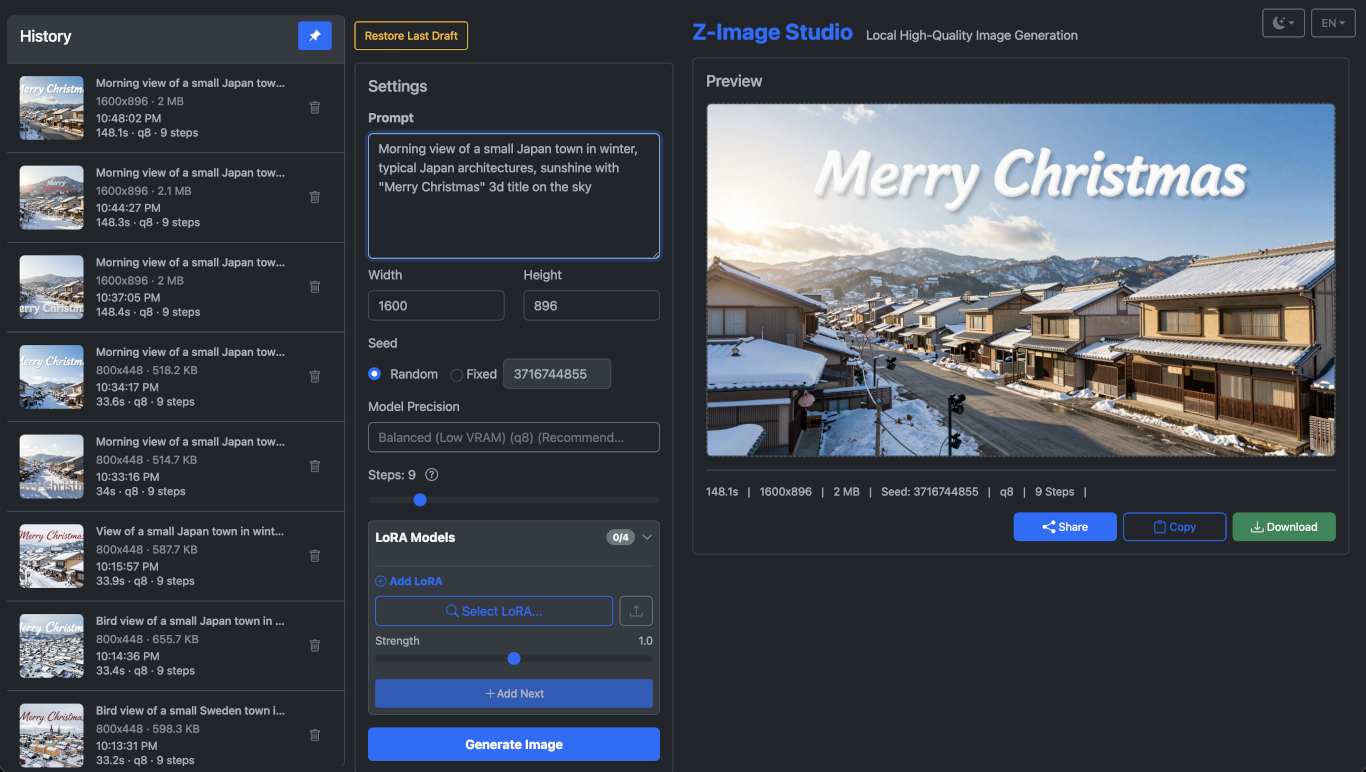
Features
Hybrid Interfaces:
CLI: Fast, direct image generation from the terminal.
Web UI: Modern web interface for interactive generation.
MCP Server: Capability to be called by AI agents.
CLI and core features
Z-Image-Turbo Model: Utilizes the high-quality
Tongyi-MAI/Z-Image-Turbomodel and quatized variants viadiffusers.MPS Acceleration: Optimized for Mac users with Apple Silicon.
ROCm Support: Explicitly supported on Linux for AMD GPUs.
Intel XPU Support: Supports Intel XPU when running an Intel-enabled PyTorch build.
Attention Slicing Auto-detection: Automatically manages memory usage (e.g., enables attention slicing for systems with lower RAM/VRAM) to prevent Out-of-Memory errors and optimize performance.
Seed Control: Reproducible image generation via CLI or Web UI.
Multiple LoRA Support: Upload/manage LoRAs in the web UI, apply up to 4 with per-LoRA strengths in a single generation; CLI supports multiple
--loraentries with optional strengths.Automatic Dimension Adjustment: Ensures image dimensions are compatible (multiples of 16).
Customizable Output Directory: Image output directory can be customized via config file and environment variable.
Web UI features
Multilanguage Support: English, Japanese, Chinese Simplified (zh-CN), and Chinese Traditional (zh-TW) are supported.
History Browser: Efficiently search and browse your past generations with a paginated history that loads more items as you scroll.
Hardware-aware Model Recommendation: The Web UI dynamically presents model precision options based on your system's detected RAM/VRAM, recommending the optimal choice for your hardware. You can also inspect available models and recommendations via the CLI.
Image Sharing: The generated image can be downloaded to browser download directory, conveniently shared via OS share protocol, and copied into clipboard.
Theme Switch: Light, dark and auto themes.
Mobile compatible: Responsive layout for mobile devices.
MCP features
MCP Server (stdio + SSE + Streamable HTTP): Expose tools for image generation, listing models, and viewing history over Model Context Protocol; stdio entrypoints (
zimg mcp,zimg-mcp) for local agents, SSE available at/mcp-sse, and MCP 2025-03-26 Streamable HTTP transport at/mcp.Transport-Agnostic Content: All transports (stdio, SSE, Streamable HTTP) return identical structured content for consistent agent integration.
Client Transport Selection: Clients should try Streamable HTTP (
/mcp) first for optimal performance, falling back to SSE (/mcp-sse) if needed.
Requirements
Python >= 3.11
uv(recommended for dependency management)
Python 3.12+ Note: torch.compile is disabled by default for Python 3.12+ due to known compatibility issues with the Z-Image model architecture. If you want to experiment with torch.compile on Python 3.12+, set ZIMAGE_ENABLE_TORCH_COMPILE=1 via environment variable or in ~/.z-image-studio/config.json (experimental, may cause errors).
GPU acceleration notes
NVIDIA (CUDA): Works with standard PyTorch CUDA builds.
AMD on Linux (ROCm): Explicitly supported on Linux.
Note: AMD GPU support currently requires ROCm, which is only available for Linux PyTorch builds. Windows users with AMD GPUs will currently fall back to CPU.
Installation: Install AMD ROCm drivers/runtime for your distribution. Then install PyTorch with ROCm support (e.g., via
pip install torch --index-url https://download.pytorch.org/whl/rocm6.1or similar). Ensure the PyTorch ROCm version matches your installed driver version.Verification: The app will automatically detect your device as "rocm". You can confirm this by running
zimg models.Troubleshooting:
If the app falls back to CPU, ensure
torch.version.hipis detected.HSA Override: For some consumer GPUs (e.g., RX 6000/7000 series) not officially supported by all ROCm versions, you may need to set
HSA_OVERRIDE_GFX_VERSION(e.g.,10.3.0for RDNA2,11.0.0for RDNA3).Performance:
torch.compileis disabled by default on ROCm due to experimental support. You can force-enable it withZIMAGE_ENABLE_TORCH_COMPILE=1if your setup (Triton/ROCm version) supports it.
Intel (XPU): Supported when PyTorch is built with Intel XPU backend.
Verification: The app will detect your device as "xpu" in
zimg models.Compatibility: CUDA-specific components/features are not guaranteed on XPU.
Apple Silicon (MPS): Uses PyTorch MPS backend on macOS.
Global installation
If you just want the zimg CLI to be available from anywhere, install it as a uv tool:
After this, the zimg command is available globally:
To update z-image-studio:
Windows Installation
For Windows users, a pre-built installer is available that bundles everything you need:
Download the latest installer from GitHub Releases
Run
Z-Image-Studio-Windows-x64-x.x.x.exeFollow the installation wizard
Launch from the Start Menu:
Z-Image Studio (Web UI): Starts the web server and opens your browser
Z-Image Studio CLI: Opens a console for command-line usage
Installation Details
Install Location:
C:\Program Files\Z-Image StudioUser Data:
%LOCALAPPDATA%\z-image-studio(contains database, LoRAs, and outputs)Uninstall: Use "Add or Remove Programs" or the uninstall shortcut in the Start Menu
System Requirements
Windows 10 or Windows 11
NVIDIA GPU with CUDA support (recommended) or compatible AMD GPU
8GB+ RAM (16GB+ recommended for full precision models)
Docker Installation
Run Z-Image Studio in a container with Docker:
Quick Start
Then open http://localhost:8000 in your browser.
With Docker Compose
Create a docker-compose.yml file:
Then run:
With GPU Support
NVIDIA GPU:
AMD GPU (Linux):
Then run:
With Docker Run
Basic:
NVIDIA GPU:
AMD GPU (Linux):
Data Persistence
The container uses Docker volumes for persistence:
Volume | Path | Description |
|
| Database and LoRA storage |
|
| Generated images |
|
| User configuration |
Note: The data directories (/data and /data/outputs) are set as defaults in the Dockerfile. Override with environment variables only if needed.
Environment Variables
Variable | Default | Description |
|
| Server bind host |
|
| Server bind port |
| Auto | Base URL for generated links |
|
| Disable MCP endpoints |
| Auto | Force torch.compile |
Development Mode
Mount source code for development:
Management Commands
pip / uv Installation
Install Z-Image Studio via pip or uv:
After installation, the zimg command is available globally:
From Source
Usage
After installation, you can use the zimg command directly from your terminal.
1. CLI Generation (Default Mode)
Generate images directly from the command line using the generate (or gen) subcommand.
2. Web Server Mode
Launch the web interface to generate images interactively.
Once started, open your browser to the displayed URL.
3. MCP Server Mode (Model Context Protocol)
Run Z-Image Studio as an MCP server:
Available tools: generate (prompt to image), list_models, and list_history. Logs are routed to stderr to keep MCP stdio clean.
Connecting an AI agent (e.g., Claude Desktop) to zimg-mcp
Ensure dependencies are installed (
uv sync) and thatzimg-mcpis on PATH (installed viauv tool install .or run locally viauv run zimg-mcp).In Claude Desktop (or any MCP-aware client), add a local mcp server entry like:
{ "mcpServers": { "z-image-studio": { "command": "zimg-mcp", "args": [], "env": {} } } }Adjust the
commandto a full path if not on PATH. If the agent cannot find the zimg-mcp command, you can also try setting the path in environment.Different agents may have slightly different parameters, for example, cline will timeout fast if you do not explicitly set a timeout parameter. Here is the example for cline:
{ "mcpServers": { "z-image-studio": { "command": "zimg-mcp", "type": "stdio", "args": [],, "env": {}, "disabled": false, "autoApprove": [], "timeout": 300 } } }Detailed syntax may vary, please refer to the specific agent's documentation.
For Clients that support remote mcp server, configure the client with the streamable Http mcp endpoint URL (meanwhile keep the server up by running
zimg serve). Here is an example for Gemini CLI:{ "mcpServers": { "z-image-studio": { "httpUrl": "http://localhost:8000/mcp" } } }Detailed syntax may vary, please refer to the specific agent's documentation.
For legacy SSE , run
zimg serveand configure the client with the SSE endpoint URL. Here is an example for Cline CLI:{ "mcpServers": { "z-image-studio": { "url": "http://localhost:8000/mcp-sse/sse" } } }Detailed syntax may vary, please refer to the specific agent's documentation.
The agent will receive tools:
generate,list_models,list_history.
MCP Content Structure
The generate tool returns a consistent content array with three items in this order:
TextContent: Enhanced metadata including generation info, file details, and preview metadata
{ "message": "Image generated successfully", "duration_seconds": 1.23, "width": 1280, "height": 720, "precision": "q8", "model_id": "z-image-turbo-q8", "seed": 12345, "filename": "image_12345.png", "file_path": "/absolute/path/to/image_12345.png", "access_note": "Access full image via ResourceLink.uri or this URL", "preview": true, "preview_size": 400, "preview_mime": "image/png" }SSE/Streamable HTTP Transports:
urlandaccess_notepoint to the absolute image URLStdio Transport:
file_pathandaccess_notepoint to the local file path
ResourceLink: Main image file reference with context-appropriate URI
SSE/Streamable HTTP Transports: Absolute URL built from request context, ZIMAGE_BASE_URL, or relative path
Stdio Transport: file:// URI for local access
URI Building Priority (SSE/Streamable HTTP):
Request Context (via Context parameter) - builds absolute URL from X-Forwarded-* headers
ZIMAGE_BASE_URL environment variable - configured base URL
Relative URL - fallback when no other method available
Example with Context parameter:
@mcp.tool() async def generate_with_context(..., ctx: Context) -> ...: request = ctx.request_context.request proto = request.headers.get('x-forwarded-proto', 'http') host = request.headers.get('x-forwarded-host', 'localhost') return ResourceLink(uri=f"{proto}://{host}/outputs/image.png", ...){ "type": "resource_link", "name": "image_12345.png", "uri": "https://example.com/outputs/image_12345.png", "mimeType": "image/png" }ImageContent: Thumbnail preview (base64 PNG, max 400px)
{ "data": "base64-encoded-png-data", "mimeType": "image/png" }
This structure ensures:
✅ Consistency: Same content for both stdio and SSE transports
✅ Efficiency: No URL/path duplication across content items
✅ Flexibility: ResourceLink provides file access while ImageContent offers immediate preview
✅ Compatibility: Follows MCP best practices for structured content types
Command Line Arguments
Subcommand: generate (alias: gen)
Argument | Short | Type | Default | Description |
|
| Required | The text prompt for image generation. | |
|
|
|
| Custom output filename. Defaults to |
|
|
| Number of inference steps. Higher usually means better quality. | |
|
|
|
| Image width (automatically adjusted to be a multiple of 8). |
|
|
|
| Image height (automatically adjusted to be a multiple of 8). |
|
|
| Random seed for reproducible generation. | |
|
|
| Model precision ( | |
|
|
| LoRA filename or path, optionally with strength ( | |
|
|
| Do not record this generation in the history database. |
Subcommand: serve
Argument | Type | Default | Description |
|
|
| Host to bind the server to. |
|
|
| Port to bind the server to. |
|
|
| Enable auto-reload (for development). |
|
|
| Seconds to wait for graceful shutdown before forcing exit. |
|
|
| Disable all MCP endpoints ( |
Subcommand: models
Argument | Short | Type | Default | Description |
(None) | Lists available image generation models and local cache status (cached flag, cache path, cache size). | |||
| Explicit alias for list behavior ( | |||
|
| Required | Clear local cached files for one precision ( |
Subcommand: info
Argument | Type | Default | Description |
|
|
| Output application diagnostics as JSON (for scripts/tools). |
(none) | Shows version, runtime details, resolved data/config/output paths, env overrides, and hardware probe info. |
Subcommand: mcp
Argument | Type | Default | Description |
(none) | Stdio-only MCP server (for agents). Use |
Data Directory and Configuration
By default, Z-Image Studio uses the following directories:
Data Directory (Database, LoRAs):
~/.local/share/z-image-studio(Linux),~/Library/Application Support/z-image-studio(macOS), or%LOCALAPPDATA%\z-image-studio(Windows).Output Directory (Generated Images):
<Data Directory>/outputsby default.
Configure the directory
Config File:
~/.z-image-studio/config.json(created on first run after migration).Override the data directory with
Z_IMAGE_STUDIO_DATA_DIR.If you want the output directory sit in another location instead of the data directory, you can override it with
Z_IMAGE_STUDIO_OUTPUT_DIR.
Directory structure inside Data Directory by default:
zimage.db: SQLite databaseloras/: LoRA modelsoutputs/: Generated image files
One-time Migration (automatic)
On first run without an existing config file, the app migrates legacy data by moving:
outputs/,loras/, andzimage.dbfrom the current working directory (old layout) into the new locations.
Screenshots
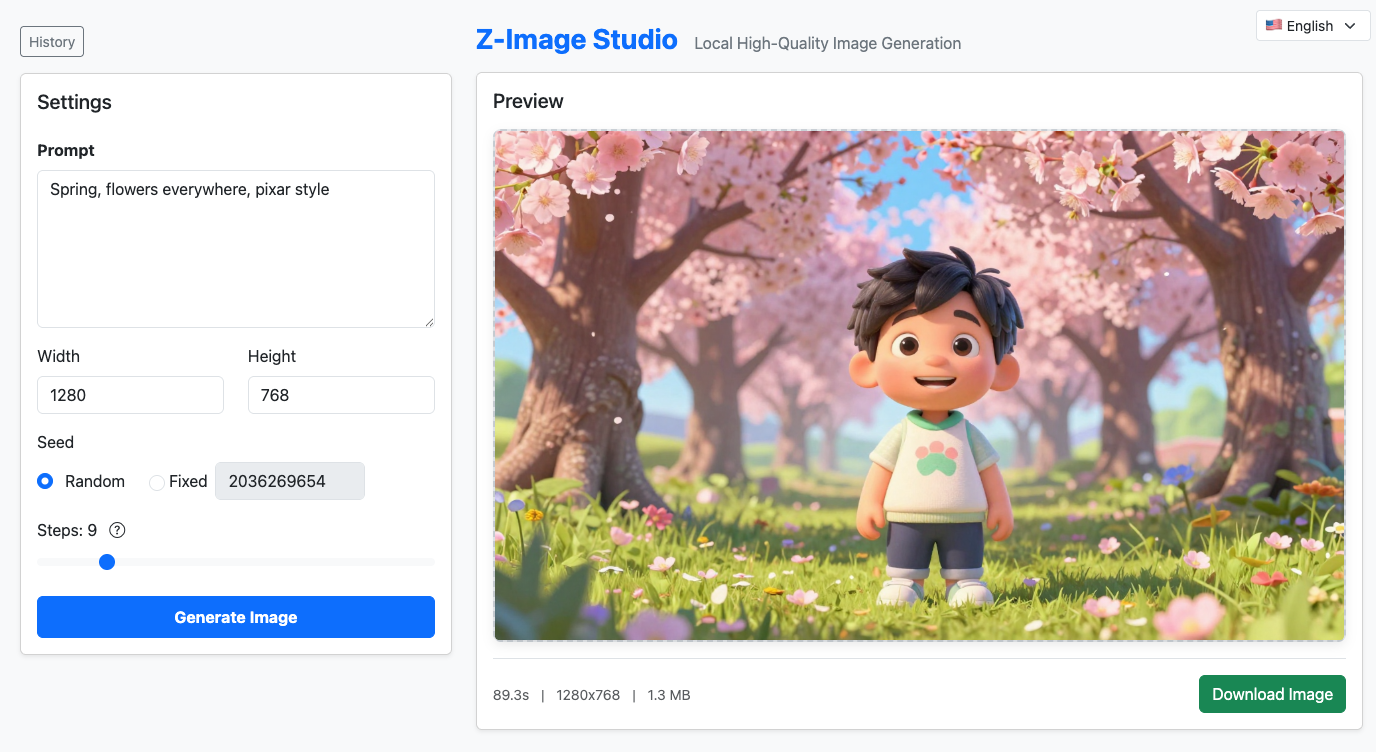 (Screenshot 1: Two column layout with History browser collapsed)
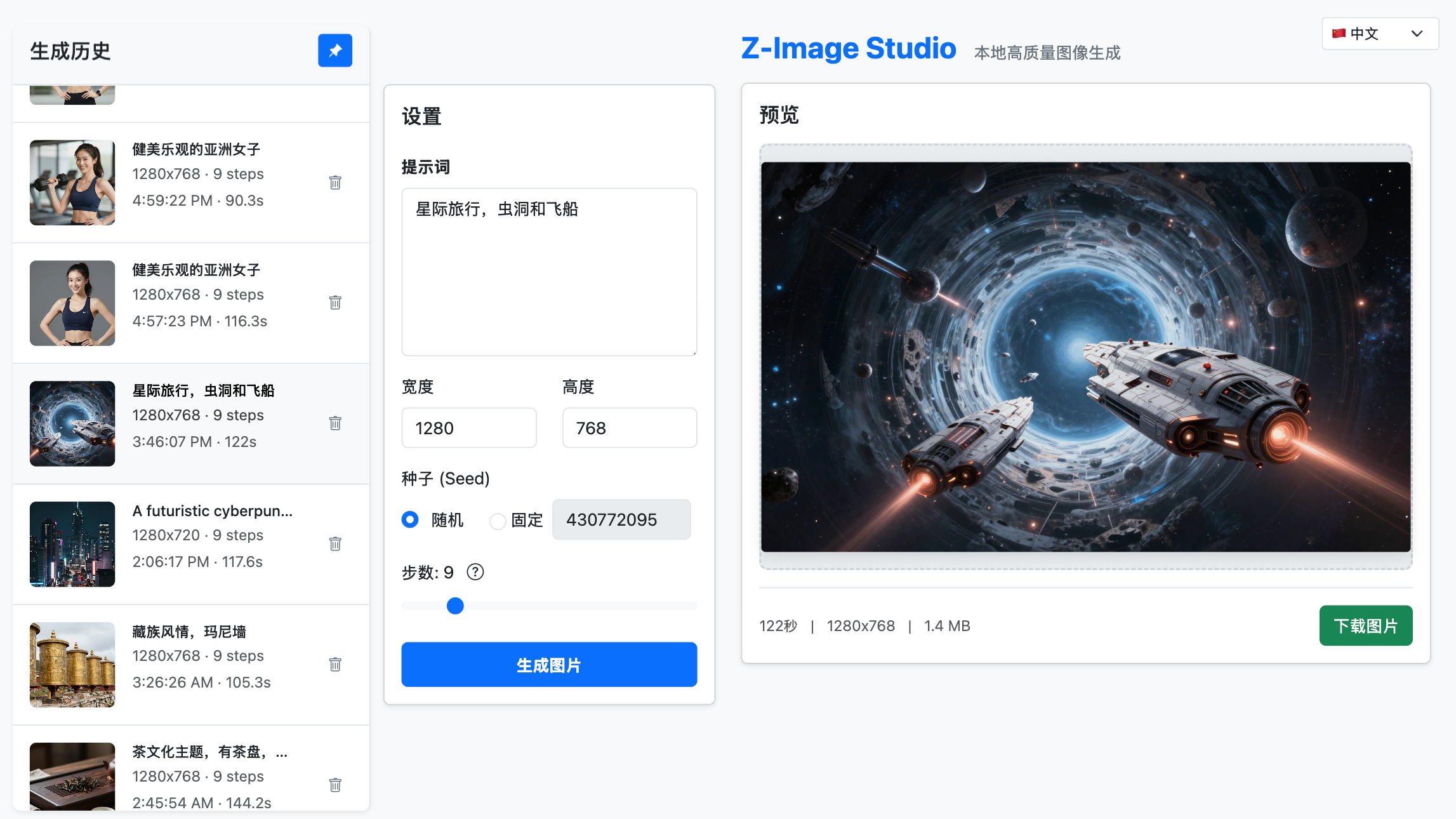 (Screenshot 2: Three column layout with History browser pinned)
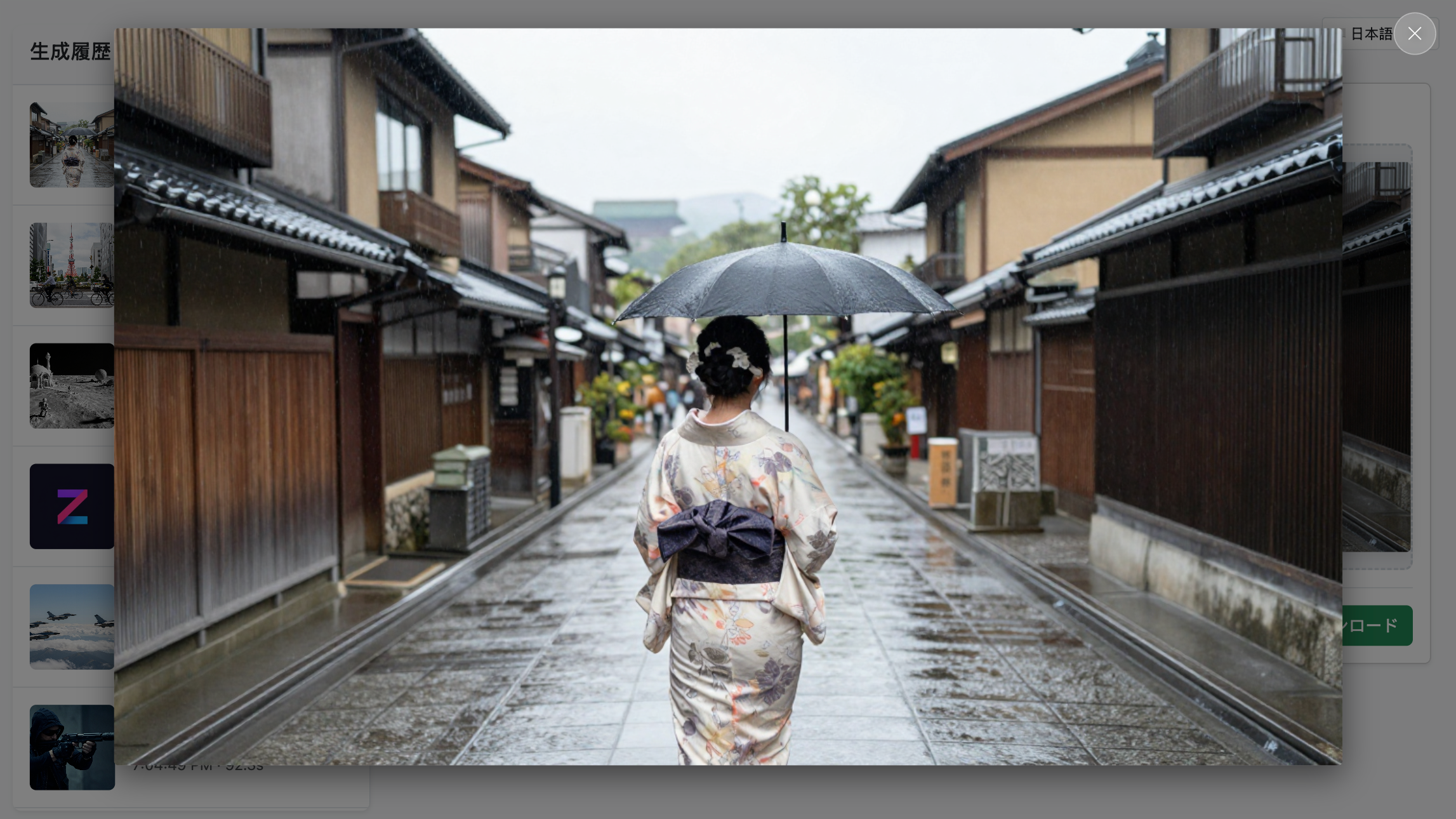 (Screenshot 3: Generated Image zoomed to fit the screen)
Development
Installation in Project Virtual Environment
Clone the repository:
git clone https://github.com/iconben/z-image-studio.git cd z-image-studio
To run the source code directly without installation:
Run CLI:
uv run src/zimage/cli.py generate "A prompt"Run Server:
uv run src/zimage/cli.py serve --reloadRun tests:
uv run pytest
Optional: Install in editable mode:**
Optional: Override the folder settings with environment variables
Docker Development
Build and run with Docker:
Or use Docker Compose:
Environment Variables
Variable | Description |
| Force enable |
| Override the default data directory location. |
| Override the default output directory location. |
Notes
Guidance Scale: The script hardcodes
guidance_scale=0.0as required by the Turbo model distillation process.Safety Checker: Disabled by default to prevent false positives and potential black image outputs during local testing.
For detailed architecture and development guidelines, see docs/architecture.md.