---
url: "https://docs.portone.cloud/docs/woocommerce-plugin"
title: "Woocommerce Plugin"
---
This is a WooCommerce plugin for making payments using PortOne. It adds a new payment option for your store on the checkout page and opens up a whole lot of options for the user to pay.
The plugin can handle the payments and also your order statuses. It automatically updates the order status for the user if the transaction was successful or failed. It adds necessary notes to the order like transaction reference & if the transaction was unsuccessful, reason and status-code notes are attached to the order.
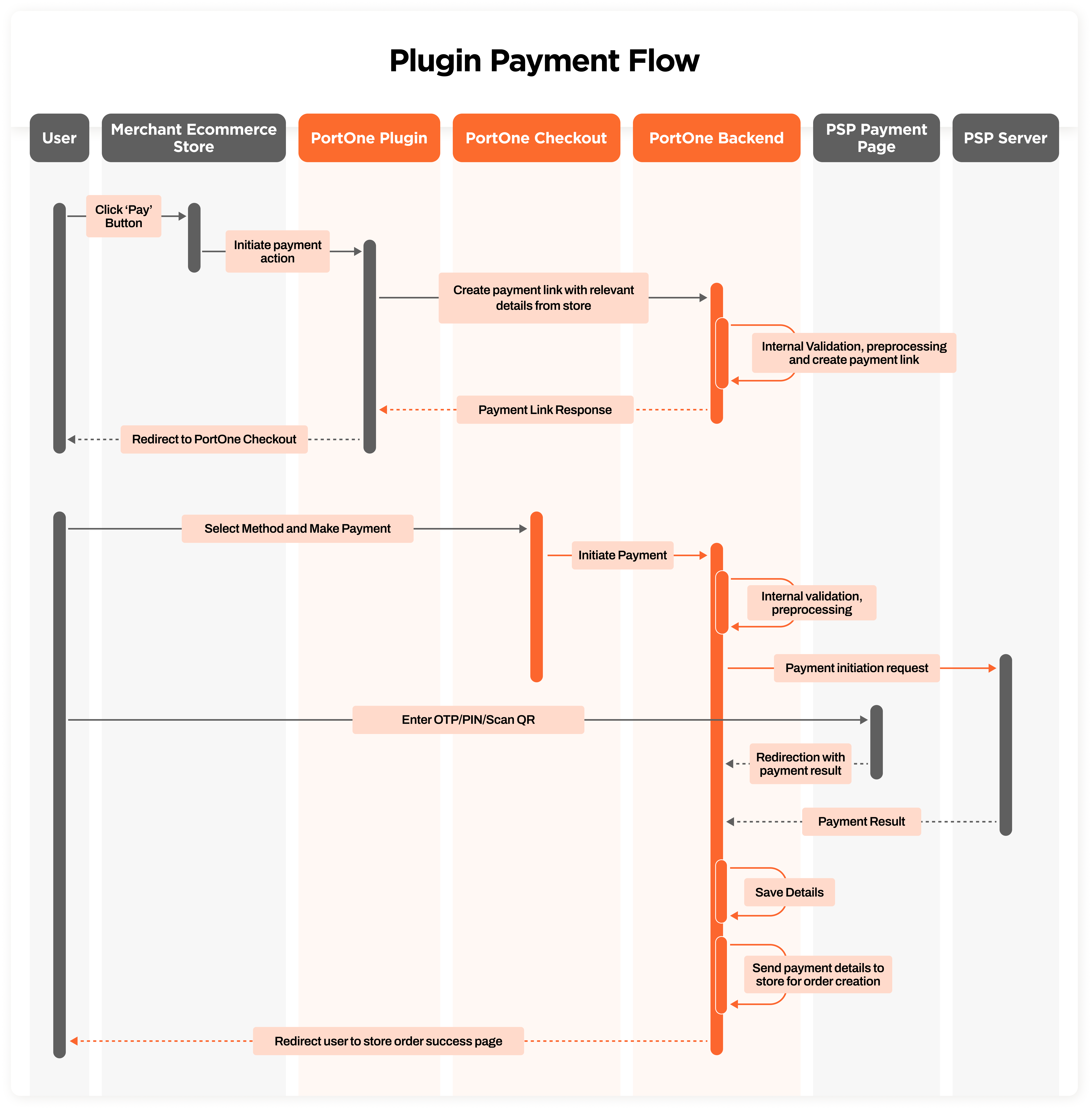
### Plugin Payment Flow Summary [Skip link to Plugin Payment Flow Summary](https://docs.portone.cloud/docs/woocommerce-plugin\#plugin-payment-flow-summary)
1. The user clicks "Pay" on the merchant store.
2. Store initiates payment via PortOne Plugin.
3. PortOne Backend creates and returns a payment link.
4. The user is redirected to PortOne Checkout to complete the payment.
5. Payment is processed through the PSP.
6. PortOne Backend receives payment processing response from the PSP
7. PortOne sends webhooks/requests to merchant store backend for order creation
8. PortOne redirects the end user to order success page
### Prerequisites [Skip link to Prerequisites](https://docs.portone.cloud/docs/woocommerce-plugin\#prerequisites)
1. [x] WooCommerce installed in your WordPress website
2. [x] A verified Merchant Account with PortOne
### Installation [Skip link to Installation](https://docs.portone.cloud/docs/woocommerce-plugin\#installation)
Scribe \| Embed How\_to\_Install\_and\_Activate\_PortOne\_Plugin\_for\_WooCommerce\_\_ FQQEJjvQ8i18AlWAmxEpA



# How to Install and Activate PortOne Plugin for WooCommerce
20 Steps
2 minutes
Woocommerce
Portone
Step 0 of 20
Get Started
Made with

[open scrolling step version in new tab for improved accessibility](https://scribehow.com/shared/How_to_Install_and_Activate_PortOne_Plugin_for_WooCommerce__-FQQEJjvQ8i18AlWAmxEpA)
Scribe \| Embed How\_to\_configure\_webhooks\_for\_WooCommerce\_plugin\_\_Sweilt4nTDSxgodV44mzYw



# How to configure webhooks for WooCommerce plugin
9 Steps
28 seconds
Portone
Woocommerce
Step 0 of 9
Get Started
Made with

[open scrolling step version in new tab for improved accessibility](https://scribehow.com/shared/How_to_configure_webhooks_for_WooCommerce_plugin__Sweilt4nTDSxgodV44mzYw)
### Contact [Skip link to Contact](https://docs.portone.cloud/docs/woocommerce-plugin\#contact)
In case of any questions, issues please feel free to reach out to the PortOne Support team at [contact@portone.io](mailto:contact@portone.io)
