
TAKO MCP Server for Okta
Provides tools for Okta administration, enabling AI assistants to query and manage resources such as users, groups, applications, logs, and policies through standard MCP tools or dynamic code execution.
Click on "Install Server".
Wait a few minutes for the server to deploy. Once ready, it will show a "Started" state.
In the chat, type
@followed by the MCP server name and your instructions, e.g., "@TAKO MCP Server for OktaList all users in the 'Engineering' group who have MFA disabled"
That's it! The server will respond to your query, and you can continue using it as needed.
Here is a step-by-step guide with screenshots.
Overview
A production-ready MCP server for Okta administration with dual-mode operation. Successor to okta-mcp-server.
This server enables AI assistants to query Okta resources using the Model Context Protocol. It is designed for IAM engineers, security teams, and Okta administrators who want to give their AI tools safe, controlled access to their Okta environment.
Key Features:
🔄 Dual-Mode Operation - Standard MCP server mode or autonomous agent mode
🌐 Flexible Transports - STDIO for desktop clients, HTTP for remote deployments
🔑 Okta Tokens - API Token (simple) or OAuth2 with Private Key JWT (production)
📊 CSV Export - Save query results to files for reporting
🔒 Secure Execution - AST-based sandbox with whitelisted operations
✅ MCP Compliant - Elicitation, Progress notifications, logging, and tool annotations
📋 Table of Contents
🧠 Core Concepts
Before installing, it's helpful to understand the two key configuration choices: Mode and Transport.
1. Operating Modes
Controls how the AI interacts with the server. Set via ENABLE_AGENT_MODE environment variable.
Feature | Basic MCP Mode ( | Agent Mode ( |
Context Size | Higher - all tools loaded upfront | Lower - progressive discovery |
Token Cost | Higher initial cost | Lower initial cost |
Use Case | MCP gateways, tool composition, granular control | Autonomous AI workflows |
Architecture | Standard MCP tool exposure | Meta-tool discovery pattern |
Data Fetching | Sample data (3 results) + endpoint metadata | Full result sets via code execution |
Available Tools |
|
|
Basic MCP ServerMode (Default)
Tools exposed directly to the LLM. The AI calls read_system_instructions() first, then uses okta_* tools for sample data and execute_code() for full results.

Can be used for:
Category | Supported Platforms |
Desktop Clients | Claude Desktop, Cursor, Zed, VS Code (Windsurf) |
Enterprise Gateways | Obot.ai, Smithery, Lasso Security |
Agent Frameworks | LangGraph, LlamaIndex, Goose |
Agent Mode
AI discovers APIs dynamically via get_available_operations() and get_operation_details(), then generates code for execution. This mode is ideal for complex, multi-step queries where the agent explores the API surface as needed.
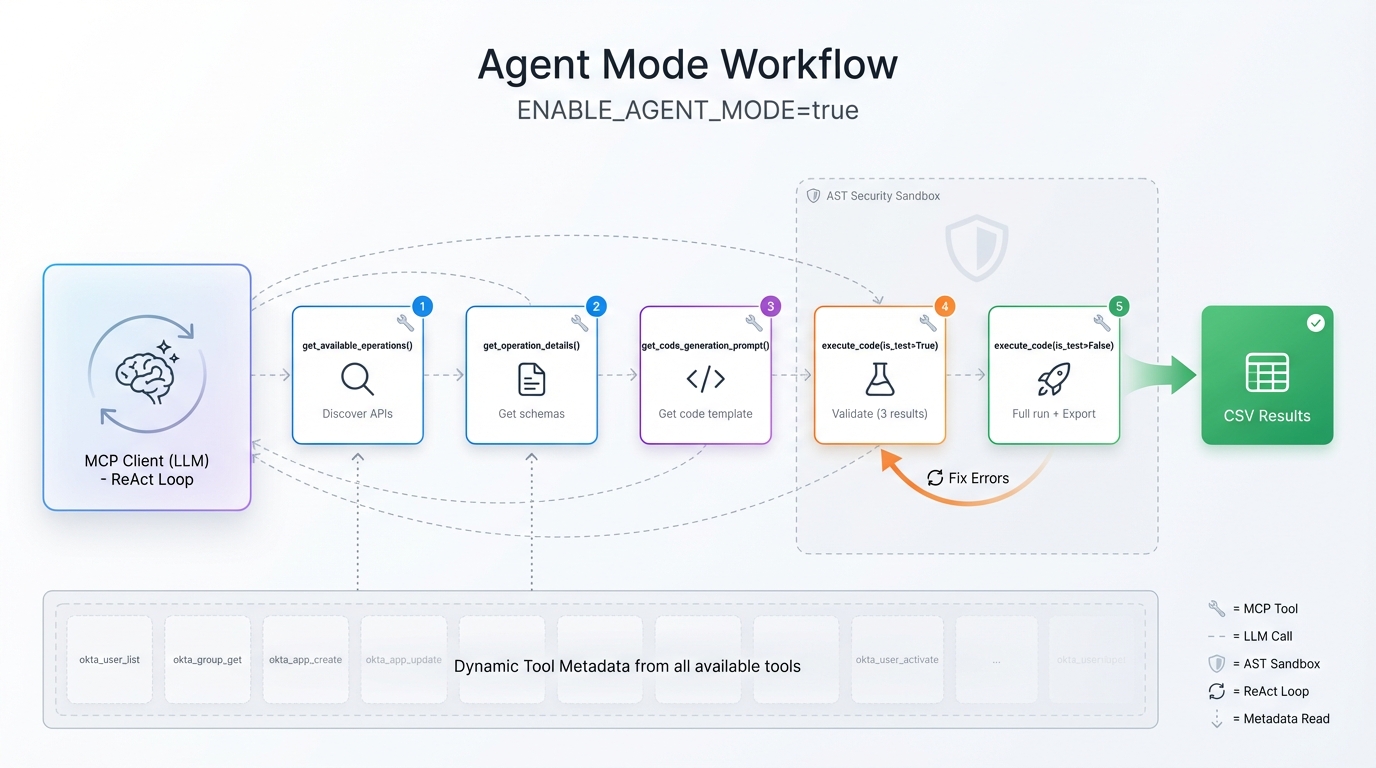
2. Transports
Controls how clients connect to the server.
Transport | Description | Best For |
STDIO (Default) | Communicates via standard input/output pipes. | Local desktop apps (Claude, Cursor, VS Code). |
HTTP (SSE) | Exposes a web server endpoint ( | Remote deployments, Docker, Web-based agents. |
🚀 Quick Start
Choose the installation method that fits your workflow.
Option A: Docker (Recommended)
The fastest way to get started without managing Python dependencies.
# 1. Clone the repository
git clone https://github.com/fctr-id/fctr-okta-mcp-server.git
cd fctr-okta-mcp-server

# 2. Create directories for persistent data
mkdir -p logs okta_results  # Windows: New-Item -ItemType Directory -Path logs, okta_results -Force

# 3. Create a .env file (see Configuration section for all options)
cp .env.sample .env
# Edit .env with your Okta credentials

# 4. Build with Docker
docker build --target stdio -t tako-mcp-server:stdio .  # STDIO mode
docker build --target http -t tako-mcp-server:http .    # HTTP mode
Option B: Local Python (uv)
We recommend uv for fast, reliable package management.
# 1. Clone and setup
git clone https://github.com/fctr-id/fctr-okta-mcp-server.git
cd fctr-okta-mcp-server

# 2. Create virtual environment
uv venv .venv
source .venv/bin/activate  # Windows: .venv\Scripts\activate

# 3. Install dependencies
uv pip install -e .

# 4. Create a .env file (see Configuration section for all options)
cp .env.sample .env
# Edit .env with your Okta credentials

# 5. Run (HTTP - for remote/web access)
python -m fctr_okta_mcp.server --http-transport --i-understand-the-risks
⚙️ Configuration
Configuration is managed via environment variables. Set these in a .env file or pass them directly.
Environment Variables
Variable | Required | Default | Description |
| Yes | - | Okta org URL (e.g., |
|
| Auth method: | |
| * | - | API token (required if |
| * | - | OAuth2 client ID (required if |
| * | - | Private key in PEM format |
|
| OAuth2 scopes | |
|
| Enable Agent Mode | |
|
| Base URL for HTTP transport (supports https for reverse proxy) | |
|
| Max concurrent API requests (configure by plan) | |
|
| Code execution timeout | |
|
| Log level: |
Okta Authentication
Best for development and simple deployments.
Go to Okta Admin → Security → API → Tokens
Create a new token with read permissions
Configure:
TOKEN_METHOD=API_TOKEN
OKTA_API_TOKEN=your-api-token-here
More secure, uses client credentials flow with private key JWT (RFC 7523).
Step 1: Create OAuth2 App in Okta
Go to Okta Admin → Applications → Create App Integration
Select API Services → Next
Name your application and click Save
Note the Client ID
Step 2: Configure Public Key Authentication
In your app, go to General → Client Credentials → Edit
Select Public key / Private key
Click Add Key → Generate new key
Download the private key (PEM format)
Click Save
Step 3: Grant API Scopes
Go to Okta API Scopes tab
Grant required scopes:
okta.users.read,okta.groups.read,okta.apps.read,okta.logs.read,okta.policies.read
Step 4: Configure Environment
TOKEN_METHOD=OAUTH2
OKTA_OAUTH2_CLIENT_ID=your-client-id
OKTA_OAUTH2_SCOPES=okta.users.read okta.groups.read okta.apps.read
OKTA_OAUTH2_PRIVATE_KEY_PEM="-----BEGIN PRIVATE KEY-----
MIIEvgIBADANBgkqh...
...your-private-key...
-----END PRIVATE KEY-----"Tip: The private key can be multi-line (as shown) or single-line with
\nescapes.
🔌 MCP Client Setup
STDIO Transport (Desktop Clients)
For Claude Desktop, VS Code, Cursor, and other local MCP clients:
{
  "mcpServers": {
    "tako-mcp": {
      "command": "path/to/.venv/Scripts/python",
      "args": ["-m", "fctr_okta_mcp.server"],
      "env": {
        "OKTA_CLIENT_ORGURL": "https://your-org.okta.com",
        "OKTA_API_TOKEN": "your_api_token",
        "ENABLE_AGENT_MODE": "true"
      }
    }
  }
}
HTTP Transport (Remote/Web)
For web-based deployments, remote access, or programmatic clients.
Start the server first:
python -m fctr_okta_mcp.server --http-transport --i-understand-the-risksThen configure your MCP client:
{
  "mcpServers": {
    "tako-mcp": {
      "url": "http://localhost:8000/mcp",
      "type": "http"
    }
  }
}
Docker (STDIO)
See Quick Start - Docker for build instructions.
{
  "mcpServers": {
    "tako-mcp": {
      "command": "docker",
      "args": [
        "run", "-i", "--rm",
        "-v", "./logs:/app/logs",
        "-v", "./okta_results:/app/okta_results",
        "-e", "OKTA_CLIENT_ORGURL",
        "-e", "OKTA_API_TOKEN",
        "-e", "ENABLE_AGENT_MODE=true",
        "tako-mcp-server:stdio"
      ],
      "env": {
        "OKTA_CLIENT_ORGURL": "https://your-org.okta.com",
        "OKTA_API_TOKEN": "your_api_token"
      }
    }
  }
}
Docker (HTTP)
For HTTP transport with Docker:
docker run -p 8000:8000 \
  -v ./logs:/app/logs \
  -v ./okta_results:/app/okta_results \
  -e OKTA_CLIENT_ORGURL=https://your-org.okta.com \
  -e OKTA_API_TOKEN=your_api_token \
  -e MCP_BASE_URL=http://localhost:8000 \
tako-mcp-server:httpNote: The server binds to
0.0.0.0:8000inside the container (required for Docker networking), butMCP_BASE_URLcontrols what URL is reported to MCP clients.
🛠️ Available Tools
When in Basic MCP Mode, the following tools are available:
User Management
okta_user_list- List users with filtering, search, and paginationokta_user_get- Get detailed user profile by ID or loginokta_user_list_groups- List groups a user belongs tookta_user_list_applications- List applications assigned to a userokta_user_list_factors- List enrolled authentication factors
Group Operations
okta_group_list- List groups with filtering and paginationokta_group_get- Get detailed group informationokta_group_list_users- List members of a groupokta_group_list_applications- List applications assigned to a group
Application Management
okta_app_list- List applications with filteringokta_app_get- Get detailed application informationokta_app_list_users- List users assigned to an applicationokta_app_list_groups- List groups assigned to an application
System Logs
okta_log_get_events- Query system log events with advanced filtering
Policies & Network Zones
okta_policy_list_rules- List rules for a specific policyokta_policy_get_rule- Get detailed policy rule configurationokta_network_list_zones- List network zonesokta_network_get_zone- Get detailed network zone information
Utilities
okta_datetime_now- Get current UTC timestamp for queriesokta_datetime_parse_relative- Parse natural language time expressions (e.g., "24 hours ago")
In Agent Mode, these tools are hidden. The agent uses
get_available_operationsto discover them dynamically.
🔒 Security
Code Execution Sandbox
All generated Python code is validated before execution:
Layer | Protection |
Pattern Blocking |
|
Import Control | All modules pre-injected; imports blocked |
Function Whitelist | Only safe builtins ( |
HTTP Restriction | Only |
Data Privacy
Okta data is sent to the AI model during queries
Large result sets export to CSV; only summaries return to AI
Auto-Cleanup: CSV files generated in HTTP mode are automatically deleted after 1 hour
Ensure organizational policies permit AI processing of Okta data
🚨 Rate Limits
Step 1: Identify your Okta API rate limit percentage (we recommend setting it to 100% in the Okta Admin Console).
Step 2: Set OKTA_CONCURRENT_LIMIT in your .env file based on your Okta plan:
Tenant Type | API Rate Limit % | Recommended Setting | Tested Maximum (⚠️) |
Integrator | 50% | 22 | 30 |
Integrator | 75% | 34 | 40 |
Integrator | 100% | 45 | 50 |
One App | 50% | 135 | 200 |
One App | 75% | 203 | 300 |
One App | 100% | 270 | 400 |
Enterprise | 50% | 135 | 200 |
Enterprise | 75% | 203 | 300 |
Enterprise | 100% | 270 | 400 |
Workforce Identity | 50% | 135 | 270 |
Workforce Identity | 75% | 203 | 405 |
Workforce Identity | 100% | 270 | 540 |
⚠️ Monitor for Rate Limit Warnings:
WARNING - Concurrent limit rate exceededIf you see this frequently:
Reduce your
OKTA_CONCURRENT_LIMITby 10-20%Cancel the sync and try a lower value
Contact support@fctr.io if issues persist
🆘 Get Help
Before raising an issue, check:
📝 Server configuration and
.envfile🔑 Okta API token permissions
🔌 MCP client compatibility
📊 Server logs in
logs/directory
Support Channels:
🐛 GitHub Issues - Bug reports and feature requests
📧 Email: support@fctr.io - General support
💬 Slack: dan@fctr.io - Quick questions
📄 License
Elastic License 2.0 - See LICENSE.
✅ Use for internal purposes • ✅ Modify and distribute
❌ Hosted/managed service • ❌ Remove license notices
This server cannot be installed
Resources
Unclaimed servers have limited discoverability.
Looking for Admin?
If you are the server author, to access and configure the admin panel.
Latest Blog Posts
MCP directory API
We provide all the information about MCP servers via our MCP API.
curl -X GET 'https://glama.ai/api/mcp/v1/servers/fctr-identity/fctr-okta-mcp-server'
If you have feedback or need assistance with the MCP directory API, please join our Discord server