
Click on "Install Server".
Wait a few minutes for the server to deploy. Once ready, it will show a "Started" state.
In the chat, type
@followed by the MCP server name and your instructions, e.g., "@AI Humanizer MCP ServerMake this sound more human: The utilization of AI technologies facilitates enhanced operational efficiency."
That's it! The server will respond to your query, and you can continue using it as needed.
Here is a step-by-step guide with screenshots.
AI Humanize MCP Server
A powerful Model Context Protocol (MCP) server that helps refine AI-generated content to sound more natural and human-like. Built with advanced AI detection and text enhancement capabilities.
Powered by text2go.
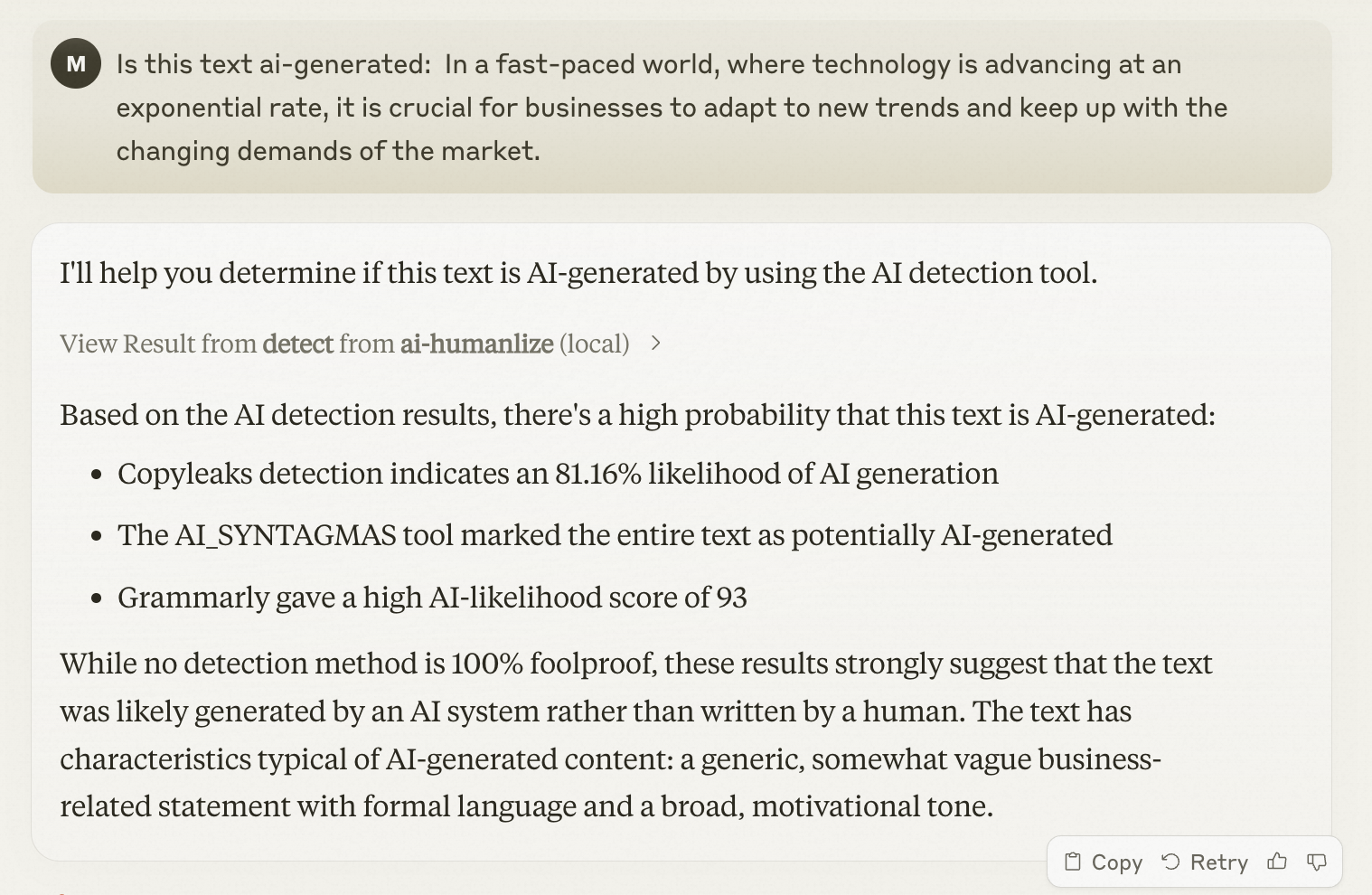
Screenshot
✨ Key Features
🤖 AI Detection - Accurately identify AI-generated content
👤 Natural Language Enhancement - Transform robotic text into natural human-like writing
⭐ Grammar Perfection - Ensure flawless grammatical accuracy
📋 Readability Optimization - Improve text flow and comprehension
📏 Length Control - Adjust content length while preserving meaning
⚖️ Term Preservation - Maintain specific terminology and key phrases
Prerequisites
node version >= 16
Claude Desktop latest version
Installation
By npx
Configure Claude Desktop:
Open Claude Desktop
Navigate to Settings → Developer → Edit Config
Add the following configuration:
Restart Claude Desktop to apply changes
By Source Code
Clone this repository
Install Dependencies
Build the project
Configure Claude Desktop:
Open Claude Desktop
Navigate to Settings → Developer → Edit Config
Add the following configuration:
Restart Claude Desktop to apply changes
💡 Usage
AI Text Detection
To check if text is AI-generated, simply ask Claude: