
Enables GitHub Copilot in VS Code to access Microsoft 365 content, including SharePoint documents, OneDrive files, emails, and Teams conversations through retrieval, search, and chat capabilities.
Click on "Install Server".
Wait a few minutes for the server to deploy. Once ready, it will show a "Started" state.
In the chat, type
@followed by the MCP server name and your instructions, e.g., "@M365 Copilot MCP Serverfind the Q3 sales report in my OneDrive"
That's it! The server will respond to your query, and you can continue using it as needed.
Here is a step-by-step guide with screenshots.
Microsoft 365 Copilot MCP Server


Note: This is an unofficial MCP server, but developed by Microsoft engineers, integrating the latest Microsoft 365 Copilot APIs. We welcome your feedback and contributions!
Connect your AI assistant to Microsoft 365 through the Model Context Protocol (MCP). This server enables AI tools to access your SharePoint documents, OneDrive files, emails, Teams conversations, and more - all while respecting your organization's access controls.
Overview
The m365-copilot-mcp server provides three powerful capabilities for AI assistants:
Capability | Purpose | Use Cases |
📄 Retrieval | Extract relevant text content from your M365 data | Answer questions using information from your documents, emails, and conversations |
🔍 Search | Find specific documents and files | Locate files, discover relevant content across your M365 environment |
💬 Chat | Conversational AI powered by M365 Copilot | Ask about your schedule, get summaries, interact with time-aware queries |
Learn more: These capabilities are built on the official Microsoft 365 Copilot APIs.
Prerequisites
Node.js 20+ - Runtime environment
Microsoft 365 account - With Microsoft 365 Copilot license
MCP-compatible AI tool - Such as Claude Code, GitHub Copilot, or any other MCP client
Video Tutorials
Learn how to install and use the M365 Copilot MCP Server with these step-by-step video guides:
📺 Claude Code with M365 Copilot MCP Server
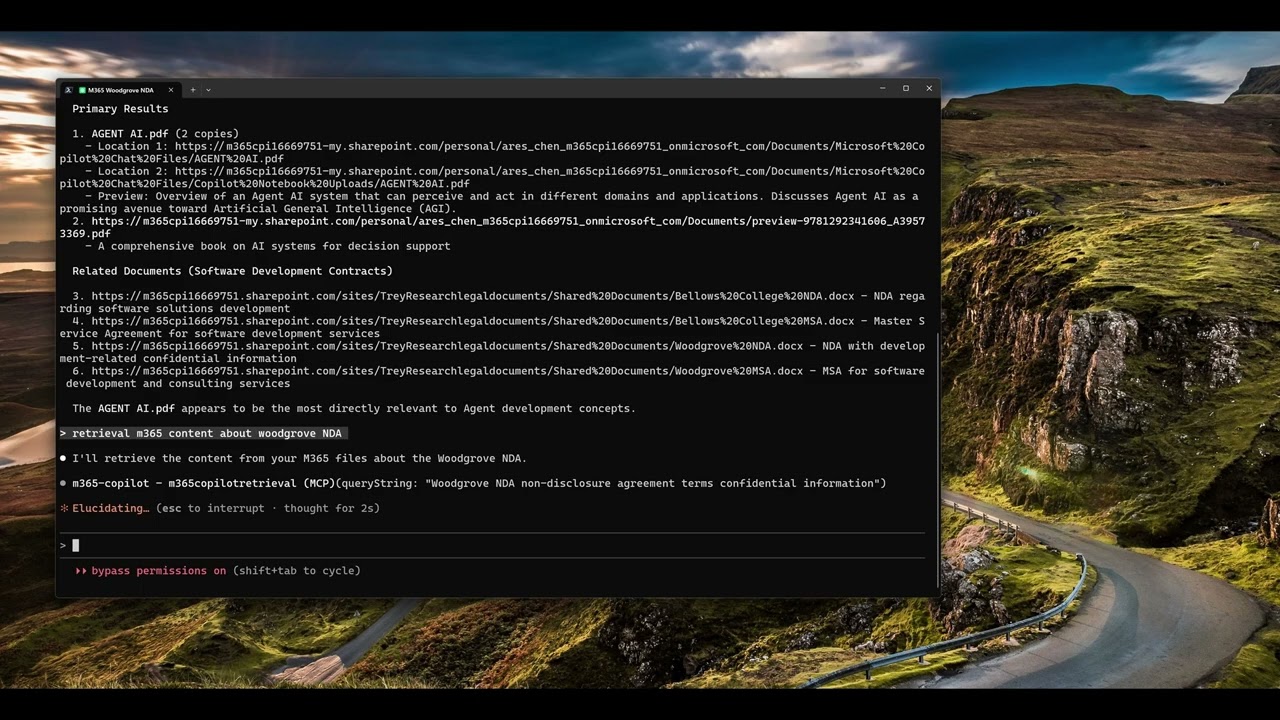
Click the image above to watch the tutorial on how to install and use the M365 Copilot MCP Server with Claude Code.
📺 GitHub Copilot with M365 Copilot MCP Server
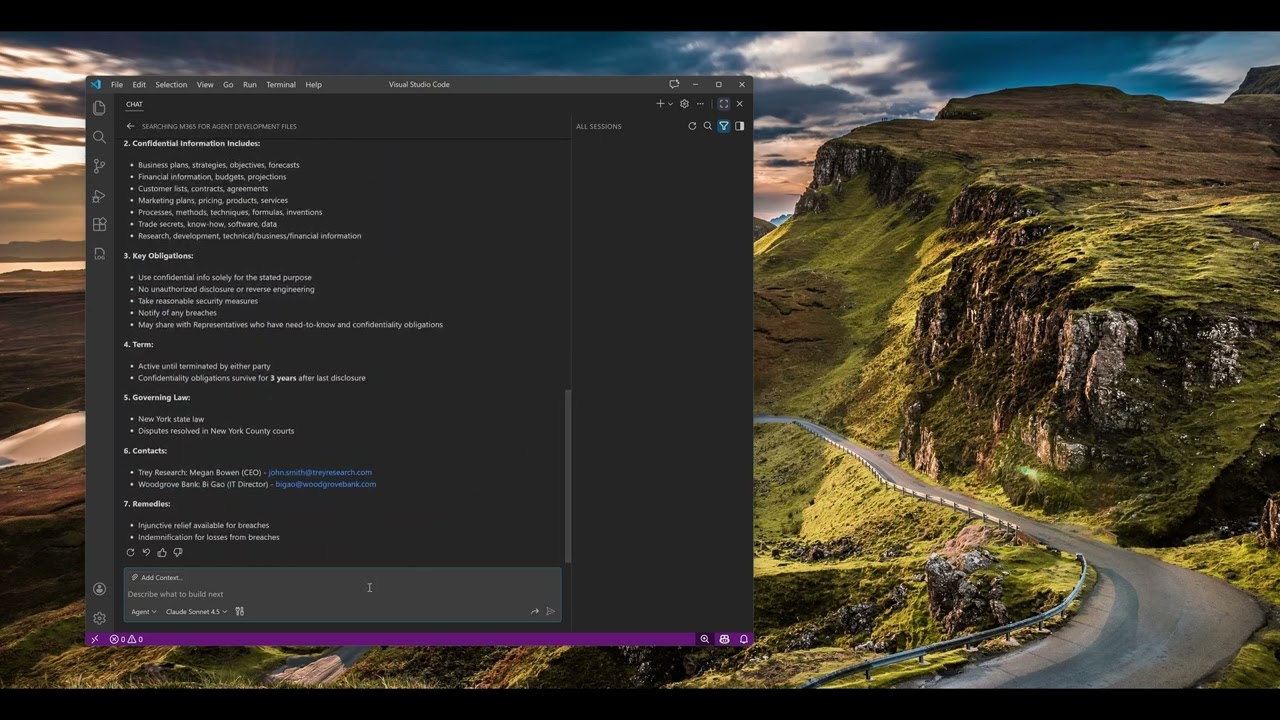
Click the image above to watch the tutorial on how to install and use the M365 Copilot MCP Server with GitHub Copilot in VS Code.
Configuration
Configure the MCP server in your AI tool's settings. The server uses npx to run directly from npm without requiring global installation.
Claude Code
Add the server using the Claude Code CLI:
macOS/Linux:
Windows:
The -y flag automatically accepts prompts, and npx will download and run the latest version of the package.
GitHub Copilot (VS Code)
Create a .vscode/mcp.json file in your project root, or add to your VS Code user settings:
Option 1: Project-level configuration (.vscode/mcp.json):
Option 2: User-level configuration (VS Code settings.json):
Requirements: VS Code 1.99+ with GitHub Copilot extension installed.
Other MCP Clients
For other MCP-compatible tools, use the following command with npx:
Refer to your specific AI tool's documentation for MCP server configuration instructions.
Authentication
On first use, the server will automatically open your browser for Microsoft 365 authentication. After signing in once, your credentials are securely cached locally - no need to sign in again.
Headless Environments (Linux Servers)
No configuration needed! If you're running the MCP server on a headless Linux server without a browser, the server will automatically detect this and fall back to Device Code Flow:
The server will display a URL (
https://microsoft.com/devicelogin) and a code in the consoleOpen the URL on any device with a browser (phone, laptop, etc.)
Enter the code and sign in with your Microsoft 365 account
The server will automatically complete authentication
This happens automatically - just run the same configuration as on any other platform.
Security & Privacy
Your data is safe. The MCP server:
✅ Only reads data through official Microsoft Graph APIs
✅ Respects your organization's access controls and permissions
✅ Stores authentication tokens locally on your machine (encrypted)
✅ Does NOT store, collect, or transmit any of your M365 content
✅ Makes direct API calls to Microsoft - no third-party servers involved
Using Your Own Azure AD App (Optional)
If you have security concerns or organizational requirements, you can use your own Azure AD application instead of the built-in one. However, this is completely optional - the default configuration is secure and sufficient for most users.
Azure AD App Registration Setup
When creating your own Azure AD app, you must register the redirect URI in your app registration:
Go to Azure Portal → Azure Active Directory → App registrations
Select your application (or create a new one)
Navigate to Authentication → Add a platform → Mobile and desktop applications
Add the redirect URI:
http://localhostSave the configuration
Note: The default redirect URI is http://localhost. Azure AD will match this URI regardless of the actual port used by the application, making it work seamlessly with dynamic port allocation. You can customize it using the REDIRECT_URI environment variable if needed (e.g., https://login.microsoftonline.com/common/oauth2/nativeclient).
Configuration
To use a custom Azure AD app, provide environment variables during configuration:
Claude Code
macOS/Linux:
Windows:
GitHub Copilot (VS Code)
Add environment variables to your configuration:
Optional Environment Variables:
REDIRECT_URI: Custom redirect URI (default:http://localhost, alternative:https://login.microsoftonline.com/common/oauth2/nativeclient)
Required Microsoft Graph API Permissions:
Sites.Read.All
Files.Read.All
Mail.Read
Chat.Read
ChannelMessage.Read.All
OnlineMeetingTranscript.Read.All
People.Read.All
ExternalItem.Read.All
Available Tools
Your AI assistant can now use these three tools to interact with your M365 content:
1. m365copilotretrieval
Retrieves relevant text excerpts from your SharePoint and OneDrive content to answer questions.
Best for:
Answering questions based on your documents
Finding information buried in your content
Grounding AI responses in your actual data
Example prompts:
"What are the Q4 project deadlines mentioned in my documents?"
"Summarize the team's decision about the new feature"
"What does our company policy say about remote work?"
2. m365copilotsearch
Searches across your M365 environment to find specific documents and files.
Best for:
Locating specific documents
Getting document links to open or share
Discovering relevant files across SharePoint and OneDrive
Example prompts:
"Find the VPN setup guide"
"Search for the Q4 budget spreadsheet"
"Locate documents about network security policies"
3. m365copilotchat
Enables conversational interactions with Microsoft 365 Copilot, with awareness of your calendar, tasks, and content.
Best for:
Asking about your schedule and meetings
Getting summaries of recent activities
Time-aware queries that need context
Example prompts:
"What meetings do I have tomorrow?"
"Summarize recent discussions about the product launch"
"What are my action items for this week?"
Note: This tool requires your timezone in IANA format (e.g., "America/New_York", "Europe/London", "Asia/Shanghai").
Account Management
Switching Accounts (m365copilotlogout)
If you need to switch to a different Microsoft 365 account, you can use the logout tool to clear cached credentials.
How to use:
Ask your AI assistant: "Logout from Microsoft 365" or "Switch to a different account"
The tool will clear all cached authentication data
Restart your MCP server for the logout to take full effect
On next use, you'll be prompted to log in with a different account
This is useful for:
Switching between work and personal M365 accounts
Troubleshooting authentication issues
Testing with different user permissions
How It Works
The MCP server acts as a secure bridge between your AI assistant and Microsoft 365, using official Microsoft APIs to access your data based on your permissions.
Troubleshooting
Authentication Issues
Problem: Want to switch to a different Microsoft 365 account
Solution: Use the m365copilotlogout tool to clear cached credentials, then restart the MCP server. On next use, you'll be prompted to log in with a different account.
Problem: Redirect URI mismatch error during authentication
Solution: Ensure http://localhost is registered in your Azure AD app registration under Authentication → Mobile and desktop applications. Azure AD will match this URI regardless of the actual port used. If using a custom redirect URI, set the REDIRECT_URI environment variable to match your Azure AD configuration.
Problem: Browser doesn't open for login Solution:
On headless systems (Linux servers), the server will automatically fall back to Device Code Flow
Check console output for the authentication URL and code
On systems with a browser, check firewall settings or try a custom redirect URI
Problem: "Permission denied" errors Solution: Ensure your Microsoft 365 account has access to the requested resources. If you recently changed permissions or accounts, try using the logout tool and re-authenticating.
Connection Issues
Problem: AI assistant can't find the MCP server Solution:
Verify installation:
npm list -g m365-copilot-mcpCheck that Node.js 20+ is installed:
node --versionRestart your AI assistant
Tool Not Working
Problem: Chat tool fails with timezone error Solution: Ensure you provide timezone in IANA format (e.g., "America/New_York")
Problem: No results returned Solution: Verify you have access to M365 content and are signed in to the correct account
Supported Platforms
✅ Windows 10/11
✅ macOS 10.15+
✅ Linux (Ubuntu 20.04+, other distributions)
Feedback & Support
This project is actively maintained. We welcome your feedback and contributions!
Report Issues: GitHub Issues
Feature Requests: GitHub Discussions
Project Documentation: GitHub Repository
API Documentation: Microsoft 365 Copilot APIs
License
MIT License - see LICENSE file for details.
Developed by Microsoft engineers | Powered by Microsoft 365 Copilot APIs