
Click on "Install Server".
Wait a few minutes for the server to deploy. Once ready, it will show a "Started" state.
In the chat, type
@followed by the MCP server name and your instructions, e.g., "@Weather MCP ServerWhat's the forecast for San Francisco?"
That's it! The server will respond to your query, and you can continue using it as needed.
Here is a step-by-step guide with screenshots.
Model Context Protocol (MCP)
Model Context Protocol (MCP) is an open standard developed by Anthropic in late 2024 to address a critical challenge in AI integration: connecting AI assistants with real-world data sources and systems[1][3]. MCP serves as a standardized interface for AI models to interact with external tools, databases, and APIs, similar to how USB-C functions as a universal port for devices[4][7].
Key Features and Benefits
Standardized Integration: MCP eliminates the need for custom integrations, allowing developers to connect AI models to various data sources using a single protocol.
Dynamic Discovery: AI agents can automatically detect and utilize available MCP servers and their capabilities without hard-coded integration.
Enhanced Security: MCP enables developers to implement security measures within servers, ensuring AI agents only access permitted data or actions.
Flexibility: The protocol is model-agnostic, allowing any AI model (e.g., Claude, GPT-4, open-source LLMs) to use MCP-enabled tools.
Ecosystem Growth: Since its introduction, MCP has gained significant traction, with over 1,000 community-built MCP servers available by February 2025.
Impact on AI Development
MCP is transforming the AI landscape by:
Simplifying Integration: Reducing the complexity of connecting AI models to external systems from an "N×M" problem to an "N+M" problem.
Enabling Complex Workflows: Facilitating multi-step, cross-system operations for AI agents, such as event planning that involves multiple platforms.
Fostering Collaboration: Providing a shared workspace for multi-agent systems, allowing specialized AI agents to coordinate tasks efficiently.
Enhancing Personalization: Enabling secure integration of personal AI assistants with users' data and applications.
Improving Enterprise Governance: Standardizing AI access to internal tools and enabling better monitoring and control of AI interactions.
As of March 2025, MCP has become a significant topic in the AI community, with many viewing it as a crucial component for developing more integrated and context-aware AI systems. Its open nature and backing by a major AI player have contributed to its rapid adoption and evolution, positioning MCP as a potential de facto standard for AI-world integration.
Model Context Protocol (MCP) - weather quick start :
Overview
This document provides a comprehensive guide to building a simple Model Context Protocol (MCP) weather server and connecting it to a host, Claude for Desktop. The server exposes two tools: get-alerts and get-forecast, which fetch weather alerts and forecasts using the National Weather Service API.
Table of Contents
Introduction
This guide walks you through creating an MCP server to enhance LLMs (like Claude) with real-time weather data. The server utilizes the MCP framework to expose tools for fetching weather alerts and forecasts, addressing the LLM's lack of native environmental awareness.
Prerequisites
Before starting, ensure you have:
Familiarity with Python
Understanding of LLMs like Claude
System Requirements
Python 3.10 or higher
MCP SDK 1.2.0 or higher
Setup
Install
window
powershell -ExecutionPolicy ByPass -c "irm https://astral.sh/uv/install.ps1 | iex"macos/linux
curl -LsSf https://astral.sh/uv/install.sh | shRestart your terminal to ensure the
uvcommand is recognized.Create and Set Up Project:
window(cd to your dev repo_path run below command in powershell/..)
# Create a new directory for our project uv init weather cd weather # Create virtual environment and activate it uv venv .venv\Scripts\activate # Install dependencies uv add mcp[cli] httpx # Create our server file new-item weather.pymacos/linux
# Create a new directory for our project uv init weather cd weather # Create virtual environment and activate it uv venv source .venv/bin/activate # Install dependencies uv add "mcp[cli]" httpx # Create our server file touch weather.py
Building the Server
Importing Packages and Setting Up the Instance
Add the following code to the top of your weather.py file:
Running the Server
To verify your server, run:
Testing Your Server with Claude for Desktop
Configuration
Install/Update Claude for Desktop: Ensure you have the latest version installed.
Configure MCP Servers: Open or create the configuration file at
~/Library/Application Support/Claude/claude_desktop_config.json.
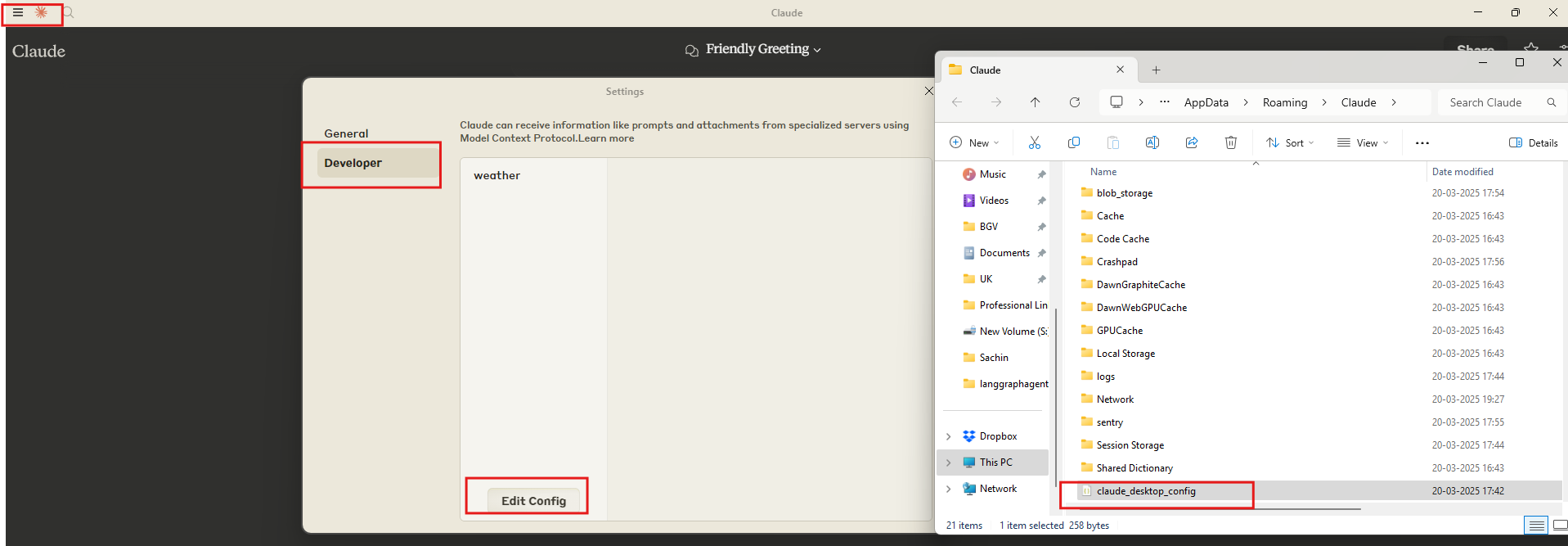
-> RESTART THE SYSTEM IF NOT WORKS
Add Server Configuration:
{ "mcpServers": { "weather": { "command": "uv", "args": [ "--directory", "/ABSOLUTE/PATH/TO/PARENT/FOLDER/weather",# S:\\Dev\\weather "run", "weather.py" ] } } }Replace
/ABSOLUTE/PATH/TO/PARENT/FOLDER/weatherwith the correct absolute path to your project directory. You may need to provide the full path to theuvexecutable in thecommandfield (usewhich uvon MacOS/Linux orwhere uvon Windows to find it).Restart Claude for Desktop.
Test with Commands
Verify Tool Detection: Look for the hammer icon in Claude for Desktop. Clicking it should list the
get_alertsandget_forecasttools.
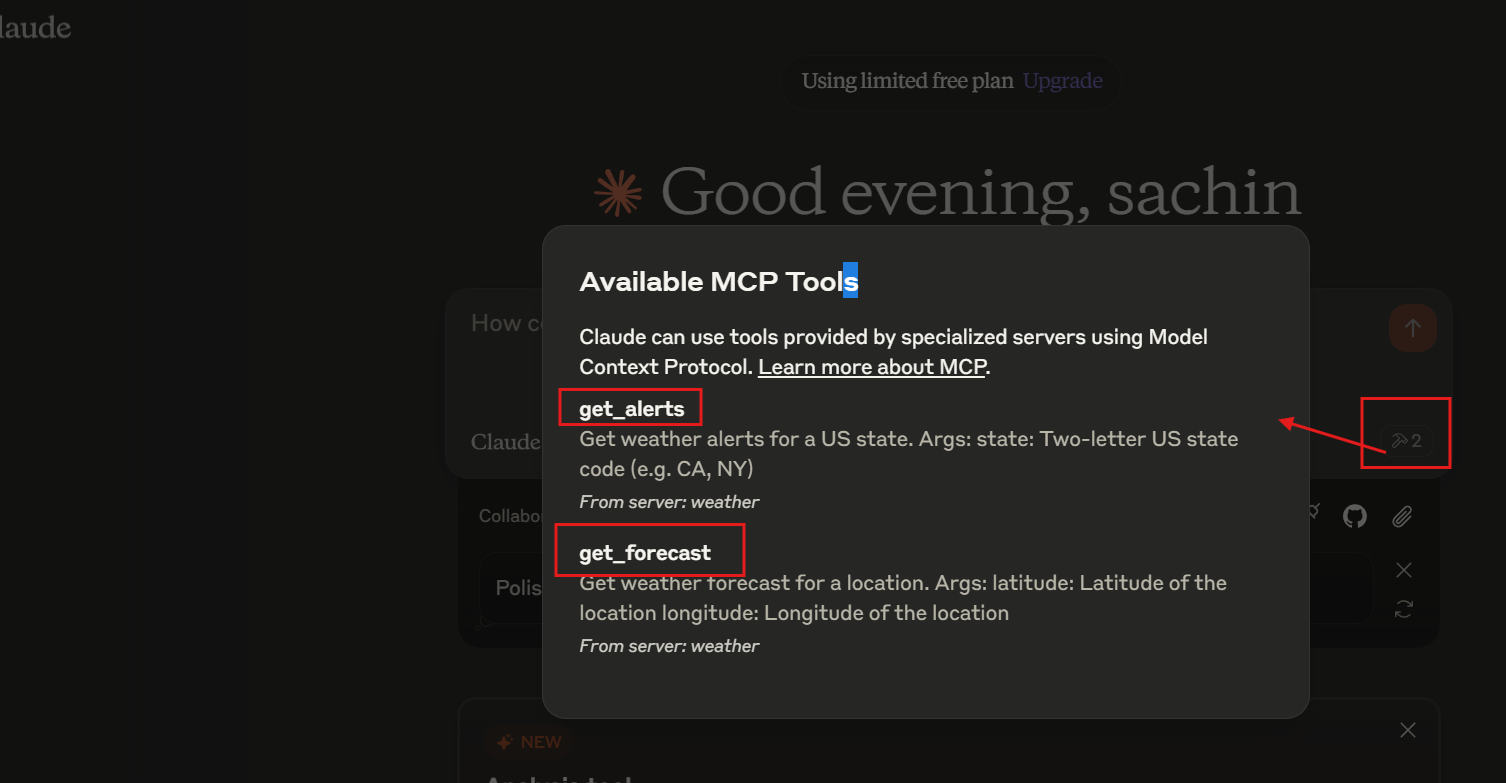 2. Run Test Queries:
What’s Happening Under the Hood
The client sends your question to Claude.
Claude analyzes available tools and decides which to use.
The client executes the chosen tool(s) through the MCP server.
Results are sent back to Claude.
Claude formulates and displays a natural language response.
Troubleshooting
Getting logs from Claude for Desktop
mcp.log: General MCP connections and failures.mcp-server-SERVERNAME.log: Error logs from the named server.
tail -n 20 -f ~/Library/Logs/Claude/mcp*.logServer not showing up in Claude
Check
claude_desktop_config.jsonfile syntax.Ensure the project path is absolute.
Restart Claude for Desktop completely.
Tool calls failing silently
Check Claude’s logs for errors.
Verify your server builds and runs without errors.
Try restarting Claude for Desktop.
None of this is working. What do I do?
Refer to the debugging guide.
Error: Failed to retrieve grid point data
Coordinates outside the US
NWS API issues
Rate limiting
Fix:
Verify US coordinates
Add a small delay between requests
Check the NWS API status page
Error: No active alerts for [STATE]
No current weather alerts for that state. Try a different state.
For more advanced troubleshooting, check out the Debugging MCP guide.
MCP Inspector
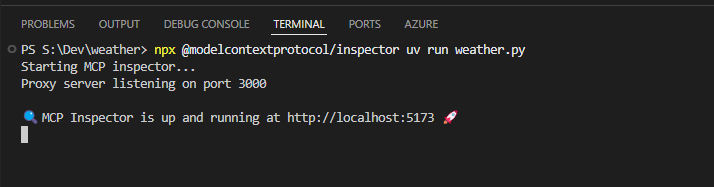
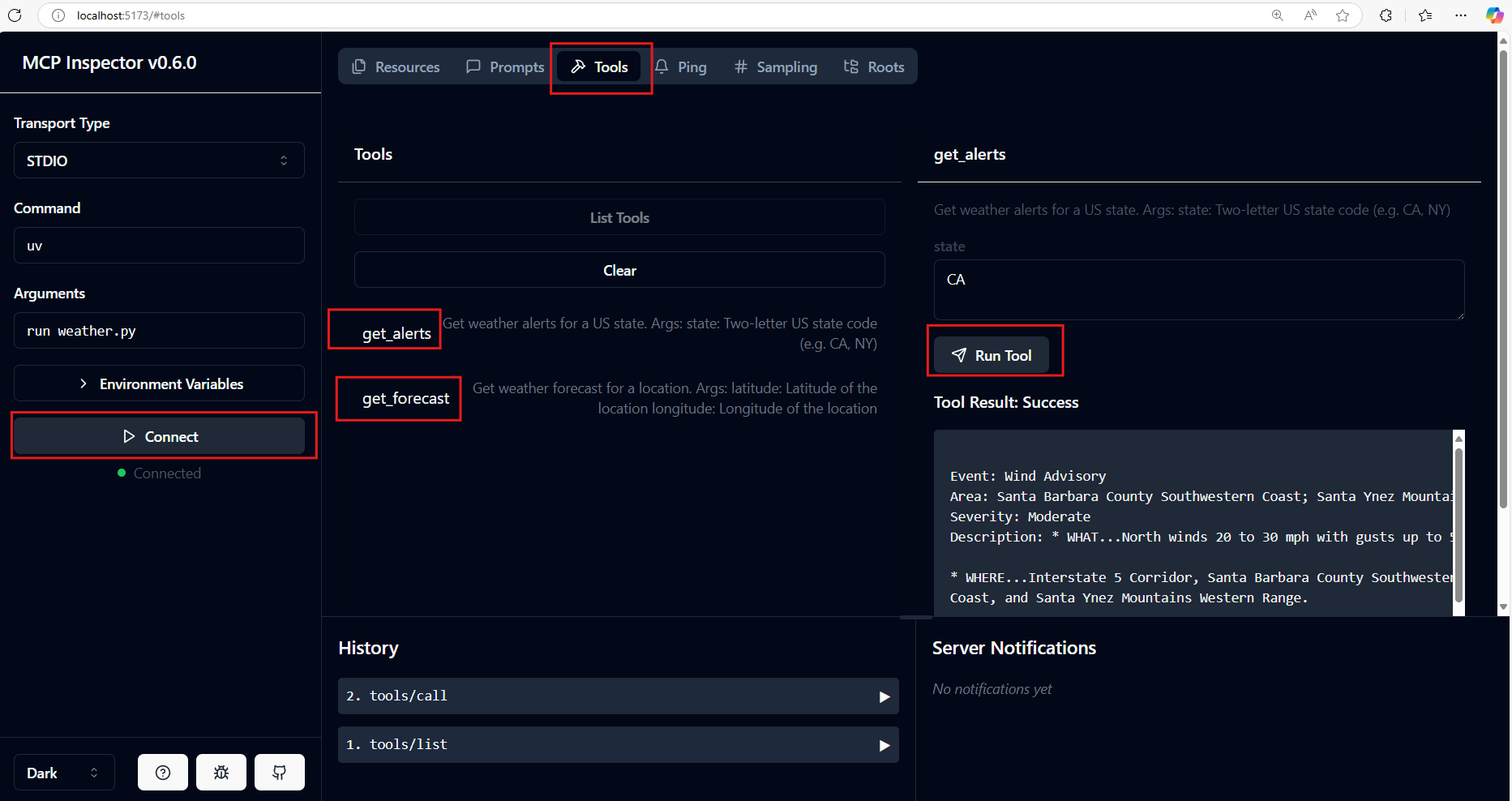
done with local test