
Click on "Install Server".
Wait a few minutes for the server to deploy. Once ready, it will show a "Started" state.
In the chat, type
@followed by the MCP server name and your instructions, e.g., "@DevServer MCPcheck the status of all my dev servers"
That's it! The server will respond to your query, and you can continue using it as needed.
Here is a step-by-step guide with screenshots.
DevServer MCP
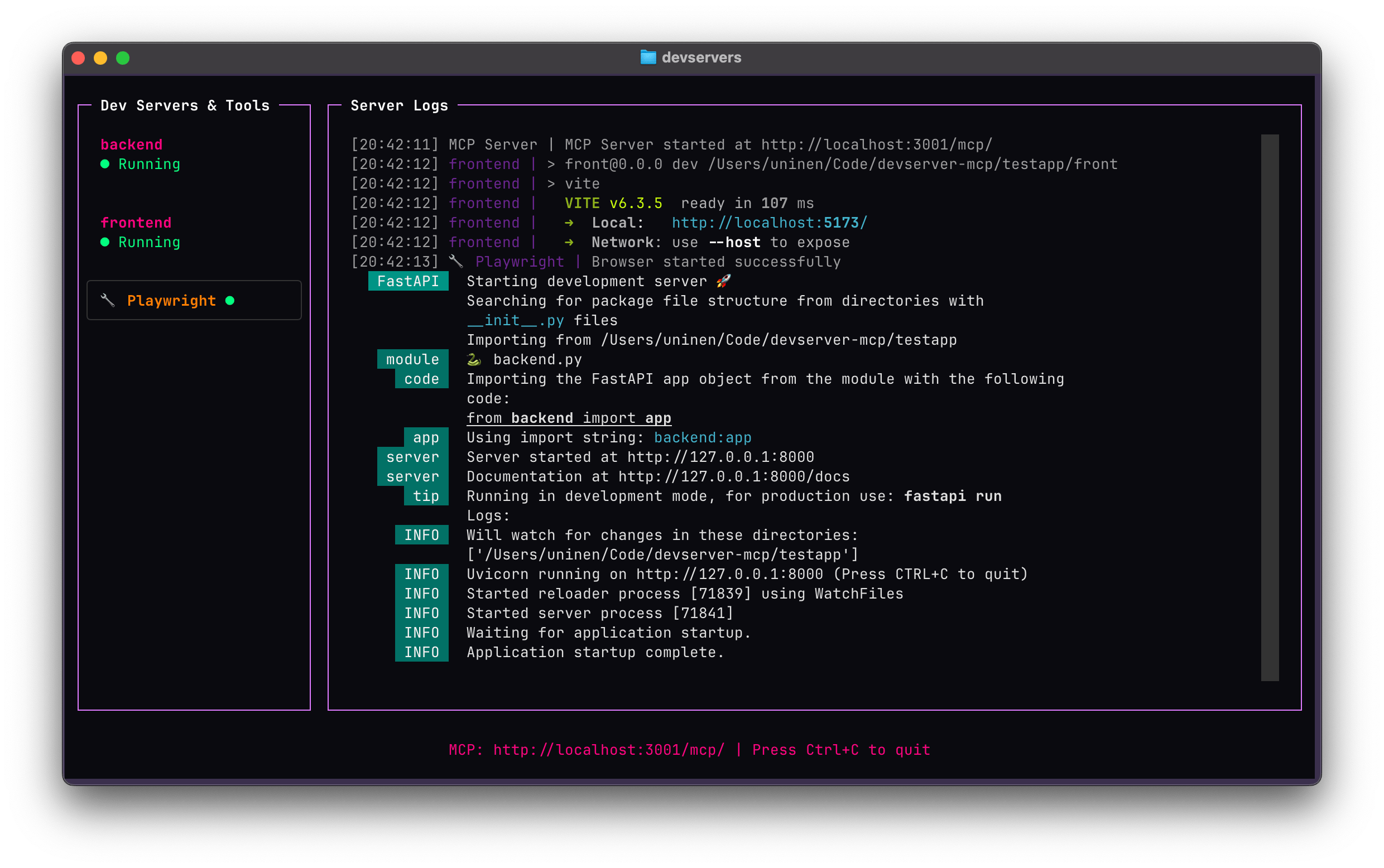
A Model Context Protocol (MCP) server that manages development servers for LLM-assisted workflows. Provides programmatic control over multiple development servers through a unified interface with a simple TUI, plus experimental browser automation via Playwright.
You can also turn the servers on and off by clicking via the TUI.
Project Status
This is both ALPHA software and an exercise in vibe coding; most of this codebase is written with the help of LLM tools.
The tests validate some of the functionality and the server is already useful if you happen to need the functionality but YMMV.
Features
🚀 Process Management: Start, stop, and monitor multiple development servers
📊 Rich TUI: Interactive terminal interface with real-time log streaming
🌐 Browser Automation: Experimental Playwright integration for web testing and automation
🔧 LLM Integration: Full MCP protocol support for AI-assisted development workflows
Installation
uv add --dev git+https://github.com/Uninen/devserver-mcp.git --tag v0.6.0Playwright (Optional)
If you want to use the experimental Playwright browser automation features, you must install Playwright manually:
# Install Playwright
uv add playwright

# Install browser drivers
playwright install
Quick Start
Create a devservers.yml file in your project root:
servers:
  backend:
    command: 'python manage.py runserver'
    working_dir: '.'
    port: 8000

  frontend:
    command: 'npm run dev'
    working_dir: './frontend'
    port: 3000
    autostart: true

  worker:
    command: 'celery -A myproject worker -l info'
    working_dir: '.'
    port: 5555
    prefix_logs: false

# Optional: Enable experimental Playwright browser automation
experimental:
  playwright: true
Configuration
VS Code
Add to .vscode/mcp.json:
{
  "servers": {
    "devserver": {
      "url": "http://localhost:3001/mcp/",
      "type": "http"
    }
  }
}
Then run the TUI in a separate terminal: devservers
Claude Code
Install the server locally:
claude mcp add --transport http devservers http://localhost:3001/mcp/..or for a project (which saves it to a .mcp.json in the project):
claude mcp add -s project --transport http devservers http://localhost:3001/mcp/Then run the TUI in a separate terminal: devservers
Gemini CLI
Add the server configuration in settings.json (~/.gemini/settings.json globally or .gemini/settings.json per project, see docs):
...
  "mcpServers": {
    "devservers": {
      "httpUrl": "http://localhost:3001/mcp",
      "timeout": 5000,
      "trust": true
    }
  },
...
Then run the TUI in a separate terminal: devservers
Zed
Zed doesn't yet support remote MCP servers natively so you need to use a proxy like mcp-proxy.
You can either use the UI in Assistant Setting -> Context Server -> Add Custom Server, and add name "Devservers" and
command uvx mcp-proxy --transport streamablehttp http://localhost:3001/mcp/, or, you can add this manually to Zed config:
  "context_servers": {
    "devservers": {
      "command": {
        "path": "uvx",
        "args": ["mcp-proxy", "--transport", "streamablehttp", "http://localhost:3001/mcp/"]
      }
    }
  },
Then run the TUI in a separate terminal: devservers
Usage
Running the MCP Server TUI
Start the TUI in terminal:
devserversNow you can watch and control the devservers and see the logs while also giving LLMs full access to the servers and their logs.
MCP Tools Available
The server exposes the following tools for LLM interaction:
Server Management
start_server(name) - Start a configured server
stop_server(name) - Stop a server (managed or external)
get_devserver_statuses() - Get all server statuses
get_devserver_logs(name, offset, limit, reverse) - Get logs with pagination support
offset: Starting position (default: 0, negative values count from end)limit: Maximum logs to return (default: 100)reverse: True for newest first, False for oldest first (default: True)
Browser Automation (Experimental)
When experimental.playwright is set in config:
browser_navigate(url, wait_until) - Navigate browser to URL with wait conditions
browser_snapshot() - Capture accessibility snapshot of current page
browser_console_messages(clear, offset, limit, reverse) - Get console messages with pagination
clear: Clear messages after retrieval (default: False)offset: Starting position (default: 0, negative values count from end)limit: Maximum messages to return (default: 100)reverse: True for newest first, False for oldest first (default: True)
browser_click(ref) - Click an element on the page using a CSS selector or element reference
browser_type(ref, text, submit, slowly) - Type text into an element with optional submit (Enter key) and slow typing mode
browser_resize(width, height) - Resize the browser viewport to specified dimensions
browser_screenshot(full_page, name) - Take a screenshot of the current page
full_page: Capture full page instead of viewport (default: False)name: Optional filename for the screenshot (default: timestamped name)
Developing
Using MCP Inspector
Start the server:
devserversStart MCP Inspector:
npx @modelcontextprotocol/inspector http://localhost:3001
Scripting MCP Inspector
Start the server:
devserversUse MCP Inspector in CLI mode, for example:
npx @modelcontextprotocol/inspector --cli http://localhost:3001 --method tools/call --tool-name start_server --tool-arg name=frontend
Elsewhere
Follow unessa.net on Bluesky or @uninen on Twitter
Read my continuously updating learnings from Vite / Vue / TypeScript and other Web development topics from my Today I Learned site
Contributing
Contributions are welcome! Please follow the code of conduct when interacting with others.