Click on "Install Server".
Wait a few minutes for the server to deploy. Once ready, it will show a "Started" state.
In the chat, type
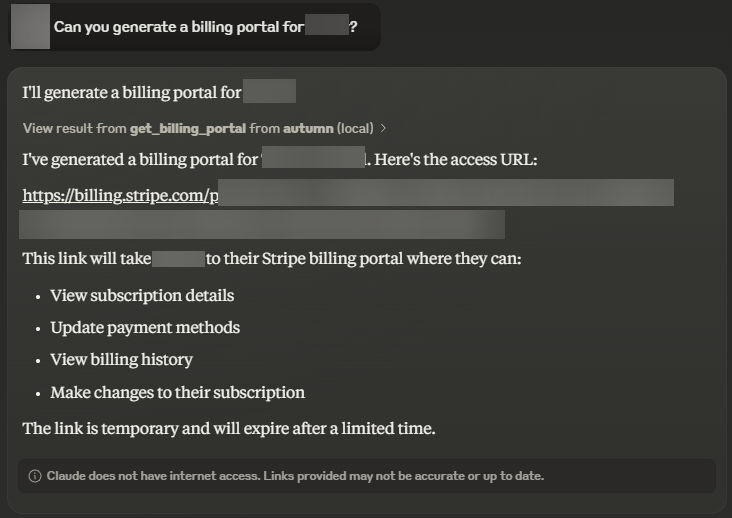
@followed by the MCP server name and your instructions, e.g., "@Autumn MCP Servershow me the billing portal link for customer ID 12345"
That's it! The server will respond to your query, and you can continue using it as needed.
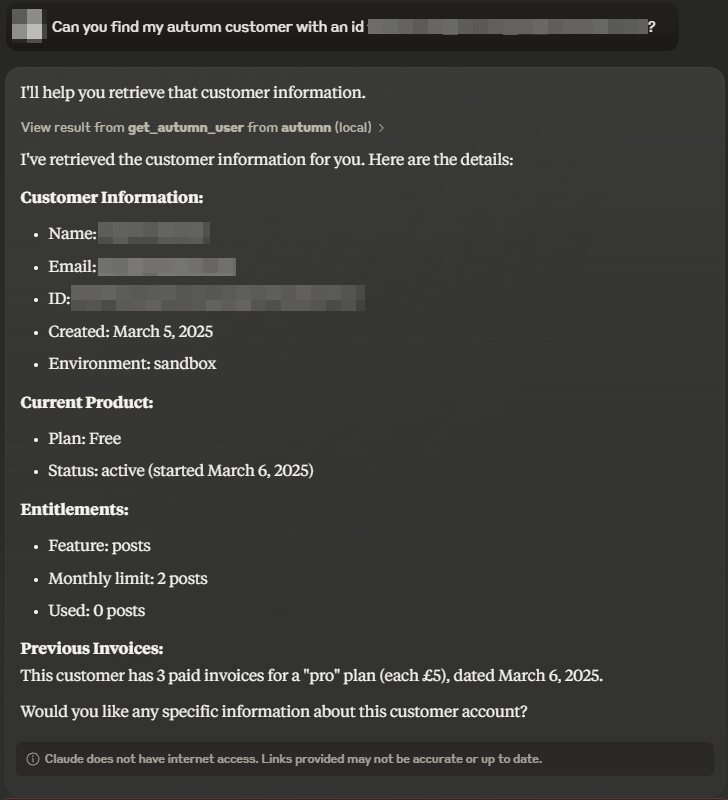
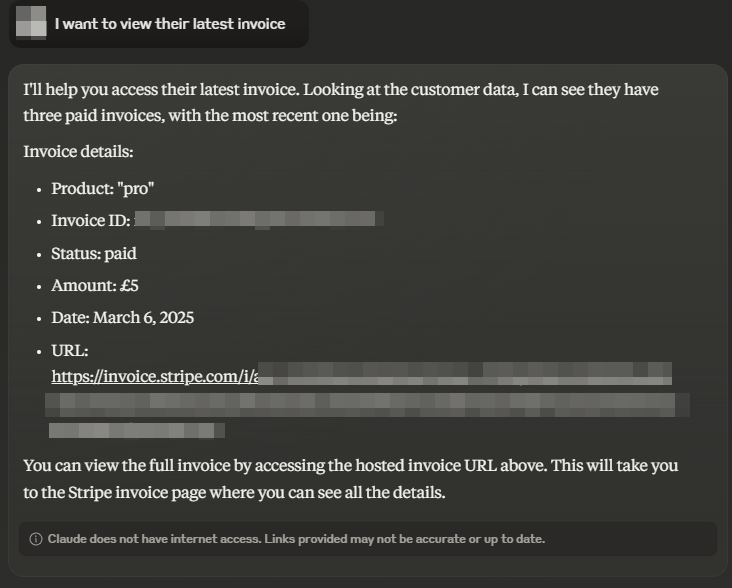
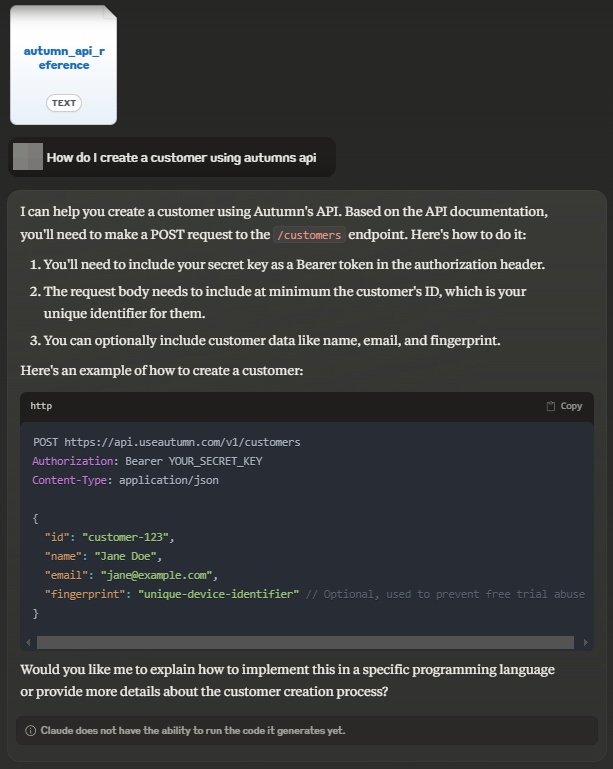
Here is a step-by-step guide with screenshots.
Autumn MCP Server
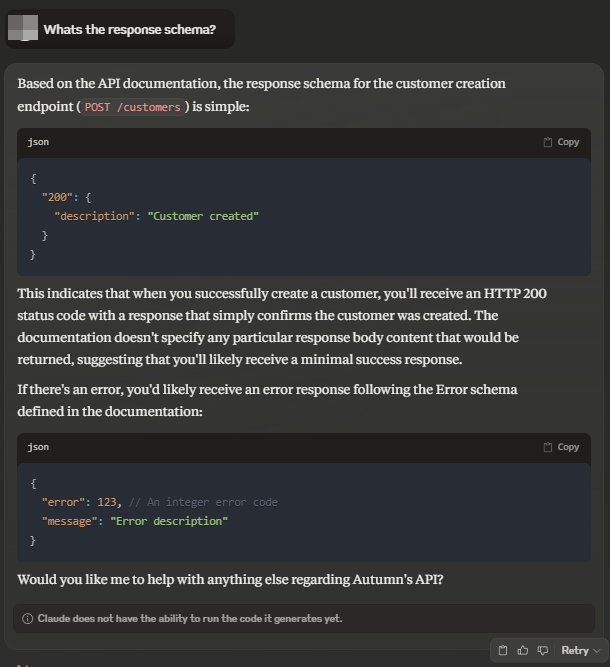
This is an unofficial MCP server for Autumn. It provides an easy interface to access the Autumn pricing API to manage your customers.
Tools
Creating customers
Getting customers by ID
Getting a customers entitlements
Managing their invoices
Generate a billing portal link for them
Resources
API Reference
The MCP server has access to the OpenAPI.json specification for Autumn's API, which includes the following:
/attach
/entitled
/events
/customers
/customers/:id
/customers/:id/billing_portal
Prompts
AI Builder Prompt (Lovable, Bolt.new, v0 etc...)
Installation and Usage
Installing automatically via Smithery
To install Autumn MCP Server for Claude Desktop automatically via Smithery:
npx -y @smithery/cli install @SirTenzin/autumn-mcp-server --client claudeIt also works for: Cursor, Windsurf, Witsy, Enconvo, Goose and SpinAI.
Manual without Smithery
Its much easier to visit the above Smithery link and just copy the correct command, but if you are more daring, here's the manual steps:
Claude:
git clonethis repoRun
bun installin the folder to install dependenciesCopy the absolute path to "index.ts"
Add the following to your claude_desktop_config.json or equivalent to your AI app:
{
	"mcpServers": {
        // ...
		"autumn": {
			"command": "bun",
			"args": [
				"run",
				"{YOUR ABSOLUTE PATH TO index.ts}",
				"--apiKey=\"{YOUR API KEY}\""
			]
		}
	}
}
Any other app:
If you want to run manually, you must have Bun installed to run this MCP server. Here's the command for other apps that support commands instead:
bun run {absolute path to index.ts} --apiKey="{your api key}"You may use either your public or secret key, but some features may not be accessible using the public key.
Showcase: